VR Headsets & Kids: A Parent’s Guide (Meta Quest & More)
A VR headset arrives, your kid straps it on, and suddenly they’re swinging their arms in the living room, laughing at something you can’t see, talking to a person you can’t hear. Virtual reality is more immersive than any screen you’ve handed them before, and that’s exactly what makes it fun and exactly why it needs a bit of thought. This guide covers what VR actually does, the considerations that come with it, and how to set a Meta Quest or PlayStation VR2 up so it stays age-appropriate. You do it together, out in the open, on a headset you own.
What VR actually is and does
A VR headset replaces what your eyes see with a computer-generated world, and tracks your head and hands so the world moves as you do. Look up, you see the sky. Reach out, a virtual hand reaches with you. The Meta Quest line (Quest 2, Quest 3, Quest 3S) is standalone: it runs games on its own, no PC or console needed. Sony’s PlayStation VR2 plugs into a PS5 and leans on that console’s horsepower. There are others (Pico, HTC Vive, Apple Vision Pro), but for families the Quest is by far the most common because it’s affordable and self-contained.
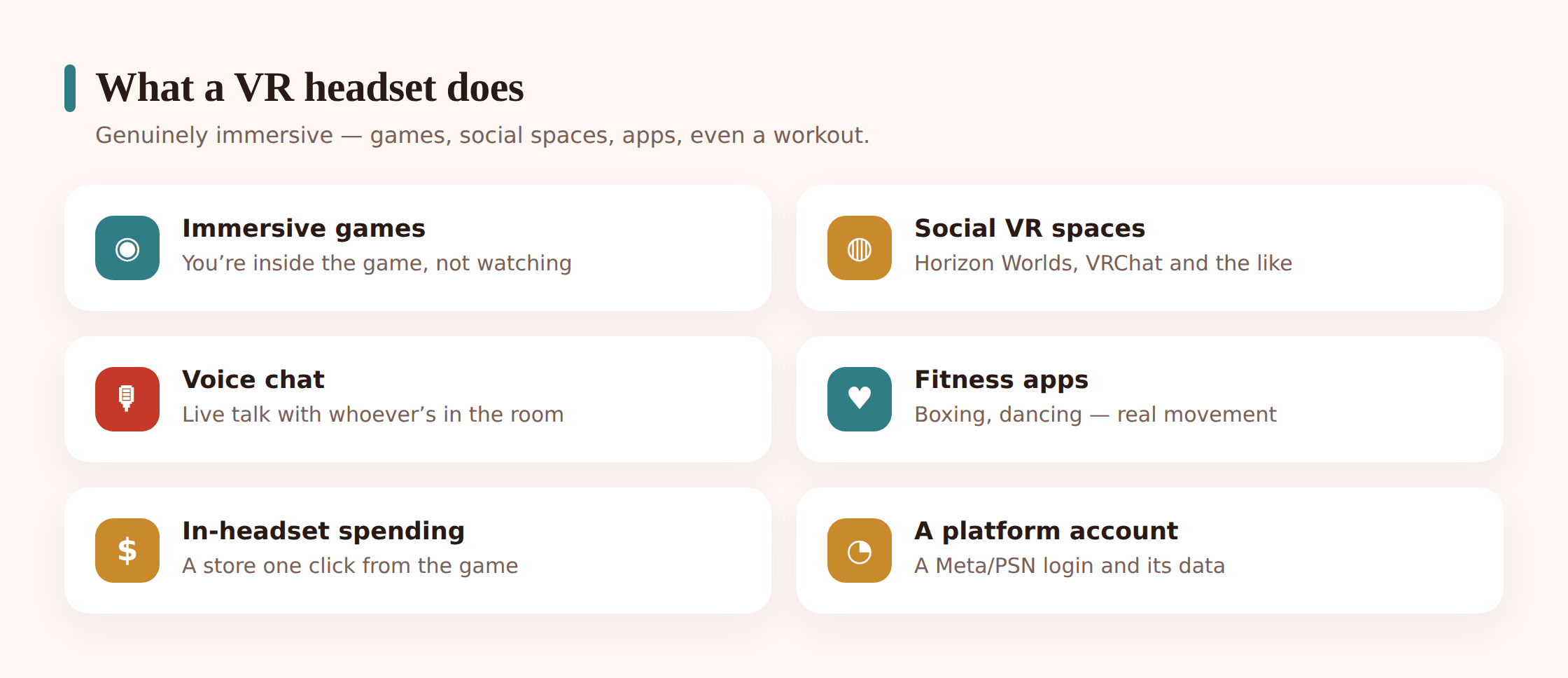
What do kids actually do in there? Four broad things. Immersive games, from rhythm games like Beat Saber where you slash blocks in time to music, to shooters, puzzle rooms, and sports. Fitness apps that turn a workout into boxing or dancing, which is a real draw for a device that gets kids moving instead of sitting. A growing library of apps and experiences, including educational ones that put you inside a cell or on the surface of Mars. And social VR, the part that needs the most attention: spaces like Meta’s Horizon Worlds and the third-party VRChat, where your child appears as an avatar in a shared world and talks to other people by voice in real time.
That last category is the difference between VR and a flat screen. On a console, an online stranger is a voice in a headset. In social VR, they’re a body standing next to your child, gesturing, moving close, present in a way that feels physical even though it isn’t. Most of it is harmless fun. But the immersion cuts both ways, so it’s worth setting up before your child’s first session rather than after. If you’re also thinking about flat-screen play, our online gaming safety guide covers friend requests and multiplayer chat, and this one stays focused on the headset.
The genuine considerations
None of these should scare you off VR. They’re the things worth knowing so you can decide what fits your child.
Age ratings and who these devices are for
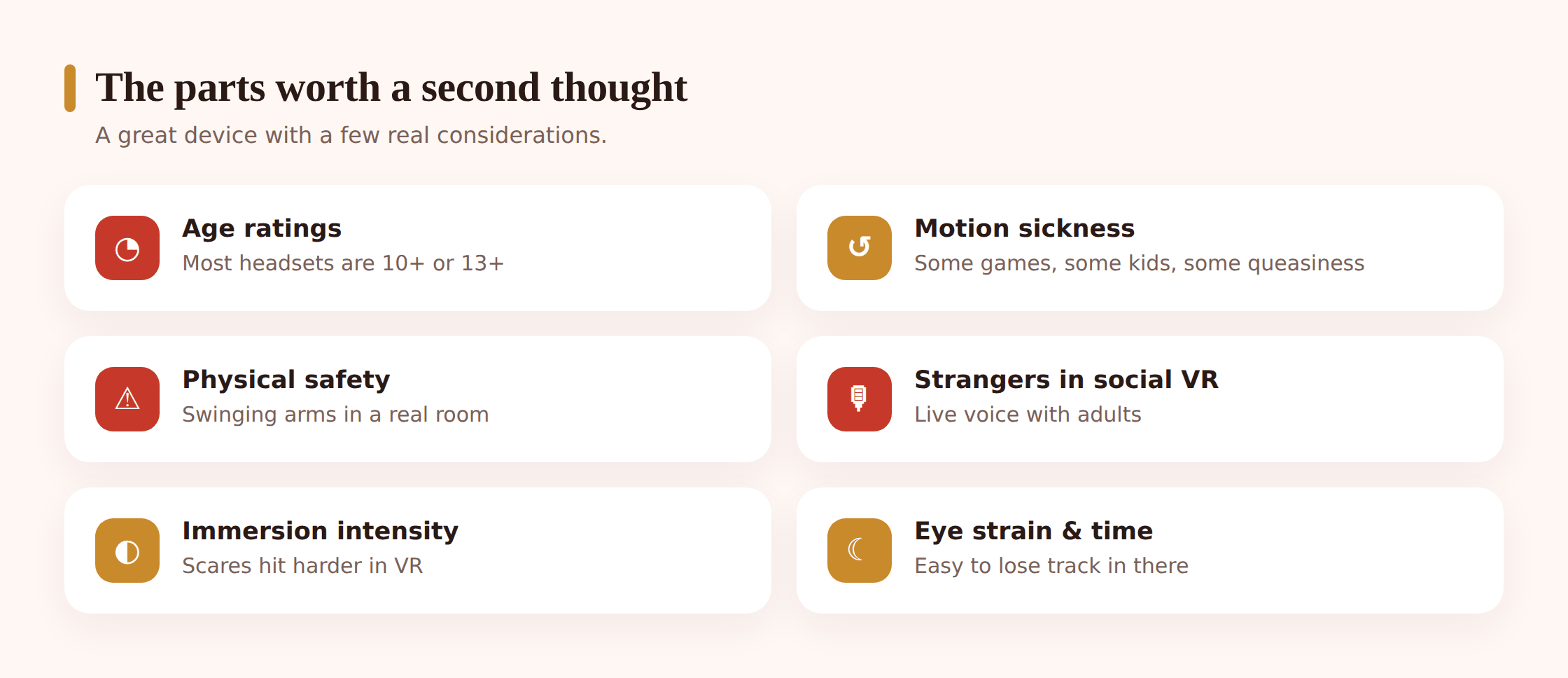
Meta sets a minimum age of 10 for a supervised child account on Quest, and 13 to hold a standard account. Sony rates PlayStation VR2 for ages 12 and up. Those aren’t arbitrary. Headsets are built and calibrated for older faces and eyes, and the content library skews teen and adult. Individual apps carry their own ratings too (the same IARC/PEGI/ESRB system you see on games), and a headset rated 10+ still hosts plenty of apps rated 13+, 17+, or adult. The device age and the app age are two separate gates.
Immersion intensity and motion sickness
Because VR fills your whole field of view, it hits harder than a screen. Scary or intense content feels genuinely close. And a good number of people, kids included, get motion sick when the view moves in ways their inner ear doesn’t expect, especially in games with artificial locomotion (gliding across a world using a thumbstick). Symptoms are nausea, dizziness, sometimes a headache. It usually fades with breaks and eases as the player gets their “VR legs,” but a first session that ends in queasiness is common, so keep the first one short.
Physical safety in the room
Your child can’t see the actual room while they’re in VR. Arms swing, people spin, and coffee tables, TVs, pets, and siblings are all invisible. VR headsets handle this with a guardian boundary (Meta calls it the Guardian, Sony calls it the Play Area): you trace the edges of a safe play space, and the headset shows a warning grid when the player nears the edge. Set it honestly and clear the space first.
Social VR with strangers and voice chat
In shared worlds, your child can end up in a space with adults they’ve never met, talking by live voice. Some of those spaces are lovely and creative. Some are not moderated well, and some worlds inside apps like VRChat are made for adults. The protective move here isn’t panic, it’s controls: age-appropriate account settings, limits on which social apps are approved, and knowing how to mute, block, and personal-space-bubble a stranger. We cover the how below.
In-headset spending
The Quest and PSVR2 both have stores, and many games sell add-ons or currency inside them. A payment method saved to the account means a few clicks can turn into a real charge. Both platforms let you require approval or a payment PIN. For the wider pattern of pressured and accidental purchases, our note on in-app purchases & surprise charges applies here too.
Eye strain, time, and the platform account
A headset sits close to the eyes and holds attention completely, so time slips by faster than on a screen and eyes get tired. Manufacturers suggest breaks; kids won’t take them unprompted. And using a Quest means a Meta account, which collects data the way any big platform does. Set the account up with your child, review the privacy settings once, and keep the login yours to manage.
What to check, by age
VR isn’t one experience across childhood. What suits a ten-year-old under supervision is too tight for a sixteen-year-old, and what a teen handles is too much for a younger sibling. Rough guide, adjust for your own child.
| What to check | Under 10 | 10–12 (supervised) | 13–15 | 16+ |
|---|---|---|---|---|
| Account type | Below Meta’s minimum; not recommended | Parent-managed child account, Family Center on | Teen account with supervision | Standard account, lighter oversight |
| App ratings | — | Everyone / 10+, parent-approved list | Up to 13+; review 17+ case by case | Age-appropriate, their judgement growing |
| Social VR | — | Off, or only closed spaces with known friends | Approved apps, personal boundary on, blocking known | Open with agreed ground rules |
| Session length | — | 15–20 min, frequent breaks | 30–45 min with breaks | Self-managed, still take breaks |
| Spending | — | No saved card; you buy for them | Ask-to-buy / payment PIN | Agreed budget, PIN on |
The pattern is the same one that works everywhere: start protective and loosen as trust and age grow. For choosing session lengths that hold up across every device, not just the headset, our screen time by age guide is a useful companion.
Setting it up sensibly
Here’s the Meta Quest path, since it’s the most common family headset. PlayStation VR2 works through the PS5’s family accounts instead, which our console parental controls guide walks through in detail; the principles below carry over.
Step 1 — Create the right account
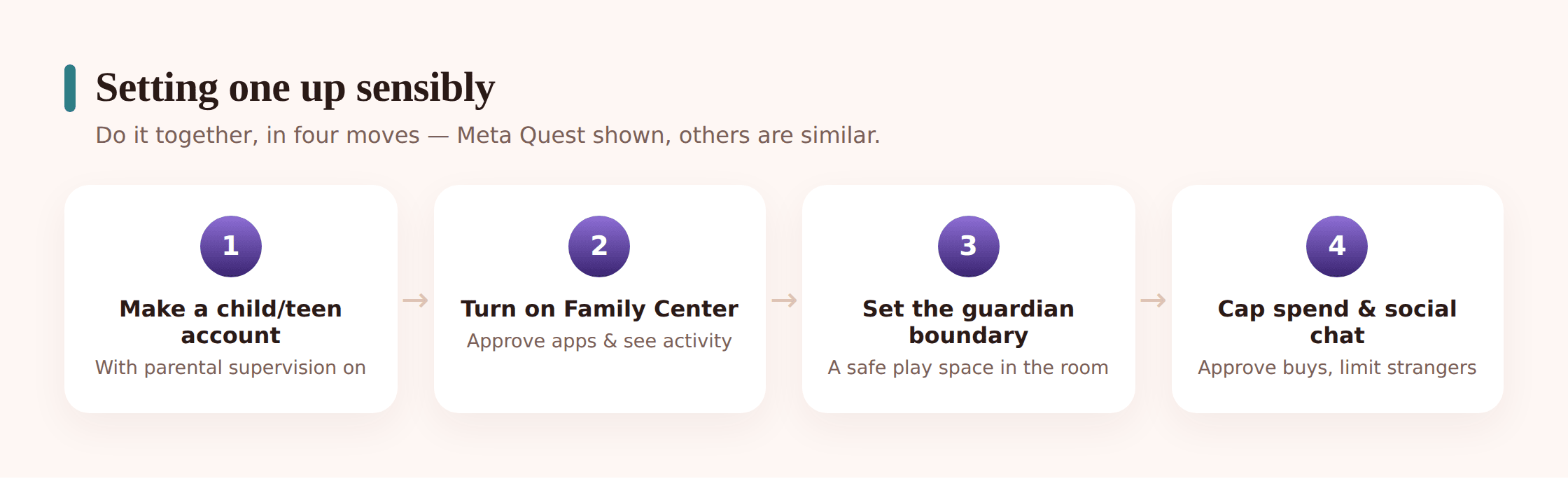
Set the headset up under an adult Meta account first, then create a parent-managed child account (ages 10–12) or help your teen set up a teen account. Use your child’s real date of birth so age defaults apply. This is what unlocks supervision, so don’t skip it by signing them in on your own account.
Step 2 — Turn on Family Center
Meta’s Family Center is the supervision hub, managed from the Meta Quest phone app. Send and accept the supervision invite so your account is linked as the guardian. From there you approve apps, set limits, and see activity, all openly agreed with your child.
Step 3 — Set app approvals by age
Switch on app approval so your child has to request any app or download, and each request lands in your phone app to approve or decline. Use the app’s age rating to guide you, and keep 17+ and adult apps off the list for younger kids. This is the single most useful control, because it governs what worlds they can even enter.
Step 4 — Trace the guardian boundary
Clear the play space of furniture, cables, and anything breakable, then use the headset to trace the Guardian boundary around the safe area. The headset shows a warning grid when the player nears the edge. A roomscale game needs more space than a seated one, so set it for how they’ll actually play.
Step 5 — Set time limits and spending controls
In Family Center, set daily time limits or a schedule so sessions don’t run long. Remove any saved payment card from the child’s account, or turn on purchase approval and a payment PIN, so a store visit can’t become a charge without you.
Step 6 — Lock down social settings
For any approved social app, turn on the personal-boundary or safe-zone feature, review who can message or follow your child, and make sure they know how to mute and block. Start with strangers restricted and open it up as they show they can handle it.
Social VR and strangers
This deserves its own section because it’s the part of VR that has no real equivalent on a flat screen. When your child is in Horizon Worlds or VRChat, they share a space with other people’s avatars and hear them by live voice. Most encounters are ordinary. But some worlds are built for adults, some strangers behave badly, and the immersion means an uncomfortable moment feels closer than it would on a TV.
You don’t need to ban social VR outright, and for many teens that would miss the point of the device. You do want three things in place. First, the right apps: keep adult-oriented social apps off a younger child’s approved list, and lean toward age-appropriate spaces. Second, the safety tools switched on. Both Horizon Worlds and VRChat have a personal boundary (a bubble that stops other avatars getting too close), plus mute, block, and report. Show your child how to use them before their first session, so reaching for them is automatic. Third, an agreement about voice chat with strangers and about leaving any space that feels off, no questions asked, no permission needed.
Keep the framing calm and practical. The goal is a kid who knows how to mute someone and step out of a world, and who’ll tell you when something felt wrong because they know you won’t overreact. That’s more protective than any single blocked app. Our guide to livestreaming safety covers a related version of the same idea, since some kids stream their VR sessions too.
Healthy habits and the room
VR is one of the few screens that can actually be active, and that’s worth leaning into. A boxing or rhythm game can be a genuine workout. Play together sometimes; passing the headset around turns it into a shared thing rather than a solo tunnel.
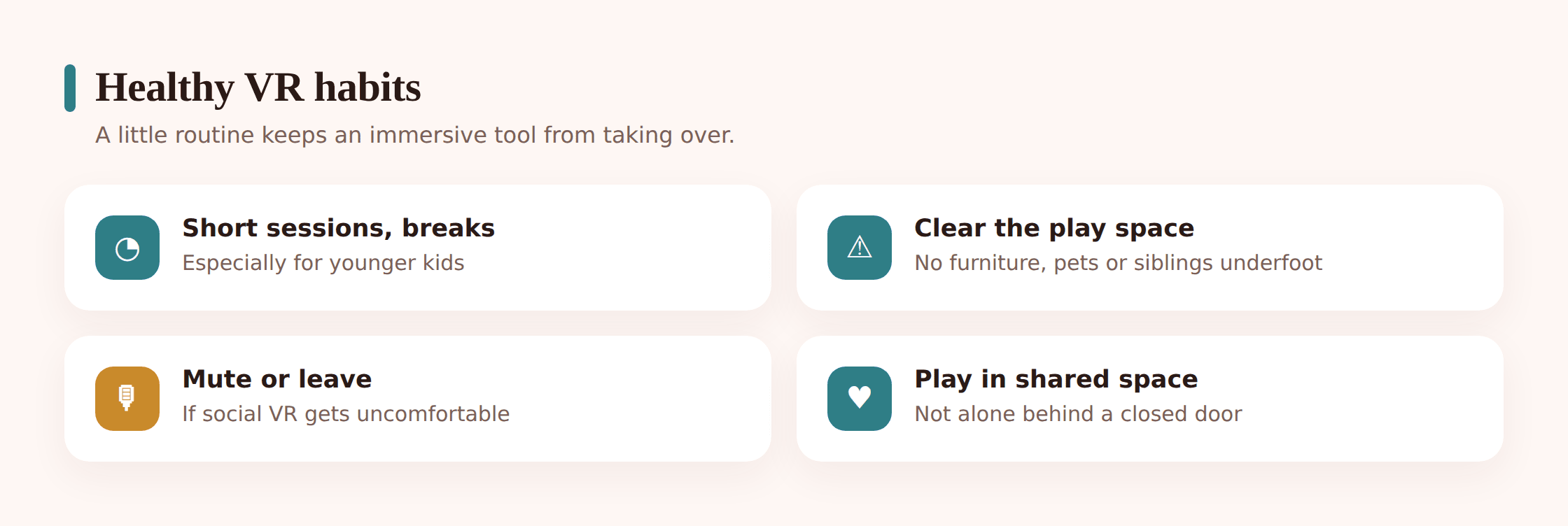
A few habits that help. Keep sessions short, especially early on, and build in breaks; the “take a break” nudge the headset shows is there for a reason. Play in a shared room rather than a bedroom, so VR stays part of family life and you can glance over. Clear the space every time, because furniture moves and a boundary traced last week may not match tonight. Stop at the first sign of motion sickness rather than pushing through. And keep an eye on eyes and sleep: a headset right before bed is a poor wind-down, so make the last session an hour or two before lights out.
The phone side
Headset controls stop at the headset. The same child usually has a phone where a lot of the surrounding activity happens: chatting with the friends they met in VR, watching VR clips, sideloading a companion app. Consistency across devices matters more than any single perfect setting on the Quest.
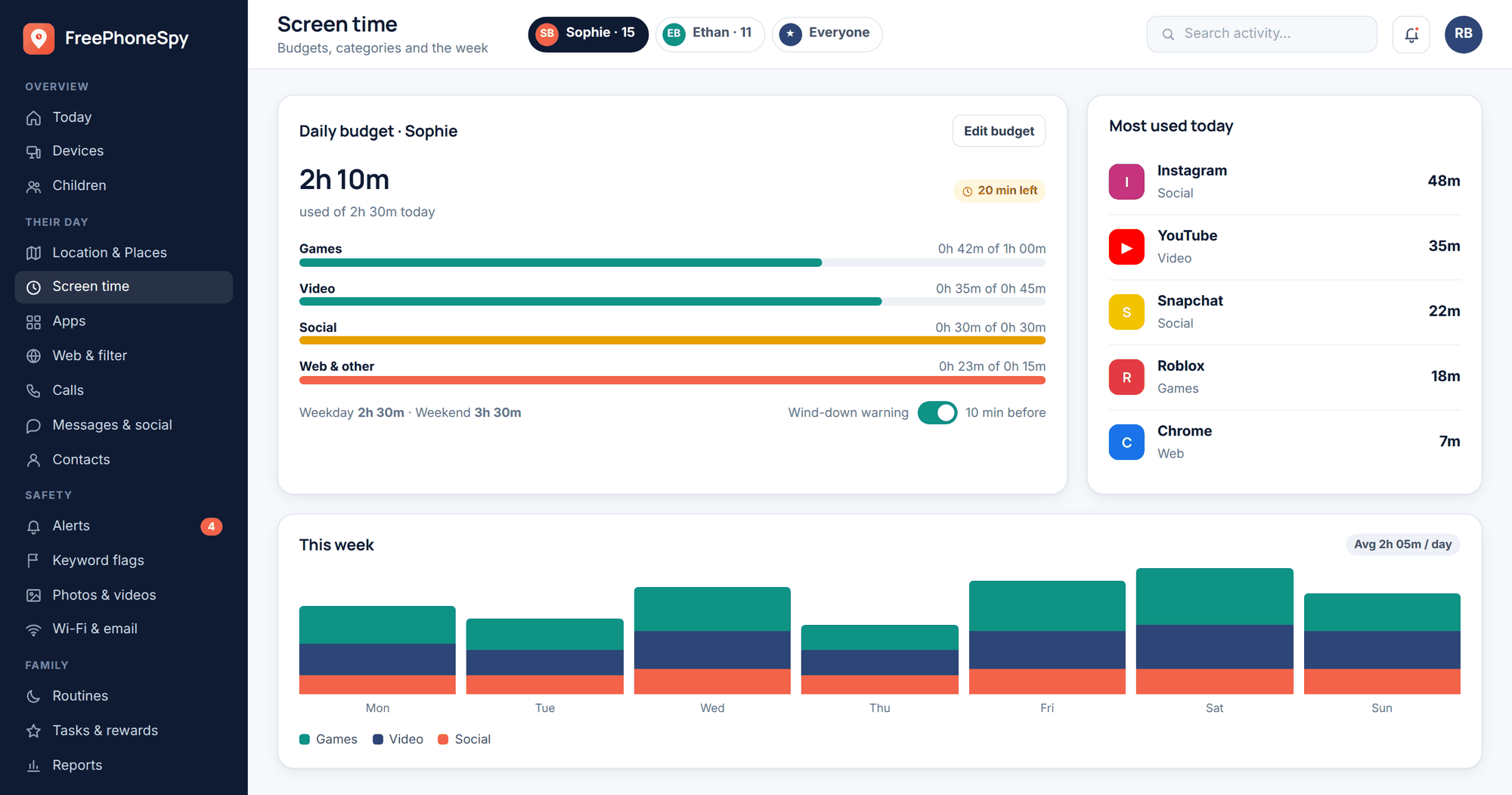
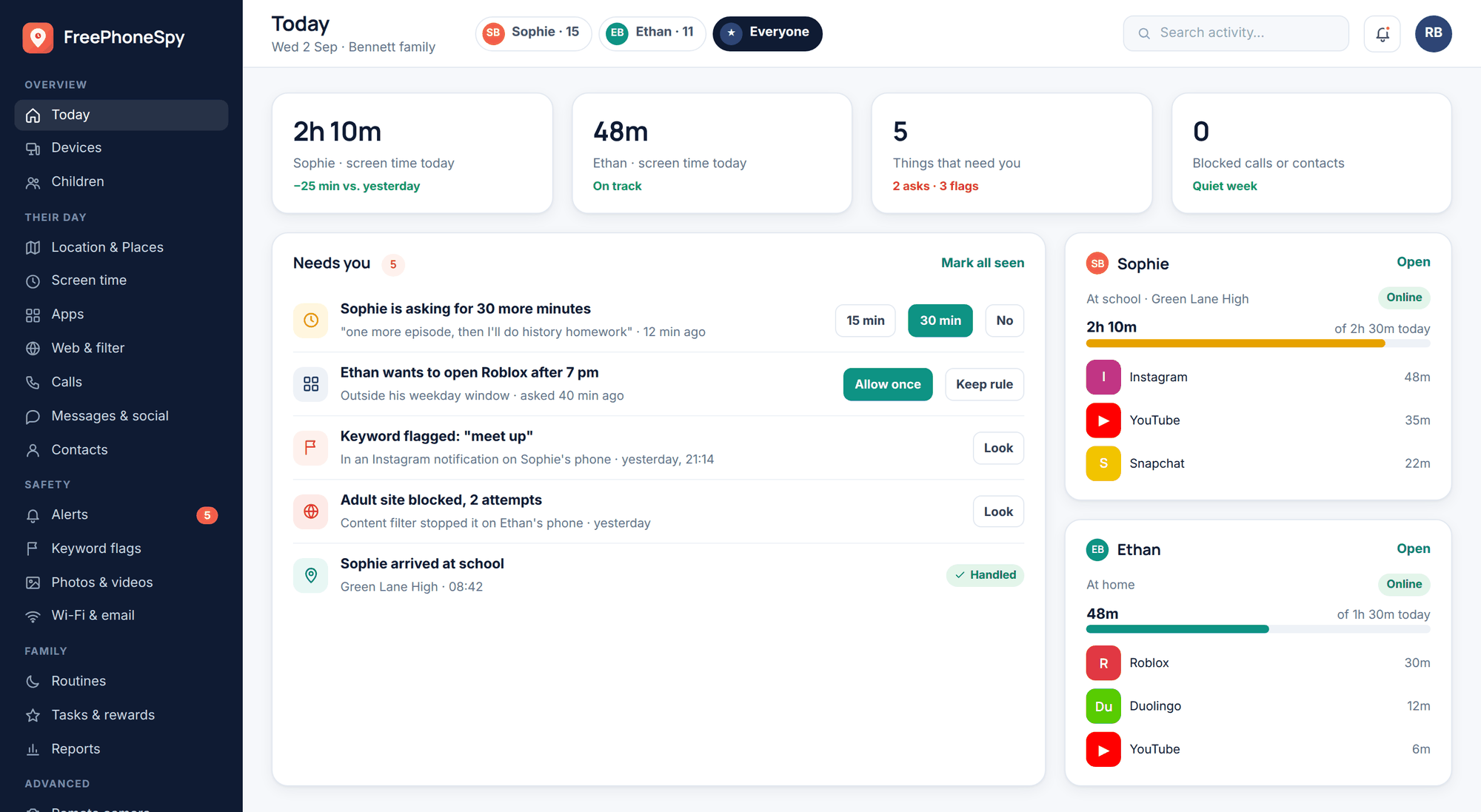
On an Android phone you own and manage with your child, a transparent, consent-based tool like FreePhoneSpy can extend the same open approach to the phone, giving you agreed visibility into app time and new installs so the picture isn’t headset-only. It complements Family Center rather than replacing the conversation, and the ground rule is the same: your child knows it’s there and knows why. Used openly, it’s one more piece of a plan you’re building together, not something running behind their back.
Quick checklist
- Created a parent-managed child account or supervised teen account with the real date of birth.
- Linked supervision through Family Center in the Meta Quest phone app.
- Turned on app approval and set an age-appropriate list, keeping 17+ and adult apps off younger accounts.
- Traced the guardian boundary in a cleared, breakable-free space.
- Set daily time limits and planned breaks, with the last session well before bed.
- Removed the saved card or turned on purchase approval and a payment PIN.
- Switched on the personal boundary in social apps and showed your child mute, block, and report.
- Agreed a leave-any-time rule for spaces that feel off, no permission needed.
- Set matching expectations on the phone, not just the headset.
- Put a note in the calendar to revisit the settings as your child gets older.
Parent FAQ
What age is VR safe for?
Meta sets 10 as the minimum for a supervised child account and 13 for a standard one; Sony rates PlayStation VR2 for 12 and up. Those minimums reflect how the hardware fits and how the content library skews, so treat them as a floor, not a target. Under those ages, VR isn’t recommended. For a ten-to-twelve-year-old, keep it supervised, short, and on an approved app list.
Can strangers talk to my kid in VR?
In social apps like Horizon Worlds and VRChat, yes, by live voice, unless you limit it. That’s why the setup matters: keep adult social apps off a younger child’s approved list, turn on the personal-boundary feature so avatars can’t crowd them, and make sure your child knows how to mute, block, and leave a space. Start with strangers restricted and loosen it as they show they can handle it.
Does VR cause motion sickness?
It can, especially in games where you move through the world using a thumbstick rather than your own steps. Symptoms are nausea and dizziness, and they’re common in early sessions. Keep the first ones short, favour seated or stationary games, and stop at the first hint of queasiness. Most people adjust within a few weeks and stop feeling it.
How much VR time is too much?
There’s no official number, but VR is more immersive and more tiring on the eyes than a flat screen, so err shorter than you would for a TV. Fifteen to twenty minutes with breaks is plenty for a younger child; older kids can go longer with pauses built in. Keep the last session out of the hour before bed, since a headset is a poor wind-down.
Do I need a Meta account, and what about the data?
Using a Quest means a Meta account, and yes, Meta collects data the way large platforms do. Set the account up yourself, walk through the privacy settings once with your child, and keep the login under your management. It’s the same trade-off as any big platform; the mitigation is reviewing the settings rather than leaving them on default.
Is VR just for games, or is there anything worthwhile in it?
Plenty beyond games. Fitness apps turn a workout into boxing or dancing and genuinely get kids moving, and there are educational experiences that put them inside a cell, on Mars, or in a historical scene. VR’s immersion is a strength when it’s pointed at something active or curious. The controls in this guide are there so the fun parts stay the main event.