
Every FreePhoneSpy feature, grouped the way you’d use them
This is the full toolkit for looking after a child’s Android phone: location, screen time, routines, app limits, alerts, and the check-in tools, in the order the web panel lists them. The child can see the app, nothing runs until you turn it on, and the sensitive tools sit behind a consent switch. Pick what fits your house and leave the rest off.
Consent by design
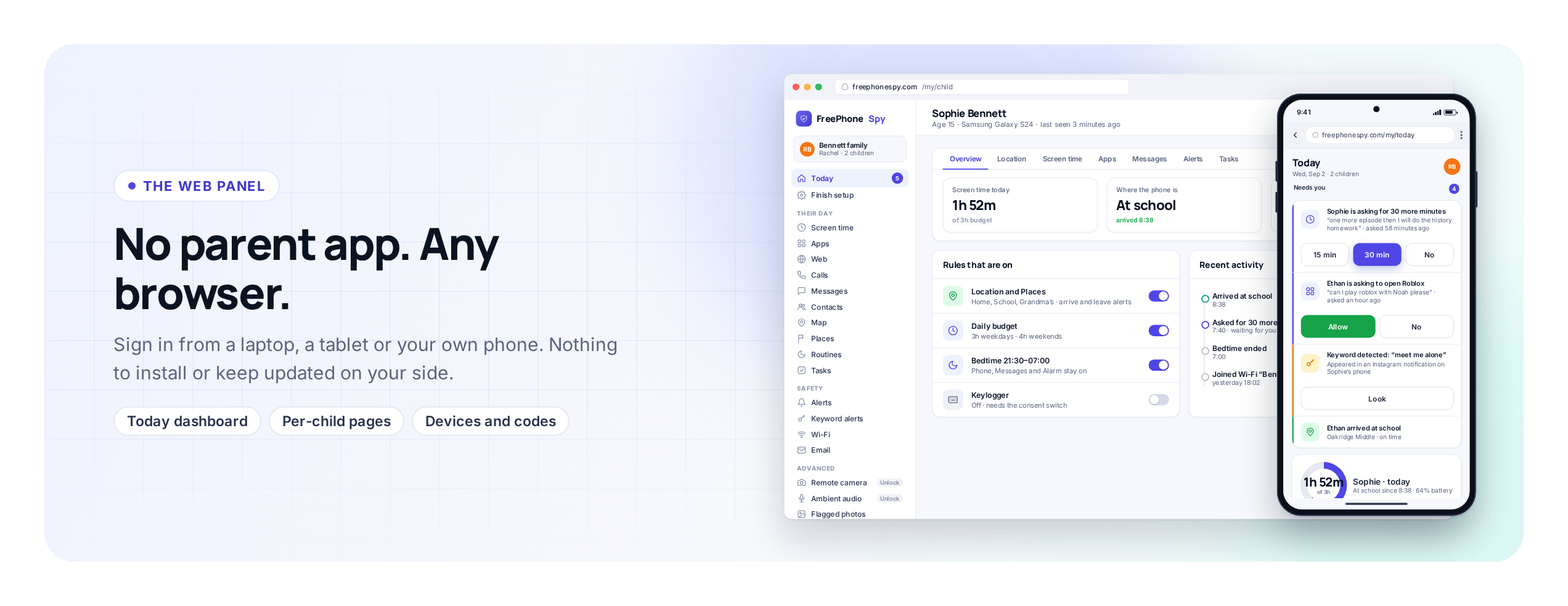
Run from any browser
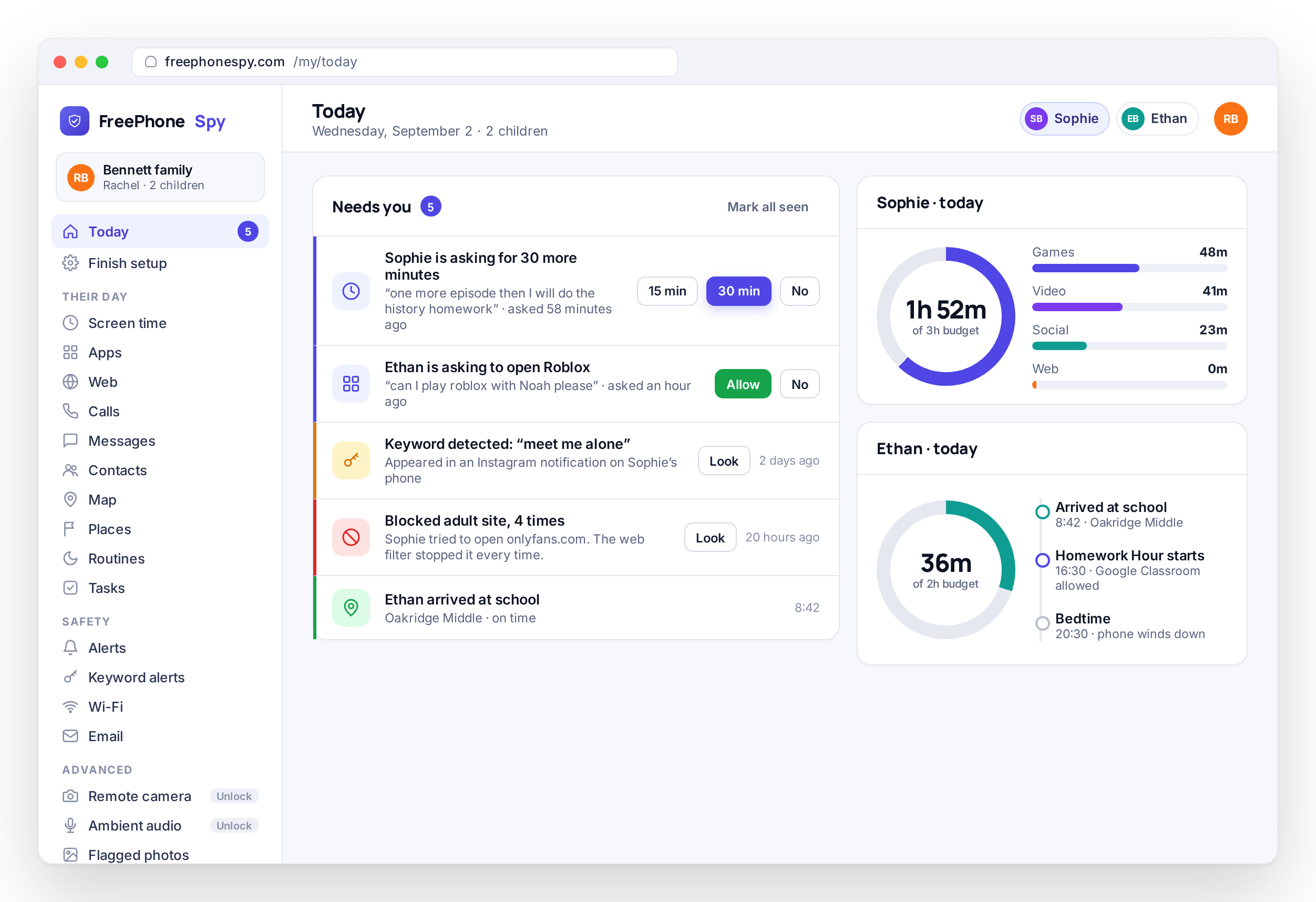
You do not need all of this. Most families run three or four features and never touch the rest, so the list below is grouped by the job each one does: knowing where the phone is, holding the evening together, seeing who your child talks to, and the heavier check-in tools you turn on only when there is a reason. The core is free forever, and the advanced tools unlock through tasks, which the pricing page explains.
Every feature is set in the browser panel and enforced on the child’s phone, which is why rules keep holding when the phone is offline. Every feature is also visible to your child through the app’s Transparency screen, and the most sensitive ones need a consent switch that parent and child turn on together.
Their day & location
The first question most parents want answered is whether the phone got where it was going. This group answers it without a check-in text.
Location & Places
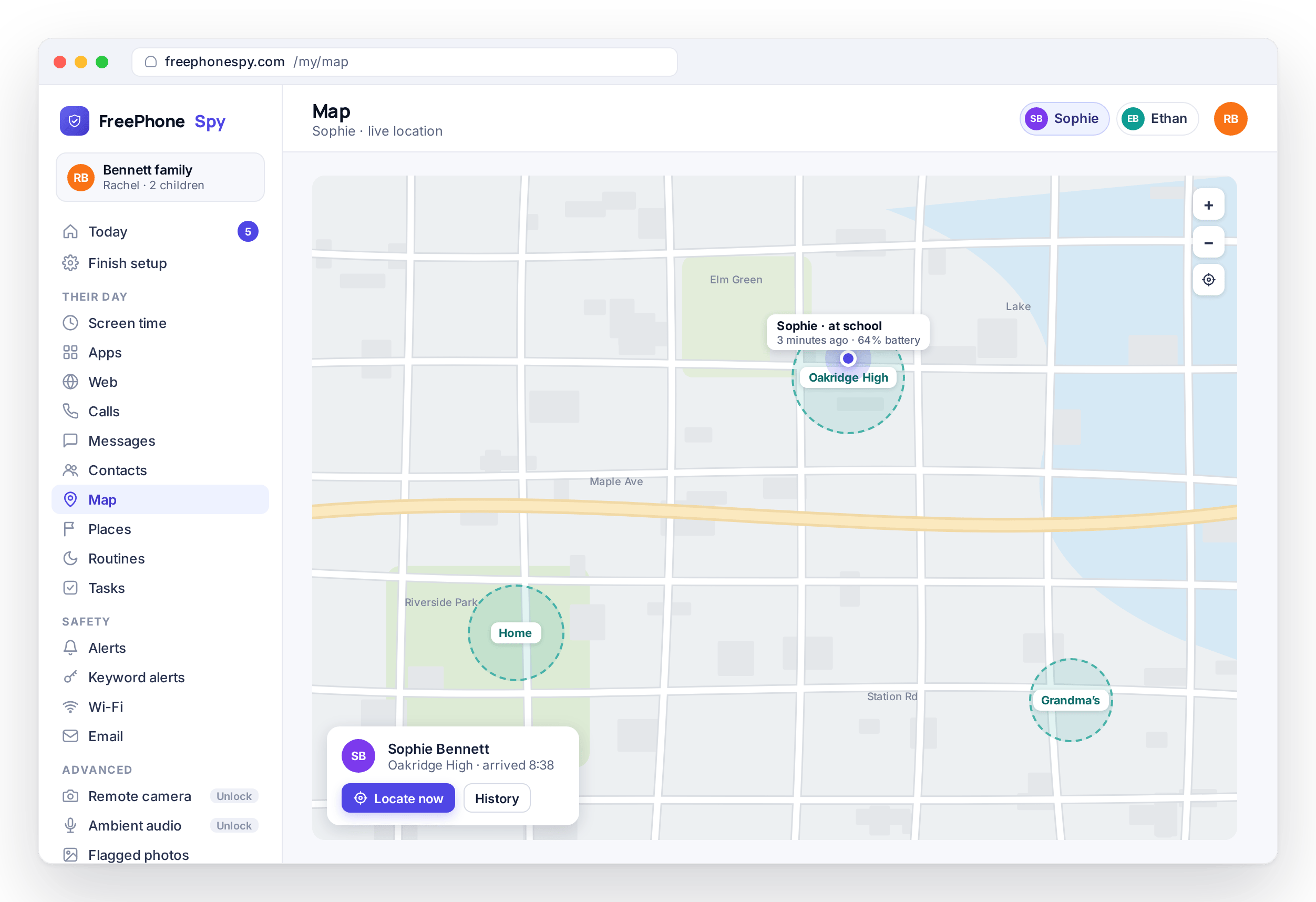
See the phone’s live position on a map and a history of where it has been. Save the Places that matter, such as home, school, and a grandparent’s house, and get an alert when the phone arrives or leaves, including a “left school early” alert. When you want to check right now, a locate-now request opens a live-location window.
Most parents use this for two or three moments a day: that the phone reached school, that it left the friend’s house, that it is where it should be after football. You set the Places once, agree them with your child, and the alerts do the remembering.
Location is one of the free-forever features, and it is usually the first rule parents set. Accuracy, history, and alert settings are covered on location tracking and Places. Location data also feeds the weekly activity reports.
Time & focus
The evening features. These four decide when the phone is on, what it can run, and how bedtime and homework hold, with the phone doing the enforcing.
Screen time
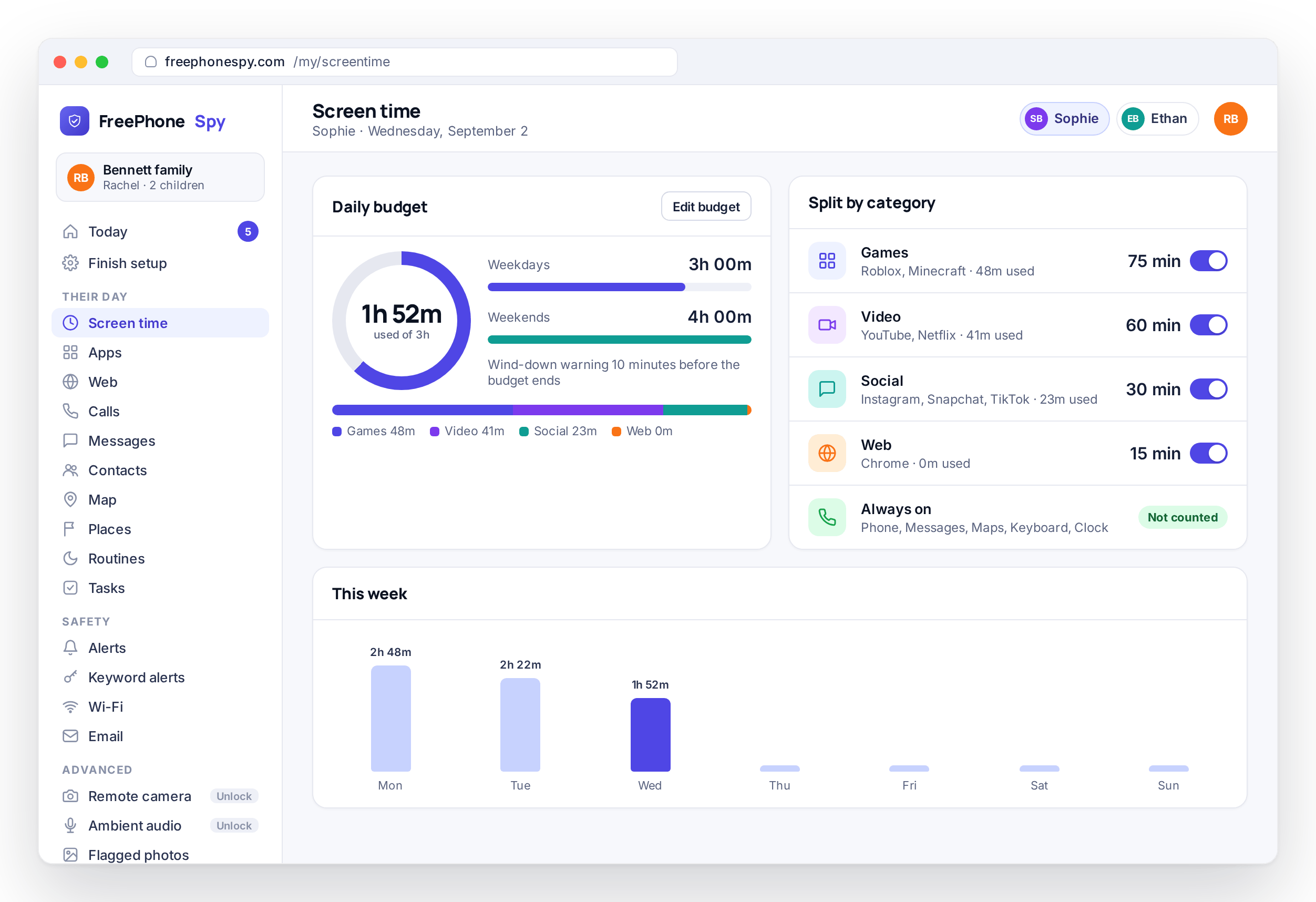
Give each child a daily minute budget, with a weekday number and a weekend number, split across games, video, social, and the web. The phone counts the minutes and enforces the limit, with a wind-down warning before time runs out. Because enforcement runs on the phone, it keeps holding when the phone is offline.
The wind-down warning is what keeps the peace. Your child gets notice that time is nearly up, so the apps closing is expected rather than a surprise. When the budget is spent, entertainment apps close for the day while phone, messages, maps, and the keyboard keep working. If your child needs more time, they can send an ask with a reason and you answer with 15 minutes, 30 minutes, or no from the panel.
Full detail, including how the category split works, is on screen time. It pairs with routines and app limits.
Routines, Bedtime & Homework Hour
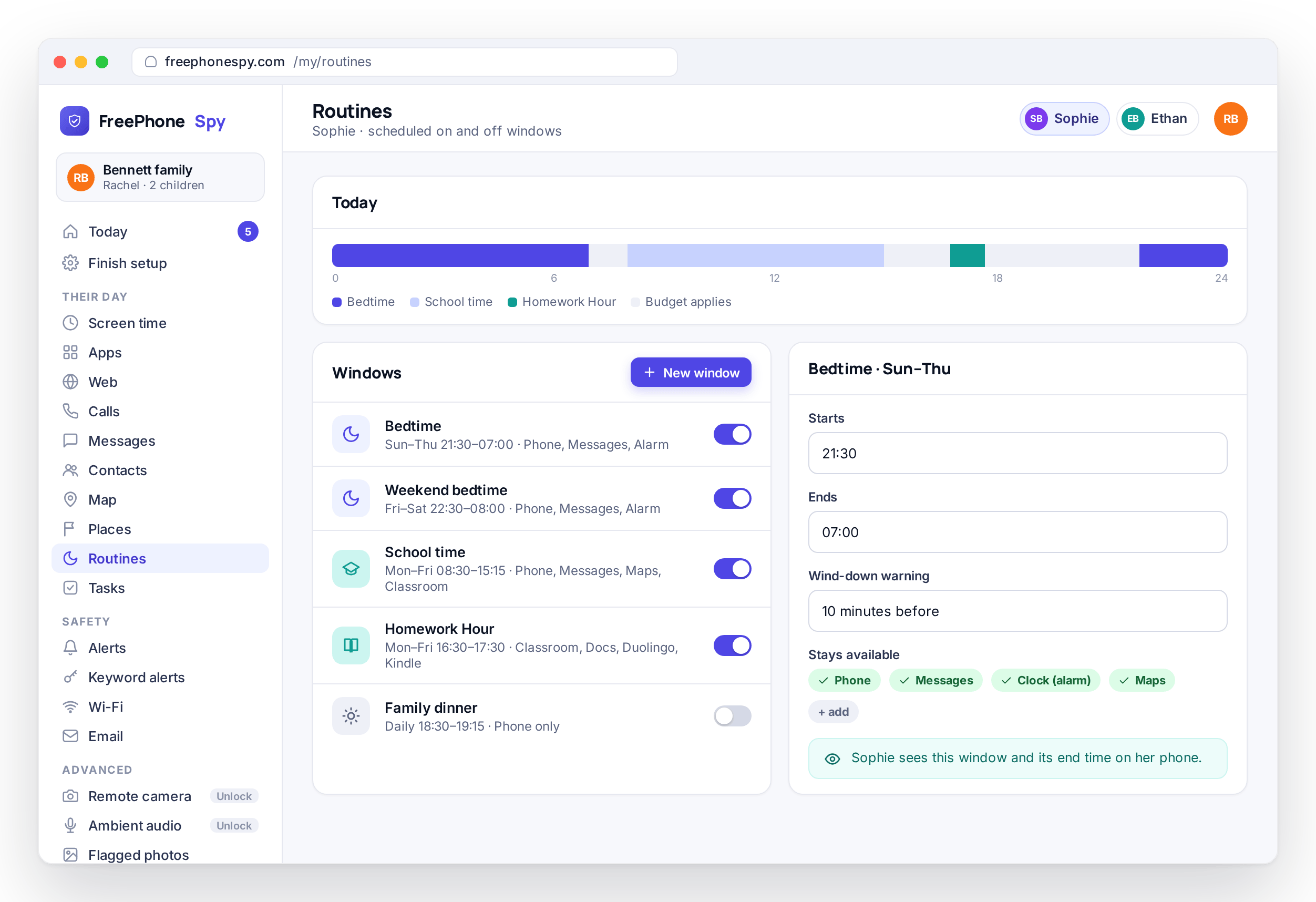
Set scheduled on and off windows: a Bedtime that closes entertainment apps at half past nine, a Homework Hour that parks the distractions, a school-time window. You agree the schedule once and the phone keeps to it every day, whether or not anyone is looking at the panel.
Routines differ from a time budget because they are about when, not how much. Homework Hour can leave the essentials and study apps working while it parks the games, and Bedtime gives a warning before it closes anything. Because the windows live on the phone, they start on time even if your laptop is shut and the phone is on mobile data.
App & website blocking
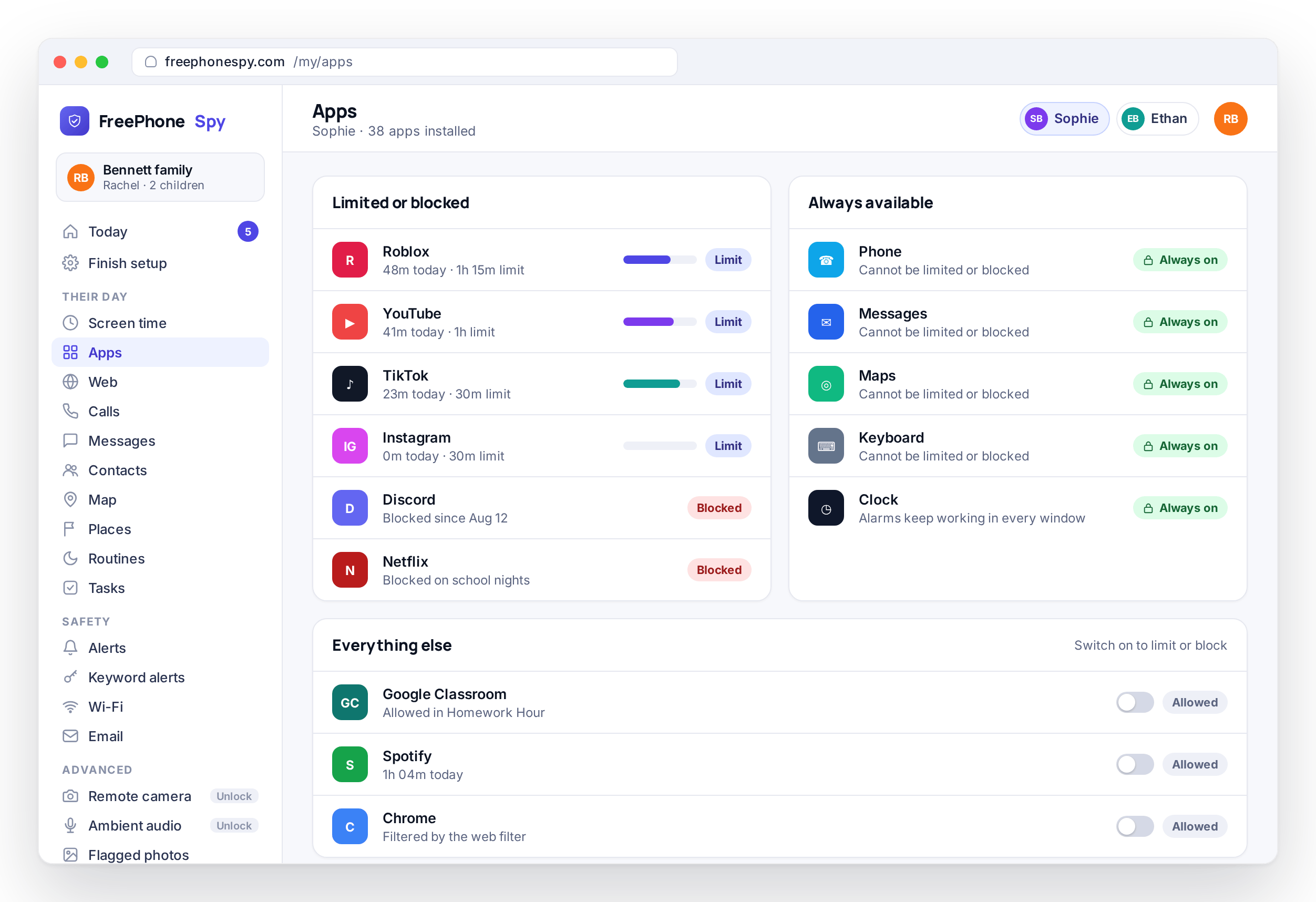
Put a time limit on a single app or block one outright, without touching the rest of the phone. Phone, messages, maps, and the keyboard cannot be limited, so a rule never leaves your child unable to reach you. A website and category filter runs on the phone too, so you can keep whole categories such as adult or gambling out.
Because the filter runs on the device rather than on a server, it works on mobile data as well as home Wi-Fi. You can cap the one game that eats the evening, leave the study apps alone, and the phone still does everything a phone needs to do. Read how per-app limits and the content filter work on app and website blocking.
Tasks & rewards
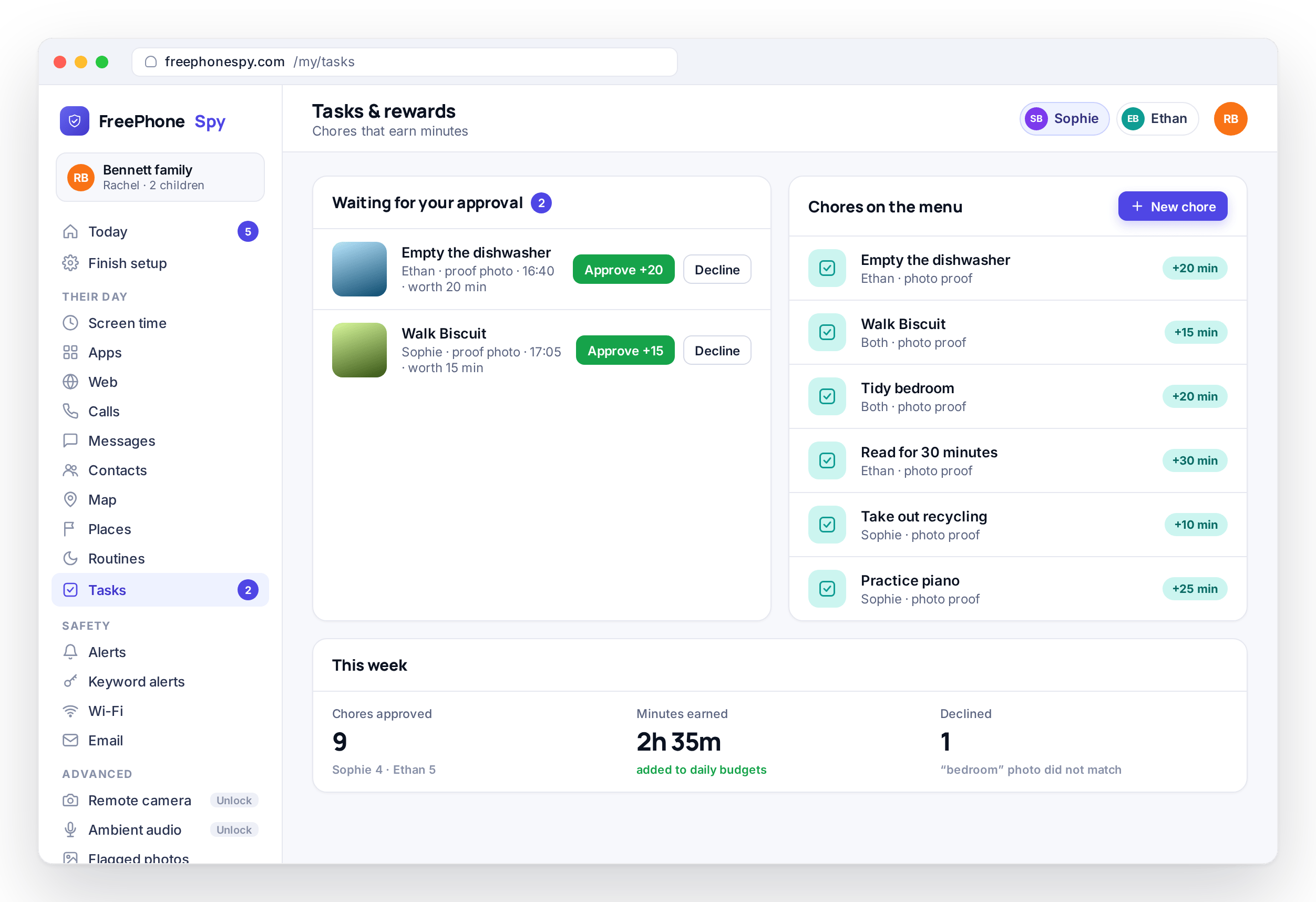
Set chores your child can complete for extra minutes, such as tidying a room or finishing homework, with a proof photo, and approve them with one tap. The extra minutes land on the child’s budget after you approve. It turns screen time into something earned rather than argued over.
The same idea keeps the app free for you: your own tasks, such as leaving a review or referring a friend, add days and unlock the advanced tools. The child side is described on tasks and rewards, and the parent side on the pricing page.
Who they talk to
The contact side, handled with a light touch. You can spot an unknown number, a flag word, or an open network without reading every message your teenager sends.
Text messages & social
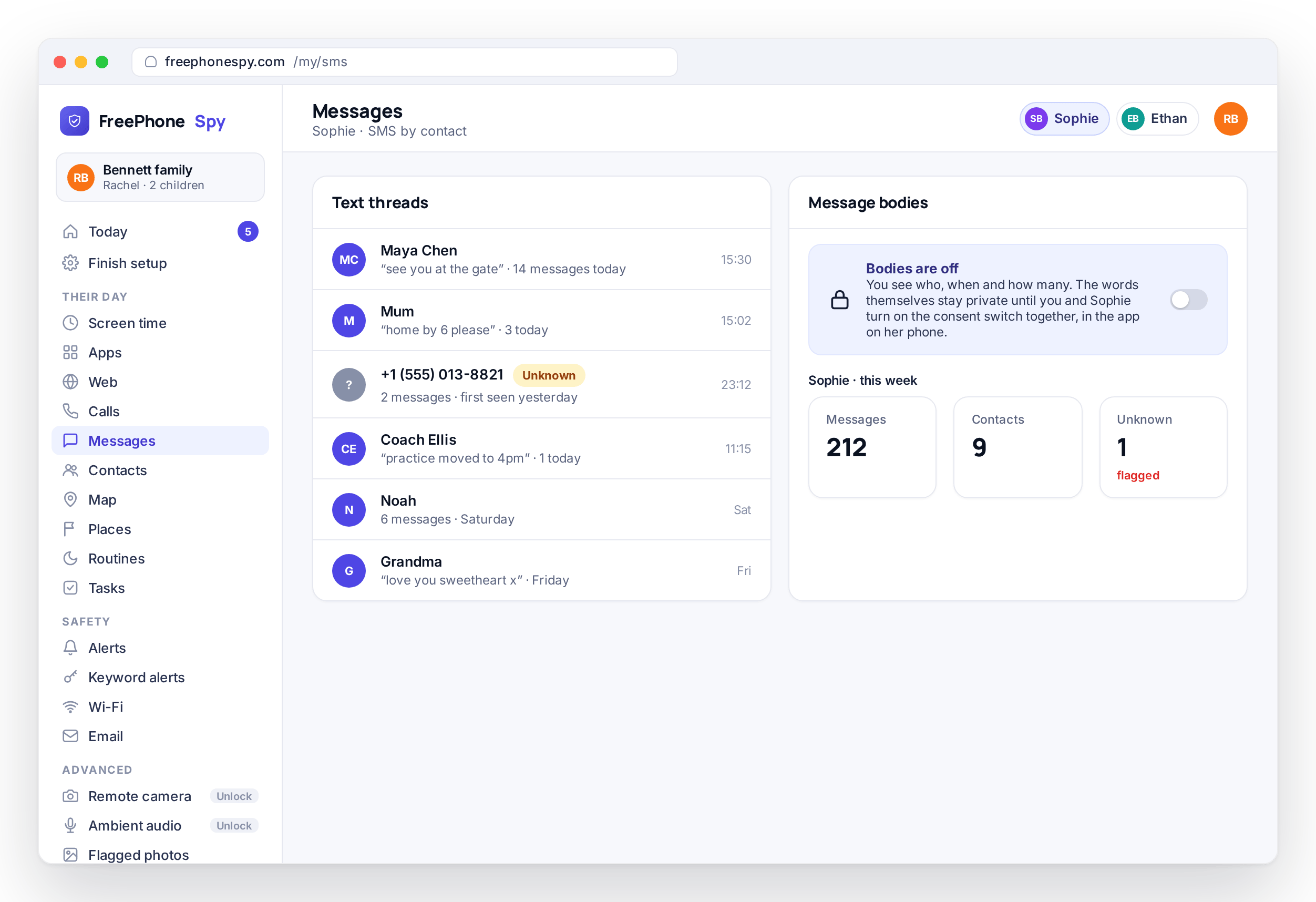
See the SMS and social message log, showing who wrote and when, with the notification lines from Snapchat, Instagram, WhatsApp, and TikTok in one feed. Message bodies stay private unless you and your child turn on a consent switch together.
The default view is headers and flags you can scan. The fuller view exists only when both of you decide there is a reason. Full detail on text message and social monitoring. To flag specific words, pair it with keyword alerts.
Calls & call recording
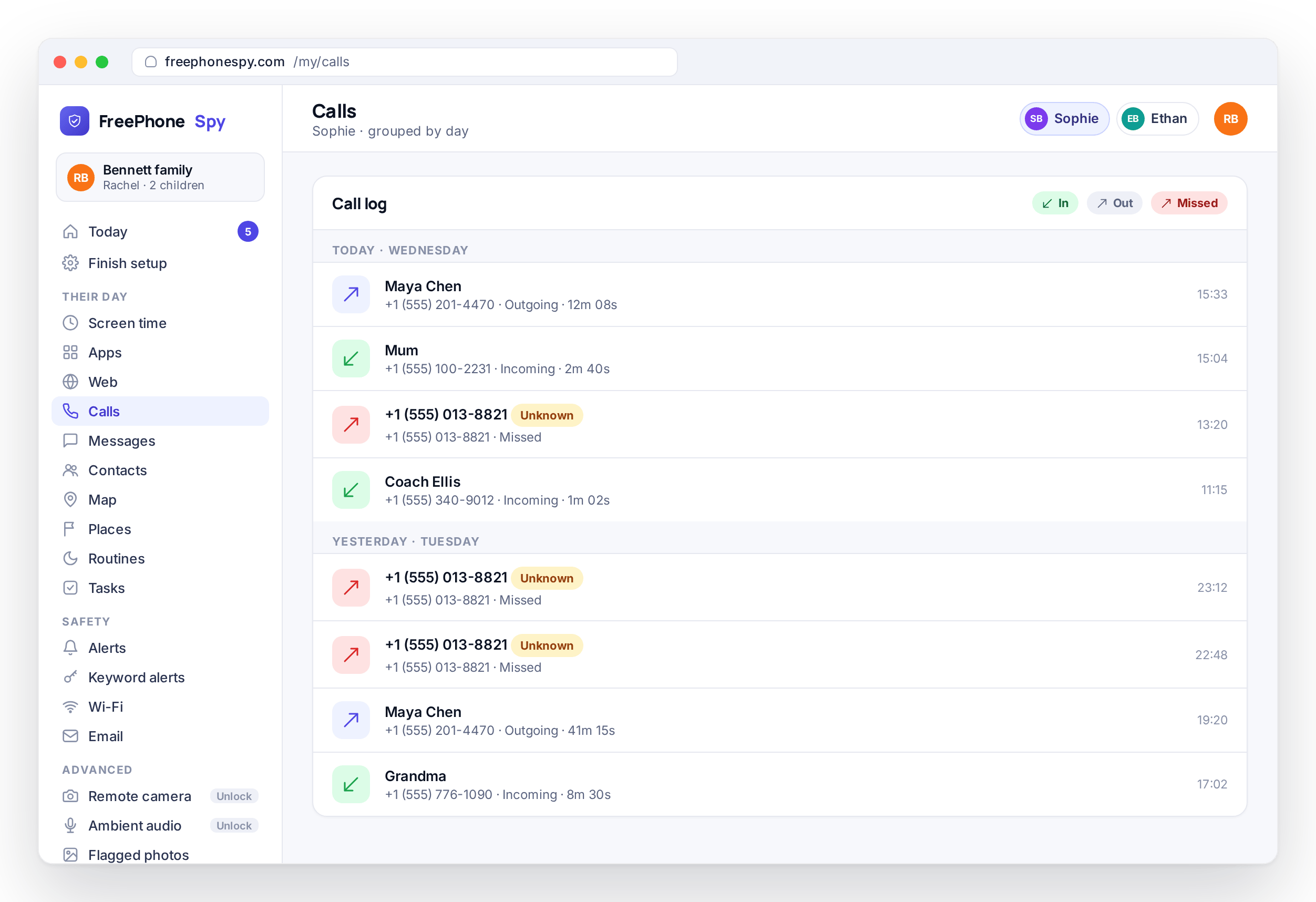
The call log lists numbers, names, times, duration, and direction, so a number that calls often, or an unknown one at an odd hour, is easy to spot. Contacts are listed too, with unknown-number flags.
Call recording is available as an advanced tool, with a clear caveat: on modern Android it is best-effort, the platform blocks capturing the other side on most phones, and it needs the microphone permission on the child’s phone. Recording calls also carries legal requirements in many places. See what is realistic on calls and call recording.
Wi-Fi & email monitoring
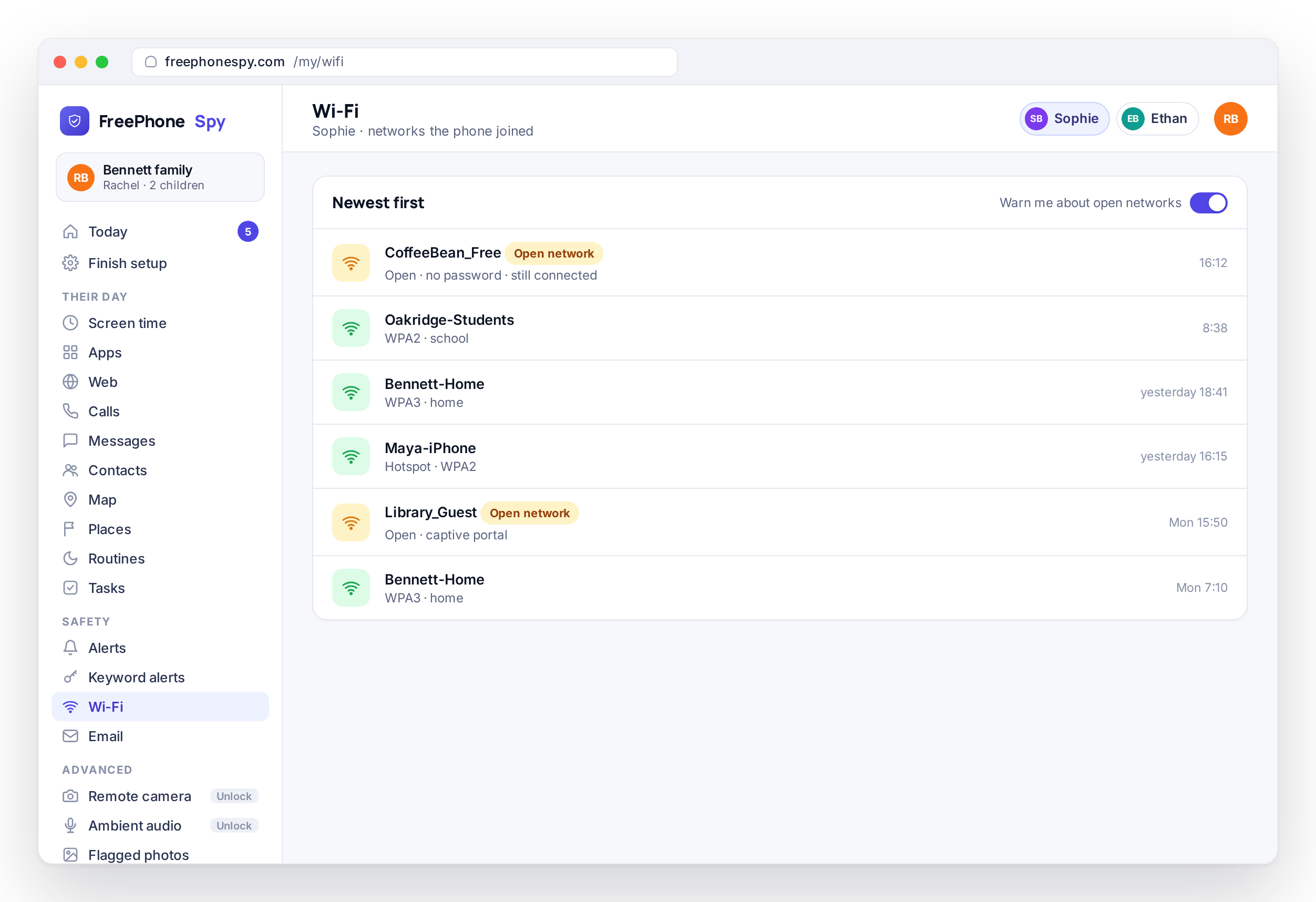
See the networks the phone has joined, with a warning when one is open and unsecured, such as a coffee-shop network anyone nearby can listen on. Children join these without a second thought, so a flag in the panel gives you a reason for a quick word about the ones that matter.
On the email side you get subject and from lines, which is enough to spot a scam, a stranger, or a sign-up that should not be there, without reading the contents. Full detail on Wi-Fi and email monitoring.
Alerts & keywords
Add words and phrases to a flag list, something like “meet me alone”, and get a notification when one appears in the child’s notifications. Everything worth a parent’s attention also gathers in a single readable feed, so you are not hunting through separate screens. This layer is how the Today dashboard decides what to put in front of you. Set your own flag list and see the feed on alerts and keywords.
Check-in tools (advanced)
These are the heavier tools, off by default and unlocked through tasks. They carry the strongest consent and transparency requirements, and most families never turn them on. When you do, you and your child should agree it out loud first.
Remote camera
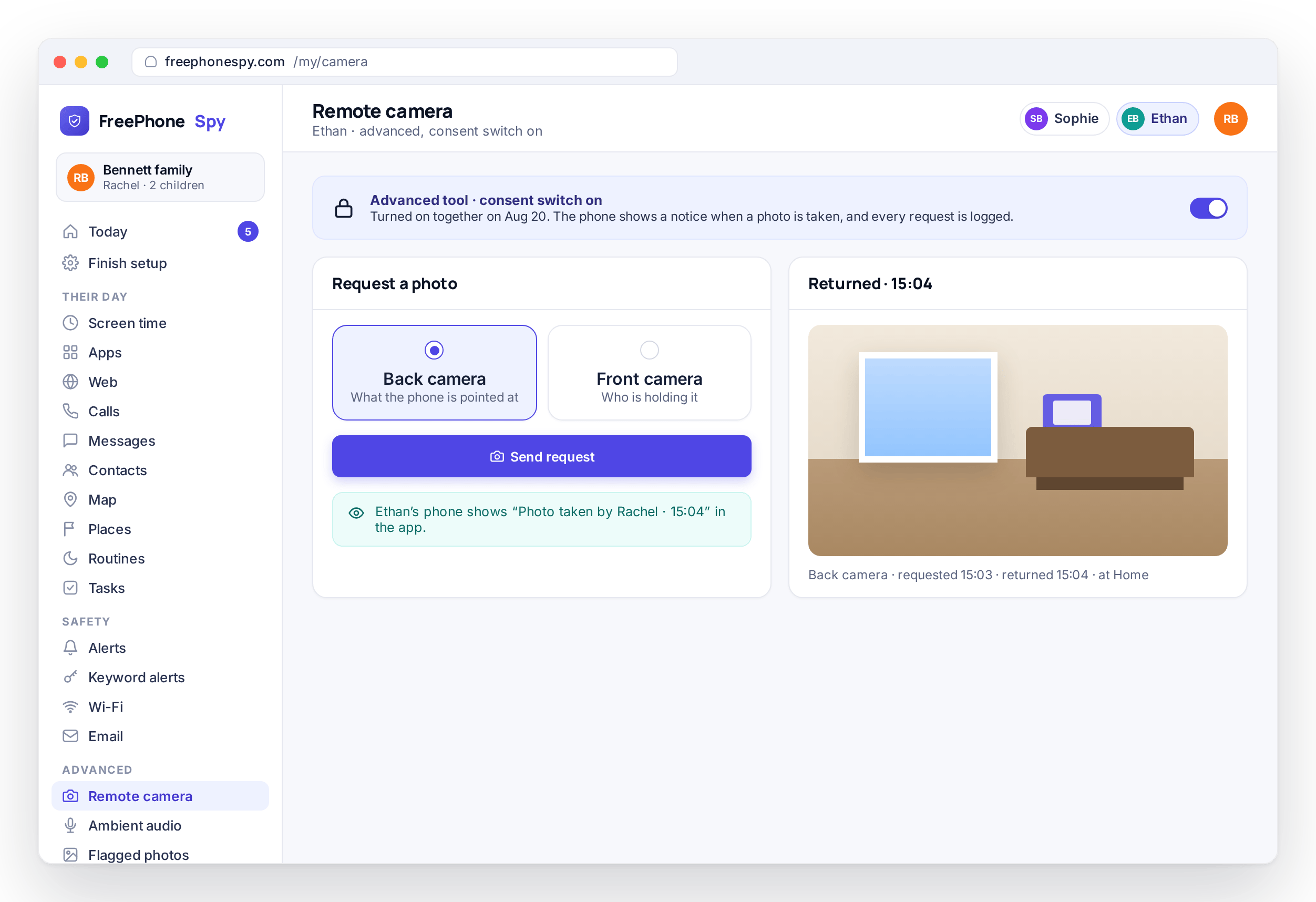
On demand, ask the phone for a photo from its front or back camera, for the moment a call goes unanswered and you want reassurance. It is visible on the child’s phone, off until unlocked, logged each time it runs, and meant for a real safety reason rather than routine checking.
On modern Android these captures are best-effort and the platform can refuse them, so it is not a guaranteed window into a room. The limits and the consent framing are on remote camera. It unlocks through a task, as the pricing page explains.
Ambient audio
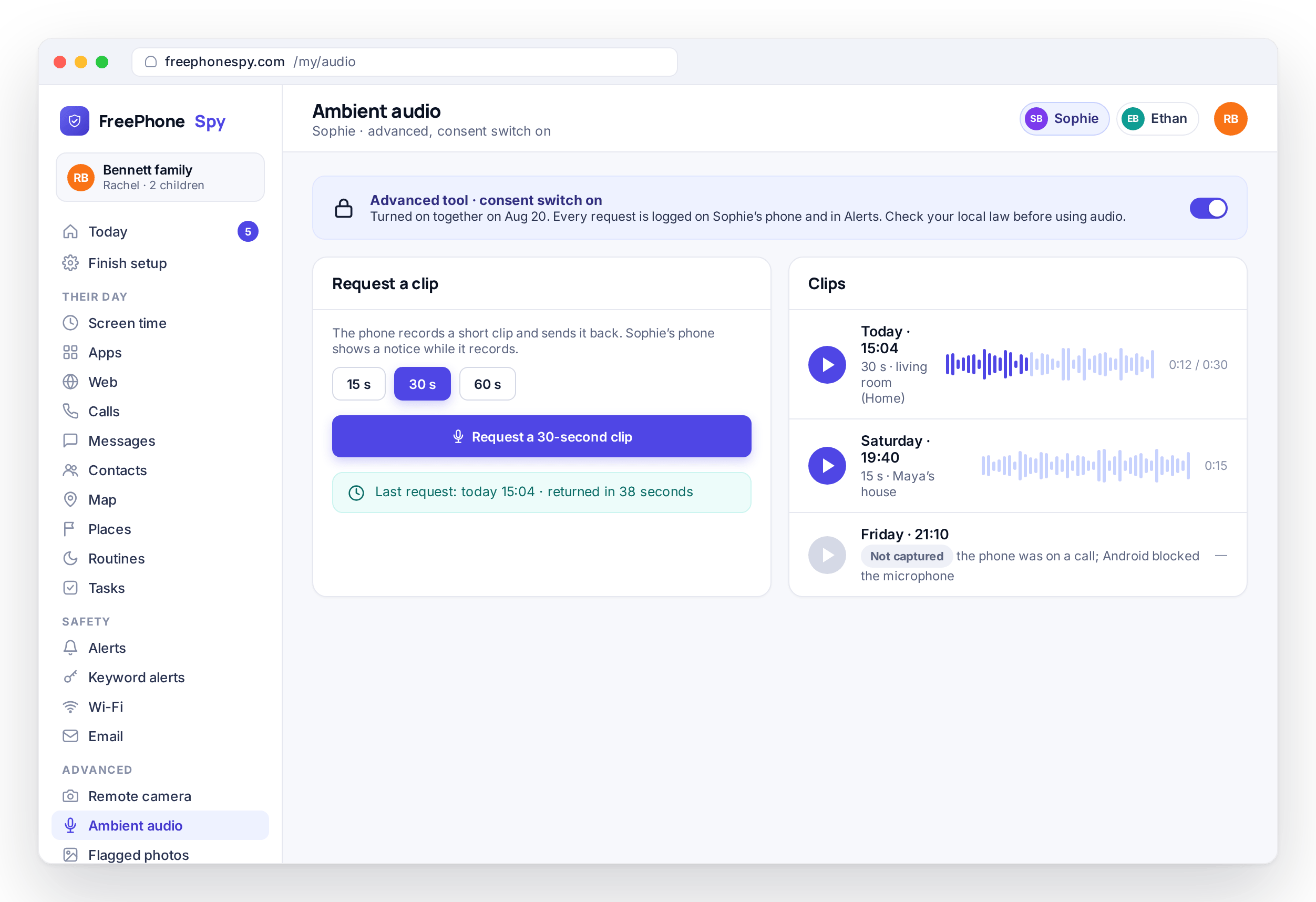
Request a short ambient audio clip from the phone’s microphone and listen back from the panel. Like the camera, it is visible on the phone, off until unlocked, and logged every time it runs.
Consent laws for recording audio vary by place, so check what applies where you live. This is not a tool for recording other people without their knowledge. The limits and the framing are on ambient audio, and it unlocks through a task.
Photos, videos & recordings
See photos the on-device safety check has flagged, videos found on the device, and short audio or call recordings where the platform allows it. Call recording does not work on every Android phone, and the page says so. This is an advanced feature unlocked by tasks, with consent front and center.
The full picture, including what is and is not possible, is on photos, videos and recordings.
Activity reports & insights
A weekly rollup of screen time, apps, places, and flags, so you see the shape of the week rather than a stream of moments. It is the step back from the daily Today glance, useful for a Sunday conversation about how things are going and for noticing a slow drift before it becomes a problem.
See what the weekly report covers on activity reports, and how it draws on screen time and location.
The parent side: the web panel
The parent side is a browser tab. There is no parent app to install and nothing to keep running. You sign in to the web panel from any browser, on a laptop, a desktop, or your own phone, and everything above is there: the Today dashboard, the map, the rules, the alerts. You can pair as many child devices as you like on one account.
The panel is where you set rules and read events; the child’s phone does the enforcing. There is nothing to update or renew on your side. See how the panel is organized, and how to add and manage devices, on the web panel. When you are ready, the setup guide connects the first phone in about two minutes.
Feature questions
Do I have to turn on every feature?
No. Nothing runs until you switch it on, and most families use three or four things, usually location, screen time, and a bedtime routine. Start with one rule that solves a real argument and add more only when you have a reason.
Which features are free, and which need a task?
Location, screen time, app limits, the website filter, and alerts are free with no task needed. The advanced check-in tools, meaning remote camera, ambient audio, call recording, message bodies, and the keylogger, unlock when you complete a task such as leaving a review or referring a friend. The pricing page lays out the two columns.
Can my child see all of this?
Yes. The app is visible on the phone and has a Transparency screen listing what it shares. The sensitive features (message bodies, the keylogger, remote camera and audio) sit behind a consent switch that parent and child turn on together. FreePhoneSpy is designed to be used openly, within your local law.
Does everything work if the phone goes offline?
The rules do. Screen time, routines, app limits, and the website filter are enforced on the phone, so they keep holding with no connection. New events such as a school arrival or a keyword flag queue on the phone and appear in your panel once it reconnects. The setup guide explains the two-way sync.
What about an iPhone?
The child app runs on Android today; an iPhone version is in development. The parent panel already runs in any browser, including on an iPhone. If the phone you want to look after is an iPhone, that is the limitation to know before you start.