
A child phone activity report that reads like a week, not a spreadsheet
Every week, FreePhoneSpy rolls up the week into one view: total screen time, the top apps, the places visited and the flags raised. It takes about a minute to read, which is enough to see the trend without hovering over every tap.
Android child app
Runs in any browser
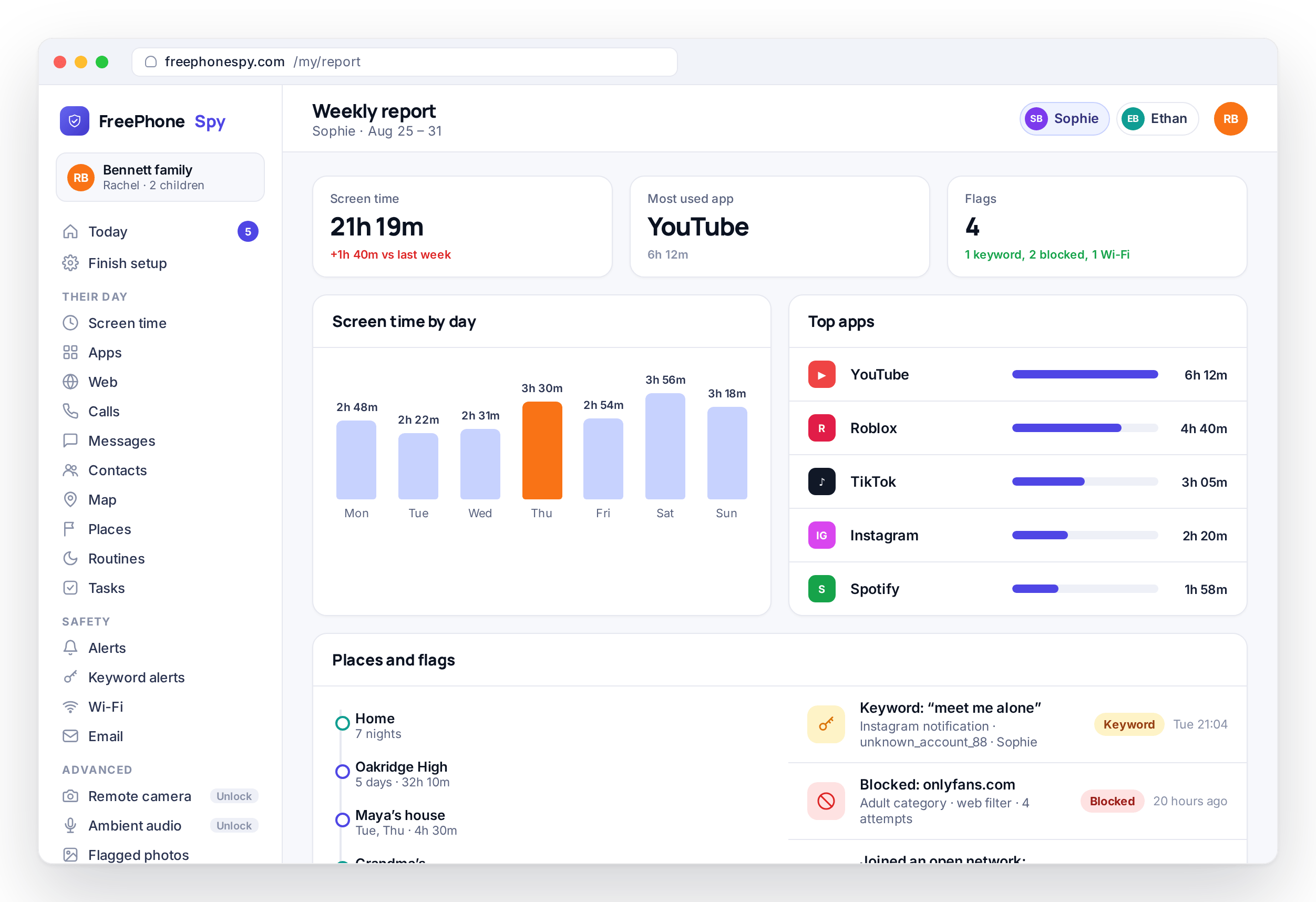
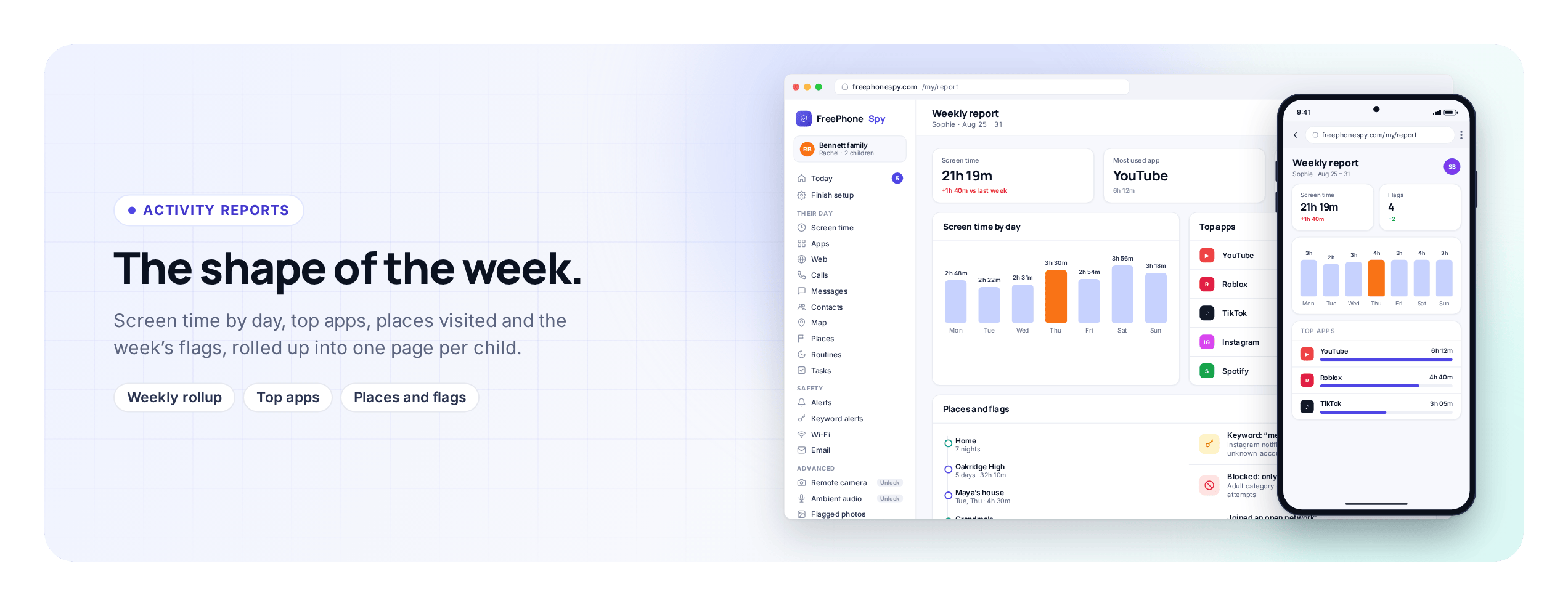
Raw data does not help a parent much. Knowing your child opened forty-one apps and unlocked the phone ninety times gives you nothing to act on. What helps is the shape of the week: whether screen time is drifting up, whether a new app is eating the evenings, and whether anything was flagged.
The panel has two views for this. The Today dashboard shows what needs a decision now, and the weekly report shows how the week went overall. You check Today in the morning, read the weekly rollup when it arrives, and stay out of the panel the rest of the time.
The weekly rollup of screen time
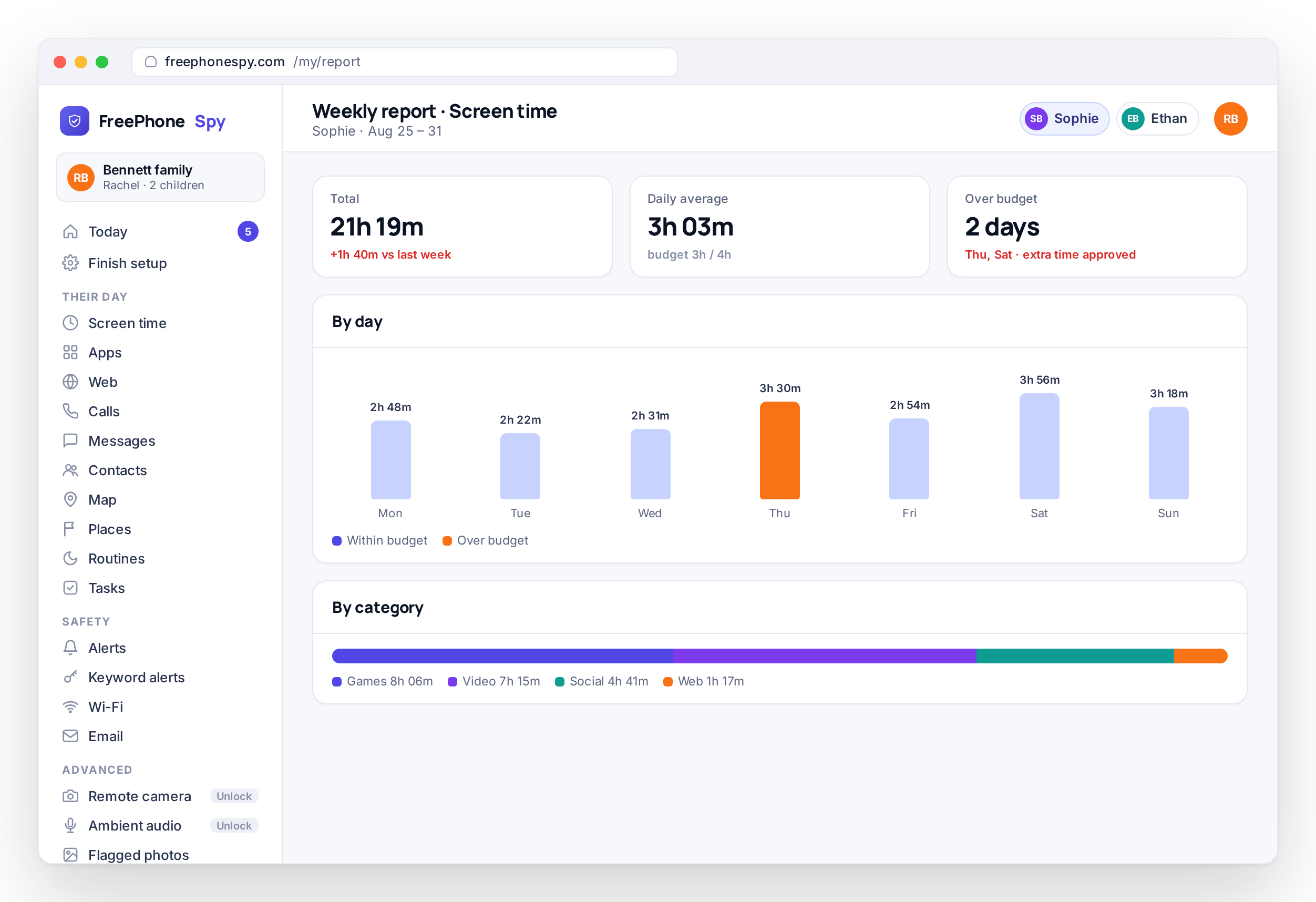
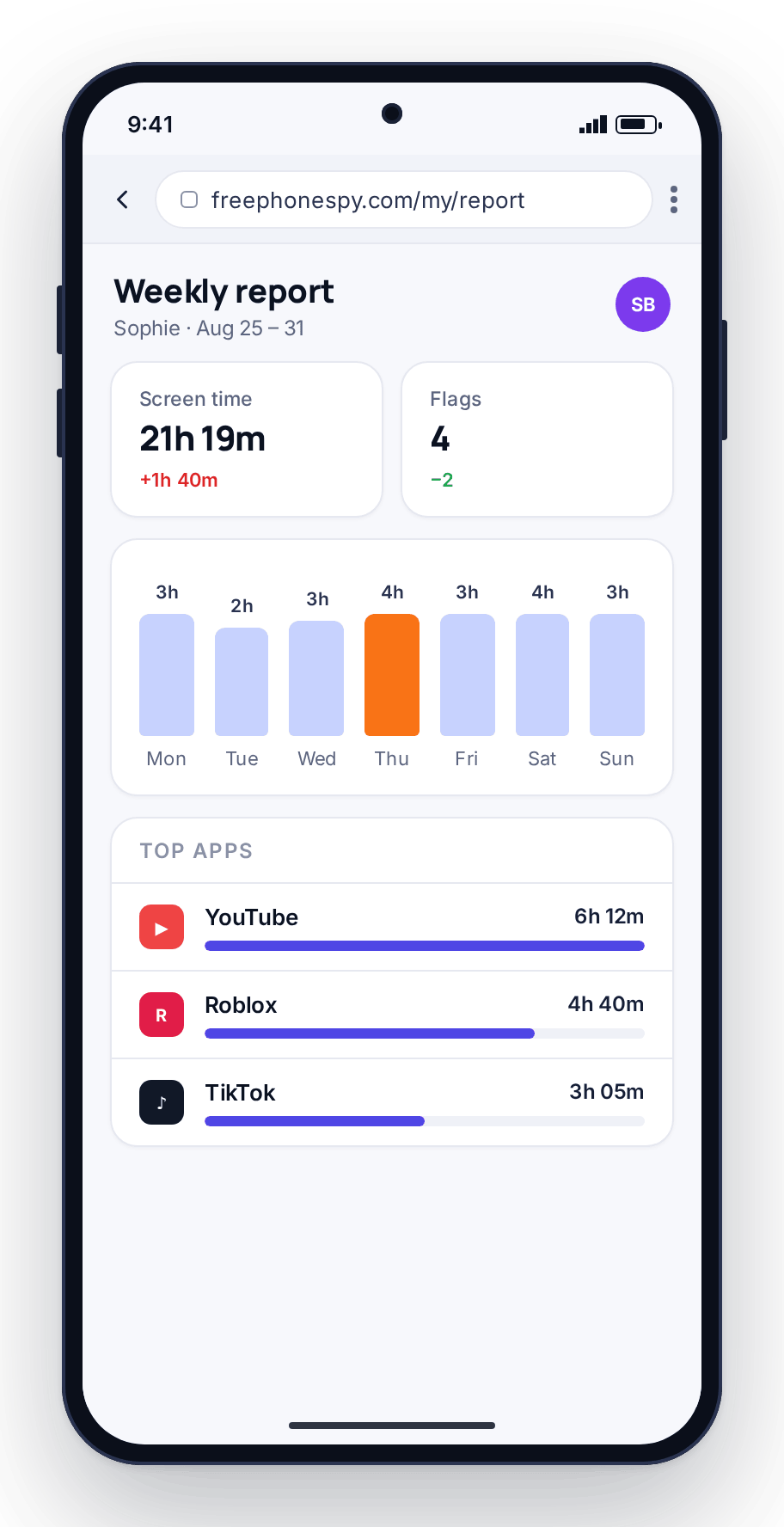
The first section of the report is the week’s screen time: a daily total for each of the seven days, the week’s total, and the change from the previous week. Instead of checking a number every night, you see the arc, whether that is a heavy Saturday, a light exam week, or a slow climb across the school term.
One late night does not mean much; three weeks of steady climbing does. Seeing the numbers laid out makes the conversation specific, for example “video has gone up every week this month, shall we pull it back?”, and if you decide to act on it, the screen-time budget is where you change the number.
- Daily totals and the week’s overall shape
- This week compared with the last
- Spot a slow climb before it becomes a habit
- Turns “always on it” into a specific number
Top apps: where the time went
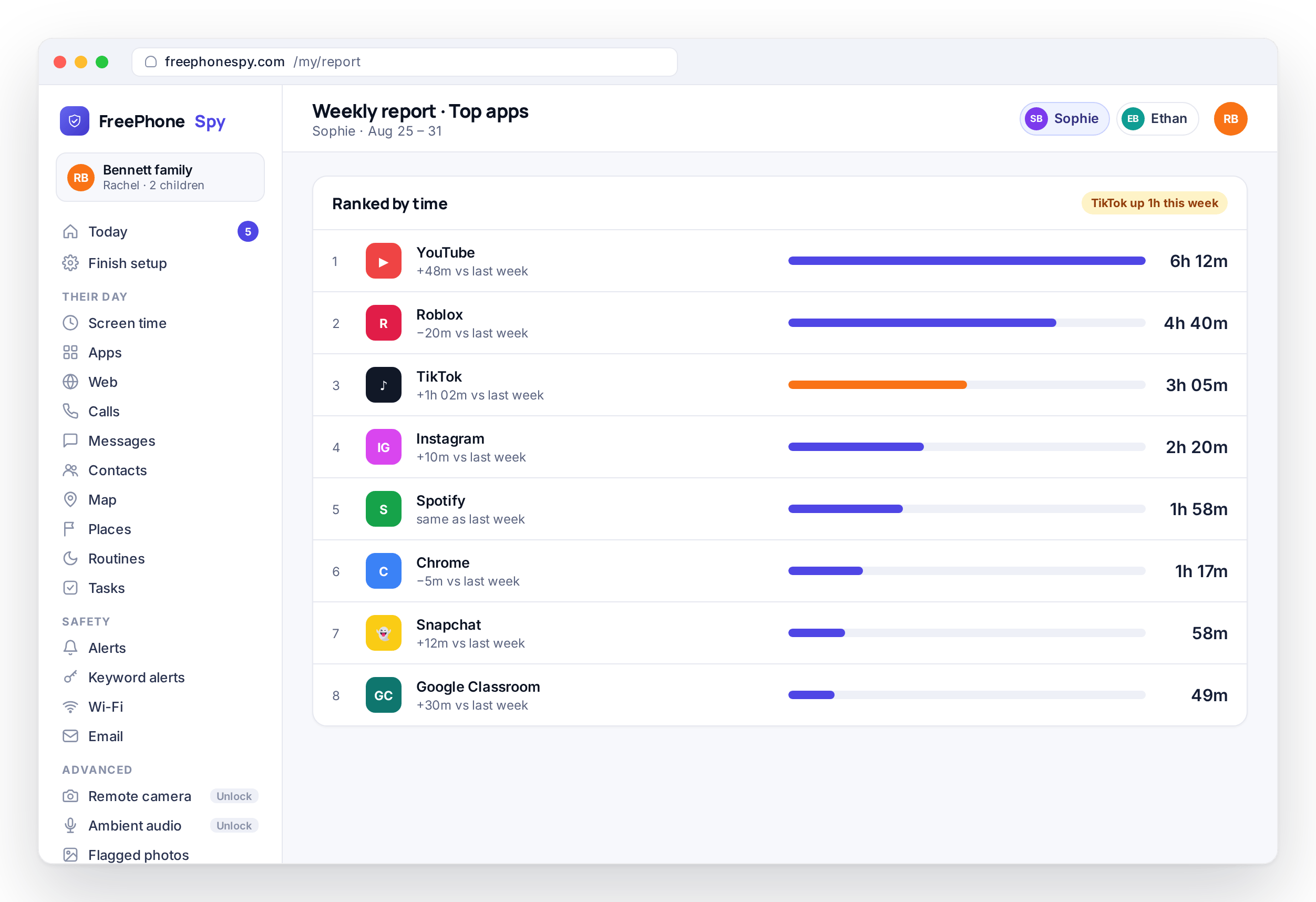
Totals tell you how much; the top-apps list tells you what for. The report ranks the apps that took the most time over the week, with the minutes next to each, so you can see whether the hours went to a game, a video app, a group chat or homework tools. The app you worry about is often not the one eating the day.
This is the most useful section for a conversation, because it is specific. “Two hours a day on one video app” is a number you can both look at. From there it is a short step to a per-app limit or a routine if you decide one is needed, and often seeing the list is enough on its own.
- Apps ranked by time used over the week
- See whether it’s games, video, social or school
- Specific enough to be hard to argue with
- A clear starting point for a per-app limit
Places visited and the week’s flags
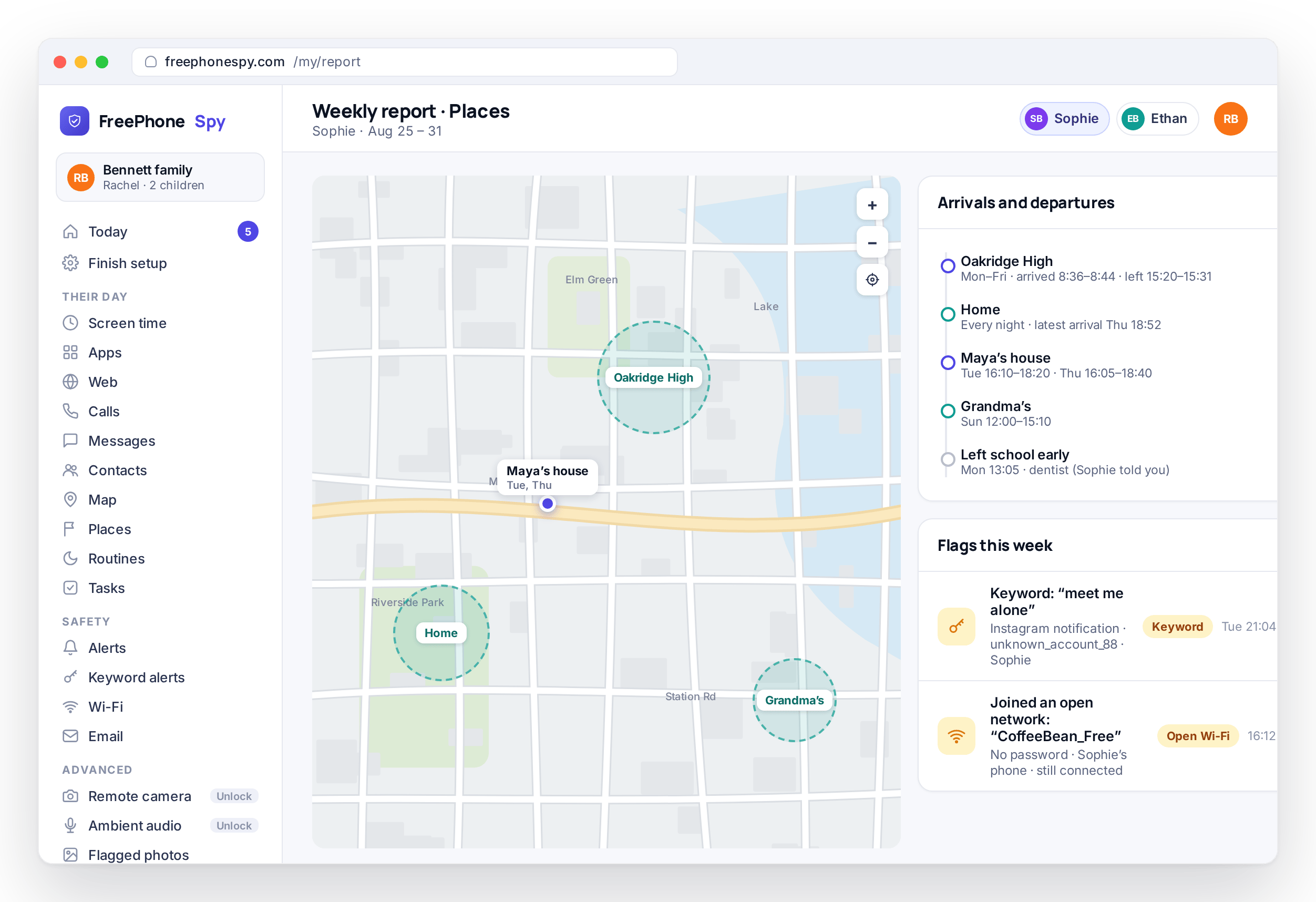
The report also pulls in the week’s place events, meaning the arrivals and departures at saved Places such as home and school, so you can see the ordinary rhythm of the week and notice if it broke. Most weeks it confirms that school was on time every day and the phone was home when expected.
Alongside that sit the week’s flags: keyword alerts, blocked sites and open-network warnings. Gathered into one weekly view, they are easy to skim for patterns you might miss day to day, such as the same keyword twice, a run of blocked sites, or a “left school early” that has now happened two Thursdays running. Click any one to open it in the web panel.
- Arrivals and departures at your saved Places
- Confirms the ordinary rhythm of the week
- The week’s keyword flags and blocked sites in one view
- Patterns that are easy to miss day to day
Today’s “Needs you” glance vs the weekly view
The two views do different jobs. Today is for decisions that cannot wait; the weekly report is for the trend. Today needs a look in the morning, and the report needs a look once a week.
Today: needs you now
A short “Needs you” list: an extra-time Ask, a completed task waiting for approval, a keyword flag, a blocked site, a place event. Each item has a button to act on it.
Weekly: how it went
The rollup of screen time, top apps, places and flags across the week, with last week’s figures for comparison.
Together: informed, not on watch
Today keeps you responsive; the weekly view keeps you informed. Between them there is no reason to open the panel more than once a day.
Reading trends without micromanaging
The trap with any activity report is treating it as a scoreboard, reacting to every heavy day and turning a summary into a stick. That is a fast way to lose your child’s trust. The report is built to be read at arm’s length: look for the direction of travel, not the daily noise.
A single late night, a big Saturday, or one flagged word in an otherwise normal week is usually nothing. What deserves attention is the pattern: a steady climb in screen time, an app that has taken over the evenings, the same flag more than once. Responding to trends rather than blips keeps the conversations useful and keeps the report feeling like support.
- Watch the direction, not the daily noise
- One heavy day rarely means anything
- A repeated pattern is what earns a conversation
- Show your child the report now and then
One report per child, all in the browser
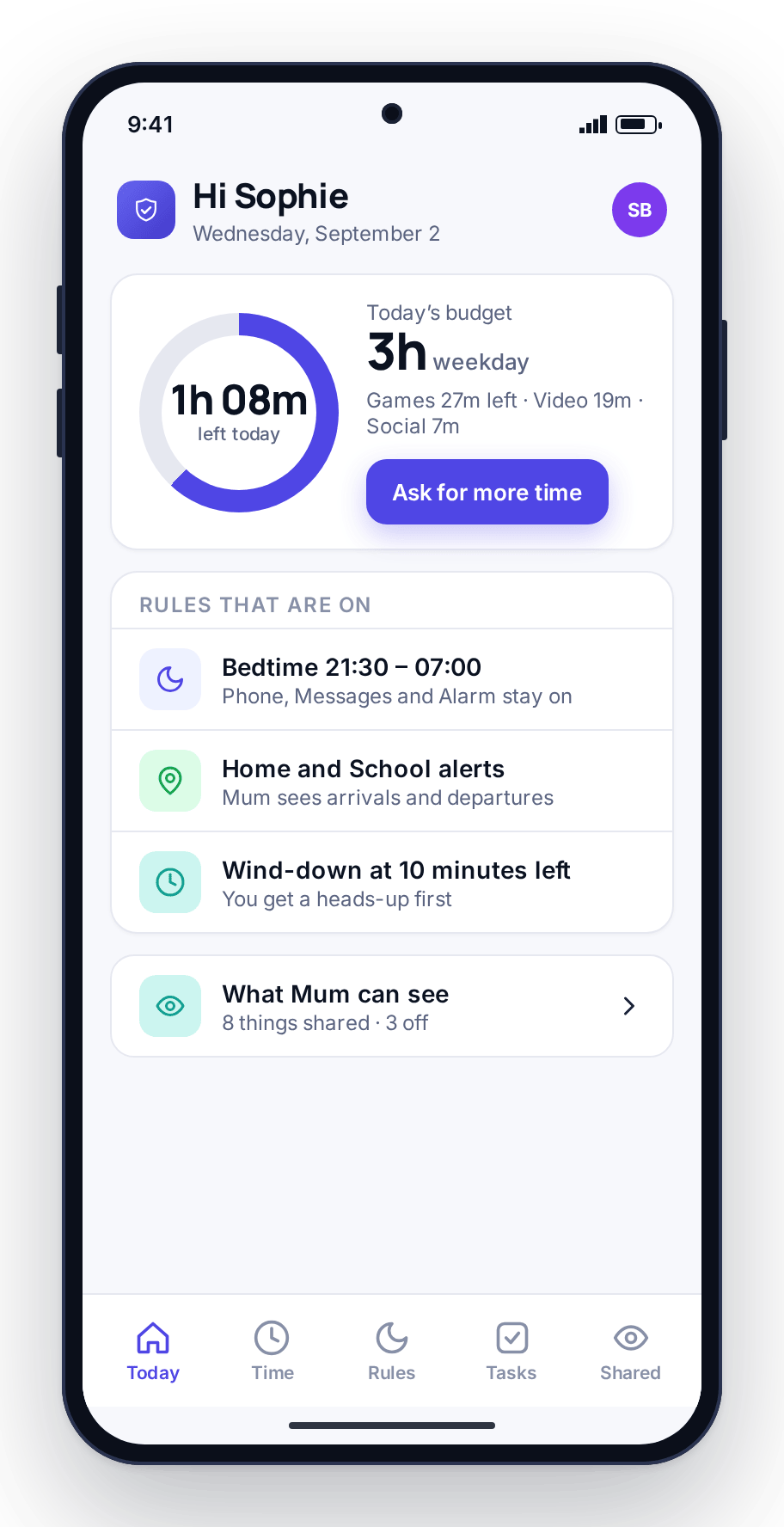
Each child gets their own weekly report, so an eleven-year-old and a fifteen-year-old are not blurred into a single number. In the demo family, Ethan’s report is mostly games and place events, while Sophie’s is mostly social and video. Everything is in the browser panel, with nothing to install on your side and no app to open, so you can read it on a laptop at work or a phone on the couch.
Child devices are unlimited, so a household with several kids gets several reports at no extra cost. Each report only includes the features you switched on for that child: turn on more and the report has more in it, keep it light and it stays light.
- A separate weekly report for each child
- Read it in any browser, nothing to install
- Unlimited child devices, no extra cost
- Includes only the features you switched on
How to make the most of the reports
Reports start building as soon as the child phone is paired with the 6-digit code from the Devices screen and you switch on a feature or two. A few habits make the weekly rollup worth the minute it takes.
Read the trend first
Start with the direction of screen time compared with last week, not any single day. Up, down or steady is the headline.
Scan the top apps
See where the hours went. If one app has taken over, that is your conversation for the week.
Skim the flags together
Look at the week’s flags and place events for repeats. Show the odd one to your child so it is a talk rather than a verdict.
Adjust one thing, not ten
If something needs a change, adjust a single budget on the screen-time page or add one limit on the Apps screen. Small, specific changes stick; overhauls do not.
Activity report questions, answered
What’s in the weekly report?
Four sections: screen time by day with the week’s total and the change from last week; the top apps ranked by minutes; place events at your saved Places; and the week’s flags, meaning keyword alerts, blocked sites and open-network warnings. Sections for features you have not switched on are left out.
When does the weekly report arrive?
Each report covers a seven-day week and is available in the panel once that week is complete. You can also open the current week at any time to see the totals so far, though the comparison with the previous week is most useful once all seven days are in.
Can I see reports for each child separately?
Yes. Each child has their own report, and you switch between them from the Children overview. Because settings are per child, Ethan’s report can include place events and blocked sites while Sophie’s only includes screen time and top apps, if that is how you set them up.
Do I need to install anything to read it?
No. The report is a page in the web panel at freephonespy.com/my, so it opens in any browser on a laptop or phone. The only app is the child app on the Android phone, which is what collects the totals. There is no export step and no parent app.
Does the report show which websites were visited?
The weekly report lists sites the filter blocked, not a full browsing history. Time spent in browsers is counted in the top-apps list and under the web category of the screen-time split. If you want to know which categories are being blocked, the Web screen in the panel shows the current filter settings.
Does my child know reports are being kept?
Yes. The child app’s Transparency screen lists each feature that feeds the report, and the child app itself shows their own screen-time totals and active routine. Reports are built from the same data the child can already see on their phone.