
A bedtime schedule app for phones, plus a homework focus mode
Set the shape of a normal day once. Bedtime winds the phone down at night, Homework Hour leaves only the school apps, and school time pauses the distractions during lessons. The phone runs each routine on its own, so you are no longer the timer.
Android child app
Runs in any browser
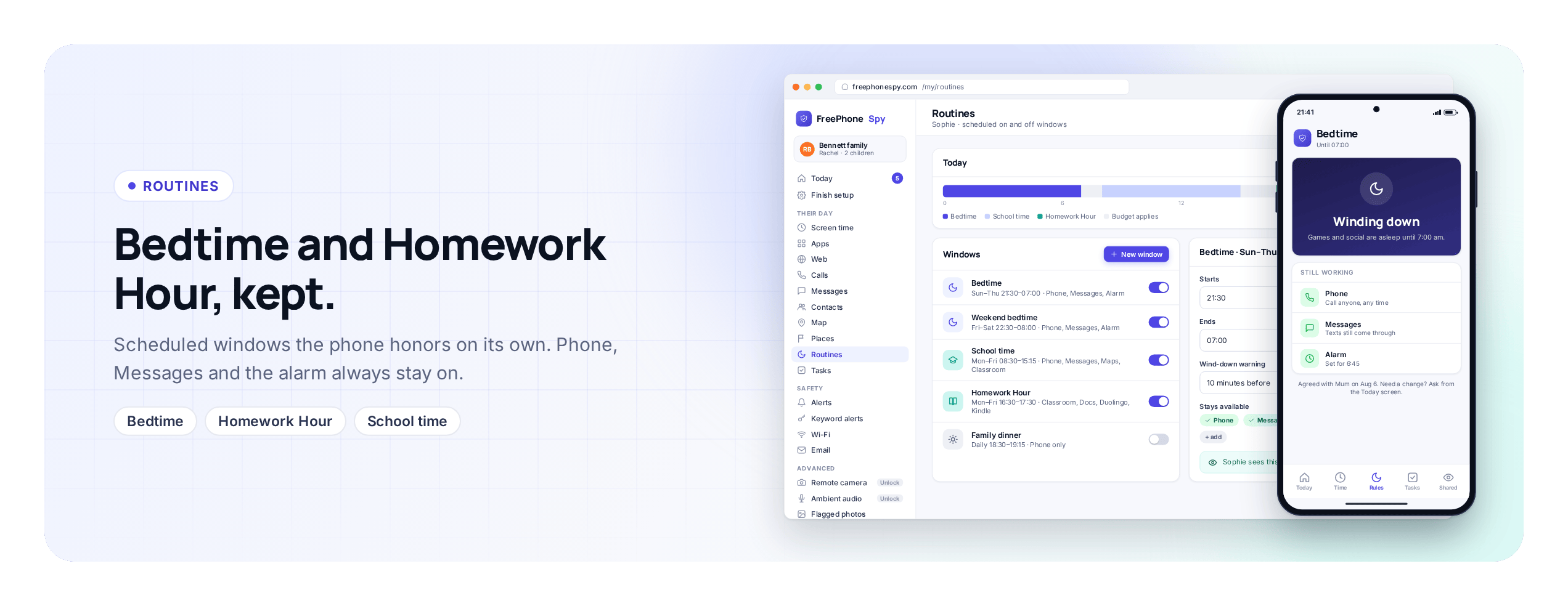
A daily minute budget decides how much phone time a day holds. A Routine decides when. If bedtime is the recurring argument in your house, a Routine that pauses games at nine every night, with a warning beforehand, is the fastest way to stop having it.
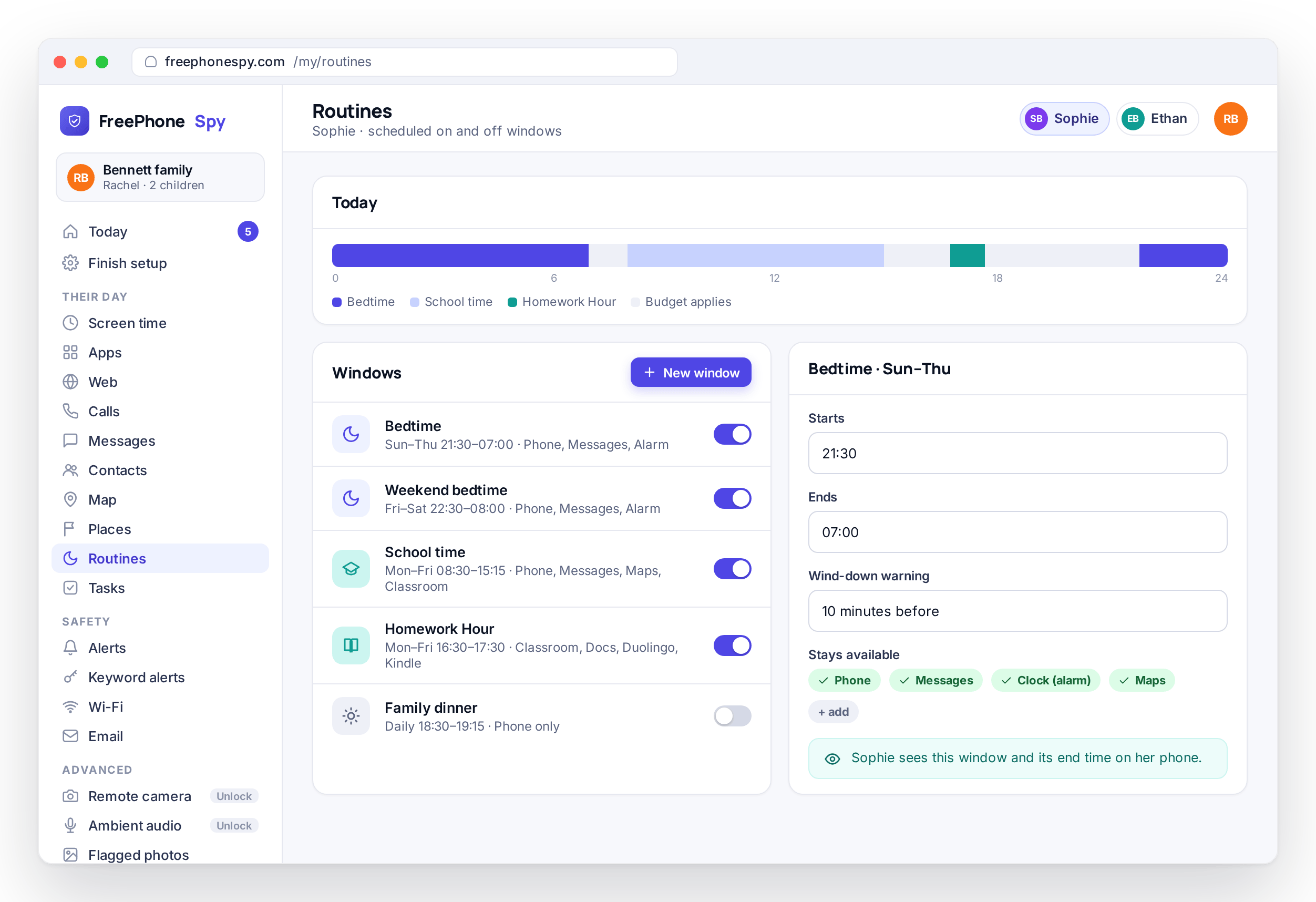
A Routine in FreePhoneSpy is a scheduled window with a start time, an end time, the days it applies to, and a list of apps that stay available inside it. Three routines cover most of family life: Bedtime for the night, Homework Hour for the hour after school, and school time for lessons. You set them up once in the browser panel, and the child app applies them each day.
Scheduled on/off windows you set once
You build each window in the panel: pick the days, pick the hours, and tick the apps that stay on. From then on the phone knows what a Monday looks like and what a Saturday looks like, and opens and closes each window at the times you chose.
If the week changes, you edit the window in the panel and the new hours take effect the next time the phone has a connection. Until then the previous version keeps running, so the phone is never without a schedule.
- Choose the days and hours for each window
- Say which apps stay reachable inside it
- Different windows for weekdays and weekends
- Edit any time from any browser
Bedtime: the phone winds down at night
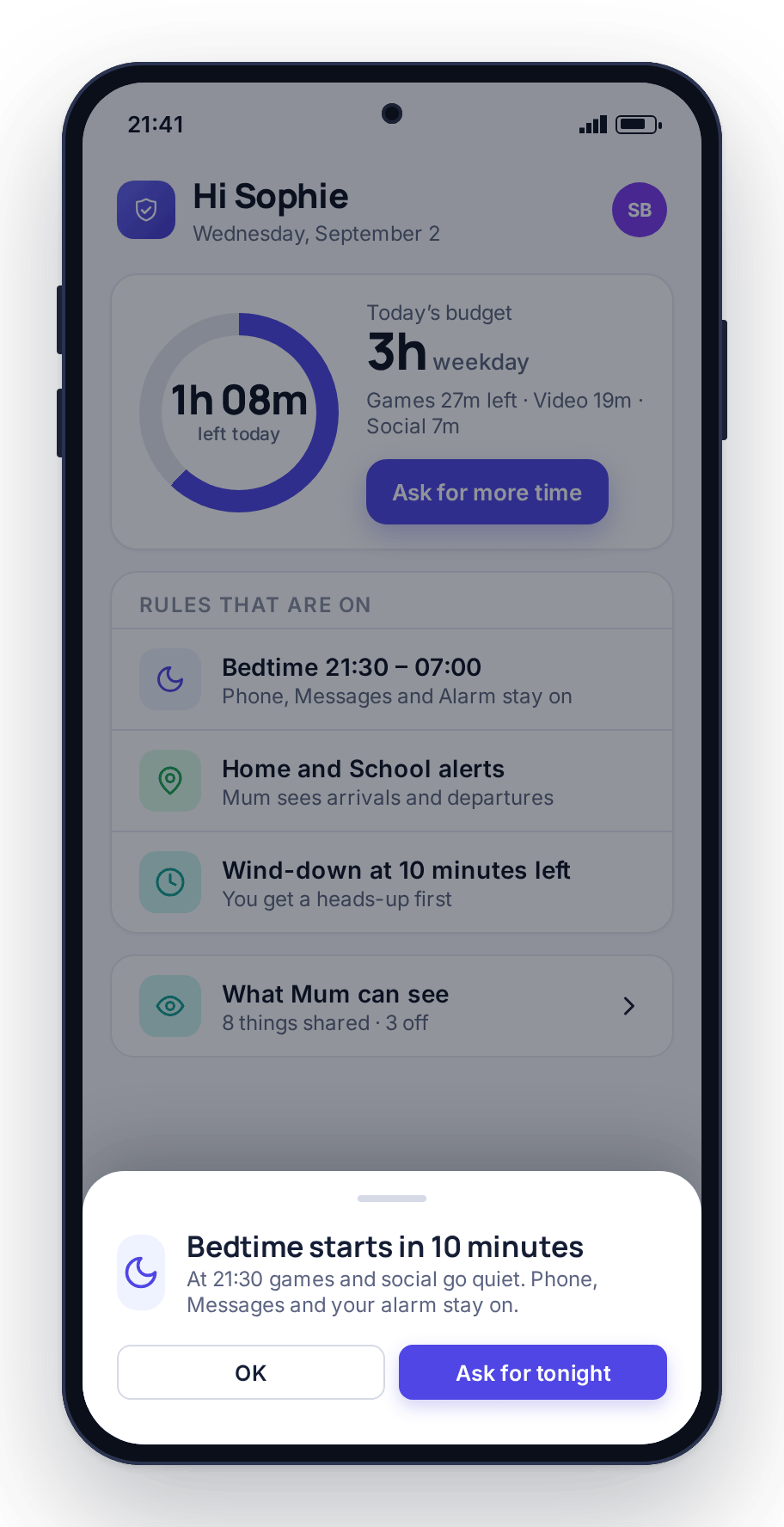
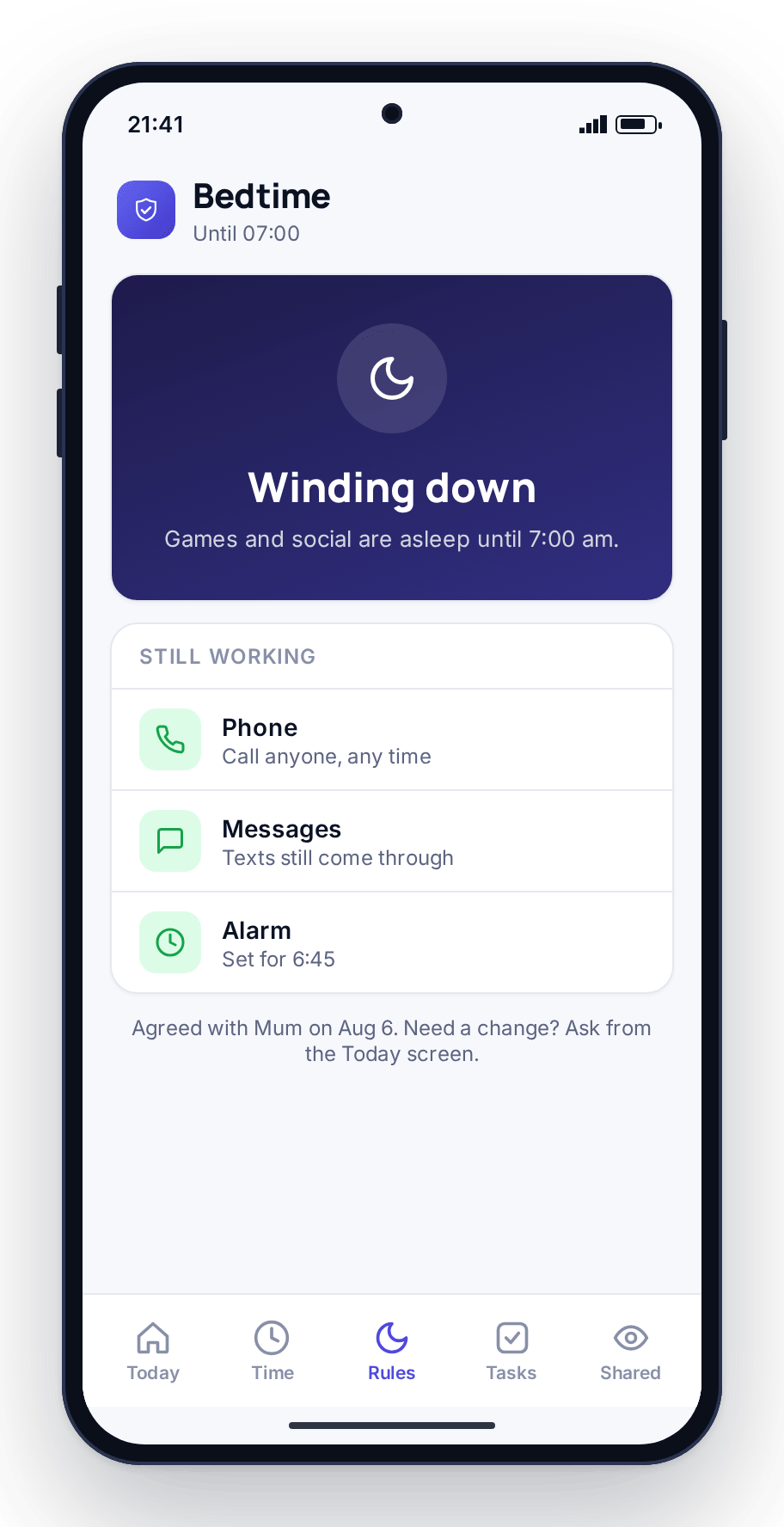
Bedtime is where most families start. From nine to seven, or whatever hours you pick, games, video and social apps are paused. Because the phone applies the window itself, there is no negotiation at five to nine.
Calls and messages can stay on, so an emergency still gets through and a ride home can still be arranged. Ten minutes before the window starts, the phone shows a wind-down warning, so a game gets saved and a message gets finished rather than cut off. Phone, messages, maps and the keyboard are never blocked by any routine.
- Games, video and social pause during the night window
- Calls and messages can stay reachable for emergencies
- A wind-down warning before it starts, not a sudden cut-off
- The same hours every night, applied by the phone
Homework Hour: only the school apps
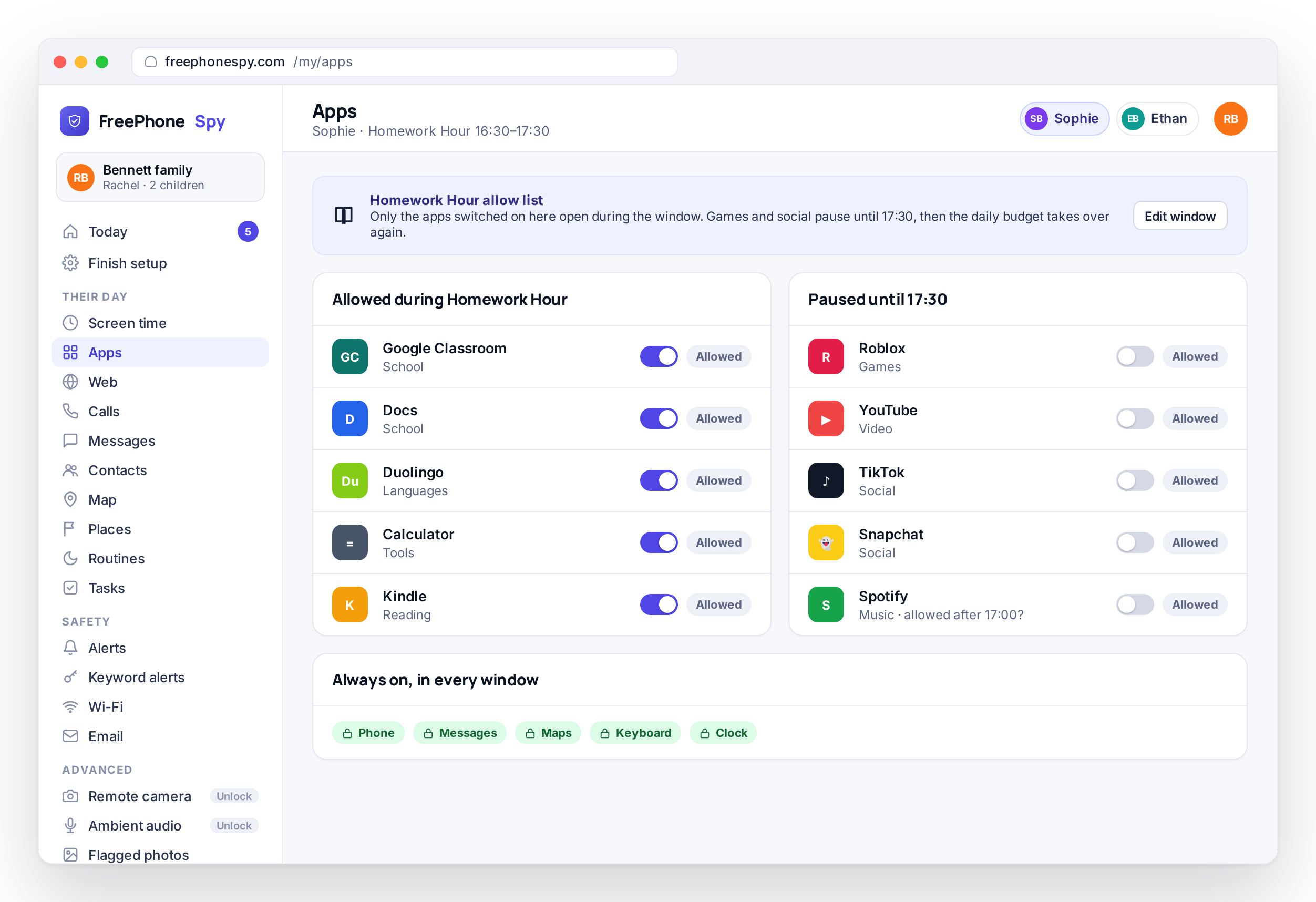
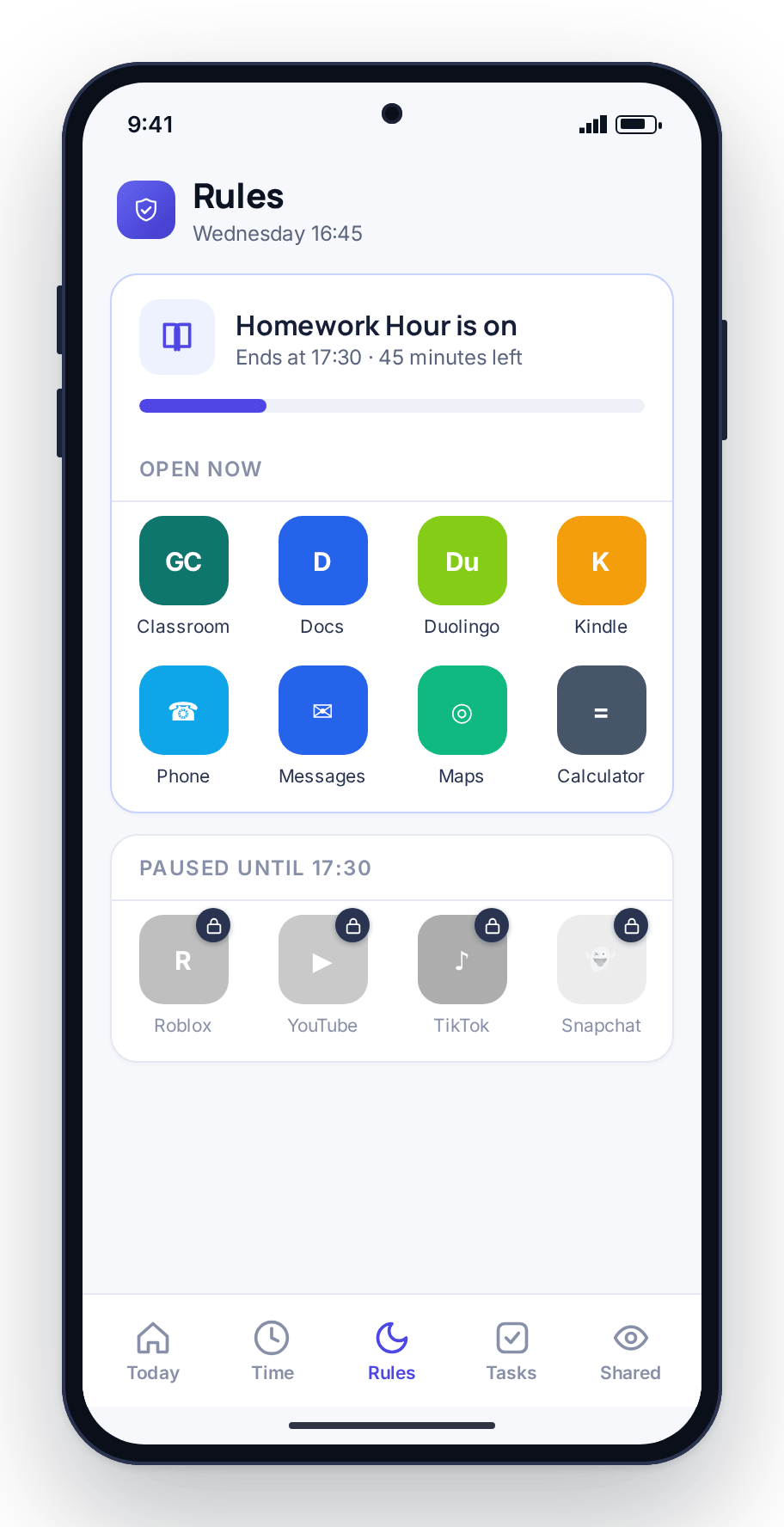
The hour after school is when homework competes with a group chat and a new game, and homework usually loses. During a Homework Hour window, games and social are paused and the phone leaves the apps schoolwork needs: a browser for research, a documents app, a calculator, and the school’s own tools. You choose the list.
Your child can still look something up or open the reading they were set, but cannot drift into a feed for forty minutes and call it studying. When the hour ends, the paused apps return on their own. If one app causes more trouble than the rest, you can also cap or block it with app & website blocking.
- Games and social parked for the window
- School and reference apps stay open
- The phone lifts the window on its own when the hour ends
- Pairs with per-app limits for the apps that distract most
School time keeps lessons distraction-free
The school-time routine covers the part of the day you are not there for. During lessons it pauses games, video and social and leaves the essentials, so the phone is a way to reach home rather than something under the desk. When the school day ends, the window closes and the phone returns to its normal rules.
Set the school hours
Choose the days and the start and end times that match the timetable. Term-time weekdays, not weekends or holidays.
Keep the essentials on
Phone, messages and maps stay reachable so a child can always get hold of you and find their way home.
It ends by itself
No message from you, no unlock. The window closes on schedule and the normal day picks back up.
How the phone enforces a routine on its own
The rule lives on the phone. When a window opens, the app on the child’s phone applies it immediately, without waiting for a signal from you or from a server. Bedtime still starts at nine if the phone has dropped off Wi-Fi, and Homework Hour still pauses the games in a dead spot on the way home from a friend’s house.
Changes you make in the panel sync down the next time the phone has a connection. You are not sending a command every night; you describe the day once and the phone repeats it. The child’s Today view shows which window is active and when it ends, so they can see it too.
- Rules run on the device, not from a live command
- Windows hold even offline or on patchy signal
- Panel edits sync down when the phone reconnects
- Essential apps stay reachable inside every window
Wind-down warnings and extra-time Asks
Before a routine window starts, the phone shows a wind-down warning. Your child gets a few minutes to finish the level or send the message and put the phone down on their own terms, which is an easier transition than having it taken away. After a few weeks the warning becomes the cue.
When a night needs bending, for example a project running long, the child can send an Ask for more time with a reason attached. It lands on your Today dashboard and you tap 15, 30 or No. You can also let them earn time for chores with tasks & rewards, so a routine does not have to mean the answer is always no.
- A warning before a window starts
- Time to save the game and send the message
- Extra-time Asks for the nights that need it, answered in one tap
- Minutes earned through tasks can be spent before the window
How routines overlap with the screen-time budget
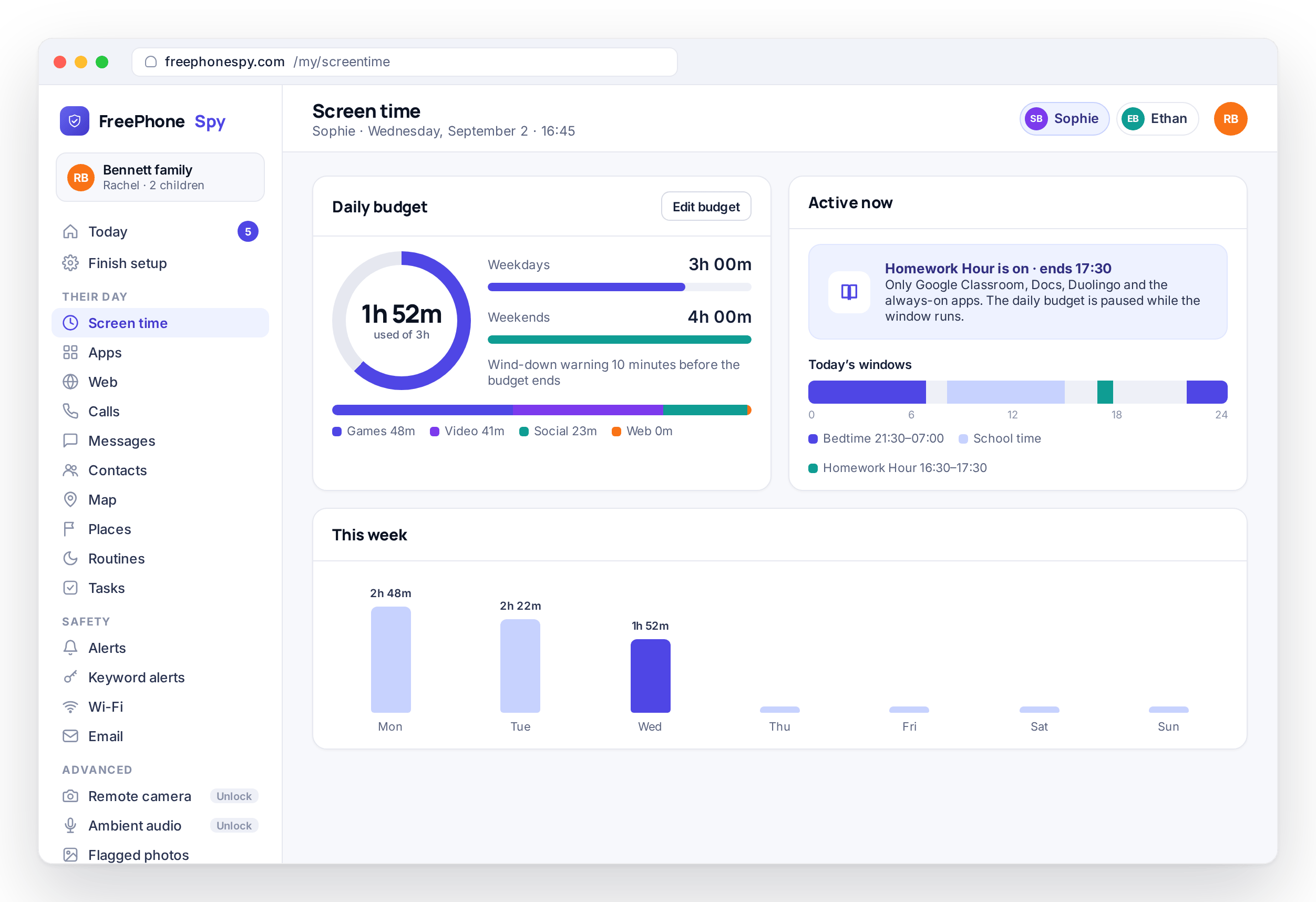
The budget sets how much total phone time a day holds; routines decide when that time can be spent. Homework Hour can leave the school apps open without the clock ticking against the evening’s minutes, and Bedtime ends the evening even if minutes are left over, because “you still have twenty minutes” should not override “it’s ten o’clock”.
The screen-time page covers the budget in detail. In the panel, the day’s minutes and the active window sit on the same screen, and the Today dashboard shows a bedtime that was extended and a homework window that was skipped in the morning.
- Homework Hour can leave school apps open without spending budget
- Bedtime ends the day even with minutes left over
- Budget and active window on one screen in the panel
- Both roll up onto the Today dashboard
How to set up routines
A couple of minutes in the panel, once the child phone is paired with the 6-digit code from the Devices screen.
Turn on Bedtime first
Open Routines, pick the night hours, and tick which apps stay reachable, usually calls and messages. This is the routine that pays off fastest.
Add Homework Hour
Set the hour after school, pause games and social, and leave the school and reference apps open.
Set school time
Match the timetable on weekdays only, keep the essentials on, and let the window close itself at the end of the school day.
Show your child the screen
Walk through each window on their phone and point out the wind-down warning, since they will come to rely on it. The features page lists everything else that runs alongside routines, including location and app blocking.
Routine questions, answered
What’s the difference between a routine and the screen-time budget?
The budget is a number of minutes per day and runs down as the phone is used. A routine is a time window with an allowed-apps list, and it applies regardless of how many minutes are left. A child with twenty minutes remaining at nine o’clock still gets Bedtime; a child in Homework Hour is not spending budget on the school apps.
Can calls still get through during Bedtime?
Yes. Phone, messages, maps and the keyboard cannot be blocked by any routine, and you can add other apps to the Bedtime allow list if you want, such as a music app. Everything not on the list is paused until the window ends.
Does a routine need the phone to be online to work?
No. The schedule is stored on the phone and the child app applies it from the phone’s own clock, so it works with no Wi-Fi or mobile data. Edits made in the panel reach the phone the next time it connects.
Can I set different routine hours for different days?
Yes. Each window has its own set of days, so Bedtime can start at nine on school nights and ten on Friday and Saturday by creating two windows. School time is normally set for weekdays only, and you can switch it off during holidays without deleting it.
Can my child get more time if a night runs long?
Yes. From the child app they send an Ask with a reason, and you answer with 15, 30 or No from the Today dashboard in any browser. Approving it delays the window by that many minutes for that night only; the schedule itself does not change.
Does my child know the routines are set?
Yes. The child app shows the active window and its end time, and the Transparency screen lists routines among the features that are switched on. The app is visible on the phone and does not hide itself.