
Remote camera for parental control, done in the open
Ask your child’s Android phone to take a photo from its front or back camera, on demand, from your browser. FreePhoneSpy pairs that with an on-device safety check for flagged photos, a log of every request, and a plain rule: this is for a phone you manage and a child who knows it’s there, never a hidden lens on anyone else.
Android child app
Runs in any browser
Read this first: what the remote camera is for
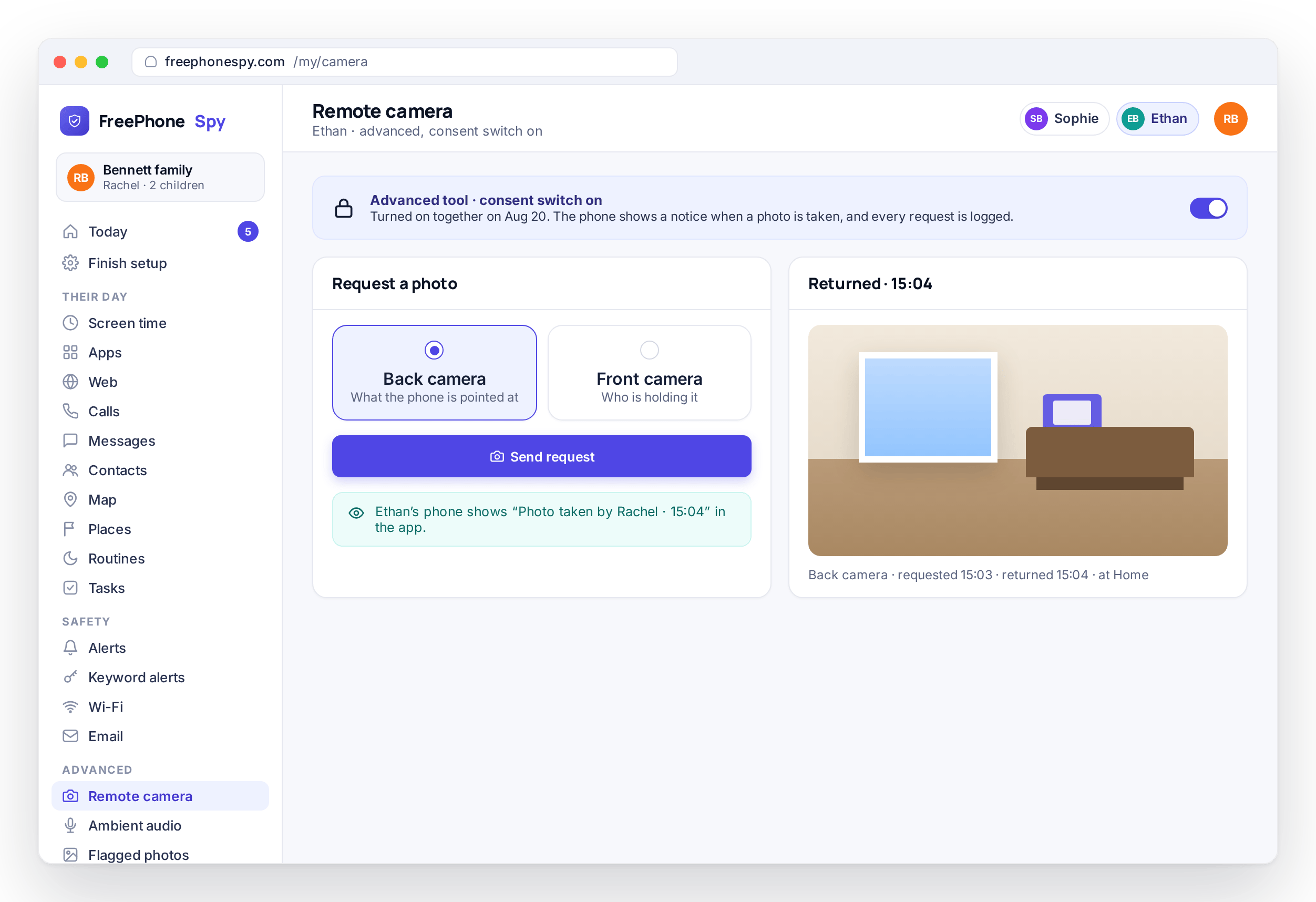
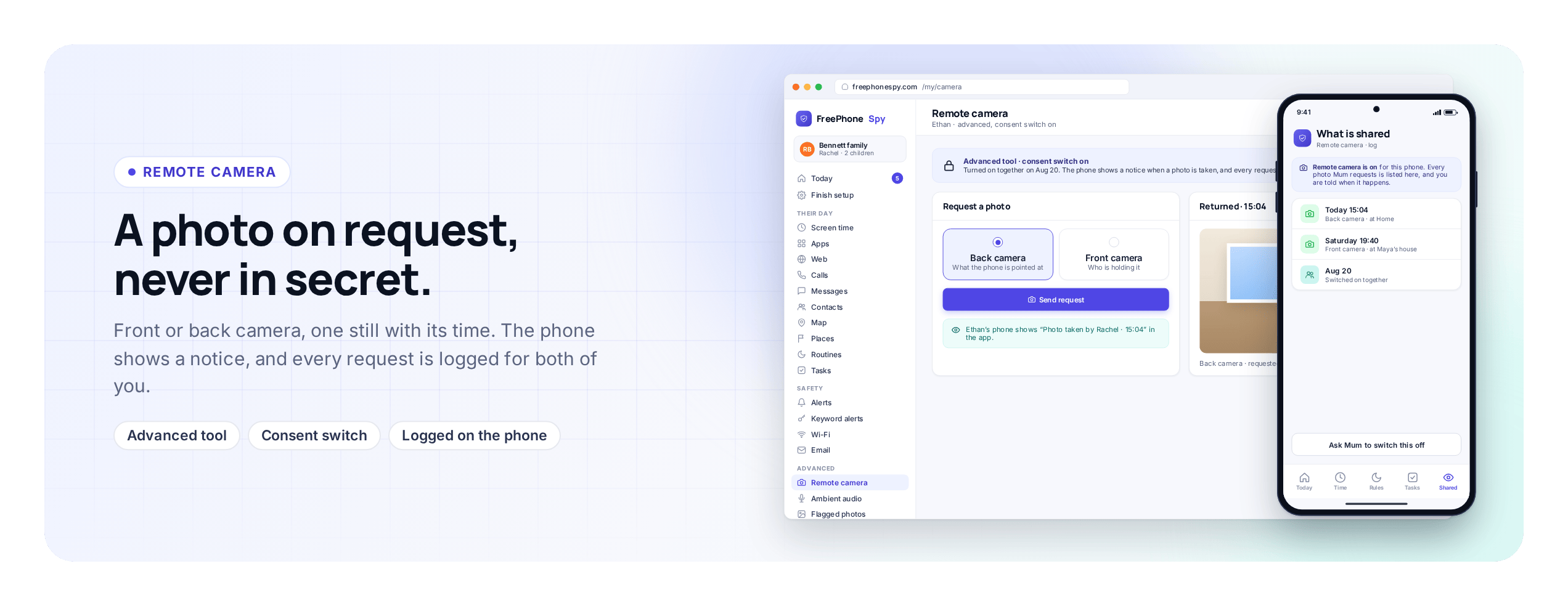
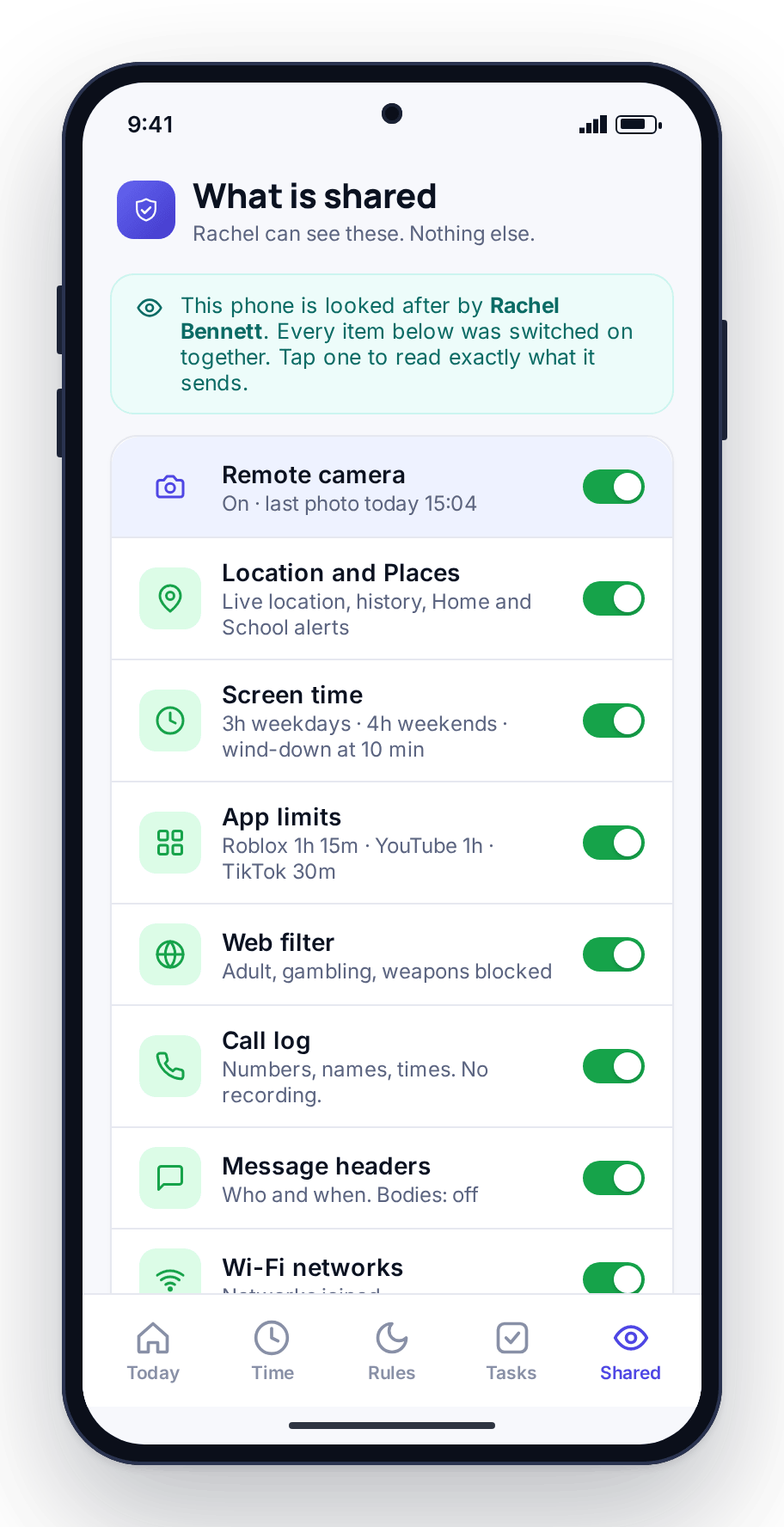
We’re leading with that because the remote camera is the tool people most often imagine misusing, and we’d rather be blunt than coy. Used the way it’s meant, it’s straightforward and above board: your eleven-year-old says they’re at football, the photo shows a bus stop, and you have a specific question to ask instead of a worry to sit with. The child can open their phone and see the remote camera is switched on, right there on the Transparency screen, next to everything else that’s shared.
This page is about the camera only. If you’re after the microphone, the short ambient audio clips and how those work, that’s a separate tool with its own consent notes and its own honest limits, so it lives on the ambient audio page. Here we’ll stay on photos: requesting one, the on-device safety check that flags concerning images, how each request is logged, what modern Android will and won’t let the camera do, and how the whole thing unlocks.
Requesting a photo, front or back, on demand
From the panel you pick a camera, front or back, and send the request. When the phone can do it, it takes a single still and returns it to your account, where it sits with the time and which camera took it. That’s the whole action. It’s a snapshot you asked for, not a live feed, and not a stream running in the background all day. You request, the phone answers when it can, and the photo lands in your panel to look at.
The back camera answers the “where are you, really” question when a child’s account of their afternoon doesn’t add up. The front camera is more of a “are you okay” check, a quick sign that the person with the phone is who you expect and looks fine. Neither is meant for constant use. Most parents who switch this on reach for it rarely, in the exact moments a text back of “I’m fine” doesn’t quite settle things.
- Choose front or back camera before you send the request
- Get a single still photo, not a live or background stream
- Each photo arrives with its time and the camera used
- Meant for the occasional check, not all-day watching
Flagged photos and the on-device safety check
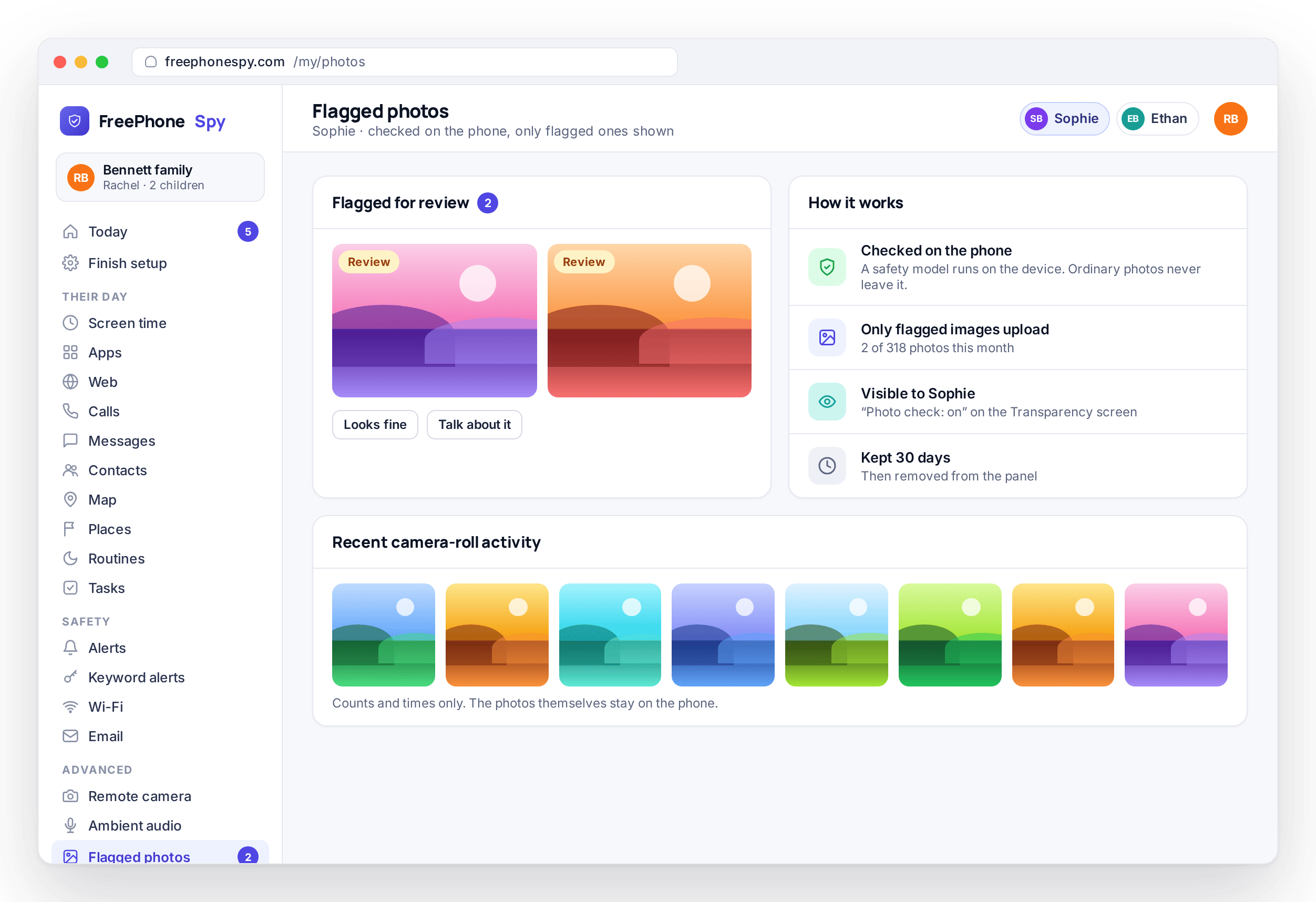
The camera isn’t only for the photos you ask for. FreePhoneSpy also runs a safety check on the phone that can flag images already on the device, the sort a parent would want to know about. The important part is where that check happens: on the phone itself. Photos aren’t shipped off somewhere to be scanned. The check runs locally, and only images it flags surface in your panel for a look, under Flagged photos.
That keeps the volume sane and the privacy intact. A child’s camera roll can hold thousands of ordinary pictures, and you don’t want, or need, to scroll all of them. The on-device check does the sorting so the rare image that deserves your attention gets it, and the birthday party and the dog don’t. What you see is the exceptions, not the archive. For the wider picture of media on the device, photos alongside videos and audio, there’s the photos, videos and recordings page.
- A safety check that runs on the phone, not on a server
- Only flagged images surface, not the whole camera roll
- The ordinary thousands of photos stay the child’s own
- Designed to catch the exception, not archive everything
Every request is logged, so there’s a record
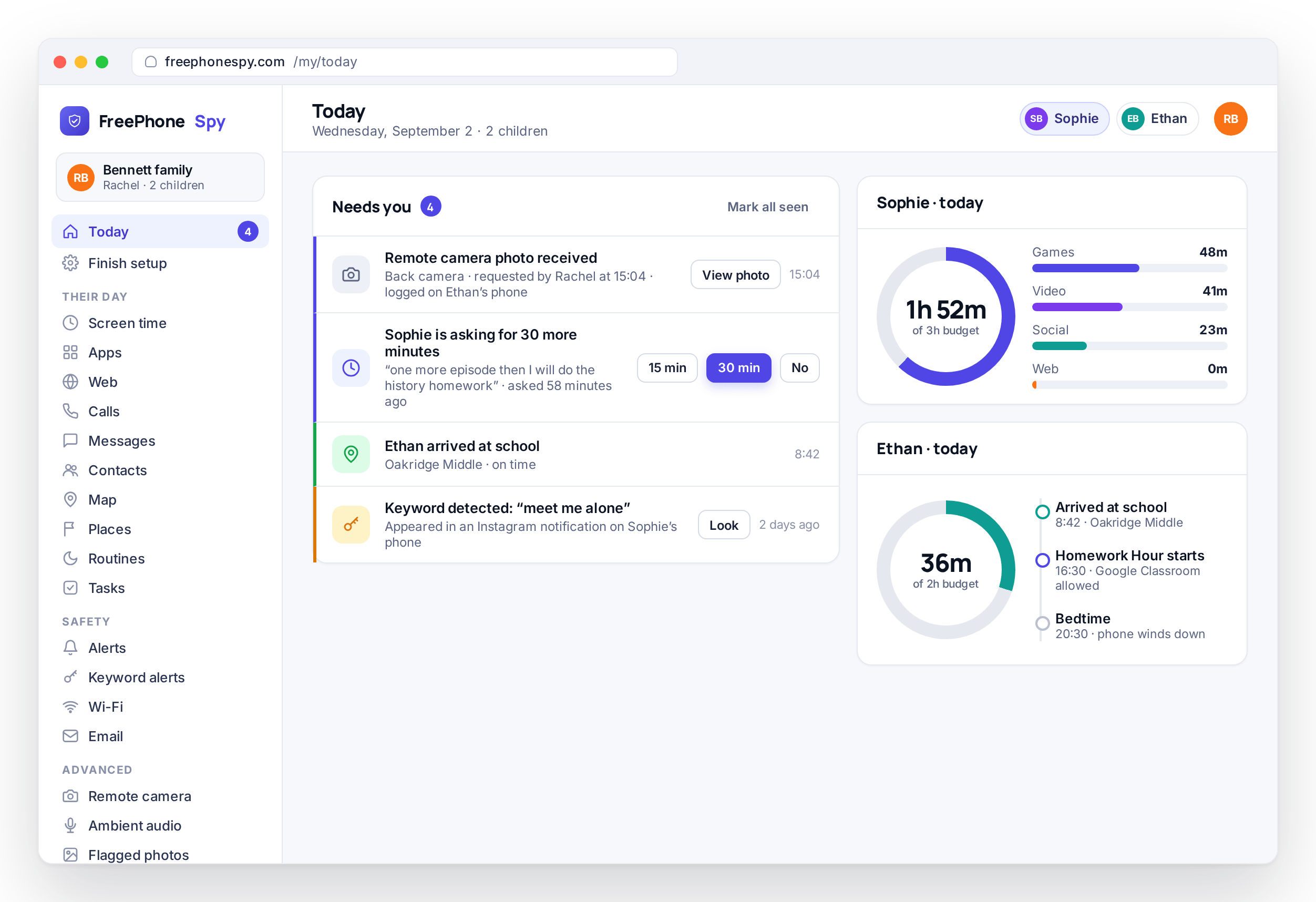
Each time you ask for a photo, that request is logged: when you sent it, which camera, and whether the phone answered. This isn’t bureaucracy for its own sake. It’s the thing that keeps the remote camera honest. There’s a plain record of exactly when it was used, which you can point to, and which your child can see too. Nothing happens quietly in the background that isn’t written down.
That record matters most in the households where it’s used carefully. A tool this pointed should never be a mystery, even to the person who set it up. The log turns “did you take a photo of me” into a question with a clear answer, and it means the remote camera can be part of an agreement you both trust rather than a source of suspicion. If a request should also raise a flag you’ll see fast, it can surface in your Alerts feed alongside everything else worth your attention.
- Every photo request logged with its time and camera
- Whether the phone answered is part of the record
- A clear history the child can see, not a hidden action
- Flag-worthy events can surface in the Alerts feed
What Android allows, and how it unlocks
Taking a photo from a phone’s camera in the background is something modern Android makes hard on purpose, and it’s getting harder. From Android 14 onward the platform tightened background camera access, and on many phones a silent, no-sign capture isn’t available to a third-party app at all; some manufacturers restrict it further still. So the remote camera is best-effort: on some devices a request returns a photo cleanly, on others it won’t, and rather than fake it, FreePhoneSpy tells you when a request couldn’t be completed. Treat a returned photo as a useful bonus, not a guarantee.
The remote camera is also one of FreePhoneSpy’s advanced features, off by default. The core of the app, location, screen time, app limits, the web filter and alerts, is free from the start. Advanced tools unlock when you complete a simple task, sharing a review, referring a friend, sending feedback, reporting a bug, instead of paying for them; the pricing page has the full picture. It’s listed on the child’s Transparency screen the moment it’s on, and every request is logged for both of you to see, which is exactly what keeps a tool this pointed from becoming a source of suspicion. Agree together how and when to use it, pair the phone with the 6-digit code on the Devices screen, and it becomes one more thing the phone does openly rather than a lens anyone has to wonder about.
- Best-effort on Android 14+; the panel says when a request fails
- Core tools are free; the camera unlocks by completing a task
- Listed on the child’s Transparency screen, requests logged
- Built for a parent and their own child, not covert surveillance
Questions parents ask about the remote camera
Can I take a photo without my child knowing?
No, and that’s deliberate. The remote camera is listed on the child’s Transparency screen and every request is logged. FreePhoneSpy is built for open, consented use between a parent and their own child. It is not a tool for secretly photographing anyone, and pointing a phone’s camera at another person without their knowledge may be illegal where you live.
Does the remote camera stream live video?
No. You request a single still photo from the front or back camera, and the phone returns it when it can. There’s no live feed and no background stream running all day. It’s a snapshot you asked for, logged with its time.
Why did my request not return a photo?
Because taking a photo in the background is something modern Android restricts on purpose, more so from Android 14 onward, and some manufacturers restrict it further. The remote camera is best-effort: on some phones it works cleanly, on others it won’t, and the panel tells you when a request couldn’t complete rather than pretending.
What are flagged photos?
An on-device safety check can flag images already on the phone that a parent would want to know about. The check runs on the phone, not on a server, and only the flagged images surface in your panel, so you see the exceptions rather than scrolling the whole camera roll.
Do I have to pay for the remote camera?
No. FreePhoneSpy has no subscription and no card. The remote camera is an advanced feature that unlocks when you complete simple tasks like sharing a review or referring a friend. The core tools stay free. The full model is on the pricing page.
What about listening in, or recording audio?
That’s a separate tool with its own consent notes and limits, so it has its own page. Head to the ambient audio page for short audio clips, listening back from the panel, and how consent laws vary by place.
More: Ambient audio & recordings · Photos, videos & recordings · Alerts & keyword flags · Pricing · All FAQs