
An app blocker and website blocker that leaves the essentials on
Block or limit individual apps, filter whole categories of the web, and keep adult and gambling sites off your child’s Android, while phone, messages and maps stay available. The filter runs on the phone itself, so it works on any network.
Android child app
Runs in any browser
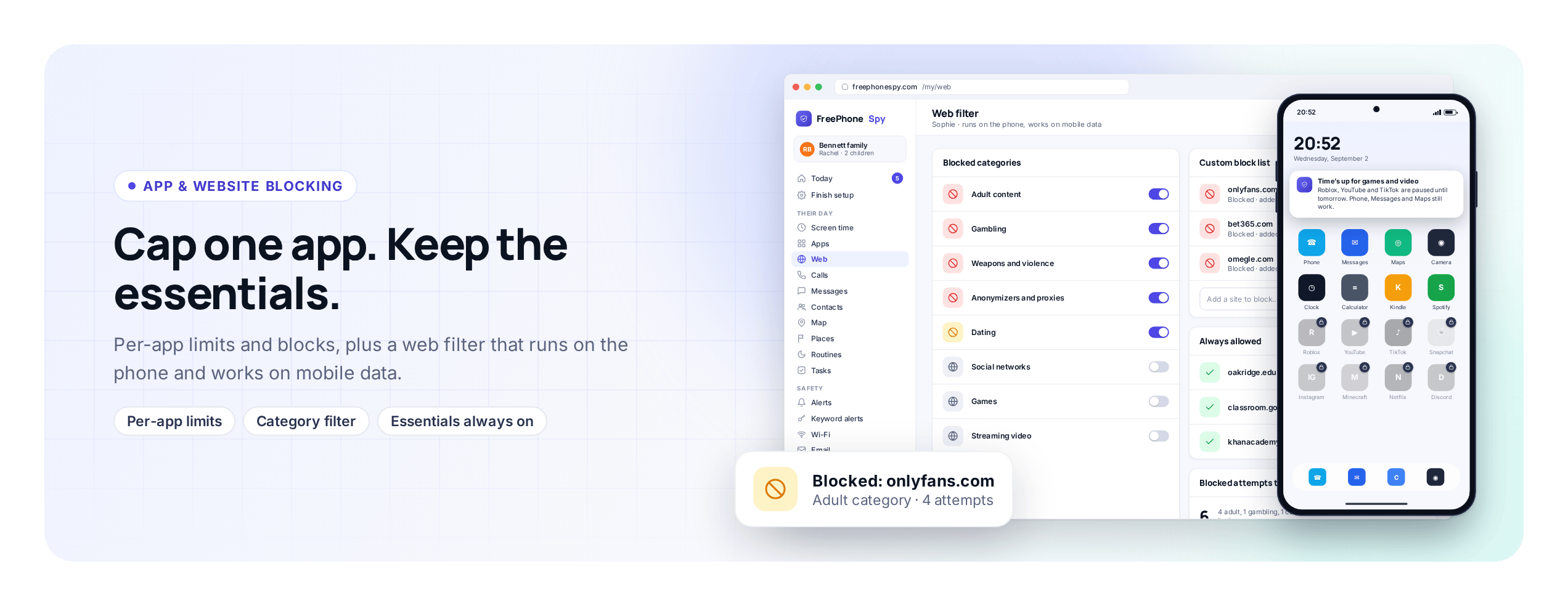
Locking a whole phone is easy and unhelpful, because a phone that cannot make a call is no use to a child. A useful app blocker turns off the one game that is eating homework, filters out the adult sites nobody wants a child landing on, and never gets in the way of your kid calling you.
You set app and website rules in the web panel from any browser, and the child app carries them out on the phone. Phone, messages, maps and the keyboard stay reachable no matter what rule is set. Your child can see which apps and sites are limited on their own phone, so the rules are known to both of you rather than discovered by trial and error.
Per-app block or limit, one switch each
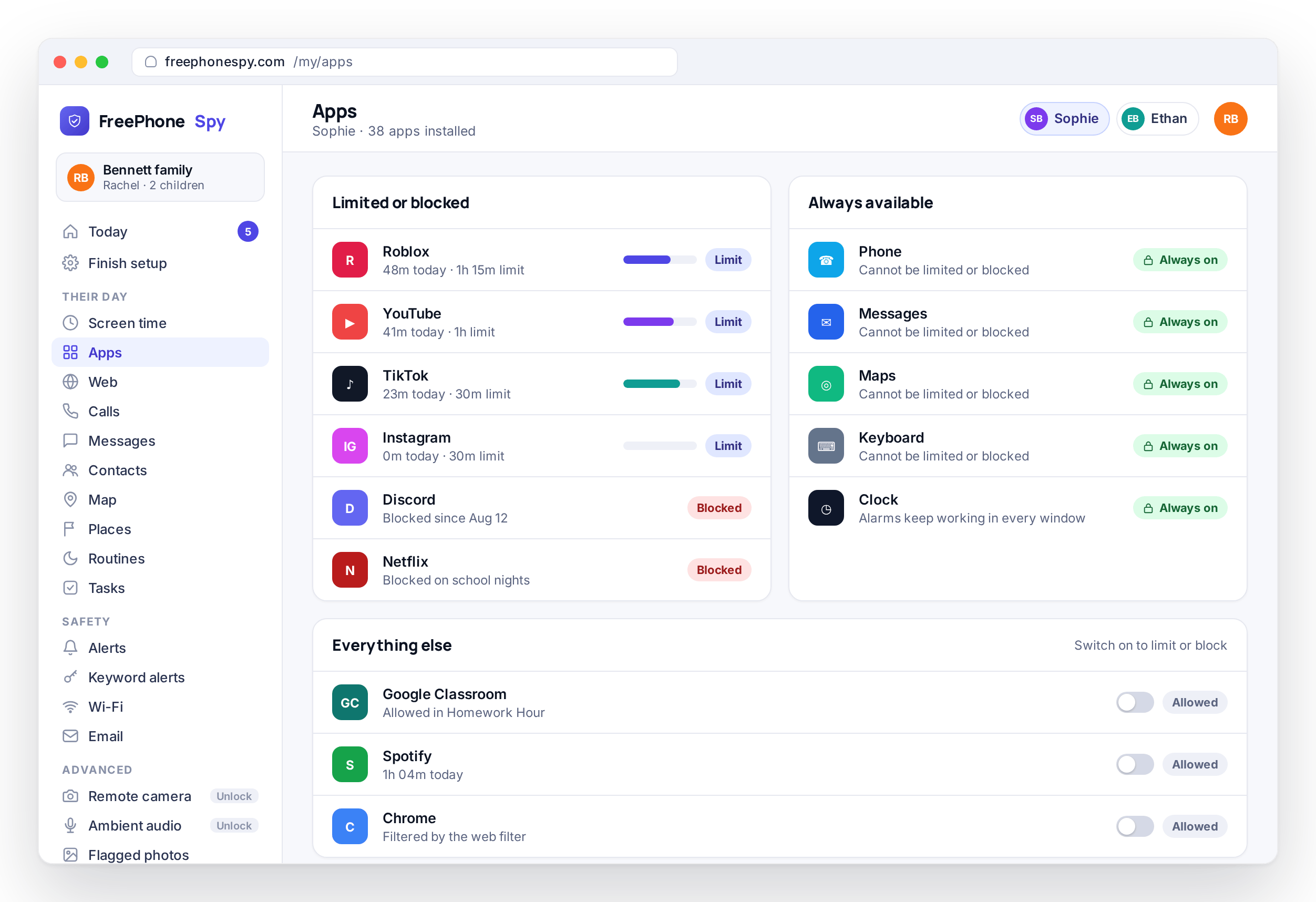
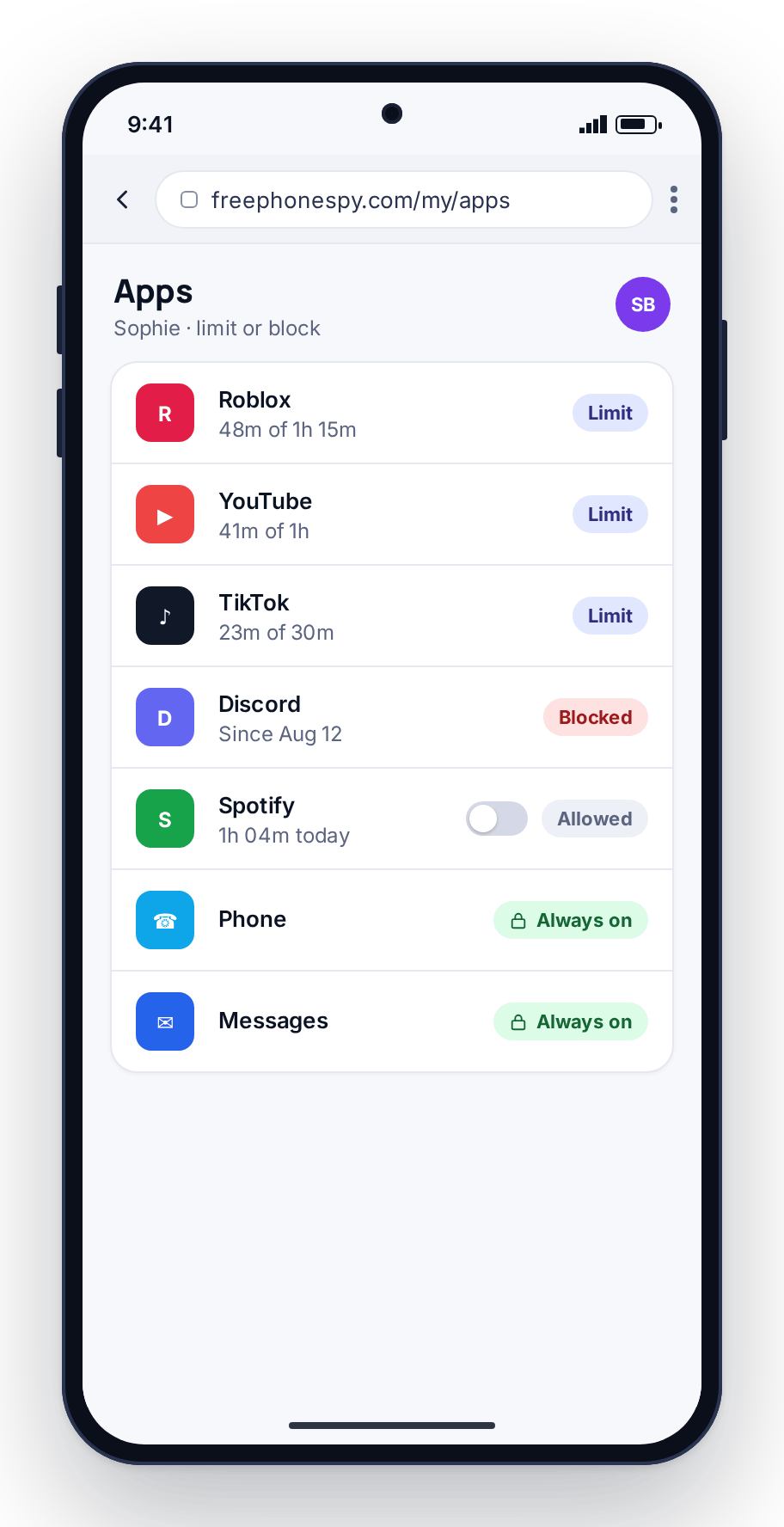
The Apps screen lists every app installed on the phone, and each one has three options: leave it, put a daily time limit on it, or block it. The game that swallows entire afternoons gets an hour. The one app that keeps causing trouble gets switched off. Everything else carries on as normal.
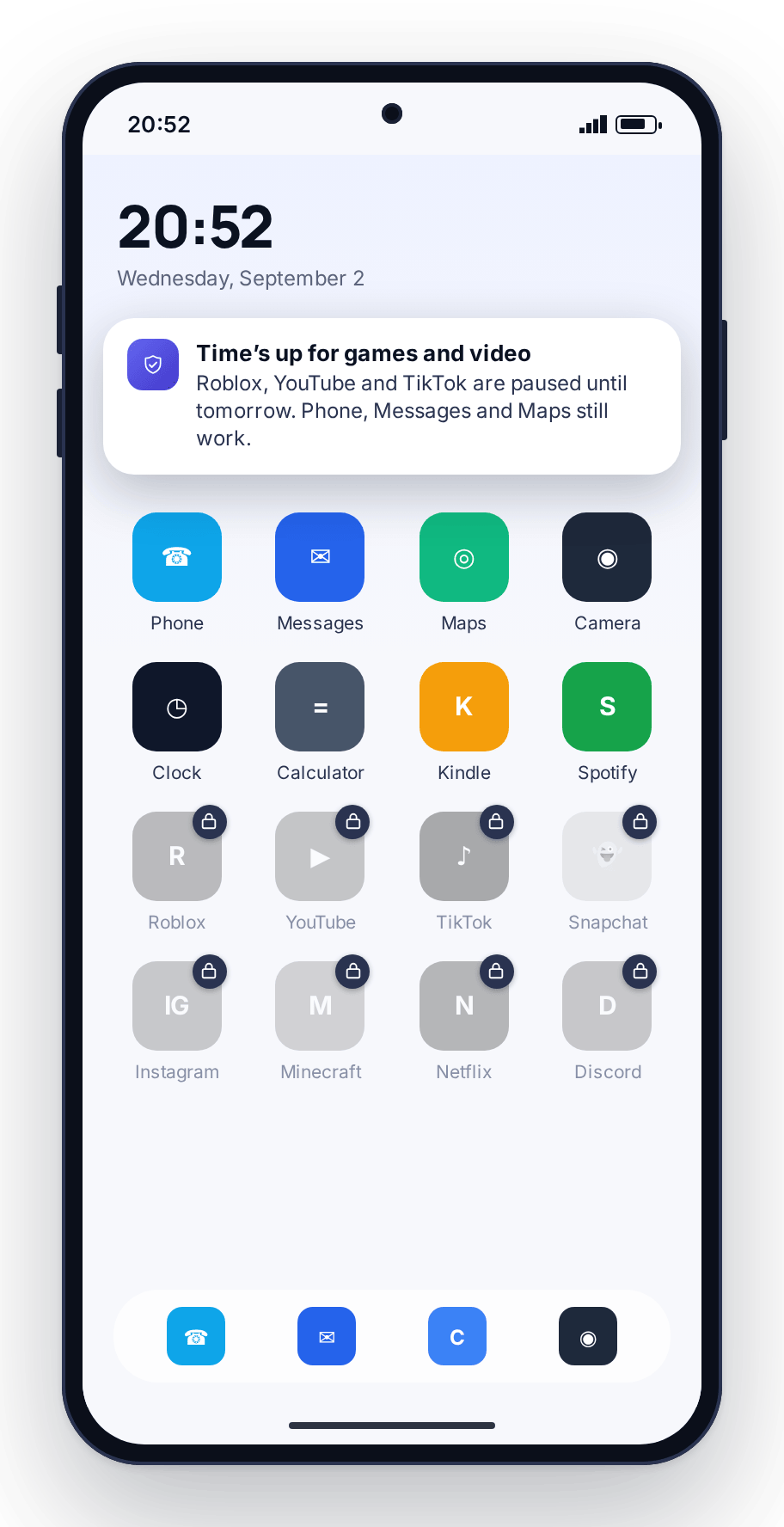
A limit means “an hour of this, then a wind-down warning and it closes”, which suits the games and video your child enjoys. A block means “not on this phone”, for an app that is wrong for their age or one you have agreed together is not worth the trouble. Most families use a mix. Minutes spent in a limited app also count against its category in the daily budget.
- Block an app outright, or cap it with a daily limit
- Set different rules for each child
- Change a rule any time; it syncs to the phone on its next connection
- Limits count against the daily screen time budget
Essential apps stay untouchable
Phone, messages, maps and the keyboard stay on at all times. No rule, no Routine and no blocked-app setting can remove them, and they do not appear as options on the Apps screen. If your child needs to call you, they can. If they need to find their way home, maps opens.
Some blunt tools get this wrong and leave a child with a phone that cannot make a call. A parental control should make a phone safer, not useless, so these four are excluded from every rule the panel can create.
- Phone and messages always reachable
- Maps stays on so they can navigate
- The keyboard is never blocked
- Even Bedtime and School Routines leave the essentials alone
Website and category blocking
The web is bigger than any app list, so you block it two ways. On the Web screen you can block a specific website by address when there is one site you want gone, or block a whole category such as adult or gambling so you are not chasing individual URLs. New sites in a blocked category are covered as they appear.
Category blocking does most of the work. There are more adult and gambling sites than anyone could list by hand, so the filter classifies sites by type rather than matching names. Switch a category off and the whole class of site goes with it.
- Block individual sites by address
- Block whole categories: adult, gambling and more
- New sites in a blocked category are covered automatically
- Works across the phone’s browsing, not just one browser
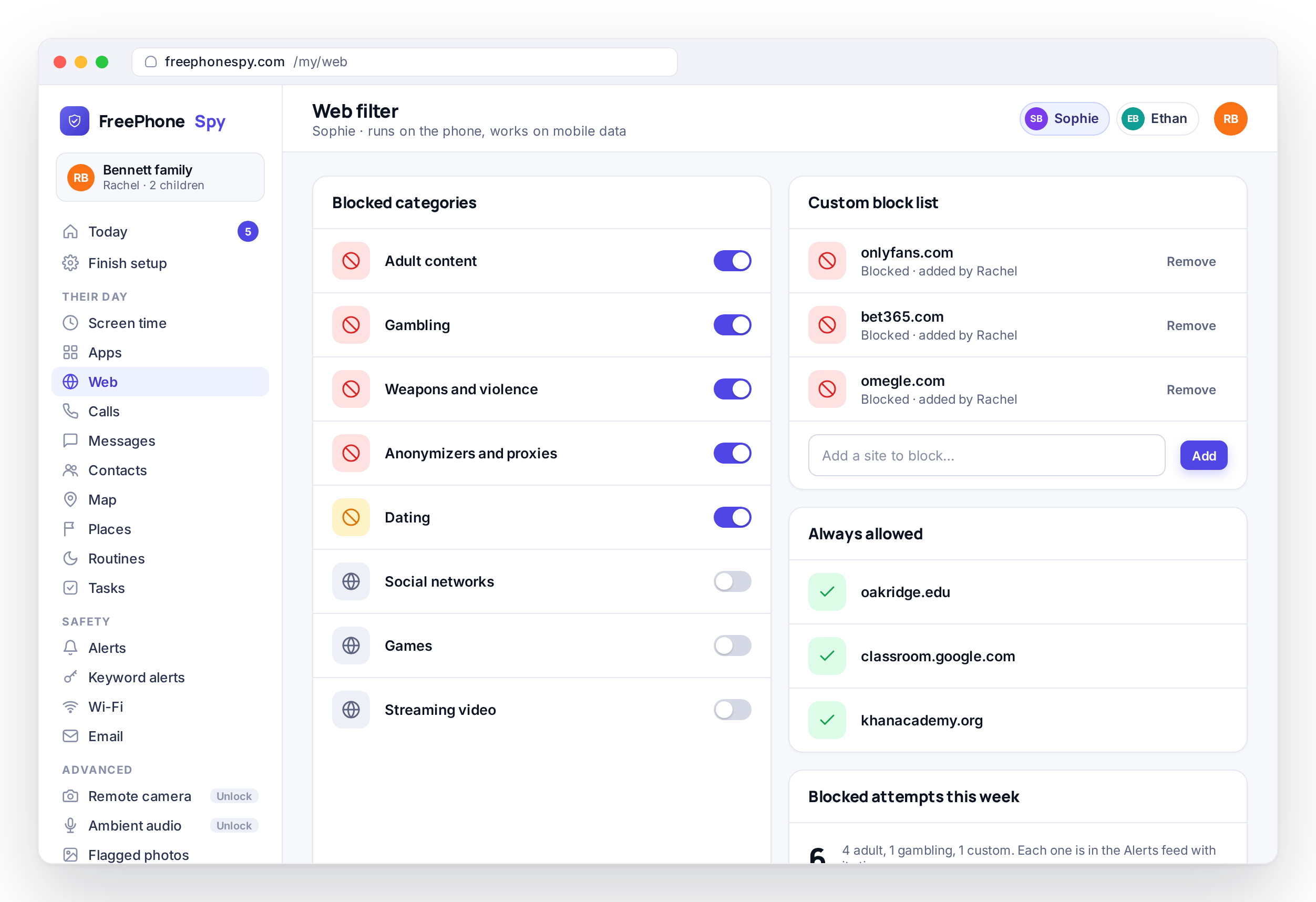
An adult and gambling filter that runs on the phone
The content filter runs on the device, not on your home router. That means it keeps working when the phone is on mobile data or a friend’s Wi-Fi, and it is harder to get around than a router block that stops applying the moment the phone leaves the house.
Adult sites blocked
Turn the adult category on and that whole class of site is filtered by type, so it holds as new sites appear, with no list to maintain.
Gambling filtered
Betting and gambling sites are their own category. Switch it off and it stays off, on data or Wi-Fi alike.
On-device, not router-only
Because the filter lives on the phone, it travels with the phone. Leaving the house doesn’t leave the filter behind.
No filter is perfect, and a determined teenager with time and a VPN can get around any of them. What on-device category filtering does well is keep the obvious material away from a curious eleven-year-old, consistently and on every network. For an older teen, pair it with a conversation about why it is there.
What you block at eleven and what you block at fifteen are different jobs. In the demo family, Ethan (11) has several apps blocked and both filter categories on, while Sophie (15) has two per-app limits, the adult and gambling filter, and a Bedtime routine as the backstop. Both phones can call home, and both children can see the rules on their own screen.
Blocked-attempt alerts, so you know what came up
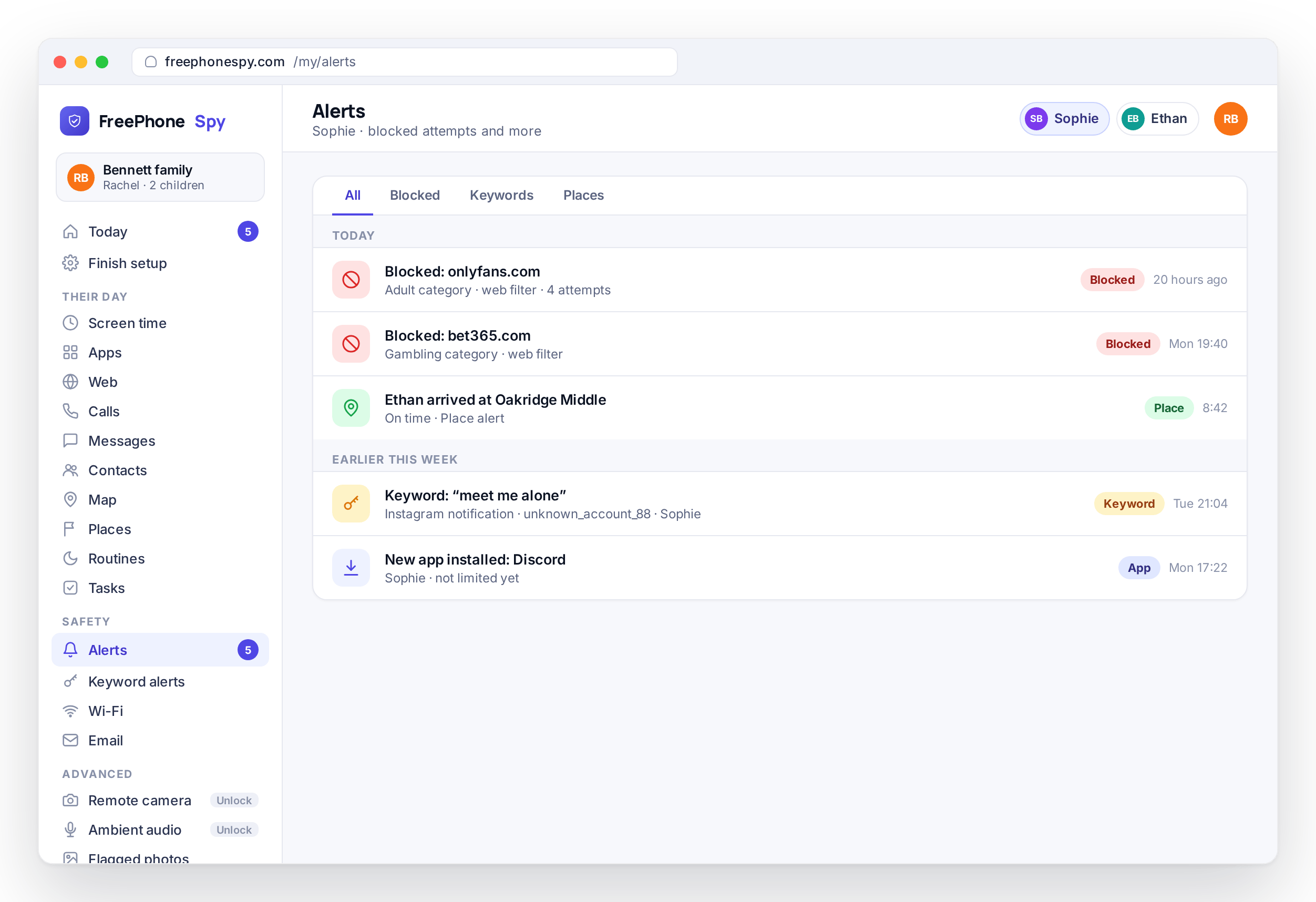
When the filter stops something, a blocked-attempt alert lands in your alerts feed: a blocked app was opened, or the browser tried to reach a site in a filtered category. Each entry shows the app or site name and the time. In the demo account, Ethan’s feed shows adult sites blocked before anything loaded.
A blocked attempt is often a curious tap or a bad link in a group chat, and one alert can be the start of a useful conversation rather than a punishment. You decide what is worth raising. The alert makes sure you are not the last to know.
- Alerts when a blocked app is opened
- Alerts when the filter stops an adult or gambling site
- Everything in one feed, with a time and a name
- Blocked attempts also appear on the Today dashboard
How to set up app and website blocking
A few minutes in the panel, once the child phone is paired with the 6-digit code from the Devices screen. Start broad, then fine-tune.
Turn on the content filter
Open the panel in any browser, pick your child, open the Web screen and switch on the adult and gambling categories. This is the step with the biggest effect, so do it first.
Set your app rules
Go through the Apps list and block or limit the ones that need it. Leave the rest. Phone, messages, maps and the keyboard are already excluded.
Add any specific sites
Block individual websites by address if there is a particular one you want gone beyond the categories.
Turn on blocked-attempt alerts and walk through it together
Switch on alerts so you see what comes up, then show your child what is filtered on their phone. Blocking is one layer: screen time sets the daily total, Routines set the timing, location keeps running underneath all of them, and the features page lists the rest.
App and website blocking questions, answered
Can I block a specific app on my child’s phone?
Yes. Open the Apps screen for that child, find the app, and choose Block. The app closes on the phone the next time it syncs and cannot be opened until you change the rule. If you would rather cap it than remove it, choose Limit and enter a number of minutes per day instead.
What does my child see when they open a blocked app?
The app does not open, and the child app shows that it is blocked rather than letting it fail silently. The same list of blocked and limited apps is visible on the child’s phone, so they can check the rules without asking you. If blocked-attempt alerts are on, the attempt also appears in your feed.
Does the website blocker work in every browser on the phone?
Yes. The filter applies to the phone’s web traffic rather than to one browser app, so it covers Chrome, other browsers, and pages opened inside apps. It also keeps applying on mobile data and on Wi-Fi networks away from home.
Can I change the rules as my child gets older?
Yes, and you should. Rules are per child, so loosening Sophie’s settings does not touch Ethan’s. Remove a block or raise a limit from the Apps screen, or turn a category off on the Web screen, and the phone picks up the change on its next connection. Nothing needs reinstalling.
Which apps can’t be blocked?
Phone, messages, maps and the keyboard. They are excluded from the Apps screen and from every Routine, so no combination of settings can remove them. Everything else on the phone can be limited or blocked.
Is any filter completely foolproof?
No. A teenager with time and a VPN can find a way around any category filter, and we do not claim otherwise. The filter is reliable for keeping obvious adult and gambling content away from a younger child, and blocked-attempt alerts tell you when it has been tested.