
A screen time app that ends the nightly argument
Set a daily minute budget for your child’s phone, split it across games, video, social and web, and let the phone do the enforcing. Your child sees the same budget on their own screen, so you stop being the timer.
Android child app
Runs in any browser
The phone was supposed to go off at nine, it is now twenty-five to ten, and you are the bad guy again. A screen time app should take you out of that argument by making the limit the phone’s job instead of yours.
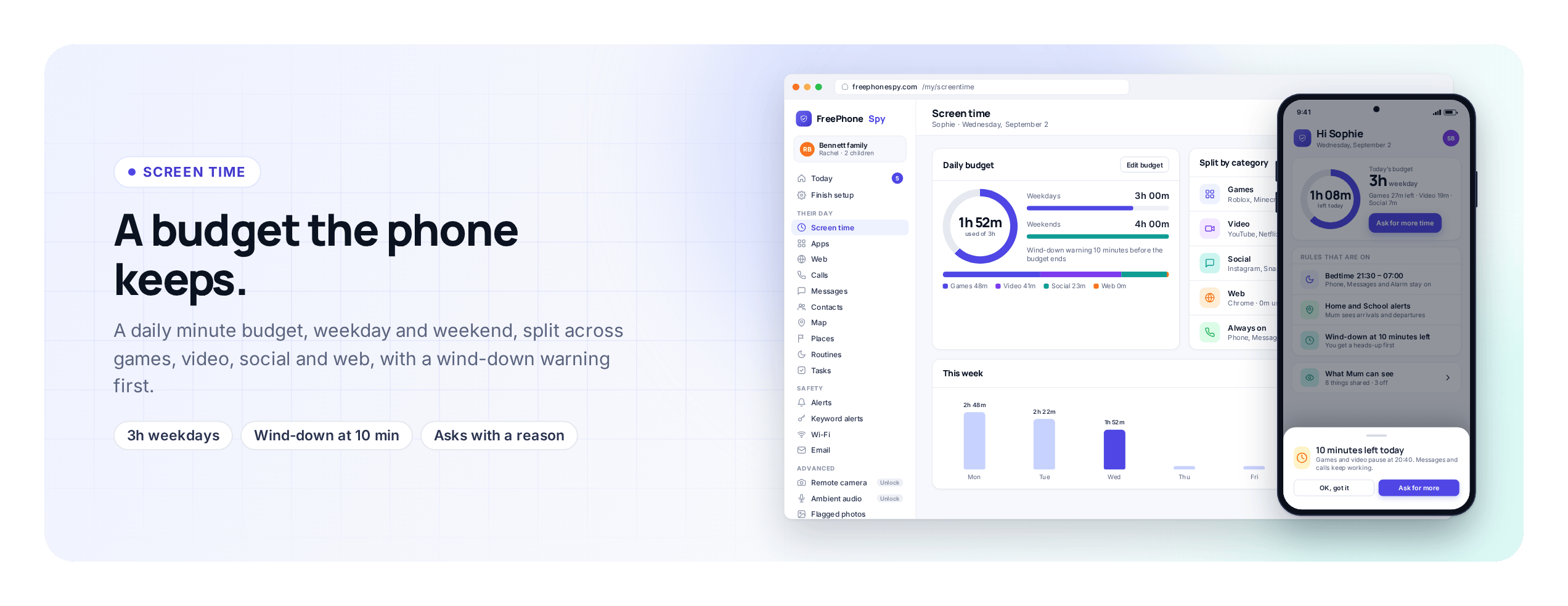
FreePhoneSpy gives each child a daily minute budget. When the minutes run out, the phone gives a warning and then winds the non-essential apps down by itself. You set the number once in the web panel from any browser, and after that nobody has to stand over anyone with a countdown.
A daily minute budget, weekday and weekend
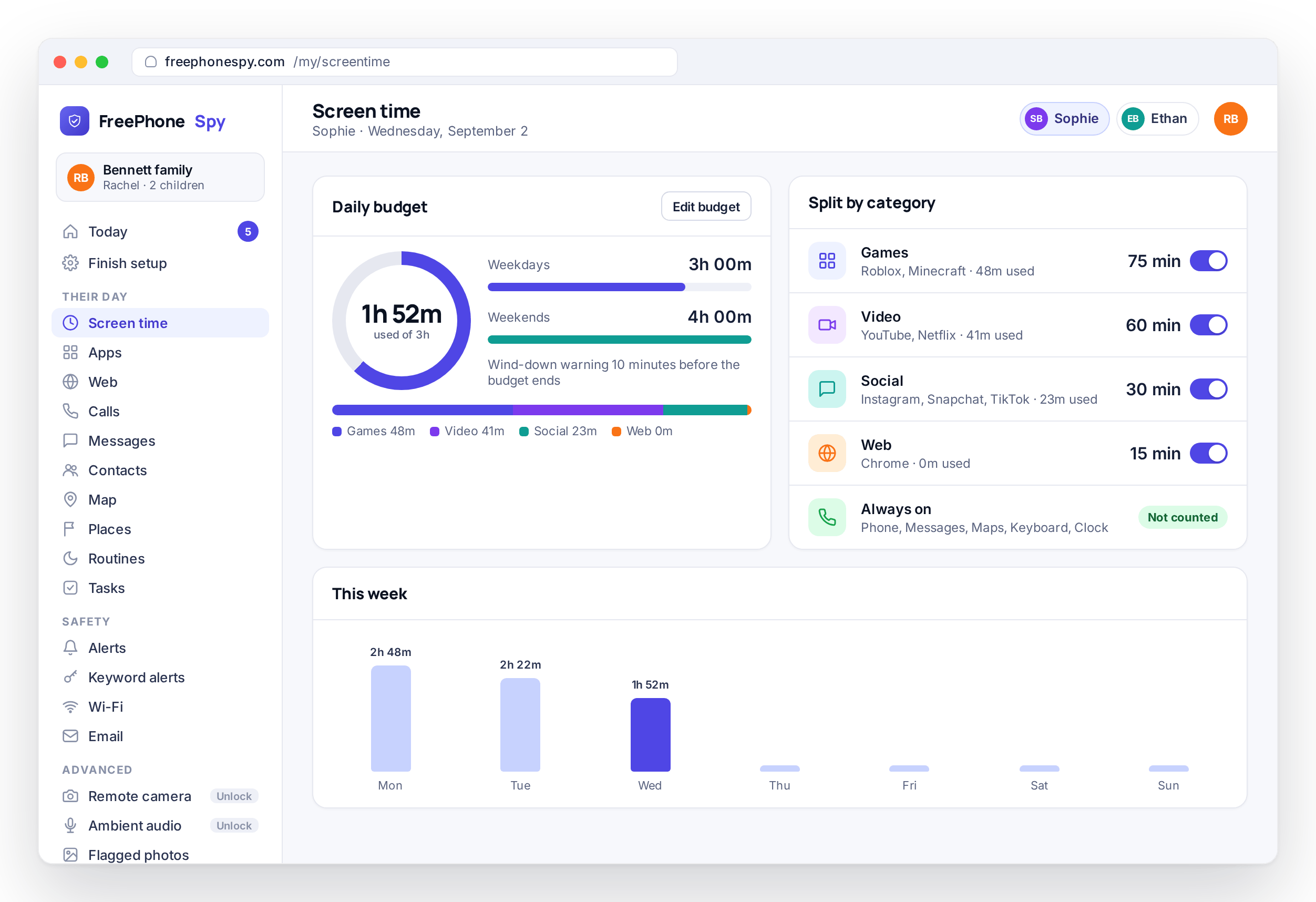
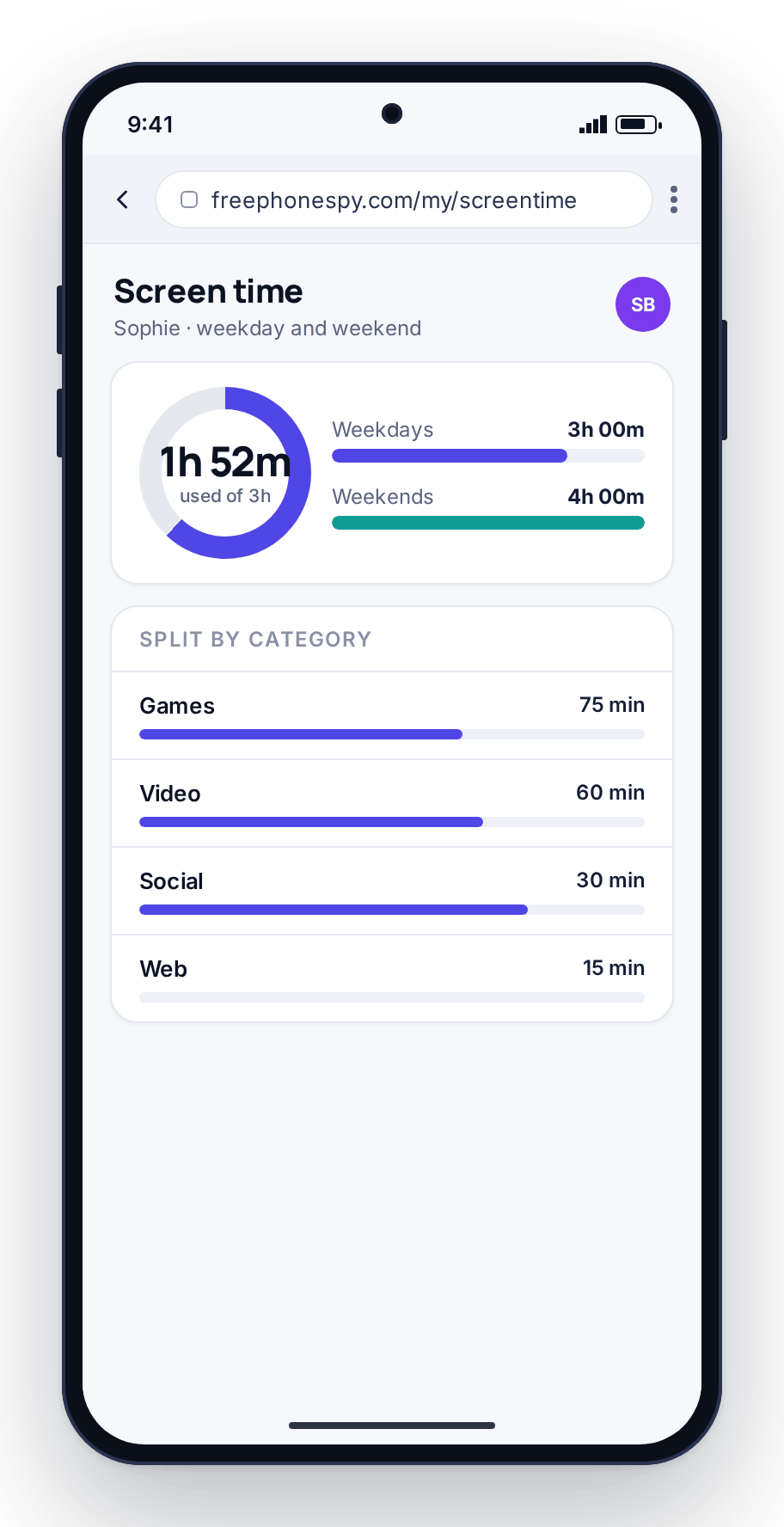
Pick a number of minutes for a school day and a different number for the weekend. A weekday might be tight because of homework, sleep and an early start, while Saturday can be looser. You set both numbers in the panel and the phone applies the right one for the day.
The budget counts minutes of use, not clock time, so a child who barely touches the phone on Tuesday afternoon still has those minutes for the evening. Each child has their own budget, and a change made in the panel reaches the phone the next time it has a connection.
- Separate weekday and weekend budgets
- Counts minutes of use, not clock time
- Change it any time from the panel
- Each child gets their own number
Split the budget by what the time is for
Not all screen time is the same, and the panel treats it that way. The daily budget splits across games, video, social and web, so you can be generous with one and firm with another. An hour of video might be fine while social gets thirty minutes, or games might be a weekend-only category.
The same screen shows where the time went, so the split is a report as well as a rule. That gives you a specific opening for a conversation, such as “video took two hours yesterday, shall we move some of that?”, instead of a general complaint about the phone.
- Separate allowances for games, video, social and web
- See where the day’s minutes went, by category
- Turn a category down without touching the others
- Cut one app category while leaving the rest alone
A wind-down warning, then the phone enforces it
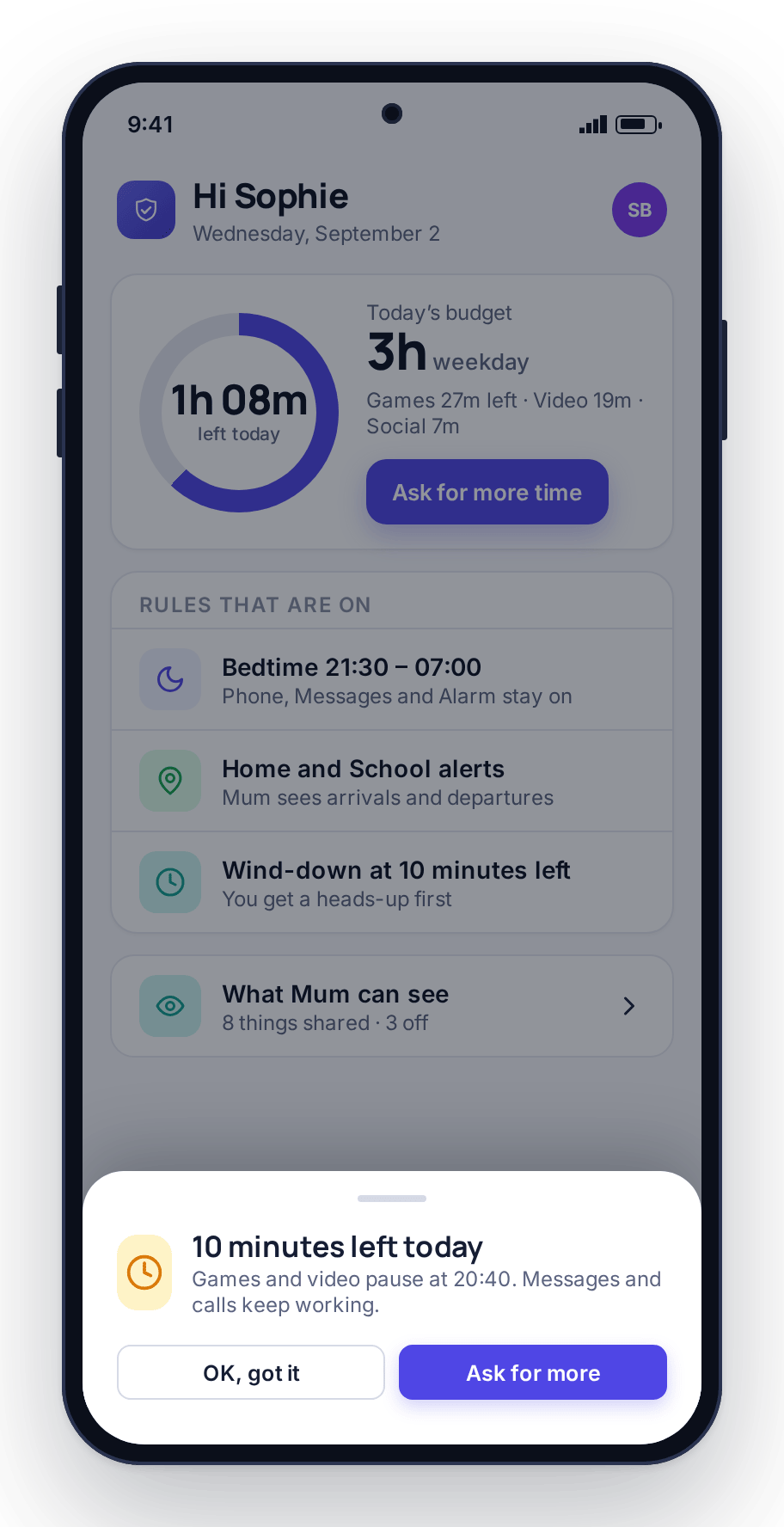
Before the budget runs out, the phone shows a wind-down warning so your child can save the game or finish the message rather than losing it mid-sentence.
When the minutes are gone, the phone enforces the limit itself. The rule lives on the phone, so it holds even if the phone drops off Wi-Fi for a while, and changes you make in the panel sync down when it reconnects. Phone, messages, maps and the keyboard stay reachable no matter what; games, video and social wind down as agreed.
- A warning before time is up, not a sudden cut-off
- On-device enforcement that works offline
- Phone, messages and maps stay on
- The same rule every night, applied by the phone
Routines: Bedtime, Homework Hour, school
A budget handles how much. Routines handle when. A Routine is a scheduled window with a start time, an end time and a list of apps that stay available inside it, and the phone applies it every day without you switching anything.
Bedtime
From nine to seven, games, video and social are paused. Calls and messages can stay on so an emergency still gets through.
Homework Hour
Block games and social for the hour after school so homework has a fighting chance. The tools they need for schoolwork stay open.
School
During lessons, lock the distractions and leave the essentials. When the bell goes, the phone comes back on its own.
Routines and the budget work together. Homework Hour can pause the clock so a tight weekday budget is not spent on schoolwork, and Bedtime ends the day even if minutes are left over.
Asks & extra time, without you being on call
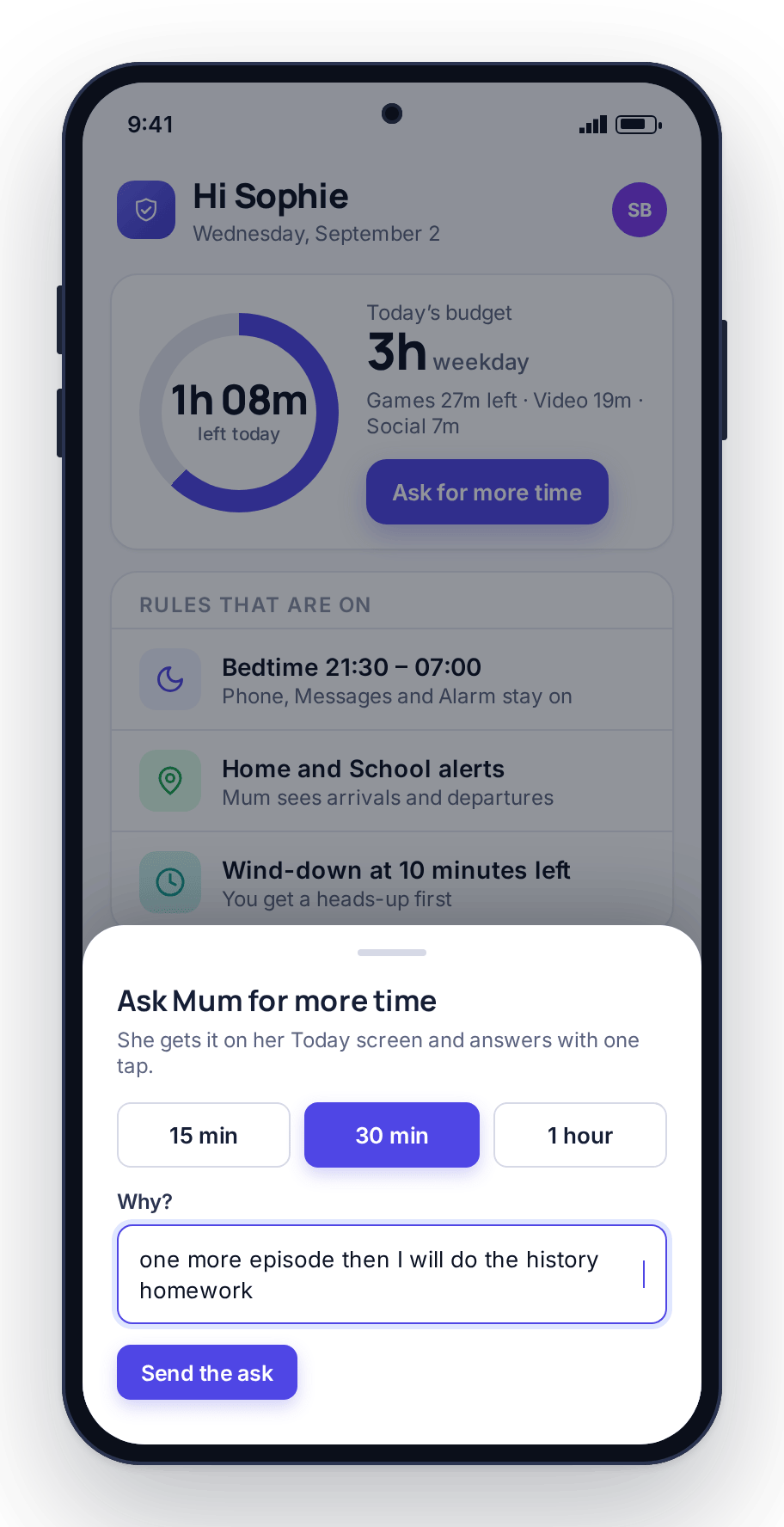
Some days need more than the fixed budget: a group project, a rainy Sunday, a film that runs long. When the minutes run out, your child can send an Ask, which is a request for more time with a reason typed in. It appears on your Today dashboard and you tap 15, 30 or No.
You are not unlocking the phone by hand or typing a passcode across the room. Because the reason arrives with the request, you can say yes to “finishing a project” and no to “I’m bored” without a debate, and the panel keeps a record of each Ask and your answer.
- The child asks with a reason; you tap 15, 30 or No
- Requests land on the Today dashboard, next to everything else
- Grant from any browser, wherever you are
- A clear record of what was asked and what you said
Tasks & rewards: earn minutes instead of begging for them
Instead of only asking for time, your child can earn it. Set Tasks such as chores, reading or a tidy room, each worth a number of minutes. When your child marks one done and attaches a photo, you approve it in the panel and the minutes are added to that day’s budget.
This changes what the phone is in the household. It stops being the thing you take away and becomes something they work toward, and the trash goes out because forty minutes of games are on the other side of it.
- Set chores and tasks worth a number of minutes
- Child marks a task done with a photo, you approve
- Minutes are added to the budget when you approve
- Turns screen time into a reward as well as a limit
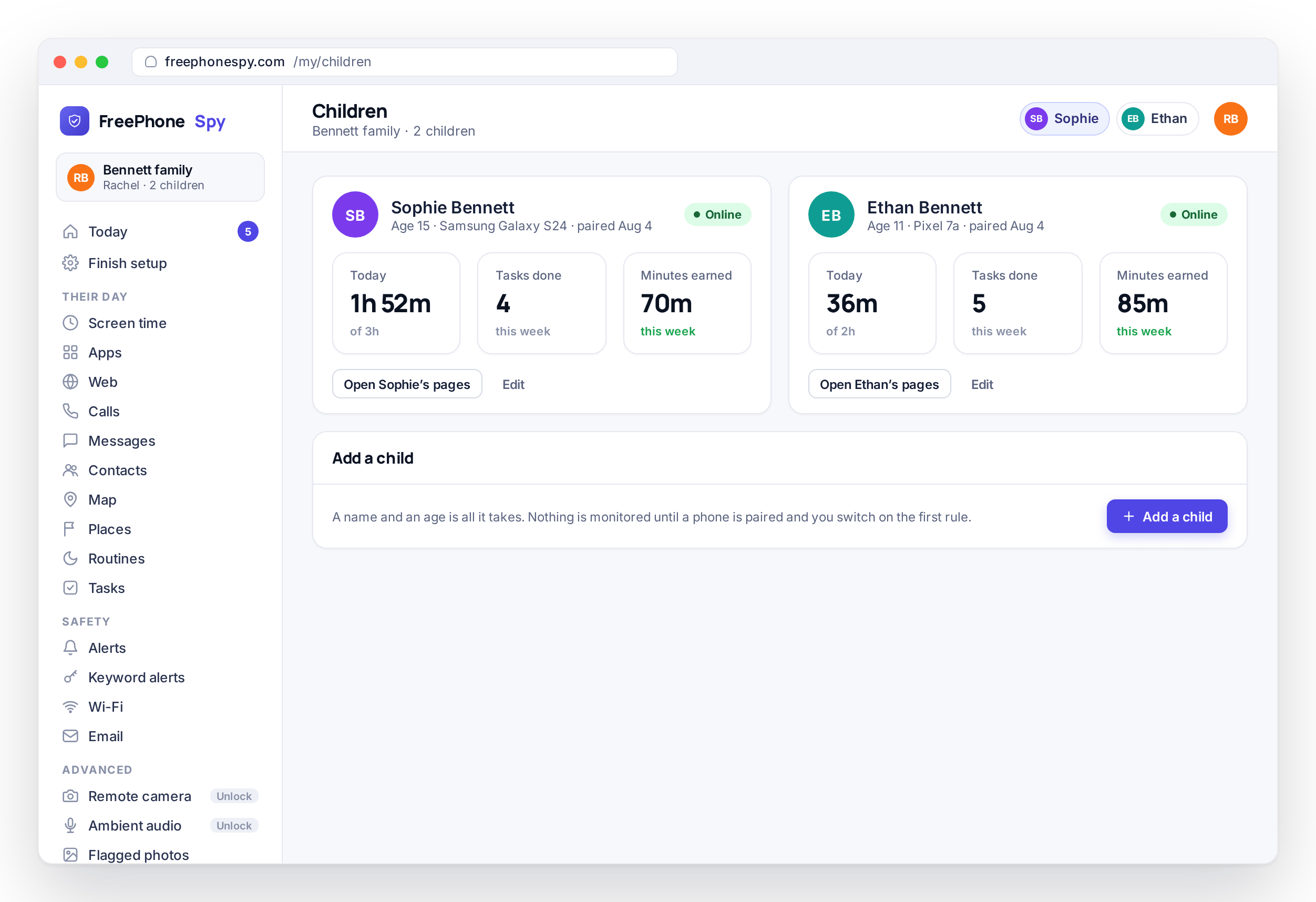
How to set up screen time
A couple of minutes in the panel, once the child phone is paired with the 6-digit code from the Devices screen.
Set the daily budget
Open the panel in any browser, pick your child, and enter a weekday number of minutes and a weekend number. Start with a rough figure; you can adjust it later.
Split it by category
Divide the budget across games, video, social and web. If you also want a cap on one specific app, the Apps screen sets per-app limits that draw from the same budget.
Add a Routine or two
Turn on Bedtime and, if it helps, Homework Hour. Choose the hours and which apps stay reachable during each.
Screen time questions, answered
How do app time limits work alongside the daily budget?
The daily budget is the total for the phone, split into games, video, social and web. A per-app limit set on the Apps screen is a cap for one app, and minutes spent in that app also count against its category. Whichever runs out first, the app or the category, triggers the wind-down for that app.
Can I set different limits for weekdays and weekends?
Yes. Each child has a weekday budget and a weekend budget in the panel. The phone applies whichever one matches the current day, so you set both once and do not switch between them by hand.
What happens when the time runs out?
A wind-down warning appears first. After that, games, video, social and web apps close and cannot be reopened until the next day, while phone, messages, maps and the keyboard keep working. If your child sends an Ask, approving 15 or 30 minutes reopens the paused apps for that long.
Does enforcement need the phone to be online?
No. The budget and Routines run on the phone, so they hold with no Wi-Fi or mobile data. Changes you make in the panel are picked up when the phone next connects, and until then the previous settings stay in force.
Can my child earn extra screen time?
Yes. On the Tasks screen you create chores or activities worth a number of minutes each. Your child marks one done and attaches a photo; you approve it from the Today dashboard and the minutes are added to that day’s budget. Each child has their own task list and balance.
Does my child know the limits are set?
Yes. The child app shows the budget, the remaining minutes and the wind-down warning, and its Transparency screen lists screen time as active. FreePhoneSpy does not hide itself on the phone, and we recommend setting the budget with your child present.