
Wi-Fi monitoring for kids, and a child email monitor that respects privacy
See which networks your child’s phone has joined, get an open-network alert when it connects to something unsecured, and view email subject and sender lines without the message bodies. Enough to spot a problem, without reading over anyone’s shoulder.
Android child app
Runs in any browser
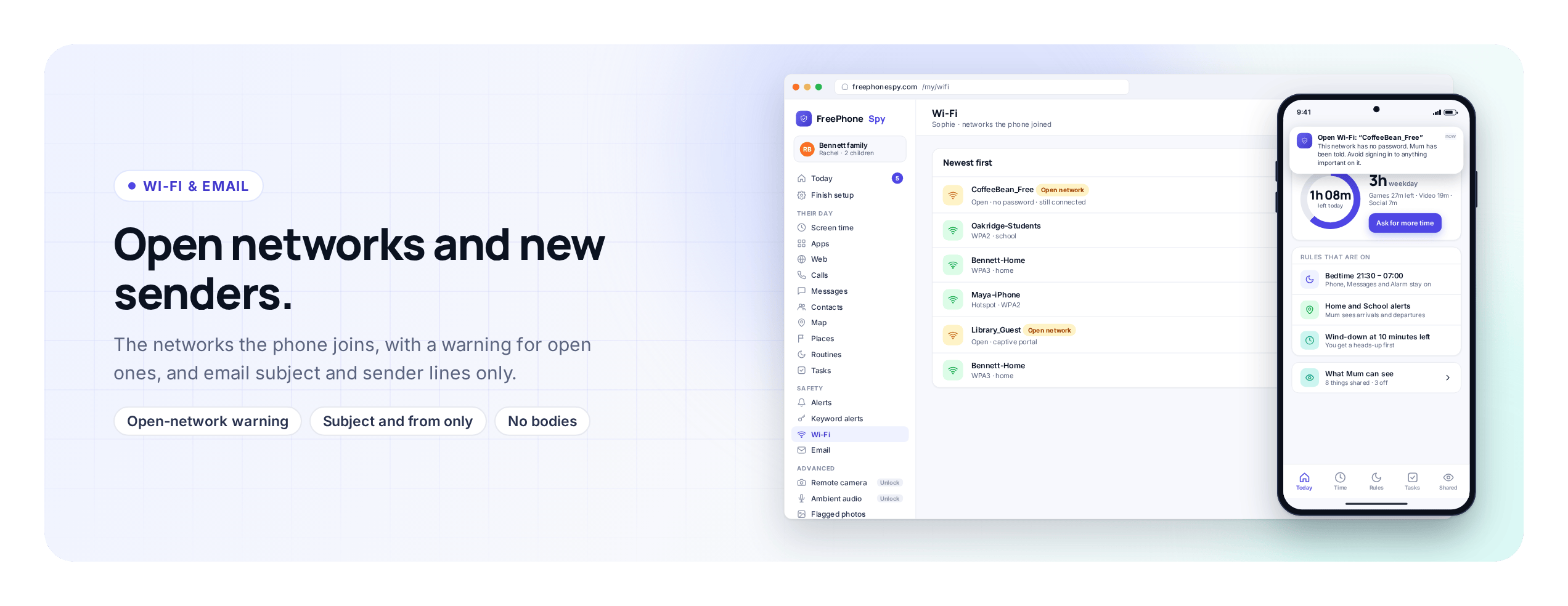
Two less obvious parts of a phone tell you a lot: the networks it joins and the email it receives. Which network the phone is on says something about where it is and how safe the connection is. The subject and sender of an email say whether something needs a look. Neither requires reading anyone’s messages.
Wi-Fi monitoring lists the networks the phone has connected to and warns you about open, unsecured ones. The email monitor shows the subject line and the sender of each incoming message and stops there; it never fetches the message body. Both are built to flag a problem, not to give you a transcript of your child’s inbox.
The networks the phone has joined
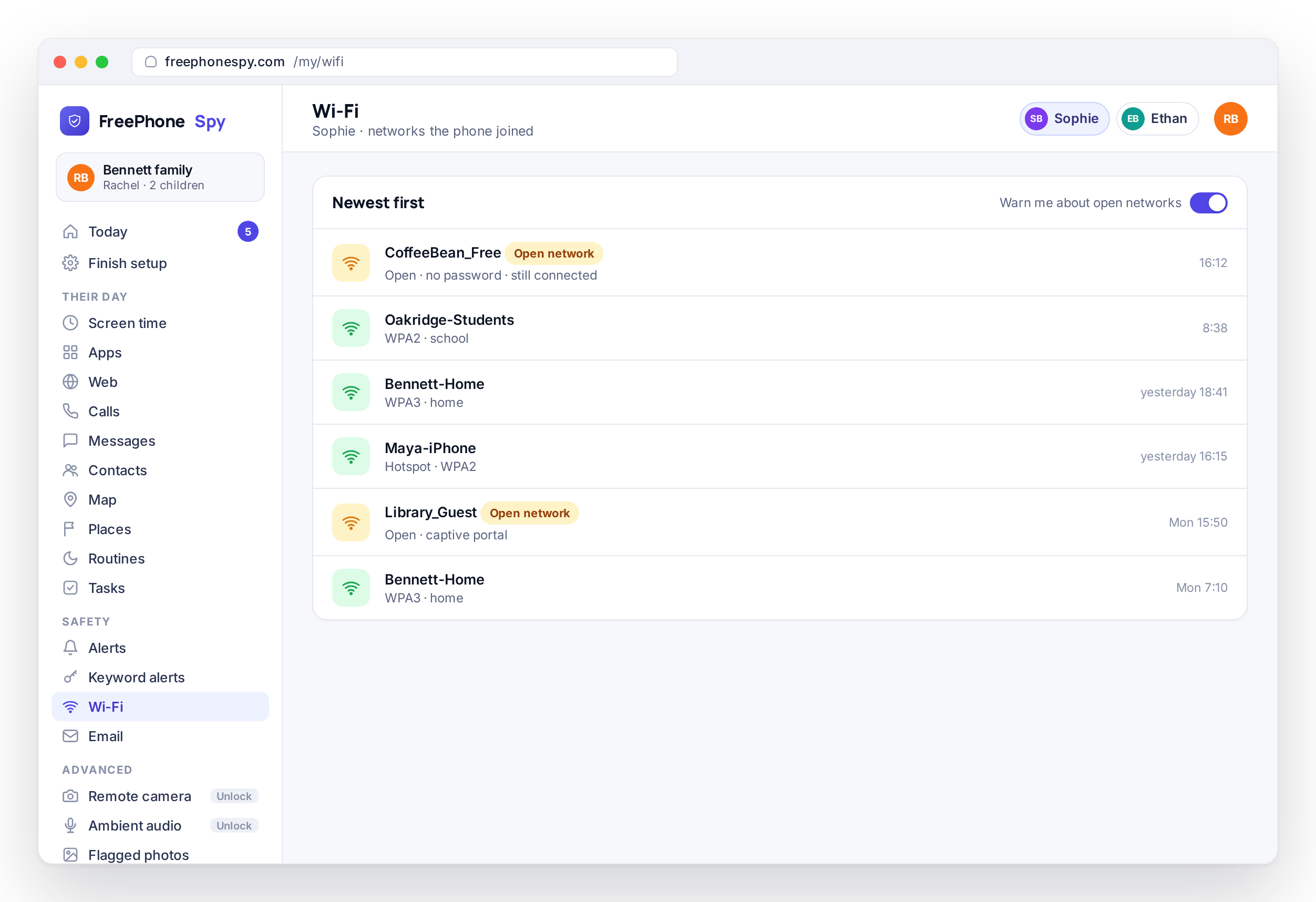
Every Wi-Fi network the phone connects to appears on the Wi-Fi screen in the panel, newest first, with the network name and the time it joined. The home network in the evening, the school network on a weekday and a friend’s network at the weekend fill in the ordinary picture of a week, and that is what makes the unusual stand out.
A network name at an odd time is often the first hint worth a question: a coffee shop network on a school afternoon, or an unfamiliar name late at night. Paired with location and Places, the network the phone is on and where the map says it is give a clearer picture than either does alone.
- A list of joined networks, newest first
- Network name and the time it connected
- Builds the ordinary pattern of a week
- Odd names at odd times stand out
An open-network alert when it matters
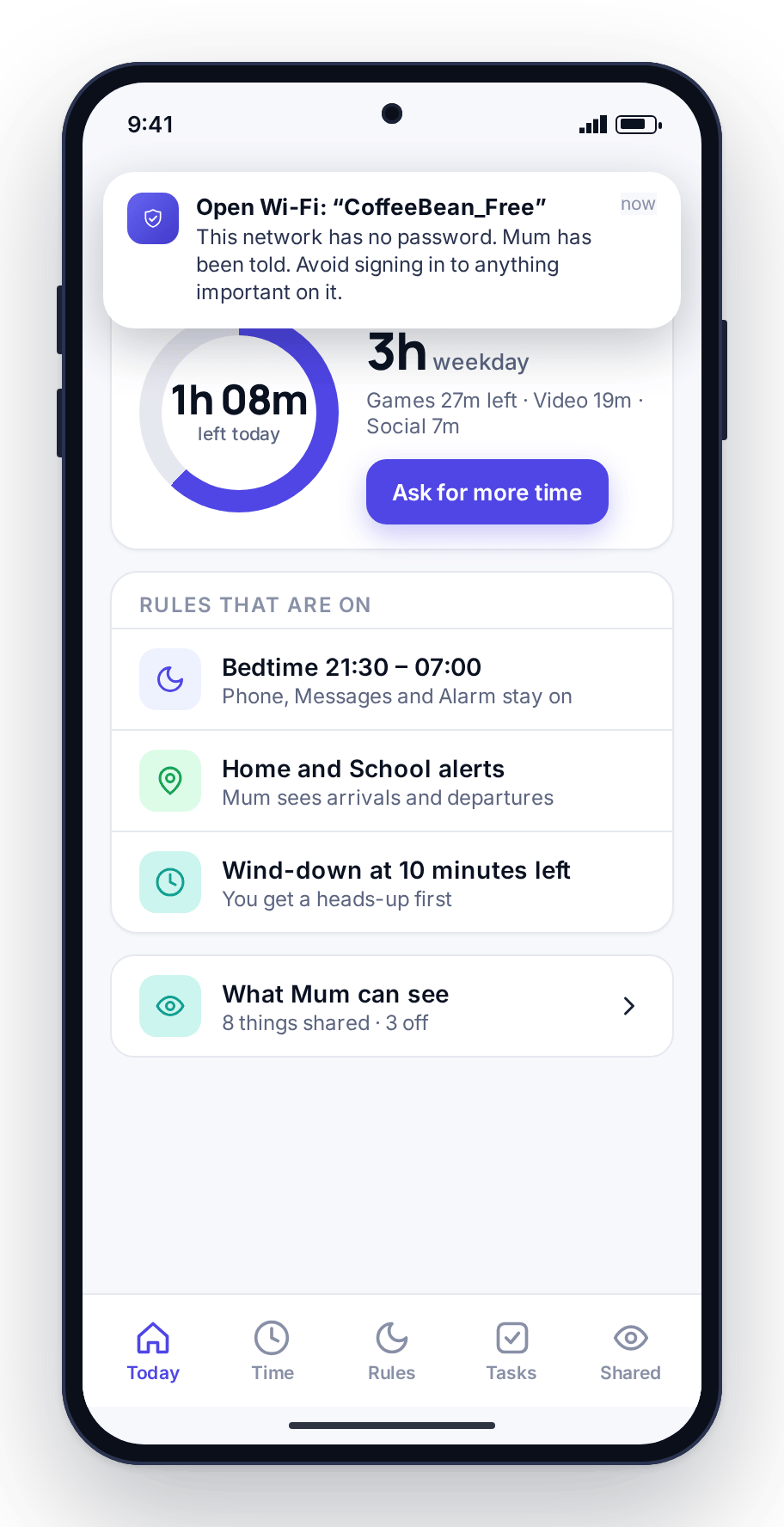
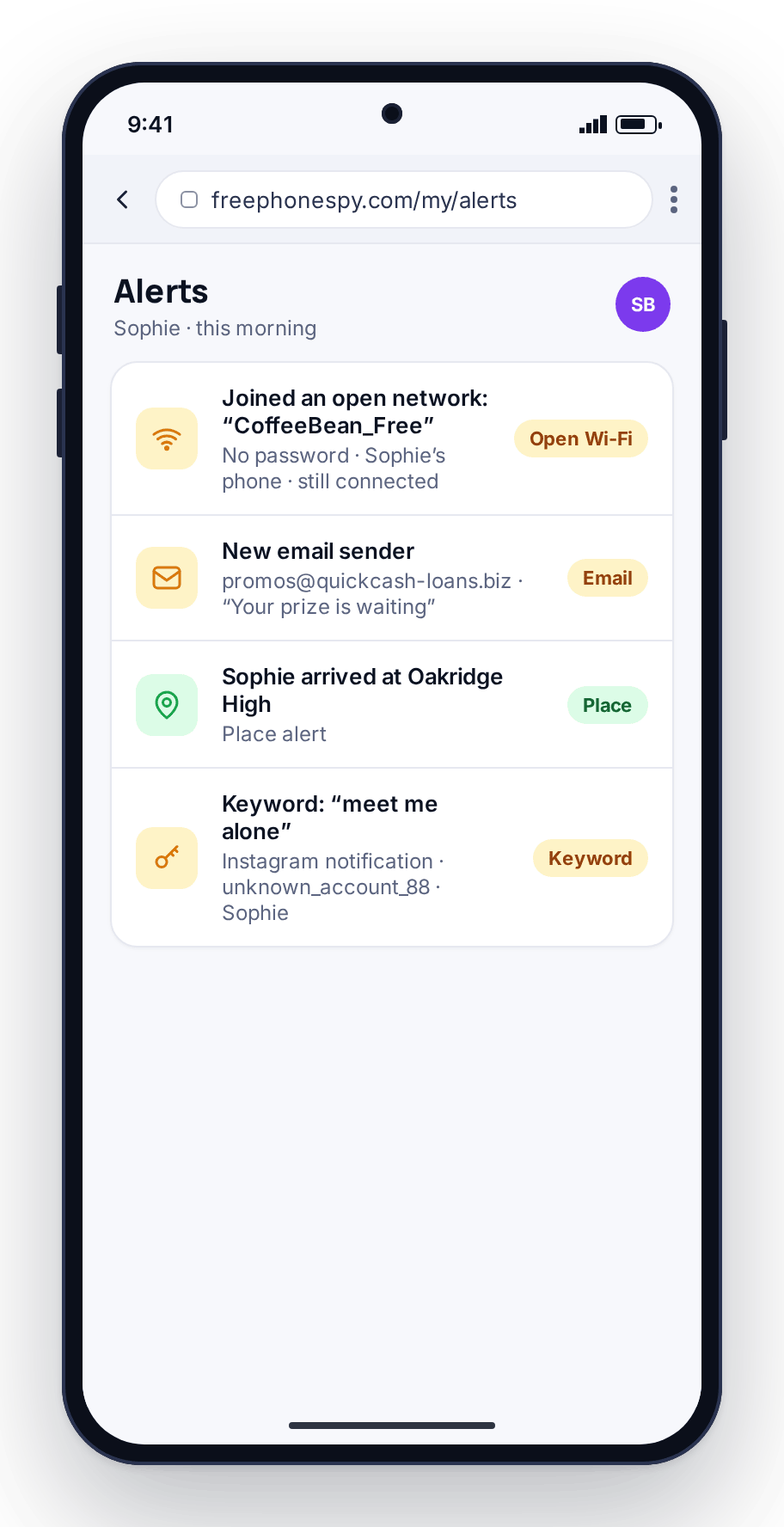
Open, unsecured Wi-Fi is the case worth flagging. When the phone joins a network with no password, the kind found in coffee shops, stores, buses and stations, you get an open-network alert. These networks are not always dangerous, but they are the ones where some caution pays off.
On an open network, other people on the same network can potentially see more than they should, and the “free wifi” that appears in a busy place is not always what it claims to be. The alert gives you the chance for a five-second conversation, along the lines of “don’t log into anything important on that one”, instead of finding out afterwards. It appears in the alerts feed with everything else, so there is no separate screen to check.
- A flag when the phone joins an unsecured network
- Catches coffee shop, transit and store hotspots
- Prompts the “don’t log in on this one” chat
- Lands in the same alerts feed as everything else
Why public Wi-Fi is worth watching
Phones join open networks automatically far more than people realize. Walk into a mall and a phone can connect to several hotspots before it leaves your pocket. Most are harmless, but an open network is a shared space, and a small number are set up to catch the person who connects without thinking. A login typed on a fake hotspot can end up somewhere it should not.
The aim is not to ban public Wi-Fi. It is to teach a habit: on an unknown open network, do not sign into anything that matters, and be suspicious of a “free wifi” with no obvious owner. Seeing the list of networks the phone joined makes that lesson concrete rather than abstract.
- Phones join open networks automatically, often
- Most are fine; a few are set up to catch the careless
- The habit to teach: don’t log in on unknown Wi-Fi
- Seeing the pattern makes the lesson stick
The child email monitor: headers, not bodies
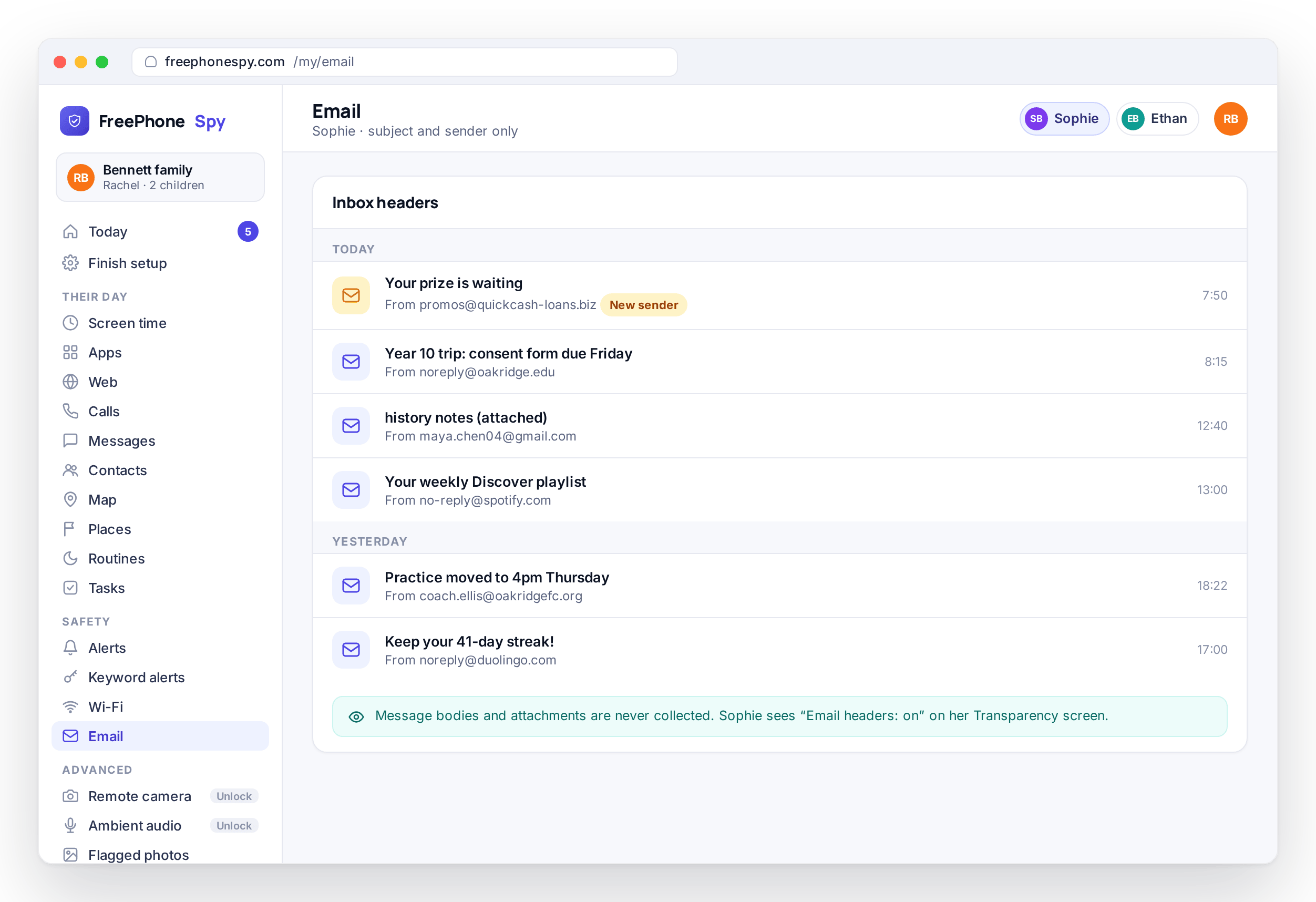
Email is the more sensitive of the two. The monitor shows the subject line and the from line of each email the child’s phone receives, and it does not show the body. There is no setting that turns bodies on, because the child app does not collect them. Message bodies for chat apps are a separate advanced feature with its own consent switch, described on the pricing page.
Who it’s from
The sender’s name or address, so an unfamiliar or grown-up sender stands out among the usual school and app mail.
What it’s about
The subject line, which is enough to tell a school newsletter from something that warrants a closer look.
Not the full body
The message text itself stays private. You get the signal that something needs attention, not the whole letter.
Most of what a parent would worry about shows in the header: a sender who should not be writing, a subject that is clearly wrong, or a run of the same suspicious mail. All of that is visible from who and what, without reading a private word. If a subject line alarms you, that is the moment for a conversation with your child.
Everything lands in one readable feed
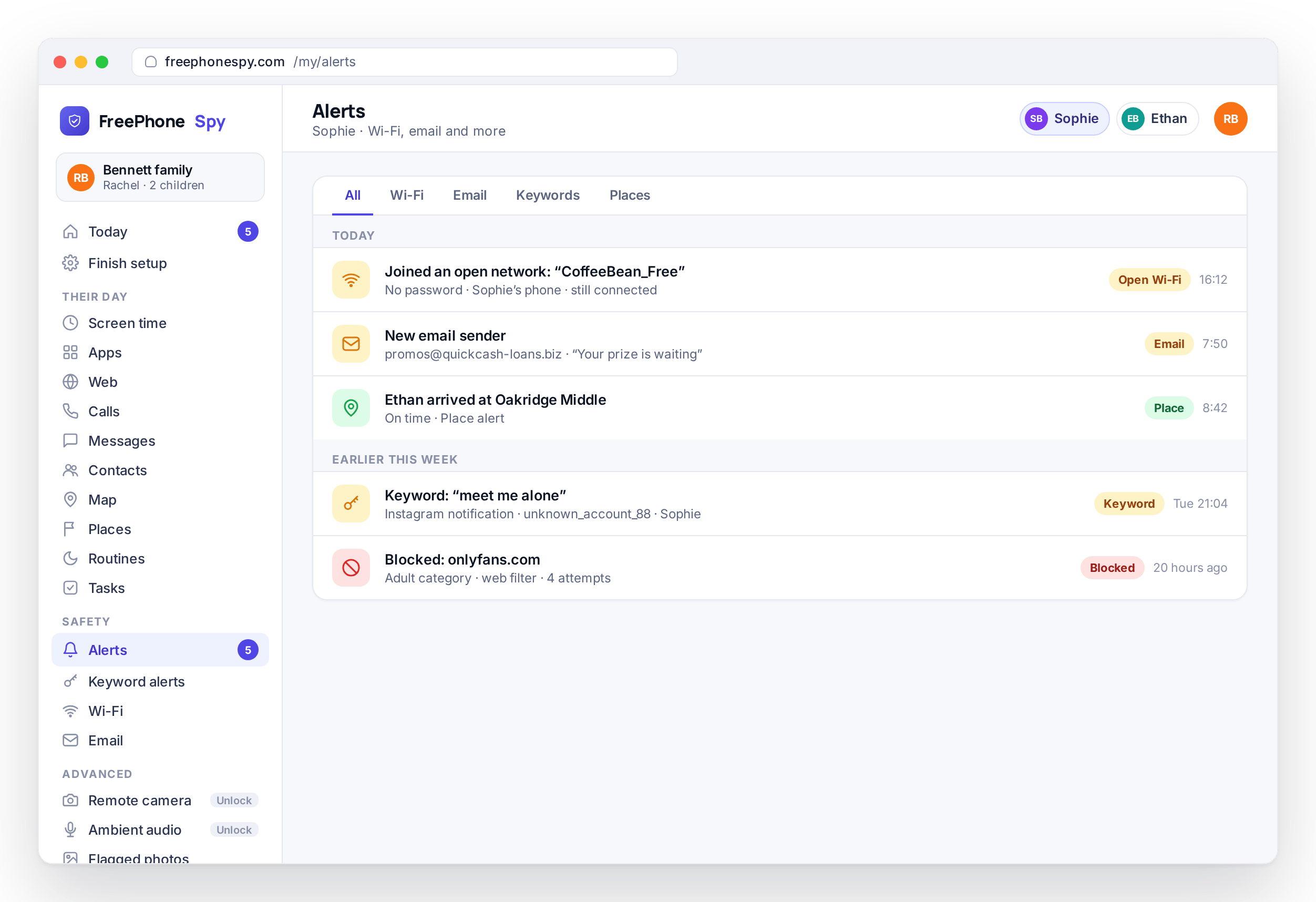
Neither of these is a screen you have to remember to check. A joined network, an open-network warning and a new email header flow into the same alerts feed as keyword flags, place events and blocked sites, in time order, so nothing is buried in a sub-menu.
The items that need a decision also appear in the “Needs you” list on the Today dashboard. An open-network warning from last night or an email from a name you do not recognize sits there with everything else. The web panel page walks through the full feed and how the panel is laid out.
- Networks, open-Wi-Fi warnings and email headers in one feed
- Listed in time order, like a timeline of the phone’s day
- The important items surface on Today
- No separate screen to remember
A morning check, not a live feed
These features are built for a once-a-day look. You check Today in the morning, see whether anything is flagged, and get on with your day. Most mornings there is nothing beyond the usual networks and the usual school mail, and an empty “Needs you” list is itself useful information.
When something does stand out, it is usually a prompt for a conversation rather than a crisis. An open-network warning is a chance to teach the habit. An unfamiliar sender is a chance to ask who that is. In the demo family, one such sender turned out to be a new club Ethan had joined, which is the typical outcome.
- Designed for a daily look, not constant watching
- Empty mornings are the normal case
- Flags are usually a prompt to talk, not to panic
- One thing worth noticing, surfaced clearly
How to turn on Wi-Fi & email monitoring
A minute or two in the panel, once the child phone is paired with the 6-digit code from the Devices screen.
Open the child’s settings
In the browser panel, pick your child and open the monitoring settings. Wi-Fi and email each have their own switch, and both are off until you change them.
Turn on Wi-Fi monitoring
Switch on the network list and the open-network alert. From then on, joined networks appear on the Wi-Fi screen and unsecured ones raise an alert in the feed.
Turn on the email monitor
Enable subject and from lines. There is no option for message bodies, because the app does not collect them.
Show your child the screen
Open the Transparency screen on their phone and point out the two new entries. Explain that you will see who wrote and what about, not the message itself. The features page lists everything else that can be switched on the same way.
Wi-Fi & email questions, answered
Does Wi-Fi monitoring show what my child did online?
No. It records which network the phone joined and when, not the sites visited or the data sent over it. Browsing is covered separately by the web filter, which blocks categories of site and reports blocked attempts, and neither feature keeps a browsing history.
Does the email monitor read the whole message?
No. The child app collects the subject line and the sender for each incoming email and nothing else, so the body is never sent to the panel. This is fixed in the app rather than a setting, and it applies to every email account on the phone.
Which email does it cover?
Email that arrives on the child’s Android phone through the accounts set up on it. After you switch the monitor on, the Email screen in the panel starts listing the subject and sender of each new message, so you can see within a day which accounts are included. If you need help with a particular setup, write to [email protected].
Will I be swamped with alerts?
No. Joined networks and email headers are listed in the panel without notifying you. Only an open, unsecured network raises an alert, and only that alert goes into the “Needs you” list on Today. A typical week with home, school and a friend’s house produces no alerts at all.
Can I turn one of these on without the other?
Yes. Wi-Fi monitoring and the email monitor have separate switches in the child’s settings, and each one can be switched off again at any time. Many families use the Wi-Fi list on its own for a younger child and add email headers only once the child has an account of their own.
Does my child know this is on?
Yes. The Transparency screen in the child app lists networks and email headers among the things being shared as soon as you switch them on, and the app is visible on the phone. Switch them on with your child in the room, and check that this level of monitoring is appropriate for their age and permitted where you live.