
Download FreePhoneSpy — set up in about two minutes
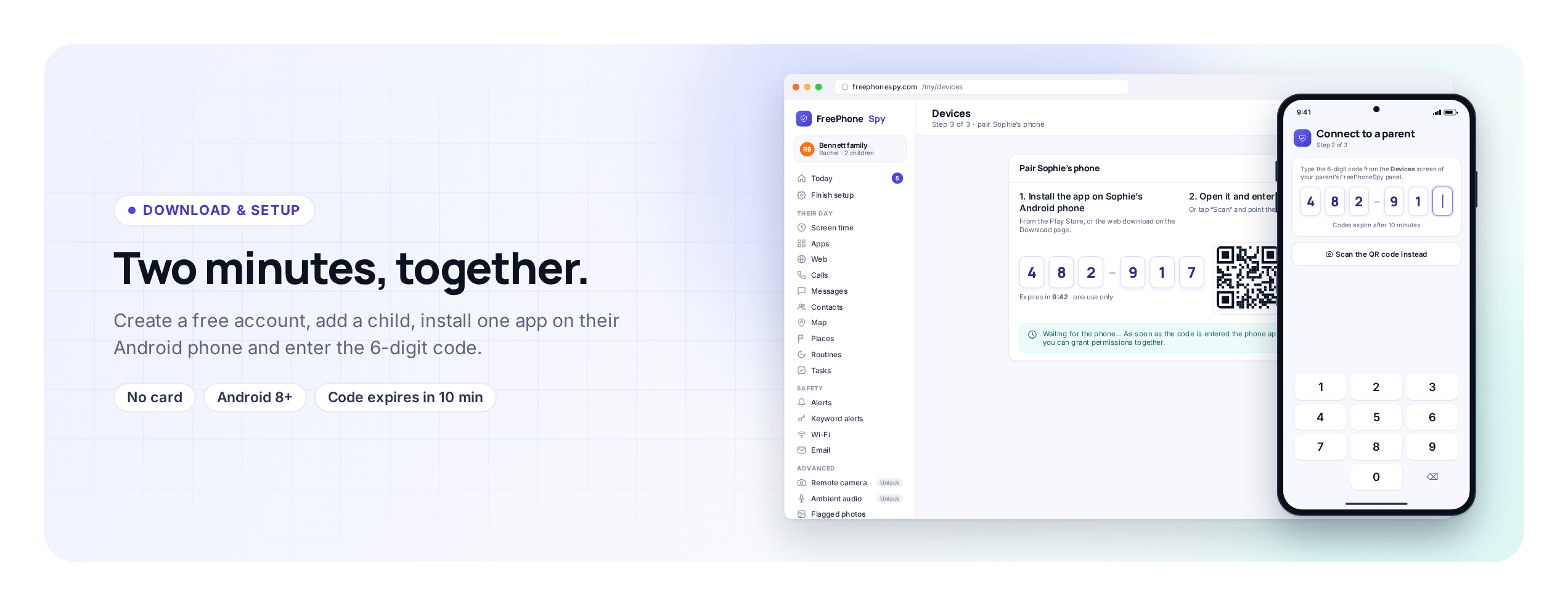
Everything you need to get started is on this page: where to get the app, how to pair the phone, and how the panel and the phone talk to each other. You create a free account in your browser, add your child, then install the Android app and enter one six-digit code. The browser side takes about two minutes. The full setup, done together on the phone, is under fifteen.


Android child app
Parent side in any browser
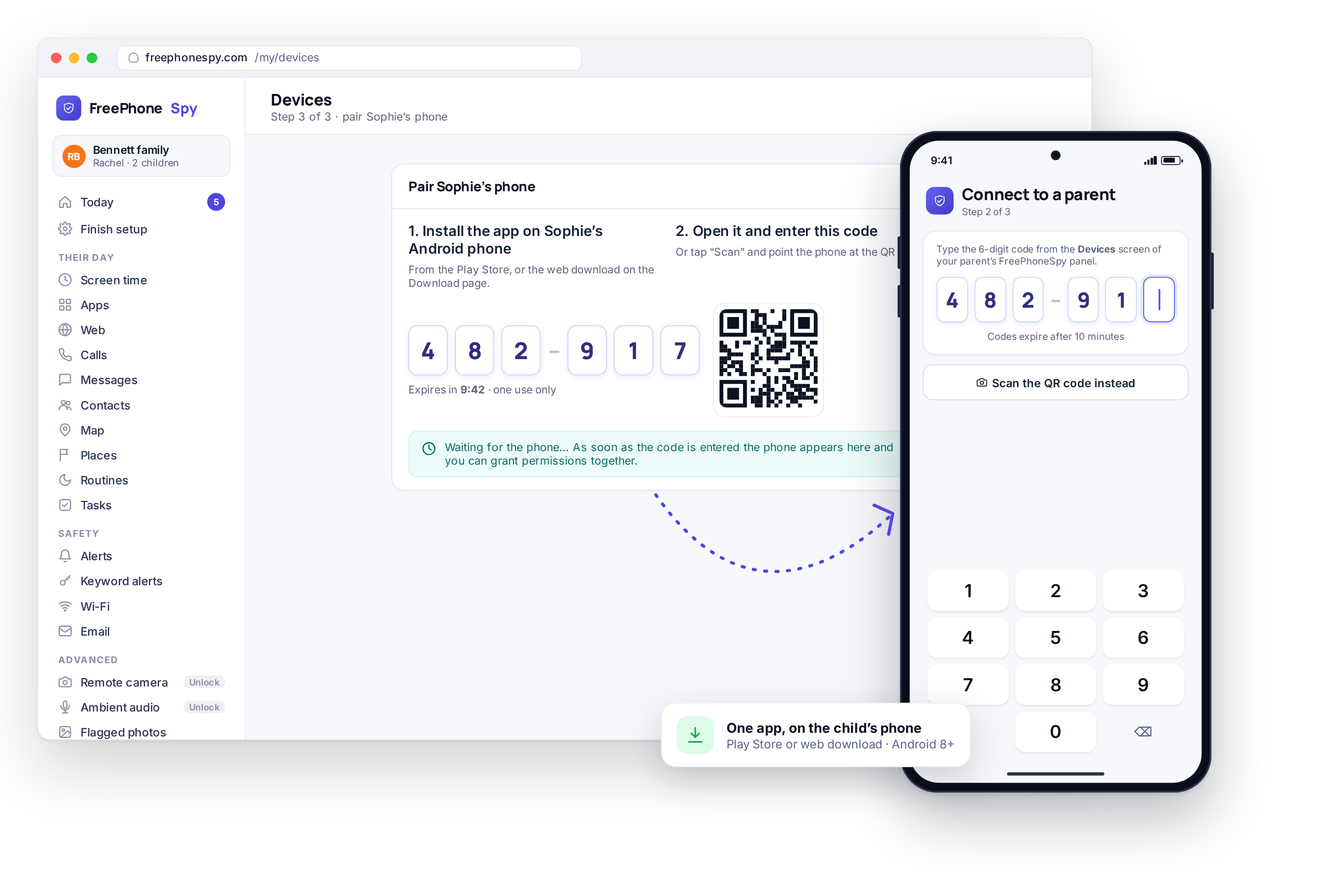
There is no parent app to install and nothing to keep signed in on your side. You manage everything from a browser tab. One app goes on your child’s Android phone, and you connect the two with a six-digit code shown on the panel’s Devices screen. Do the phone part with your child in the room, because the app is meant to be set up openly.
How a rule reaches the phone, and how you see what happened
Once the phone is paired, the panel and the phone stay in sync in two directions. Understanding both explains why the app keeps working when you are nowhere near it.
Rules sync down to the phone
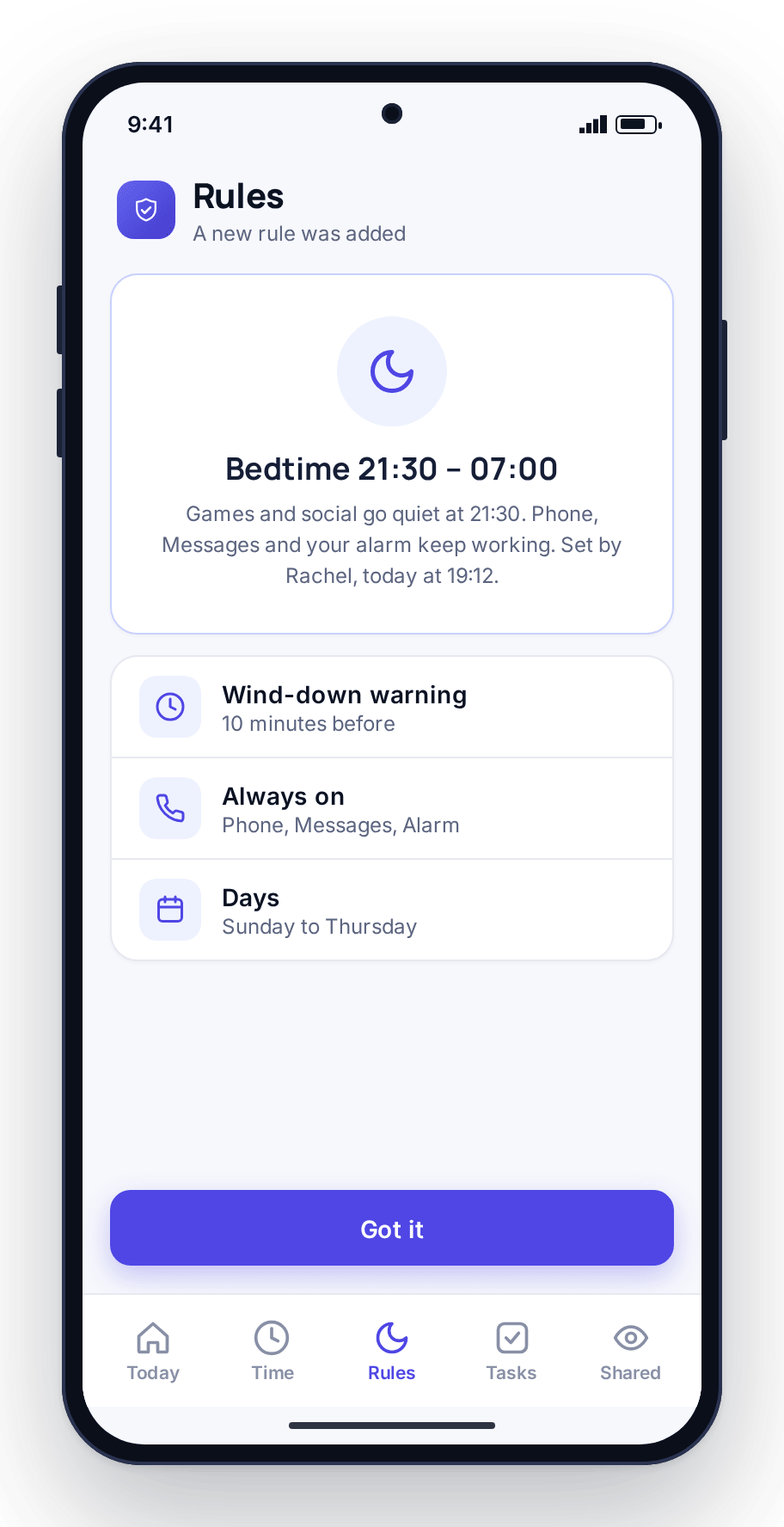
When you set a bedtime, a screen-time budget, or a blocked site in the panel, that rule syncs down to the child’s phone. From then on the phone does the work. The website filter runs on the phone. The screen-time budget is counted and enforced on the phone. App limits are applied there too. When half past nine comes and the games are meant to close, it is the phone that closes them, not a server and not you tapping a button.
Enforcement runs on the phone, and it works offline. If the phone drops off Wi-Fi, loses signal, or your laptop is shut, the rules you already agreed keep holding. Bedtime still starts and blocked sites stay blocked.
Events sync back up to your panel
The other direction is what you see. As the phone goes through its day, arriving at school, hitting a time limit, flagging a keyword, joining a Wi-Fi network, those events sync back to your panel and gather in the Today dashboard as a “Needs you” list. When the phone is offline, events queue on the device and arrive the next time it reconnects, so you get the full picture rather than a gap.
This is why setup is the only fiddly part. Once the rules are on the phone and the app has its permissions, the two sides look after themselves. You open the panel when you want to, from any browser, and the phone gets on with the day.
Step by step: the full setup
Five steps. The first two happen in your browser and take about two minutes between them. Steps three and four happen on the child’s phone, together, and are the longest part, about eight minutes, done once. Step five is a conversation.
Create a free account in your browser
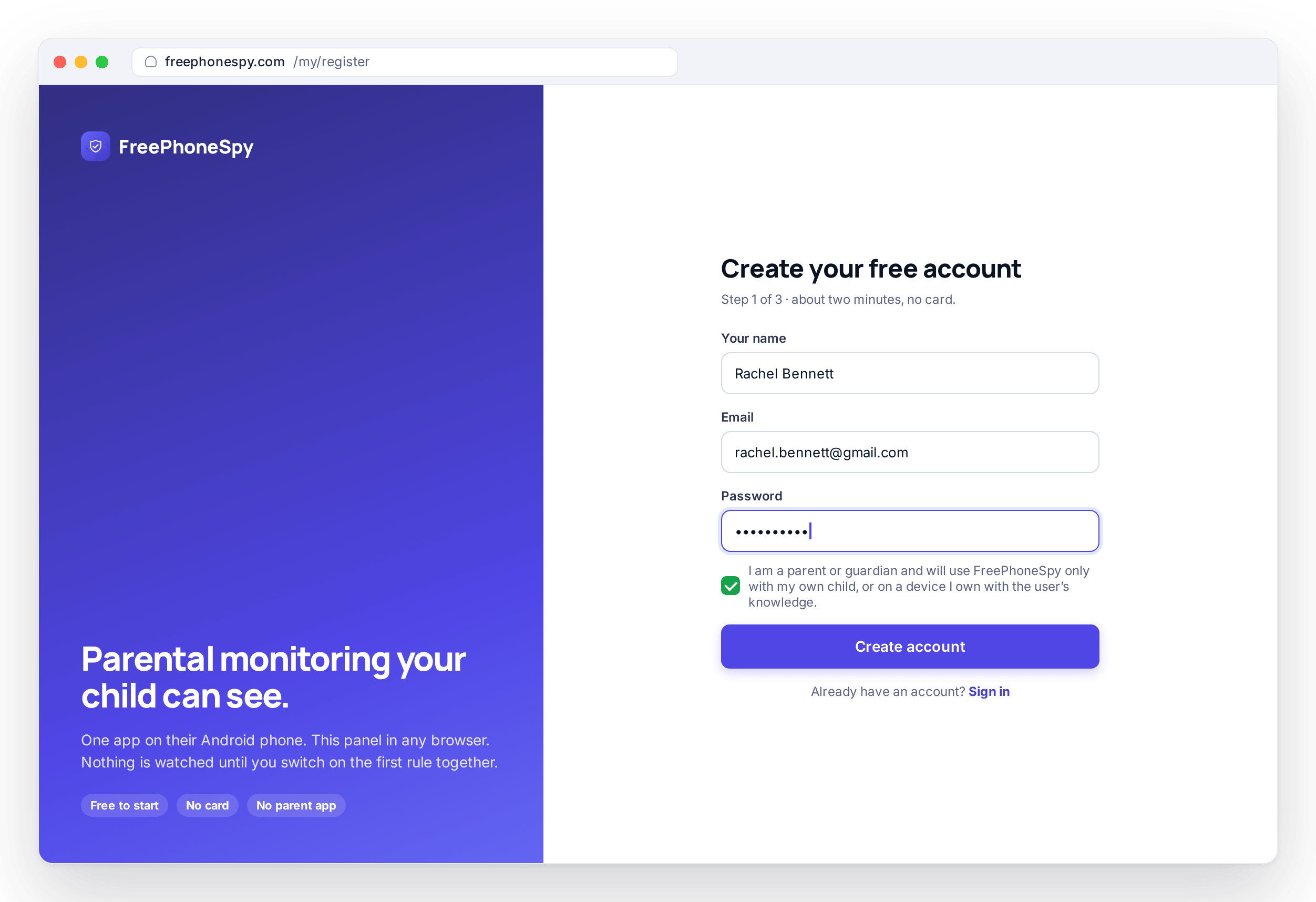
Go to the panel and sign up with an email and a password. No credit card, and no download on your side. You land on an empty Today dashboard, the screen that will later hold your “Needs you” list. It is empty because you have not added anyone yet. This web address, opened on a laptop or your own phone, is the whole of the parent side.
Add your child
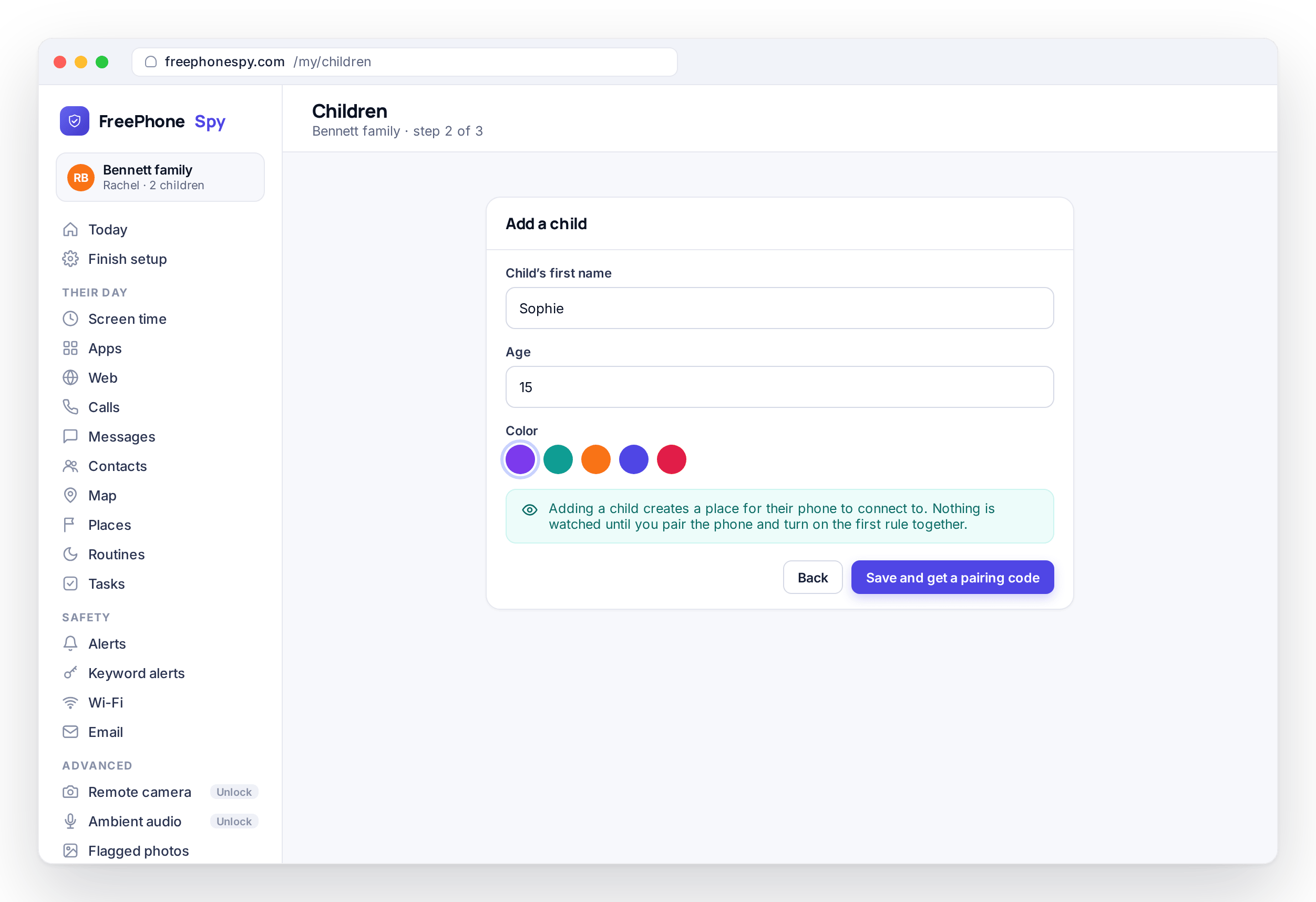
Open the Children area and add a child. A first name and an age is enough, the way the Bennett family added Sophie, 15, and Ethan, 11. The age helps the panel suggest sensible starting points later, such as a weekday screen-time budget. Add as many children as you like; child devices are unlimited. Adding a child does not monitor anything. It creates a place for their phone to connect to.
Install the Android app and enter the pairing code
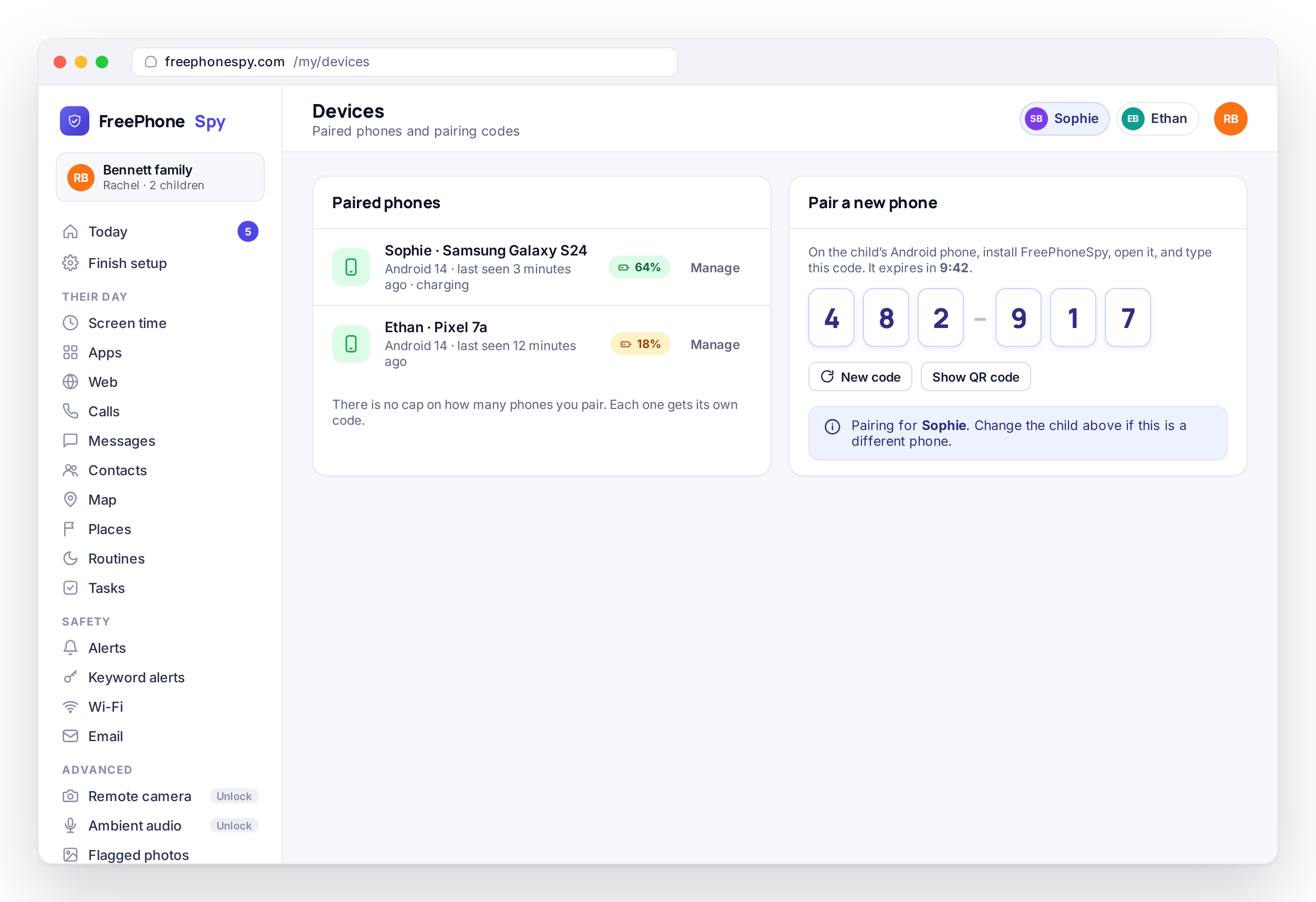
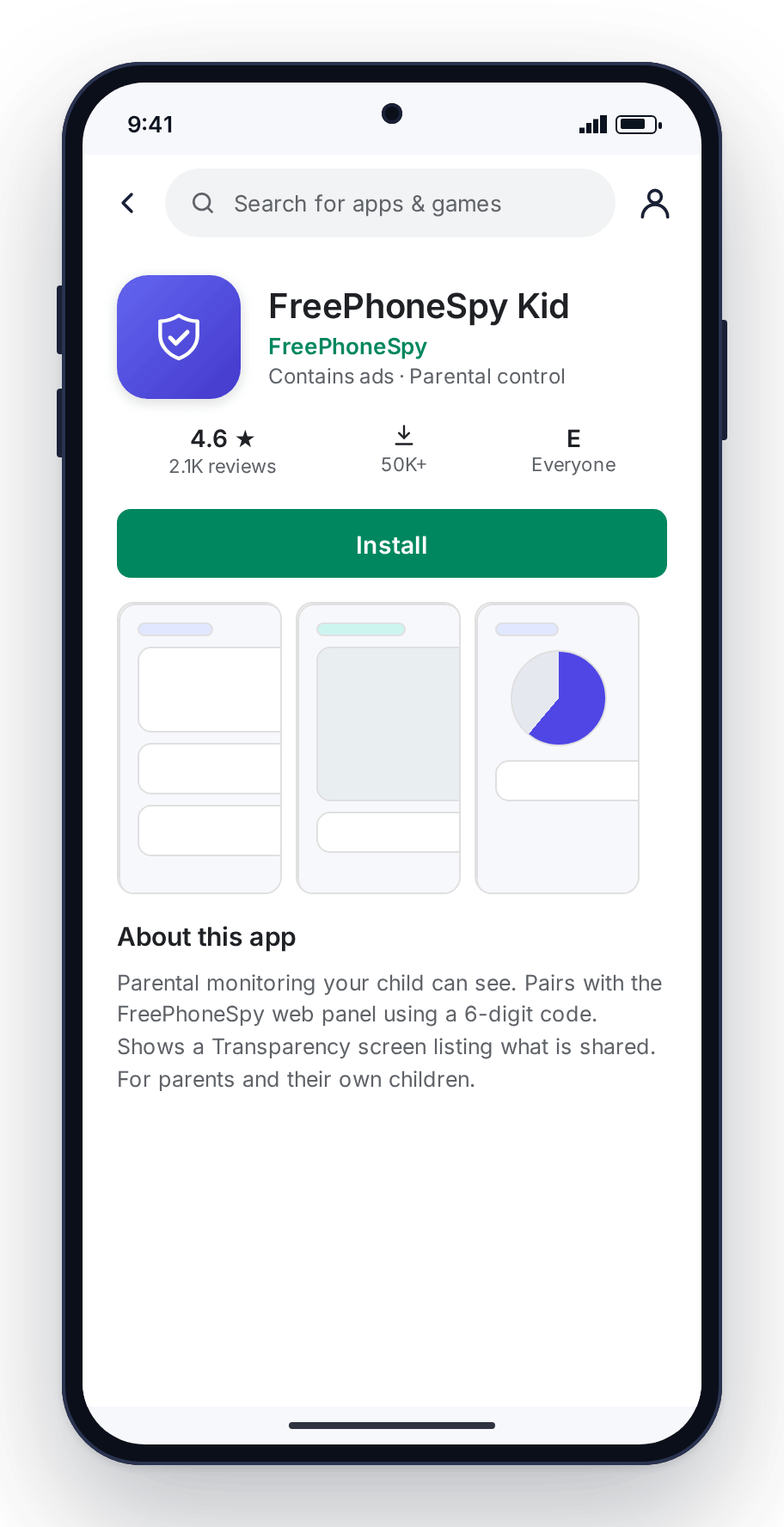
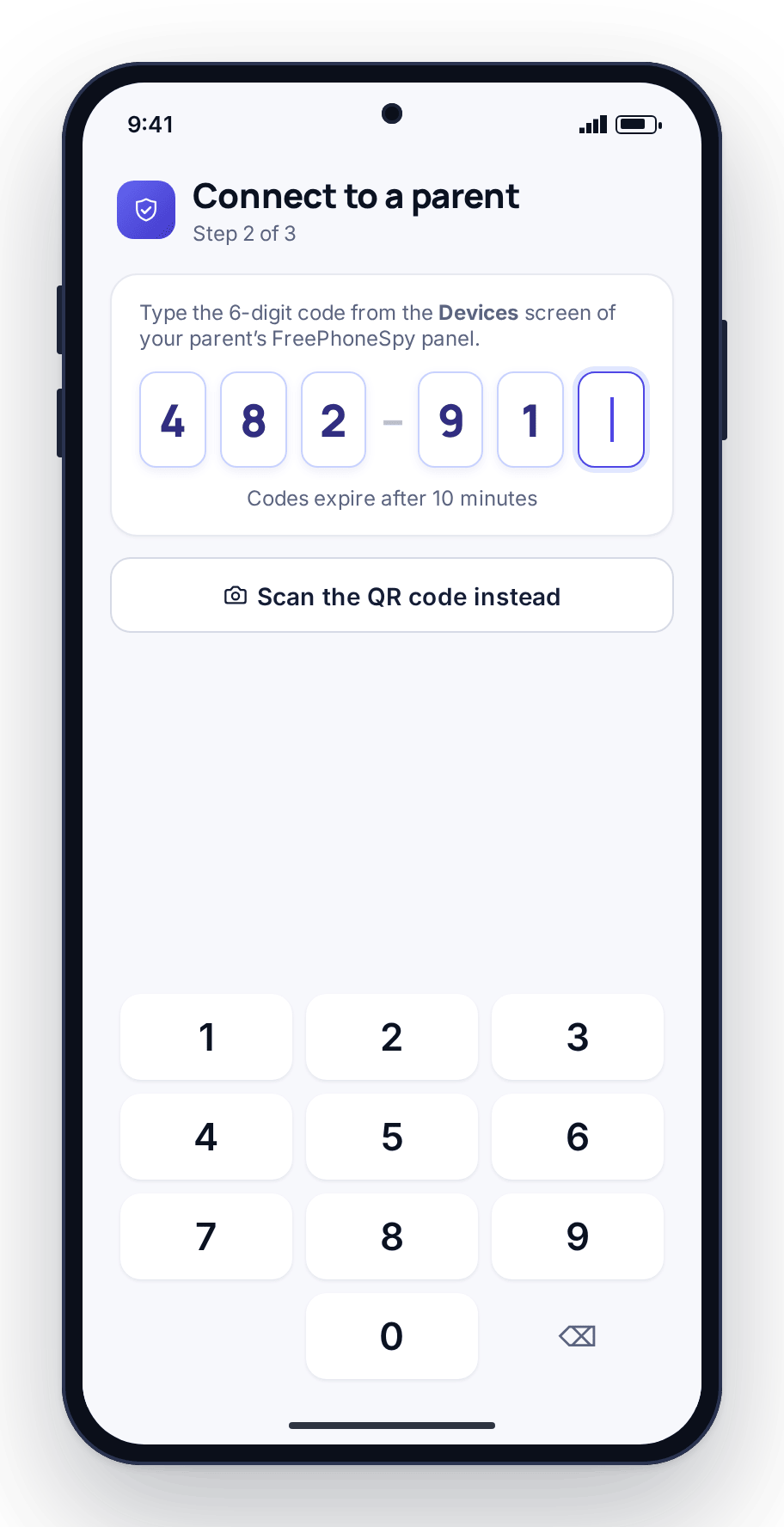
Now pick up the child’s phone. Get the app from the Play Store or the web download, then go to Devices in your panel, which shows a six-digit pairing code. On the phone, open the app and either scan the code or type the six digits. The device shows up in your Devices list within a few seconds. If the code has been sitting there a while, tap for a fresh one; codes expire after a few minutes.
Grant permissions together
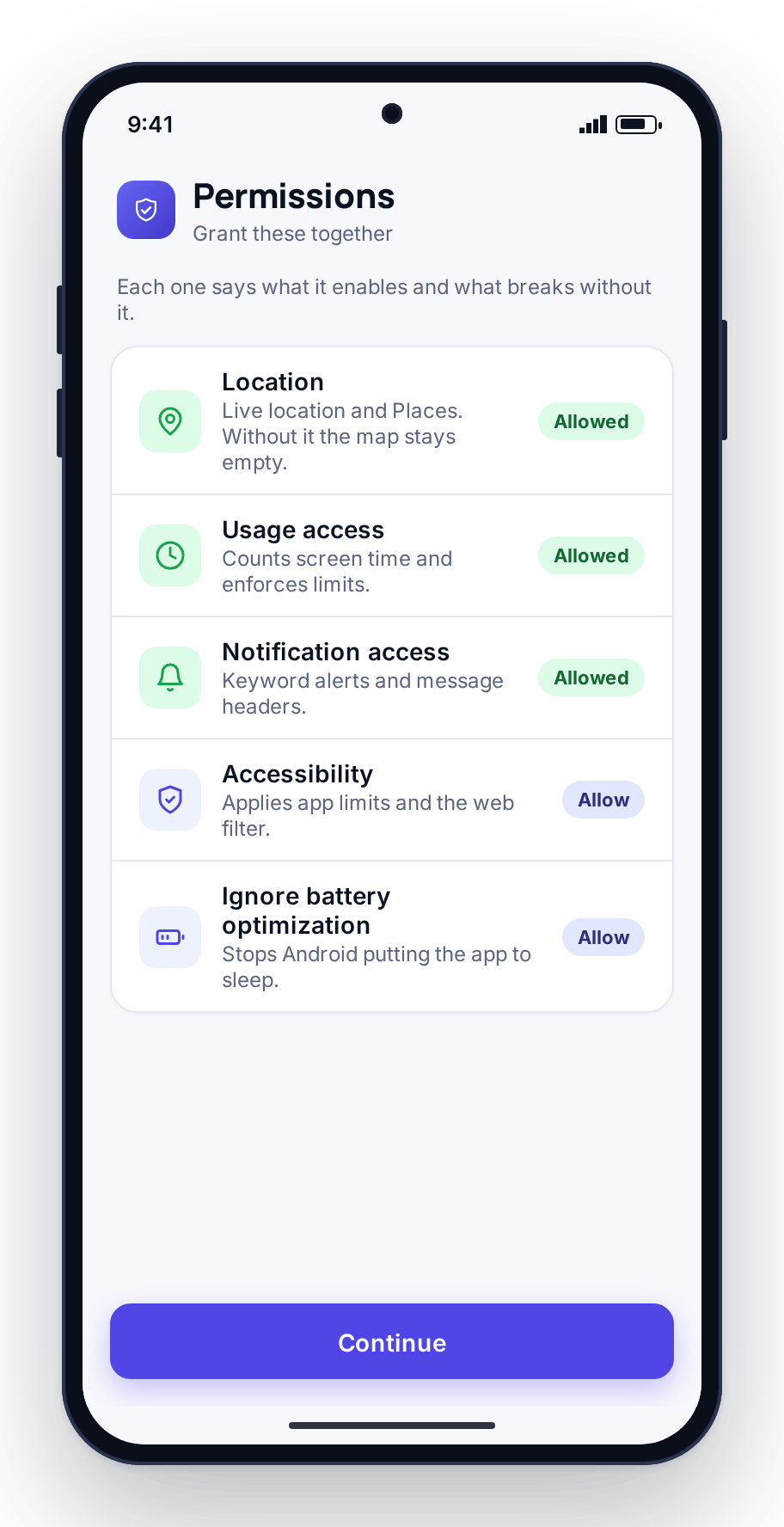
Android asks for permission before the app can do anything useful: location, notification access, and so on. Walk through these on the phone together. The app explains what each one is for as it asks. Grant only what you plan to use; you can change your mind later. This is the part that takes a few minutes. Afterwards the app settles into the background.
Agree the first rule
Do not turn on everything at once. Pick one thing that solves a real argument in your house and set only that: a bedtime routine for the half-past-nine phone fight, or an arrive alert at school so nobody has to text “are you there yet?”. Show your child what it does, agree it, and stop. You can add more next week.
Step 1: create a free account in the browser
The parent side never leaves the web. You create the account on the sign-in screen with an email and a password, and that is the whole parent app. There is nothing to update and nothing to keep running, and you can sign in from any browser on a laptop or your own phone.
- Free account with an email and password, no card
- No parent app to install
- Unlimited child devices on one account
- Works in any modern browser, laptop or phone
Steps 2 and 3: add a child, then pair the phone
Adding a child is a short form on the Children screen: a name and an age. Nothing is monitored at this point. Pairing happens next, on the Devices screen, which shows a six-digit code for the phone you are about to connect. You install the app on the child’s Android phone, enter that code, and the device appears in Devices with its name, battery level, and last-seen time.
- Add a child with a name and an age, in a few seconds
- One six-digit code per phone, shown in Devices
- Scan it or type it into the app on the child’s phone
- Codes expire after a few minutes; request a new one any time
- Rename, re-pair, or remove devices from the same screen
Step 3 on the phone, screen by screen
This is the part parents ask about most, so here it is in order. Install the app, enter the six-digit code from your Devices screen, and the phone confirms it is paired. The app is visible on the phone throughout, with its name on the home screen and a “What is shared” screen your child can open.
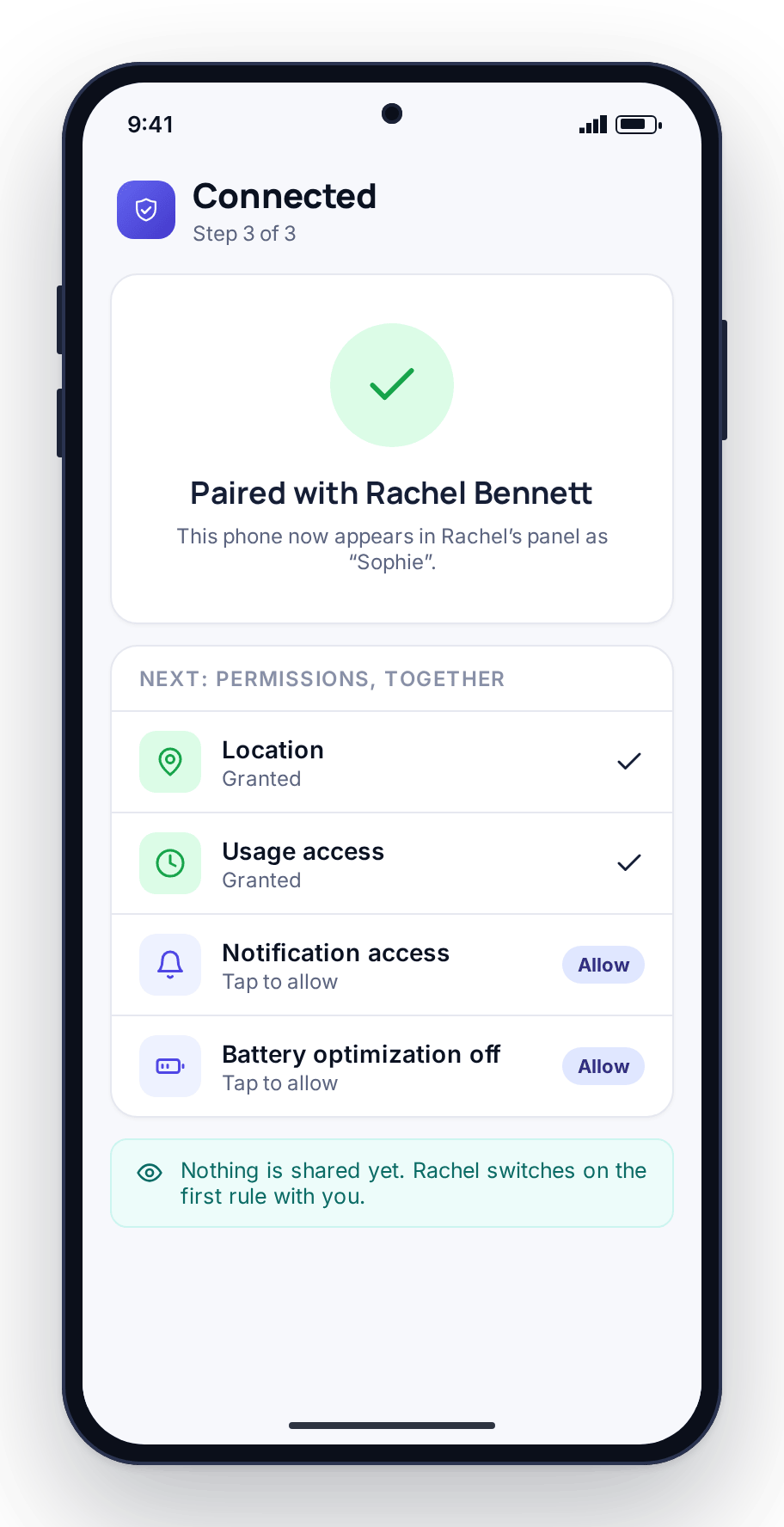
What you need before you start
No hardware and no shopping list. Two things and a short window of time.
A free account
An email address and a password. That is the parent side, opened in any browser. No card, no download on your own machine.
The child’s Android phone
In your hands for about eight minutes to install the app, enter the code, and grant permissions together. Done once.
Ten minutes with your child
Not in a rush. The setup is easy; the conversation about what the app is for is the part worth doing well.
The permissions, explained
Android asks before the app can reach anything, and the app tells you what each request is for as it appears. You grant only what you intend to use, and you can turn any of it off later from the phone. Here is what the common ones do.
- Each request says what it enables and what stops working without it
- Granted together, on the child’s phone, in about five minutes
- Reviewed or revoked from the phone at any time
| Permission | What it enables | If you skip it |
|---|---|---|
| Location | Live location, history, and arrive/leave alerts for saved Places like home and school | The map and Place alerts stay off; everything else still works |
| Notification access | Message and social headers, keyword alerts, and app notification lines in the feed | Alerts and message headers stay empty; screen time still runs |
| Usage & accessibility | Screen-time budgets, per-app limits, and the website filter running on the phone | The phone will not enforce time limits or block sites |
| Camera / microphone | Remote camera photos and short ambient audio, only when you request them | Those specific tools are unavailable; nothing else changes |
A sensible starting point is to grant location and usage access on day one so the everyday safety features work, and leave the rest until you have a reason. Some features are also gated behind your child’s explicit consent: message bodies and the keylogger need a switch that parent and child turn on together. The features overview lists every control and what it needs.
System requirements
- Child’s phone: the FreePhoneSpy app runs on Android. That is where the one app is installed and where rules are enforced.
- Parent’s side: any modern web browser, on any device: a laptop, a desktop, or your own phone. There is nothing to install and nothing to keep updated.
- iPhone child app: in development. Today the monitored phone needs to be an Android device.
- Internet: the phone enforces rules offline, and new events and rule changes move across when the connection is back.
Where to go next
Once you are paired, these pages show what is on the other side and how it fits together.
- All features: every control, grouped the way the panel groups it, with the limits of each.
- Pricing: why it is free and how you keep it going without a subscription.
- Location & Places: usually the first rule parents set after pairing.
- Screen time: the daily minute budget the phone enforces, online or offline.
- Routines: Bedtime and Homework Hour, the scheduled on and off windows.
Setup and troubleshooting questions
Where do I download the app?
From the two badges on this page: the Play Store, or the direct web download. Both put the same FreePhoneSpy app on the child’s Android phone. The parent side needs no download at all; you open the web panel in any browser and create a free account.
How long does setup take?
Creating an account and adding a child in the browser takes about two minutes. Installing the app, entering the code, and granting permissions on the child’s phone is the longer part, roughly eight minutes, and you only do it once. Agreeing the first rule together is a short conversation. Expect under fifteen minutes end to end.
The pairing code expired or says “invalid”
Codes stop working after a few minutes. Go back to the Devices screen in your panel, generate a fresh six-digit code, and type it into the app straight away. Check that you are entering it into the app on the child’s phone, not into a browser, and that there is no stray space. A new code fixes this almost every time.
The phone is not showing up in my panel
Give it a few seconds after you enter the code. If it still is not there, confirm the phone has a working internet connection, that you finished entering the code in the app rather than closing it halfway, and that you are looking at the right child’s Devices list. Reopen the app on the phone; it retries the handshake on its own. If needed, request a new code and pair again.
A feature says permissions are off
If the map is blank or time limits are not enforcing, a permission was skipped during setup. Open the app on the phone, go to its permissions or Transparency screen, and grant the one the panel says is missing: usually location for the map, or usage and accessibility for screen time and the website filter. Once granted, the feature starts working within moments.
I installed it but nothing is being monitored
That is expected until you turn something on. Pairing connects the phone; it does not switch on any monitoring by itself. Pick one rule, such as a bedtime routine or a location alert, set it in the panel, and you will see it take effect. Enforcement then runs on the phone, so it keeps working even if the phone later goes offline.
Will my child know the app is installed?
Yes. The app appears in the phone’s app list and has a Transparency screen listing what it shares. It is a consent-based family safety tool and is not built to hide. We ask you to set it up with your child, on a phone you are responsible for, within your local law.
Can I monitor an iPhone?
Not yet. The child app runs on Android today, and an iPhone version is in development. The parent panel already works in any browser, including Safari on an iPhone, so a parent with an iPhone can manage a child’s Android phone without any trouble.