In-App Purchases & Kids: How to Stop Surprise Charges
A £90 Robux charge lands on your card. Your kid swears they only tapped “a couple times.” You believe them, and you’re also out ninety quid. This happens constantly, and it’s almost never the child being sneaky — it’s a stored card, a one-tap buy button, and a game built to make spending feel like nothing. The fix is boring and it works: turn off one-tap buying, make purchases need your approval, and take the card off the kid’s account. Here’s how, for every platform, plus what to do if the money’s already gone.
How surprise charges actually happen
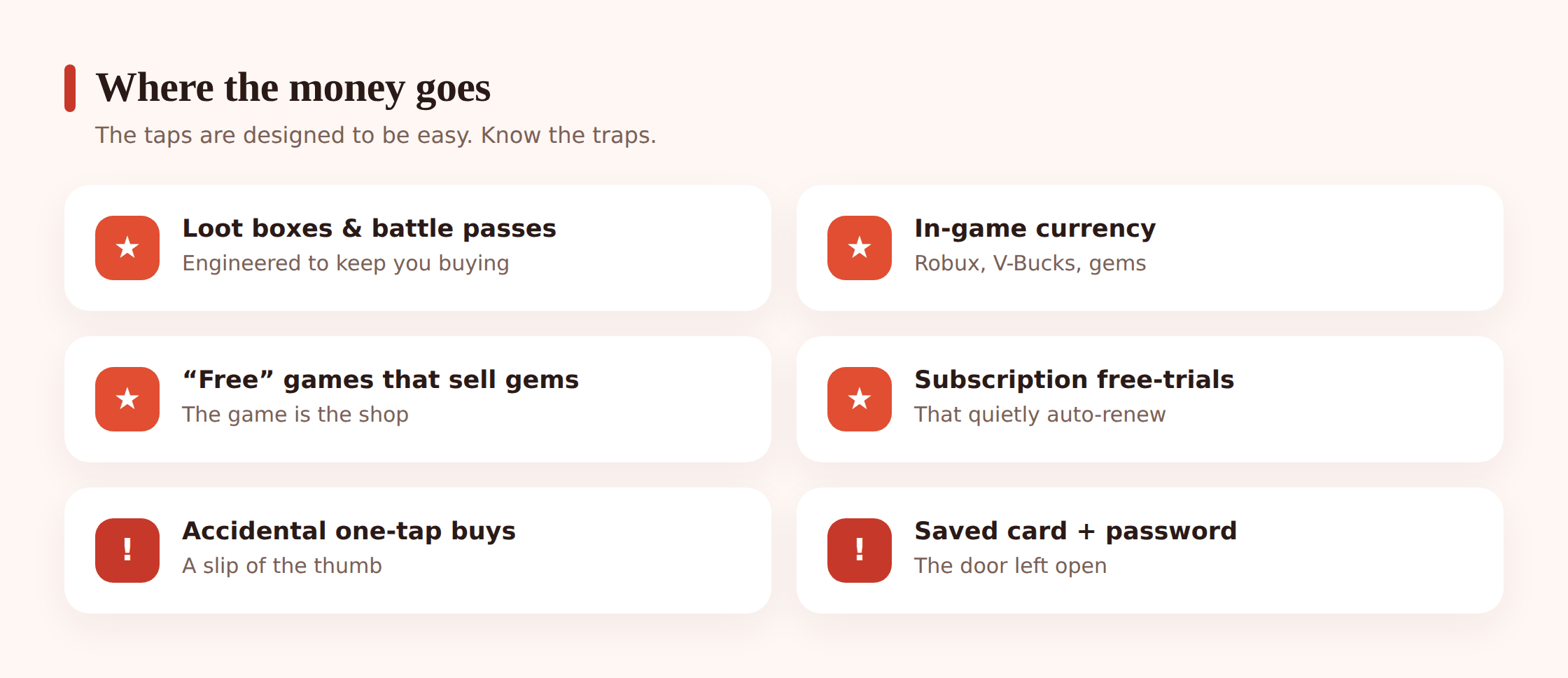
None of this is an accident of bad luck. The pieces line up to make spending easy and stopping it hard.
Your card is stored, and buying is one tap. Once a payment method sits on the account, a lot of stores let purchases go through with a single tap and no password. A child doesn’t need your PIN. They need a thumb.
“Free” games sell currency. Roblox has Robux. Fortnite has V-Bucks. Countless others sell gems, coins, or crystals. The game is free to download, then the fun stuff costs the fake money, and the fake money costs real money. Kids don’t convert 800 gems back into pounds in their head. It’s just “gems.”
Loot boxes and battle passes. A loot box is a mystery bag — you pay, you might get the rare skin, you probably won’t. Battle passes dangle rewards that expire if you don’t grind or pay. Both are designed to make “just one more” feel urgent. More on that below.
Accidental taps and saved passwords. A buy button sits right where a game button was a second ago. If the password is saved or the grace window is open (Apple and Google both keep a short window after you type your password where more buys need nothing), a string of taps becomes a string of charges.
Free trials that auto-renew. “7 days free” quietly becomes £9.99 a month unless someone cancels. Kids sign up for a trial, forget, and the subscription bills forever.
Lock it down on iPhone
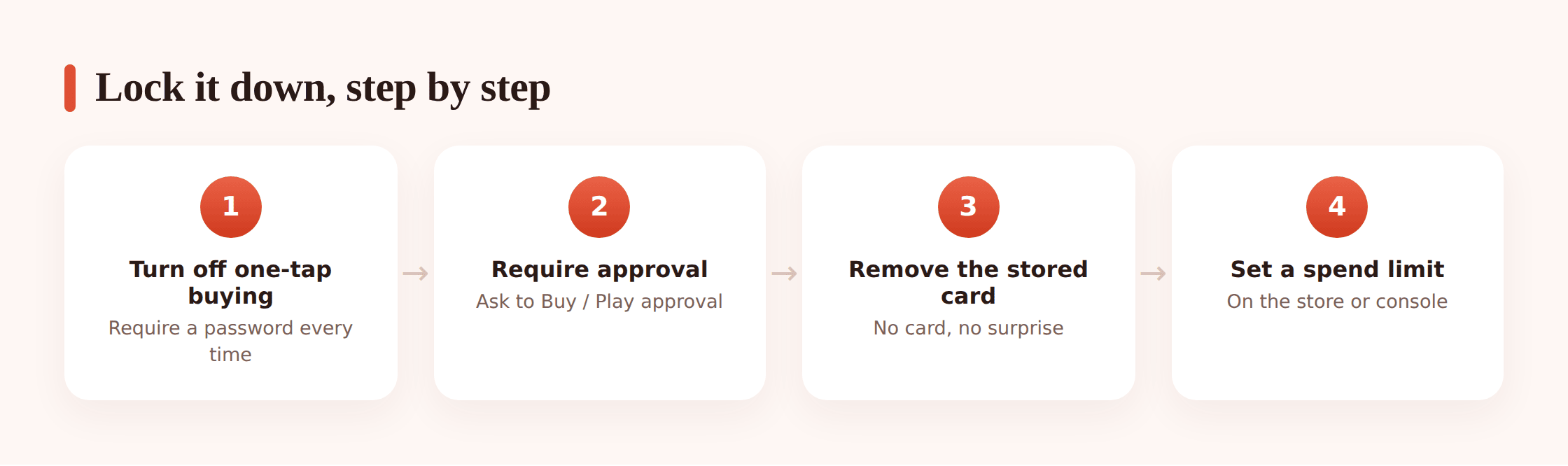
If your child’s on an iPhone or iPad, Apple’s own tools are the real lock. FreePhoneSpy monitors Android, so on Apple you’ll lean on Family Sharing and Screen Time. Do these in order.
1. Turn on Ask to Buy
Set up Family Sharing and add your child as a family member. Then switch on Ask to Buy for their account. Every download and every in-app purchase — free or paid — now sends a request to your phone. Nothing goes through until you approve it. This is the single most effective control Apple offers.
2. Require a password every time
On the child’s device: Settings > Screen Time > Content & Privacy Restrictions > iTunes & App Store Purchases. Set “Require Password” to Always, not “After 15 Minutes.” That closes the grace window where a run of taps bills without asking again.
3. Disable in-app purchases outright (optional)
In the same menu you can set In-app Purchases to “Don’t Allow.” Blunt, but it kills every loot box and currency buy on the phone. Good for younger kids who don’t need to buy anything.
4. Take the card off their reach
With Ask to Buy on, the child’s own account can’t spend without you. Don’t add a separate card to their profile, and if one’s there, remove it. Approvals should route through you, not through a card they control.
5. Set an Apple Cash limit if they use it
If your teen has Apple Cash through Family Sharing, you can see the balance and cap what they hold. Keep it small. It’s spending money, not a slush fund for skins.
Lock it down on Android
On Android you’ve got Google Play settings plus Family Link. Same idea: no silent buying, no card the kid controls.
1. Require authentication for all purchases
On the child’s phone, open the Google Play Store > profile icon > Settings > Authentication > Require authentication for purchases. Choose For all purchases through Google Play on this device. Now every buy needs the password or fingerprint, every time.
2. Turn on purchase approval in Family Link
Set up Google Family Link and link your child’s account. In Family Link you can require your approval for purchases and downloads. Same effect as Apple’s Ask to Buy — the request comes to your phone and waits.
3. Remove the payment method from their account
Open payments.google.com for the child’s Google account and delete any saved card or PayPal. If there’s nothing to charge, currency buys have nowhere to go. Any approved purchase can bill your parent account instead.
4. Check per-game spending controls
Some games and Google Play itself surface spend or purchase settings. Where a game offers a spending cap or a parent PIN (Roblox does — see below), set it. Belt and braces.
Consoles, Steam, Roblox
Kids spend on more than phones. The console and PC stores have their own family controls, and they’re worth ten minutes each.
- Xbox — Set up a child account under your Microsoft family. You can require your approval for purchases and add funds as an allowance rather than leaving a card attached.
- PlayStation — Family Management lets you set a monthly spending limit per child and require your sign-off. Keep the limit low or zero.
- Nintendo Switch — The Nintendo Switch Parental Controls app lets you restrict eShop purchases so buying needs the adult account.
- Steam — Steam Families and Family View let you lock the store behind a PIN so a kid can play but not buy.
- Roblox — This is a big one. In Roblox account settings, set a monthly spend limit and turn on a Parental PIN so settings can’t be changed back. Roblox is where a lot of the £90 surprises come from, so lock it hard. Our guide to whether Roblox is safe for kids goes deeper.
Loot boxes and the dark patterns
Let’s be honest about why this is hard. These purchases aren’t hard to trigger by accident — they’re engineered to be tempting on purpose.
A loot box works like a slot machine. You pay, a wheel spins, and maybe you win the rare thing. The maybe is the point. That flicker of “it could be this time” is the same hook that keeps adults at a fruit machine, and it’s aimed at a nine-year-old. Several countries have moved to regulate loot boxes as gambling for exactly this reason.
Then there’s the nudge maths. You want an item that costs 500 gems. The gems sell in packs of 400 and 800. So you either come up short or overbuy, and now you’ve got 300 gems burning a hole, which is enough for “just 80 more” toward the next thing. Battle passes add a clock: unlock these rewards before the season ends, or lose them. It’s built to make stopping feel like missing out.
Reduce exposure with FreePhoneSpy
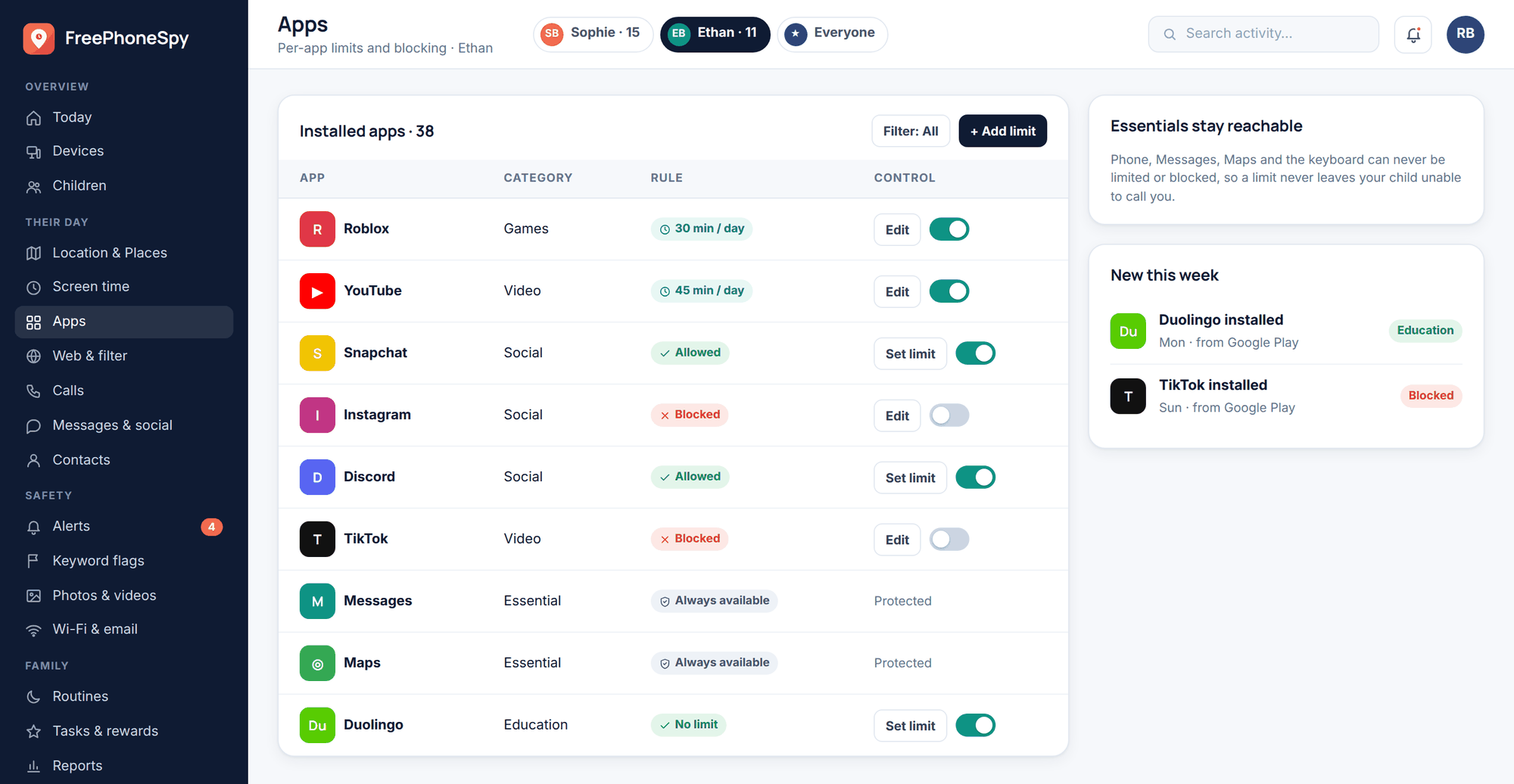
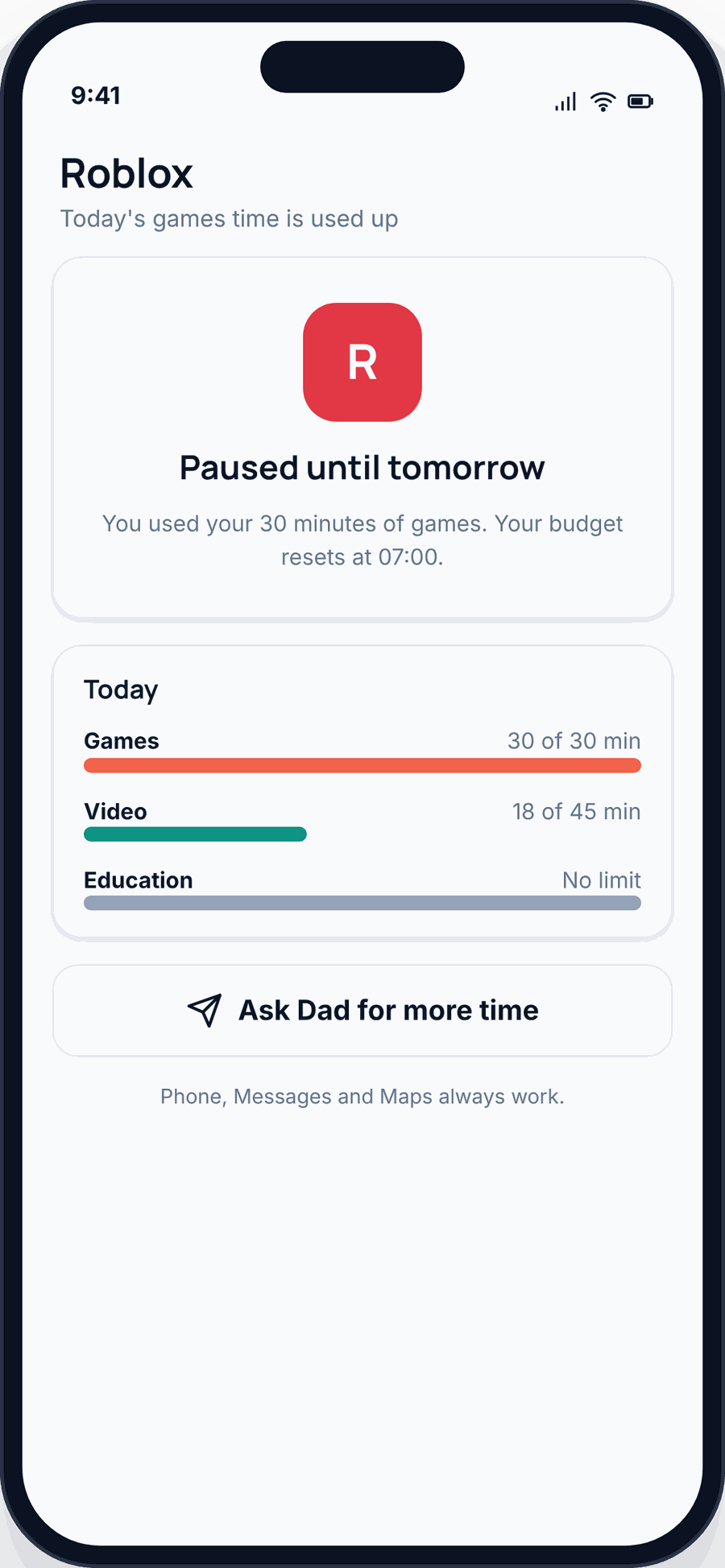
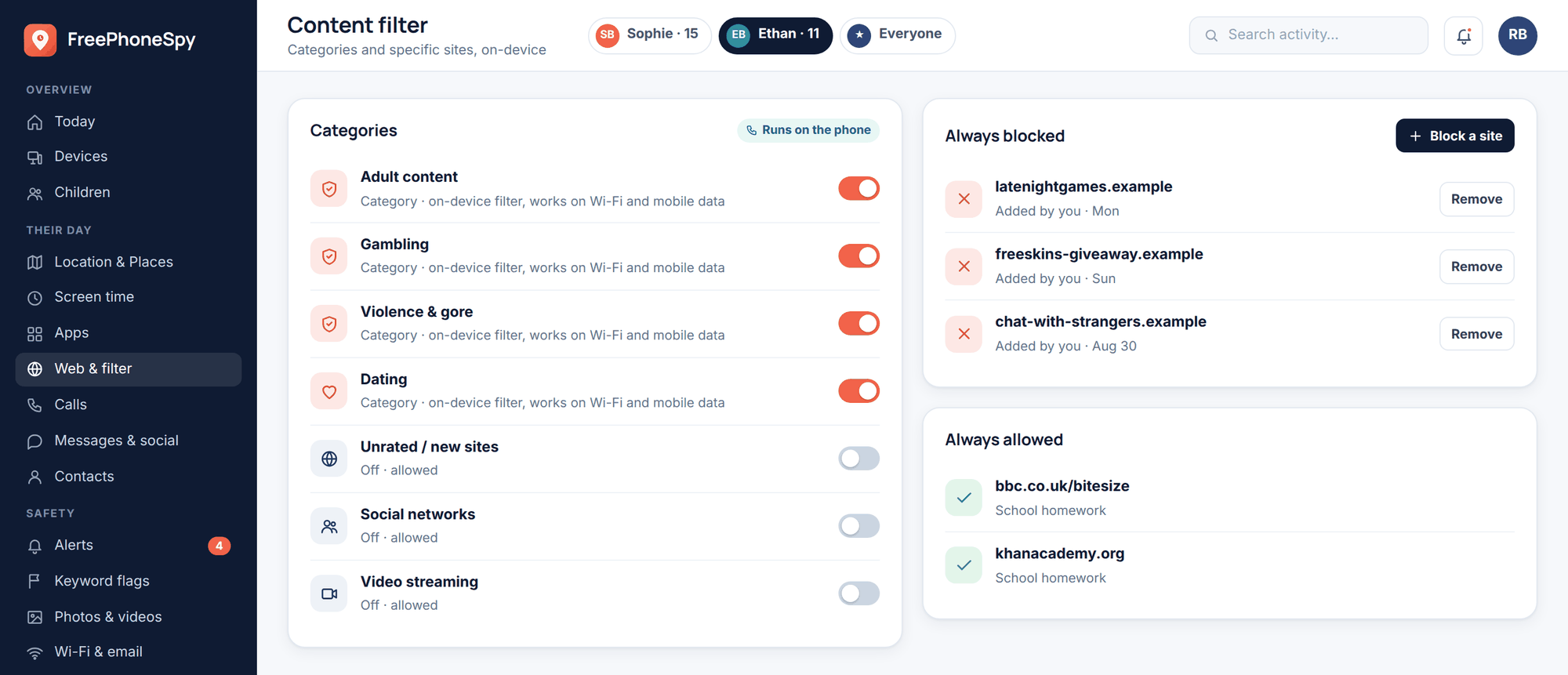
Here’s the honest version. FreePhoneSpy doesn’t hold your money or approve your purchases — the actual purchase lock lives in the store account (Apple’s Ask to Buy, Google Play approval, the console family settings above). What FreePhoneSpy does on your child’s Android phone is shrink how often the temptation shows up, and tell you when something’s off. Use both together.
- Limit or block the game itself. If one game is where the spending happens, cap its screen time or block it during the week with app and web blocking. Less time in the store, fewer chances to tap buy.
- Block scam “free currency” sites. “Free Robux” and “free V-Bucks” sites are almost always scams or malware fishing for logins. The web and content filter blocks those pages before your kid lands on them. We cover the wider pattern in online scams targeting kids.
- Get keyword alerts. Set alerts for words like “Robux,” “gift card,” or “buy,” and you’ll see the topic surface in the alerts feed before it becomes a charge.
- Watch the alerts feed. New app installs, blocked-site attempts, and flagged keywords all land in one place, so you notice the game they’re suddenly obsessed with — and can talk about it early.
For the full menu of what’s built in on each platform, see parental controls on Android and iPhone. And if gaming’s the main worry, online gaming safety for kids pulls it together.
If it already happened: refunds
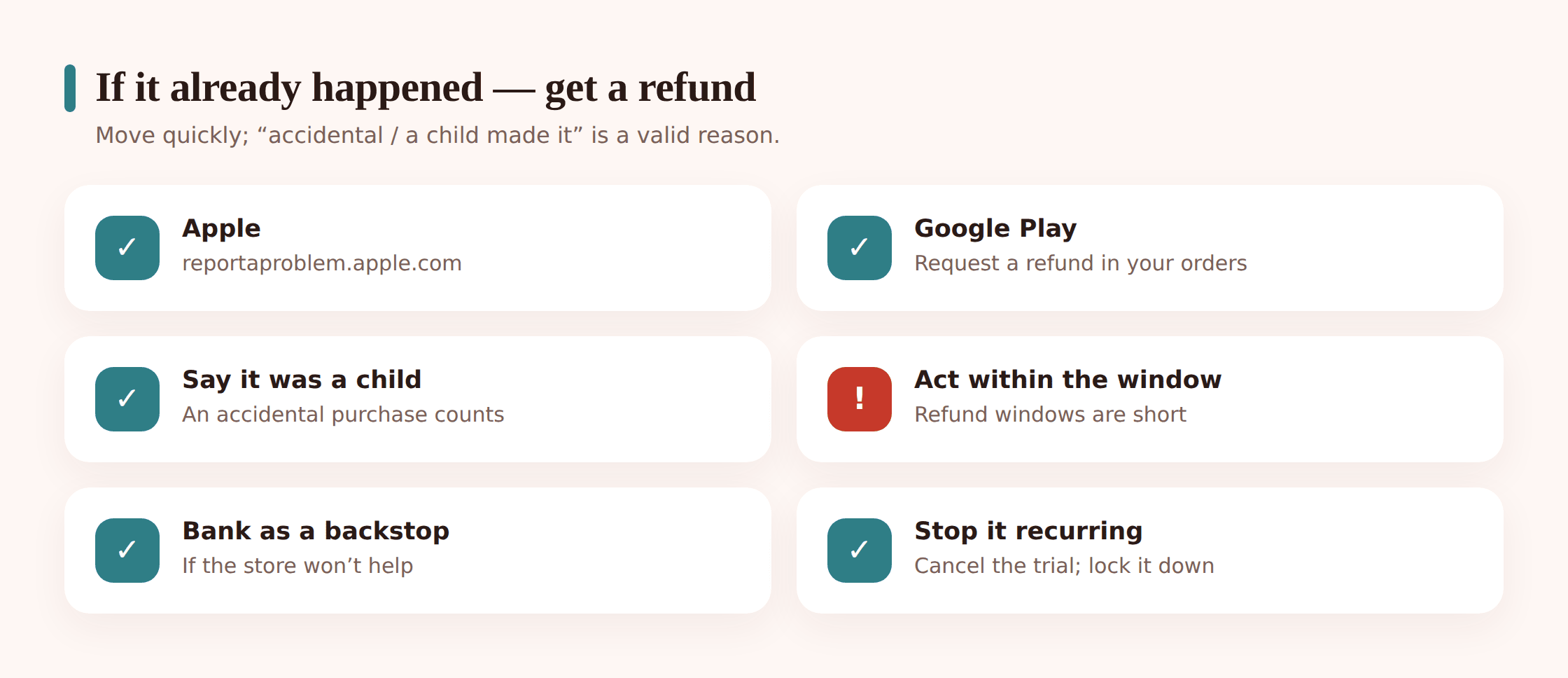
Money’s already gone? You can often get it back, especially when a child made the purchase. Move fast — refund windows are short.
Apple
Go to reportaproblem.apple.com, sign in, find the charge, and request a refund. Pick the reason that fits — “I didn’t authorize this purchase” or the child/accidental option. Apple reviews it, and genuine accidental kid purchases are frequently refunded, particularly a first time.
Google Play
Open the Google Play order history or the Play Help refund form, find the purchase, and request a refund. Explain it was an unauthorized purchase by a child. Some are approved instantly; others go to review or to the game developer.
Consoles
Xbox, PlayStation, and Nintendo each have a refund request path in their support pages. Same angle: unauthorized purchase by a minor, requested promptly.
Your bank as a backstop
If the store won’t help and the amount is significant, call your bank or card provider. Unauthorized transactions by a minor can sometimes be disputed. This is a last resort — try the store first, and know that chargebacks can get the account flagged.
Stop it recurring
A refund is pointless if it happens again next week. Before you close the tab, go back up this page and turn on approval, require a password, and remove the card. The refund buys the money back; the settings buy peace.
The money conversation
Controls stop the bleeding. A conversation stops the wound. Kids who understand money spend better than kids who just hit locked doors.
Treat game spending like pocket money. Give a set amount for the month — a gift card balance works well, because when it’s gone, it’s gone, and there’s no card behind it to overspend. That teaches the trade-off loot boxes are designed to hide: this skin, or three weeks of saving for the big one.
Tie some of it to earning. Chores, good school weeks, whatever fits your family. The point is that skins cost something real, not that “gems” are free. And keep the rule simple and firm: no card lives on the kid’s account. Approvals come to you. That’s not distrust — it’s the same reason you don’t leave your wallet open on the kitchen table.
The 5-minute lock-down checklist
- Turn on Ask to Buy (iPhone) or Family Link purchase approval (Android).
- Set “Require Password” to Always — kill the grace window.
- Remove any card saved on the child’s account.
- Set a Roblox monthly spend limit and Parental PIN.
- Set spend limits on Xbox, PlayStation, Nintendo, and Steam.
- Cancel any free trials you don’t want auto-renewing.
- Block “free currency” scam sites in the web filter.
- Cap or block the one game where the spending happens.
- Have the money talk — set a monthly budget, no card on their account.
FAQ
Can my kid buy things without a password?
If the card’s stored and the grace window is open, yes — a run of taps can bill without asking again. Set “Require Password” to Always on iPhone, and “Require authentication for all purchases” on Android, to close that gap.
Does FreePhoneSpy block the purchase itself?
No, and we won’t pretend it does. The purchase lock lives in the store account — Apple’s Ask to Buy, Google Play approval, the console settings. FreePhoneSpy reduces exposure: it can block or time-limit the game, block scam currency sites, and alert you. Use both.
My child spent £90 on Robux. Can I get it back?
Often, yes. Request a refund at reportaproblem.apple.com (Apple) or through Google Play, and mark it as an accidental or unauthorized purchase by a child. Act quickly — windows are short — then lock the settings so it can’t recur.
What about iPhone? FreePhoneSpy is Android.
Right. The FreePhoneSpy child app runs on Android. On iPhone, lean on Apple’s own tools — Family Sharing, Ask to Buy, and Screen Time restrictions — which we walk through above.
Are loot boxes gambling?
They’re built on the same mechanic — pay for a random chance at a reward — and several countries regulate them accordingly. Whatever the legal line where you live, treat them as designed to tempt, and talk to your child about how the trick works.
Should I just ban in-app purchases completely?
For younger kids, that’s a clean choice — set In-app Purchases to “Don’t Allow” and you’re done. For older kids, approval plus a monthly budget teaches them to handle money rather than just hitting a wall.