The Back-to-School Digital Safety Checklist
A new school year resets everything at once. New timetable, new classmates, new group chats, often a new phone or a hand-me-down laptop. It’s the natural moment to get the household’s tech in order before term properly kicks off. This is the checklist. Work through it over a weekend, at the kitchen table, with your kids in the room rather than behind their backs.
You don’t have to do all of this in one sitting, and you don’t have to be a technical person to get through it. Each section is a handful of ticks plus a link to the full walkthrough if you want the detail. Tick what’s done, note what needs a follow-up, move on. The point isn’t a perfect setup by Sunday night. It’s that nothing important gets forgotten in the back-to-school rush.
1. Devices
Start with the hardware, because everything else sits on top of it. Whether it’s a brand-new phone, a tablet that’s been in a drawer all summer, or last year’s handset passed down to a younger sibling, run the same short list on each one. A hand-me-down especially needs a proper reset first, or it’s carrying the previous owner’s accounts and clutter.
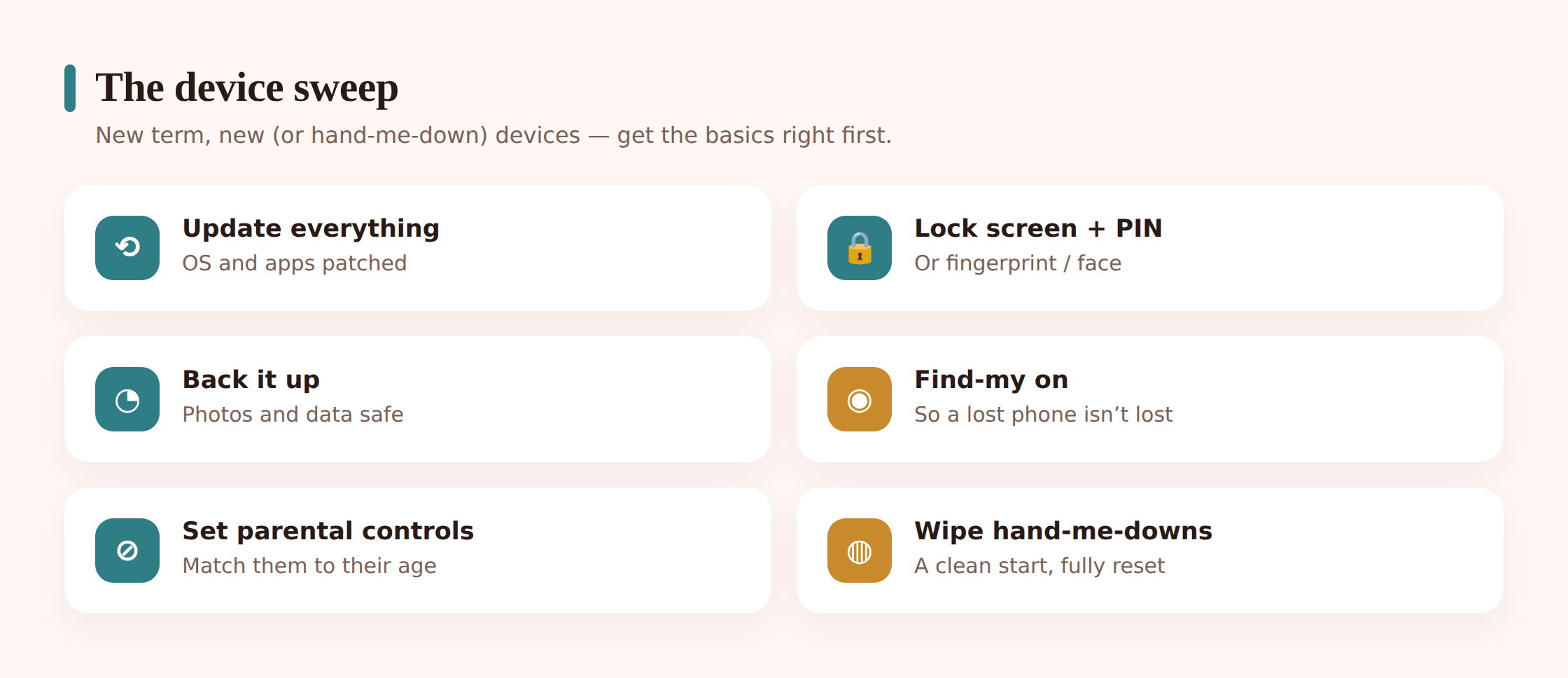
- Fresh start on hand-me-downs. Factory-reset an old phone or tablet before handing it on, then set it up under the new owner’s account. Our guide to setting up a new phone for a child covers the whole flow.
- Software fully updated. Install pending OS and app updates on every device. Most security fixes arrive this way, so turn on automatic updates while you’re there.
- Screen lock with biometrics. A real PIN or passcode plus fingerprint or face unlock. No swipe-to-open, no “1234.”
- Backups on. Photos and data backing up automatically so a lost phone isn’t a lost term. The backup guide walks through both platforms.
- Find-My enabled. Find My Device on Android or Find My on Apple, actually switched on and tested — not just installed. Here’s what to do if a phone goes missing.
- Age-appropriate parental controls. Google Family Link or Apple Screen Time set to the right age. Bump content ratings up as kids get older; a setting from age nine doesn’t fit a thirteen-year-old. Start with parental controls on Android and iPhone.
- School laptop or Chromebook squared away. If school issued a device, know what it can and can’t do at home. Our school Chromebook setup guide covers the managed-device basics.
2. Accounts & passwords
September brings a pile of new logins: the school portal, a homework platform, a reading app, maybe a new email address. Each one is a door, and reused passwords mean one breach opens all of them. This is the least glamorous section and the one that pays off most.
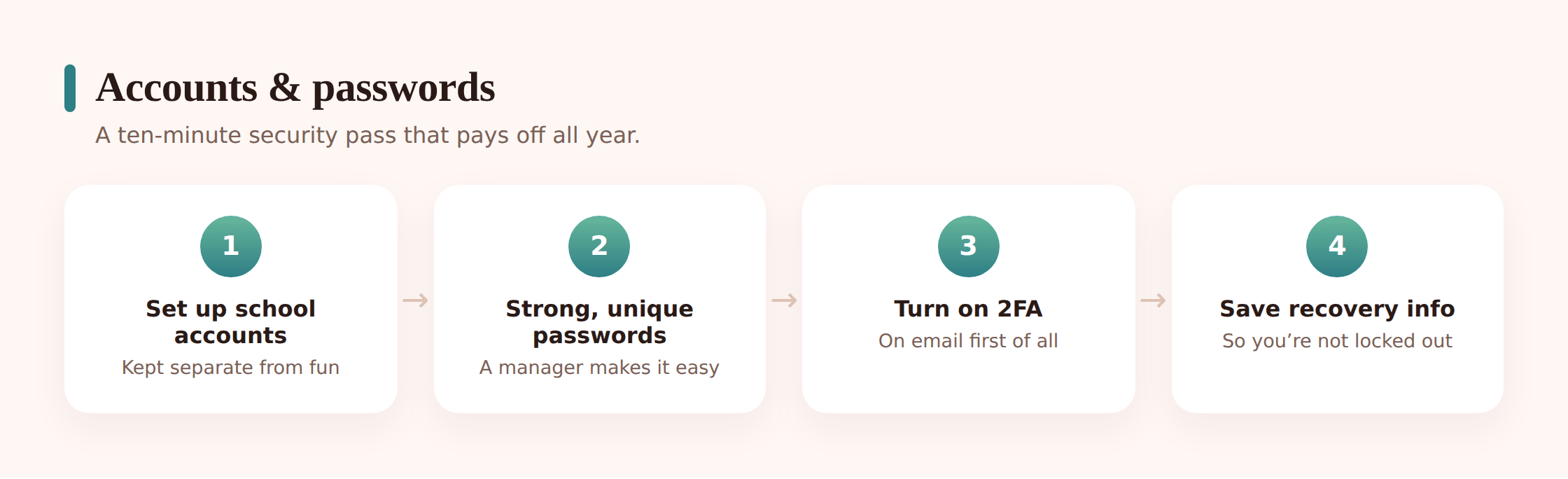
- Strong, unique passwords. Every account gets its own. The easiest way to make that painless is a password manager that generates and remembers them for you.
- A shared family password manager. One vault the family uses, so kids aren’t reusing “footballteam123” everywhere. The full setup is in family passwords and 2FA.
- Two-factor on the important accounts. Email first, then anything tied to money or identity. It’s the single biggest jump in security for the least effort.
- School accounts sorted. Log into the school portal and homework platforms together, save the credentials properly, and note where recovery goes.
- A first email account, set up right. If your child is getting their own email this year, our guide to a child’s first email account covers the safe defaults.
- Recovery details current. Check the recovery phone and email on the main accounts actually reach you, not a number that changed two phones ago.
3. Apps & privacy
Over a summer, phones collect apps like a jacket collects receipts. Some were installed for a single trip and never opened again. Others quietly hold permissions they never needed. A ten-minute sweep clears the clutter and closes the gaps.
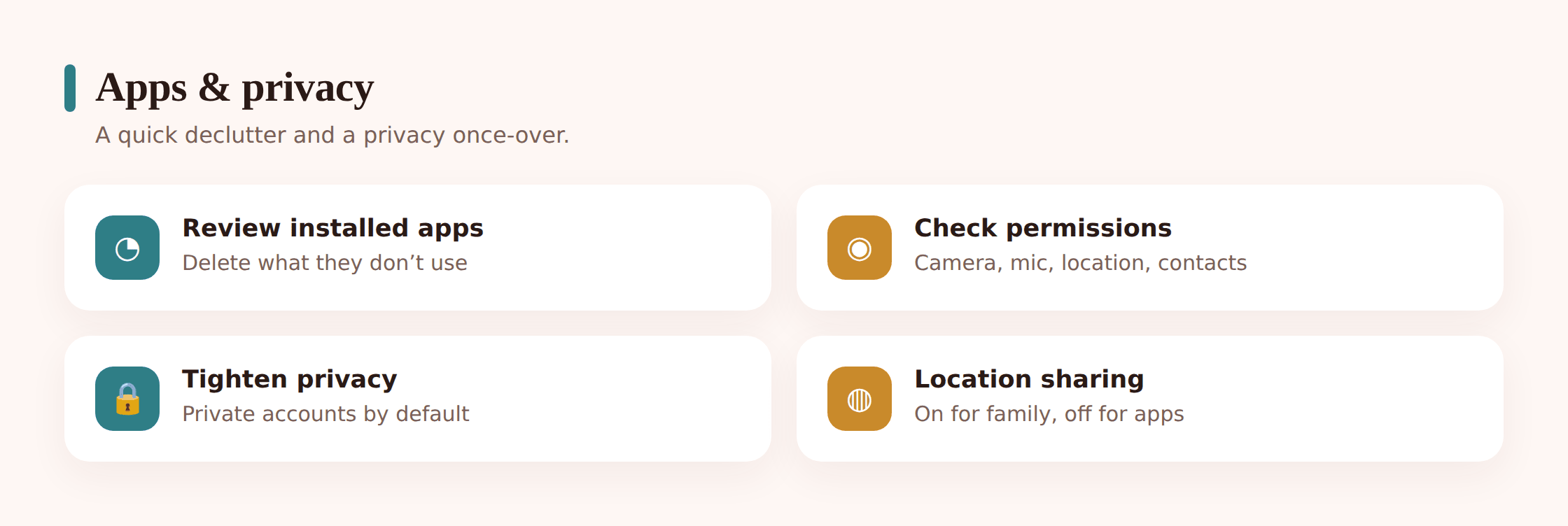
- Scroll the full app list. Every app, not just the home screen. Delete anything unused or unsuitable, and ask your kid what the unfamiliar ones do — you’ll both learn something.
- Check permissions. Look at what has access to location, microphone, camera and contacts. Revoke anything that doesn’t need it. A photo filter rarely needs your contacts.
- Age-appropriate check. Confirm the apps in daily use actually fit your child’s age, not just the store’s rating. If something’s borderline, that’s a conversation, not a silent deletion.
- Privacy settings on social apps. Accounts private, location tags off, who-can-message set to friends. These reset with app updates, so re-check them.
- Location sharing, deliberately set. Decide together who sees location and turn off the rest. Family sharing among yourselves is fine; broadcasting to an app full of strangers isn’t. See family location sharing.
- Lock in-app purchases. Require approval for every purchase and download so there are no surprise bills in October.
4. Class & friend group chats
The start of term is when group chats multiply. A class chat, a form chat, a chat for the football team, three more for whatever clubs they’ve joined. Most are harmless and genuinely useful. A few become the place where drama lives. Your job isn’t to police them — it’s to make sure your child knows how to handle the noise and the occasional pile-on.
- Muting is allowed. Make sure they know they can mute a chat without leaving it or offending anyone. A silent phone during homework is a feature.
- The basics of chat etiquette. Don’t forward private messages, don’t screenshot to stir things up, don’t pile on. Say it once, plainly.
- A plan for a pile-on. If a chat turns on someone, the move is to step back, not join in, and to tell you if it’s them being targeted. The group chats guide goes deeper on the pressure and the drama.
- Leaving is fine. A chat that’s all conflict can be left. That’s a valid choice, not a failure.
- Screenshots stay off unless it’s evidence. The exception is keeping proof if someone’s being bullied — then a screenshot goes to you, not around the group.
5. Homework & AI
AI tools are now part of homework whether schools love it or not. The useful line to draw is simple: AI as a tutor that helps you understand, not a ghostwriter that does the work for you. Kids get this distinction quickly when it’s put to them straight.
- Know the school’s policy. Some subjects allow AI, some ban it, some want it disclosed. Find out before there’s a problem, not after.
- Tutor, not ghostwriter. Asking AI to explain a concept, check reasoning, or suggest where an essay is weak is learning. Pasting its answer in as your own isn’t, and it’s usually obvious to teachers anyway. The AI and homework article has the full framing.
- Double-check the facts. AI makes things up confidently. Anything it states as fact gets verified before it goes in an assignment.
- Watch the chatbot line. Some AI companions drift from homework help into something more personal. Worth knowing about — see AI chatbots and kids.
6. Screen-time & routines
Holiday hours don’t survive contact with a 7 a.m. alarm. Reset the routine before the first Monday, not three exhausted weeks in. The two settings that matter most on a school night are a sensible limit and a charging spot that isn’t the bedroom.
- School-night limits back on. A daily budget and a downtime cut-off that match the new timetable. Our screen time by age guide gives sensible starting numbers.
- Phones charge outside the bedroom. A shared charging spot in the hall or kitchen overnight. This one habit protects sleep more than any app. The reasons are in sleep and screens.
- Homework focus time. A no-phone window for homework, or at least the chat apps muted during it. Focus modes make this automatic.
- A predictable weekday rhythm. Same wind-down time each school night beats a nightly negotiation. The bedtime routine notes help make it stick.
7. The conversation & the agreement
The settings are the easy part. What holds it all together is the conversation, and the one rule that matters more than any control: if something online scares, confuses or upsets you, come to me and you won’t be in trouble for it. Kids stay quiet when they fear losing the phone. Take that fear away and they’ll actually tell you things.
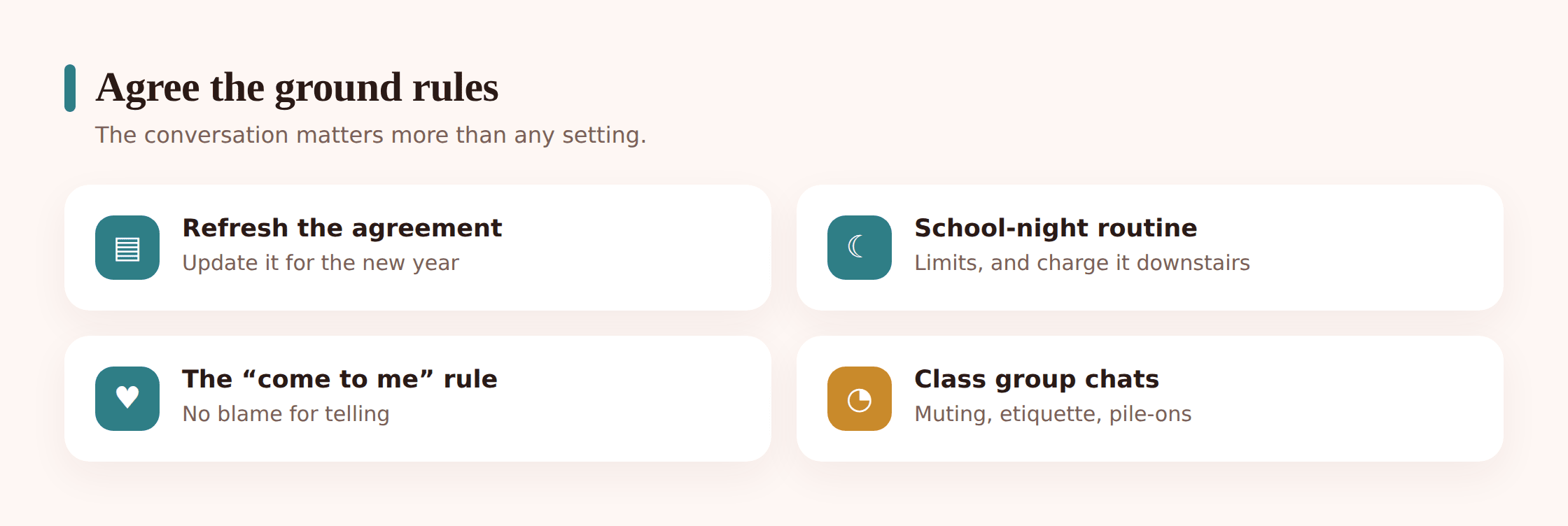
- Refresh the family phone agreement. Last year’s version doesn’t fit this year’s kid. Rewrite it together so they have a say. Start from the family phone agreement template.
- The “come to me” rule. Make it explicit and mean it. No punishment for reporting a problem. This is the rule that keeps you in the loop for the years ahead.
- Agree who else to tell. A trusted adult who isn’t you — an aunt, a family friend, a teacher — for the times they can’t face telling a parent.
- Set the check-in rhythm. A quick, low-drama chat every few weeks about what’s going on in the chats and the apps. Small and regular beats one big interrogation.
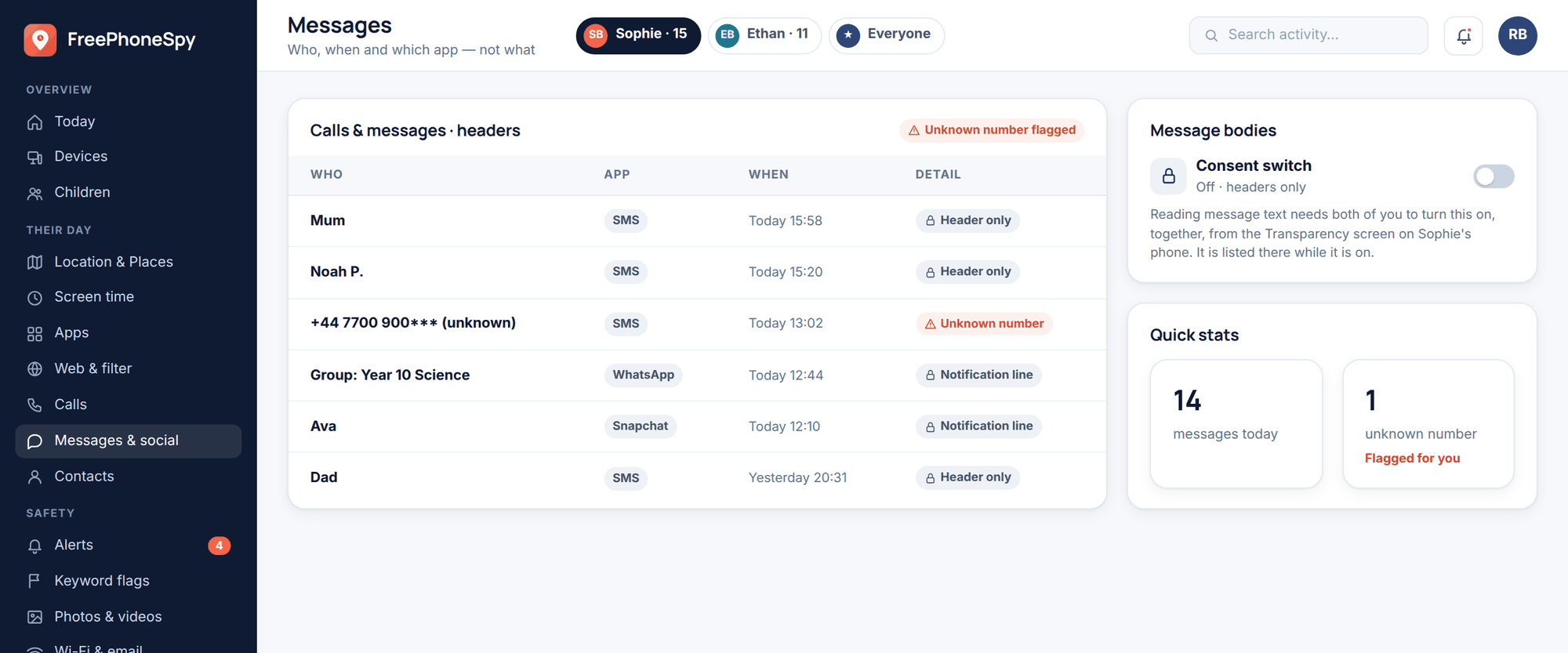
- Name the safety net. Be honest about any monitoring you use and why. Tools like FreePhoneSpy are meant to sit inside an agreement like this — known to your child, part of the deal, not a secret. If it’s hidden, it’s not this.
Get through these seven and you’ve done the meaningful work for the year. Diary a fifteen-minute check-in for half-term to catch the settings that drift and the apps that appear. That’s it. Term can start.
What’s the one thing to do first?
Passwords and two-factor authentication on the main email accounts. Email is the master key — reset that and almost everything else recovers through it. If you only have ten minutes, spend them there.
My child got a phone over summer — where do I start?
Section one, then the first phone guide. Get the device set up under their own account with a lock screen, backups, find-my and age-appropriate controls before you worry about apps and chats. The foundation first.
Do I really need a password manager for the kids too?
It’s the easiest way to stop password reuse, which is the most common way accounts get broken into. A shared family vault means nobody’s inventing weak passwords or writing them on a sticky note. The passwords and 2FA guide sets one up.
How do I handle the flood of new group chats?
Teach muting first — a chat can be silenced without being left. Then agree the basics: no forwarding private messages, no piling on, and tell you if a chat turns nasty. More in group chats, drama and pressure.
Is it cheating if my child uses AI for homework?
It depends on how. Using it to understand a topic or check their reasoning is tutoring. Pasting its output in as their own work is cheating, and usually obvious to teachers. Check the school’s policy and read AI and homework for the line to draw.
What if my child won’t agree to any of this?
Do it with them, not to them, and give them real input on the agreement. Explain the reasons rather than issuing rules. The family phone agreement works best as a negotiation where both sides give a little — that’s what makes it hold.