
A parental control web dashboard, no app for parents
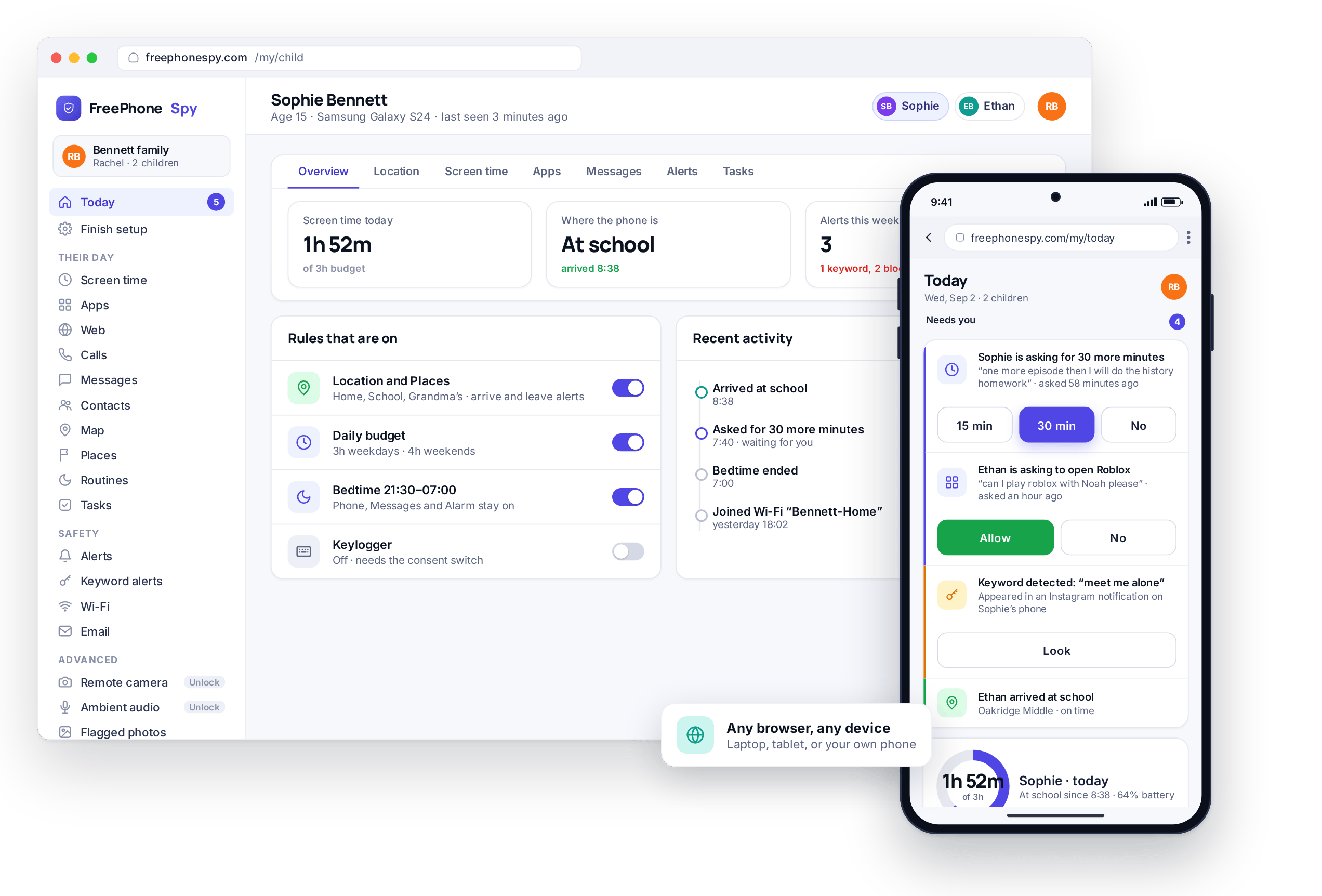
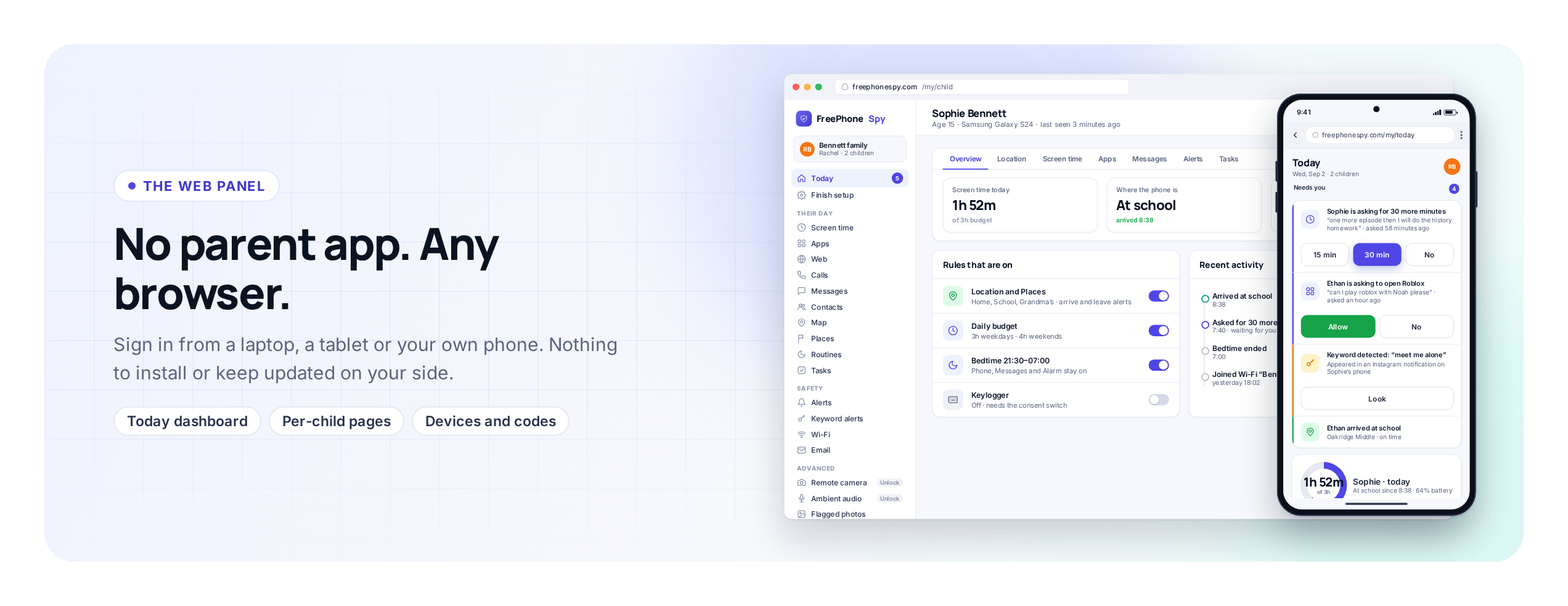
FreePhoneSpy runs one app on the child’s Android phone. You manage everything from a browser. The parent side is a web dashboard you open on any computer or phone, with a “Needs you” list at the top and every child one tap away. There is nothing to install and nothing to update.
Any browser
Unlimited child devices
Why there is no parent app
Most monitoring apps make you install something on your own phone as well, then ask you to keep it updated. FreePhoneSpy does not. The parent side is a website. You sign in at freephonespy.com/my and the dashboard is there. It works the same on a work laptop, a home desktop, or your own phone’s browser.
That has practical benefits. You can check in from a computer at work without installing anything on it. When we improve the panel, you get the improvement the next time you load the page, with no update to chase. One app lives on the child’s phone, visible in the app list, and everything you do lives in the browser.
The Today dashboard and the “Needs you” list
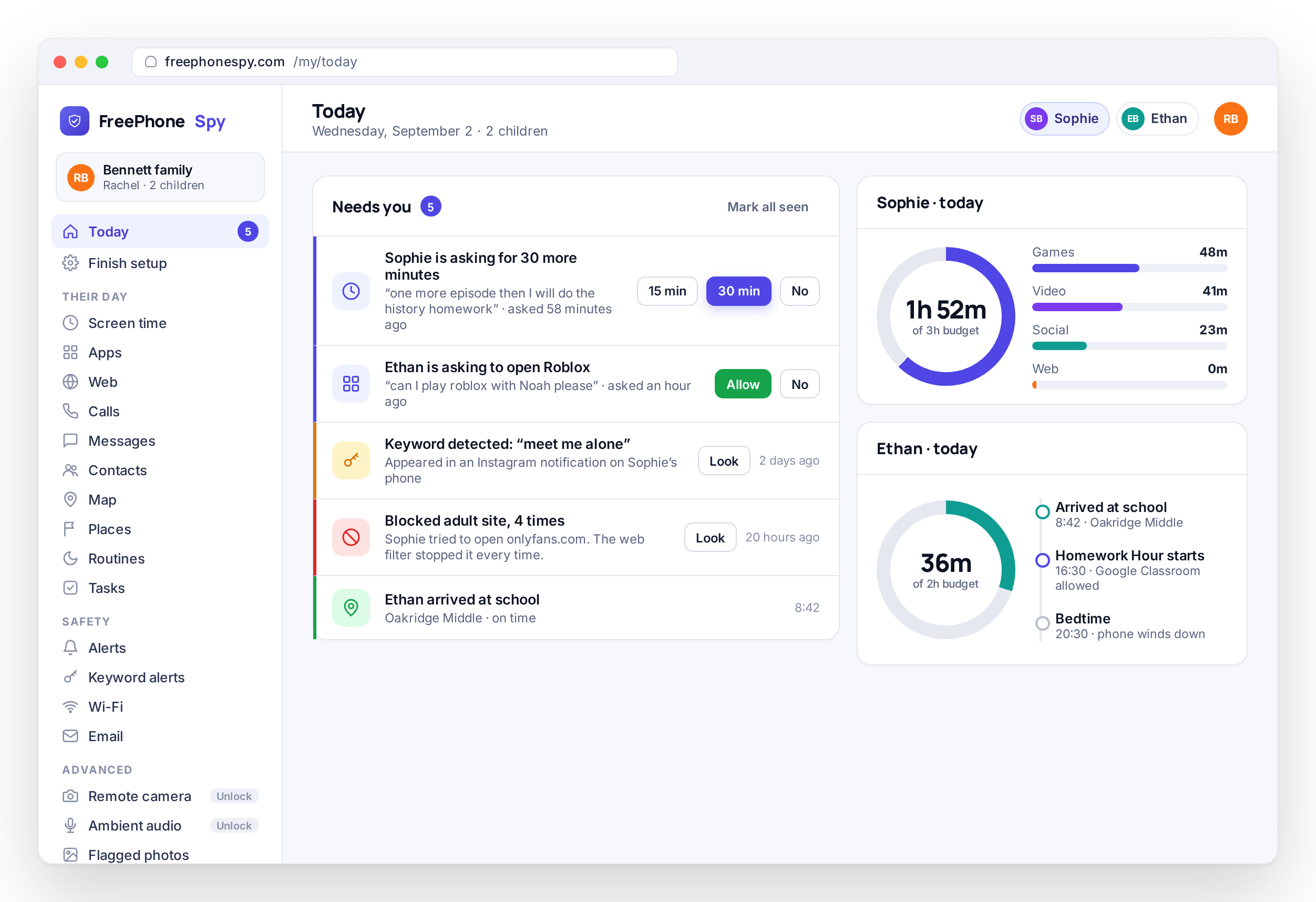
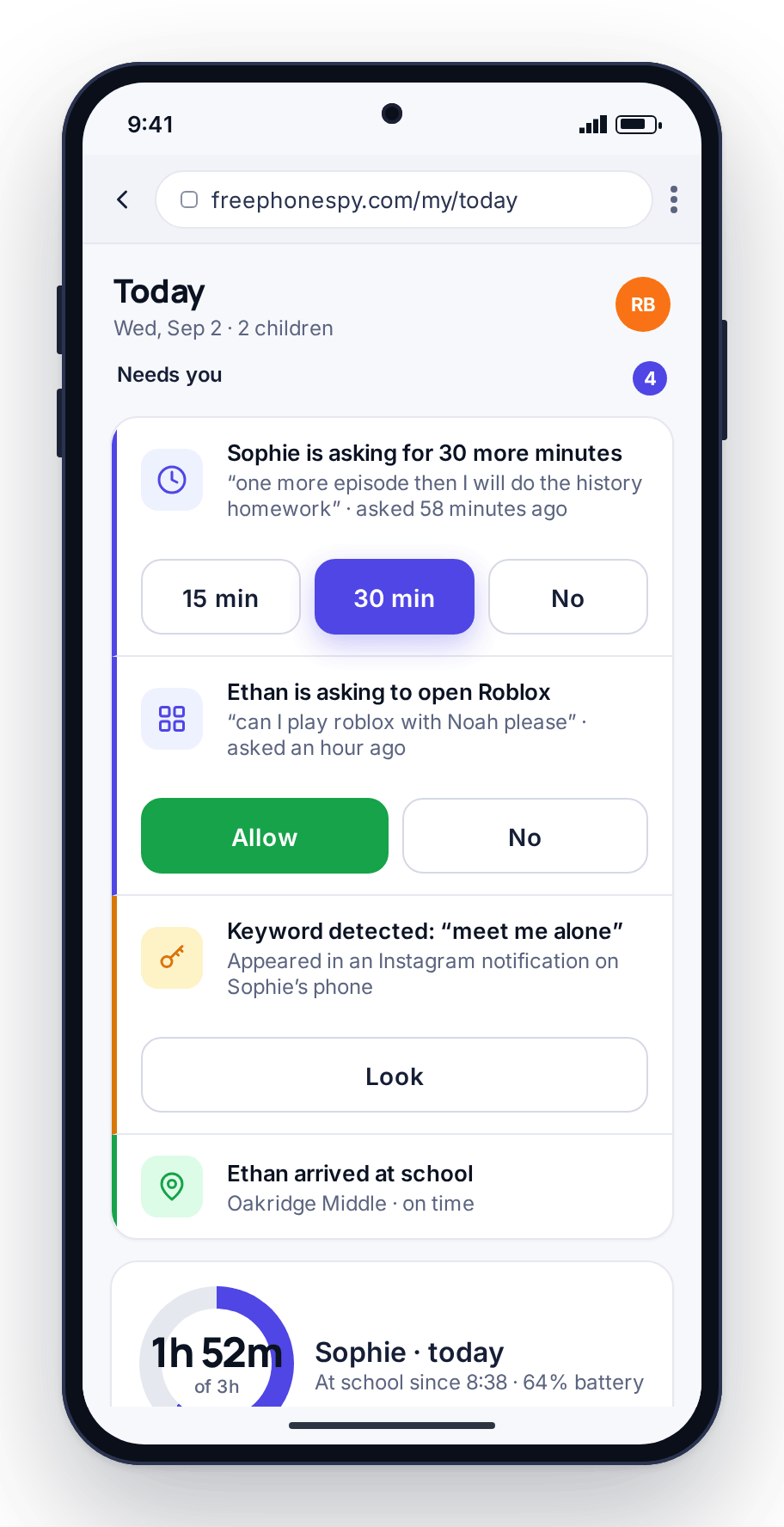
Today is the page you will open most, and it is built for a thirty-second morning check. At the top sits a “Needs you” list: the handful of things that want a parent’s attention right now. An extra-time request waiting for a yes or no. A keyword flag from last night. A blocked site someone tried to reach. A place event, such as arriving at school or leaving early.
If the list is empty, you close the tab. If it is not, each item takes one tap to deal with: approve or decline the extra time, read the flag, dismiss the place event. The list sorts what matters from what does not, so you are not scrolling through everything to find the one thing that needs a decision.
- A “Needs you” list of what wants attention now
- Ask requests, keyword flags, blocked sites, place events
- Each item is one tap to handle
- An empty list means nothing needs you today
One panel, every child
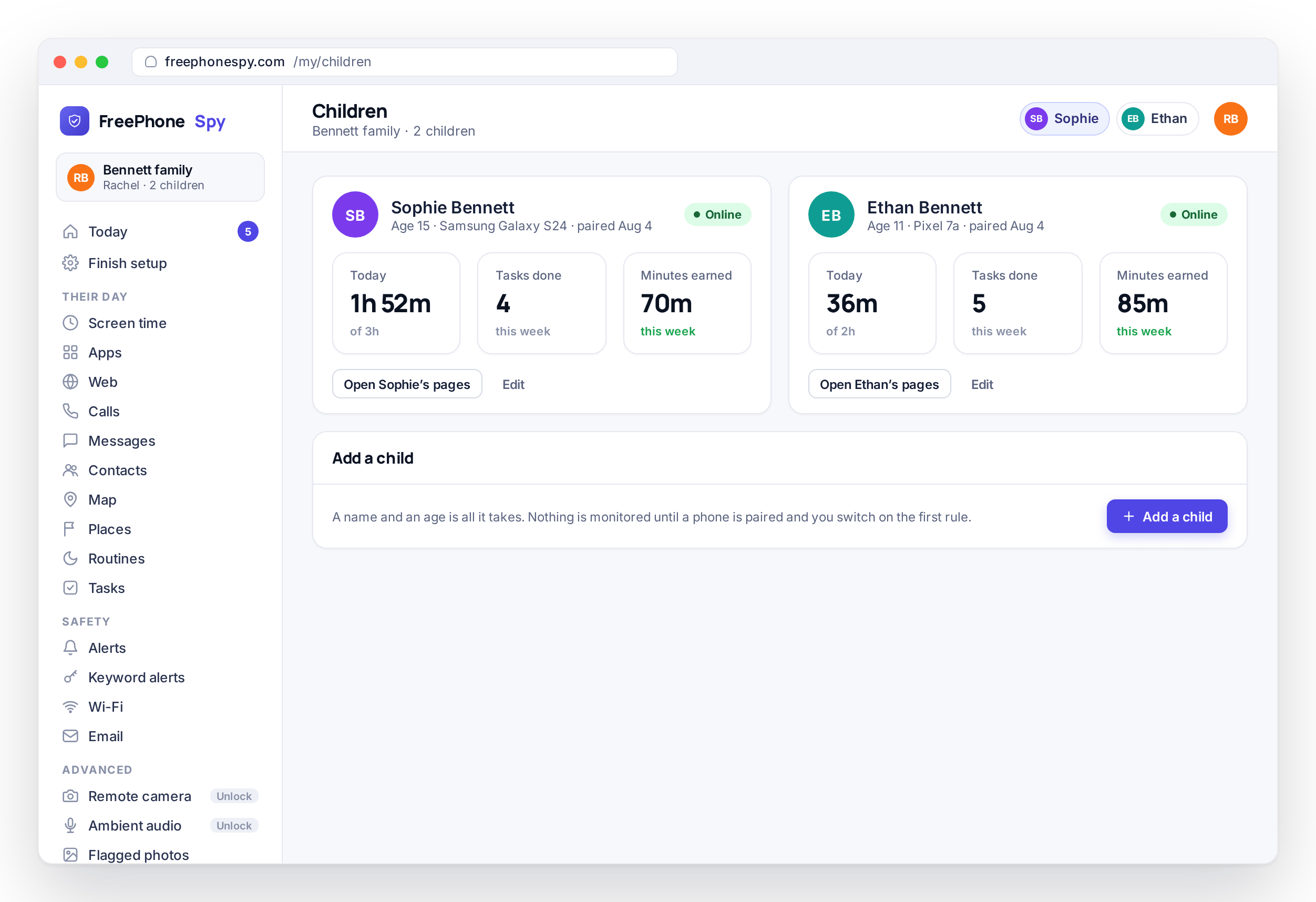
Families rarely have one child with a phone, and the settings that suit a fifteen-year-old are not the ones for an eleven-year-old. The child switcher sits at the top of the panel so you move between them in a tap. In the demo that is the Bennett family, with Sophie at fifteen and Ethan at eleven, and each has their own summary the moment you select them.
Everything downstream is per child. Sophie might have message bodies off and a later bedtime. Ethan might have the keylogger on as training wheels and a tighter web filter. You set what is right for each child rather than one blanket rule for the household, and switching between them is the same move every time.
- Switch between children in a single tap
- A summary for each child as you select them
- Every rule and switch is set per child
- Different bedtimes, filters and consent settings side by side
Per-child pages, everything in one place
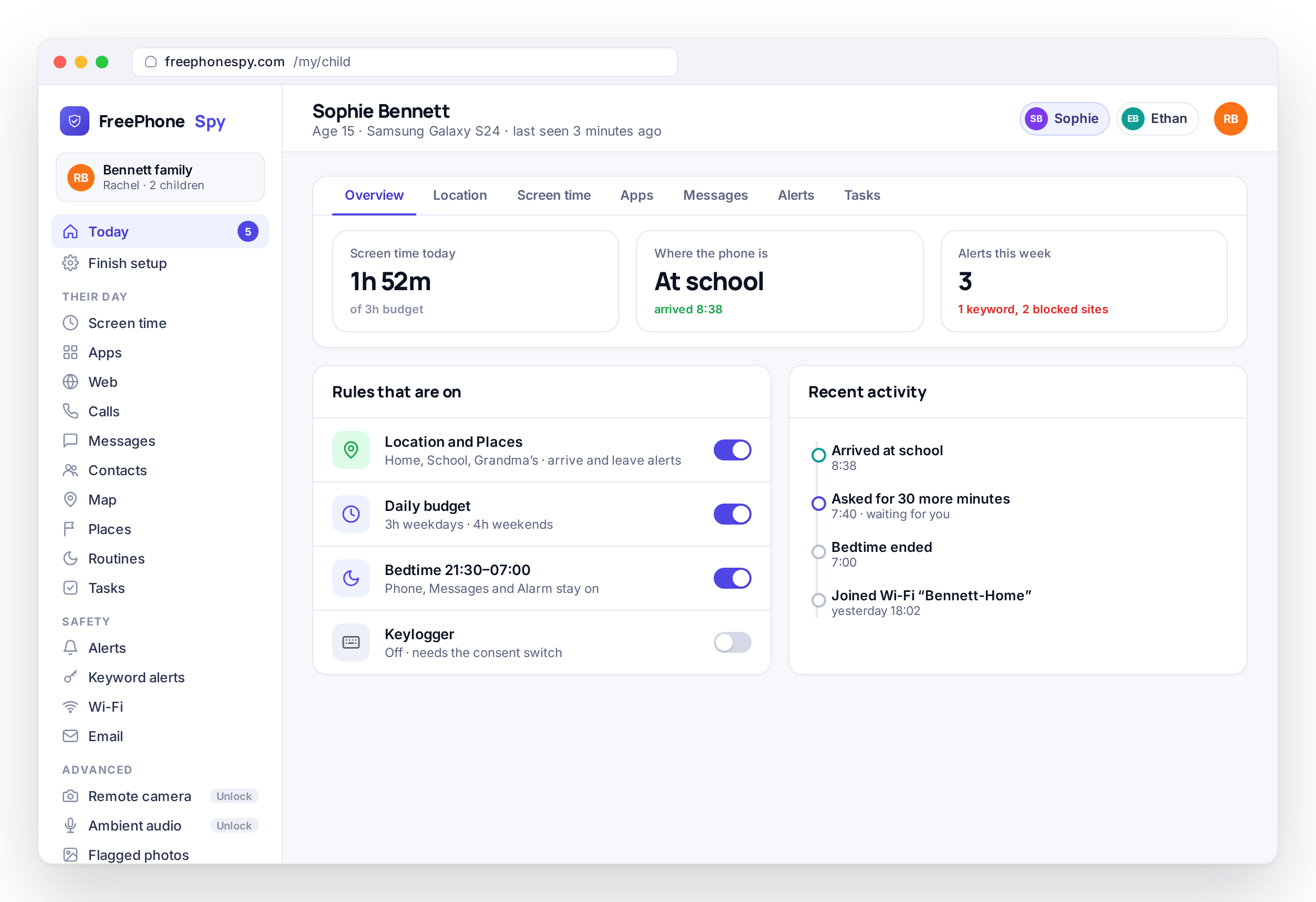
Pick a child and their pages open up: Location and Places, Screen time, Apps, the Web filter, Routines, the calls and messages tools, Alerts, and the rest. It is the same set of pages for each child, arranged the same way, so once you know one child’s pages you know them all.
Nothing here is a separate app or a separate login. The call log and message headers, the photo gallery, the keyword alerts, the location history, and the screen-time budget are all tabs on the same child’s page. You set a rule on one tab and it takes effect on the phone; you read an alert on another.
- Location, screen time, apps, web filter, routines and more per child
- The same layout for every child
- Reading and rule-setting live together, not in separate apps
- Change a rule here and the phone enforces it
Devices, with no limit on them
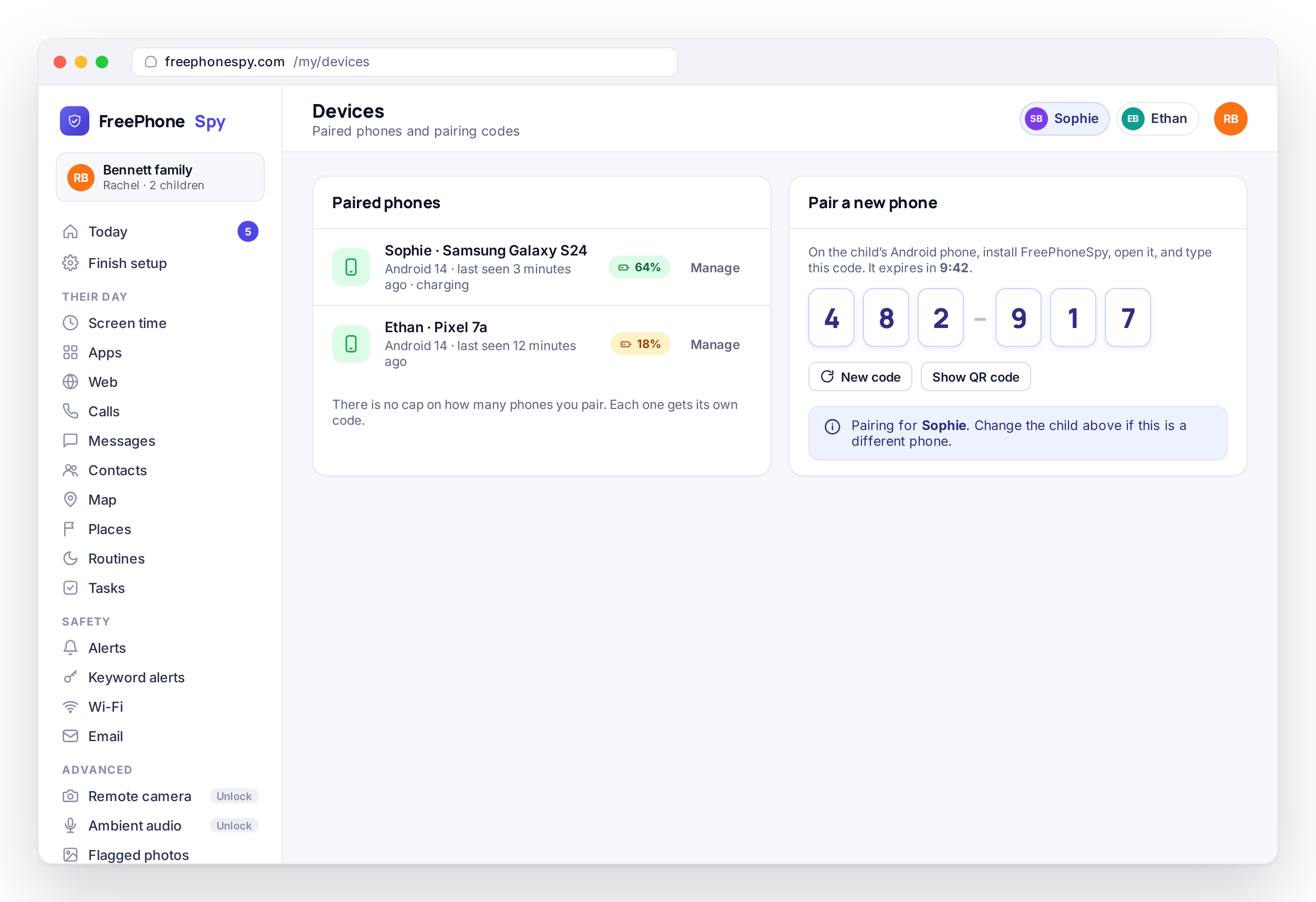
The Devices page is where phones come and go. To add one, you open Devices to get a six-digit pairing code, install the app on the child’s Android phone, and type the code into the app. The phone then shows up on this page with its name, battery level, and last-seen time. If a child gets a new phone, you pair the new one. If they stop using an old one, you remove it.
There is no cap on child devices. Two kids, four kids, a phone and a spare, an old handset a younger sibling inherited: they all pair to the same account for free. Many tools charge per device or make you pick a plan by how many phones you have. FreePhoneSpy does not.
- Pair a phone with a six-digit code, remove it when it is retired
- Each device named and shown with its status
- Unlimited child devices on one account
- No per-device charge and no plan tiers by phone count
Any browser, any computer or phone
Because the panel is a website, it goes wherever a browser goes. Open it on the family desktop after dinner. Check the “Needs you” list on your phone at the bus stop. Answer an extra-time request from a laptop at work. It is the same login and the same dashboard everywhere.
On a phone, the panel reflows to fit the smaller screen, so the morning check does not become a pinch-and-zoom exercise. You do not need a particular device or operating system on your side. If it runs a modern browser, it runs the panel.
- Works in any modern browser, on any computer or phone
- One login gets you the same dashboard everywhere
- Reflows to fit a phone screen for the quick check
- No parent-side app to install or keep updated
The read-only demo
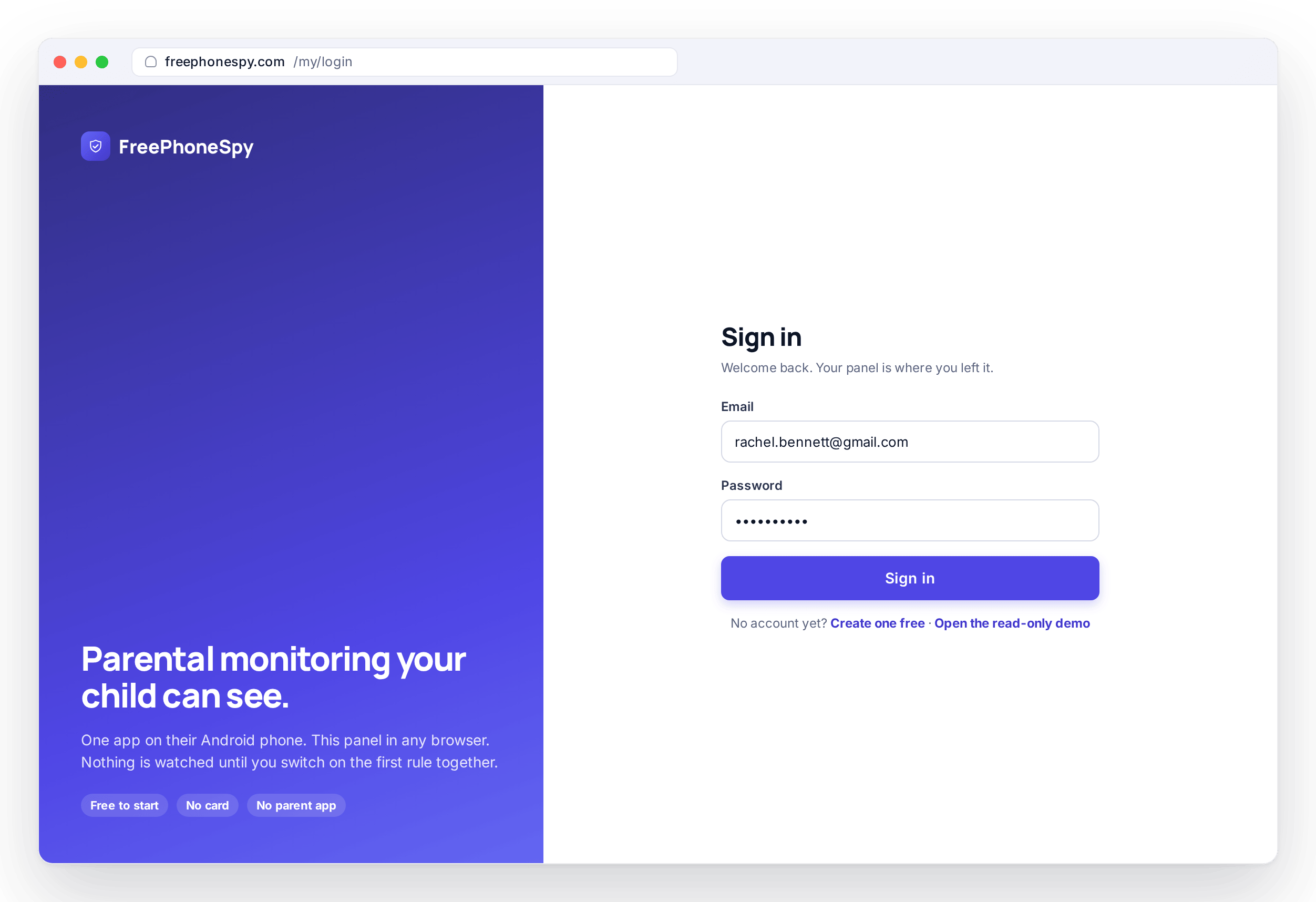
You should not have to hand over a phone and your details to find out whether a tool suits you. FreePhoneSpy has a read-only demo of the panel, loaded with the Bennett family, so you can click around the real thing. Open Today, switch between Sophie and Ethan, and look at how alerts, screen time, and location are laid out.
Because it is read-only, you cannot change the demo family’s settings, but you can see exactly what you would be working with. Try the dashboard, decide whether the layout makes sense to you, then start your own free account when you are ready. The demo opens from the sign-in page, or directly from the demo link.
- A live, read-only demo panel with the Bennett family
- Click through Today, the child switcher and every feature page
- See the real layout before you sign up
- Then start free, no card needed
What a normal week in the panel looks like
You do not sit in this dashboard. You dip in and out, and most days it takes seconds.
Most mornings
Open Today on your phone, read the “Needs you” list, and clear anything on it. If it is empty, close the tab. Often that is the whole interaction.
Now and then
Answer an extra-time request with 15 minutes, 30 minutes, or no. Read an alert. Adjust a bedtime routine because term started. A few taps, a few times a week.
Once a week
Skim the activity report to see how the week went, and have a five-minute chat with an older child about anything that stands out.
How the web panel compares with a parent app
Running in a browser instead of an app sounds like a small detail. In practice it changes a few things.
| The usual way | FreePhoneSpy’s web panel |
|---|---|
| Install a parent app, keep it updated | Open a web page, always current |
| Tied to the phone you installed it on | Any browser, any computer or phone |
| A second app to manage on your own phone | Nothing to install on your device |
| Often a per-device or tiered plan | Unlimited child devices, free to start |
None of this changes the child’s side. Their phone still carries one visible app and a Transparency screen that shows what is shared. The “no parent app” part only makes the parent’s side simpler, so the tool fits around your day instead of adding another thing to manage.
Everything reports into one dashboard
The panel is the thread that ties FreePhoneSpy together. Location, calls and messages, photos and media, alerts and keywords, screen time, apps, and the web filter all report into it, and every rule you set flows back out to the phone. Learn one dashboard and you have learned the whole product. Browse the full feature list to see each one in detail.
Questions about the web panel
Do I need to install an app to be the parent?
No. The parent side is a web dashboard you open in any browser at freephonespy.com/my. The only app is the one on the child’s Android phone. There is nothing to install or update on your own device.
Can I manage the panel from my phone?
Yes. The panel reflows to fit a phone screen, so you can check the “Needs you” list, answer an extra-time request, or read an alert from your phone’s browser. It is the same login and the same dashboard as on a computer, and it works on an iPhone as well as Android.
How many children and devices can I add?
As many as you need. Child devices are unlimited on one account, with no per-device charge. Each phone pairs with a six-digit code from the Devices page, and you switch between children with the switcher at the top of the panel.
Can I try the panel before signing up?
Yes. There is a read-only demo loaded with the Bennett family. You can click through Today, switch between Sophie and Ethan, and see every feature page laid out with real data, then start your own free account when you are ready.
What is the “Needs you” list?
It is the short list at the top of the Today dashboard showing what wants your attention: ask requests, keyword flags, blocked sites, and place events. If it is empty, nothing needs you today. Each item takes one tap to handle, and it clears from the list once you have dealt with it.
Can two parents share one panel?
The panel is a website, so anyone with the account’s email and password can sign in from their own browser, on any device, at the same time. Both see the same children, rules, and “Needs you” list, and a change made by one parent is reflected for the other the next time the page refreshes.
More: Calls, messages & social · Photos, videos & audio · Alerts & keyword flags · Download · Pricing