Setting Up Google Family Link: A Complete Guide
Google Family Link is the free, official way to manage your child’s Android phone or Chromebook. You link their Google account to yours, and from an app on your phone you can approve installs, set screen-time limits, filter content, and see where the device is. It’s a solid foundation, it costs nothing, and most families should start here. Below is how to set it up properly, what each control actually does, and the honest gaps you’ll want to plan around.
What Family Link is
Family Link is Google’s free parental-controls app. It works on Android phones and tablets and on Chromebooks. The setup is simple: there’s a parent side (the Family Link app on your phone, or the controls built into your own Google account) and a child side (your kid’s Google account, signed in on their device and marked as supervised).
Once they’re linked, your child’s device reports to you. You approve the apps they want. You set how long they can use the phone and when it goes quiet at night. You filter what they can find in Google Play, Search, and Chrome. And you can see the device’s location on a map. Everything runs through your child’s Google account, so the controls follow that account.
Two things make it a good place to begin. It’s official, so it’s built into Android and Google keeps it current. And it’s free, with no subscription and no add-ons to buy. For a first phone, it covers a lot. For a wider view of the options across both platforms, our parental controls for Android and iPhone guide lays out how the pieces fit.
Before you start
Get a few things ready and the setup takes about fifteen minutes.
- Your own phone, with the Google Family Link app installed and signed in to your Google account.
- Your child’s Android device (phone or tablet), charged and connected to Wi-Fi.
- Your child’s Google account. If they don’t have one yet, you’ll create it during setup.
- A quiet ten minutes with your child. This works best done together, not behind their back.
One rule to know up front: children under 13 (the age varies by country) can’t hold a standard Google account. They need a supervised child account, which Family Link creates and manages for you. For a teen who already has a normal Google account, you don’t create a new one — you add supervision to the account they’ve got. Family Link walks you through whichever path fits.
Set it up, step by step
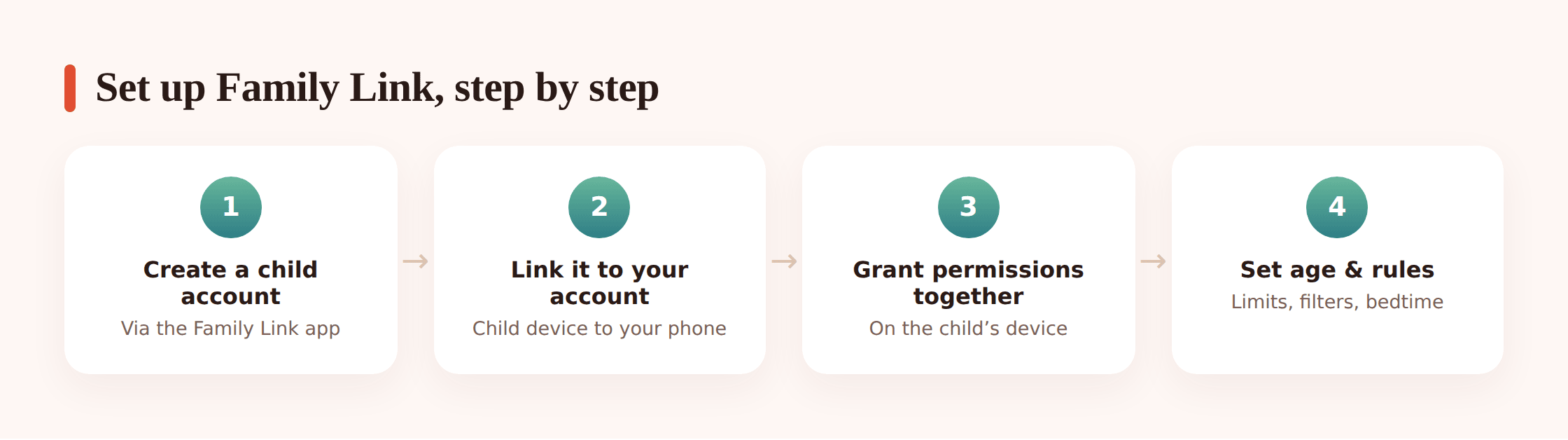
1. Create or pick the child’s Google account
Open Family Link on your phone and tap the plus or Add child. If your child needs a new account, choose Create account for your child and follow the prompts. If they already have a Google account, select it here to add supervision instead of making a second one.
2. Sign in on the child’s device
On your child’s phone, sign in with that child account. On a brand-new phone you can do this during first-time setup — see our guide to setting up a new phone for a child. On a phone they already use, add the account in Settings, and if needed install the Family Link (child) app from Google Play.
3. Link the two devices
Family Link connects your phone to theirs. You’ll usually see a code or a confirmation prompt — enter or approve it so the accounts pair. Keep both devices online through this step; a dropped connection is the most common reason linking stalls.
4. Grant permissions together
The child app asks for permissions so it can enforce limits and report location. Turn these on together on the child’s device. Skipping them is the usual reason a control looks set but doesn’t apply later.
5. Set the birthday and finish
Confirm your child’s date of birth. Age drives some defaults — Play maturity ratings and how content filters behave — so get it right. Finish the wizard, and the account shows up in your Family Link app, ready to manage.
What you can control
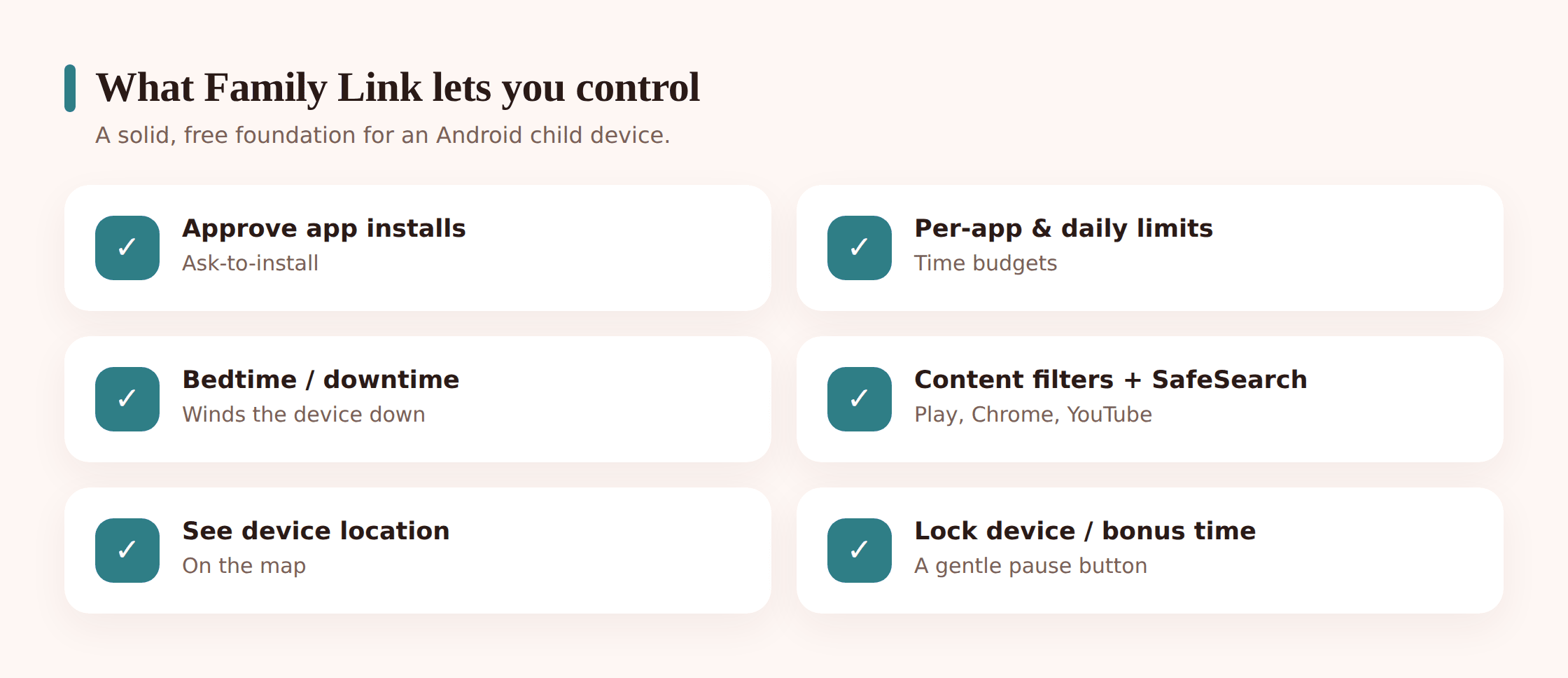
Here’s what Family Link gives you and how to use the parts that matter most.
App approval (ask to install)
Turn on approval and your child can’t install an app from Google Play until you say yes. The request pops up in your Family Link app; you approve or decline. You can also block an already-installed app so it disappears from their launcher, and unblock it later. This is the single most useful control for younger kids.
Per-app time limits and blocking
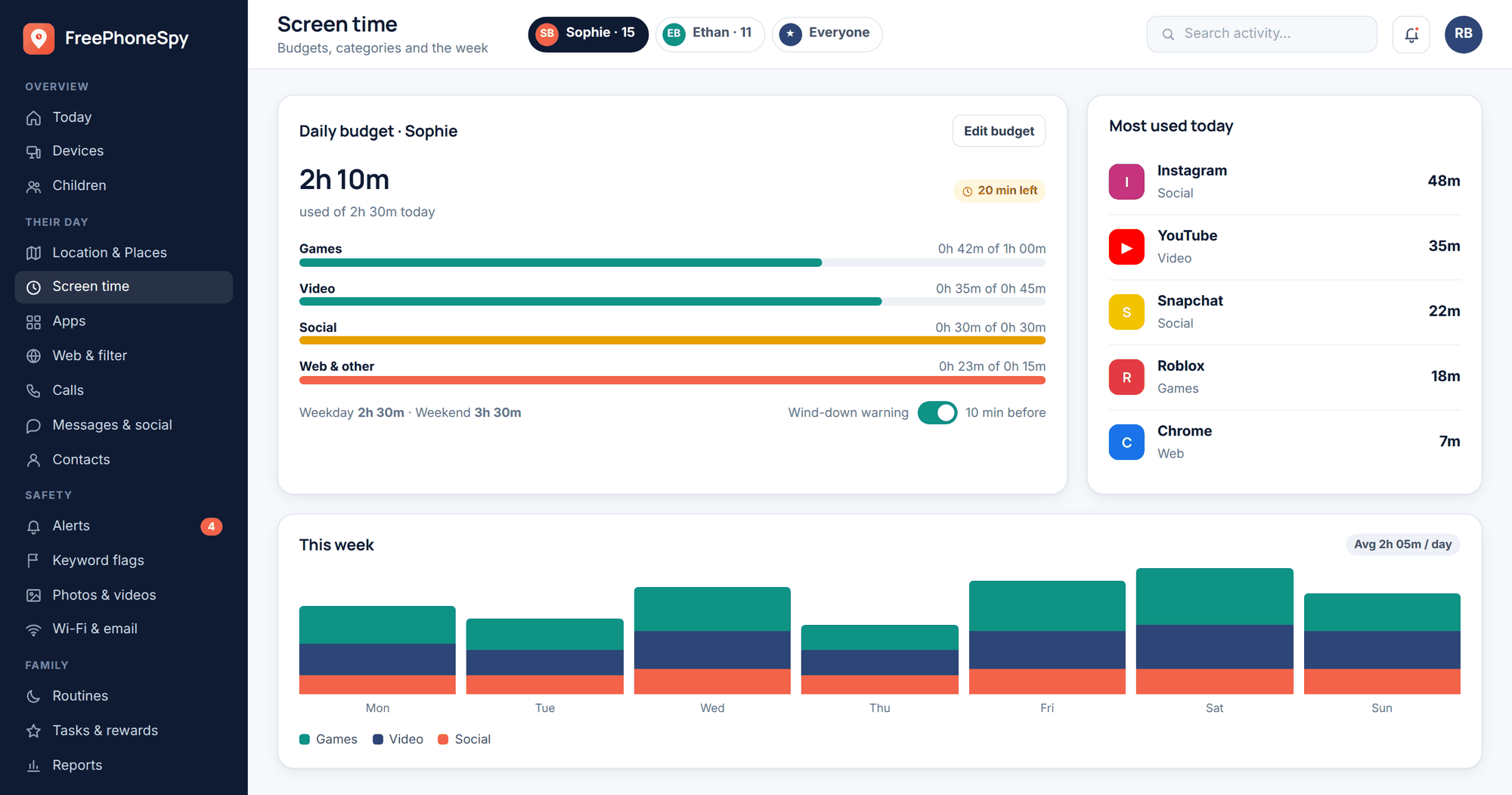
Set a daily cap on individual apps — say 30 minutes of a game — and the app locks when the time’s up. You can block specific apps entirely too. For the games and social apps that eat the most time, per-app limits are more precise than one big daily total. Our app and website blocking guide goes deeper on which apps to watch.
Daily screen time and bedtime
Set a daily screen-time limit and a bedtime (Downtime) schedule. During bedtime the device locks except for calls, so a phone left on the nightstand goes quiet. You can set different limits for different days — looser on weekends, tighter on school nights. For the bigger picture on healthy limits, see our screen time guide.
Content filters
This is a few settings in one place. In Google Play you can set maturity ratings so only age-appropriate apps, games, movies, and books show up. You can lock SafeSearch so explicit results are filtered out of Google Search. For the web, you can restrict Chrome to try to block mature sites, or allow only sites you approve. And you can set YouTube behavior (including steering younger kids to YouTube Kids). Turn these on as a group when you first set up the phone.
Location
See your child’s device on a map. It’s the device’s location, so it’s only as reliable as a charged, powered-on phone that’s with them — but for a quick “did they get to practice” check, it does the job.
Account and password oversight
For a supervised child account you can manage account settings and help with the password. You also get notified about sign-in activity, which matters most for younger children.
Lock device and bonus time
Two everyday tools. Lock the device now — for dinner, homework, or just a reset — straight from your phone. And when you want to be generous, grant bonus time to extend today’s limit without changing the schedule.
Sensible defaults by age
There’s no perfect number, but younger means tighter. Use this as a starting config and adjust to your family.
Ages 6–9
App approval on for everything. Play maturity set low. SafeSearch locked. Chrome restricted to approved sites, or no open browser at all. Around an hour of screen time on school days. Bedtime early. YouTube Kids only.
Ages 10–12
App approval still on. Per-app limits on the games and apps that run long. SafeSearch locked. Chrome filtered. Screen time around 1.5–2 hours on school days, more on weekends. Bedtime that protects sleep. Start talking through the “why” so the rules make sense to them.
Ages 13+
Shift from control toward oversight. Keep bedtime and a daily limit as guardrails, keep content filters on, but loosen app approval and involve them in setting the numbers. This is the age to pair the tech with a real conversation — and to notice where Family Link stops short.
The honest limits
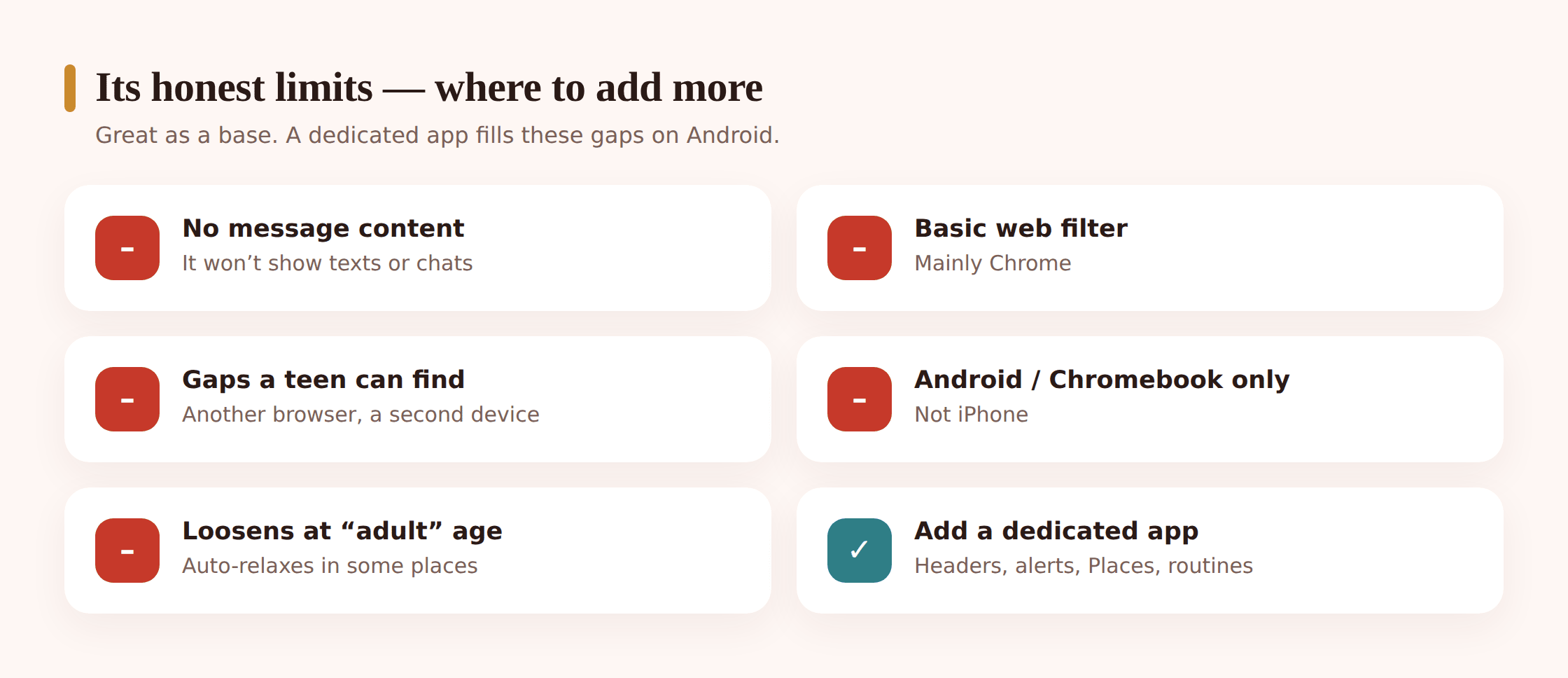
Family Link is genuinely good, and free. But it’s fair to be clear about where it stops, so you can plan around the gaps instead of being surprised by them.
- It doesn’t show messages. Family Link has no view into who your child is messaging or what’s being said, and no alerts if a worrying word comes up. For younger kids or a new phone, that’s often the thing a parent most wants a heads-up on.
- Web filtering is basic. The content filter mainly covers Chrome. A different browser, or an in-app browser inside a social app, can slip past it.
- A determined teen can find gaps. A second browser, a spare device, a friend’s phone — the usual workarounds exist. Controls raise the floor; they aren’t a wall.
- Controls loosen with age. When your child reaches the age of majority in your region, supervision changes or ends automatically. That’s by design, but it’s worth knowing before it happens.
- Android and Chromebook only. On an iPhone you’d use Apple’s Screen Time instead. Family Link doesn’t manage iOS.
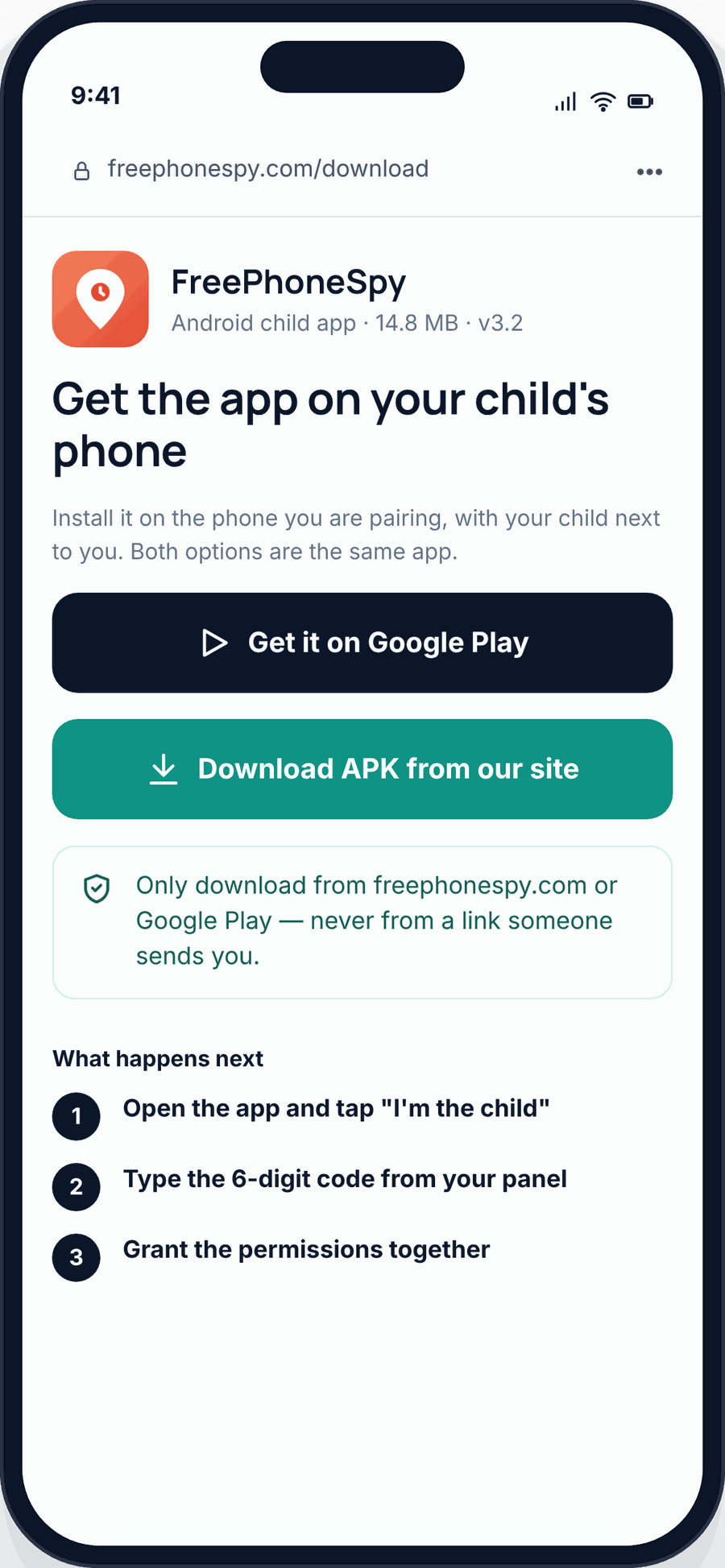
This is exactly where a dedicated app earns its place alongside Family Link — not instead of it. FreePhoneSpy adds a single per-child web panel and the extras Family Link doesn’t do on Android: message headers plus keyword alerts, saved Places with arrive and leave alerts, a stronger content filter that isn’t tied to one browser, routines, and an alerts feed that pulls it together. Use both: Family Link for the free foundation, FreePhoneSpy for the extra visibility.
Common issues and fixes
The child app won’t install
Check the device meets the Android version Family Link needs, confirm you’re signed in with the child account (not yours), and make sure Wi-Fi is solid. Restart and try Google Play again.
The device won’t link
Almost always a connection hiccup. Keep both phones online and awake through the whole link step. If a code times out, restart the flow and request a fresh one.
Time limits aren’t applying
Usually a missing permission on the child’s device. Reopen the child app and grant the permissions it asks for. Also confirm the device’s date and time are set automatically — a wrong clock throws off schedules.
Your teen removed supervision
An older child may try to stop supervision. When that happens Family Link notifies you, and on many accounts the device locks for a set period. Treat the alert as a conversation starter, not just a setting to reapply.
Updating the child’s age
Ages and birthdays are edited from the child’s account settings in Family Link. Fix a wrong birthday here; just know that crossing certain age thresholds changes what’s available and can loosen controls.
Keep it healthy
The setting that matters most isn’t in any menu. Kids who understand why the limits exist push back far less than kids who feel spied on.
- Set it up with them. Turn on the controls together and say what each one does. Openness is the whole point.
- Explain the why. “Bedtime is off at 9 so you actually sleep” lands better than a silent lock.
- Revisit as they grow. What fits a 9-year-old won’t fit a 13-year-old. Loosen the reins on a schedule you both expect.
- Pair it with a family agreement. A short, shared set of expectations does more than any single toggle. Our child’s first phone guide has a starting point.
Quick setup checklist
- Family Link installed on your phone, signed in to your account.
- Child account created or supervised, signed in on their device.
- Devices linked, with permissions granted on the child’s phone.
- Birthday and age confirmed.
- App approval turned on.
- Daily screen-time limit and bedtime set.
- Content filters on: Play maturity, SafeSearch, Chrome, YouTube.
- Location checked and working.
- A short talk with your child about what’s on and why.
- For the gaps Family Link doesn’t cover, a plan to add more.
FAQ
Is Google Family Link free?
Yes. It’s Google’s official parental-controls app for Android and Chromebooks, with no subscription. It’s a great free foundation, and it’s where most families should start.
Does Family Link work on iPhone?
No. Family Link manages Android and Chromebook accounts. On an iPhone you’d use Apple’s built-in Screen Time for parental controls instead.
Can I read my child’s messages with Family Link?
No. Family Link doesn’t show message content and has no keyword alerts. If that visibility matters to you, that’s one of the gaps FreePhoneSpy fills on Android with message headers and keyword alerts, used alongside Family Link.
Will my child know Family Link is on?
Yes, and that’s how it should be. Supervision is visible on the child’s device. Set it up together and keep it open — hidden monitoring isn’t what these tools are for.
What happens when my child turns 13 or the age of majority?
At the age of majority in your region, supervision changes or ends automatically. Around 13 (varies by country) a child account can convert to a standard one. Both are by design, so plan for the shift toward oversight rather than control.
Do I need another app if I already use Family Link?
Not to get started. Add one when you hit Family Link’s limits — message visibility, saved places with arrive and leave alerts, a filter that isn’t tied to Chrome. FreePhoneSpy is built to sit alongside Family Link, not replace it.