Why Is My Phone Battery Draining So Fast?
Your phone was at 80% an hour ago. Now it’s begging for a charger and you haven’t done anything unusual. Battery drain almost always has a cause you can see, and most of the time you can fix it in a few minutes. The trick is to look at what’s actually eating the power before you start flipping switches.
First, find the culprit
Don’t guess. Your phone already keeps a log of which apps used the battery and when. Read it first. You’ll often spot the problem in ten seconds.
On an iPhone, open Settings > Battery. Scroll down and you’ll see usage by app. You can switch between the Last 24 Hours and Last 10 Days views. Tap an app and it splits the drain into screen time and background time. That split matters. An app that burned 30% while you were staring at it is doing its job. An app that burned 20% in the background while your phone sat in your pocket is the one to deal with.
On Android, open Settings > Battery, then look for Battery usage (the exact wording moves around by brand — Samsung, Pixel, and others each phrase it a little differently). You’ll get a ranked list of the apps and system services that drained the most. Same idea: the app at the top that you barely opened is your suspect.
Two numbers tell most of the story: which apps are on top, and how much of their drain happened in the background. Keep those in mind as you read the causes below.
The usual causes
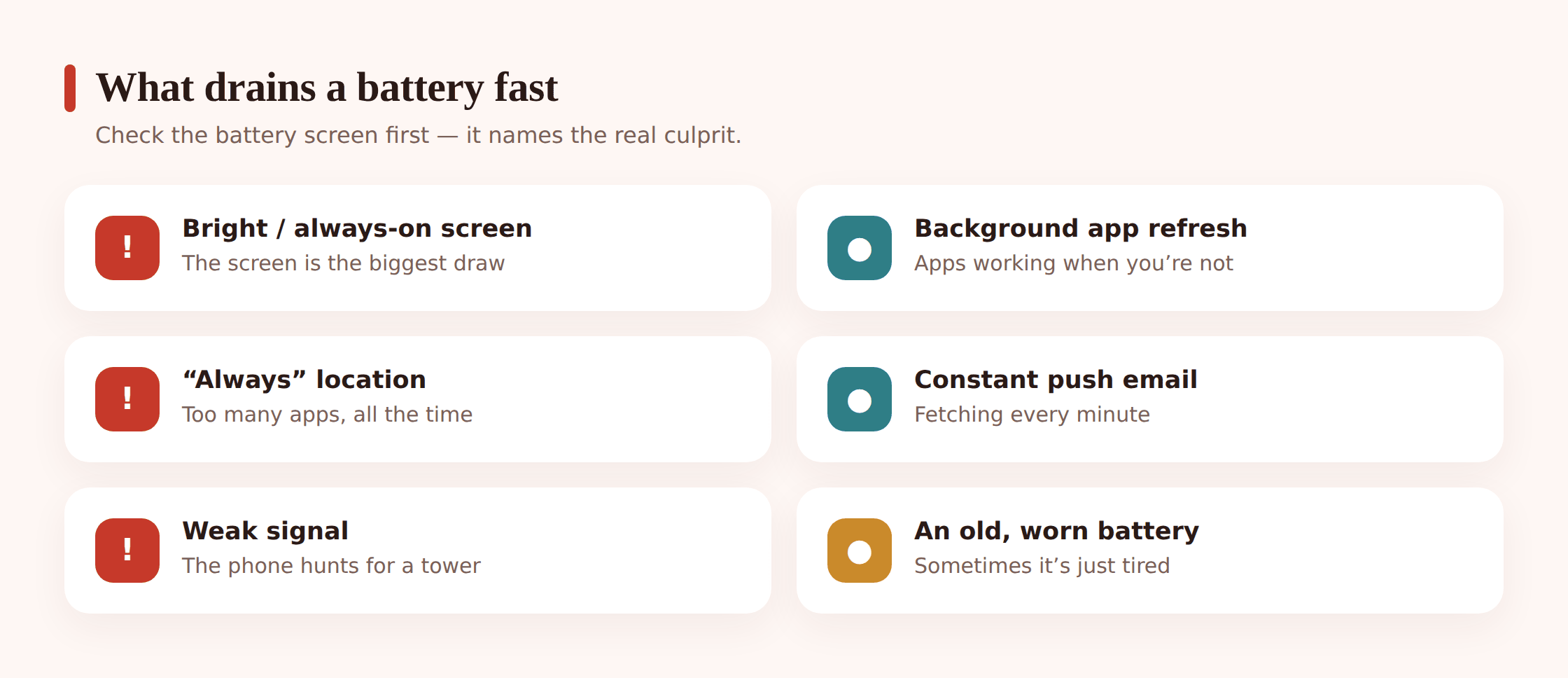
Fast drain nearly always traces back to one of these:
- The screen. It’s the single biggest power draw on any phone. High brightness, a long screen-off timeout, and an always-on display all add up.
- A couple of apps refreshing in the background. Social, news, and email apps that update constantly keep waking the phone even when you’re not looking.
- Location set to “always.” Every app allowed to track your location around the clock pings GPS in the background. A few of those together is a real drain.
- Push email fetching too often. If your mail is set to check every few minutes (or “push” for a busy account), it keeps the radios awake.
- Poor signal. When you’re in a weak-coverage spot, the phone cranks up its transmit power and hunts for a tower. A bad signal drains faster than a good one.
- A rogue or updating app. A buggy app can get stuck in a loop, and a big app update or download will spike usage until it finishes.
- Temperature. Heat and hard cold both hurt. A phone left on a hot dashboard or out in freezing weather drains fast and can shut down.
- An old, worn battery. Batteries lose capacity as they age. A three-year-old phone simply holds less charge than it did new.
The fixes that add hours
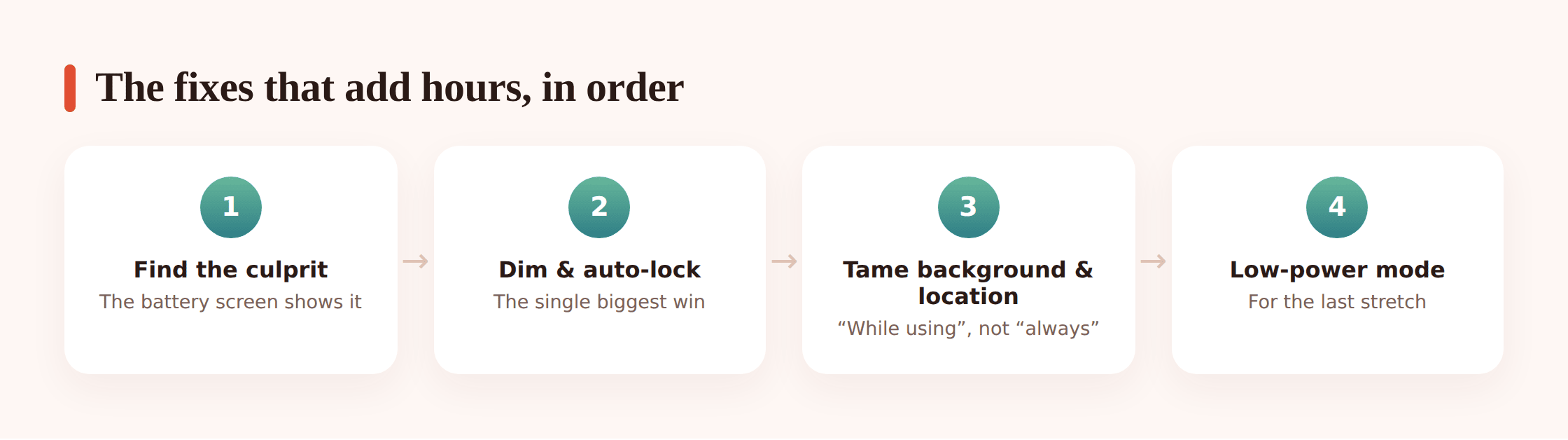
Work through these in order. The first ones give you the most for the least effort.
Turn the screen down
Lower your brightness a notch and turn on auto-brightness so it adapts. Shorten your auto-lock (iPhone: Settings > Display & Brightness > Auto-Lock; Android: Settings > Display > Screen timeout) to 30 seconds or a minute. This one change often buys the most.
Cut background app refresh
Leave it on for the two or three apps you actually rely on, and turn it off for the rest. iPhone: Settings > General > Background App Refresh. Android: it’s per-app under battery settings, often labeled “Allow background activity” or “Unrestricted.” Restrict the apps you rarely open.
Set location to “while using”
Go through your apps and change any that are on “Always” to “While Using the App.” A weather or maps app doesn’t need your location at 3 a.m. iPhone: Settings > Privacy & Security > Location Services. Android: Settings > Location > App permissions.
Make email fetch less often
Switch push email to fetch every 15 or 30 minutes, or manually. iPhone: Settings > Apps > Mail > Mail Accounts > Fetch New Data. Android: inside your mail app’s sync settings. You’ll barely notice the delay and the radios get to rest.
Flip on the battery saver
Low Power Mode (iPhone) or Battery Saver (Android) trims background activity, mail fetch, and some visual effects in one tap. Leave it on when you’re running low. There’s no harm in using it all day if you like.
Trim the extras
If you don’t love it, turn off the always-on display and keyboard haptics. Both sip power constantly. Small savings, but they’re free.
Fix the misbehaving app
If one app dominated your usage list and you didn’t use it that much, update it first. If it’s still hungry after that, force-quit it, or delete and reinstall it. A stuck app is a common cause of sudden overnight drain.
Charging and long-term health
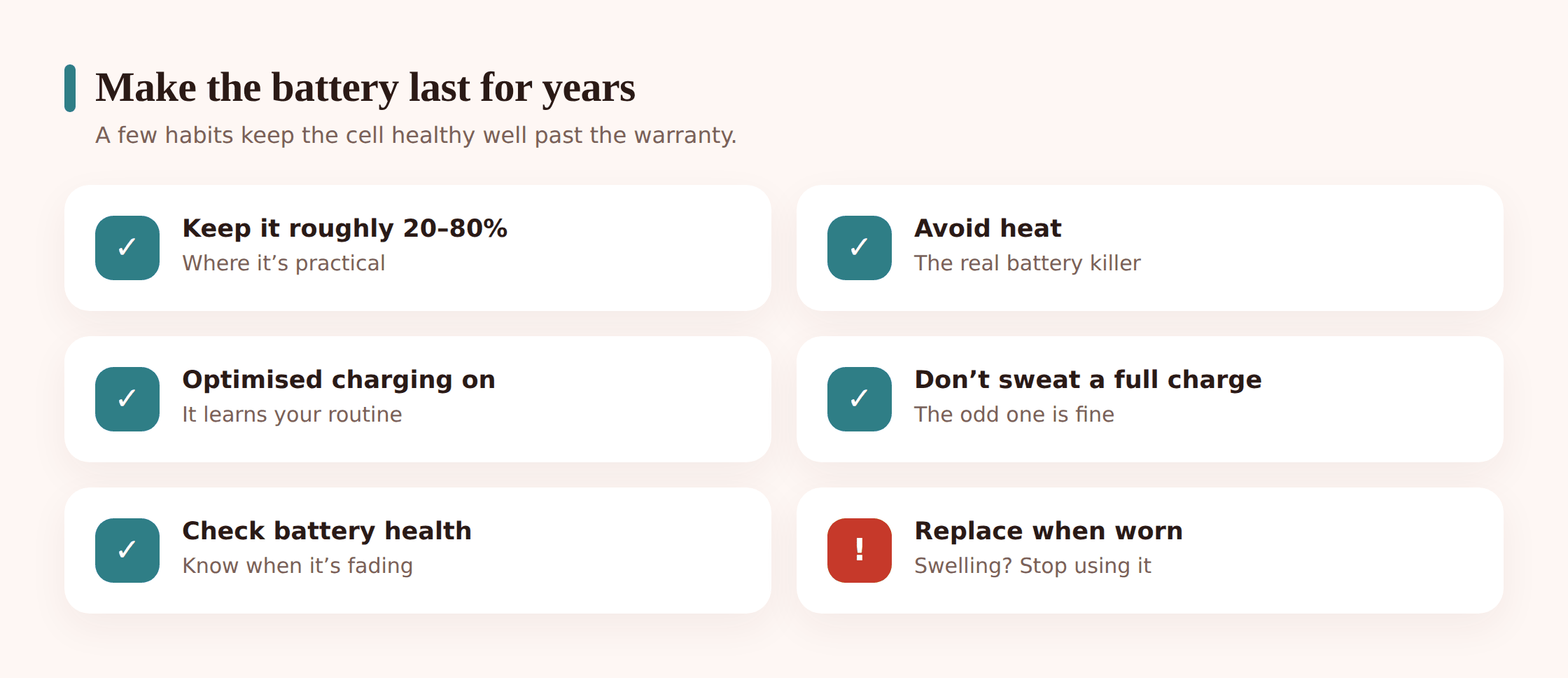
Every phone uses a lithium-ion battery, and every lithium battery wears out slowly with use. It’s measured in charge cycles, and there’s no way to avoid the decline entirely. But a few habits slow it down.
- Live in the middle. Where it’s practical, keeping the charge roughly between 20% and 80% is gentler than running it flat or holding it at 100% for hours. You don’t have to be strict about it.
- Avoid heat. Heat is the real killer. Don’t charge under a pillow, don’t leave the phone baking in a hot car, and take it out of a thick case if it runs warm while charging.
- Use the smart-charging feature. Turn on Optimised Battery Charging (iPhone) or Adaptive Charging (Android). It learns your routine and holds off on the last stretch to 100% until just before you wake up, so the battery spends less time full.
- Don’t stress the small stuff. An occasional full charge or an overnight top-up won’t wreck anything. Modern phones stop drawing power once they’re full. It’s the constant heat and constant 100% that add up over years, not a single night.
Check your battery’s actual health. On iPhone, Settings > Battery > Battery Health & Charging shows Maximum Capacity as a percentage of new. Once it drops toward 80% you’ll feel shorter days. Android is less consistent — some brands show a health readout in settings, others don’t, and a free diagnostics app or a check at a repair shop can tell you. When capacity falls far enough that a full charge no longer gets you through the day, it’s time to replace the battery, not to keep fighting it with settings.
Signal and connectivity
Your phone’s radios are quietly power-hungry, and a weak signal is one of the sneakiest drains there is. When you’ve got one or two bars, the phone boosts its transmit power and keeps searching for a better tower. If you’re stuck somewhere with no real coverage — a basement, a remote road, an elevator — flipping on airplane mode stops that pointless hunting and can save a surprising amount.
A few more connectivity tips:
- Bluetooth, hotspot, and Wi-Fi scanning. Leaving your personal hotspot on drains fast. Bluetooth is cheap these days, but background Wi-Fi and Bluetooth scanning for location still cost a little; turn them off if you don’t need them.
- 5G vs LTE. 5G is great when the coverage is strong, but chasing a weak 5G signal burns more power than sitting on solid LTE. If your 5G is spotty, setting the phone to prefer LTE (or “5G Auto”) can help.
- Wi-Fi beats cellular. When you’re on strong Wi-Fi, the phone uses less power than it would over cellular data. Staying connected to good Wi-Fi at home and work is a small, free win.
When it’s the hardware
Sometimes settings aren’t the answer. A heavy day is a heavy day: turn-by-turn navigation, a long gaming session, or shooting a lot of video and photos will drain any phone fast, and that’s completely normal. Don’t chase a “problem” that’s just you using the phone hard.
A genuinely worn battery is different. Watch for these signs:
- Sudden shutdowns. The phone dies at 20% or 30%, especially in the cold. The battery can’t deliver enough current under load.
- Dropping to 0% fast. The percentage falls in big jumps, or the phone reads 40% and then dies minutes later.
- Swelling. If the screen or back is lifting, or the phone won’t sit flat on a table, stop using it and get it serviced. A swollen battery is a safety issue, not a convenience one. Don’t puncture it.
If the battery is worn but the phone is otherwise fine, a battery replacement is far cheaper than a new phone and can give you another couple of years. If the phone is old and slow on top of a bad battery, that’s when upgrading starts to make sense.
One honest note on background apps, since people worry about them: a well-built lightweight app doesn’t meaningfully hurt your battery. For example, if you run FreePhoneSpy for transparent parental monitoring on a family Android phone, it batches its location updates rather than pinging GPS constantly, so it stays off the top of your usage list. The real drains are the ones above — the screen, chatty background apps, and always-on location.
A quick battery-saving checklist
Run through this the next time your battery’s disappearing:
- Open the battery usage screen and find the heaviest app you didn’t actually use.
- Lower brightness, turn on auto-brightness, and shorten auto-lock.
- Turn off background app refresh for everything but your essentials.
- Change location permissions from “Always” to “While Using.”
- Set email to fetch every 15–30 minutes instead of push.
- Turn on Low Power Mode / Battery Saver.
- Update or reinstall any app that dominated the usage list.
- Turn on Optimised / Adaptive Charging and keep the phone out of heat.
- In a dead zone, switch to airplane mode to stop the signal hunt.
- Check battery health, and plan a replacement if it’s well below 80%.
While you’re tidying up the phone, a few related jobs are worth doing at the same time. If it also feels sluggish, our guide to speeding up a slow phone clears out the usual gunk. If notifications keep waking the screen (and the battery), managing notifications and focus helps. And before you do anything drastic like replacing a battery, it’s smart to back up your phone first.
FAQ
Why does my battery drain overnight when I’m not using the phone?
Usually a background app that keeps waking the phone, push email checking constantly, or location set to “Always.” Check your usage screen for the top overnight app, restrict its background activity, and turn on Optimised Charging. A weak signal at home can do it too.
Is it bad to charge my phone to 100% or leave it plugged in overnight?
Not really. The phone stops drawing power once it’s full, and smart-charging features hold off the last stretch until morning. The occasional full charge is fine. What actually ages a battery over years is heat and spending a lot of time sitting at 100%.
Does closing background apps save battery?
Not much, and force-quitting all your apps constantly can even waste a little power reloading them. The better fix is turning off background refresh and location for apps that don’t need it. Only force-quit an app that’s clearly misbehaving.
How do I know if I need a new battery?
Check Battery Health on iPhone (Settings > Battery). If Maximum Capacity is well below 80%, or the phone shuts down suddenly, dies far from 0%, or the battery is swelling, it’s time to replace it. A replacement is much cheaper than a new phone.
Will a monitoring app drain my kid’s phone battery?
A well-built one shouldn’t. Lightweight tools like FreePhoneSpy batch location updates instead of pinging GPS nonstop, so they stay low on the usage list. If any app is high on that list, the battery screen will show it — check there rather than assuming.
My phone drains fast only when I travel — why?
Weak or changing signal. As you move through areas with patchy coverage, the phone works harder to stay connected and keeps searching for towers. In a true dead zone, airplane mode saves power; otherwise, preferring LTE over spotty 5G can help.
One last thing worth setting up before you need it: know how to find a lost or stolen phone. A dead battery and a lost phone are a bad combination, and having location and lock features ready ahead of time saves a lot of stress.