How to Block Websites & Apps on Your Child’s Phone
Blocking a website or an app on your kid’s phone isn’t one setting in one place. There are three spots you can do it, each with real trade-offs, and the strongest setup uses more than one. Here’s how to block content on Android and iPhone, at your router, and with a parental app you both agree to — without turning it into a game of cat and mouse.
The three places you can block
When you want to keep a site or an app off your kid’s phone, you’re really choosing where the block lives. Each place stops something the others can’t, and each has a gap.
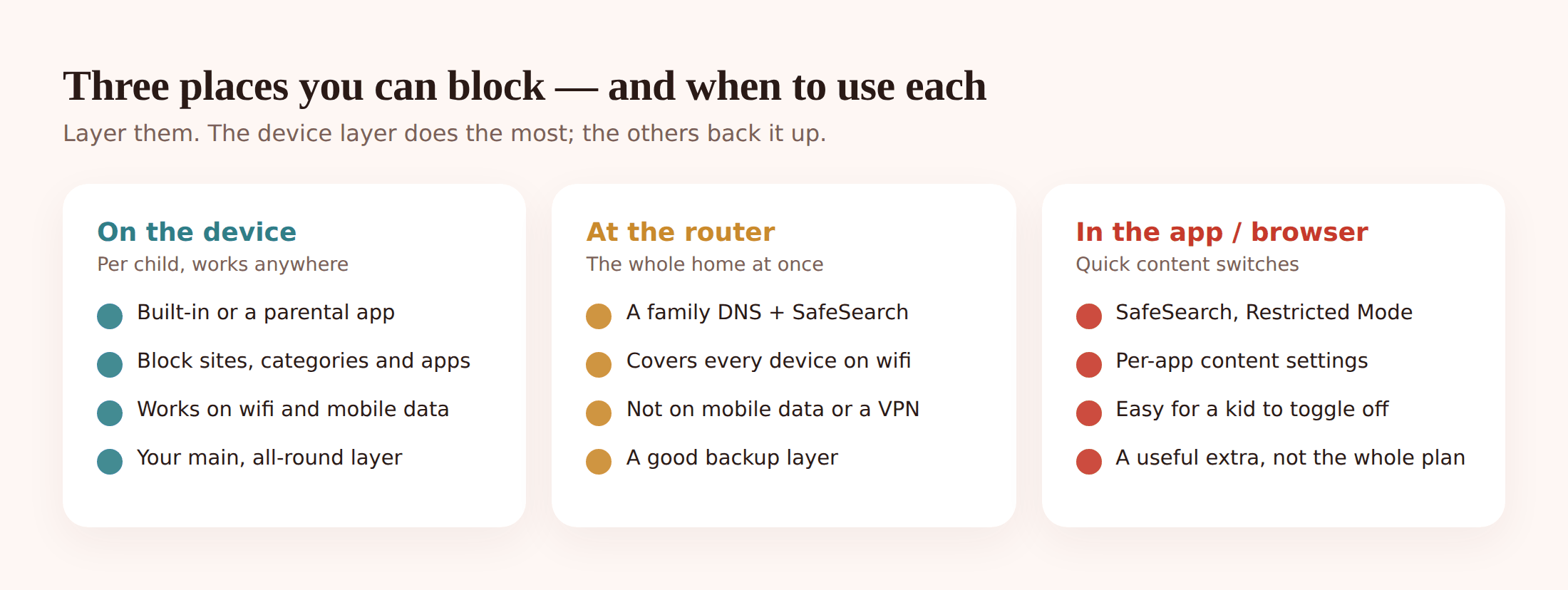
1. On the device
The block sits on the phone itself, using built-in tools (Family Link, Screen Time) or a parental app. It follows the child everywhere — home Wi-Fi, school, a friend’s house, mobile data. It’s per-child, so each kid gets their own rules. This is the layer that does the heavy lifting.
2. At the router or network
You filter at the source using DNS — a “family DNS” or your router’s parental settings. It covers every device on your home Wi-Fi at once, including the TV and the tablet nobody set up. But it stops working the moment the phone leaves the house or switches to mobile data.
3. In the browser or app
SafeSearch on Google, Restricted Mode on YouTube, content filters inside individual apps. Quick to turn on and useful, but easy for an older kid to switch off, and it only covers that one app.
| Where you block | Covers | Follows the child? | Main gap |
|---|---|---|---|
| On the device (app or built-in) | That one phone, per child | Yes — anywhere | Needs setting up on each device |
| Router / DNS | Everything on home Wi-Fi | No — home only | Not on mobile data or a VPN |
| Browser / app (SafeSearch etc.) | Just that app | Yes, if it stays on | Easy to toggle off; single app |
Notice none of them is complete on its own. The router misses mobile data. SafeSearch misses every other browser. That’s why the device layer matters most: it’s the only one that travels with the child and covers the whole phone. For the how and why of picking tools across both platforms, our parental controls on Android and iPhone guide goes deeper.
Block on Android, step by step
Android gives you two free built-in tools — Family Link for the rules, Digital Wellbeing for the timers — plus the option of a parental app on top. Start with what’s built in.
Set up Family Link
Install Google Family Link, create or link your child’s Google account, and connect it to yours. You now approve app installs, see what’s on the phone, and set rules remotely.
Block and allow apps
In Family Link, tap an app to block it, or require your approval before anything new installs from the Play Store. Blocked apps grey out on the phone.
Filter websites in Chrome
Under Chrome’s controls in Family Link, choose “Try to block explicit sites,” then add specific URLs to always block or always allow. Turn on Google SafeSearch here too so search results are filtered.
Add time limits with Digital Wellbeing
On the phone, Digital Wellbeing lets you set an app timer — say 30 minutes a day on a game. When it’s up, the app locks until tomorrow. Family Link can set an overall daily screen limit and a bedtime.
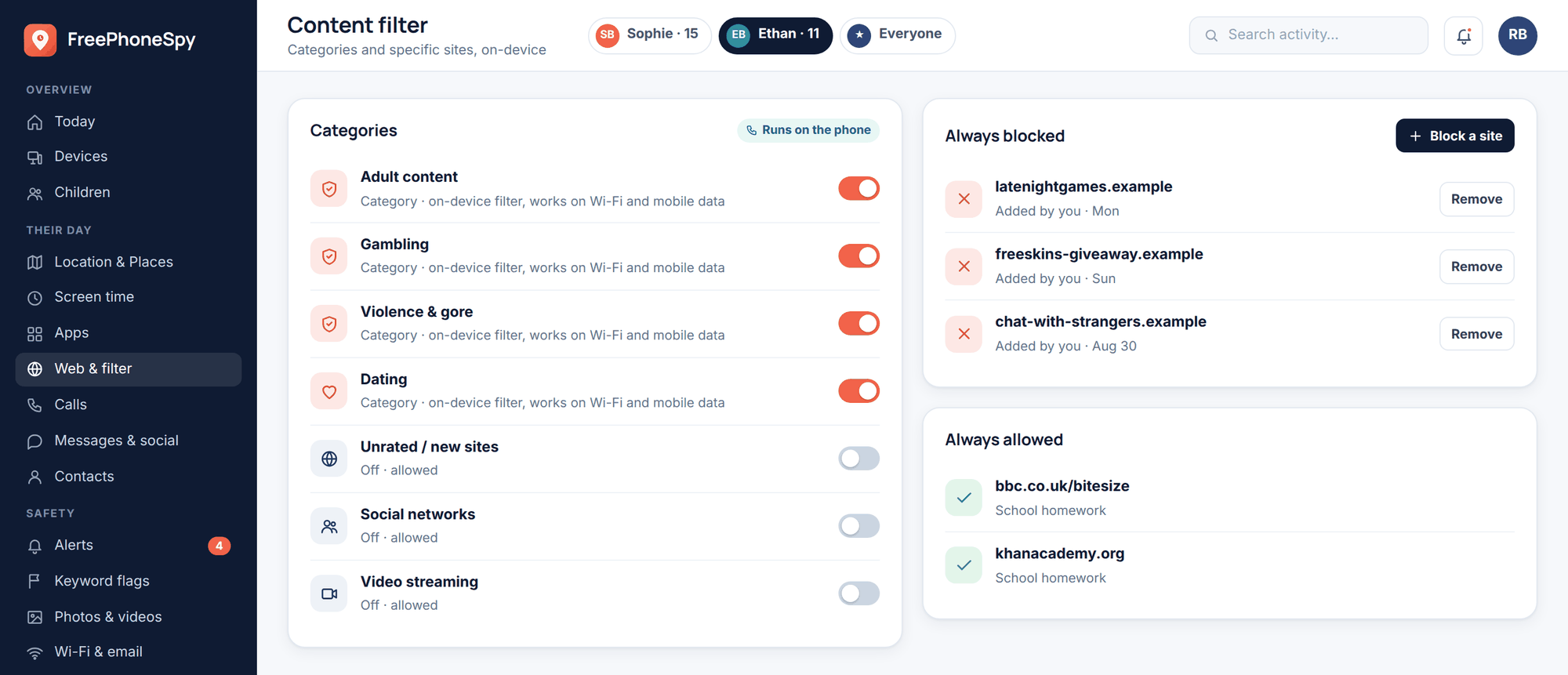
That covers a lot. Where it gets awkward is juggling several kids, mixing site blocks with app limits, and setting different rules for a school night versus a Saturday. That’s the gap FreePhoneSpy fills on Android — one web panel, one place per child.
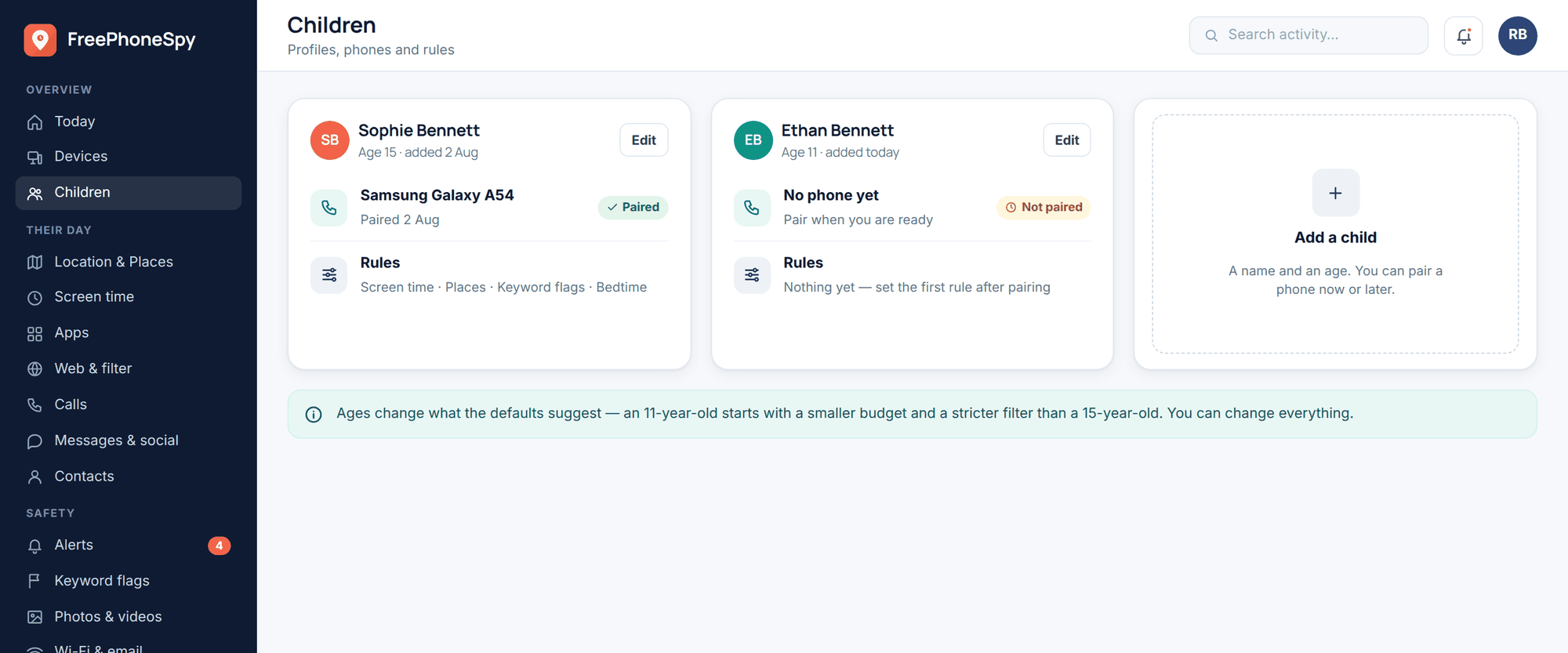
FreePhoneSpy is one app on your child’s Android phone plus a 6-digit code, and you manage everything from any browser. It’s transparent — your child sees it on the phone, and nothing is monitored until you’ve set it up together.
Block a site or a whole category
In the web and content filter, type a specific site to block it, or switch off an entire category — adult, gambling, and the rest — in one tap. The filter runs on the phone, so it holds up on mobile data too.
Block an app or set a daily limit
Block an app outright, or give it a daily time budget. Essential apps — phone, messages, maps — stay untouchable, so a block never leaves your kid unable to reach you.
Block during Bedtime or Homework Hour
With Routines, distractions switch off during the windows you pick and come back after. No nightly nagging.
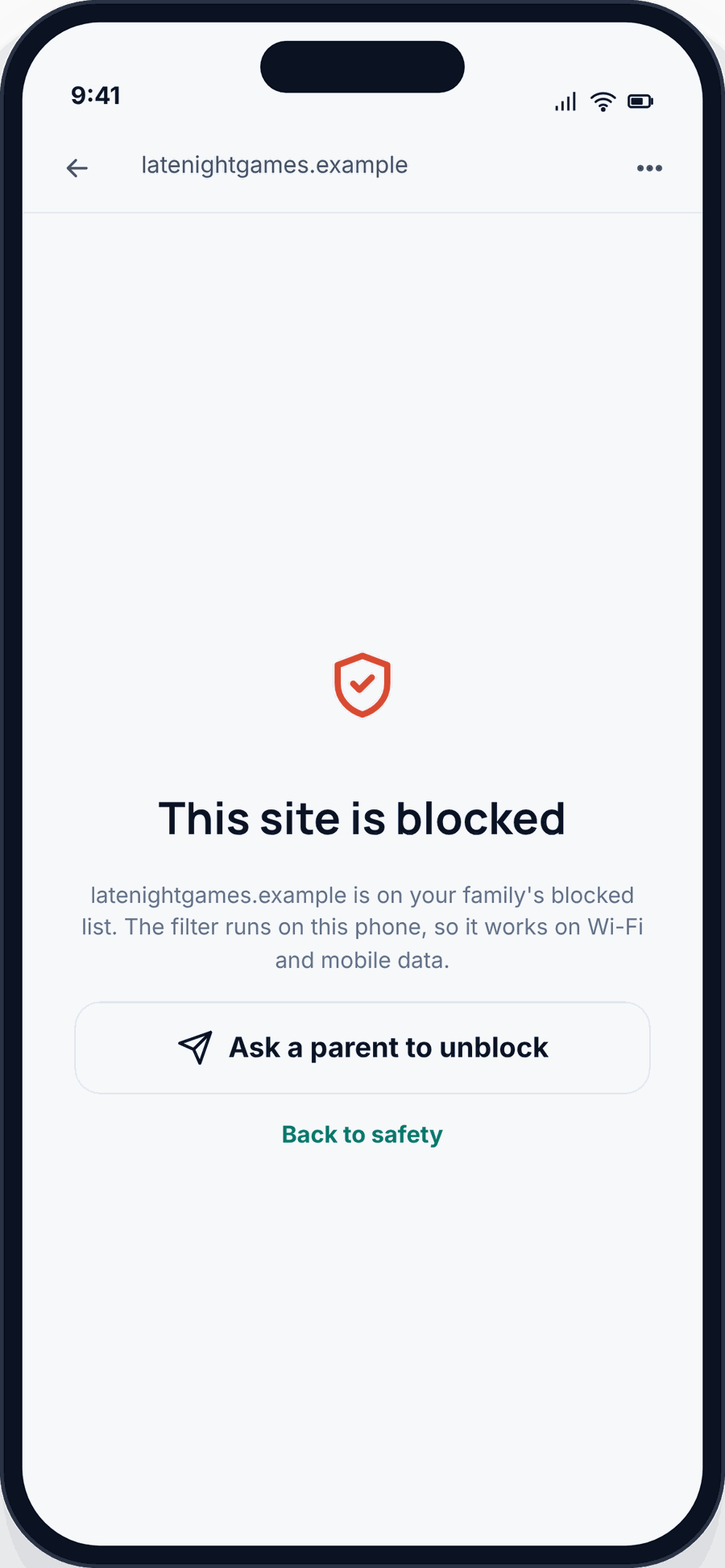
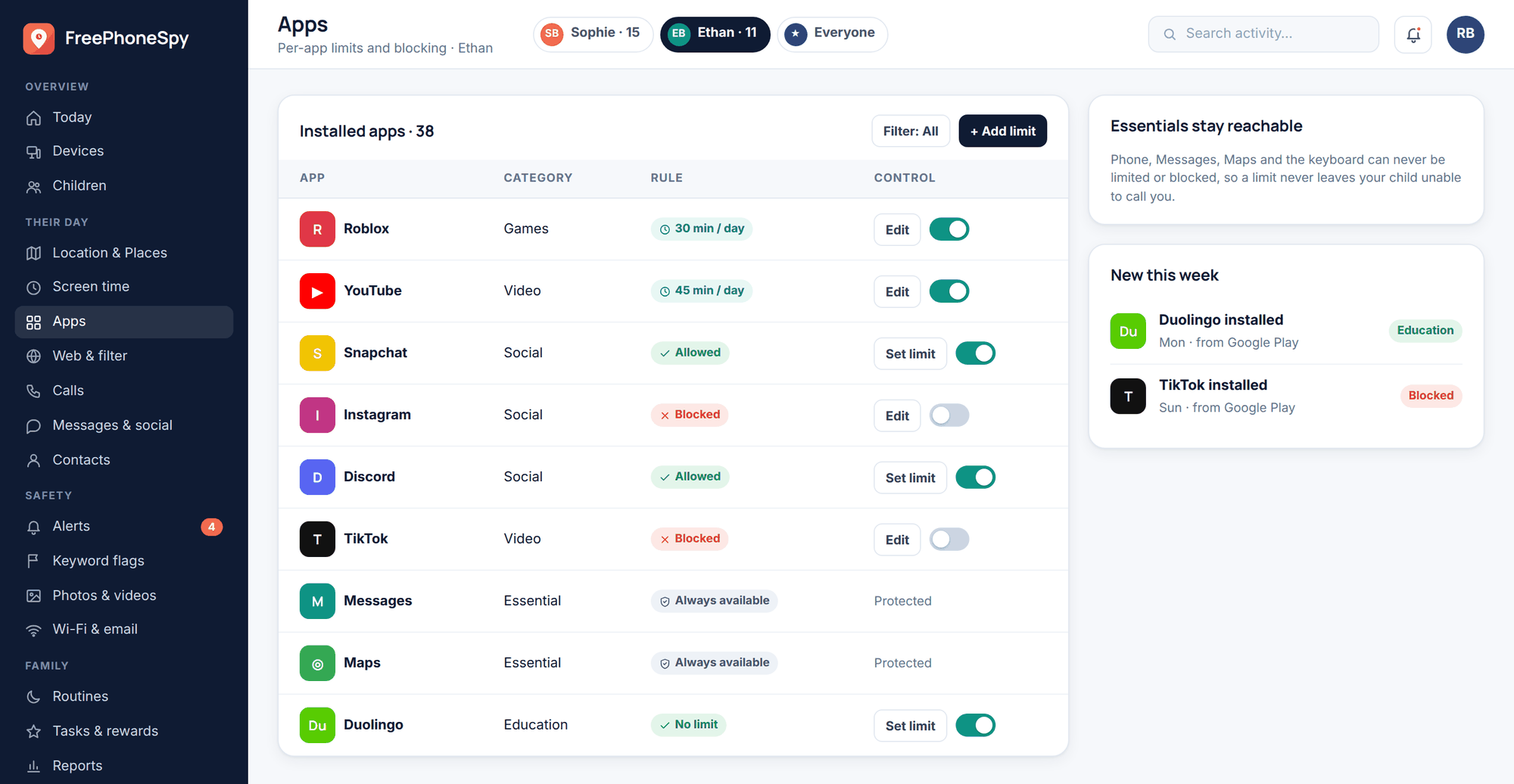
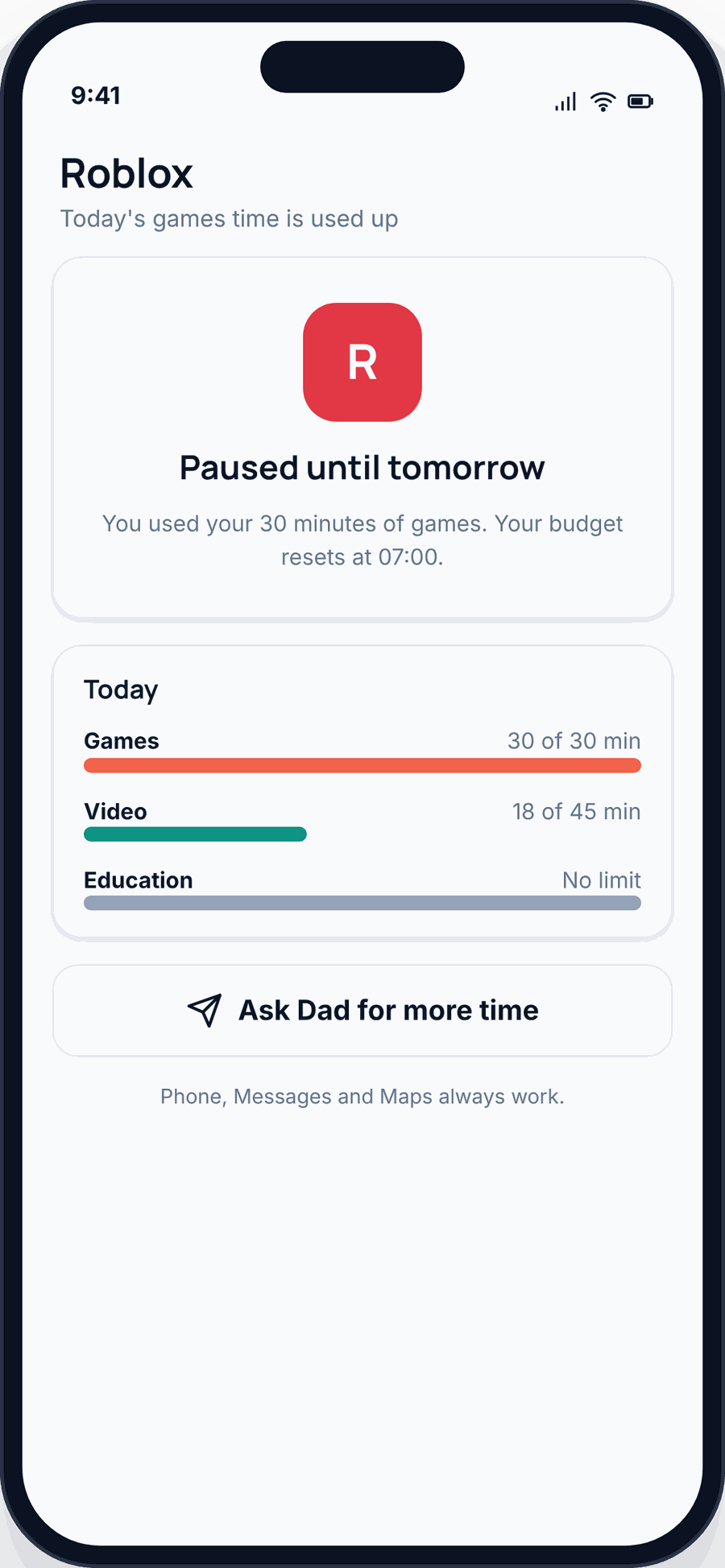
The Bennetts — the demo family in the web panel — use it to block gambling and adult categories across both kids, give the older one a lighter set of rules than the younger, and let games run only after Homework Hour ends. It’s free to start, and doing a few quick tasks keeps the core free. For the bigger picture on daily limits and budgets, see screen time.
Block on iPhone, step by step
Our child app is Android, and we’d rather be straight with you than sell you something that doesn’t fit. On iPhone, Apple’s own Screen Time does the blocking, and it’s genuinely good. You run it through Family Sharing so you can manage your kid’s device from yours.
Turn on Screen Time via Family Sharing
Add your child to Family Sharing, then open Settings > Screen Time on their device (or manage it from yours). Set a Screen Time passcode only you know.
Limit adult websites
Go to Content & Privacy Restrictions > Content Restrictions > Web Content. Choose “Limit Adult Websites” to filter automatically, or “Allowed Websites Only” to whitelist a short list for younger kids. You can add specific sites to always allow or never allow.
Block apps and app categories
Under Content Restrictions you can block apps by age rating and switch off Safari, the camera, or installing and deleting apps. App Limits lets you cap a category — say Social — at a set number of minutes a day. Communication Limits control who your child can message and call.
Set Downtime
Downtime greys out everything except the apps you allow, on the schedule you choose — ideal for bedtime and school hours. Always Allowed keeps phone and messages reachable.
Screen Time covers a single iPhone well. If you’ve got a mixed household — an iPhone kid and an Android kid — you’ll manage each through its own tool, and the router layer below is what ties the home together.
Router and whole-home blocking
The network layer is the one people forget, and it’s the easiest way to protect every screen in the house at once — the smart TV, the shared tablet, the console.
Enforce SafeSearch on your router
Many routers can force Google and Bing into SafeSearch for the whole network, so no device can turn it off from inside a browser.
Point at a family DNS
Switch your router’s DNS to a family filtering service. It blocks adult and malware domains before any device even loads them. Setup is a couple of fields in your router admin page.
Use a guest network for visitors
Keep guests and less-trusted gadgets on a separate guest network so your filtering rules stay clean on the main one.
Block adult content specifically
No single switch blocks all of it, so layer three that back each other up:
- Device filter. “Limit Adult Websites” on iPhone, or the explicit-sites filter in Family Link, or the adult category in FreePhoneSpy’s content filter. This travels with the phone.
- SafeSearch, locked on. Turn it on in the child’s Google account and enforce it at the router so it can’t be flipped off in a browser.
- Family DNS. Blocks known adult and malware domains for the whole home before they load.
Each layer catches what the others miss. The DNS covers the shared devices, the device filter covers the phone on the go, and SafeSearch cleans up search results and image results. YouTube is its own case worth a read — see is YouTube safe for kids.
Avoiding the workarounds
Kids are resourceful. If you know the common escapes, you can close them without going to war over it.
- A browser you didn’t filter. Filter the default browser and block installs of others, or block the whole browser category and allow one you’ve set up.
- A VPN. A VPN routes around DNS and router filters. Block VPN apps on the device and require your approval for new installs. On-device filtering still works because it acts before the traffic leaves the phone.
- Incognito or private mode. Private browsing skips history but not an on-device content filter, which checks the site itself.
- A second device. The old tablet in a drawer, a friend’s spare phone. This is where the router layer and an honest conversation matter more than any setting.
- Uninstalling the app. Because FreePhoneSpy is transparent, this is a talk, not a trap — but the app resists casual removal, and you get an alert if protection drops so you’re never guessing.
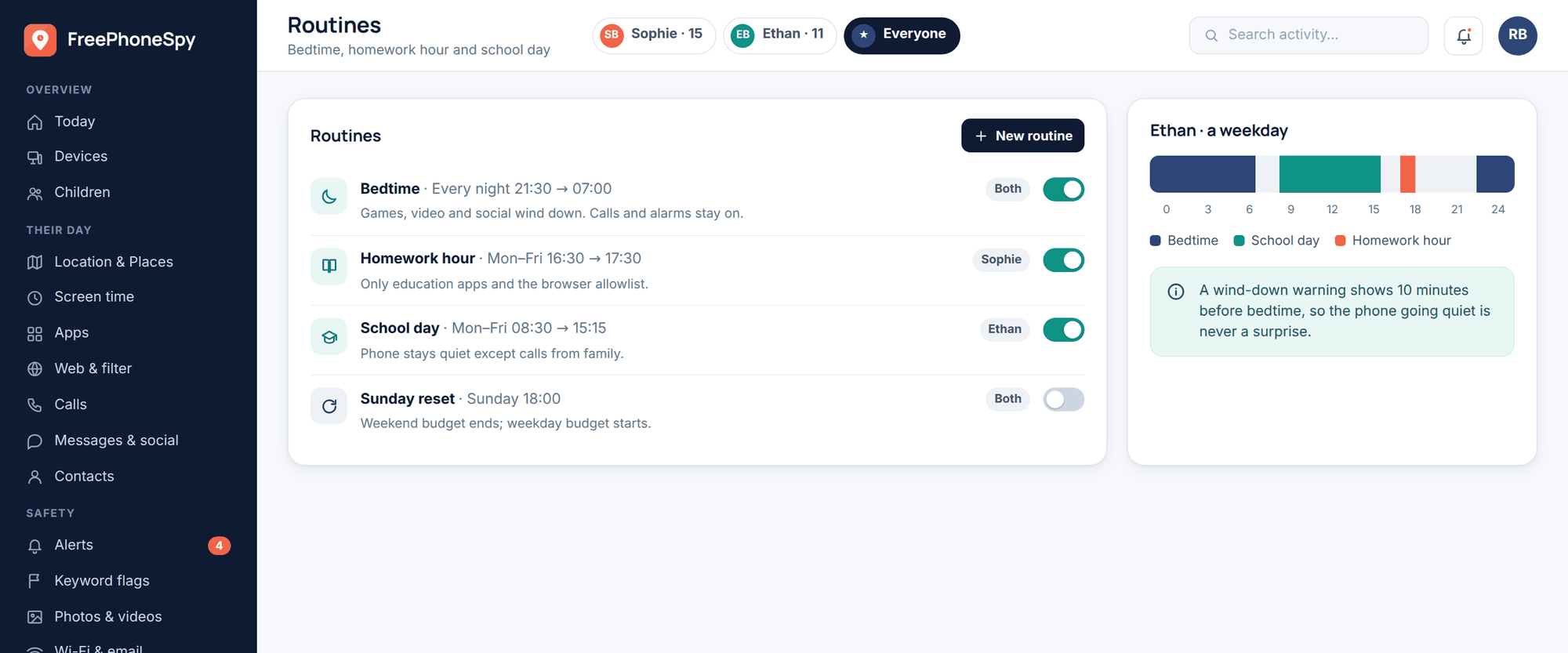
Two rules keep this from becoming a losing chase. First, keep essential apps working — phone, messages, maps should never be collateral in a block, so your kid can always reach you and get home. Second, don’t over-block. If the rules feel absurd, a kid’s whole energy goes into beating them. A transparent per-device layer plus a real conversation beats a locked box every time. Alerts tell you when something needs attention instead of you policing the phone yourself.
A sensible setup by age
Match the grip to the kid. Younger means stricter and simpler; older means lighter, with more trust and more explaining.
| Age | Websites | Apps | Time |
|---|---|---|---|
| Under 8 | Allow-list only — a short set of approved sites | Curated apps; approve every install | Tight daily budget; long Downtime |
| 8–12 | Block adult + gambling categories; SafeSearch locked | Block or time-limit games and social; essentials open | Homework and Bedtime routines; a real daily budget |
| 13–15 | Adult filter on, fewer specific blocks | Time limits over hard blocks; talk about new apps | Looser budget; keep bedtime |
| 16+ | Baseline adult filter, mostly trust | Rarely block; agree limits together | Light touch; they own most of it |
Getting a phone into a child’s hands for the first time deserves its own walk-through — see the child’s first phone guide and how to set up a new phone for a child so the blocks are in place before day one, not bolted on after.
FAQ
Can I block a website on my kid’s phone for free?
Yes. Family Link on Android and Screen Time on iPhone both block sites at no cost, and a family DNS on your router is free too. FreePhoneSpy is free to start and its core blocking stays free.
Will my child know the block is there?
Yes, and that’s the point. FreePhoneSpy is transparent — your child sees it on the phone and nothing is monitored until you set it up together. Built-in tools are visible too.
Does blocking work on mobile data, not just Wi-Fi?
On-device blocking does — it acts on the phone itself. Router and DNS filtering only cover your home Wi-Fi, which is why the device layer matters.
Can a VPN get around my blocks?
A VPN can bypass router and DNS filters, but an on-device content filter still works because it checks the site before traffic leaves the phone. Block VPN apps and require approval for new installs.
What if I block too much?
Ease off. Over-blocking pushes kids to find workarounds. Keep essentials — phone, messages, maps — always working, and use time limits instead of hard blocks as they get older.
Does FreePhoneSpy work on iPhone?
Our child app is Android. On iPhone, use Apple’s Screen Time with Content & Privacy Restrictions and Family Sharing, and add router-level filtering for the whole home.