Is YouTube Safe for Kids? A Parent’s Guide
YouTube is where your child learns to draw, loops the same song forty times, watches other people play games they don’t own, and — if you’re not careful — ends up three hours deep at 11pm on a video you’d never have shown them. It’s brilliant and it’s a mess, often on the same afternoon. So is it safe? The honest answer: it can be, with the right account and a few settings, but not on its own.
Why YouTube is everywhere for kids
Ask a ten-year-old where they’d go to learn a magic trick, tie a friendship bracelet, or beat a level in a game, and they won’t say a book or a friend. They’ll say YouTube. For a lot of kids it’s the default answer to “how do I…”, and honestly, that’s not a bad instinct.
There’s a genuine upside here, and it’s worth saying out loud before we get to the scary parts. Kids use YouTube to learn — real skills, from real people who explain things patiently and repeat the bit you missed. They use it for music, which for many teens has replaced radio entirely. They watch gaming content, which is social as much as anything: it’s the shared language of the playground now. And they follow creators the way earlier generations followed TV presenters, except these ones talk directly to the camera and feel like a mate.
Ethan, who’s eleven, watches a channel that builds absurd contraptions out of cardboard. He’s since built three of his own. That’s YouTube doing exactly what you’d hope. The problem isn’t that YouTube is bad. It’s that the same app that shows Ethan cardboard engineering will, if you let it, keep suggesting “just one more” until it’s well past his bedtime — and every so often it’ll suggest something you really didn’t want him to see.
The real risks, one by one
Let’s be specific, because “YouTube is dangerous” isn’t useful and isn’t quite true. Here’s what actually goes wrong.
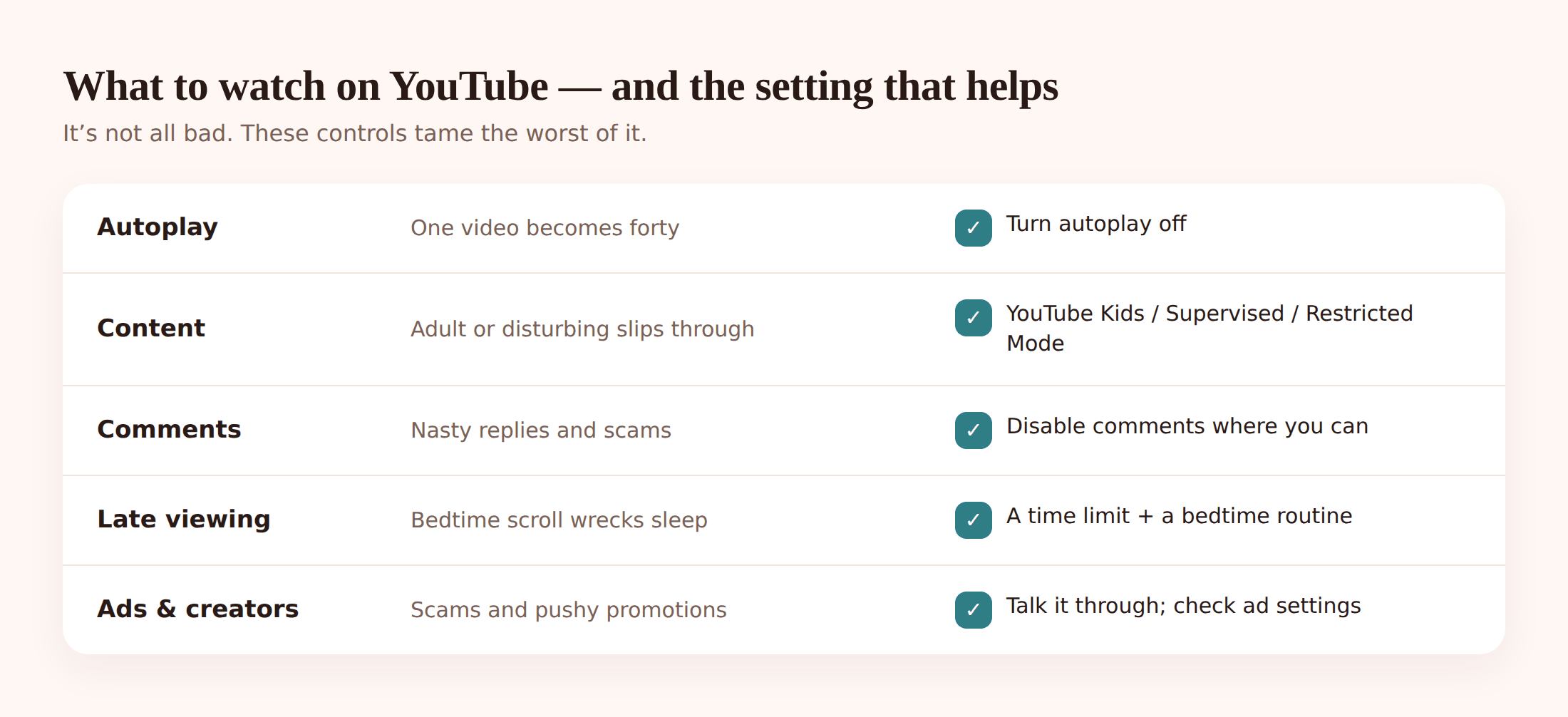
Autoplay rabbit holes. This is the big one, and it affects every age. A video ends, the next one starts on its own, and the algorithm’s whole job is to keep your child watching. Each pick is a little more attention-grabbing than the last. Twenty minutes becomes two hours. Nobody chose to watch for two hours; it just happened. Autoplay is the single feature most worth turning off.
Adult, violent or borderline content slipping through. On the main app, YouTube’s filters are decent but not perfect. Search for something innocent and a result three rows down might not be. “Borderline” content — not quite against the rules, but crude, frightening, or just not for kids — is the hardest to catch and the most common to stumble into.
Disturbing “kids” content. A weird corner of YouTube dresses up as children’s content — familiar cartoon characters, bright colours, nursery-rhyme titles — but the actual videos range from bizarre to genuinely upsetting. Young children can’t tell the difference, and the thumbnails are designed to look safe. This is exactly why a five-year-old shouldn’t be loose on the main app.
Comments. Below most videos is a comment section, and it’s a coin toss whether it’s harmless or horrible. Scams, cruelty, adult chat, links you don’t want clicked. Younger kids don’t need to be reading any of it.
Ads and scams. The ads on kids’ content are relentless, and children are terrible at telling an ad from the video. Some ads are outright scams — fake giveaways, dodgy games, “click here to win.” A child who can’t yet spot manipulation is the perfect target.
Creators pushing products. Beyond the ads, plenty of creators are quietly selling — merch, sponsors, “use my code.” It’s woven into content kids trust, which makes it far more persuasive than a normal advert. Your child may be getting a sales pitch and not know it.
Late-night viewing. Screens in bed wreck sleep, and YouTube in bed is the worst kind because it doesn’t end. There’s no final episode, no closing credits. Autoplay just keeps going, and a tired kid won’t be the one to stop it. Poor sleep then shows up as a rough morning, a short fuse, and trouble at school. We dig into that link more in our piece on phones and teen mental health.
The three options compared
Here’s the thing most parents don’t realise: there isn’t one YouTube. There are three, and choosing the right one for your child’s age does most of the heavy lifting. Get this decision right and you’ve solved half the problem before you touch a single toggle.
| YouTube Kids | Supervised account | Main YouTube + Restricted Mode | |
|---|---|---|---|
| Best for | Under ~9 | Roughly 9–12 (tweens) | 13+ teens |
| How it’s controlled | Separate app, curated for children | Google Account via Family Link, content levels you pick | Full YouTube with a filter switched on |
| Content range | Narrow, hand-picked and filtered | Three tiers: Explore / Explore More / Most of YouTube | Almost everything, minus flagged mature content |
| Built-in timer | Yes | Screen limits via Family Link | No child-specific timer |
| Comments | Off | Limited / off depending on level | On |
| Honest catch | Kids find it “babyish” fast; odd videos still slip in, so watch together | Higher tiers are close to full YouTube; the label can lull you | Restricted Mode misses plenty — it’s a filter, not a wall |
YouTube Kids is a genuinely different app: a walled garden of content picked for children, with a timer, no comments, and no open search unless you allow it. It’s the right call for younger kids. The catch? Children outgrow it quickly and start calling it babyish, and even inside the garden the occasional strange video gets through — so for the youngest, watch alongside them.
A Supervised Google Account, set up through Google’s Family Link, is the sensible middle ground for tweens. You choose one of three content levels — Explore (younger), Explore More (a bit older), or Most of YouTube (nearly everything, minus flagged mature content). It grows with your child. Just know that the top tier is close to the full experience, so “supervised” on the label doesn’t mean “safe” without thought.
The main YouTube with Restricted Mode is where teens end up, because by then a walled garden is neither realistic nor fair. Restricted Mode hides content flagged as mature — useful, but it’s a coarse filter that misses things and occasionally hides things it shouldn’t. For a teen, it’s a backstop, not a solution. The real work at that age is conversation, agreed limits, and the phone-level tools we’ll come to.
Settings, step by step
Right, the practical bit. Pick the option that matches your child and work through the relevant steps. None of this takes long.
Set up YouTube Kids (younger children):
- Install the YouTube Kids app and sign in with your own Google Account.
- Create a profile for your child and set their age band — this sets the content level.
- Open the settings (the padlock) and set a timer so the app closes itself after an agreed number of minutes.
- Turn search off for the youngest kids, so they only see the curated shelves rather than searching for anything.
- When a video or channel you don’t like appears, tap the three dots and Block it. It won’t come back.
Set up a Supervised account (tweens):
- Install Google Family Link and create a Google Account for your child, or link their existing one.
- In Family Link, open YouTube settings and choose a content level: Explore, Explore More, or Most of YouTube.
- Set daily screen limits and a bedtime in Family Link while you’re there.
- Sign your child into the main YouTube app with that account so the level applies everywhere.
Restricted Mode (teens, main app or browser):
- In the YouTube app, tap the profile picture, then Settings, then General, and switch on Restricted Mode.
- In a browser, click the profile picture at the top right and toggle Restricted Mode at the bottom of the menu.
- Note it’s set per device and per browser, so you’ll need to do it in each place your teen watches.
The three settings worth changing everywhere:
- Turn off autoplay. On any video, the autoplay toggle sits at the top of the player. Off. This one change does more than all the others combined.
- Disable comments where you can. YouTube Kids and lower Supervised levels hide comments already; on the main app you can’t switch them off globally, but you can teach a teen to scroll past and not engage.
- Pause watch history. In Settings, pause watch and search history to cool down the recommendations that drive the rabbit hole.
Backing it up on the phone
YouTube’s own settings are the first layer, and they’re the right place to start. But they have a gap: they control YouTube, and only while your child leaves them switched on. They don’t help when the video ends and the whole point was that homework was supposed to be happening. That’s where a phone-level tool earns its place.
FreePhoneSpy runs on your child’s Android phone — one app, a 6-digit code, and you manage everything from any web browser. It’s transparent by design: your child can see it’s there, and nothing is monitored until you set it up together. It doesn’t replace YouTube’s settings; it sits underneath them, on the phone itself, so the limits hold even when the in-app switches get flipped.
A few things it does that plug the gaps directly:
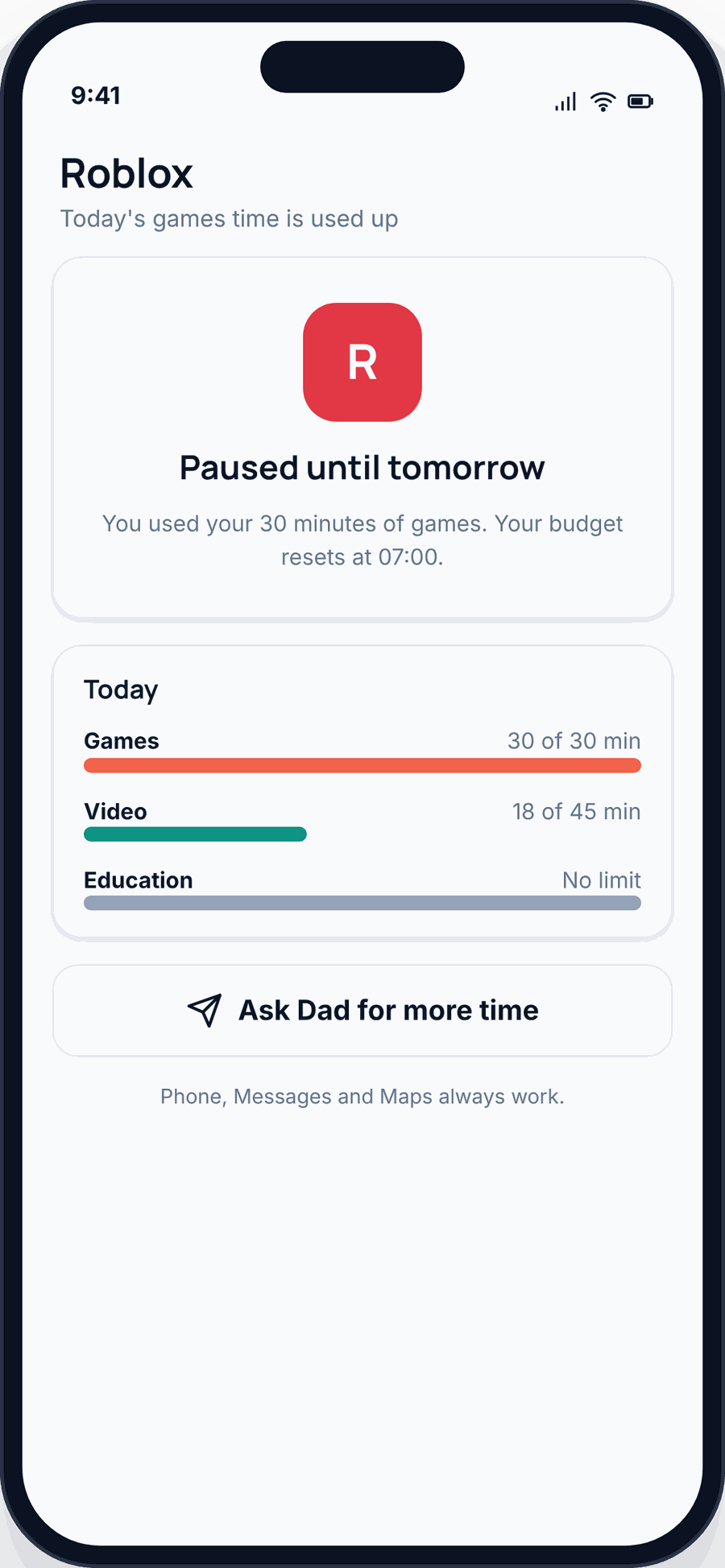
- A time limit on YouTube. Give the app a daily budget — say 45 minutes — and it stops when the time’s up, no matter how tempting the next video is. This is screen time and app limits, and it’s the cleanest way to cap the rabbit hole.
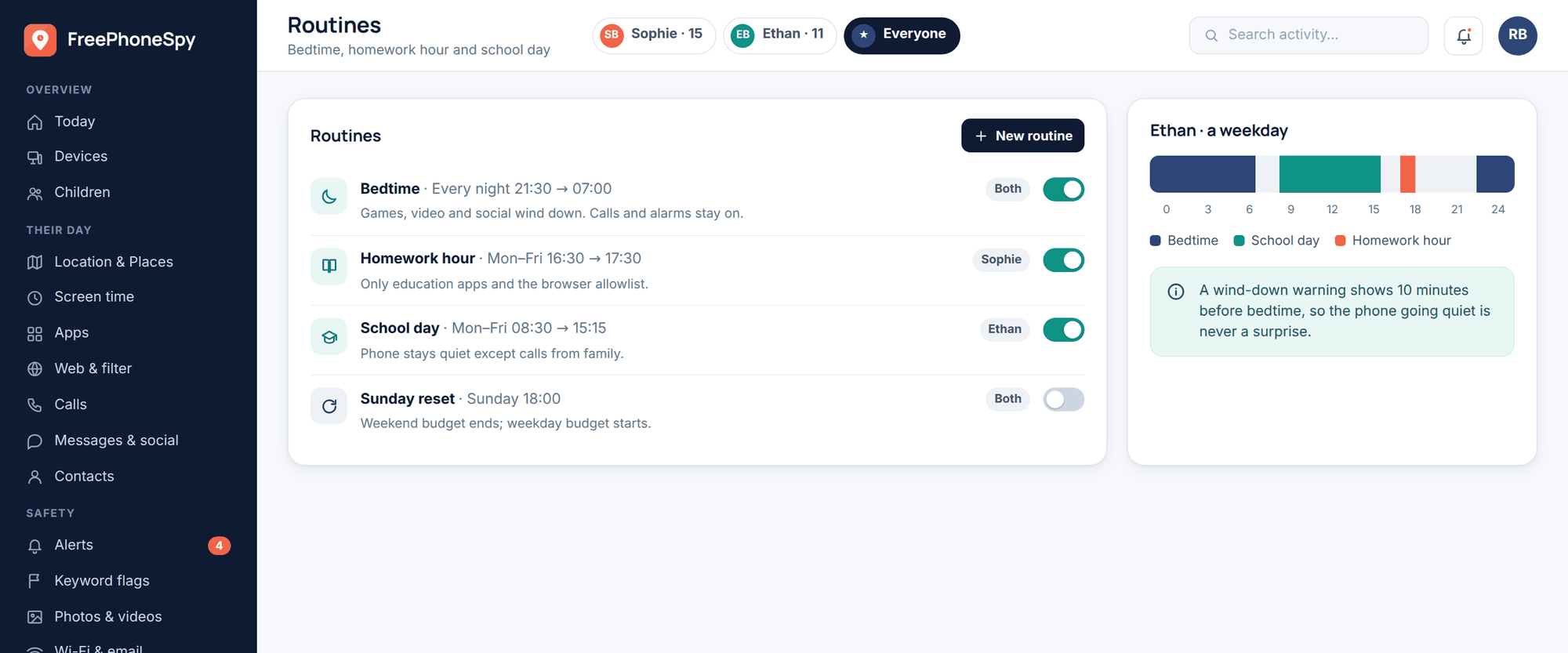
- A block during homework and bedtime. Schedule YouTube off between, say, 4 and 6pm and again after bedtime. The phone can stay in the room; the app simply won’t open in those windows.
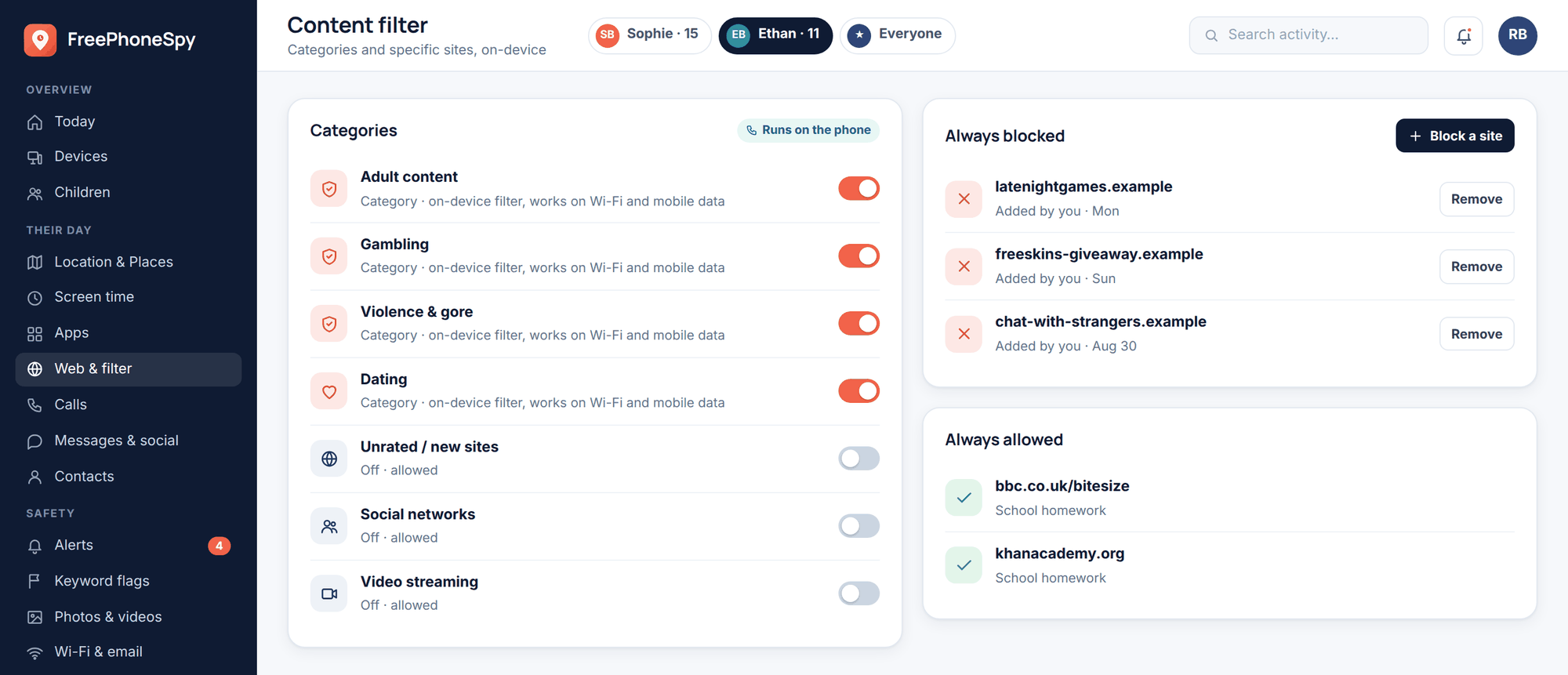
- Block the browser version. Clever kids know YouTube also works in a web browser. The app and website blocking and content filter let you block the site version and apply SafeSearch-style filtering, so closing the app doesn’t just open a back door.
- Keyword alerts. Set words you’d want to know about, and you get a heads-up in your alerts feed if they show up — a prompt for a conversation, not a punishment.
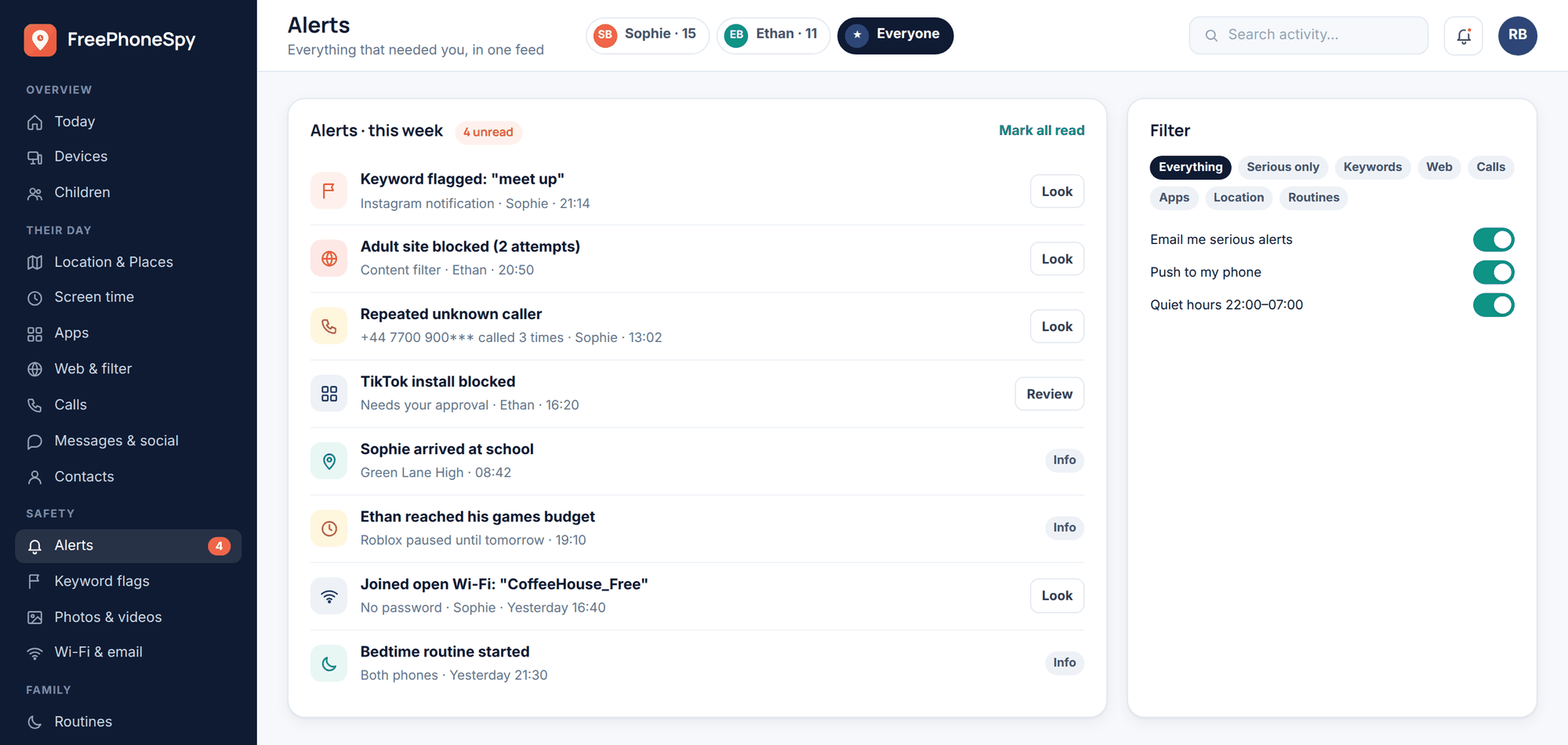
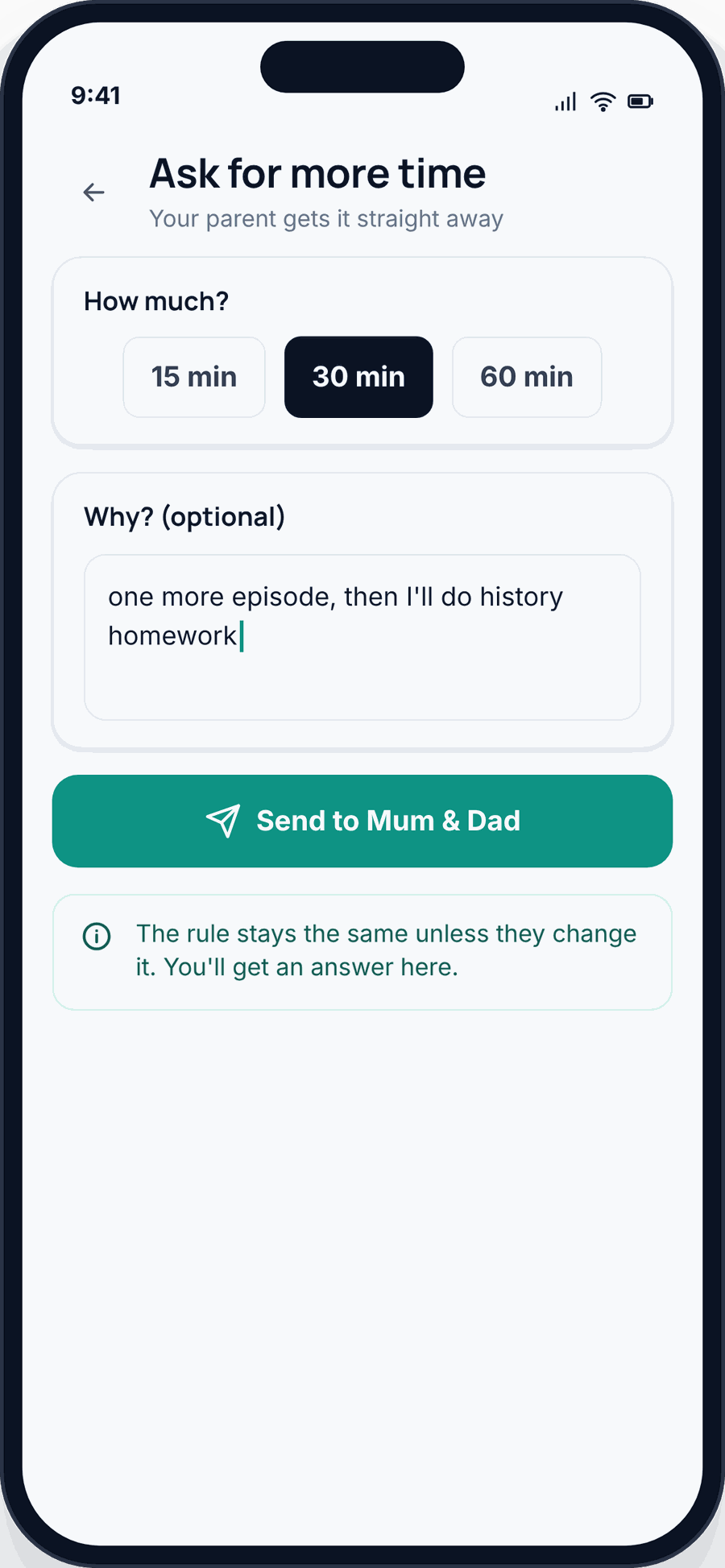
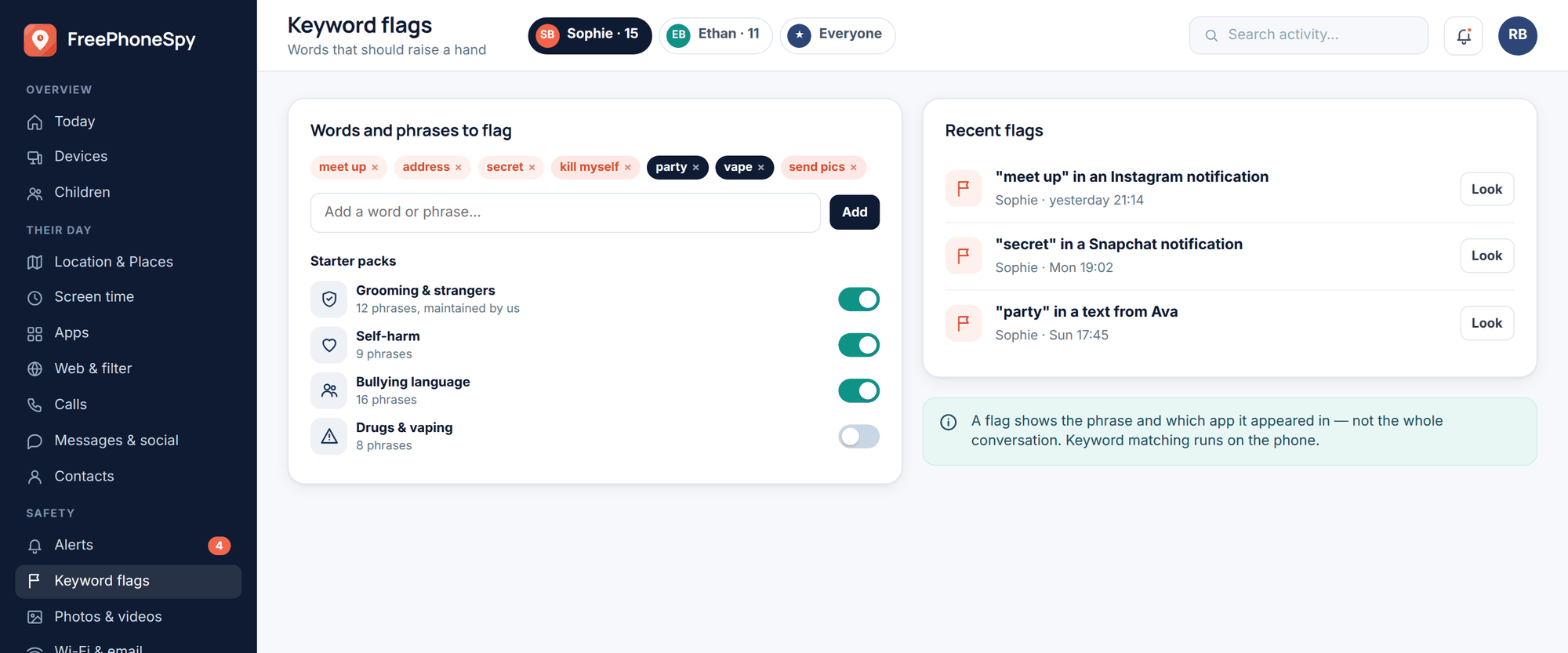
Two honest notes. FreePhoneSpy is for Android child phones — if your child’s on an iPhone, Apple’s Screen Time does the equivalent app limits and downtime, and it’s worth setting up the same way. And the in-YouTube controls — content levels, Restricted Mode, autoplay — live in Google and YouTube’s own settings, not in FreePhoneSpy. Use both. The phone tool caps time and blocks the browser back door; YouTube’s own settings shape what shows up while your child is watching. Neither does the whole job alone. FreePhoneSpy is free to start and the core features stay free — you keep it free by completing the odd task, and there’s no paywall on the essentials.
If you want the wider picture across every app and both platforms, our guide to parental controls on Android and iPhone ties it all together.
Taming autoplay and the bedtime scroll
Two specific problems deserve their own answer, because they cause most of the grief.
Autoplay. Turn it off in the app, yes — but understand why it matters so much. Without autoplay, every “next video” becomes a decision your child has to make. With it, no decision ever happens; the watching just continues. That small gap — the moment where a kid has to choose to tap play again — is often the whole difference between forty minutes and an accidental afternoon. Pair the off switch with a FreePhoneSpy time budget and you’ve capped it from both ends.
The bedtime scroll. The honest fix here isn’t a setting, it’s a boundary: phones out of the bedroom overnight, or at least YouTube blocked after a set time. A scheduled bedtime block does the enforcing so you’re not policing it at 10pm every night, which is a fight nobody wins. Sleep is the thing genuinely at stake, so this is the one to hold firm on.
For younger children, the best control isn’t technical at all — it’s you on the sofa next to them. Watch together when they’re little. You’ll catch the odd weird video before it becomes a habit, you’ll see what they’re into, and you’ll be teaching them, quietly, that some things are worth pausing and talking about. That habit is worth more than any toggle.
YouTube isn’t the only app worth thinking about this way. If your child’s growing up online, our guides to social media safety for kids and whether TikTok is safe for kids cover the same ground for the other apps that eat their afternoons.
FAQ
What age should my child have their own YouTube account?
YouTube’s own rule is 13 for a standard account. Below that, use YouTube Kids for younger children or a Supervised account through Family Link for tweens. Both let you keep control while they’re too young for the full thing.
Is YouTube Kids completely safe?
Safer, not perfect. It’s curated and filtered, comments are off, and there’s a timer — but the odd strange video still slips through the automated filtering. Set the age level, use the timer, block anything you don’t like, and watch together with the youngest.
Does Restricted Mode block everything bad?
No. It hides content flagged as mature, which catches a lot but not all, and it’s set per device and per browser so it’s easy to leave off somewhere. Treat it as a useful filter for teens, backed up by time limits and conversation — not a wall.
Can I stop YouTube in the browser as well as the app?
Yes. Kids who hit an app block often try the website version next. FreePhoneSpy’s app and website blocking covers the browser and applies SafeSearch-style filtering, so shutting the app doesn’t just reopen the same content in Chrome.
My child says monitoring is spying. What do I say?
Do it in the open and it isn’t spying. FreePhoneSpy is transparent — your child sees it, and you set it up together. Frame it as agreed limits, like a bedtime or a homework rule, not a secret watch. Kids accept boundaries they helped set far more readily than ones sprung on them.
Is FreePhoneSpy free?
It’s free to start and the core features stay free. You keep it free by completing the occasional task, and there’s no paywall on the essentials like screen time, app limits and web filtering.