Fake Apps & Phone Malware: Keeping Your Child’s Device Clean
A child’s phone doesn’t get infected because they’re careless. It happens because the whole system is designed to nudge them toward one more tap — a free version of a paid game, a shiny video-downloader, a “you’ve won” pop-up. Most of what lands is annoying rather than dangerous, and nearly all of it can be cleaned off in an afternoon. Here’s how bad apps get on there in the first place, how to spot a phone that’s carrying one, and how to scrub it clean without panic.
How bad apps get on a phone
Almost every dodgy app arrives through a moment of wanting something. A kid wants a game everyone at school is playing but it costs money. They want to skip the ads. They want the skins, the coins, the mod that makes them unbeatable. Somewhere online, someone is offering exactly that, for free, right now. That gap between “I want it” and “I can afford it” is where the trouble lives.
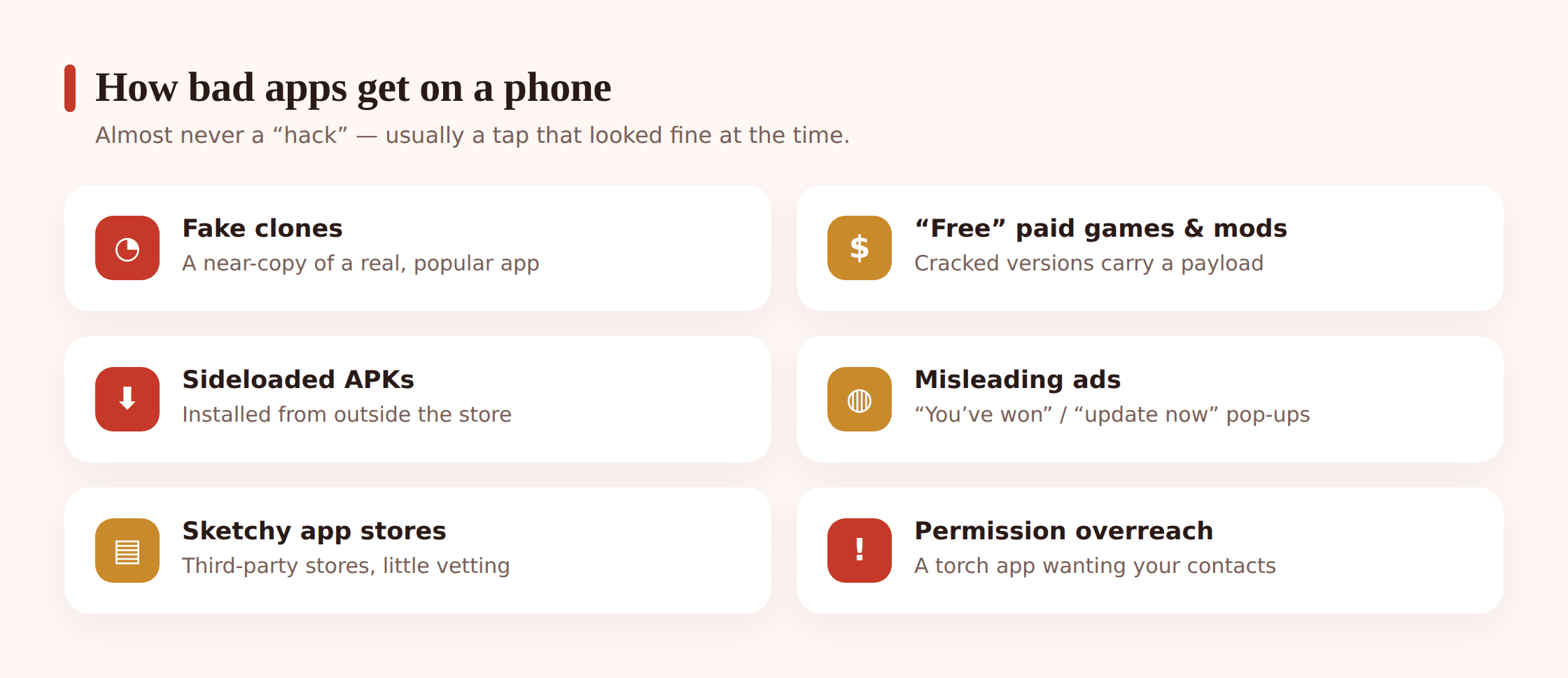
Fake clones of popular apps
Search a big-name app and you’ll often find near-identical copies sitting just below the real one, or scattered across the web. Same icon, almost the same name — a swapped letter, an extra word like “Pro” or “Plus”, a slightly-off colour. A child skimming a results page won’t notice. The clone might even work a bit, showing a familiar screen while it quietly does its real job in the background. Cloning a trusted brand is the oldest trick going because it borrows the trust the real app spent years building.
“Free” versions of paid games and mods
Modded APKs — “unlimited gems”, “premium unlocked”, “no ads” — are catnip for kids. To install one you have to go outside the official store, turn off a safety setting, and trust a stranger’s file. That’s three warning signs stacked together, and the reward is usually a game that works for a day before it starts throwing full-screen ads or asking for money anyway. The people who repackage these games add their own code to them. You have no way of knowing what that code does.
Sideloaded APKs and sketchy app stores
An APK is just the file an Android app comes in. Installing one directly, instead of through Google Play, is called sideloading. There are perfectly good reasons to sideload — some legitimate apps live outside Play — but it skips the checks the official store runs, so it’s also the main door bad apps walk through. Alternative “app stores” promising paid apps for free are the same door with a friendlier sign on it. If a store’s whole pitch is getting paid things without paying, the business model is you.
Misleading ads and pop-ups
Free games and streaming sites are stuffed with ads designed to look like buttons, system warnings, or download prompts. “Your device is infected — tap to clean.” “Video ready — download now.” “You are today’s lucky visitor.” A kid taps what looks like the play button and gets bounced to a store page or a direct download instead. These fake alerts are a scam in themselves, close cousins of the ones covered in how to spot a phishing text — same playbook, different screen.
Apps that demand far too much
Some apps aren’t fakes at all. They’re real, they’re on the official store, and they still misbehave — usually by hoovering up permissions and data they’ve no business touching. A flashlight app asking to read your contacts and messages isn’t broken. It’s working exactly as its makers intended, and the product is your child’s information. This kind gets past the front door precisely because it looks ordinary.
What they actually do
Not all bad apps are after the same thing. Knowing what a given one is trying to do helps you judge how urgent the clean-up is.
- Adware. The most common and the most annoying. Floods the phone with pop-ups and full-screen ads, sometimes even when no app is open. Rarely dangerous, always maddening, and a real battery and data drain.
- Data theft. Quietly collects contacts, messages, location, photos, or the details typed into other apps, and sends them off to be sold or used. This is the one that turns “annoying” into “serious”.
- Hidden subscriptions and fleeceware. An app that looks free but signs the phone up to a recurring charge, often buried behind a “free trial” that’s near-impossible to cancel. The bill turns up later on a linked card or carrier account.
- Cryptomining. Uses the phone’s processor to mine cryptocurrency for someone else. You’ll notice it as a device that runs hot and flat for no reason — all the effort, none of the benefit.
- Stalkerware. The nastiest category. An app hidden on the phone to secretly track messages, location, and calls. On a child’s device this is usually adware or theft rather than targeted stalking, but if you suspect a phone is being watched by a specific person, that’s its own situation — is my phone being monitored walks through it properly.
Signs a phone is infected
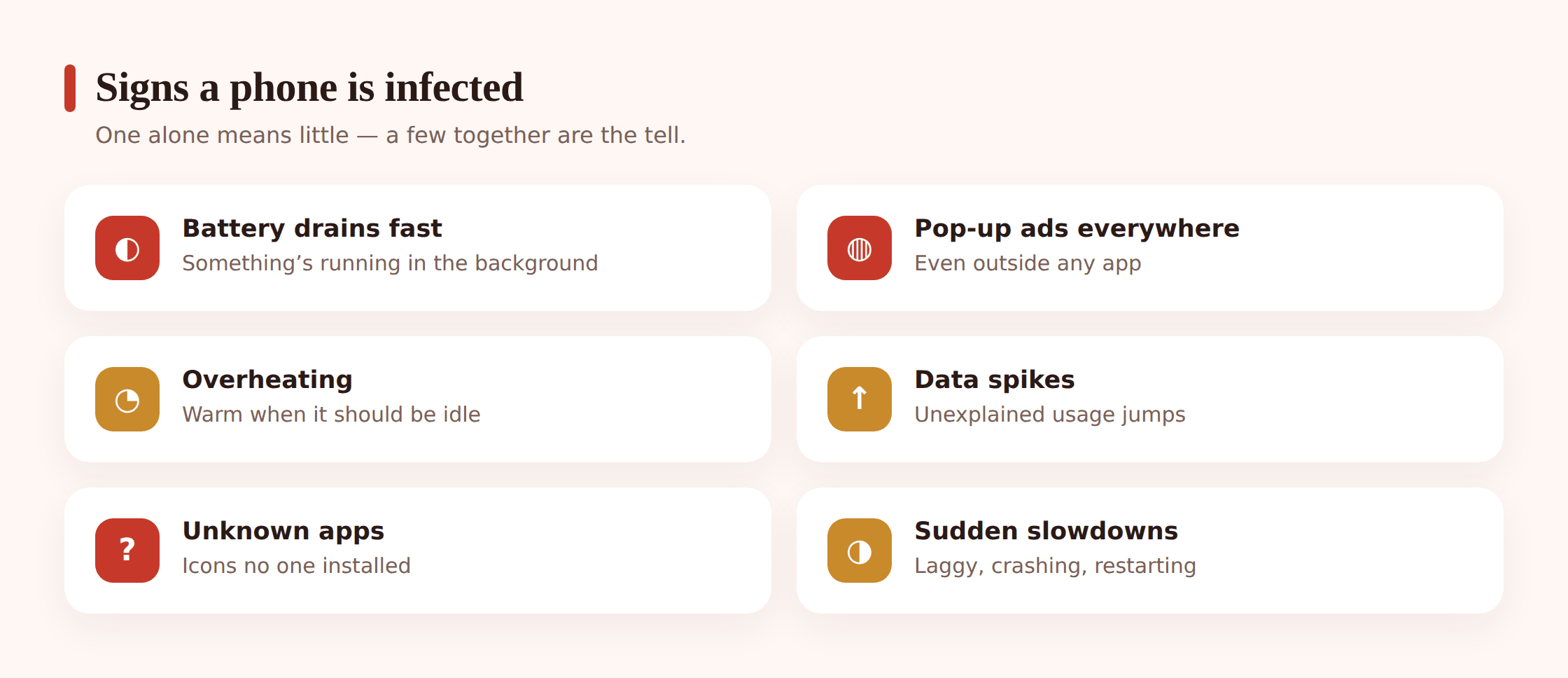
Here’s the honest bit up front: every single sign below has a dull, harmless explanation too. Phones get slow and hot and thirsty for reasons that have nothing to do with malware. So read these as a way to reason, not a checklist of doom. It’s the cluster that matters — a few of these turning up at once, out of nowhere, right after a new app went on.
- Battery drops off a cliff. Suddenly dying by mid-afternoon when it used to last the day. Could be an old battery or a needy app — check which one first. Our guide on battery draining fast shows how to read the breakdown.
- Pop-up ads outside apps. Ads appearing on the home screen, the lock screen, or in the notification tray when nothing’s open. This one points fairly squarely at adware.
- It runs hot doing nothing. Warm on the desk, screen off, not charging. Something’s working in the background — could be cryptomining, could just be a stuck app.
- Data use spikes. The monthly allowance vanishes and nobody streamed anything. Data theft and ad-heavy apps both phone home constantly.
- Apps nobody installed. Icons with vague names and generic art that no one in the house remembers adding. Some are system apps, but an unfamiliar one right next to the trouble is worth a hard look.
- Everything got slow. Apps lag, the phone stutters, things crash more. Malware competing for the processor feels exactly like an ordinary slow phone, so rule out the boring causes too.
- Settings that won’t stick, or the browser homepage changed. A search engine you didn’t choose, a homepage that resets itself, redirects to sites you didn’t ask for.
The tell isn’t any one symptom. It’s timing and cluster. If three of these showed up the week your kid sideloaded a “free” game, you’ve probably found your culprit.
Spotting a dodgy app before you install it
Prevention beats clean-up every time, and the whole check takes half a minute. Before anything gets installed — ideally with your child watching, so they learn to do it themselves — run through this.
- Install from the official store, full stop. Google Play isn’t perfect, but it screens apps and pulls bad ones. That single habit removes most of the risk.
- Check the developer name. Real apps come from the company you’d expect. If a famous game’s listed by “MobiGamesFree Studio Ltd”, that’s a clone.
- Read the reviews properly. Look at the recent ones and the low-star ones, not just the average. Floods of identical five-star reviews in broken English are as much a warning as complaints about ads and charges.
- Sanity-check the numbers. The real version of a huge app has millions of downloads. A clone with a few thousand, or a suspiciously round rating, is wearing a costume.
- Look at the permissions before you tap. Play lists what an app can access. Ask the obvious question: does this app actually need that? A wallpaper app wanting your contacts, SMS, and location has no honest reason to.
- Be suspicious of “free” paid things. A game that costs money everywhere else, offered free through some other channel, isn’t a bargain. Someone’s being paid, and it isn’t in cash.
How to read app permissions on Android
To see what an already-installed app can touch, open Settings > Apps, pick the app, and tap Permissions. You’ll see what’s allowed and what’s denied. There’s also a Permission manager (under Settings > Privacy or Security & privacy on most phones) that flips it around — pick a permission like Location or Microphone and see every app that has it. That view is gold for spotting the odd one out. If a simple game has camera and microphone access, take it away and see if the game even notices.
How to clean an infected phone
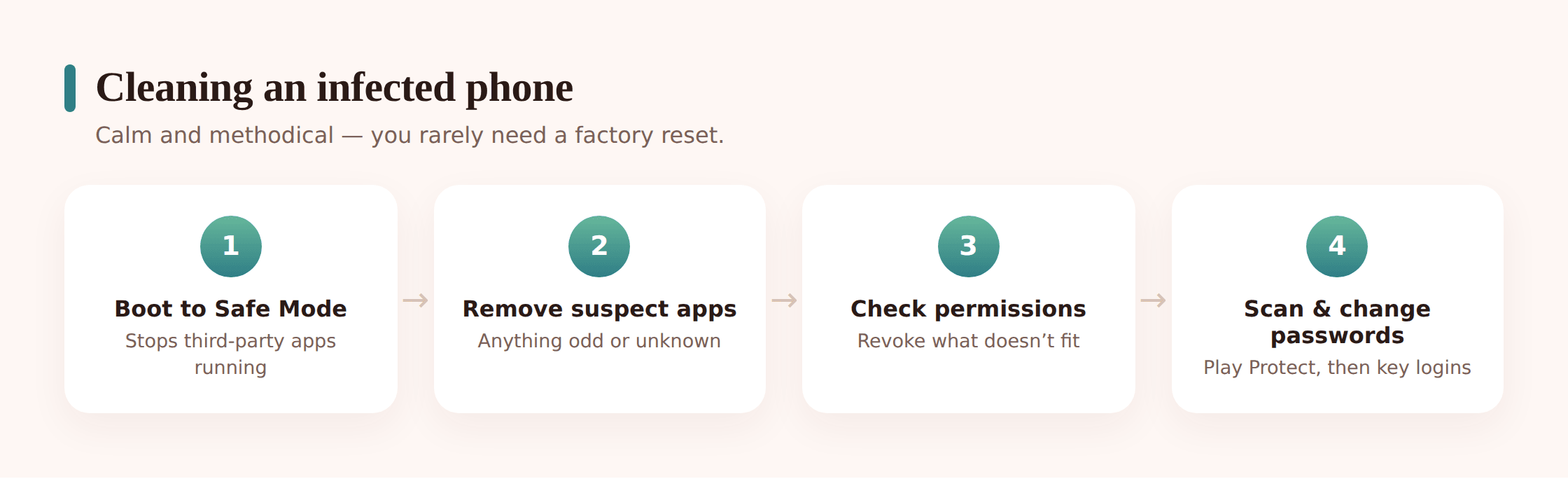
Don’t reach for a factory reset first — that’s the sledgehammer, and you rarely need it. Work through these in order and stop when the phone’s behaving again.
Step 1 — Note what changed, then go offline if it’s bad
Think back to when it started and what went on around then. If pop-ups are constant or you saw signs of data theft, turn on airplane mode while you work, so a misbehaving app can’t send anything out or pull more down.
Step 2 — Boot into Safe Mode
Safe Mode starts Android with only the apps that came with the phone, so anything you installed — including malware — sits frozen and can’t fight back. On most phones, hold the power button, then press and hold “Power off” on screen until “Reboot to safe mode” appears, and confirm. You’ll see “Safe mode” in the corner. If the pop-ups and slowdowns vanish in Safe Mode, that confirms a downloaded app is the cause.
Step 3 — Find and remove the suspect apps
Open Settings > Apps and sort by recently installed, or scroll for anything you don’t recognise. Uninstall the newcomers around the time the trouble started, and any app you can’t account for. If an app won’t uninstall and greys out the button, it has probably given itself “device admin” rights — go to Settings > Security > Device admin apps (wording varies), untick it there, then come back and uninstall. That trick is a strong sign the app was up to no good.
Step 4 — Restart normally and check permissions
Reboot out of Safe Mode. Open Permission manager and sweep through Location, Camera, Microphone, SMS, and Contacts, revoking anything that has no business with them. Also check Settings > Notifications for an app allowed to draw over other apps or send notifications it shouldn’t — that’s how adware puts ads on your home screen.
Step 5 — Run a Play Protect scan
Open the Play Store, tap your profile icon, choose Play Protect, and hit Scan. It checks installed apps against Google’s known-bad list and flags or removes what it recognises. It won’t catch everything, but it’s a fast, free second opinion and it’s already on the phone.
Step 6 — Change the important passwords
If the phone might have leaked data, assume anything typed on it could be compromised. From a different, clean device, change the passwords for the Google account, email, and anything financial, and switch on two-factor authentication where it’s offered. Our guide to spotting scam messages pairs well here, since stolen details often get put to work through follow-up texts.
Step 7 — Only if it persists, factory reset
If the phone still misbehaves after all that, a factory reset wipes it back to new. Back up photos and anything irreplaceable first, but be careful restoring apps and data afterwards — restore from the official store, not from a backup that might carry the bad app straight back in.
Keeping it clean
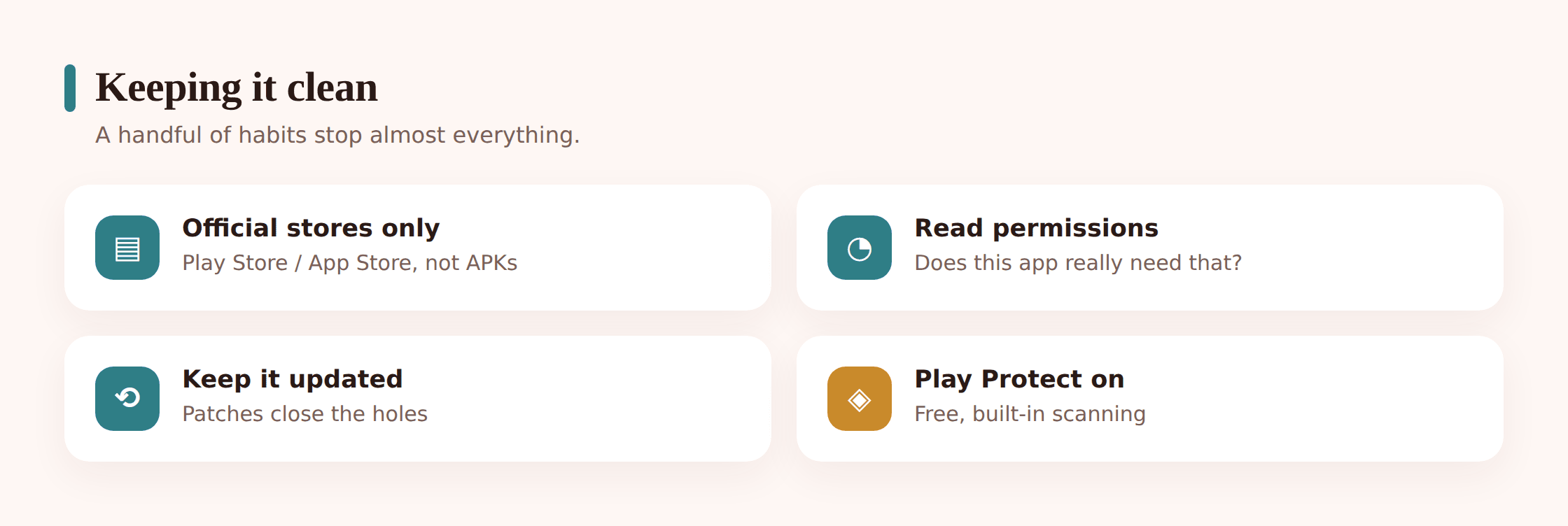
Clean-up is the cure. These are the habits that stop you needing it again.
- Leave “install unknown apps” switched off. This is the setting a child has to turn on to sideload an APK. Left off, the easiest route for malware is simply shut. Check it under Settings > Apps > Special app access.
- Keep Play Protect on. It scans in the background for free. There’s no reason to disable it.
- Keep the phone updated. System and app updates patch the holes malware climbs through. Turn on automatic updates.
- Do the permission sweep now and then. A quick monthly look through Permission manager catches apps that have quietly overreached.
- Talk about the bait, not just the rules. A child who understands why a free modded game is a trap makes better calls than one who’s just been told no. Show them a fake listing next to the real one. Let them spot the difference.
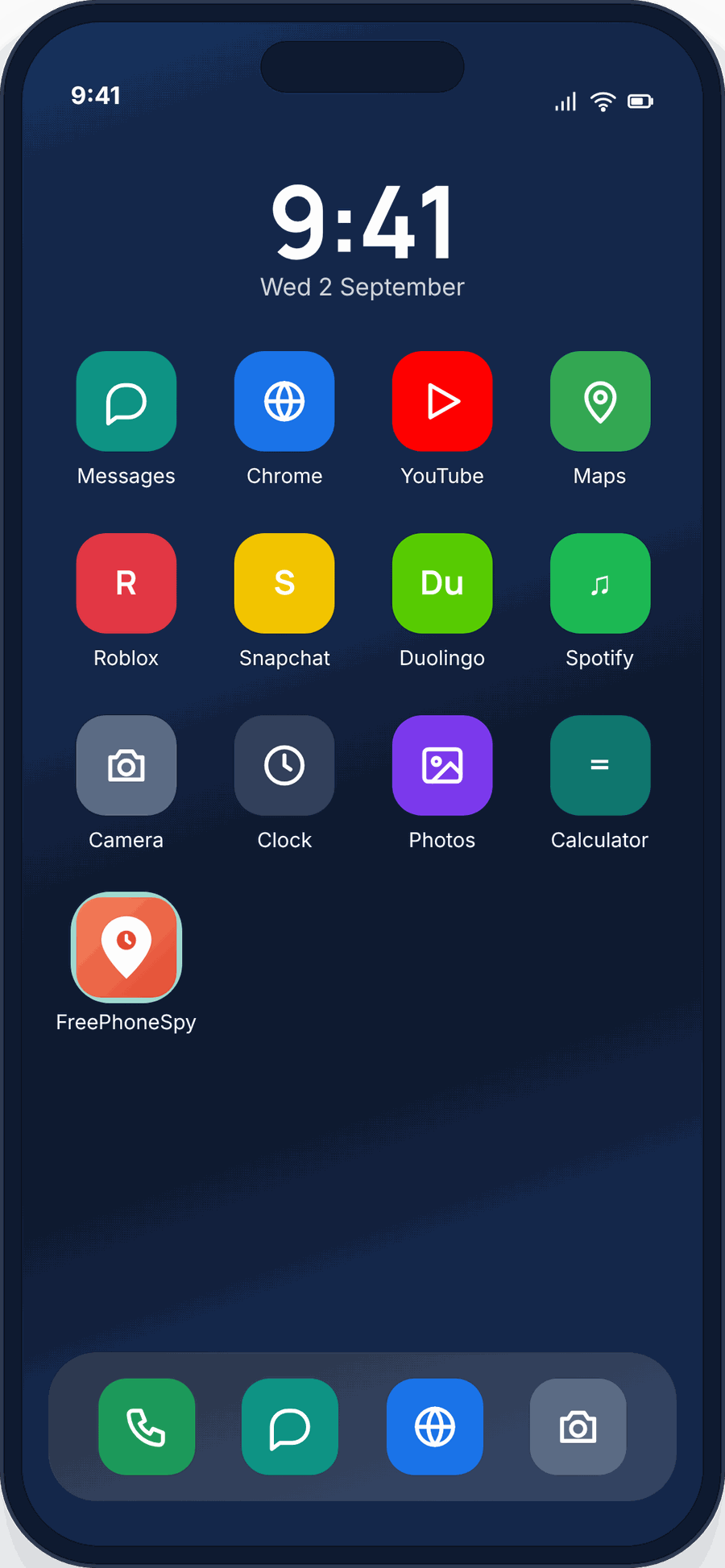
This is also where an open family tool earns its place, and it’s worth being straight about the distinction. A transparent, consent-based app like FreePhoneSpy sits visibly on the phone — the child can see it’s there and what it shares — and it can show you which apps are installed and flag new ones as they appear, so a sideloaded game doesn’t go unnoticed for weeks. That’s the honest opposite of the hidden stalkerware in the malware list above: one is agreed and out in the open, the other hides on purpose. The visibility is the whole point. If a tool has to hide to work, it’s on the wrong side of that line.
A note on iPhones
iPhones aren’t magic, but they’re built more locked down. Apple only lets apps install from its App Store (outside a few regions with new sideloading rules and tightly-managed business setups), and every app runs walled off from the others, so there’s simply less room for classic Android-style malware to take hold. That doesn’t make an iPhone bulletproof — scam pop-ups in Safari, phishing links, fleeceware subscriptions, and dodgy “calendar invite” spam all still work fine on iOS, because they target the person, not the operating system. If your child’s on an iPhone, aim your attention at the browser, the messages, and the subscriptions rather than sideloaded apps. Check Settings > your name > Subscriptions for anything unexpected, and keep an eye on Safari for redirect-heavy sites.
Questions parents actually ask
Can an Android phone really get a virus?
Not a “virus” in the old sense that copies itself from phone to phone — that’s rare on mobile. What phones actually catch is malicious apps: adware, data thieves, fleeceware, and the like, which you install without realising what they are. The good news is that makes them easier to remove, because there’s a specific app to find and delete rather than something woven through the whole system.
Is a free antivirus app worth installing?
For most people, no — and some of the worst offenders are fake “cleaner” and “antivirus” apps that are malware themselves. Google Play Protect is built in, free, and running already. Keep the phone updated, stick to the official store, and Play Protect covers the vast majority. A separate scanner app is rarely worth the permissions it asks for.
My child sideloaded a game and now the phone’s covered in ads. What do I do?
Work through the cleaning steps above. Boot into Safe Mode, uninstall that game and anything installed around the same time, revoke the “draw over other apps” and notification permissions, then run a Play Protect scan. The ads should stop once the app’s gone. If the phone was clean before that install, you’ve almost certainly found the source.
How do I know which app is causing the problem?
Two clues stack up fast. In Settings, sort apps by install date and look at what arrived just before the trouble. Then check battery and data usage under Settings — a malicious app usually shows up as an outsized chunk of both. The app that’s new, hungry for power and data, and holding permissions it doesn’t need is your suspect.
Should I just factory reset to be safe?
Usually not necessary. Removing the offending apps and revoking their permissions clears most infections, and a reset is a lot of hassle — you lose your setup and have to restore everything. Save it for the rare case where the phone still misbehaves after you’ve removed the suspects and scanned. And if you do reset, rebuild from the official store rather than restoring the same bad app from a backup.
Are apps on the official Play Store always safe?
Safer, not guaranteed. Google screens apps and removes bad ones, so the odds are hugely better than sideloading — but clones and fleeceware do slip through, and get pulled once reported. So the same checks still apply: look at the developer, the reviews, and the permissions even inside the official store. “It’s on Play” lowers the risk a lot; it doesn’t switch your judgement off.
The reassuring truth is that a kid’s phone getting a bad app is common, rarely catastrophic, and almost always fixable in an afternoon. Spot the app, remove it, tighten the permissions, and turn the moment into a lesson about how these traps are built. A child who can look at a “free premium unlocked” listing and see the con for what it is has learned something worth far more than a clean phone.