How Geofencing Works: Location Alerts for Your Family
You want to know your kid got to school. Not their whole day, not a live map you stare at — just a small, quiet “they’re there.” That’s what geofencing gives you. Draw a circle around a real place, and when the phone crosses the line, you get a ping. Here’s how it actually works, where it’s genuinely useful, and where it quietly falls short.
What geofencing is, in plain terms
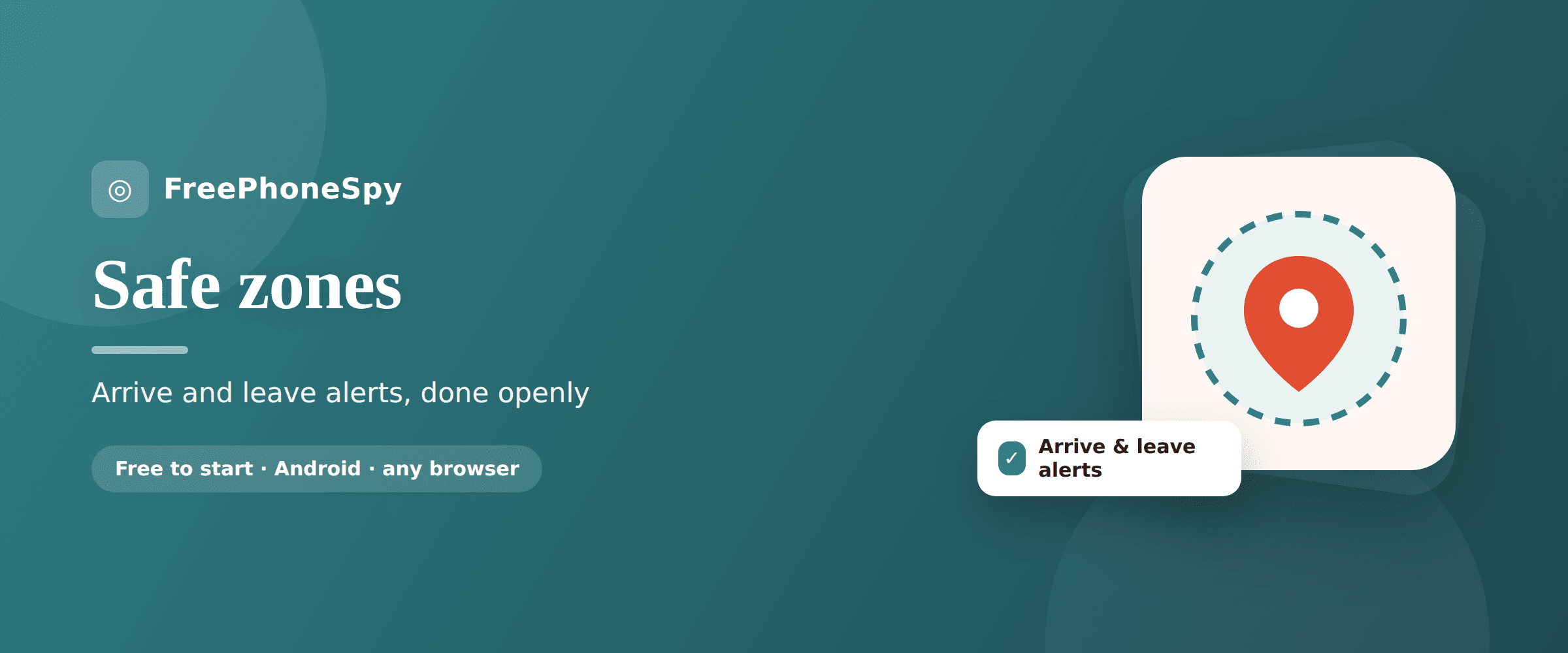
A geofence is a virtual circle around a real place. You pick the spot — home, school, a grandparent’s house — and you pick how big the circle is. That’s the whole idea. The phone knows where it is. When it moves inside the circle, that’s an arrival. When it moves back out, that’s a departure. Each of those can send you a short alert.
No line is painted on the ground. The “fence” lives in software. But it behaves like a tripwire you can’t see: the phone notices it crossed, and it tells you.
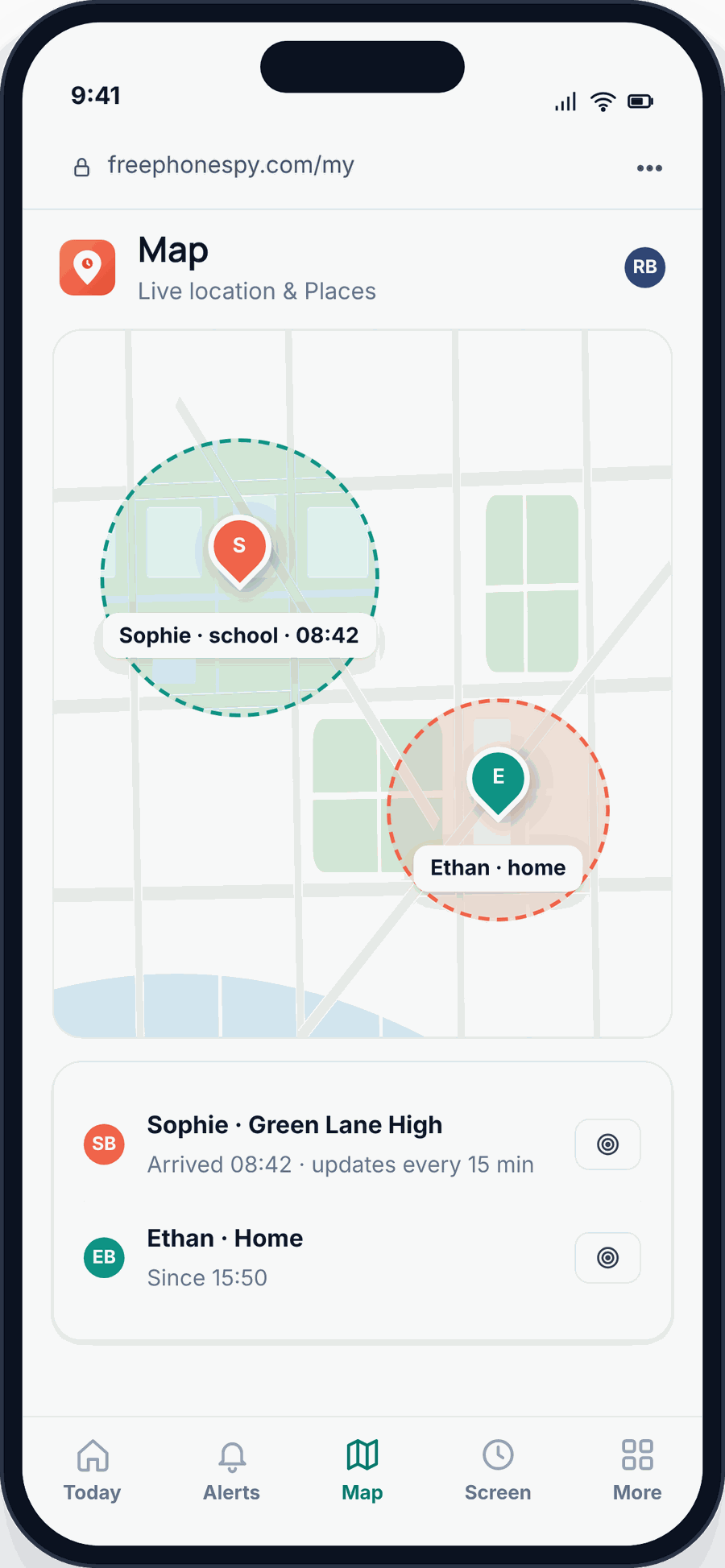
Most of the time you don’t want a moving dot on a map. You want one fact, once a day: did they get there? A ping when your daughter reaches school at 8:12 and another when she leaves at 3:20 answers the question and then leaves you alone. That’s the peace-of-mind use, and it’s the one families keep coming back to. For the fuller picture of live location and history, we cover that in the location and Places guide — but geofencing is the calm, low-noise cousin of all that.
How it actually works
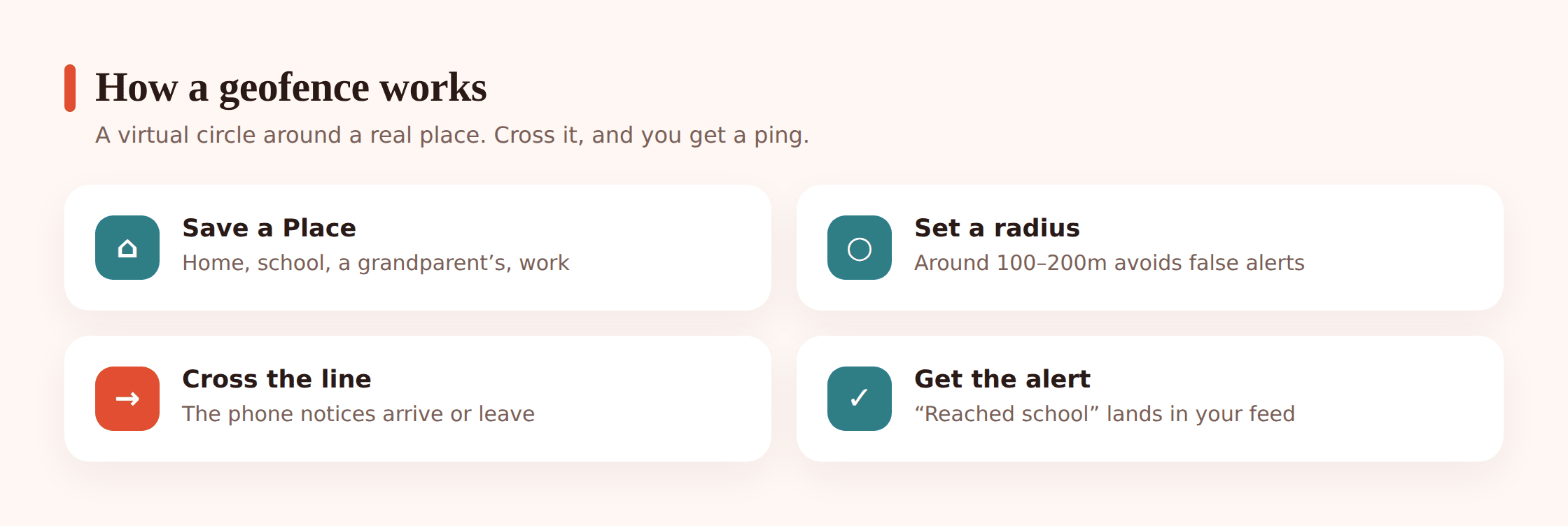
The phone works out its own position from a mix of signals. GPS satellites give a rough fix outdoors. Nearby wifi networks sharpen it, because their locations are well mapped. Mobile signal from cell towers fills gaps when the sky is blocked. Blended together, these usually put the phone within a few meters to a few tens of meters of its real spot.
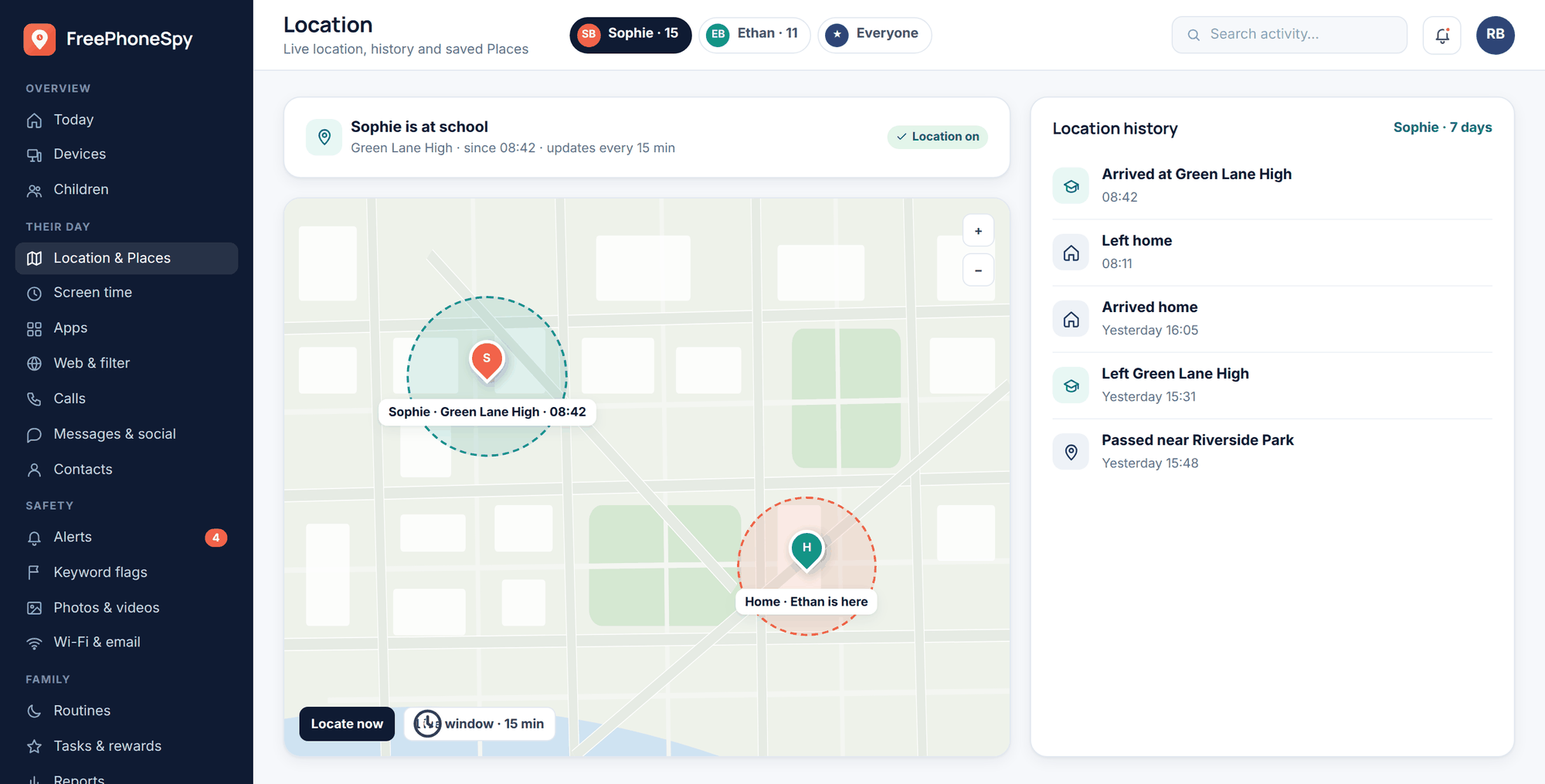
You save a Place — a point on the map plus a radius. The phone quietly checks its position against that saved circle. When it registers as inside, the app sends an arrive alert. When it registers as outside again, it sends a leave alert. You don’t have to have the app open. The check runs in the background.
Radius is the setting that makes or breaks this. Draw the circle too small — say 30 meters around a house — and the phone’s normal wobble will drift in and out of the edge while it sits still on the kitchen table. Each wobble looks like a crossing, so you get a stream of false “arrived… left… arrived” alerts. That’s alert fatigue, and it’s the fastest way to start ignoring your own notifications. A wider circle absorbs the drift. For most homes and schools, 100 to 200 meters is the sweet spot: big enough to be stable, small enough to still mean “they’re actually here.”
Everyday uses that earn their keep
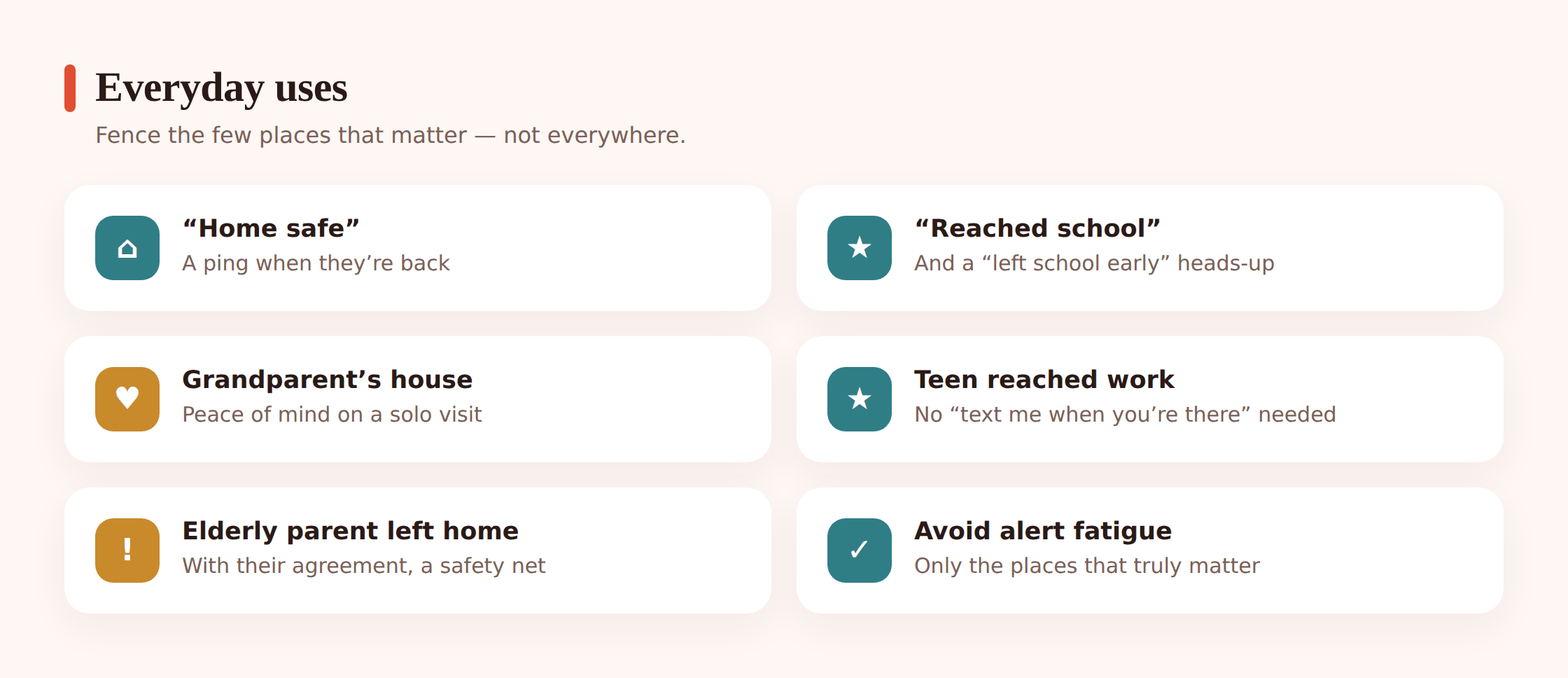
Here’s where a geofence actually saves you a phone call or a worried afternoon:
- Got to school. A ping when they reach the school grounds. You stop wondering during that first meeting of the day.
- Home safe. An arrive alert on the home Place tells you the walk or bus ride ended fine, without a text you have to remember to send or wait for.
- Left school early. If they leave the school Place well before the bell, that’s worth knowing right away rather than at pickup. It’s the one alert parents tell us mattered most.
- Grandparent’s house. Fence a grandparent’s or a family friend’s home so you know a visit started and ended, especially for younger kids traveling with someone else.
- A teen reaching work. An arrive alert on the workplace means the shift started and the drive there went fine. Pair it with our notes on teen driver safety if there’s a car involved.
- An elderly parent leaving home. For a parent living alone, a leave alert on their front door — one they’ve agreed to — can flag an unexpected wander at 2am, or simply confirm they made it out to their appointment.
One rule keeps all of this useful: only fence places that matter. If you geofence the corner shop, the gym, three friends’ houses and the school, you’ll drown in pings and stop reading them. Three or four Places is usually plenty. A quiet system you trust beats a noisy one you mute.
Setting up a safe zone, step by step
FreePhoneSpy runs one app on the child’s Android phone. You set it up together with a 6-digit code, and everything else happens in the web panel — any browser, phone or laptop, nothing to install on your side. It’s transparent by design: the app shows on the phone, and nothing is monitored until you finish setup. That’s the honest version of family monitoring, and it’s the only version that holds up.
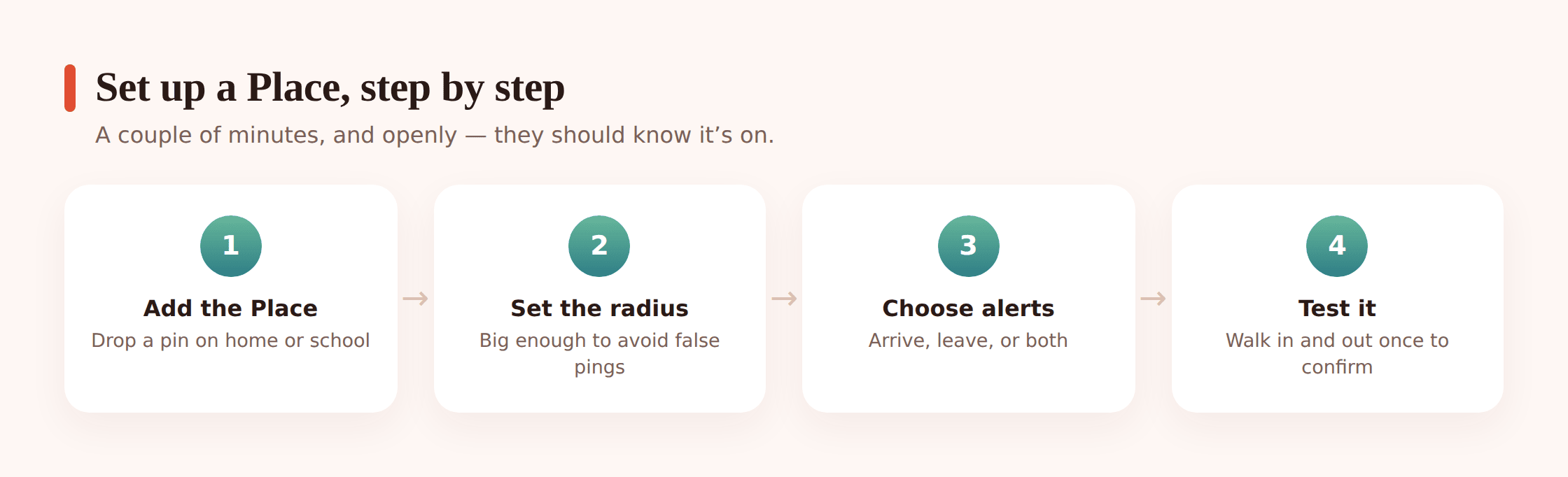
- Open Places in the panel. Sign in and go to Places. You’ll see any zones already saved, like the Bennetts’ home and school.
- Drop a pin on the real place. Search the address or tap the map. Put the pin on the building, not the street corner.
- Set the radius. Drag the circle out to cover the whole property with a little room to spare. Start around 150 meters and adjust after you test it.
- Choose arrive, leave, or both. For school, many parents pick both plus the “left early” alert. For a grandparent’s house, arrive alone is often enough.
- Add who it applies to. Point the Place at the right family member so alerts land where they should.
- Test it once. Walk in and out of the zone, or use a locate-now request to confirm the current position, then watch the Alerts feed for the arrive and leave to appear.
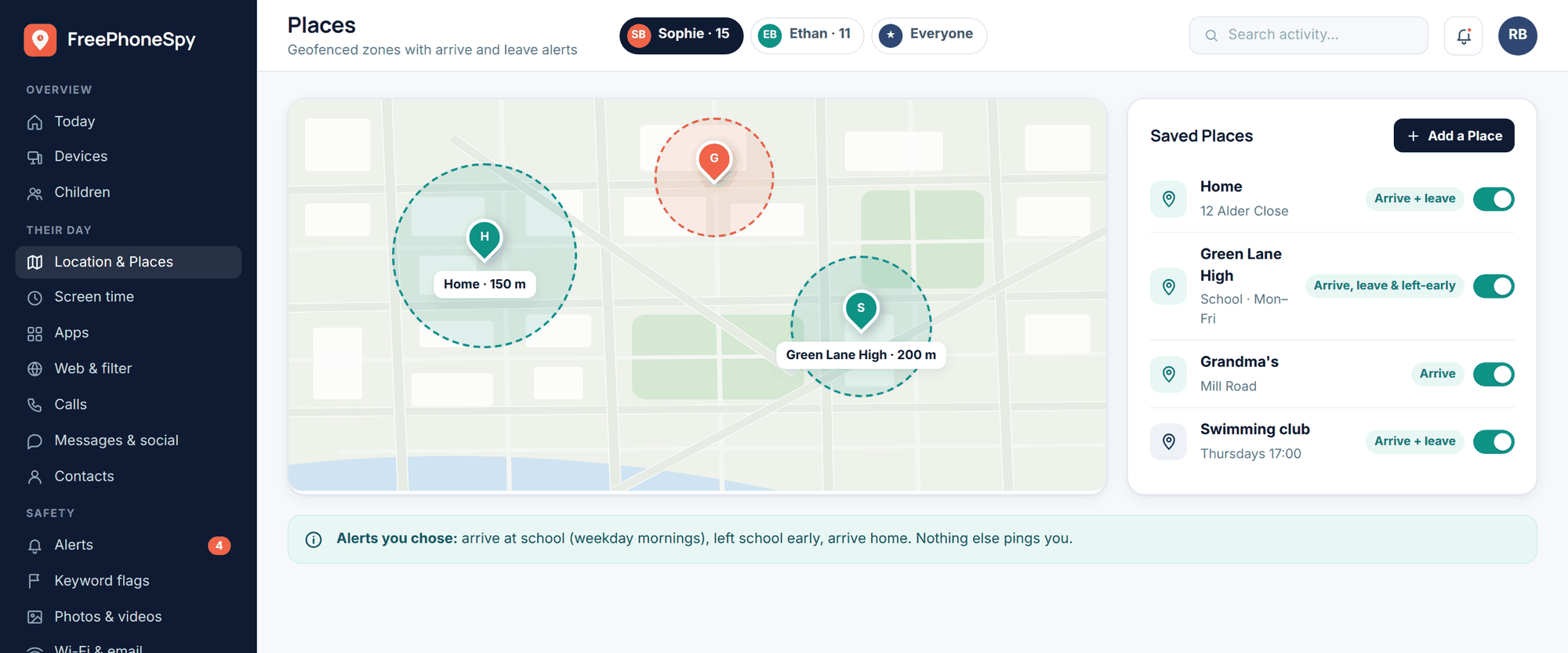
A few things worth tying together. If you need the current position right now rather than waiting for a crossing, a locate-now request asks the phone for a fresh fix. When something’s actually in motion — a walk home that’s running late — you can open a live-location window to follow it for a stretch, then let it close. And because it’s transparent, your child can see the same Places and alerts you set. That’s not a weakness. A kid who knows the school ping exists is a kid you’re not sneaking up on. If you want the arrival alerts to lean on a schedule — home by a certain time on school nights — the routines and bedtime guide shows how to layer those in.
The built-in options, honestly
You may not need a dedicated app at all, and we’d rather tell you that than pretend otherwise.
If your family is on iPhones, Apple Find My is already built in and free. It supports arrival and departure notifications — you can get told when someone leaves work or reaches home — and it’s tied deeply into the phone, so it’s reliable and battery-friendly. For an all-iPhone household, start there.
Google Maps location sharing works across Android and iPhone. Someone shares their live location with you, and you can see where they are in the Maps app. It’s simple and it’s free. It doesn’t do saved-Place arrive/leave alerts the way Find My does, but for a plain “where are they right now” it’s fine.
So where does a dedicated app earn its place? Mainly on Android, and mainly when you want saved Places with a proper parent panel. FreePhoneSpy’s Android app plus the web panel gives you named zones, arrive/leave and left-early alerts, an Alerts feed you can scroll, location history, and routines — managed from any browser without needing to be inside one family’s shared account. If Find My covers you, use it. If you’re on Android and want the fuller Places-and-alerts setup in one place, that’s the gap this fills.
Accuracy and battery, honestly
Geofencing is helpful, not perfect. It’s peace-of-mind tooling, not a security system. Treat a missing alert as “check in,” never as proof of anything.
The honest limits are worth knowing before you rely on this:
- GPS drifts indoors and in cities. Inside a big building or between tall buildings, the fix gets fuzzy. The phone might read as 40 meters from where it really is. A sensible radius absorbs most of that; a tight one won’t.
- Battery saving delays alerts. Aggressive power-saving modes throttle background location to save juice. The crossing still happens, but the alert can land minutes late — sometimes a good deal later — because the phone checked its position less often.
- A too-small radius backfires. We’ll say it again because it’s the number one setup mistake. Under about 100 meters, normal GPS wobble triggers phantom arrive/leave pings. Give it room.
- Alerts can be late or occasionally missed. A phone in a dead signal pocket, a rebooting phone, a temporarily denied permission — any of these can drop or delay a single alert. It’ll usually catch up, but plan for the odd gap.
Set expectations with everyone involved, including yourself. If the school ping is ten minutes late once in a while, that’s normal, not a crisis. Location tooling has always worked this way. The same honesty applies when you’re trying to find a lost or stolen phone — the last known spot is a strong lead, not a guarantee.
Consent and etiquette
Geofencing is a good tool pointed at the right people. Kids in your care, who know about it. A phone or device you own. An adult who’s agreed to share with you, mutually. That’s the whole permitted list.
Covertly geofencing another adult is wrong, and often illegal. Secretly tracking a partner, an ex, an employee off the clock, or any adult who hasn’t agreed is not monitoring — it’s surveillance. In many places it breaks stalking, wiretap or privacy laws and carries real penalties. Between adults, location sharing is only ever mutual and consensual. If you can’t tell them you’re doing it, don’t do it.
There’s a softer etiquette point too, even where consent is clear. Use geofencing to reassure, not to control. A ping that your kid got to school is care. Interrogating a teenager about every minute off the expected path turns a safety tool into a leash, and it teaches them to leave the phone at a friend’s house. The goal is a family that feels safer, not one that feels watched. For an older child with real independence — say a first job across town — light touch and a conversation beat tight zones and constant checks.
If you’re setting a younger child up for the first time and want an approach that doesn’t involve their own phone at all, a kids’ GPS watch can be a gentler on-ramp.
Fixing missed or duplicate alerts
When geofencing misbehaves, it’s almost always one of three things.
- Duplicate “arrived… left… arrived” pings. The radius is too small and GPS wobble is crossing the edge while the phone sits still. Widen the circle to 150–200 meters. This fixes the large majority of noisy-alert complaints.
- Alerts arriving late. Battery saver is throttling background location. On the child’s Android phone, exempt the app from aggressive power saving and turn off “optimize” for it. Late alerts usually clear up once the phone stops napping the app.
- Alerts not arriving at all. Check location permission on the phone. It needs to be set to Allow all the time, not “only while using the app.” Geofencing runs in the background, so a “while using” permission quietly kills it. Confirm location services are on and the phone isn’t stuck in airplane mode.
- Still flaky in one spot. Some buildings are just GPS-hostile — basements, parking structures, dense downtowns. If one Place is always unreliable, widen its radius a little more and accept that arrival there may lag. Use a locate-now request to confirm when it matters.
Work through radius, then battery, then permissions, in that order, and nearly every geofencing problem sorts itself out. Ready to try it on your own family’s Places? You can get started free and have a school zone set up in a few minutes.
FAQ
Does geofencing drain the phone’s battery?
Modern geofencing is fairly light because the phone checks position in efficient bursts rather than running GPS constantly. You’ll notice a small cost, not a heavy one. Live-location windows use more, which is why they’re meant to be opened for a stretch and then closed.
What radius should I use?
Start at about 150 meters for a home or school and adjust after testing. Go wider if you get phantom pings, a little tighter only if the zone overlaps places you don’t mean to include. Below 100 meters, expect false alerts from normal GPS drift.
Can my child see the geofence?
Yes. FreePhoneSpy is transparent — the app is visible on the phone, and your child can see the Places and alerts you’ve set. That’s the point. Monitoring you’d have to hide isn’t the kind we build.
Will it work if we’re all on iPhones?
FreePhoneSpy’s child app is Android. For an all-iPhone family, Apple’s Find My already does arrival and departure notifications and works well. Google Maps location sharing is another free option across both platforms.
Why did an alert arrive ten minutes late?
Usually battery saving throttled the phone’s background location, so it checked its position less often. Sometimes it’s a signal dead spot. Exempt the app from aggressive power saving to cut down on delays. The odd late alert is normal for all location tools.
Can I geofence another adult’s phone?
Only with their clear, mutual agreement — location sharing you both set up and both know about. Secretly tracking any adult is wrong and often illegal. If you can’t tell them, don’t do it.