Why Is My Phone So Slow? How to Speed It Up
A phone that lags when you open the camera, stutters typing a text, or takes five seconds to switch apps isn’t broken. Most of the time it’s a fixable pile-up: nearly full storage, apps running in the background, an update you skipped, or a battery that’s seen better days. Here’s how to find the real cause and get the speed back, on both Android and iPhone.
Why phones slow down
Phones don’t wear out the way tires do. They slow down for a handful of specific, honest reasons, and knowing which one you’ve got saves you from guessing.
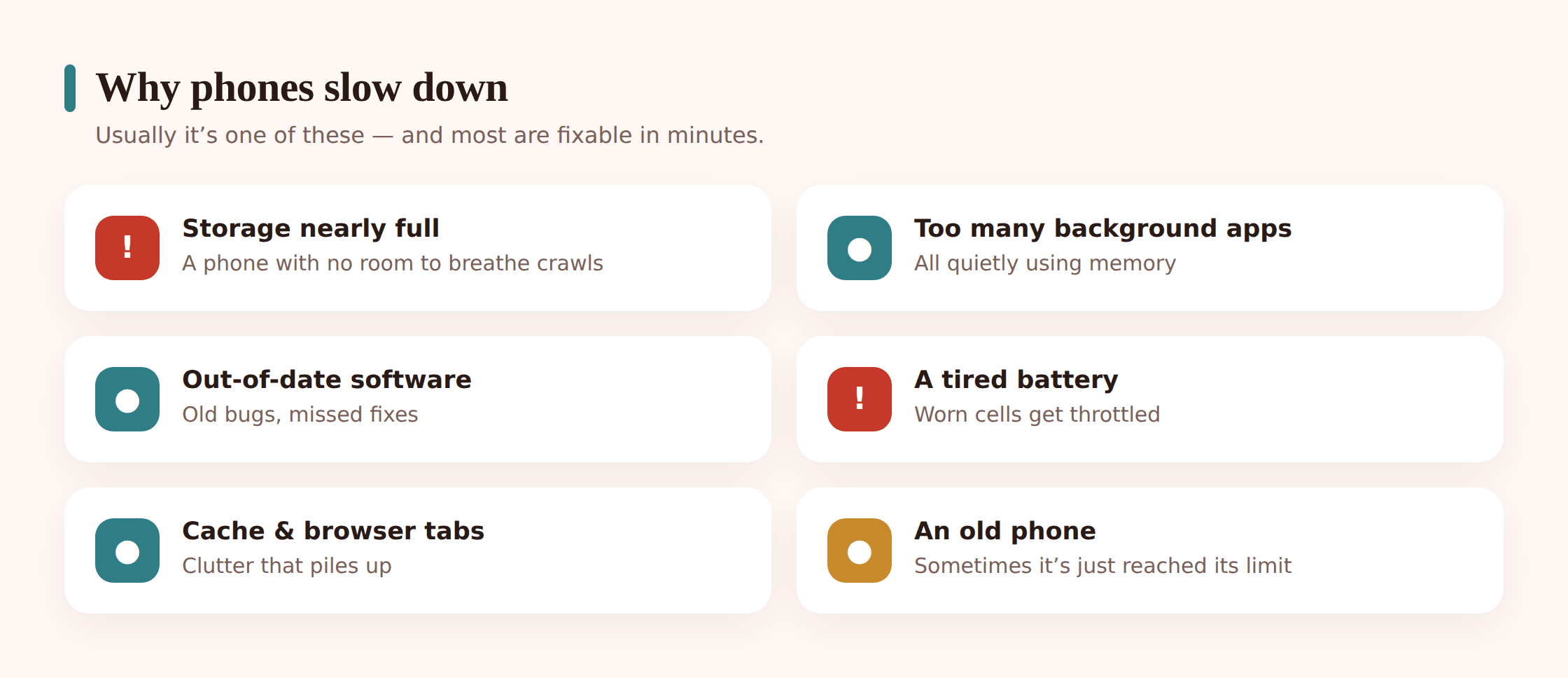
- Storage is nearly full. This is the number-one cause. When there’s little free space, the system can’t cache files or write temporary data quickly, and everything drags. Below about 10% free, phones get noticeably slow.
- Too many background apps. Apps that refresh, sync, and check for notifications all compete for memory and CPU, even when you’re not looking at them.
- An out-of-date OS or apps. Old software carries old bugs. Some of those bugs are memory leaks and slow code that updates have already fixed.
- A tired battery being throttled. As a battery ages, it can’t deliver power in quick bursts. To avoid sudden shutdowns, the phone quietly slows the processor down.
- Browser tabs and cache. Twenty open tabs and a bloated cache eat memory and make the browser crawl.
- Heavy widgets and live wallpapers. Animated wallpapers and busy home screens redraw constantly and cost real performance.
- A failing SD card. On Android, a cheap or dying microSD card can bottleneck anything stored on it.
- The phone is simply old. Sometimes the hardware has reached its limit and newer apps expect more than it has. That’s real, and we’ll cover it honestly below.
First: the quick wins, in order
Before you dig into settings, run these five in order. They fix the majority of slowdowns in about ten minutes, and each one is low-risk.
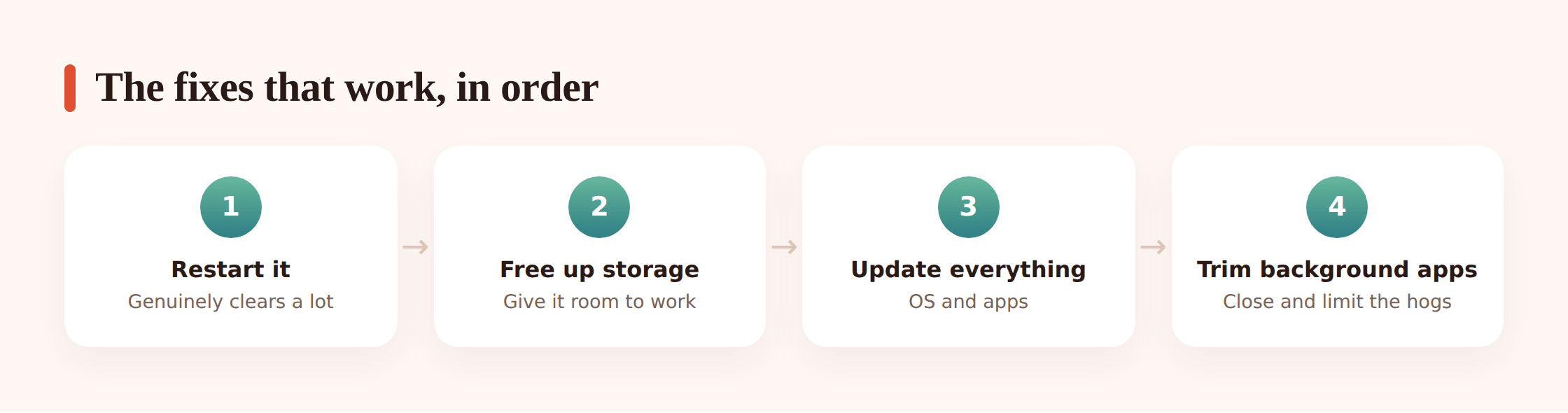
1. Restart it
This isn’t a cliché. A restart clears memory, closes stuck processes, and resets background tasks that have wedged themselves. Power all the way off, wait a few seconds, and turn it back on. If you can’t remember the last time you did this, it’s probably your fix.
2. Check and free up storage
Open Settings and find your storage screen. On iPhone: Settings > General > iPhone Storage. On Android: Settings > Storage (or Device care > Storage). If you’re above 90% full, that’s your bottleneck. The next section walks through clearing it.
3. Update the OS and apps
Install pending system updates and app updates. Updates fix slow bugs, patch memory leaks, and often improve performance on older hardware. Do this on Wi-Fi and while charging.
4. Close or limit background apps
On iPhone, turn off Background App Refresh for apps that don’t need it (Settings > General > Background App Refresh). On Android, check Settings > Apps for anything running that you rarely use, and restrict its background activity. You don’t need to swipe-close apps constantly — the system manages that — but limiting refresh helps.
5. Clear your browser cache
Close the pile of open tabs and clear the browser’s cache and history. A browser holding hundreds of megabytes of cached pages gets sluggish and drags the whole phone when it’s open.
Free up storage, step by step
If your storage screen showed you’re nearly full, this is where the real speed lives. Go in order, and back up anything you can’t lose before you delete it.
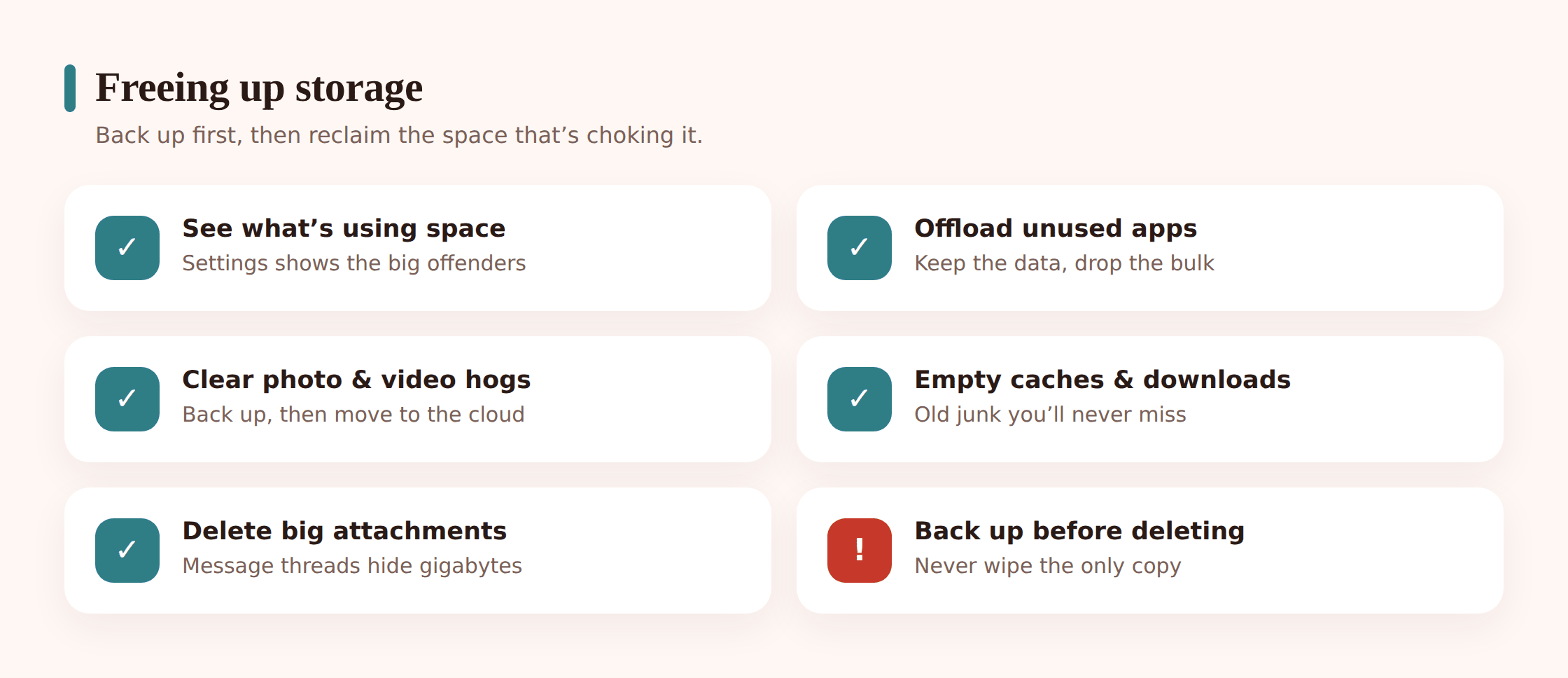
See what’s using space
The storage screen ranks what’s eating your space. Usually it’s Photos, then a couple of big apps (social media, games, streaming apps that download content). Start with the biggest.
Offload or delete unused apps
On iPhone, tap an app in iPhone Storage and choose Offload App — it removes the app but keeps your data, so reinstalling picks up where you left off. Or use “Offload Unused Apps” to automate it. On Android, uninstall apps you haven’t opened in months. You can always reinstall later.
Clear the photo and video hogs
Video is enormous. Back up your library to the cloud or a computer, then remove the local copies you don’t need on the phone. Empty the “Recently Deleted” album afterward — deleted photos sit there for 30 days and still take space.
Empty caches and downloads
On Android, Settings > Apps lets you clear an individual app’s cache — handy for browsers, maps, and social apps that hoard temporary files. On iPhone there’s no system-wide cache button; offloading an app is the equivalent. Also clear your Downloads folder, which quietly fills with PDFs, images, and installers.
Delete old messages with big attachments
Group chats full of photos and videos add up to gigabytes. On iPhone, set Messages to keep conversations for 1 year instead of forever (Settings > Messages > Keep Messages), and review the largest attachments in iPhone Storage. On Android, clear media in your messaging app’s storage settings.
Battery, heat, and performance
A worn battery is one of the sneakiest causes of slowdown, because nothing on screen tells you it’s happening. The phone throttles its own processor to avoid crashing when the battery can’t keep up.
Check battery health (iPhone)
Settings > Battery > Battery Health & Charging shows Maximum Capacity. Below roughly 80%, the battery is worn, and you may see performance management kick in. A battery replacement is far cheaper than a new phone and often makes an “old, slow” iPhone feel new again.
Check battery on Android
Android is less consistent about surfacing health, but if your phone drains fast, gets warm, or shuts down at 20%, the battery is likely tired. Some phones (Samsung Device care, for example) show a battery status. A service center can test and replace it.
Watch battery-saver trade-offs
Low Power Mode and battery savers deliberately slow the processor and cut background activity to stretch charge. That’s fine when you’re low, but if you leave it on all day, your phone feels sluggish by design. Turn it off when you’re near a charger.
Keep it cool
Heat throttles performance hard. If the phone gets hot — direct sun, a demanding game, charging under a pillow — it slows itself to protect the components. Take the case off while charging, keep it out of the sun, and give it a minute to cool if it’s been working hard.
Software and settings
A few settings changes give older phones real breathing room, and one honest caveat about updates.
- Keep it updated — with one asterisk. Updates fix slow bugs and security holes, so install them. The asterisk: a major OS jump on an older phone can feel slower for a day or two while it re-indexes files and rebuilds caches in the background. Give it 48 hours before you judge it. If it’s still slow after that, work back through the storage and battery steps.
- Reduce motion and animations. On iPhone, Settings > Accessibility > Motion > Reduce Motion trims the zoom animations. On Android, turn on Developer Options and set the three animation scales to 0.5x or off. The phone isn’t actually faster, but it feels much snappier because it stops waiting on animations.
- Turn off unnecessary background refresh. Covered above, but worth repeating: most apps don’t need to update in the background. Leave it on for messaging and email; turn it off for games and shopping apps.
- Simplify your home screen. Drop the live wallpaper for a still image, and cut widgets down to the ones you actually read. Both redraw constantly and cost performance you’ll notice on older hardware.
The reset ladder (last resorts)
If the quick wins and storage cleanup didn’t do it, climb this ladder one rung at a time. Each step is more drastic than the last, so don’t jump to the bottom.
Rung 1: Restart (again)
Yes, again. If it’s been days of troubleshooting, a fresh restart clears whatever’s built up. Costs nothing.
Rung 2: Reset settings
This resets system settings to default without touching your photos, apps, or messages. On iPhone: Settings > General > Transfer or Reset iPhone > Reset > Reset All Settings. On Android, look for “Reset settings” (wording varies). You’ll re-enter Wi-Fi passwords, but your data stays put. This clears out a bad setting or corrupted preference that’s dragging things down.
Rung 3: Factory reset
The nuclear option. This wipes the phone completely and reinstalls a clean copy of the OS, which almost always restores like-new speed. Back up everything first — this erases all your data. It’s worth doing when the phone is slow across the board, you’ve tried everything else, and you can set aside an hour to restore afterward. When you set it up again, consider a clean start rather than restoring every old app, so the junk doesn’t come back with it.
When it’s just old hardware
Sometimes the honest answer is that the phone has reached its limit. No amount of clearing cache fixes a device that’s four or five OS generations behind. Here’s how to tell.
- It won’t hold new updates. When the manufacturer stops shipping OS updates for your model, you’re stuck with old software and no more performance fixes.
- The battery’s gone and replacement isn’t worth it. If health is well under 80% and a replacement costs a big fraction of the phone’s value, the math tips toward upgrading.
- Too little RAM for today’s apps. Phones with 2–3GB of RAM struggle with modern apps that expect more. You’ll see constant app reloading — switch away and back, and the app restarts from scratch.
- It’s slow even after a factory reset. A clean wipe is the ultimate test. If a freshly reset phone is still sluggish, the hardware is the ceiling.
If you land here, it’s not a failure of maintenance — it’s just the end of a device’s useful life. When you do upgrade, moving your data across is easier than it used to be; our transfer guide covers getting everything onto the new one without losing anything.
One honest note before you replace anything: some slowdown on old hardware is simply unavoidable. What you can control is how much you load onto it. A lean setup — fewer background apps, lightweight apps over heavy ones, animations trimmed — keeps an aging phone usable far longer. When you install new apps, favor the ones that stay light. FreePhoneSpy, for what it’s worth, is built to run quietly in the background without bogging a phone down, which is the kind of restraint any app on an older phone should show.
A quick tune-up checklist
Run through this once a month and your phone stays quick with almost no effort.
- Restart the phone.
- Check storage — aim to keep at least 10% free.
- Install pending OS and app updates.
- Back up photos and clear the local hogs.
- Empty Downloads and the Recently Deleted album.
- Turn off background refresh for apps that don’t need it.
- Clear your browser cache and close stray tabs.
- Check battery health once in a while — replace it if it’s worn.
- Reduce motion and drop live wallpapers on older phones.
FAQ
Does closing all my apps make the phone faster?
Not really. Both iPhone and Android manage memory automatically and keep recent apps paused, not running. Force-closing them constantly can even slow things down, because the app has to fully reload next time. Limiting background refresh helps; obsessive swipe-closing doesn’t.
Will a factory reset speed up an old phone?
Usually yes, at least for a while. A clean wipe removes years of accumulated junk and gives you fresh software. But back up first, and know that if the hardware is genuinely old, a reset restores speed temporarily rather than permanently.
Is it the battery or the phone that’s slow?
Check battery health. On iPhone it’s right in Settings > Battery. If capacity is low or the phone shuts down early and runs warm, replace the battery first — it’s cheap and often fixes the slowdown entirely. If a fresh battery and a factory reset both leave it slow, then it’s the phone.
Do more expensive phones stay fast longer?
Generally, yes. More RAM and longer update support mean a device keeps up with new apps for more years. But even a budget phone stays quick if you keep storage free, install updates, and don’t overload it with background apps.
My phone slowed down right after an update. Did the update do it?
Give it two days. A big OS update re-indexes files and rebuilds caches in the background, which feels slow at first, then settles. If it’s still sluggish after 48 hours, work back through storage and battery — the update usually isn’t the real culprit.
Can slow performance mean something’s wrong, like malware?
On iPhone it’s very rare. On Android, a sudden slowdown with pop-ups, unfamiliar apps, or fast battery drain can point to a bad app — uninstall anything you don’t recognize. If you’re worried about a device you manage or think it’s lost, our guides on finding a lost phone and blocking apps and sites may help.