A Family Digital Safety Check-Up (Device by Device)
Settings drift. Kids grow. New apps show up, old ones get forgotten, and every few months there’s another breach in the news. A quick check-up puts it all back in order. Twenty minutes twice a year — do it together, at the kitchen table, not as a raid on someone’s phone.
Why a periodic check-up
You set things up carefully when the first phone arrived. Then life happened. An app asked for a permission and someone tapped “Allow” without reading it. A game got installed for a school trip and never removed. A password got reused because it was easier. None of it is a crisis. All of it adds up.
A check-up isn’t about catching anyone out. It’s maintenance, like checking the smoke alarms or the tyre pressure. You sit down together, you go through a list, you fix the small stuff before it becomes big stuff. Kids get to see how the decisions are made, and they get a say — which is exactly how you raise someone who can look after their own privacy one day.
Twice a year is plenty for most families. Tie it to something you’ll remember — the start of a school term, New Year, a birthday. Twenty minutes on a Sunday afternoon keeps the whole household tidy.
Device by device: every phone and tablet
Go one device at a time. Every phone, every tablet, the old handset that got handed down, the one kept “for games.” Put them all on the table. Work through the same list for each, and tick as you go.
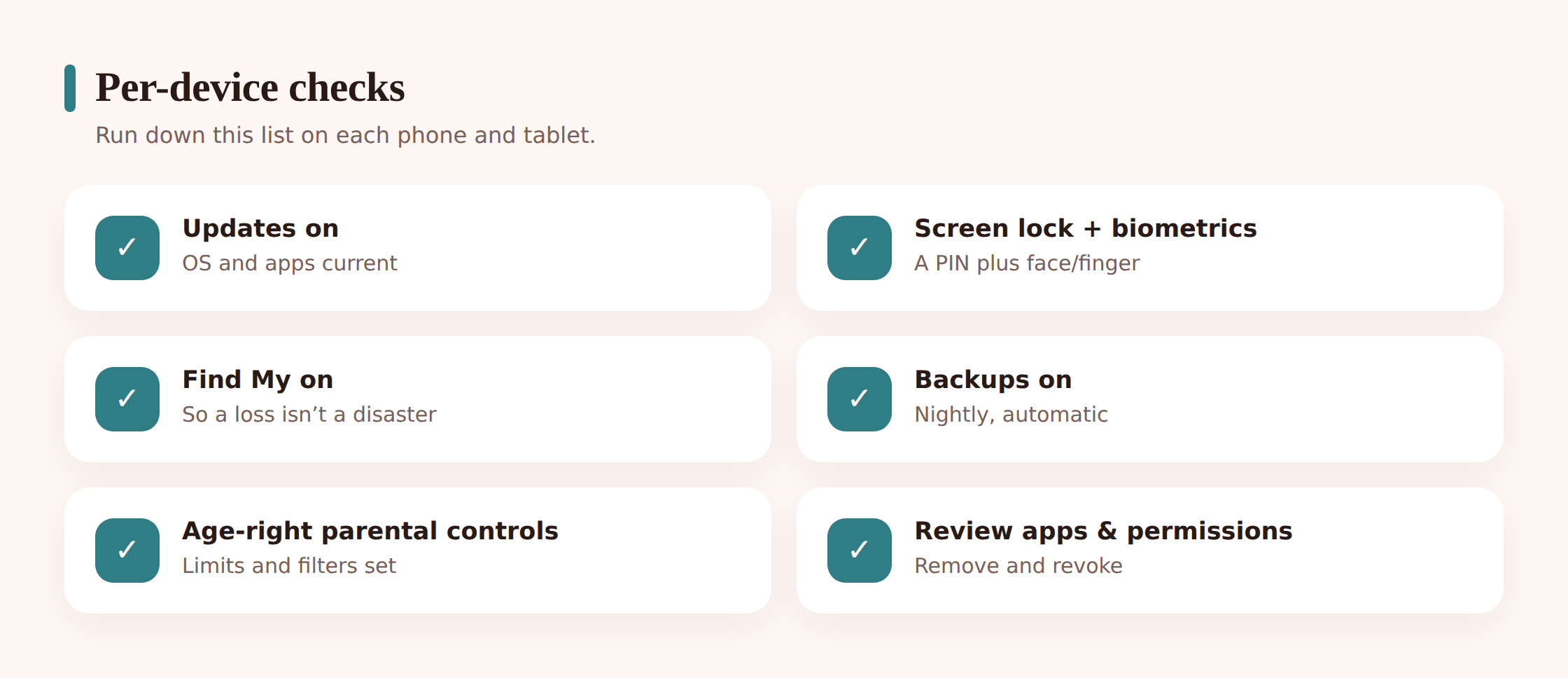
- Operating system updated. Open settings and install any pending OS update. Most security fixes ride in with these.
- Apps updated. Turn on automatic app updates so you’re not doing this by hand every time.
- Screen lock on, with biometrics. A real PIN or passcode plus a fingerprint or face unlock. No swipe-to-open, no “1234.”
- Find My Device / Find My on. So a lost phone can be located, locked, or wiped. Check it’s actually enabled, not just installed.
- Automatic backups on. Photos and data backing up so a lost phone isn’t a lost year. If you’re not sure how, our backup guide walks through it for both platforms.
- Parental controls set to the right age. Google Family Link on Android, Apple Screen Time on iPhone/iPad. Bump the content ratings as kids get older — a setting from age nine doesn’t fit a thirteen-year-old.
- Screen-time limits and downtime. Daily budgets and a bedtime cut-off. Check they still match reality — homework load and bedtimes change.
- Content/web filter and SafeSearch. SafeSearch locked on, a web filter appropriate to their age. More on this in blocking sites and apps.
- Review installed apps. Scroll the whole app list. Delete anything unused or unsuitable. Ask your kid what each unfamiliar one does — you’ll both learn something.
- Check app permissions. Look at what has access to location, microphone, camera, contacts. Revoke anything that doesn’t need it. A photo-editing app rarely needs your contacts.
- In-app purchases locked. Require a password or approval for every purchase and download. This closes the surprise-bill door.
- A safe browser. Make sure the default browser is one you’ve set filtering on, not a random one an app installed.
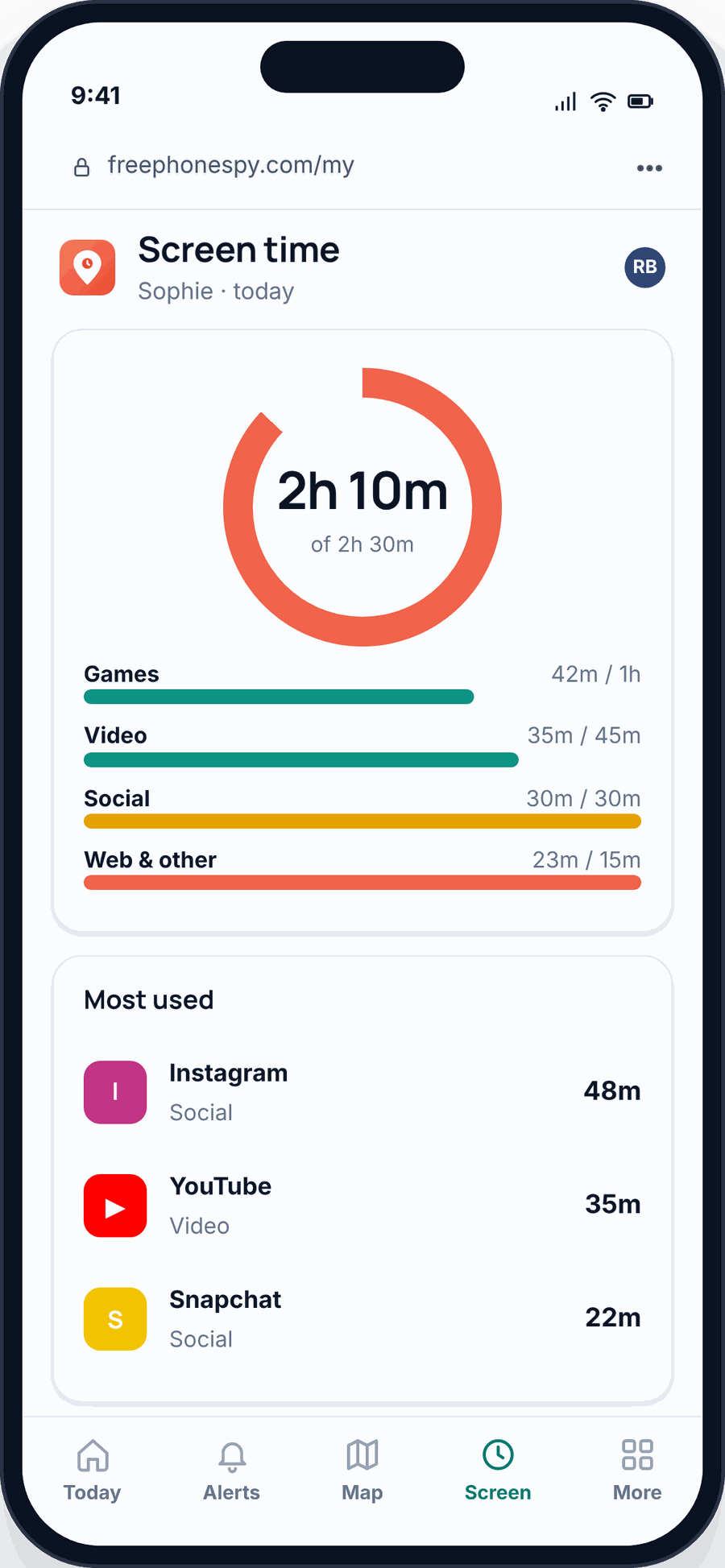
Here’s the honest part. Most of these live in tools you already own — Family Link, Apple Screen Time, your router’s settings. They’re good, and they’re free. What they aren’t is unified: limits in one place, the filter in another, routines somewhere else, and a different screen for each child.
That’s the gap FreePhoneSpy fills on Android. It puts screen-time budgets, app limits and blocking, the web and content filter, and routines like bedtime and homework into one web panel, per child. You set a rule once and see it applied, instead of hopping between apps. On iPhone and iPad, Apple’s built-in tools remain the right home for this — we point you there rather than pretend otherwise.
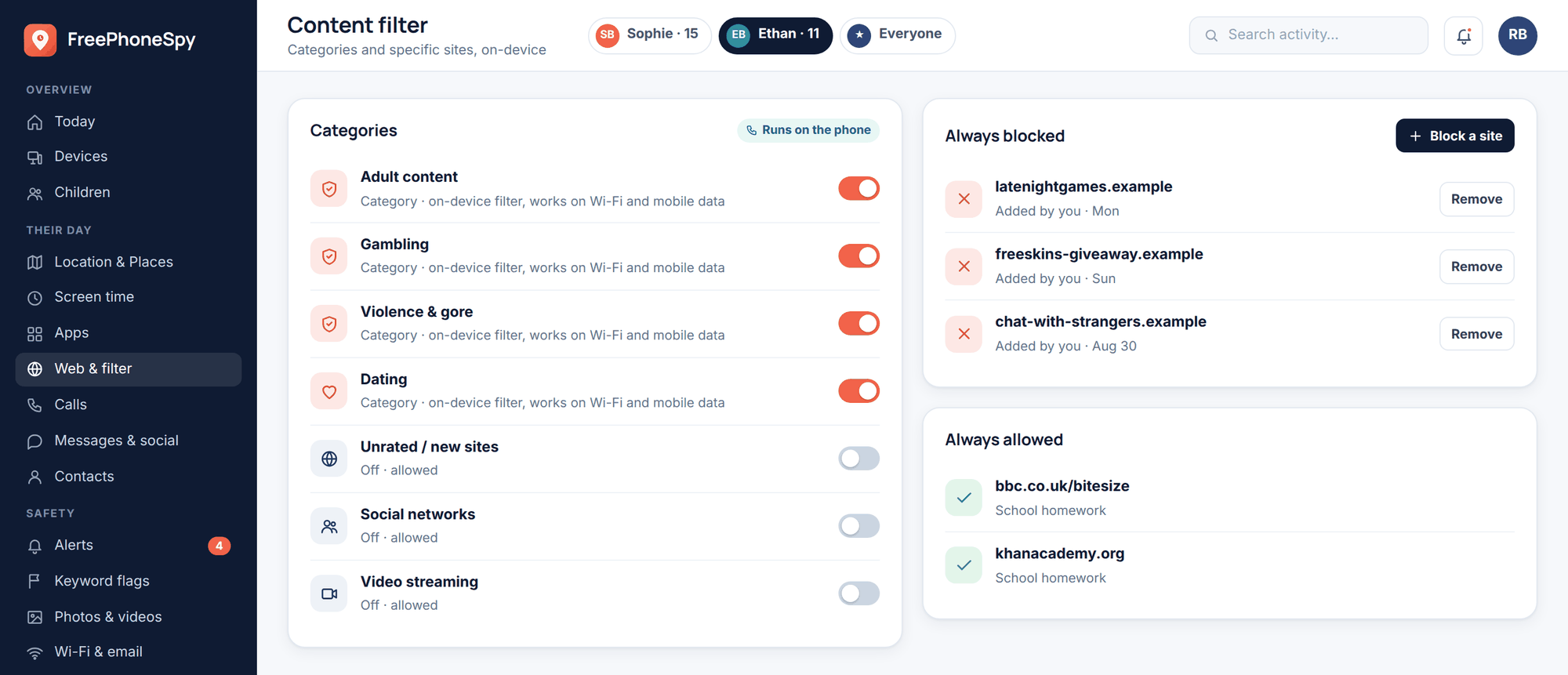
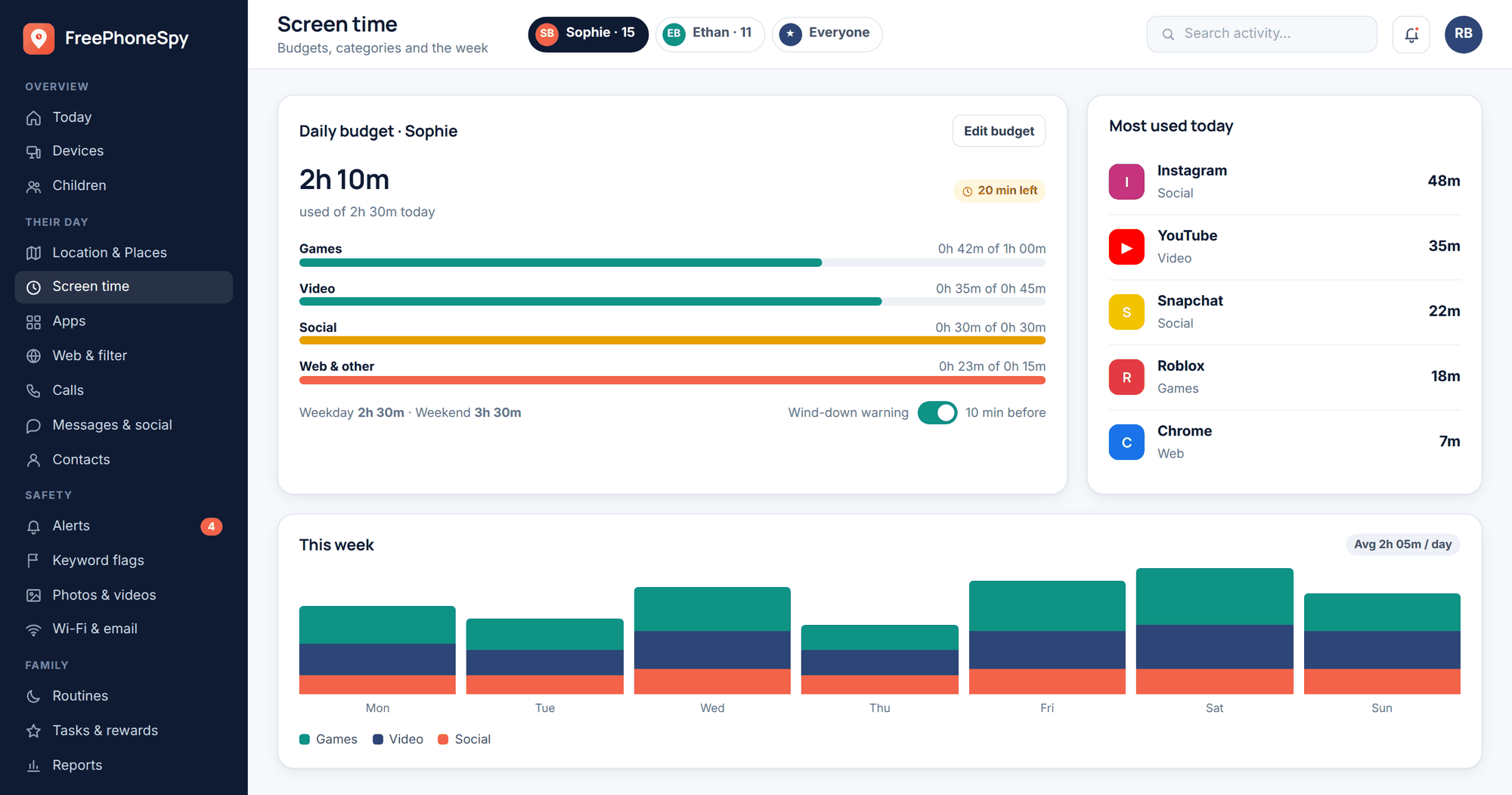
For the full picture of which tool does what on each platform, keep our parental controls guide for Android and iPhone open in another tab as you go.
Accounts & passwords
Devices are only half of it. The accounts behind them — email, app store, socials — are where the real damage happens if something slips. This part matters for the adults in the house as much as the kids.
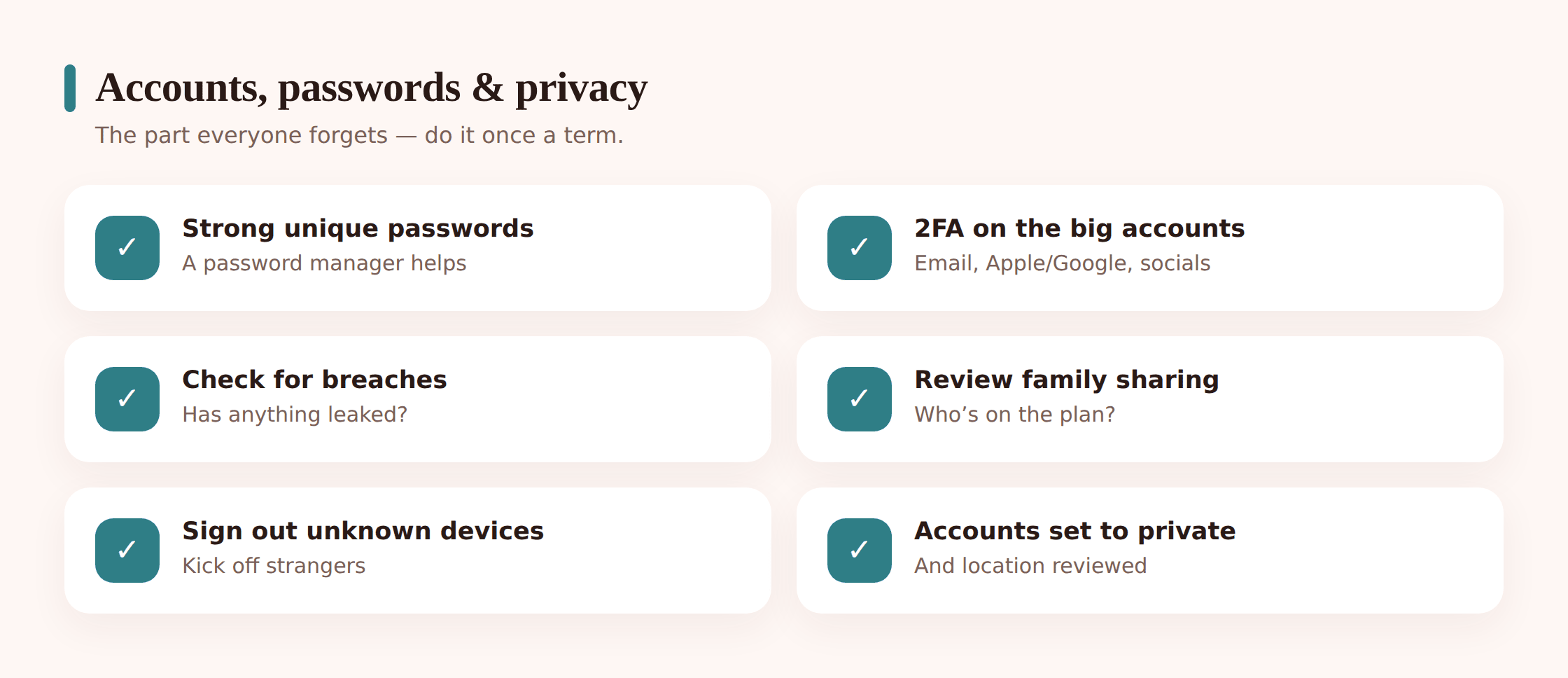
- Strong, unique passwords. Different one for every account. If a password is reused, one leak unlocks several doors.
- Use a password manager. Nobody remembers thirty good passwords. Let software do it. Set one up for the whole family and let the kids have their own vault.
- Two-factor on the important accounts. Email first, then Apple/Google, then socials and any banking. Email is the master key — protect it hardest.
- Check for breaches. Run the family email addresses through a “have I been pwned”-style checker. If an account shows up, change that password today.
- Review who’s on family sharing. Open your Google or Apple family group and confirm every member still belongs there. Remove anyone who’s moved on.
- Sign out unknown devices. Each account has a “where you’re signed in” list. Kick off anything you don’t recognise.
- Recovery info up to date. Correct recovery phone and email on every important account, so a locked account can actually be recovered by you.
Privacy settings
Now the quieter stuff — what the world can see, and who’s tracking whom. This is where a check-up pays off most, because privacy defaults tend to loosen over time, not tighten.
- Accounts set to private. Social profiles private by default, especially for younger kids. Public should be a deliberate choice, not the starting point.
- Location sharing reviewed. Look at who can see each person’s location. Trim it to people you actually intend to share with.
- Precise vs approximate location. Most apps work fine with approximate. Save precise for maps and the ones that truly need it.
- Ad tracking off. Turn off the advertising identifier / “allow apps to track.” Less profiling, less data floating around.
- Personal info out of bios. No school name, home area, phone number, or full birth date in public profiles.
- Check what’s public. Search your kid’s name and username the way a stranger would. It’s a good, sobering habit.
If the idea of a digital footprint is new to your kids, our piece on your child’s privacy and digital footprint is a gentle way in — worth reading together.
Social apps & the apps they actually use
Blanket settings only go so far. The apps your kids live in each have their own controls, and they’re often better than the phone-level ones. Go into the two or three they use most and set them up properly.
- Turn on the family/supervision tools. Most big platforms now have a family center or supervision mode. Link it to your account so limits and insights are shared, openly.
- Control who can reach them. Set who can DM, comment, and send friend or follow requests. “Friends only” or “people you follow” beats “everyone.”
- Review the blocked and reported list. Ask how the block and report buttons work, and check they know where they are. Confidence to block is a real skill.
- Confirm the age setting. The birth date on the account should be correct. Age-appropriate limits hang off it.
Location & the safety net
Location isn’t about tracking someone’s every step. It’s a safety net for the moments that matter — getting home from school, arriving at practice, a change of plans. Set it up so it’s calm and useful, not noisy.
- Save the key Places. Home, school, a grandparent’s, the usual after-school spots.
- Set arrive/leave alerts sensibly. A gentle “arrived at school” or “left home” is reassuring. Alerts on every corner shop are just noise — trim them.
- Agree a “home safe” plan. A simple habit: a quick message or an automatic arrival alert when they’re back. Everyone knows the plan, so nobody panics.
- Keep the door open. The most important part isn’t the map. It’s that your kid knows they can come to you if something goes wrong, without the phone being confiscated as punishment. Say it out loud.
On Android, FreePhoneSpy handles the Places and arrive/leave alerts in the same panel as everything else, and keyword alerts and the alerts feed give you a light, non-intrusive heads-up rather than a live feed to stare at. If you want to set this part up well, our guide to geofencing and location alerts covers the how and the how-much.
The conversation part
A check-up is a good excuse to revisit the deal. Kids grow fast, and rules that fit last year can feel like a cage this year. Loosening a limit because someone’s earned it is one of the best moments you get as a parent — don’t skip it.
- Revisit the family phone agreement. Read it together. Does it still fit? If you don’t have one, this is the moment to write one. Start with our family phone agreement template.
- Adjust rules for their age. More freedom where they’ve shown they can handle it. Fewer restrictions, more trust — with the reasons said plainly.
- Celebrate what’s going well. Point out the good calls they’ve made. A kid who feels trusted is far more likely to come to you when it counts.
- Be honest about monitoring. Everyone should know what’s on and why. Nothing hidden. If your kids are curious whether their own phone is watched, our how to tell if a phone is being monitored explainer is a fair, open read.
Make it a routine
The whole thing works because it’s regular, not perfect. Put it in the calendar so it actually happens.
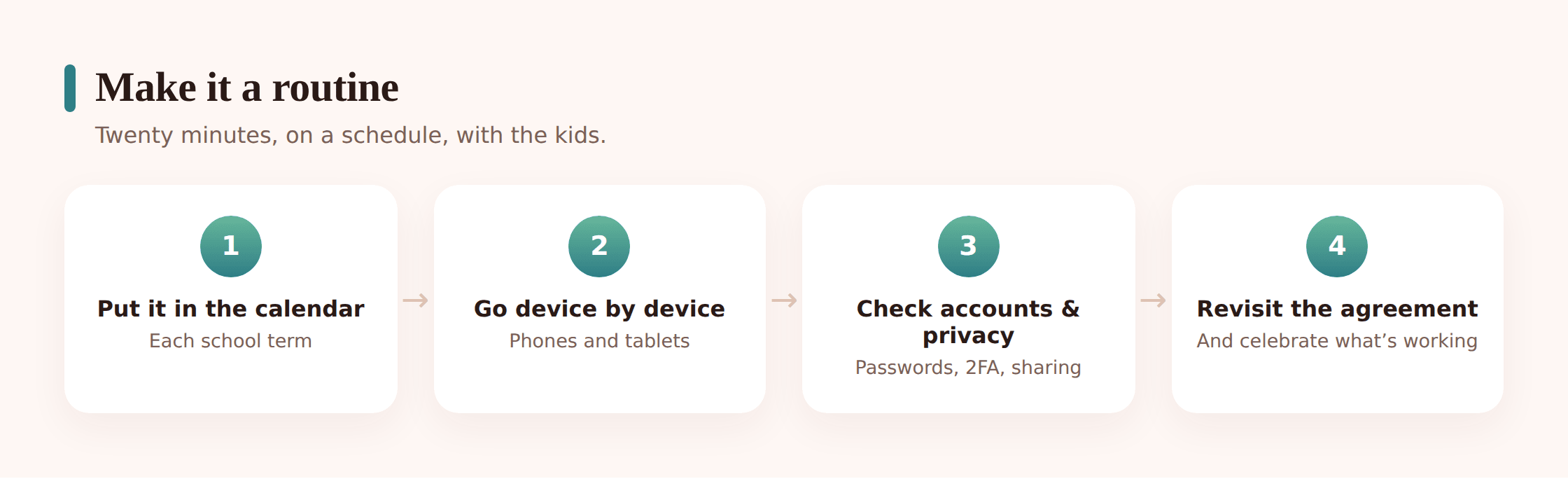
Pick your dates
Two a year is the sweet spot. Start of a school term and New Year works well. Add a device’s “birthday” if you like — the day it arrived is an easy anchor.
Run the 20-minute version
Updates, screen locks, a scan of installed apps, screen-time and filter still sensible, location alerts still right. Quick pass, everyone in the room.
Once a year, go deeper
The full list: every account’s passwords and 2FA, a breach check, family-sharing members, privacy settings top to bottom, and a proper re-read of the family agreement.
Keep a shared checklist
A shared note or a printout on the fridge. Tick boxes together. Next time, you start from what changed instead of from scratch.
If you’d rather not chase each device by hand every term, the point of the FreePhoneSpy panel is that the per-child limits, filter, and routines stay put between check-ups. You review them from one screen instead of unlocking six phones. It’s free to start, and kept free by tasks.
The master checklist
Here’s the whole thing in one place. Print it, or copy it into a shared note, and run it top to bottom.
- Devices — OS updated · apps auto-update on · screen lock + biometrics · Find My Device on · backups on · parental controls at the right age · screen-time limits + downtime · content filter + SafeSearch · installed apps reviewed · permissions checked · in-app purchases locked · safe browser set.
- Accounts — strong unique passwords · password manager in use · 2FA on email, Apple/Google, socials, banking · breach check run · family sharing members reviewed · unknown devices signed out · recovery info current.
- Privacy — profiles private · location sharing trimmed · precise location only where needed · ad tracking off · personal info out of bios · searched what’s public.
- Social apps — supervision/family tools on · DM/comment/friend controls set · block and report understood · age setting correct.
- Location — Places saved · arrive/leave alerts sensible · “home safe” plan agreed · door kept open for them to come to you.
- Conversation — family agreement re-read · rules adjusted for age · wins celebrated · monitoring open and honest.
- Routine — next two dates in the calendar · shared checklist saved.
FAQ
How often should we really do this?
Twice a year covers most families. Tie it to the school calendar or New Year so you don’t have to remember. If there’s a big change — a new phone, a new app everyone’s on, a breach in the news — do a quick pass then too.
My kid says this is snooping. What do I say?
Fair question, and the answer is that a check-up is done with them, not to them. They’re in the room, they see every setting, they get a vote on the rules. It’s the opposite of snooping. Covert monitoring of someone isn’t what any of this is for.
Do I need extra software for all this?
No. Most checks use tools you already have — Family Link, Apple Screen Time, your router, each app’s own settings. FreePhoneSpy is optional. On Android it adds a single per-child panel for limits, the filter, routines, and location alerts, so you set things once instead of across six phones. On iPhone, Apple’s built-in tools are the right home.
What’s the fastest high-value thing to fix?
Turn on two-factor authentication for every family email account, and set every social profile to private. Ten minutes, and it closes the two doors that cause the most trouble.
Does FreePhoneSpy work on iPhone?
The child app is for Android. On iPhone and iPad, you’ll use Apple’s Screen Time and Family Sharing, which do the same jobs well. Our screen-time guide and the parental controls guide cover both platforms.
Is it actually free?
It’s free to start, and kept free by completing tasks. You can run the whole Android check-up on the free tier.