How to Back Up Your Phone (Android & iPhone)
Your phone holds years of photos, every contact, and messages you’d hate to lose. It also gets dropped, stolen, dunked in a lake, or just dies one morning without warning. A backup is the two minutes of setup that turns “I lost everything” into “I got a new phone and restored it.” Here’s how to do it properly, on Android and iPhone, and how to make sure it’s actually working.
- Why a backup matters
- The 3-2-1 idea, in plain terms
- What actually needs backing up
- Back up an iPhone, step by step
- Back up Android, step by step
- iCloud vs Google One vs your computer
- Automatic beats “I’ll do it later”
- Check that it actually works
- When storage fills up and backups quietly stop
- One-time setup checklist
- FAQ
Why a backup matters
Think about what’s on your phone right now. Photos of people who aren’t around anymore. The text thread where someone said something you want to keep forever. Contacts you’ve collected over a decade. Two-factor codes that guard your bank and email. None of that lives anywhere else unless you’ve made it live somewhere else.
Phones fail in boring, ordinary ways. They slip out of a pocket. They get left in a taxi. A toddler flushes one. A software update goes sideways and the thing won’t boot. Water gets in. The battery swells and the screen goes black. Any of these can happen on a random Tuesday, and when it does, the hardware is replaceable in an afternoon. The data isn’t — not unless you copied it first.
The good news: modern phones back themselves up automatically once you flip the right switches. You set it up once, and from then on it runs in the background while you sleep. The disaster becomes an inconvenience. That’s the whole trade, and it’s a good one.
The 3-2-1 idea, in plain terms
People who protect data for a living follow a rule of thumb called 3-2-1. Stripped of the jargon, it’s simple: keep more than one copy, in more than one place.
The strict version is three copies of anything you care about, on two different kinds of storage, with one copy somewhere else entirely. You don’t need to be a purist about it. For a phone, “good enough” looks like this:
- The copy on your phone (that’s one).
- A cloud backup that runs on its own — iCloud or Google (that’s two, and it’s off-site).
- An occasional full copy onto a computer or a hard drive you own (that’s three, and it doesn’t depend on a subscription or an internet connection).
The mistake most people make is trusting a single copy. “It’s all in the cloud” feels safe until an account gets locked, a payment fails, or a sync quietly breaks and nobody notices for six months. “It’s all on my phone” is one drop away from gone. Spread the risk. Two places is dramatically better than one; three is better still.
What actually needs backing up
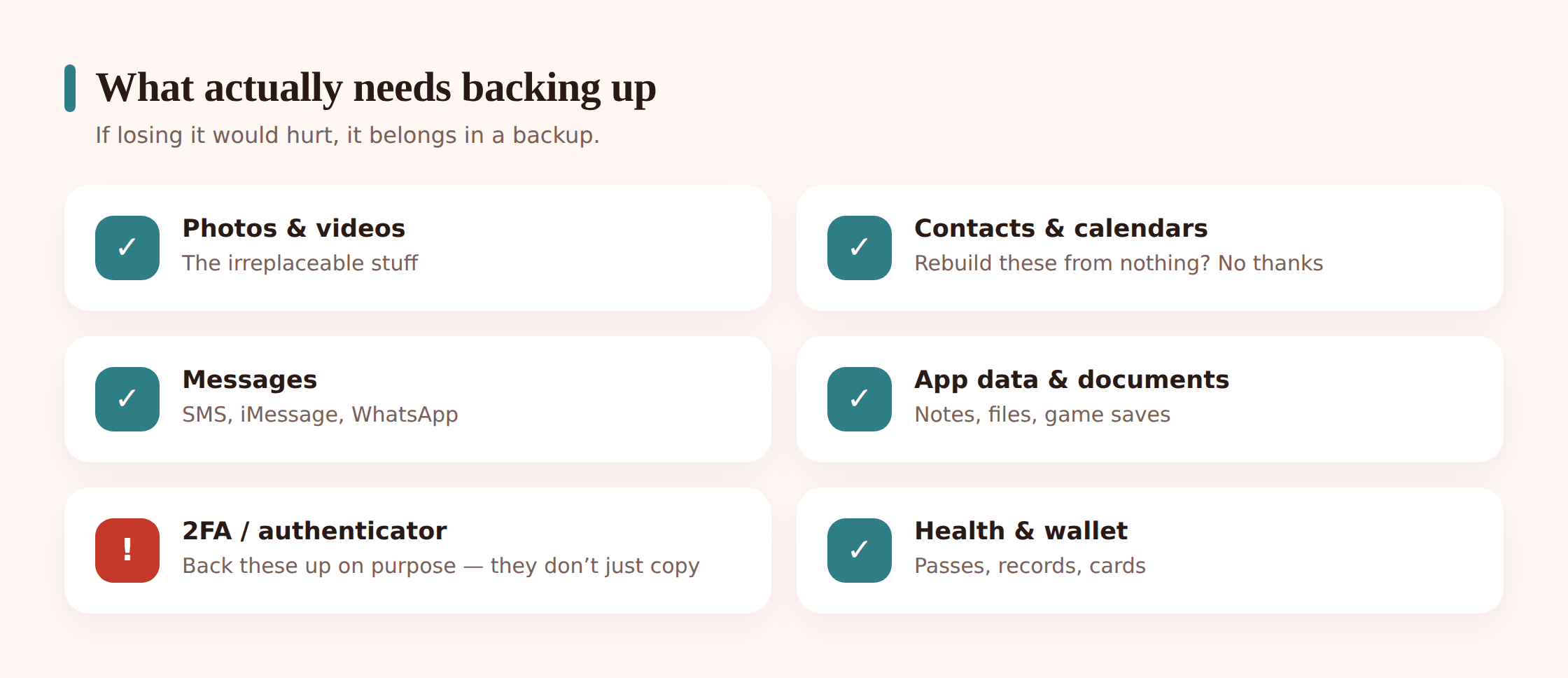
Not everything on your phone is worth the same. Apps you can reinstall in a tap. A stranger’s forwarded meme, who cares. But some things are irreplaceable, and it helps to know where each kind of data actually lives so you can confirm it’s covered.
Photos and videos
The single most-mourned loss. These get covered by iCloud Photos or Google Photos — but only if that specific sync is turned on. A device backup alone doesn’t always include your full photo library, so treat photos as their own thing to switch on.
Contacts
These sync to your Apple or Google account almost silently, which is why people rarely lose them anymore. Worth a glance to confirm they’re set to sync and not stored only “on my phone.”
Messages
SMS and RCS ride along in the Android or iPhone backup. iMessage syncs through iCloud. WhatsApp is its own island — it keeps a separate backup to Google Drive or iCloud that you have to turn on inside WhatsApp itself. If chats matter to you, don’t assume the phone backup grabbed them.
App data and documents
Notes, files, and many apps’ settings come back with a full device backup or live in Drive/iCloud Drive. Downloads and documents are worth keeping a copy of if they’re not already in a cloud folder.
Authenticator and 2FA codes
This is the one people get burned by. Two-factor apps often don’t travel in a normal backup for security reasons. If you switch phones without moving these deliberately, you can lock yourself out of your own accounts. Turn on your authenticator app’s own cloud sync, or save its recovery codes somewhere safe, before anything happens to the phone.
Health and wallet
Health data can be included in an encrypted backup (on iPhone, an encrypted computer backup or iCloud with the right setting). Payment cards in a wallet aren’t “backed up” so much as re-added on a new phone, so don’t panic about those — but do know they won’t restore like photos.
Back up an iPhone, step by step
Apple gives you two backup routes: iCloud (automatic, in the cloud) and a computer (a full local copy). Use both if you can. Here’s iCloud first.
Turn on iCloud Backup
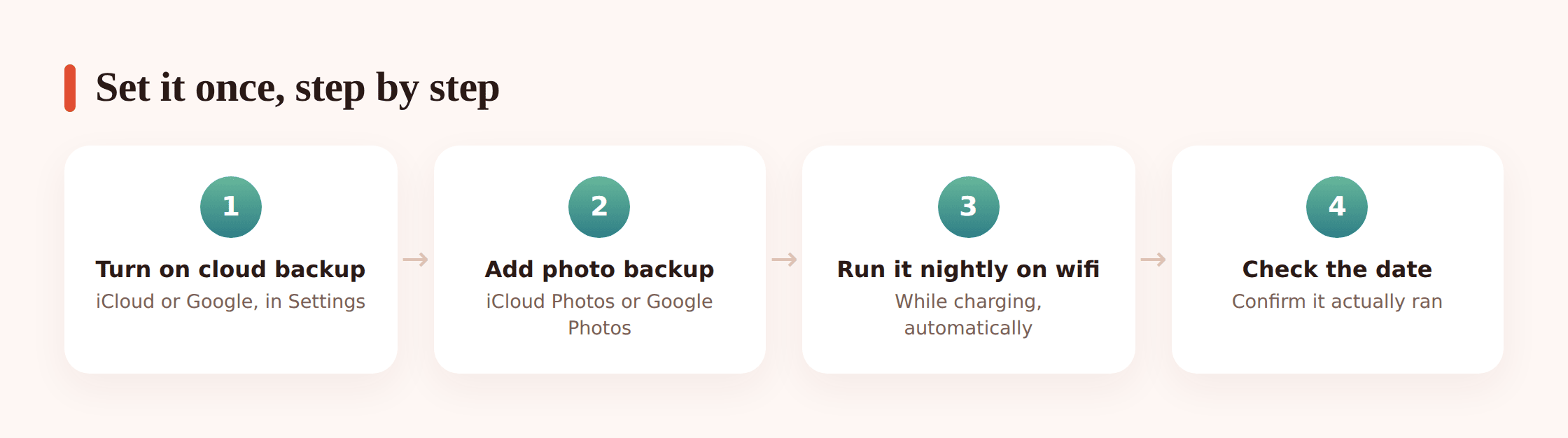
Open Settings, tap your name at the top, then iCloud > iCloud Backup. Switch Back Up This iPhone on. While you’re there, tap Back Up Now once to make the first copy. After that it runs on its own overnight when the phone’s charging and on wifi.
Turn on iCloud Photos
Back in Settings > your name > iCloud > Photos, turn on Sync this iPhone. This keeps your full library in iCloud instead of only on the device. It’s separate from the device backup, and it’s the part that actually protects your pictures.
Know what the free 5GB does and doesn’t cover
Apple gives every account 5GB free. That’s tiny — a modern photo library blows past it in weeks. Once it’s full, backups stall (more on that below). Most people either pay a couple of dollars a month for iCloud+ or lean on a computer backup to avoid the ceiling. Don’t assume free is enough; check your storage.
Make a full local copy on a computer
Plug the iPhone into a Mac and open Finder, or into a Windows PC and open the Apple Devices app (formerly iTunes). Select the phone, choose Back up all of the data to this computer, and tick Encrypt local backup — encryption is what lets it include passwords, health, and Wi-Fi. Click Back Up Now. This copy doesn’t touch the cloud or your storage plan, and it’s the fastest thing to restore from.
Check the last backup date
Go back to Settings > your name > iCloud > iCloud Backup and look at the time under the switch. If the last backup was weeks ago, something’s off — usually storage, wifi, or the phone not charging overnight. A backup that ran “last night” is doing its job.
Back up Android, step by step
Android backs up through your Google account, and most phones layer on the manufacturer’s own cloud too. Turn on the Google pieces first — they cover the most.
Turn on Google backup
Open Settings > Google > Backup (on some phones it’s Settings > System > Backup). Turn on Backup by Google One and tap Back up now. This captures apps and their data, call history, device settings, and SMS/RCS messages, and stores it in your Google account.
Turn on Google Photos backup
Open the Google Photos app, tap your profile picture, and check that Backup is on. Pick a quality setting and make sure it’s set to back up over wifi. Like on iPhone, this is separate from the device backup and it’s what actually saves your pictures and videos.
Use your manufacturer’s cloud too
Samsung phones have Samsung Cloud (in Settings > Accounts and backup), and other brands have equivalents. It’s a useful second copy that sometimes catches things Google’s backup skips, like certain app settings and your home-screen layout. Turning it on costs nothing and gives you redundancy.
Back up WhatsApp separately
WhatsApp keeps its own backup. Open WhatsApp, go to Settings > Chats > Chat backup, connect your Google account, and set it to back up to Google Drive daily. Skip this and a phone swap can wipe out your chat history even if everything else restored fine.
Make a copy on a computer
Plug the phone into a computer with a USB cable, unlock it, and choose File transfer when the prompt appears. Copy your DCIM (photos), Download, and any other folders you care about onto the computer or an external drive. It’s manual, but it’s a real off-cloud copy that no subscription can lock you out of.
Confirm it ran
Back in Settings > Google > Backup, check the “Last backed up” time for your device and for each category. In Google Photos, the profile menu will say “Backup complete” when it’s caught up. If it’s stuck on “Backing up” or “Waiting for wifi,” it hasn’t finished.
iCloud vs Google One vs your computer
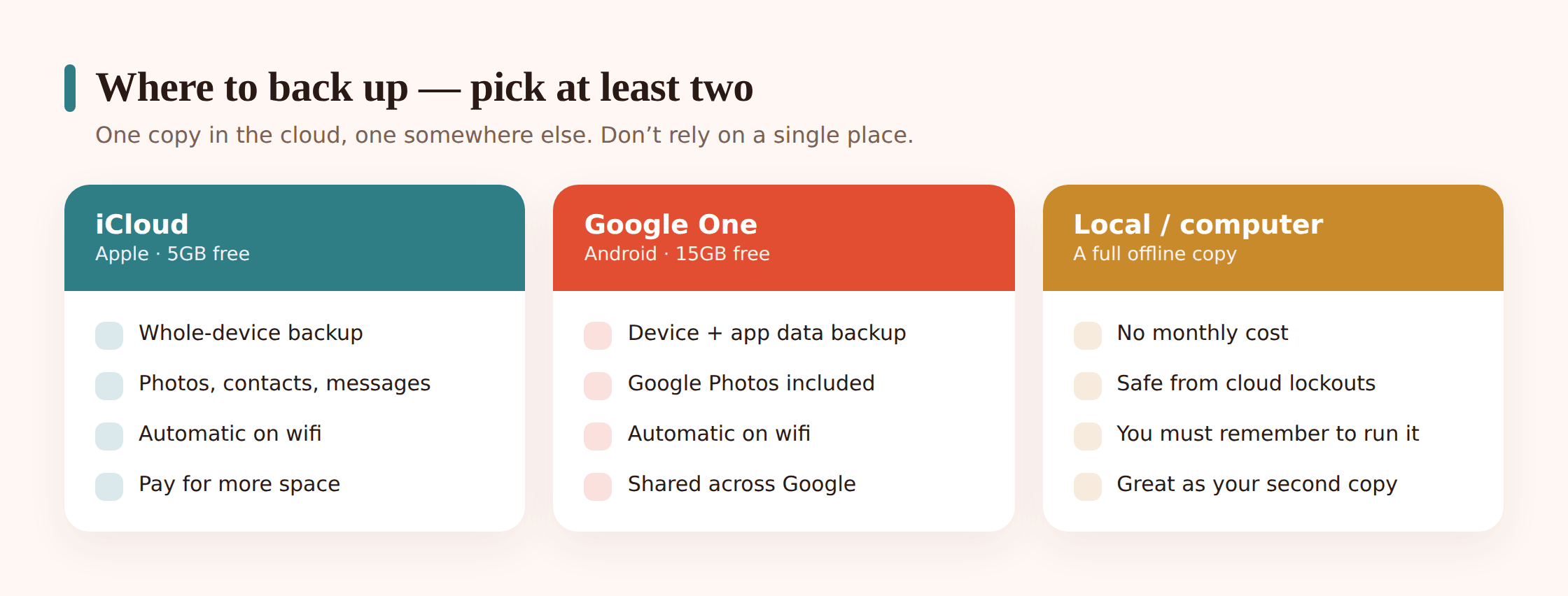
You don’t have to pick just one, and the strongest setup uses a cloud service plus an occasional local copy. Still, it helps to see the trade-offs side by side.
| iCloud (iPhone) | Google One (Android) | Local computer backup | |
|---|---|---|---|
| Cost | 5GB free, then a few dollars a month for more | 15GB free (shared with Gmail/Drive), then paid tiers | Free — you use space you already own |
| What’s covered | Device backup, photos, messages, most app data | Apps, settings, SMS, photos (via Google Photos) | A full snapshot, including data cloud backups may skip |
| Ease | Set once, fully automatic | Set once, fully automatic | Manual — you have to remember to plug in |
| Offline copy | No — lives in the cloud | No — lives in the cloud | Yes — works with no internet, no subscription |
| Best for | Hands-off protection for iPhone users | Hands-off protection for Android users | A safety net that survives account lockouts |
The pattern to aim for: let the cloud handle the daily automatic backup, and every month or two make a local copy onto a computer. That gets you off-site protection and an offline copy — which is exactly the 3-2-1 idea without any extra software.
Automatic beats “I’ll do it later”
Manual backups fail for one simple reason: people forget. You mean to plug in and copy things over, and then a month goes by, and then the phone is gone and the last copy is from before the trip you actually wanted the photos from.
Automatic backups don’t rely on your memory. Both iCloud and Google run overnight on their own, and the conditions are the same on both platforms: the phone needs to be charging, on wifi, and locked. So the trick is boring and effective — charge your phone overnight on wifi, which you probably already do. That’s the whole habit. The backup happens while you sleep.
Check that it actually works
A backup you’ve never tested is a hope, not a plan. Two quick checks tell you whether yours is real.
Look at the last-backup date
On iPhone: Settings > your name > iCloud > iCloud Backup. On Android: Settings > Google > Backup. The date should be recent — ideally last night. If it’s weeks old, fix the cause (usually storage or wifi) before you trust it.
Do a small test restore
You don’t need to wipe your phone to test a backup. Open your cloud photo library on a computer at icloud.com or photos.google.com and confirm your recent pictures are actually there and openable. If you can see and download a photo you took yesterday, the backup is doing what it should.
Spot-check the awkward stuff
Confirm WhatsApp’s own backup shows a recent date. Confirm your authenticator app’s codes are synced or its recovery codes are saved. These are the items a device backup often misses, so they’re the ones worth checking by hand.
When storage fills up and backups quietly stop
This is the number-one reason a backup you thought was running isn’t. The cloud fills up, and instead of shouting, the backup just… stops. Weeks later you notice the little “storage full” nudge you’d been ignoring, and by then there’s a gap in your history.
When your iCloud or Google account is full, you’ve got three moves:
- Free up space. Delete large videos you no longer need, clear out old device backups from phones you don’t use anymore, and empty the “Recently Deleted” folder, which still counts against your storage.
- Add storage. A paid tier is usually a couple of dollars a month, and it’s the cheapest insurance you’ll ever buy against losing your photos. For most people this is the right answer.
- Offload to a computer. Move older photos and videos onto a computer or external drive, then remove them from the phone. That frees cloud space and gives you an offline copy at the same time.
Whatever you choose, don’t leave the account sitting full. A full account is a backup that isn’t happening, and it fails silently — which is the worst way for a backup to fail.
If a phone was managed openly — say a child’s device you look after with their knowledge — some of its data might already be visible to you elsewhere. FreePhoneSpy is a transparent, consent-first tool for monitoring an Android phone you’re responsible for, and things like flagged photos or message headers can show up in its web panel. That’s not a backup, though, and it was never meant to be one. Everyone still needs to back up their own phone the normal way.
One-time setup checklist
Do these once and you’re covered. It takes about ten minutes.
- Turn on your cloud backup (iCloud Backup or Google One) and run it once manually.
- Turn on photo sync (iCloud Photos or Google Photos) — it’s separate from the device backup.
- Turn on WhatsApp’s own chat backup if you use WhatsApp.
- Sync or save your authenticator/2FA codes deliberately.
- Make one full local copy onto a computer, encrypted if the option’s there.
- Check your cloud storage isn’t full — free space or upgrade if it is.
- Confirm the last-backup date reads “today” or “yesterday.”
- Set a reminder to make a fresh computer copy every month or two.
FAQ
How often should my phone back up?
Every night, automatically. Both iCloud and Google will do this on their own as long as the phone charges overnight on wifi. You shouldn’t have to think about it once it’s set up.
Does a cloud backup mean I can delete photos off my phone?
Be careful. With iCloud Photos and Google Photos, deleting a photo on the phone usually deletes it from the cloud too, because they’re synced, not archived. If you want to clear space safely, move older photos to a computer or external drive first, then remove them from the phone.
Is the free storage enough?
Rarely. iCloud’s free 5GB and Google’s shared 15GB fill up fast once you’ve got a real photo library. Most people either pay for a small storage upgrade or keep a computer backup to sidestep the limit. Just don’t let a full account silently stop your backups.
What if I’m switching from iPhone to Android, or the other way?
Your backups are tied to the platform — an iCloud backup restores to an iPhone, a Google backup to Android. Moving between the two is a separate process. Our guide on moving to a new phone walks through it.
I already lost something — can a backup help now?
If the item was backed up before it vanished, yes. Check your cloud library and recently-deleted folders first. If you’re trying to get back specific things that are already gone, see recovering deleted photos and recovering deleted text messages.
My phone is missing right now. What do I do?
Use Find My iPhone or Google’s Find My Device to locate or lock it, and change the passwords for accounts it was signed into. Our guide on a lost or stolen phone covers the steps. Then, once you’ve replaced it, a backup is what gets your life back onto the new one.