Understanding Game & App Age Ratings (PEGI, ESRB & the App Store)
Every game and app your child touches carries a little badge somewhere — a “7”, an “E”, a “12+”. Most of us glance at the number, decide it’s roughly fine, and move on. That number is genuinely useful, but it’s answering a narrower question than parents assume. It tells you about the content in the box. It doesn’t promise the online chat is friendly, the ads are clean, or that a “4+” app won’t quietly ask for your card. Once you know what each rating actually measures — and what it leaves out — you can use it as a fast, reliable first filter instead of a false sense of safety.
What a rating is really telling you
An age rating is a content label, not a safety certificate. A board of people plays or reviews the game, notes what’s in it — violence, bad language, sexual content, gambling imagery, drug references — and works out the youngest age the material is broadly suitable for. That’s the whole job. The rating is a summary of what a child will see and hear, judged against community norms about what’s appropriate at a given age.
This matters because parents tend to read the number as a verdict on the entire experience. It isn’t. A game rated for young children can still connect them to a live text chat with strangers, run ads between levels, and sell loot boxes. The rating had nothing to say about any of that, because those things sit outside what it measures. Hold onto that distinction and everything else in this guide falls into place.
The main rating systems
There isn’t one global rating. Different regions run different boards, and the same game can carry a different number depending on where you buy it. Here are the ones you’ll actually meet.
PEGI — the UK and Europe
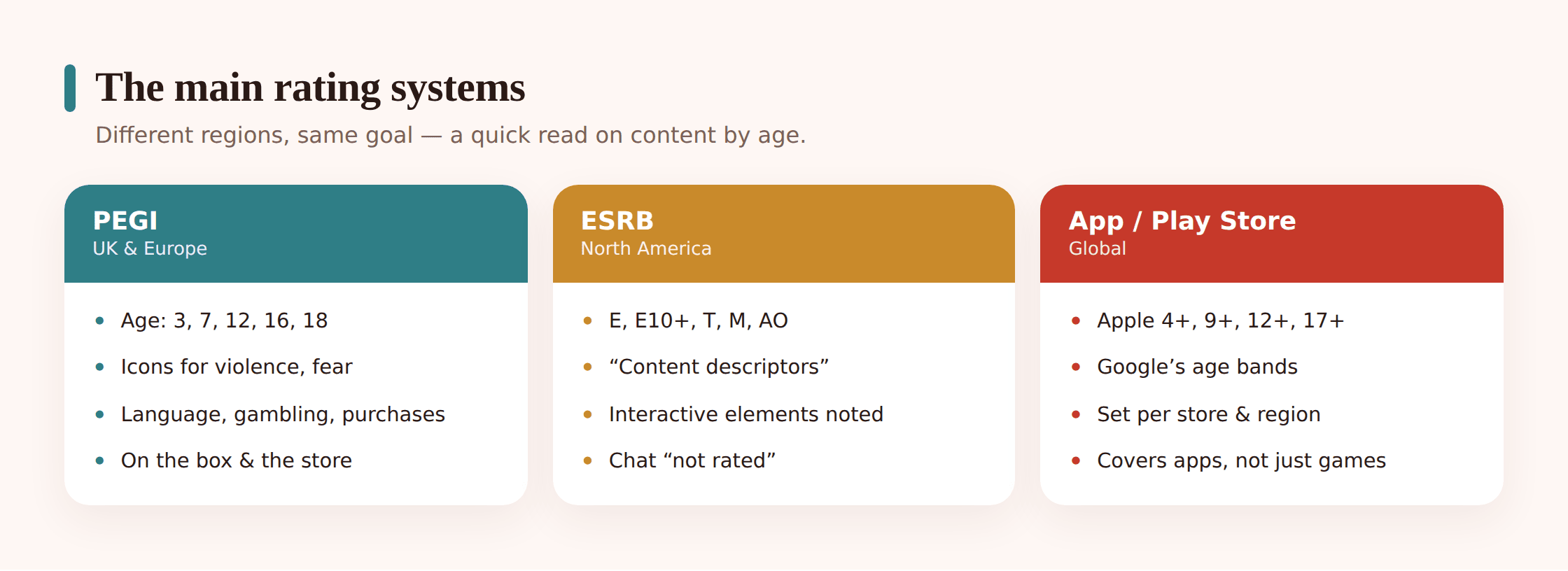
PEGI (Pan European Game Information) is what you’ll see on boxed games and store listings across the UK and most of Europe. It uses five age bands: 3, 7, 12, 16 and 18. The number is a minimum recommended age based on content, not a difficulty level — a PEGI 3 puzzle game isn’t “for toddlers”, it just contains nothing unsuitable for them.
What makes PEGI genuinely useful is the row of content descriptors printed alongside the age. Small pictograms flag exactly why a game earned its rating: a fist for violence, a speech bubble for bad language, a spider for fear, dice for gambling-style content, a hand-and-coin symbol for in-game purchases, and a globe or “online” mark where play involves other people. So PEGI 16 with a violence and language descriptor tells you something quite specific about what’s inside.
ESRB — North America
In the US and Canada, the ESRB (Entertainment Software Rating Board) uses letters instead of numbers:
- E — Everyone. Suitable for all ages. Minimal cartoon or mild violence at most.
- E10+ — Everyone 10 and up. A bit more cartoon violence, mild language or suggestive themes.
- T — Teen. Roughly 13+. Violence, some crude humour, minimal blood, occasional strong language.
- M — Mature. 17+. Intense violence, blood and gore, sexual content, strong language.
- AO — Adults Only. 18+. The rare top tier — prolonged intense content or real-money gambling.
Like PEGI, ESRB pairs the letter with content descriptors (spelled out in words — “Blood and Gore”, “Strong Language”, “Simulated Gambling”) and with Interactive Elements that flag things the content rating doesn’t cover: “Users Interact”, “In-Game Purchases”, “Shares Location”. Those interactive notes are the ones parents most often skip, and they’re the ones that describe the online and spending risks.
The App Store and Google Play
Phones and tablets use their own systems, which is where a lot of confusion starts. Apple’s App Store rates apps 4+, 9+, 12+ and 17+ — its own age bands, decided partly by a questionnaire the developer fills in about the app’s content. Google Play historically leans on a global body (the IARC) that maps to your local system, so an app in the UK Play Store may show a PEGI badge while the same app in the US shows an ESRB one.
The important quirk: an app’s store rating covers the app’s built-in content, but a 4+ or “Everyone” app can still contain user-to-user chat, third-party ads and in-app purchases. The store band is a floor, not a full picture — which is exactly the gap the limits section deals with.
In-game and streaming labels
Two more you’ll encounter. Storefronts like Roblox and some consoles add their own maturity labels inside the game or platform, on top of the official rating — Roblox’s experience labels are a good example, and worth understanding if that’s where your child spends time (our piece on whether Roblox is safe for kids goes into that). And when children watch gaming on YouTube or Twitch rather than playing it, those streams carry no game rating at all — a streamer playing a PEGI 7 game can swear freely, and a “Let’s Play” of an 18 title is one tap away. The rating travels with the game, not with the video of someone playing it.
| System | Region | What the labels mean |
|---|---|---|
| PEGI | UK & Europe | Ages 3 / 7 / 12 / 16 / 18, plus pictogram descriptors (violence, language, gambling, in-game purchases, online) |
| ESRB | US & Canada | E / E10+ / T / M / AO, plus written content descriptors and Interactive Elements (Users Interact, In-Game Purchases) |
| App Store | Global (Apple) | 4+ / 9+ / 12+ / 17+ age bands set from a developer questionnaire |
| Google Play | Global (IARC) | Maps to your local system — you may see PEGI, ESRB or other regional badges |
| In-game / platform | Varies | Extra maturity labels a platform adds (e.g. Roblox experience labels) on top of the official rating |
How to actually read a rating
Most parents stop at the number. The number is the least detailed part. Reading a rating properly takes about thirty seconds and means looking at two things together: the age, and the descriptors that explain it.
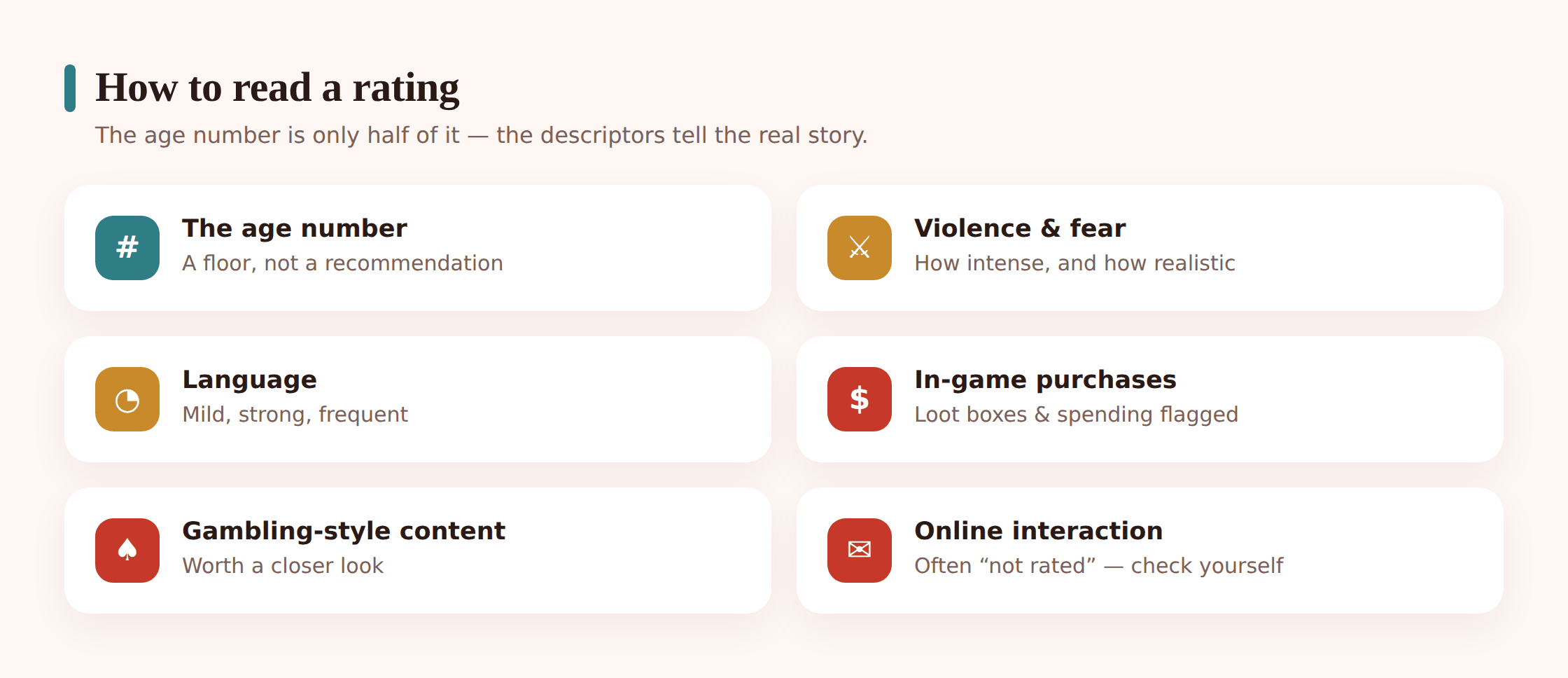
The age number or letter gives you the headline: how mature the content is. Start there, but don’t finish there.
The content descriptors are the detail, and they split into two kinds. First, what the child will see: violence, bad language, fear or horror, sexual references, drug references, discrimination. Two games can both be PEGI 12 for very different reasons — one for cartoonish combat, another for frequent strong language — and the descriptor tells you which. Second, and easy to miss, are the descriptors about how the game behaves: in-game purchases, gambling-style content (loot boxes, spin-to-win mechanics), and online interaction with other players. These are the ones that describe risk rather than taste.
Pay particular attention to two phrases. The in-game purchases / “In-Game Purchases” marker means real money can be spent inside a game your child is playing — sometimes with a single tap. And the wording “online interaction not rated by the ESRB” (or a PEGI online descriptor) is a flag, not a footnote: it’s the board telling you plainly that what other players say and do is outside the rating entirely. More on that below, because it’s the single most misunderstood line on any rating.
Using ratings to choose games
Used well, ratings save you enormous time. You can’t personally vet every game a nine-year-old wants, and you don’t need to. The rating gives you a fast, dependable first pass.
Set a sensible ceiling for your child’s age and treat anything above it as a “let’s talk first”, not an automatic no — a mature-rated game a fourteen-year-old’s friends all play is worth a real conversation rather than a flat block. Below the ceiling, glance at the descriptors: a PEGI 7 with only a mild-violence flag is an easy yes; a PEGI 7 that also carries an in-game-purchases marker means you’ll want spending switched off before they start. The number narrows the field; the descriptors tell you what to set up.
Consoles and app stores can enforce your ceiling automatically. Most platforms let you cap the maximum rating an account can download or launch, so a game above your limit simply won’t install without your say-so. That’s covered in detail in our guide to console parental controls — the rating you understand here is the setting you apply there.
The limits of a rating
This is the part that turns a rating from a comfort blanket into a genuinely useful tool. A rating is excellent at what it does and silent about a great deal. Knowing the gaps is what stops you trusting a badge more than it deserves.
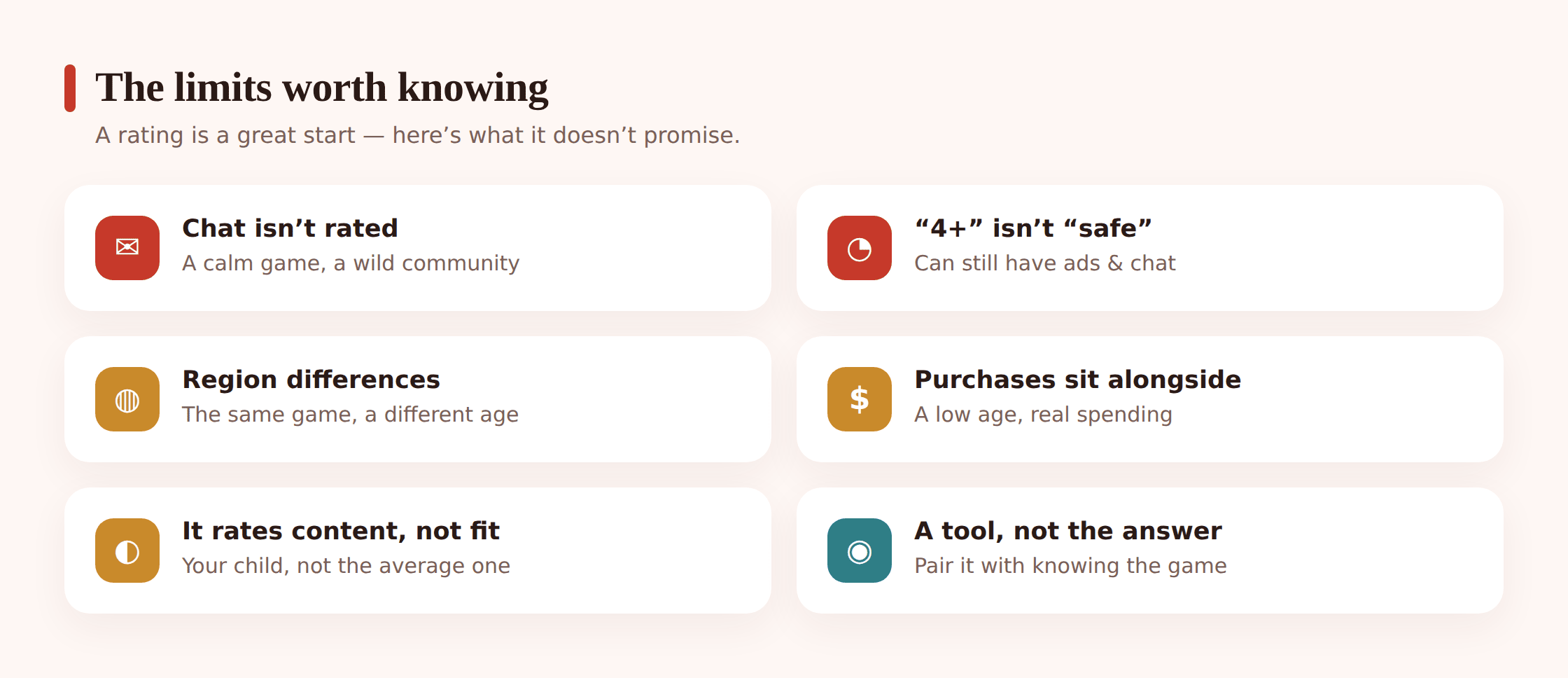
- A rating is about content, not community. It judges the game’s own material. It cannot judge whether the strangers your child meets in an online lobby are kind or predatory. “Online interaction not rated” means exactly that — the live chat is unrated territory, and it’s often where the real risk lives.
- A 4+ or “Everyone” app can still have chat, ads and purchases. A low age band tells you the app’s built-in content is clean. It says nothing about third-party ads, a messaging feature, or one-tap in-app purchases bolted on top. Plenty of “child-friendly” apps carry all three.
- Ratings vary by region. The same game can be PEGI 16 in the UK, T (Teen) in the US and something different again elsewhere. Boards weigh violence, language and sexual content against local norms, so don’t assume one region’s number transfers.
- The rating is a snapshot. Games change. A live-service game can add new modes, seasonal events, chat features or a shop long after it was rated. The badge reflects the game at review time, not necessarily the game your child opens tonight.
- It’s not a substitute for knowing the game. No label replaces watching a few minutes of play or sitting beside your child for a session. The rating tells you where to look; it doesn’t do the looking for you.
The purchase and spending angle deserves its own flag, because it catches so many families out. An “in-game purchases” descriptor on a game your young child plays is a prompt to lock down payments before there’s a problem — our guide to handling in-app purchases with kids walks through switching that off across phones and consoles.
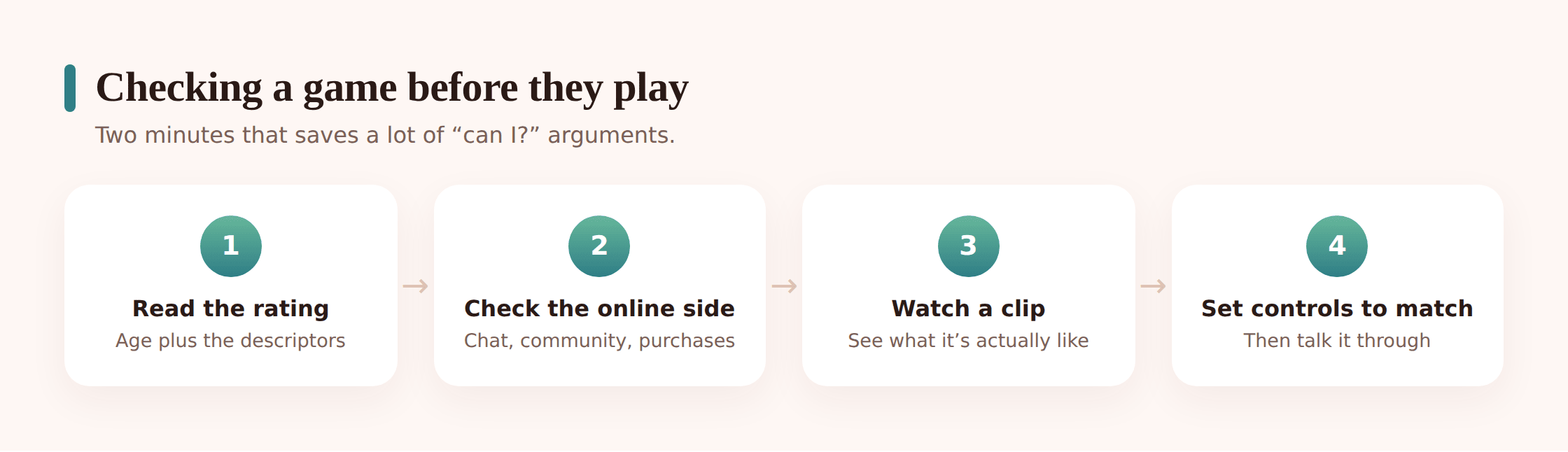
Checking a game before your child plays
Here’s a quick routine for vetting a new game or app. It takes a few minutes and covers the gaps the rating itself can’t.
Step 1 — Read the whole rating, not just the number
Look at the age band and the content descriptors. Note anything that flags violence or language you’re unsure about, and specifically look for the purchases, gambling and online-interaction markers.
Step 2 — Look it up on a parent-focused review site
Independent guides (Common Sense Media is a well-known one) describe what a game is actually like to play, with age guidance that often explains the “why” in plain language. This fills in the context a badge can’t.
Step 3 — Watch two minutes of real gameplay
Search the game’s name plus “gameplay” and watch a short clip. You’ll learn more about tone, chat and spending pressure in two minutes than any label conveys — just remember the video itself carries no rating.
Step 4 — Check for chat, ads and purchases
Does it have live voice or text chat? Does it show ads? Can it charge money? These three sit outside the content rating and are usually where the practical decisions are.
Step 5 — Set the controls before they start
If it’s a yes, apply your platform’s rating cap, restrict chat to friends, and switch off or password-protect purchases before handing it over — not after the first problem.
Where ratings fit alongside everything else
Think of an age rating as one instrument on a small dashboard, not the whole car. It’s the fastest, most reliable signal you have for “is this content roughly right for my child’s age”, and it points you straight at the things you need to set up. But it works because of what surrounds it: the conversation about why a limit exists, the platform controls that enforce your ceiling, and your own sense of what your particular child can handle.
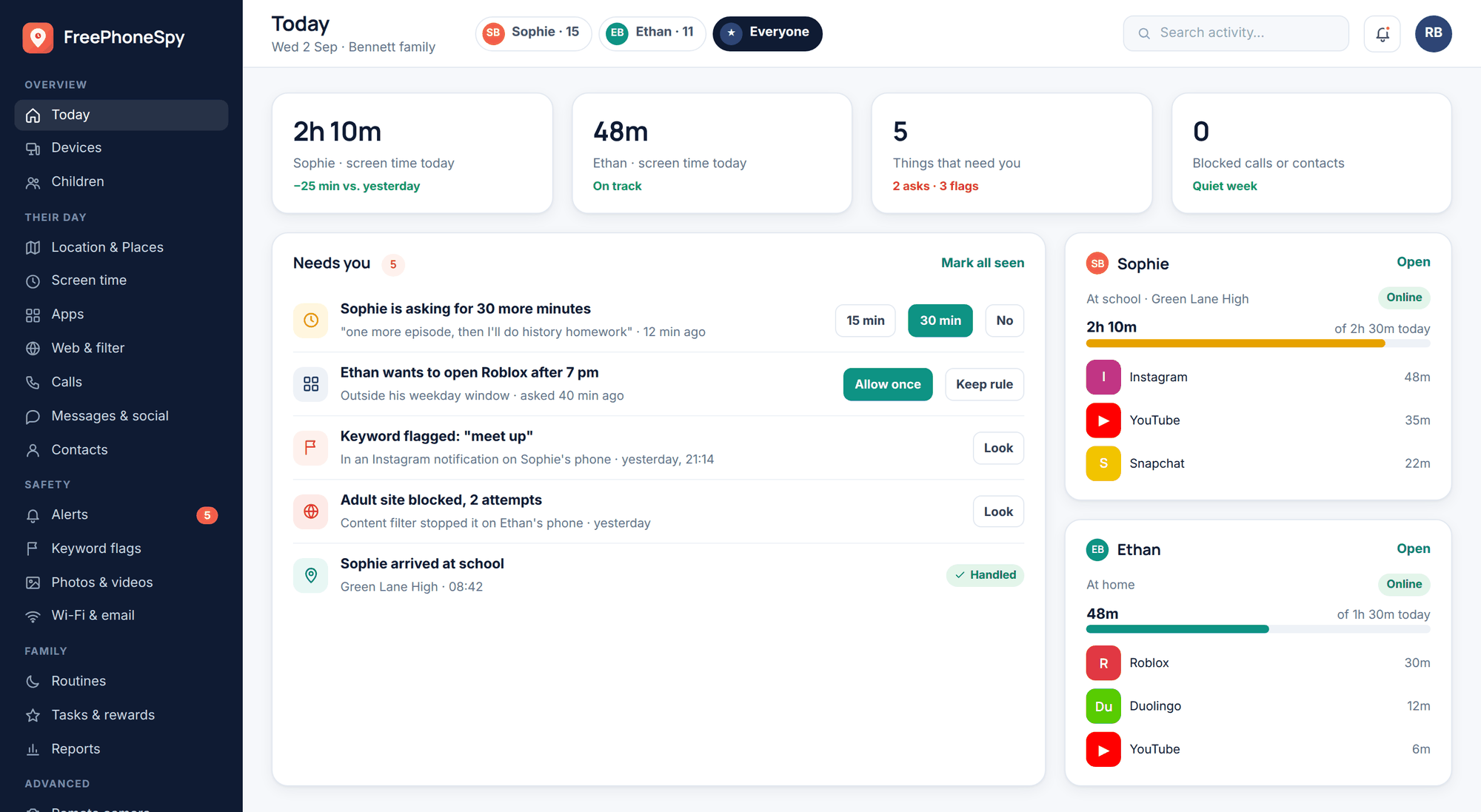
The controls do the enforcing — capping the maximum rating an account can install, restricting chat, blocking purchases. Our guide to online gaming safety covers those platform settings in depth. And when you want an open, agreed-upon view of what’s actually on a younger child’s Android phone — which apps are installed, so you can check each one’s rating and behaviour rather than assuming the store badge tells the whole story — a transparent tool like FreePhoneSpy, used with your child’s knowledge, can give you that picture without pretending to be a safety guarantee it isn’t.
The best outcome is a child who knows what the badges mean too. A twelve-year-old who can read “PEGI 16, strong violence, online play” and understand why that’s a conversation is far better protected than one who’s simply blocked. Ratings are a tool. The goal is a kid who eventually uses the tool themselves.
What does PEGI 12 actually mean?
It means the content is considered suitable for children aged 12 and over — typically because it contains violence in a fantasy or non-realistic setting, mild bad language, or some frightening content, but nothing that reaches the level of a 16 or 18. Check the descriptors printed alongside it: two PEGI 12 games can earn the same number for quite different reasons, and one may also flag online play or in-game purchases.
Is a 4+ app always safe?
No. A 4+ rating on the App Store means the app’s own built-in content is suitable for young children. It doesn’t guarantee the app is free of live chat, third-party ads, or in-app purchases — those can all be present in a 4+ app. Treat a low age band as “the content is clean”, then check separately for chat, ads and spending.
Why is the same game rated differently in the UK and the US?
Because different regions use different boards with different guidelines and cultural norms. PEGI (UK and Europe) and the ESRB (US and Canada) weigh violence, language and sexual content against their own standards, so a game might be PEGI 16 in Britain and Teen in America. Neither is “wrong” — they’re measuring against different yardsticks.
What does “online interaction not rated” mean?
It’s a notice that the rating board reviewed the game’s built-in content but could not and did not rate what other players say or do in online chat. Live interaction with strangers is unpredictable by nature, so it sits outside the rating entirely. Read it as a direct heads-up that the social side of the game needs its own safety settings and conversations.
Can I trust ratings to choose games for my child?
Trust them for what they’re good at — a fast, dependable read on whether the content suits your child’s age — and pair them with a quick check of the chat, ads and purchase features the rating doesn’t cover. Ratings are an excellent first filter, not a complete safety check on their own.
Do app stores rate games the same way as consoles?
Not exactly. The App Store uses its own 4+/9+/12+/17+ bands, Google Play generally shows your local system’s badge (often PEGI or ESRB), and consoles use PEGI or ESRB directly. The same game can therefore show slightly different labels depending on where you’re looking, which is another reason to read the descriptors rather than fixating on the number alone.