Setting Up Your Home Network for Family Safety (Router & Wi-Fi Controls)
Most family-safety advice starts with the phone. Install this app, flip that setting, repeat for the tablet, the laptop, the console. There’s another layer that sits underneath all of it and covers everything at once: the box in your hallway that hands out the internet. Set your router up well and you get a single control point for every device in the house — one that a kid can’t uninstall or tap “skip” on. It won’t do everything, and it isn’t a replacement for the conversations or the on-device tools. But as a foundation, ten minutes here does more than you’d expect.
Why the network is a useful layer
Think about how many things in your home connect to the internet. Two or three phones, a tablet, a laptop or two, a games console, maybe a smart TV, a couple of streaming sticks, and whatever gadgets have crept in — a speaker, a doorbell, a robot vacuum. Setting up controls on each of those, one at a time, is a lot of fiddly work, and you’ll miss some. The router sees all of them. Whatever rule you set there applies to the whole house.
Three things make this layer worth your time.
- It’s whole-home. One filter or one schedule can cover every device that joins your wifi, including the ones that don’t run parental-control apps — the TV, the console, the tablet a grandparent handed down.
- It’s hard to bypass from inside the house. On-device settings can be turned off by a determined kid who finds the toggle. Router settings live behind an admin password your child doesn’t have. Getting around them takes real effort, not a quick tap.
- It’s set-and-forget. Once it’s configured, it keeps working without you touching it. A new device that joins the network inherits the network’s rules automatically.
None of that makes the router a magic wall — we’ll get to what it can’t do. But as the base layer, under your device parental controls and your family agreements, it’s the piece that quietly covers the gaps.
What router parental controls can do
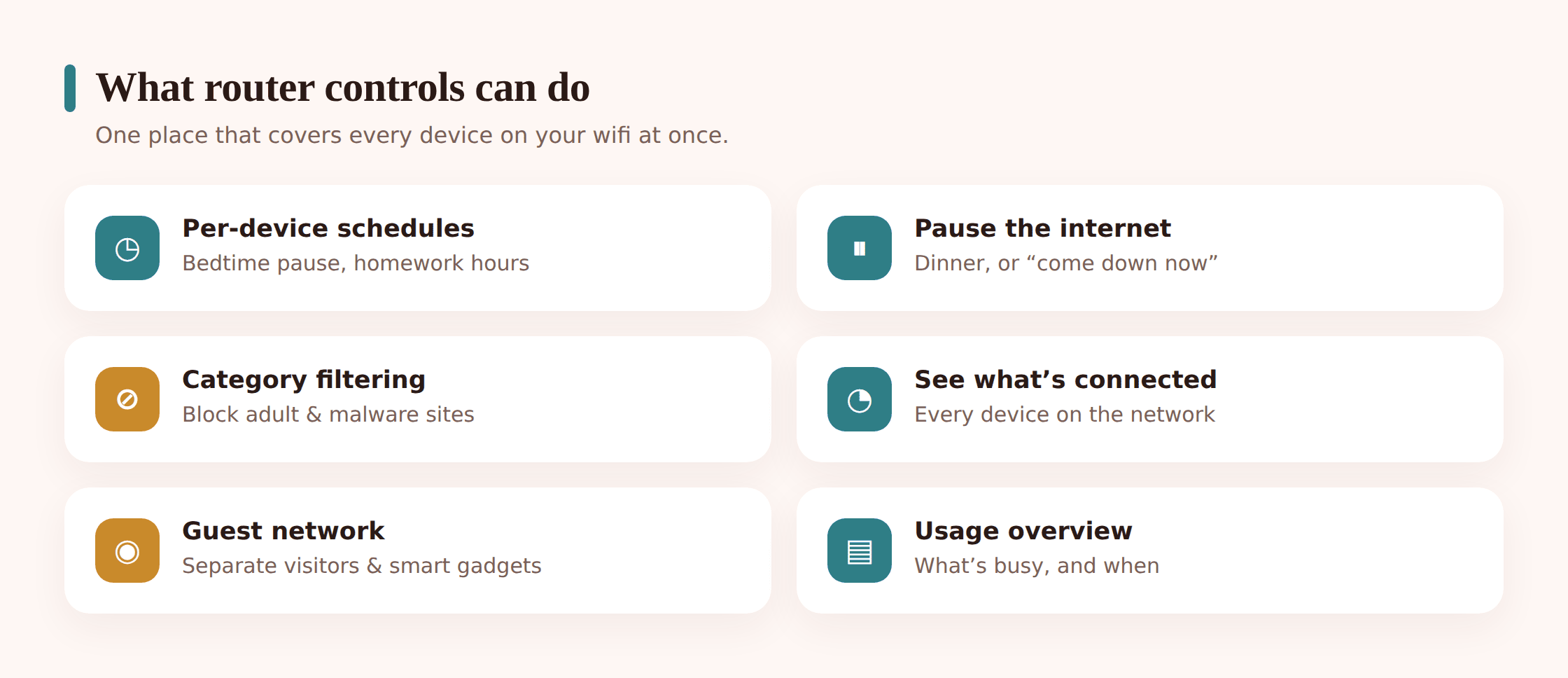
Newer routers — and the mesh systems a lot of homes now use — come with a companion app that turns network controls into something a non-technical parent can actually use. Older routers hide the same features inside a settings page you reach by typing an address into a browser. Either way, here’s the kind of thing you can expect to find.
Per-device profiles and schedules
You group a child’s devices under a named profile — “Sam’s stuff” — then set rules for that profile. The most-used one is a schedule: internet for Sam’s phone and tablet switches off at 9:30pm and comes back at 7am. Bedtime enforces itself, without you standing over anyone. Different kids can have different schedules by age.
A pause button
Most router apps have a big, satisfying “pause the internet” control, either for one profile or for the whole house. Dinner’s ready, so you pause the kids’ devices for an hour. It’s blunt and it’s honest — everyone knows the wifi went off on purpose, which beats pretending it “broke.”
Category filtering
Many routers can block whole categories of content for a profile — adult sites, gambling, sometimes violence or other buckets. It’s coarser than app-level filtering and it isn’t perfect, but it catches a lot at the front door for every device in the profile at once.
Seeing what’s connected
The app shows you a live list of every device on your network. This is genuinely useful. You spot the new device that just joined, notice the console that’s online at 2am, and get a rough sense of who’s using the most. If something you don’t recognise appears, that’s your cue to look into it.
Usage summaries
Some routers report how much time a profile spent online or which categories of sites got the most traffic. Treat these as a rough signal, not a precise ledger — they measure the network, not the child — but they can start a useful conversation.
Where to find it: look for a “Parental Controls,” “Family,” or “Profiles” section in your router’s app or settings page. If your router is more than a few years old and has none of this, that’s one honest reason to consider an upgrade — the family features on current routers are a real step up. It’s also exactly the layer that pairs with blocking specific websites and apps on the device itself.
DNS family filtering, explained
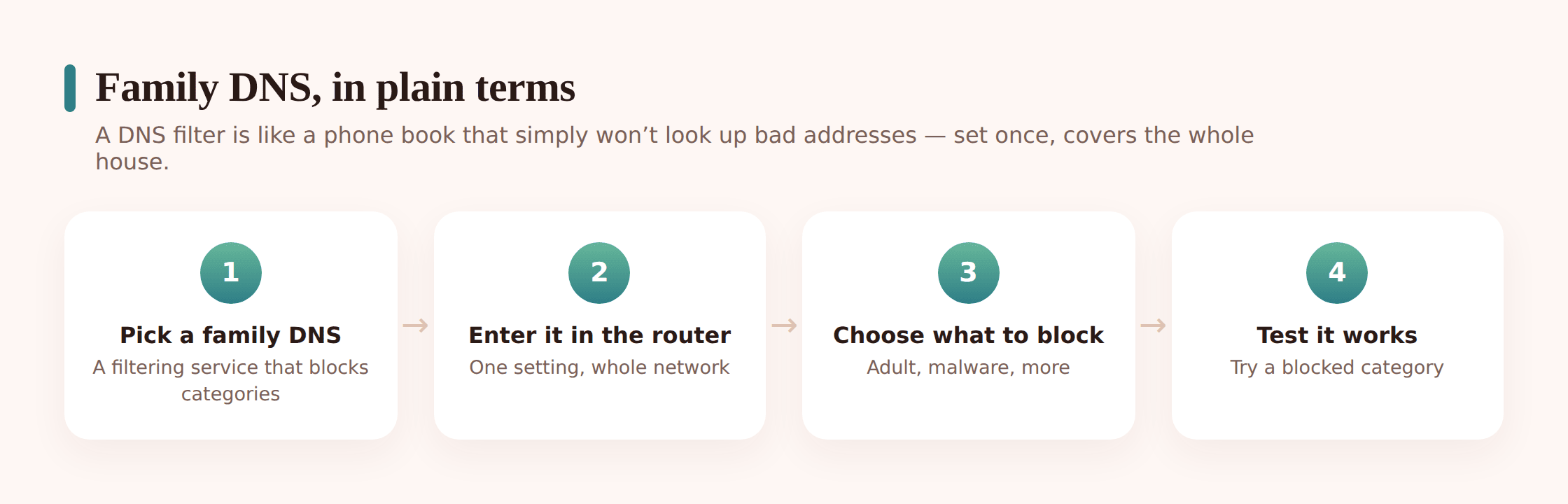
This one sounds technical and isn’t, so stick with me. Every time a device wants to visit a website, it first asks a “DNS server” to translate the human name — say, a site’s address — into the numeric address computers actually use. It’s a phone-book lookup, and it happens invisibly hundreds of times a day.
Normally your devices use whatever DNS server your internet provider hands them. But you can point your whole network at a different one instead. And some DNS services are built for families: when a device asks for the address of a site in a blocked category — adult content, known malware and scam sites, sometimes more — the family DNS simply refuses to answer, and the page never loads. These services exist, several of them are free, and because the filtering happens at the lookup stage, it covers every device on the network with no software to install on any of them.
Why parents like it
- It’s network-wide. Set it once on the router and every device — including the TV and the console that can’t run a filter app — gets the same protection.
- It blocks the worst stuff by default. The main draw is that it keeps adult and malicious sites from resolving at all, which is a solid safety floor for a house with young kids.
- It’s usually free and quick to set. The family-focused DNS services generally cost nothing for home use, and switching to one is a two-line change in your router settings.
How to set it
You have two places you can do this, and the router is the better one.
On the router (recommended)
Log into your router’s settings, find the DNS fields — often under “Internet,” “WAN,” or “DHCP” settings — and replace the automatic addresses with the two addresses your chosen family DNS service publishes on its website. Save, and reconnect a device to test. Now the whole network is filtered. Because it’s set on the router, kids can’t undo it from their own devices.
On a single device (if the router won’t let you)
Some internet-provider routers lock the DNS fields. If yours does, you can set the family DNS on individual devices instead, in their network settings. It’s more work and easier for a savvy kid to change back, so use it as a fallback, not the plan.
A realistic expectation. DNS filtering blocks known bad addresses. It doesn’t scan the content of pages it does allow, and it can’t see inside apps that don’t rely on it. Pair it with your device-level controls rather than leaning on it alone — it’s a strong front gate, not the whole fence.
Guest networks and smart-home separation
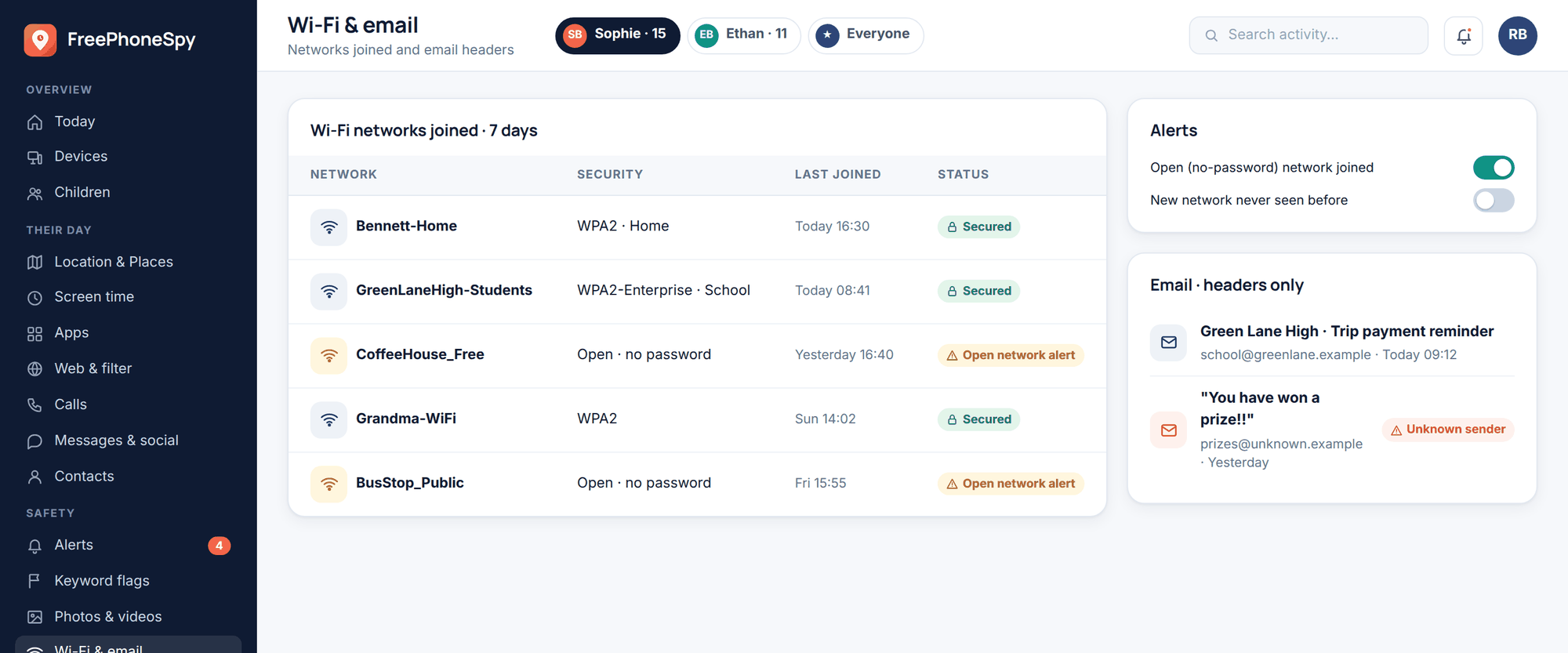
Almost every router can run a second, separate wifi network alongside your main one — usually called a “guest network.” It has its own name and password, and devices on it are walled off from the devices on your main network. This is one of the easiest wins in the whole setup, and it does two jobs.
Visitors go on it. When a friend or a babysitter needs wifi, you hand them the guest password instead of your real one. They get internet; they don’t get a door into the network where your computers and backups live. If that password ever leaks, you change the guest one and your main network is untouched.
Smart-home gadgets go on it too. The cheap smart plug, the video doorbell, the off-brand camera, the speaker — these devices are famous for weak security and forgotten updates. Putting them on the guest network keeps them away from your phones and laptops. If one of them turns out to have a flaw, it’s isolated. It’s the same instinct behind thinking carefully about smart-home cameras and privacy in the first place — the fewer trusted things a shaky gadget can reach, the better.
Setting it up is a matter of switching on “Guest Network” in your router app, giving it a name and a password, and moving your visitors and gadgets over. Ten minutes, and it stays done.
Securing the router itself
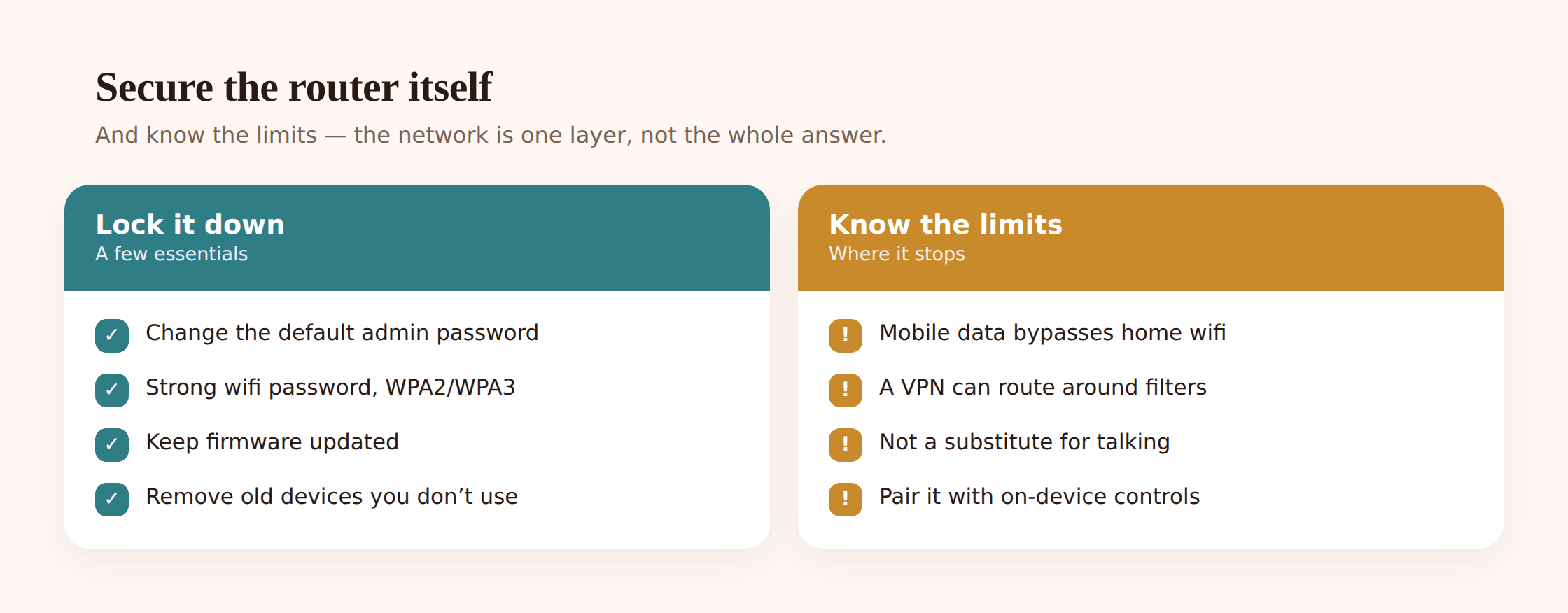
All the parental controls in the world don’t help if the router is the weak link. A router with factory-default settings is a soft target, and securing it is quick. Do these once.
Change the default admin password
Routers ship with a default admin login — often something like admin/admin or password — and those defaults are printed in manuals anyone can look up online. This is the account that controls all your settings, including the parental controls you just set. Change it to something long and unique. This is the single most important step here, and the one most households never do.
Use a strong wifi password
The password people type to join the network should be long and not guessable. A short or obvious one means a neighbour or a passer-by can get on, and once they’re on your network they’re inside your first line of defence. A long passphrase of a few unrelated words works well and is easy to share when you need to.
Set encryption to WPA2 or WPA3
In the wireless settings, make sure the security type is WPA3 if your router offers it, or WPA2 if not. These scramble the traffic between devices and the router. If you see an older option called WEP, don’t use it — it’s been broken for years. Avoid running a network with no password at all.
Keep the firmware updated
Routers get security updates just like phones do, and because you never look at the thing, it’s easy to run one that’s years out of date. Check for a firmware update now, and switch on automatic updates if the router supports them. Out-of-date router software is a common way homes get compromised.
Turn off WPS and remote admin
WPS is the push-button pairing feature — convenient, and a known weak spot, so switch it off. Also look for “remote management” or “remote admin” and make sure it’s off unless you truly need it; you don’t want the router’s control panel reachable from the open internet.
Give the network a neutral name
Don’t name your wifi after your family or your address. A network called something like your surname or flat number just tells anyone in range which household it belongs to. Pick something that gives nothing away.
Doing this out in the open. Network controls work best when the family knows they exist. “The wifi goes off at 9:30 so everyone actually sleeps” is a house rule you can say out loud, not a trap. Kids cope far better with a limit they understand than one that seems to appear from nowhere — and a limit you can explain is one they can help shape as they get older. The same honesty runs through the on-device side: FreePhoneSpy is built for transparent, consent-first monitoring on a child’s Android phone, where the child knows the phone is set up this way. The router covers the house; the on-device layer follows the phone out the door. Together, openly, they cover far more than either does alone.
Where the network layer stops
Be clear-eyed about this, because leaning on the router as if it were a complete solution is how families get caught out.
Mobile data walks straight past it
The big one. Your router only controls devices using your wifi. The moment a phone switches to its cellular data — 4G or 5G — none of your home rules apply. Pause the wifi at bedtime and a phone with a data plan just keeps going. This is why a router is a layer, not the whole answer, and why on-device controls that follow the phone onto any network still matter.
VPNs can tunnel through the filters
A VPN reroutes a device’s traffic through an encrypted tunnel, which can slip past DNS filtering and category blocks you set on the network. VPN apps are one tap away in every app store, and plenty of online guides walk kids through installing one specifically to get around home limits. We go deeper on this in public wifi and VPNs — the short version is that a VPN on a kid’s device can quietly undo your network filtering.
It doesn’t see inside apps or messages
The network can block a site from loading. It generally can’t tell what’s being said inside an encrypted messaging app or a game’s chat. Bullying, contact from strangers, and the like happen inside apps the router waves through. That’s a different problem with different tools.
It isn’t a conversation
No filter teaches judgement. The point of the technical layers is to buy time and cover the obvious stuff so the real work — talking about what your kid runs into online — has room to happen. Filters handle the floor; conversations handle the ceiling.
So the honest role of the router is this: a strong, whole-home base layer that handles a lot automatically, on top of which you still want device-level controls and ongoing conversations. It closes the easy gaps. It doesn’t close all of them.
A simple setup plan
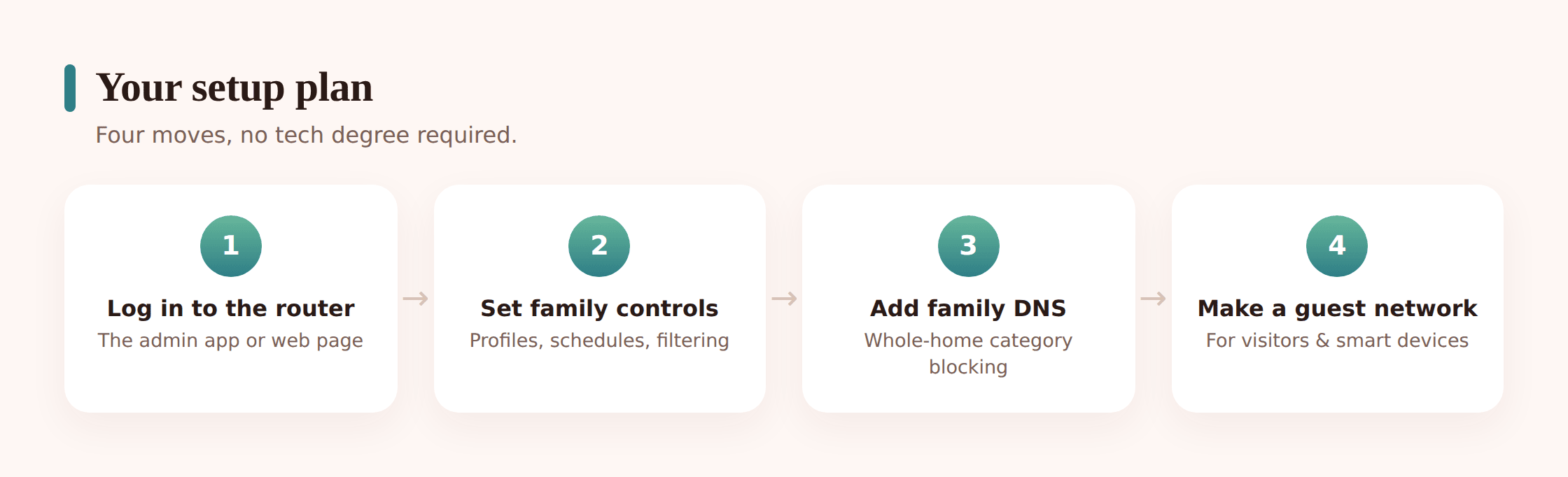
If you did nothing else, this half-hour would put you ahead of most households. Work through it in order.
Step 1 — Get into your router
Install your router’s app if it has one, or find the admin address printed on a sticker on the router and type it into a browser. Log in. If you’ve never changed the admin password, do it now, before anything else, and write the new one down somewhere safe.
Step 2 — Lock the basics down
Set encryption to WPA3 or WPA2, give the wifi a strong password, check for a firmware update and turn on automatic updates. Switch off WPS and remote management. Rename the network to something that doesn’t reveal your family or address.
Step 3 — Turn on family DNS filtering
Pick a family-focused DNS service, copy its two addresses into your router’s DNS fields, and save. Reconnect a device and confirm normal sites still load. Your whole network now blocks adult and malicious sites at the front door.
Step 4 — Set up a guest network
Switch on the guest network, name it, give it its own password, and move visitors and smart-home gadgets onto it. Keep your main network for the family’s phones and computers.
Step 5 — Build device profiles and schedules
In the router’s parental-control section, group each child’s devices into a profile and set a bedtime schedule and any category filters you want. Give younger kids tighter rules than teens.
Step 6 — Cover what the network can’t
Add device-level controls that follow the phone onto mobile data — through Google Family Link, built-in device settings, or a transparent monitoring app your family has agreed to. Then have the conversation about why the limits exist.
Quick checklist
- Changed the router’s default admin password to something strong.
- Wifi set to WPA3 or WPA2 with a long, unique password — never WEP or open.
- Router firmware updated, with automatic updates on.
- WPS and remote management switched off.
- Network renamed to something that doesn’t reveal your household.
- Family DNS filtering set on the router, covering every device.
- Guest network running for visitors and smart-home gadgets.
- Per-child profiles with bedtime schedules and category filters.
- Device-level controls in place for mobile data and apps the network can’t see.
- An open conversation with the kids about why the limits exist.
FAQ
Can’t my kid just use mobile data to get around all this?
Yes, and that’s the honest limit of network controls. Your router only governs devices on your home wifi. A phone with a cellular data plan ignores every home rule the moment it switches to 4G or 5G. That’s exactly why the router is a base layer, not the whole solution — you still want controls on the phone itself that travel with it.
What’s a DNS filter, in plain terms?
Every time a device visits a website, it first looks up that site’s address through a service called DNS — like checking a phone book. A family DNS service refuses to look up sites in blocked categories, such as adult or scam sites, so those pages never load. Point your router at one and it protects every device on the network, with nothing to install.
Are family DNS services safe and free?
The well-known family-focused ones are generally free for home use and are run by established companies. Pick a reputable one, use the addresses published on its own site, and it simply filters lookups — it doesn’t cost you anything or slow things down noticeably. As with anything, stick to names you can verify rather than a random address from a forum.
Do I need a fancy new router for any of this?
Not for the security basics or DNS filtering — those work on almost any router. The nice per-device profiles, schedules and pause buttons are more common on newer routers and mesh systems. If yours is old and has none of the family features, that’s a fair reason to consider an upgrade, but it isn’t required to get the core protections in place.
Won’t blocking whole categories break normal browsing?
Occasionally a legitimate site gets caught in a category it shouldn’t be. Most router controls and DNS services let you add exceptions for a specific site, so if something the family needs is blocked, you allow it and move on. Start with the broad safety categories and adjust as real needs come up.
Is setting this up going behind my kid’s back?
It doesn’t have to be, and it works better when it isn’t. Household network rules — filtering, a wifi bedtime, a guest network for gadgets — are the kind of thing you can explain openly, the same way you’d explain any house rule. Kids handle limits they understand far better than ones that seem to appear by magic, and being upfront keeps the whole thing a conversation rather than a contest.