Public Wi-Fi, VPNs & Your Family’s Safety
Your kid connects to the café wifi to finish a video. You connect at the airport so you don’t burn through data. Most of the time, nothing bad happens. Public wifi has a scary reputation, and some of it is out of date. But “mostly fine” isn’t the same as “safe,” and there are a handful of habits worth teaching before your family taps “connect” on a network they don’t control.
The honest reality about public wifi
Years ago, the advice was blunt: use public wifi and someone could read everything you type. Passwords, messages, bank details, all of it. That warning made sense at the time, because a lot of websites sent your data in the open.
That changed. Most sites and apps now use HTTPS, which encrypts the connection between your phone and the website. You can see it as a little padlock in the address bar. When HTTPS is on, the person at the next table can’t just pluck your Instagram password out of the air, even on an open network. Banking apps, email, social media — they encrypt their traffic by default.
So the classic “public wifi steals everything” fear is overstated. It’s not zero risk, though. The threats moved. Instead of quietly sniffing your traffic, the trouble today is more about trickery: networks pretending to be something they’re not, pages pretending to be login screens, and devices sitting a little too exposed on an open connection. Your kid doesn’t need to be scared of every hotspot. They just need to know what to actually watch for.
The real risks today
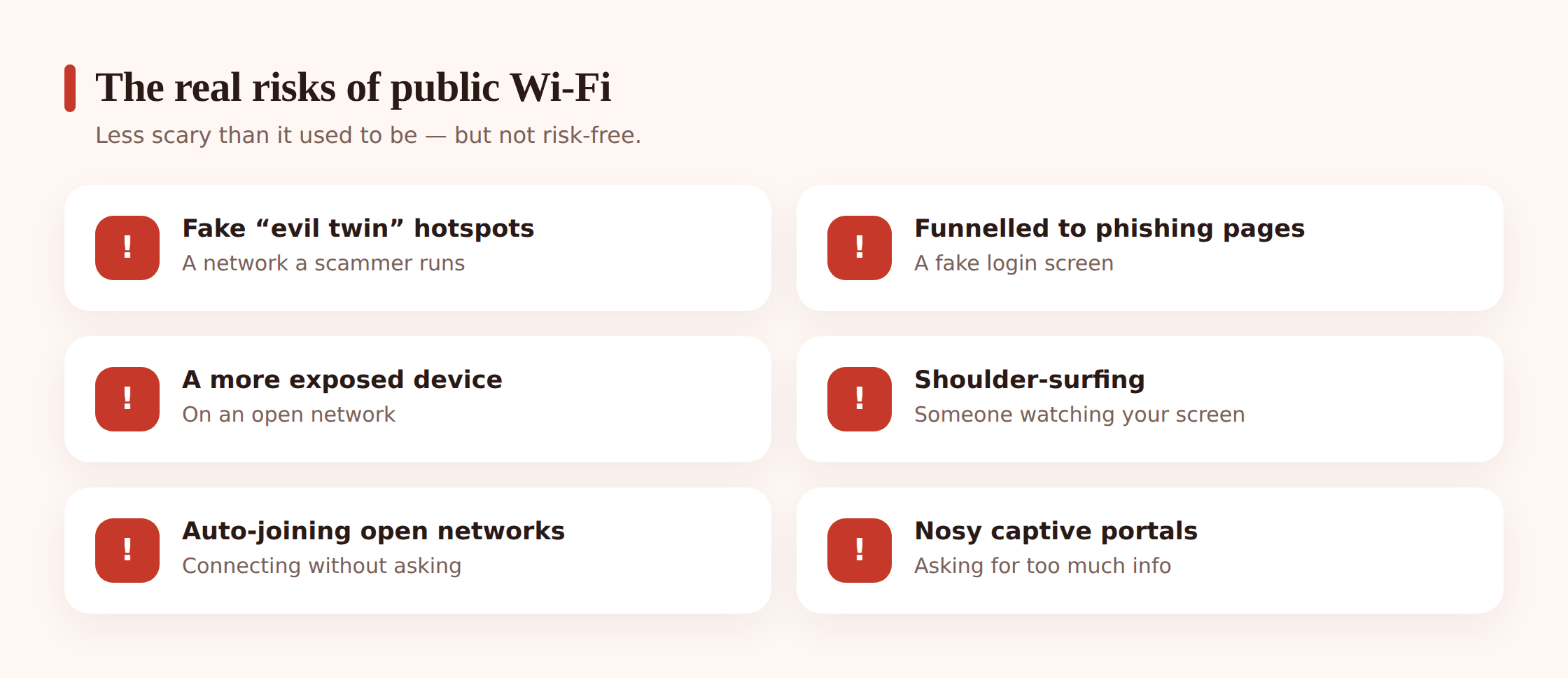
Here’s what a scammer or a sloppy network can actually do to you now.
Fake or “evil twin” hotspots
Anyone can name a network anything. A scammer sets up a hotspot called “Airport_Free_WiFi” or “Starbucks Guest” right next to the real one. You connect, everything looks normal, and now your traffic runs through their equipment. They can’t easily read your HTTPS traffic, but they control what pages you see, and they can push you toward fakes. The name looking official proves nothing.
Being funneled to a phishing page
On a network someone else runs, they can redirect you. You try to reach a normal site and land on a page that looks like a login screen — for your email, a game account, a bank. Type your password in and you’ve just handed it over. This is the big one, and it works on adults too.
An unsecured network leaves devices more exposed
On an open network with no password, your phone or laptop is sharing a space with strangers’ devices. If your software is out of date or file sharing is switched on, that’s more surface for someone to poke at. Modern phones are fairly locked down, but “fairly” leans on you keeping things updated.
Shoulder-surfing
Low-tech and still effective. Someone just watches you type your PIN or password, or reads your screen over your shoulder. No hacking required. Crowded trains and cafés are prime spots.
Auto-connecting to open networks
Phones love to reconnect to networks they’ve seen before, and some will hop onto any open wifi automatically. That means your kid’s phone might join a random or fake hotspot without anyone tapping a thing.
Captive portals that ask for too much
That “sign in to use this wifi” page is a captive portal. Some are harmless. Some want your email, phone number, birthday, and a checkbox to receive marketing forever. A shady one is just harvesting details. There’s rarely a good reason to hand over real personal info to use a coffee shop’s internet.
The pattern to teach: today’s wifi risks are mostly about being tricked, not being silently robbed. If a page asks your child to log in or hand over details out of nowhere, that’s the moment to stop — not because the wifi is “hacked,” but because someone may be steering them. This ties into how their privacy and digital footprint build up over time.
Safe habits on public wifi
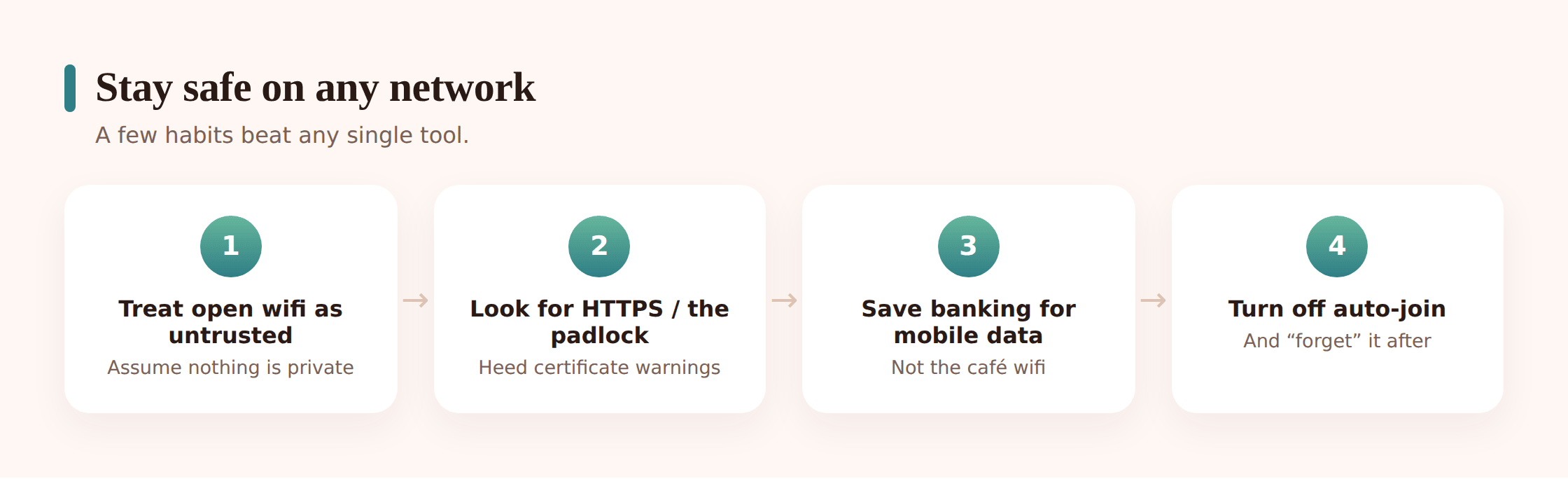
None of this is complicated. It’s a handful of habits that, once they stick, run on autopilot.
1. Treat every open network as untrusted
Not paranoid, just default-off. You don’t know who runs the café wifi or who else is on it. Assume it’s not private and act accordingly.
2. Look for the padlock, and don’t ignore warnings
Check for HTTPS and the padlock before typing anything sensitive. If the browser throws a certificate warning — “this connection isn’t secure,” “the site’s identity can’t be verified” — take it seriously. That warning is often the one real sign that something’s being tampered with. Don’t click through it to get where you were going.
3. Skip banking and sensitive logins on untrusted wifi
If you need to check your bank, buy something, or log into anything that matters, use your mobile data instead of random public wifi. Mobile data is encrypted between your phone and the carrier, and it’s a much cleaner path. It’s the simplest rule for a teen too: money stuff and important passwords wait for cell data or home.
4. Turn off auto-join for open networks
In your phone’s wifi settings, switch off “ask to join” or auto-connect for open networks. Now the phone won’t silently hop onto whatever’s nearby. You choose, every time.
5. “Forget” the network when you’re done
After you leave the café or airport, tell the phone to forget that network. It won’t reconnect automatically next time, and it won’t get fooled by a fake one using the same name later.
6. Don’t overshare on captive portals
If a wifi sign-in page wants your email and birthday, think twice. Give the minimum, or use a throwaway email. Decline the marketing checkboxes. If it wants way too much, the free wifi isn’t worth it.
7. Keep the OS and apps updated
A lot of “getting hacked on wifi” really means running old software with known holes. Updates close those. This is boring and it’s the highest-value habit on the list.
8. Consider a VPN for genuinely untrusted networks
If someone in the family is regularly on sketchy public wifi, a reputable VPN adds a layer. It’s a tool, not a cure — more on that next.
What a VPN actually does
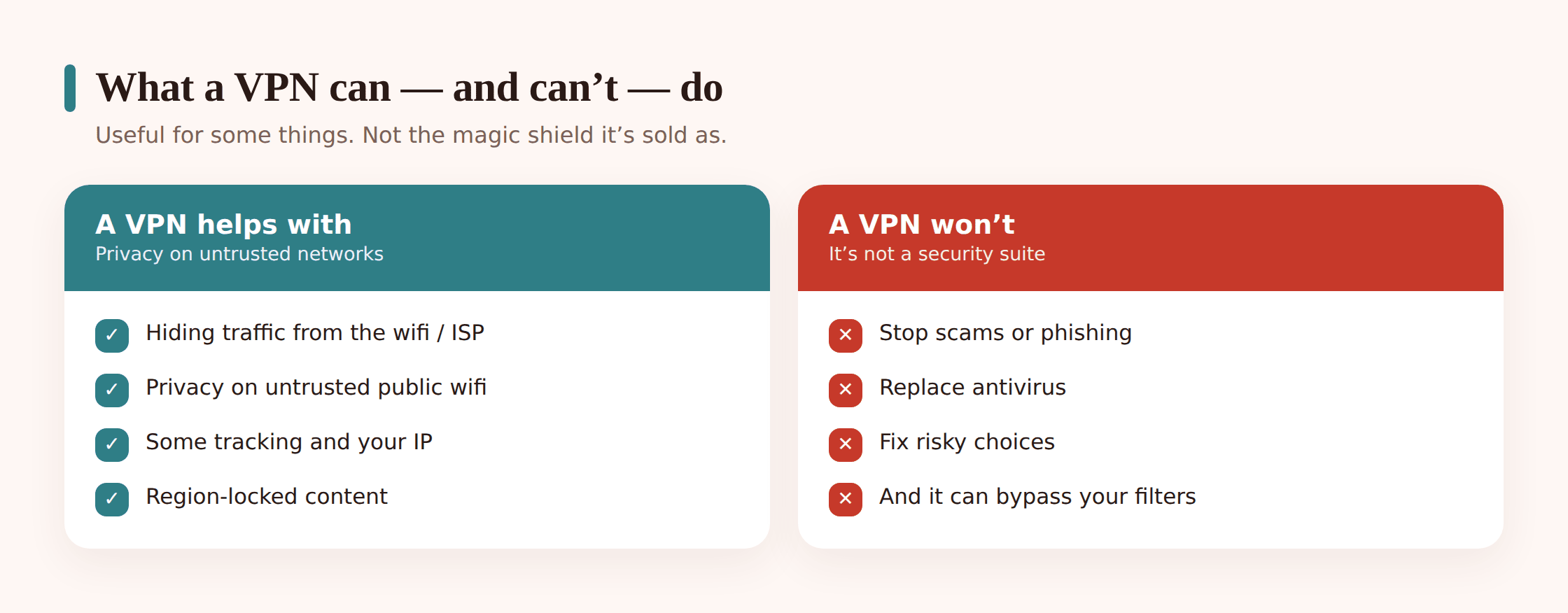
A VPN routes your internet traffic through an encrypted tunnel to a server run by the VPN company, then out to the wider web. Two real benefits come from that.
- It hides your traffic from the local network and your ISP. On untrusted wifi, the network sees you’re connected to a VPN and not much else. Your ISP can’t log which sites you visit. That’s genuine privacy from whoever’s between you and the VPN server.
- It hides your IP address and location from sites you visit. Sites see the VPN server’s address, not yours. That trims some tracking and helps with region-locked content — a show that won’t play in your country, say.
Now the honest part, because VPNs get oversold hard.
What a VPN does NOT do:
- It’s not antivirus. It doesn’t scan for or remove malware.
- It doesn’t stop scams or phishing. If your kid types their password into a fake login page, the VPN faithfully encrypts that mistake and sends it along. The tunnel doesn’t care that the destination is a con.
- It doesn’t stop oversharing, bad links, or poor judgment. Those are human problems.
- A “free” VPN can be worse than none. If you’re not paying, your data may be the product — some free VPNs log and sell exactly the browsing they claim to protect.
- It can quietly defeat your parental controls. A VPN reroutes traffic, which can slip past filters you set at home or on the network. Install one on a child’s phone and you may hand them a bypass.
If you do use one, pick a reputable paid provider with a clear no-logging stance. Treat it as one layer among several, not a force field. A VPN is great at the specific job of hiding your traffic on an untrusted network. It’s terrible at protecting someone from their own click.
Does your family need a VPN?
Honest answer: for everyday use at home and on trusted networks, usually not essential. HTTPS already handles the encryption that people once bought VPNs for. Your bank app is encrypted with or without one.
A VPN earns its place in a few cases:
- Someone travels a lot and lives on hotel and airport wifi.
- You regularly use networks you have no reason to trust.
- You’re privacy-minded and don’t want your ISP building a profile of your browsing.
- You need region-locked content while abroad.
What a VPN is not is a substitute for the basics. Keep software updated. Use strong, unique passwords. Turn on two-factor authentication for accounts that matter. Don’t click sketchy links. Those four cover more real risk than any VPN. And remember the catch for families: a VPN on a kid’s device can undermine the very filters you rely on. Weigh that before installing one for them.
Kids and VPNs
Here’s a scenario worth knowing about. A teen wants to reach a site the school blocks, or a game the home filter won’t allow. They search “how to get past wifi block,” and the top results all say: install a VPN. Ten minutes later the filter you set up is doing nothing.
This is common, and it’s not because your kid is a hacker. VPN apps are one tap away in every app store, and plenty of guides walk kids straight through it. If your website and app blocking suddenly seems to stop working, an installed VPN is one of the first things to check.
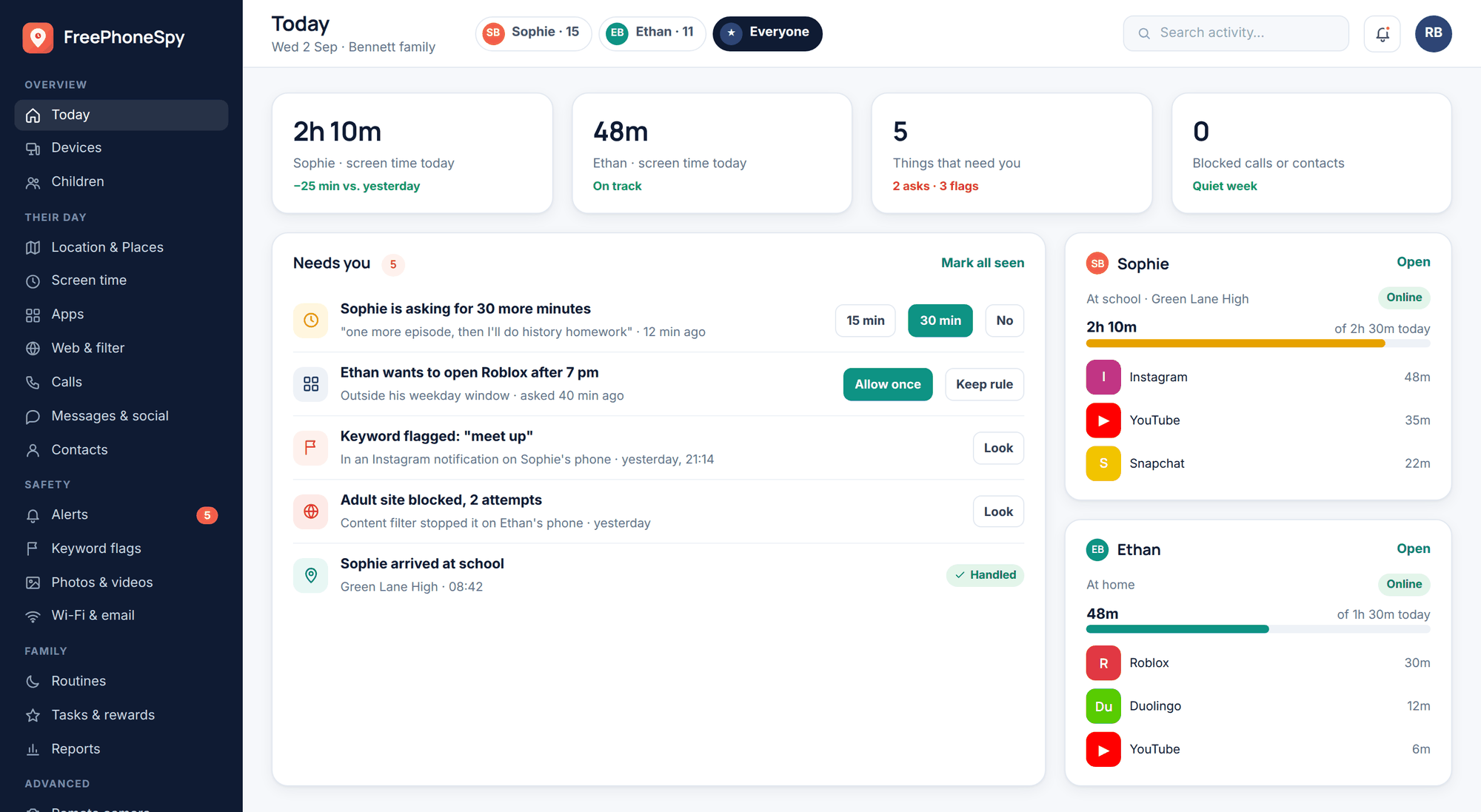
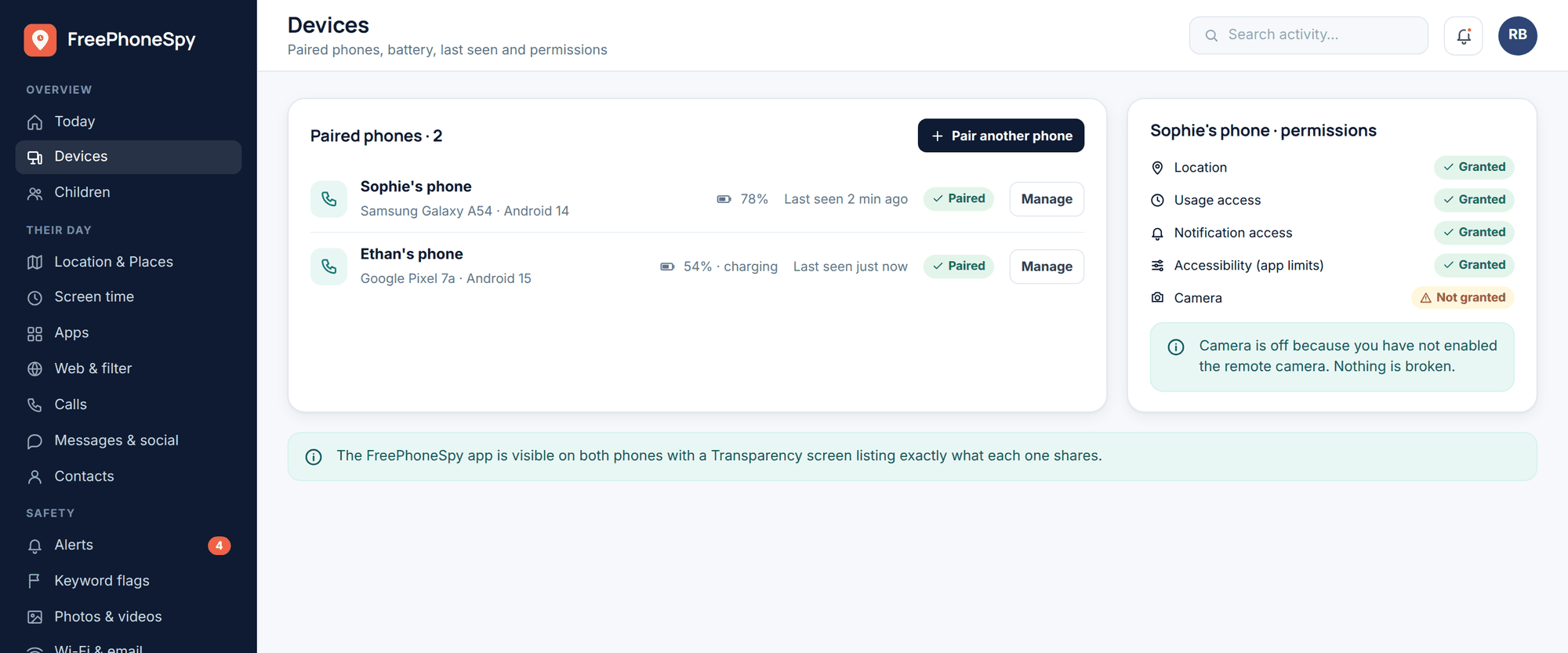
How to spot it: a new VPN app on the phone, a little key or “VPN” icon in the status bar, or a filter that covers everything except this one device. On Android you can see it in the connection settings. A transparent monitoring setup like FreePhoneSpy, where your teen knows the phone is monitored, makes this a conversation rather than a game of cat and mouse — you can see what’s installed and talk about it. If you’re wondering whether a device is being watched at all, we cover the honest version of that in is my phone being monitored.
The better fix than an arms race is a rule: VPNs are agreed, not sneaked. There are legitimate reasons a family might use one. Sneaking one in specifically to dodge agreed limits is the thing to name and talk about. Kids respect a clear rule more than a filter they think they can quietly beat.
A note on doing this honestly: FreePhoneSpy is built for transparent, consent-first monitoring on a child’s Android phone, managed from a web panel. The point isn’t to spy — it’s that your child knows the phone is monitored, so a habit like sneaking in a VPN becomes something you can see and discuss openly. Monitoring without consent damages trust and, in many places, crosses legal lines. Set it up together.
Secure your home wifi
Public wifi is the network you don’t control. Your home network is the one you do — and it’s the one your family uses most, so it’s worth ten minutes to lock down.
Change the default router admin password
Routers ship with a default admin login like admin/admin, and those defaults are printed in public manuals. Change it to something strong. This is the single most important step, and the one most people skip.
Use WPA2 or WPA3 with a strong wifi password
In your router settings, make sure encryption is set to WPA2 or, better, WPA3. Give the network a long, strong password. Avoid the old WEP option entirely — it’s broken.
Keep the router firmware updated
Routers get security updates too, and they’re easy to forget because you never look at the thing. Check for a firmware update now, and turn on automatic updates if your router offers them.
Set up a guest network
Most routers let you run a separate guest network. Put visitors on it, and put smart-home gadgets — the cheap plug, the camera, the doorbell — on it too. That keeps the less-trustworthy devices away from your phones and computers.
Turn off WPS
WPS is the push-button pairing feature. It’s convenient and it’s a known weak point. Switch it off in the router settings.
Rename the network so it doesn’t reveal you
Don’t name your wifi “The Johnson Family” or “14 Oak Street Apt 3.” A network name that gives away your name or address just helps a stranger outside connect the network to a real household. Pick something neutral.
The content filter in FreePhoneSpy works across both wifi and mobile data, so a child’s limits follow the phone rather than only applying at home. That matters, because kids don’t stay on your network all day.
Safe-on-any-network checklist
- Treat open wifi as untrusted by default.
- Check for the padlock; never click through a certificate warning.
- Do banking and important logins on mobile data, not public wifi.
- Turn off auto-join for open networks, and forget them when you leave.
- Give captive portals the least info possible.
- Keep phones, laptops, and your router updated.
- Use strong, unique passwords and turn on two-factor authentication.
- At home: change the router admin password, use WPA2/WPA3, run a guest network, turn off WPS.
- Consider a reputable paid VPN only if you’re often on untrusted wifi — and remember it can bypass parental filters.
- Agree on VPN use with your kids instead of leaving it to be discovered.
If your worry is less about networks and more about who can see where your family is, those are different problems with different fixes. We cover them in how to stop someone tracking your location and how phone location tracking works.
FAQ
Is public wifi actually dangerous in 2026?
Far less than its reputation suggests, because most sites now use HTTPS encryption by default. The real risks are fake hotspots, being tricked onto phishing pages, and devices left exposed on open networks — not someone silently reading your passwords. Sensible habits handle most of it.
Do I need a VPN to use public wifi safely?
Not usually. HTTPS already encrypts most of what matters. A VPN helps if you’re frequently on untrusted networks or you want privacy from your ISP, but it won’t protect anyone from scams, malware, or bad clicks. The basics — updates, strong passwords, two-factor, not clicking bad links — do more.
Are free VPNs safe for my family?
Be careful. Some free VPNs make money by logging and selling the very browsing they claim to protect. If you want one, choose a reputable paid provider with a clear no-logging policy. A free VPN can be worse than no VPN at all.
My child installed a VPN. Is that a problem?
It can be, because a VPN can route around the parental filters you’ve set up. It’s often installed specifically to get past school or home blocks. The fix isn’t panic — it’s a clear rule that VPNs are agreed, not sneaked, plus a transparent setup where you can see what’s on the phone and talk about it.
What’s the single most important thing to secure my home wifi?
Change the router’s default admin password. Defaults are published in manuals anyone can find. After that: WPA2 or WPA3 encryption, a strong wifi password, and keeping the router’s firmware updated.
Should kids do banking or shopping on café wifi?
No. Save anything involving money or important passwords for mobile data or your home network. Mobile data is encrypted to the carrier and avoids the fake-hotspot and redirect risks of an unknown public network.