How to Set Up a Kid-Safe Tablet (Step by Step)
A tablet can be a great thing for a young child — books, drawing, a few good games, a video call with grandparents. It can also be a doorway to stuff they’re nowhere near ready for. The gap between those two versions is about twenty minutes of setup. Do it once, do it properly, and you get a tablet your kid can enjoy without you hovering over their shoulder.
What a kid-safe tablet actually means
A kid-safe tablet isn’t a locked box. It’s a device where the good stuff is easy to reach and the bad stuff is hard to stumble into. Your five-year-old should be able to open their drawing app and their picture books on their own. They should not be one wrong tap away from an autoplaying video rabbit hole, an app-store checkout, or a browser pointed at the open internet.
Age is the dial that controls everything else. A toddler needs a walled garden: a tiny shelf of apps, no browser, no store, no chat, and short sessions. A seven-year-old can handle a curated browser and a bigger app list. A ten-year-old is edging toward a “tween” setup with more freedom and more conversation. Set the tablet up for the child you have right now, not the one they’ll be in three years. You can always loosen it. If you start too loose, tightening it later feels like taking something away, and that fight is worse.
Two more things worth saying up front. First, none of this replaces you. Controls buy you attention, not absence — they mean you can be in the next room instead of reading over their shoulder. Second, do it openly. This is your child’s tablet, and they should know what’s on it and why. That’s a different thing entirely from covertly monitoring another adult, which no honest tool should help you do.
iPad vs Android vs Fire
Three families of tablet cover almost everyone, and each has its own built-in parental system. The good news: all three are genuinely capable now. You don’t need to buy a “kids’ brand” tablet to get a safe one — you need to turn on what’s already there.
| iPad (Apple) | Android tablet | Amazon Fire | |
|---|---|---|---|
| Parental system | Screen Time + Family Sharing, with a Child Apple ID | Google Family Link + Kids Space, with a child Google account | Amazon Kids / Kids+ profiles |
| Best at | Polished controls, app approval, content ratings, downtime | Flexible limits, per-app time, remote management from your phone | Cheap hardware, a big curated kids’ content library (Kids+) |
| Watch out for | Priciest hardware; controls tied tightly to the Apple ID | Quality varies by tablet maker; Kids Space isn’t on every model | Pushes Amazon’s own store and content; general web is limited |
| Browser story | Safari with content limits + SafeSearch, or block it entirely | Chrome via Family Link filters, or a kid browser, or blocked | Amazon’s kid-safe web with an allowlist you approve |
| Good for | Families already in Apple; older kids too | Value; families on Android phones; one system for phone + tablet | Young kids; a cheap first tablet you won’t cry over if it drops |
If you already live in one ecosystem, start there — it’s less to manage. If you’re buying fresh for a young child and price matters, a Fire tablet with Amazon Kids is hard to beat for the money. If you want one set of controls that also covers your child’s Android phone later, an Android tablet keeps everything in one place. There’s more on choosing hardware in our child’s first phone guide, and the same logic applies to tablets.
Set it up, step by step
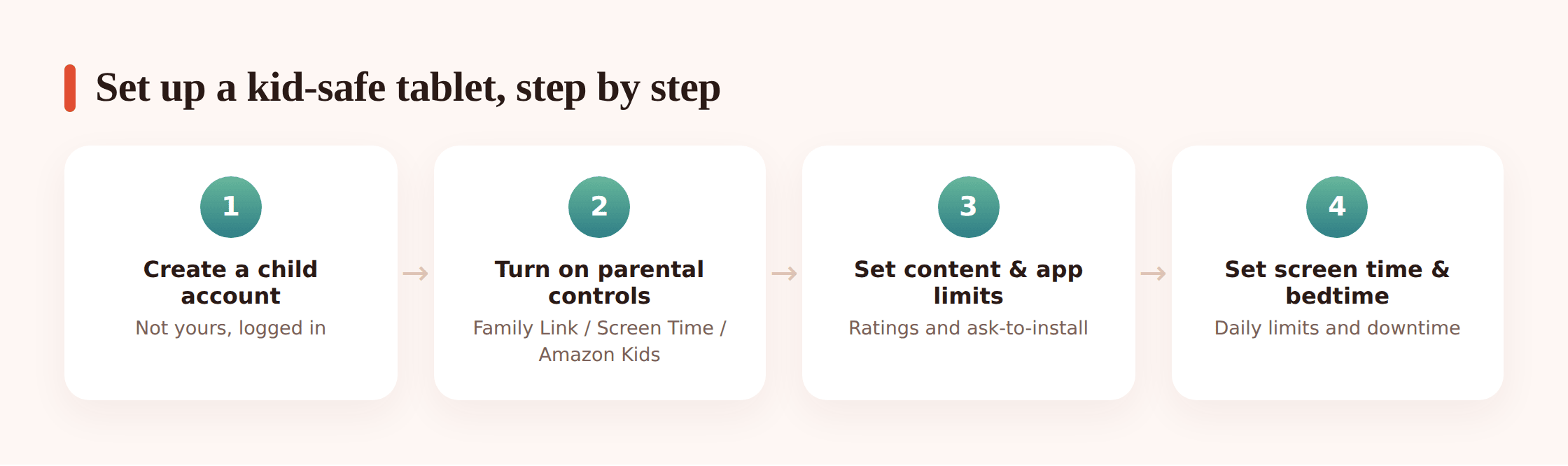
The wording differs by platform, but the steps are the same everywhere. Do them in this order. The big one, the one people get wrong, is the very first step.
1. Create a child account — not your own
This is the step that makes everything else work. Set the tablet up under a child account: a Child Apple ID on iPad, a child Google account through Family Link on Android, a child profile in Amazon Kids on Fire. Do not just sign in with your own account and hand it over. Your account has your email, your store access, your saved cards, and none of the age-based protections. A child account tells the device it belongs to a kid, and the controls flow from that.
2. Set the child’s real age
When you create the account, enter their actual date of birth. Age drives the default content ratings, whether certain features are even available, and how strict the store gets. Don’t round up to dodge a restriction — the restriction is the point.
3. Turn on the parental controls
Switch on the built-in system: Screen Time under Family Sharing (iPad), Google Family Link (Android), or Amazon Kids (Fire). This is the dashboard you’ll manage everything from, usually from your own phone. Take two minutes to walk through its main screen so you know where things live.
4. Set content ratings and app approval
Set age limits for apps, games, films, music and books to match your child. Then turn on ask-to-install (also called purchase approval or “Ask to Buy”) so nothing new lands on the tablet without a tap from you. You’ll get a request on your phone; you approve or decline. This one setting stops most surprises.
5. Handle the browser
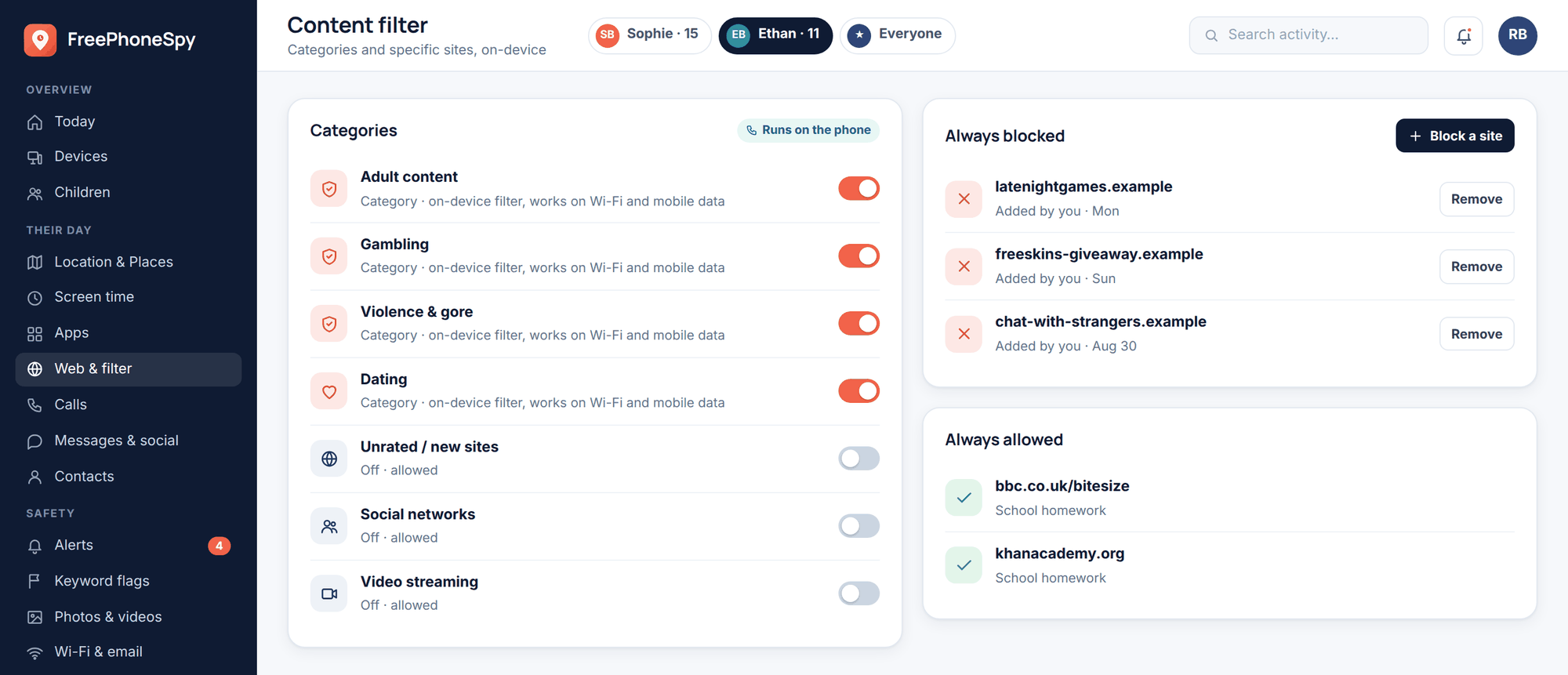
For a young child, the simplest safe choice is no open browser at all — block it. If they need one, turn on the content filter and force SafeSearch (Family Link and Screen Time both do this), or install a dedicated kids’ browser that only reaches approved sites. Our guide to blocking websites and apps walks through this per platform.
6. Sort out video
Regular YouTube is not a young child’s app. Turn it off and use YouTube Kids, or set up a supervised YouTube account with a limited content setting for an older child. Do the same with any other video app: kids’ mode on, autoplay off where you can.
7. Set screen-time limits and a bedtime
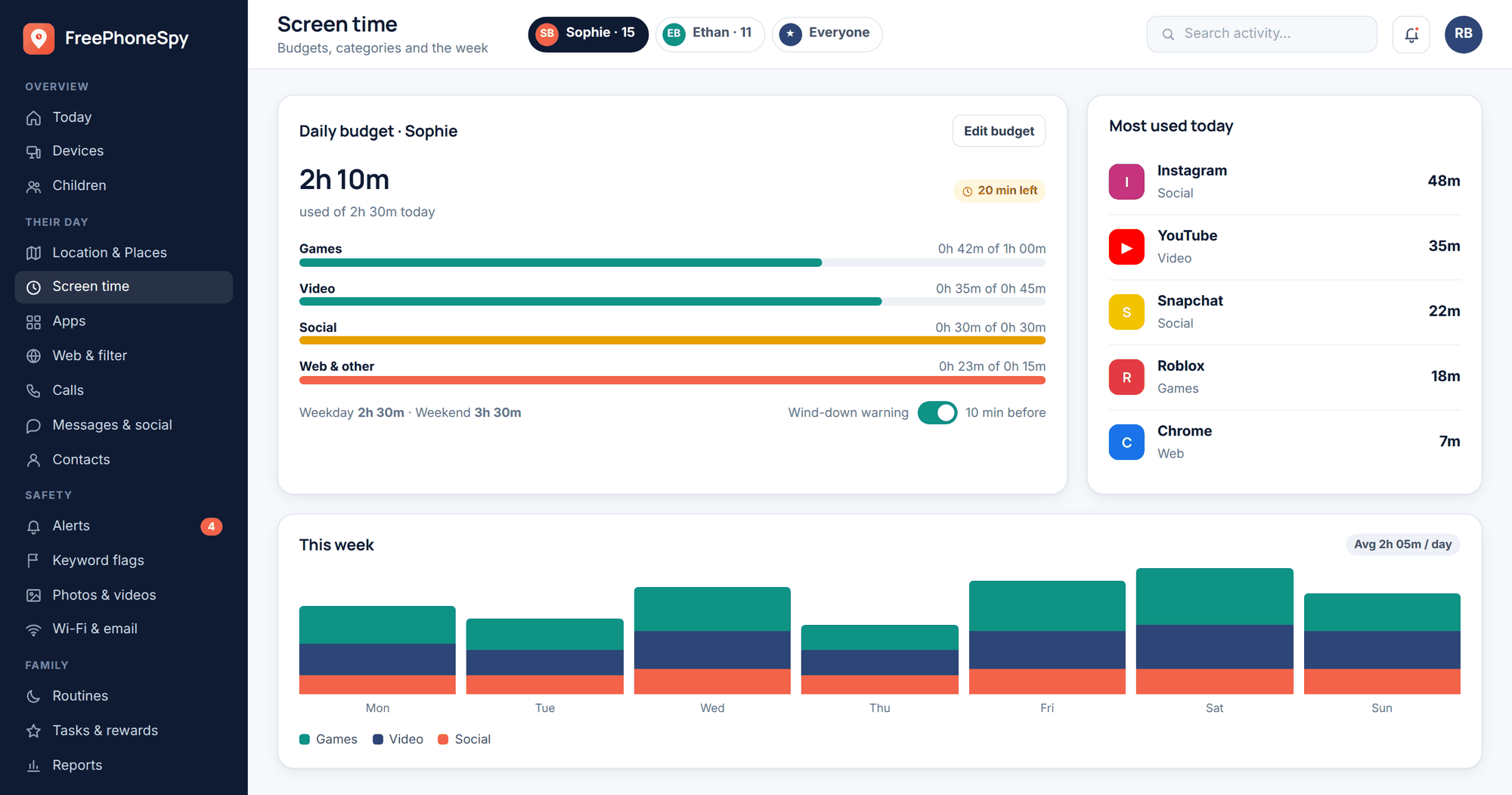
Set a daily total and a downtime window (call it bedtime) when the tablet goes quiet except for the apps you allow. Per-app limits are useful too — thirty minutes of a game, unlimited on the reading app, say. There’s more on sensible amounts for the youngest kids in our note on screen time for toddlers.
8. Lock the store, kill purchases, remove the card
Disable or password-lock the app store, turn off in-app purchases, and remove any stored payment card from the child account. A young child shouldn’t be able to buy anything, ever, without you. Removing the card is the belt-and-braces move — even if something slips past, there’s nothing to charge.
The settings to lock in
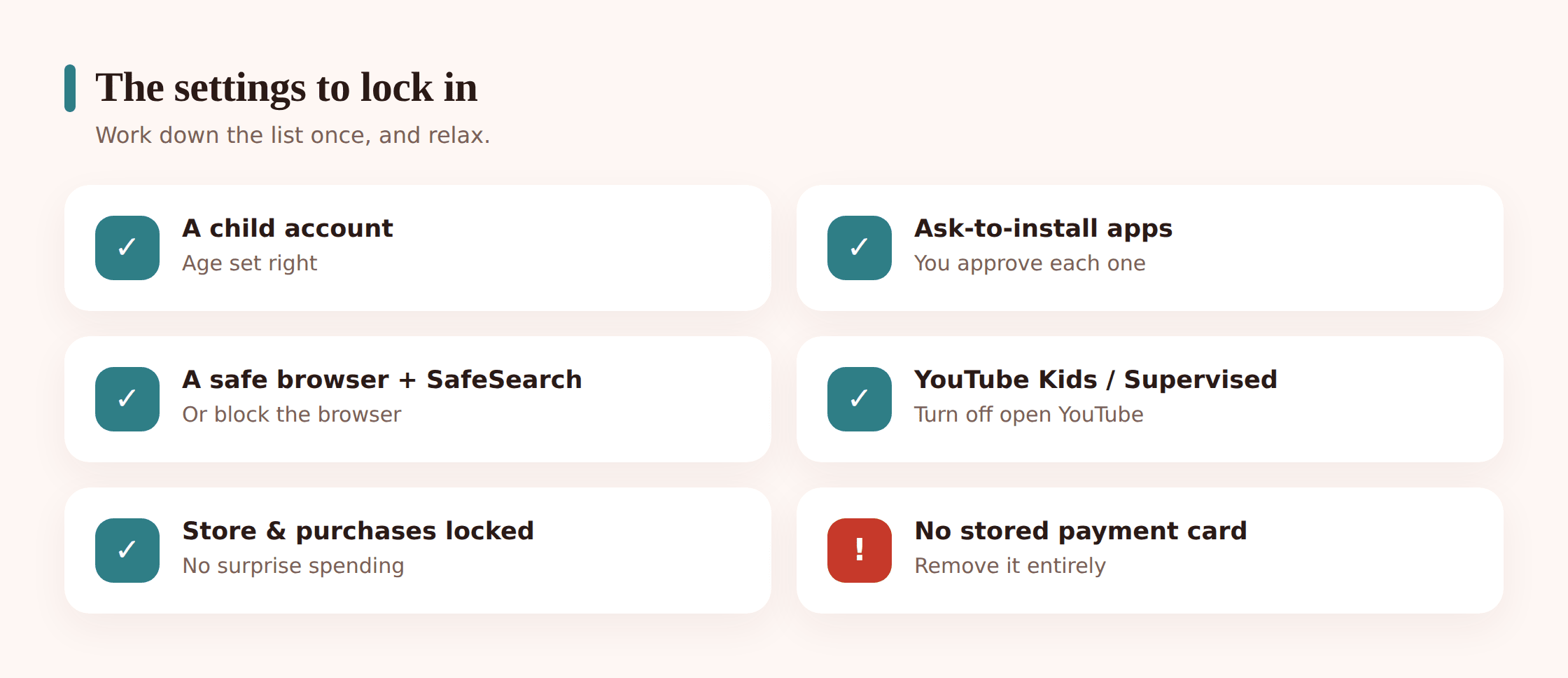
If you only get a handful of things right, get these. They’re the settings that matter most, and the ones easiest to forget.
- A child account is signed in — not yours.
- The right age is set, and content ratings match it.
- Ask-to-install is on; nothing new appears without your OK.
- The open browser is blocked, or filtered with SafeSearch forced.
- Regular YouTube is off; YouTube Kids or a supervised account is on.
- A daily time limit and a bedtime downtime window are set.
- In-app purchases are off and the app store is locked.
- No payment card is saved to the child account.
- In-app chat and messaging features are turned off in each app.
- Location and camera permissions are only on for apps that truly need them.
Curate the app shelf
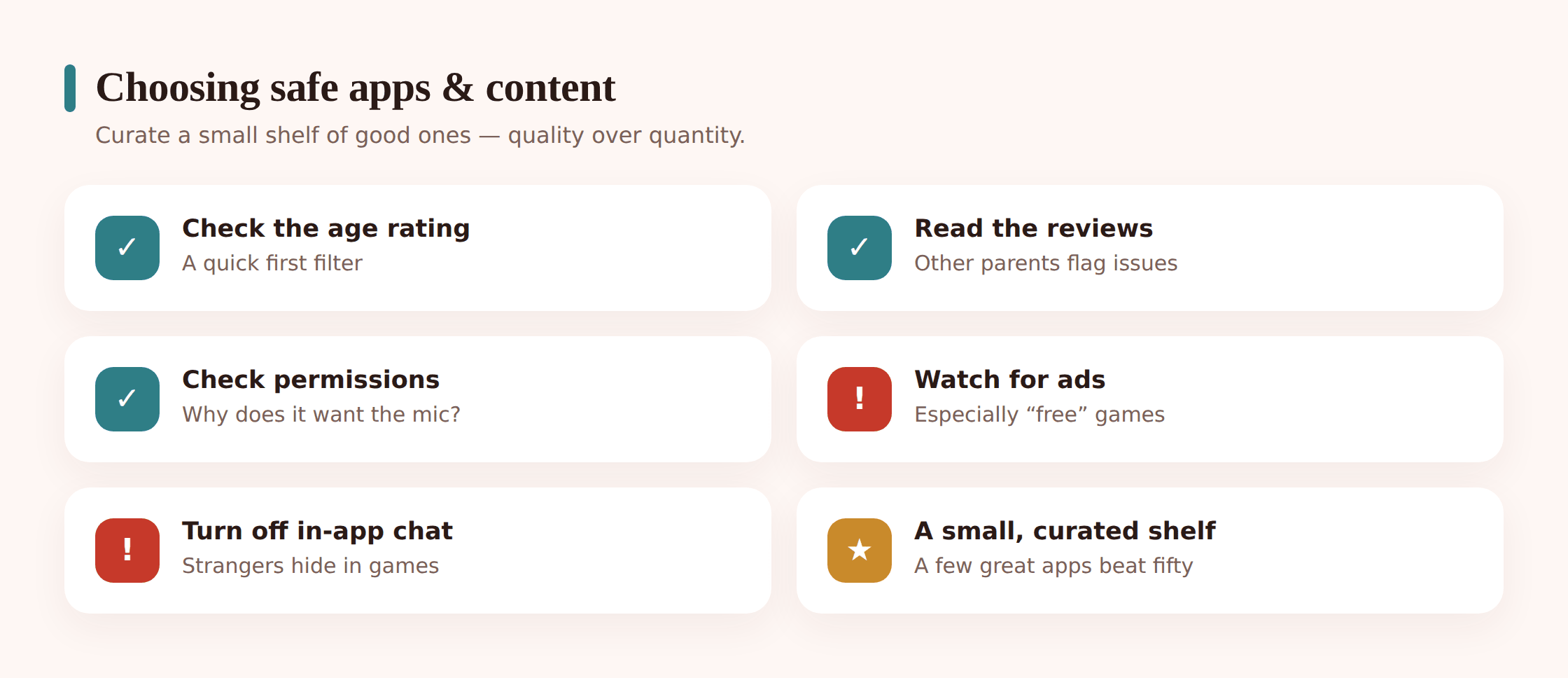
A great kids’ tablet has a small shelf, not a stuffed one. Ten good apps a child returns to are worth more than fifty they scroll past. Pick a mix: something creative, a couple of good games, reading, maybe one learning app, and a way to call family. Then stop. You can always add more.
Before an app makes the shelf, spend two minutes vetting it. Here’s what to check:
- Age rating — does it match your child, or is it optimistic?
- Reviews — skim recent ones for complaints about ads or content.
- Permissions — a drawing app asking for contacts and location is a no.
- Ads — pay a few dollars for the ad-free version where it exists; ads in kids’ apps are often the least safe part.
- Chat features — any open chat, multiplayer voice, or messaging with strangers gets turned off, or the app gets skipped.
That last point deserves weight. The riskiest thing in most kids’ apps isn’t the app — it’s the ability to talk to people you don’t know. Turn off in-app chat wherever it exists. If it can’t be turned off and the app is built around it, it’s not a young child’s app.
The physical setup
The settings do the heavy lifting, but a few physical habits make a real difference and cost nothing.
Get a case. A chunky kid case with a bumper and a stand pays for itself the first time the tablet slides off the sofa. It also makes the tablet feel like theirs, which is worth something.
Charge it out of the bedroom. Pick a charging spot in a shared part of the house and make it the tablet’s home. A device that sleeps in the kitchen isn’t in the bed at 11pm. This one habit prevents more problems than most settings.
Decide: shared or personal. For young kids, a shared family tablet used in a common room beats a personal device in a bedroom. It keeps use visible and casual. As kids get older and more trustworthy, a personal tablet with more freedom makes sense — that’s part of growing the setup, below. If you’re also setting up a phone, the same principles carry over; see setting up a new phone for your child.
Where FreePhoneSpy fits on Android
Let’s be straight about this. On any modern tablet, the built-in tools do most of the job. Family Link, Screen Time and Amazon Kids all handle age, limits, content and approval well. You don’t strictly need anything extra to have a safe tablet, and we’re not going to pretend otherwise.
What FreePhoneSpy adds — and only on Android tablets and phones — is a single per-child layer you manage from any web browser. If you’ve got more than one Android device across the family, or you want one place to see everything rather than bouncing between Google’s screens, that’s where it helps. You get screen-time budgets, per-app limits and blocking, a web and content filter, bedtime routines, and alerts, all managed from the web panel and all set up openly with your child’s knowledge. It’s free to start, and stays free through simple tasks.
On an iPad, that layer isn’t available — use Apple’s Screen Time and Family Sharing, which are strong on their own. On Fire, lean on Amazon Kids. FreePhoneSpy is the Android answer, not a replacement for the built-ins but a tidier way to run them across several devices. If you’re weighing platforms, our parental controls guide for Android and iPhone lays out what each one covers.
Grow with them
The setup you build for a five-year-old should not survive to age ten unchanged. A kid who’s earned trust and outgrown their limits notices, and a tablet frozen at toddler settings becomes something they route around instead of respect.
Loosen deliberately, not all at once. The rough path: a young child gets a walled garden — tiny app list, no browser, short sessions. Around seven or eight, you can add a filtered browser, more apps, and a slightly longer daily budget. By the tween years, the “kids” setup becomes a “tween” setup: a real (still supervised) browser, a supervised YouTube account instead of YouTube Kids, messaging with approved contacts, and limits that lean more on conversation than hard blocks. Each loosening is a small conversation, ideally tied to them showing they can handle the last bit of freedom. That’s how a kid-safe tablet quietly turns into a first phone without a cliff-edge — more on that in our first phone guide.
Your setup checklist and monthly routine
Here’s the whole thing in one place. Run this once at setup:
- Sign in with a child account, real age set.
- Parental controls turned on (Family Link / Screen Time / Amazon Kids).
- Content ratings matched to your child.
- Ask-to-install on; store locked; in-app purchases off; card removed.
- Browser blocked, or filtered with SafeSearch forced.
- YouTube Kids or a supervised account on; open YouTube off.
- Daily time limit and bedtime downtime set.
- A small, vetted app shelf; in-app chat off.
- A case on it and a charging spot outside the bedroom.
Then, once a month, spend five minutes on maintenance. Glance at what apps are actually there and pull anything that crept in or got outgrown. Check the ads and content in the ones they use most — kids’ apps change. Skim the time reports for anything surprising. Ask your child what they wish they could do on it; their answer tells you when it’s time to loosen something. Five minutes a month keeps the whole thing honest and saves you a big cleanup later.
FAQ
Do I need a special “kids” tablet?
No. Any modern iPad, Android tablet or Fire tablet can be made safe with the built-in tools. A Fire tablet is a good cheap first device, but that’s about price and durability, not safety.
Can I use my old tablet for my kid?
Yes, and it’s a great way to reuse one. Factory-reset it first so none of your accounts, apps or cards carry over, then set it up fresh under a child account. Don’t just log out of your account and hope.
What age should a child get their own tablet?
There’s no magic number. Plenty of families start supervised, shared use in the toddler years and move to a personal tablet around seven or eight. What matters more than age is that the setup fits the child and stays out in a shared space while they’re young. Our screen time for toddlers note has more on the youngest ages.
Is it okay to monitor my child’s tablet?
Yes, when it’s your own child, it’s age-appropriate, and it’s out in the open. Tell them what’s on the tablet and why. What’s not okay is covert surveillance of another person — that’s a different thing entirely, and no honest tool should be sold for it.
How do I stop them buying things?
Three layers: turn off in-app purchases, lock or disable the app store, and remove the saved payment card from the child account. With all three on, a purchase simply can’t happen without you.
What about YouTube?
For young children, turn off regular YouTube entirely and use YouTube Kids. For older kids, a supervised account with a restricted content setting is the middle ground. Turn off autoplay wherever the app lets you.