Setting Up a School Chromebook or Device Safely
Your kid comes home with a school Chromebook in their backpack and you think, right, I’ll lock that down like I did the family tablet. Then you open the settings and half of them are greyed out, there’s a login screen you can’t get past, and a little note about the device being “managed by your organization.” That’s not a bug. That device isn’t really yours to configure — it belongs to the school district, and it’s built to stay under their control even while it sits on your kitchen table. Knowing where their fence ends and yours begins is the whole game.
Why the school device is different
A device you buy is a blank slate you get to configure. A school-issued one arrives pre-configured, and the configuration is the point. Districts hand out Chromebooks, iPads and laptops enrolled in a management system — Google Admin Console for Chromebooks, Apple School Manager and an MDM for iPads, something like Intune or Jamf for Windows laptops. Enrollment lets a small IT team push settings, apps and filters to thousands of devices at once, and it means a lot of the controls you’d normally reach are locked to the child’s school account and the admin behind it.
This trips parents up because it’s the reverse of everything else. On the family tablet, you’re the admin — see our guide to setting up a kid-safe tablet, where you hold every switch. On a school Chromebook, the district is the admin and you’re a guest. You can’t install Google Family Link over the top of a managed school account. You usually can’t add your own apps, sideload anything, or change the account it signs into. Try, and you’ll hit a wall that says the organization won’t allow it. That’s working as designed, and honestly it’s a good thing — it means the school is taking some responsibility for the device it lent your kid.
Who controls what: school vs parent
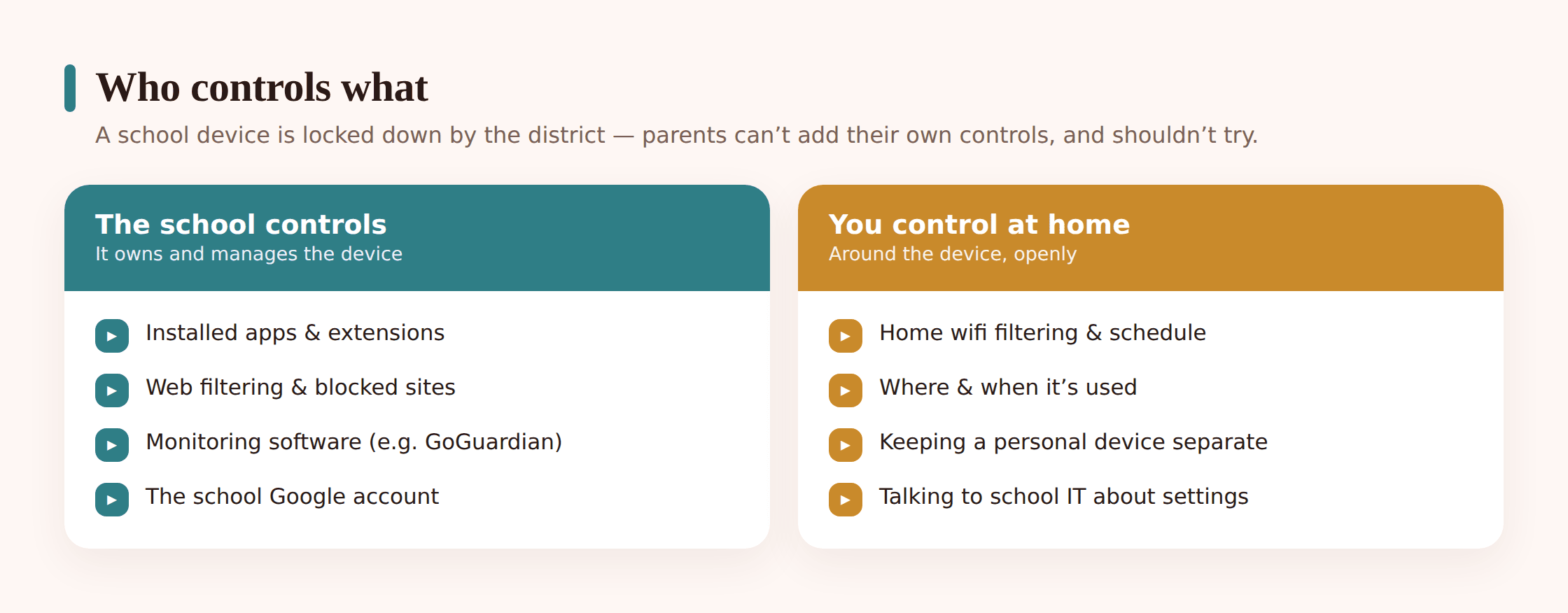
Before you spend an evening trying to bolt controls onto the Chromebook itself, get clear on which side of the line each thing sits. The table below is the map. The left column is the district’s territory — pushing back on it means emailing the school, not changing a setting. The right column is genuinely yours.
| The school controls | You control at home | |
|---|---|---|
| The device account | The managed school login; you can’t replace it or add a supervised parent account over it | Whether your child has a separate personal device and account for non-school life |
| Apps & extensions | What’s installed, allowed, or blocked on the device | Nothing on the device — but everything on any personal device you own |
| Web filtering | The on-device filter (GoGuardian, Securly, Lightspeed, etc.) that follows the device everywhere | A second layer at the router: your home Wi-Fi’s filter and blocklist |
| Monitoring | Screen views, browsing logs, flagged searches on the school account | Nothing on the school account — and you shouldn’t try to add covert monitoring |
| Internet access | Filtering that travels with the device, on or off your network | When your Wi-Fi lets the device online at all — schedules, bedtime cut-offs |
| Where & when it’s used | Nothing once it leaves the building | House rules: which room, which hours, off at bedtime, out of the bedroom |
| The child’s habits | Not really their job | Yours entirely — how they treat the device, the account, their privacy |
Read that right to left and the takeaway is cheerful: the things that matter most at home — timing, location in the house, a separate space for personal life, and the habits your kid builds — all sit in your column. You’re not powerless. You’re just working outside the device instead of inside it.
What school monitoring software actually sees
Most districts run some kind of monitoring and filtering suite on their devices. GoGuardian is the name people know, but Securly, Lightspeed, Bark for Schools and Gaggle do similar jobs. Federal funding rules in the US (the Children’s Internet Protection Act) require schools that take certain subsidies to filter obscene and harmful content, so filtering itself is standard and legally driven — it isn’t your district being nosy.
What these tools typically see, on the school account and often around the clock while the device is on:
- Every site the school browser loads, logged with time stamps.
- Search terms, with certain words flagging an alert to staff.
- Which tabs are open, and in some setups a live view of the screen a teacher can watch during class.
- Documents and email inside the school Google or Microsoft account.
- In products with AI scanning, flagged phrases in documents or chats that trip a safety alert — including, in some tools, signals about self-harm.
Two things parents usually don’t realize. First, that filter and much of that logging follows the device off campus. When your kid does homework on your home Wi-Fi, the school’s system is often still watching the school account and still filtering. Second, you generally don’t get to see any of it. The monitoring dashboard belongs to teachers and administrators, not families. Some districts send parents a weekly digest or offer a portal; many don’t. If you want to know what’s collected and who can view it, that’s a question for the school, and you’re entitled to ask — it’s your child’s data.
What you can do at home
Here’s where you get your control back. None of it involves fighting the Chromebook’s locked settings. It all lives in your house and on your network.
Put a filter on your Wi-Fi
Your router is your territory, and it’s a second safety net under the school’s. Most modern routers and mesh systems — and services built for this — let you set content filtering, block categories or specific sites, and see which devices are online. The school filter handles the school account; your router covers everything on your network, including any personal devices and guests. It also catches the gap where a kid tries to dodge the school filter, since your network filter doesn’t care which account is logged in. Our walkthrough on how to block websites and apps covers setting this up.
Set a schedule
You can’t put a bedtime inside the Chromebook, but you can decide when your Wi-Fi lets it online. Most routers do time-based access rules: the kid’s devices go offline at 9pm, back on at 7am, and homework hours are open. A school device that can’t reach the internet after bedtime is a school device that stays closed after bedtime. This is the single most effective home control you have, and it doesn’t require touching the device at all.
Keep a personal device separate
The cleanest rule of all: the school device is for school, and personal life happens somewhere else. If your child has their own phone or tablet for messaging friends, games and YouTube, they’ve no reason to live their whole social life on a monitored school account — and you can manage that personal device properly, the way you’d set up any of theirs. If they don’t have a personal device yet, a cheap tablet set up with real parental controls beats letting the Chromebook become their everything. See setting up a kid-safe tablet for that side.
Talk to the school’s IT team
People forget this is even an option. The district’s tech office sets the policy, and they field parent questions all the time. Worth asking: What does the device filter block, and is it active at home? Can I see any report of my child’s activity? Can filtering be tightened for my kid specifically? What happens if the device breaks or is lost? Is the camera or microphone ever accessible remotely? A five-minute email often answers more than an hour of poking at settings you can’t change.
Setting it up for safe use
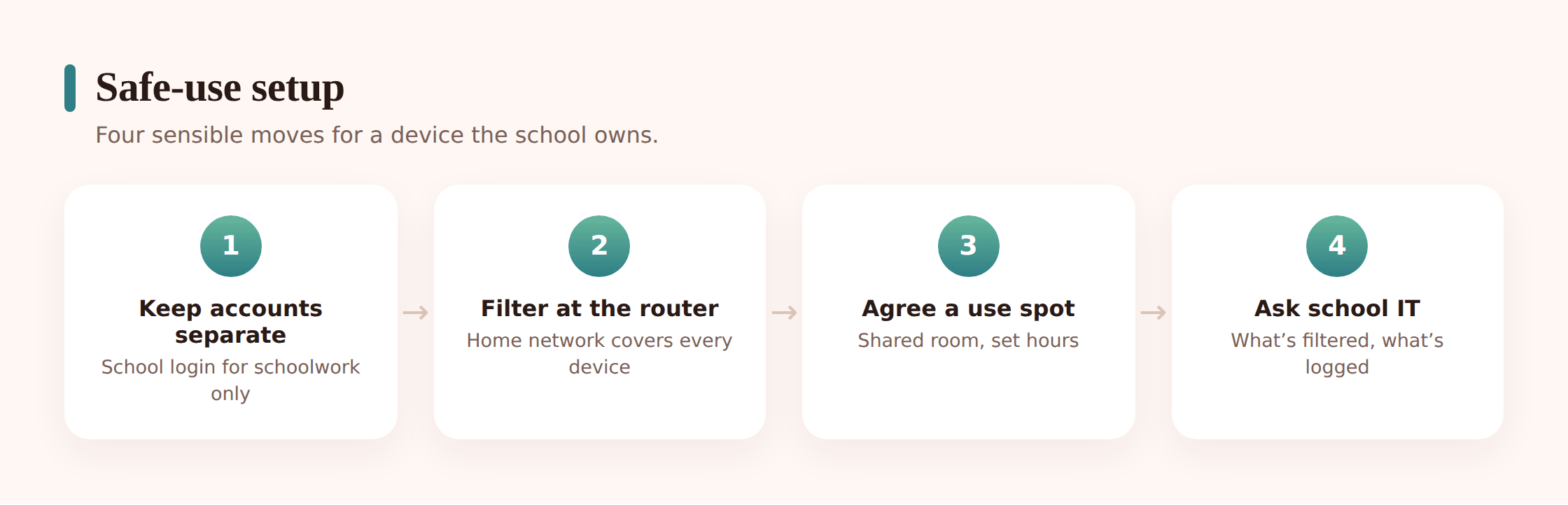
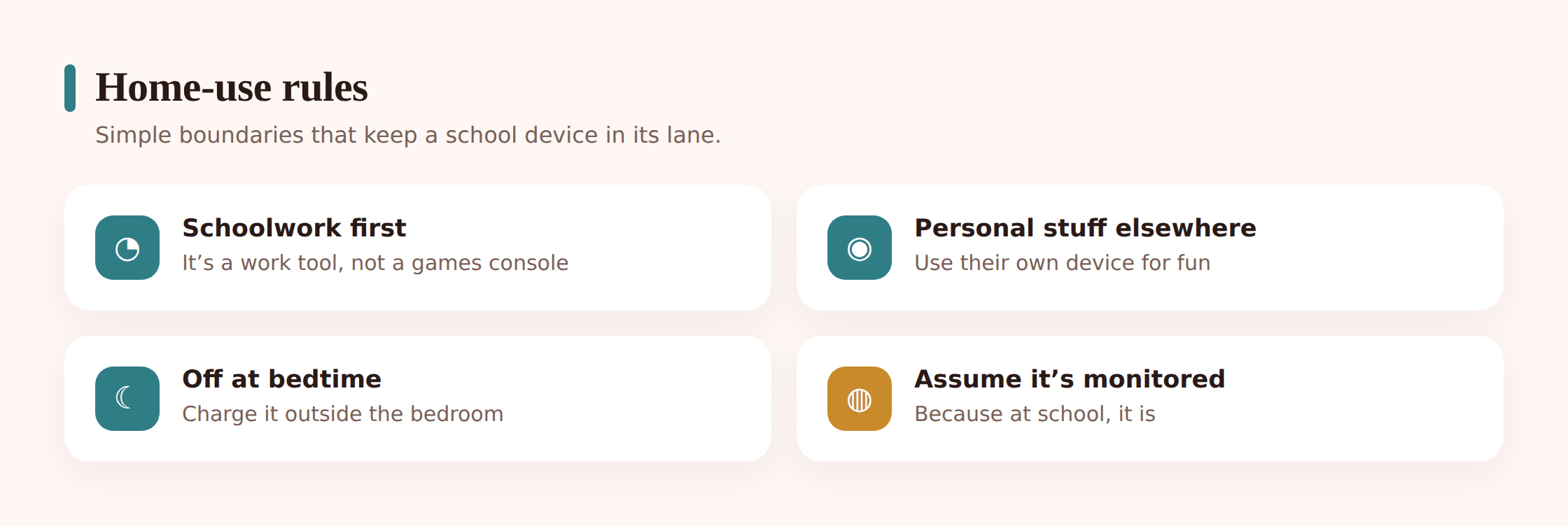
When the device first comes home, spend ten minutes setting the ground rules. Do this with your child, not behind their back — it’s their school tool and they’ll use it better if they understand the deal.
1. Read the school’s device agreement
Most districts send home an acceptable-use policy or device handbook. Actually read it. It tells you who’s liable if the screen cracks, whether the device may leave the house, what counts as misuse, and what the school monitors. You often sign it, so you’re agreeing to real terms.
2. Confirm it’s for school, and say so out loud
Set the expectation on day one: this is a school computer for schoolwork. Personal browsing, games and chatting with friends happen on a personal device, not here. Kids follow a rule they heard clearly far better than one they guessed at.
3. Give it a home base in a shared room
Pick a spot for it to live and charge — the kitchen, a desk in a common area, wherever there’s casual foot traffic. A school device that charges in the living room isn’t open under the covers at midnight. This one habit prevents more problems than any setting.
4. Add it to your Wi-Fi with a schedule
Connect the device to your home network, then set the time rules: online during homework hours, off at bedtime. If your router supports per-device profiles, put the Chromebook on the child’s profile with the same schedule as their other devices.
5. Turn on your router’s content filter
Switch on category filtering at the network level as a backstop under the school’s filter. It won’t override the school account’s own filtering, but it covers your whole network and closes the gaps.
6. Sort out the personal side separately
If your child needs somewhere for games, messaging and video, set that up on a device you actually control, with proper limits — don’t let those needs push them into misusing the school device. A personal tablet or phone, configured openly, is the right home for personal life.
Privacy: accounts, logs, camera
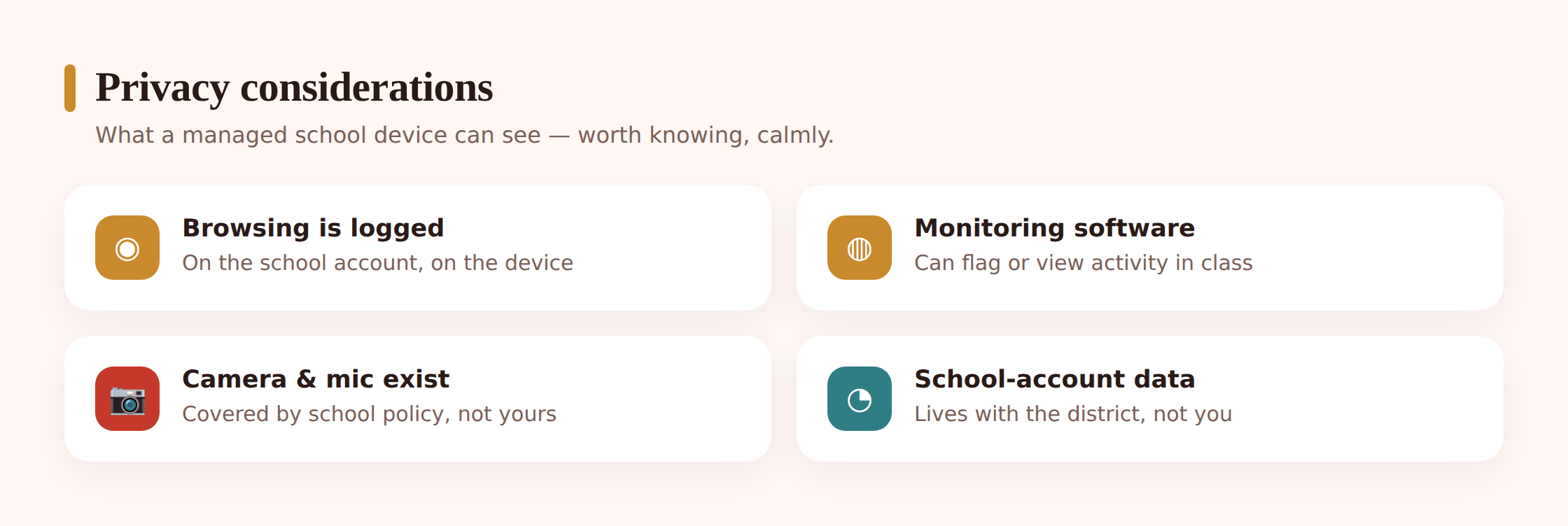
A managed device collects data, and that data lives in the school’s systems — sometimes for years, depending on the district’s retention policy. A little care keeps your child’s private life from getting swept into it.
Keep personal accounts off it. Don’t let your child sign into their personal Gmail, social apps or YouTube on the school device. Anything they do while signed in can land in the school account’s history or the browsing logs. Their personal life belongs on their personal device. This is also part of building a clean digital footprint — the trail of data that follows a kid for years.
Assume browsing is logged. On the school account, treat everything as recorded. That’s not paranoia; it’s how the systems are built. The practical upshot is simple: school stuff on the school device, everything else elsewhere.
Know where the camera is. The webcam is the thing parents worry about most, and mostly the worry is overblown — but not zero. A physical camera cover (a cheap sliding one, or a bit of tape) costs nothing and settles the question. If you want to know whether the district’s software can ever access the camera remotely, ask IT directly; a straight question deserves a straight answer, and reputable districts will give one.
Handle it responsibly at end of year. When the device goes back, the account and its data stay with the school. Don’t count on any personal files you left on it being wiped or private — another reason to keep personal files off it in the first place. Save schoolwork your child wants to keep to their own storage before returning it.
Helping them use it well
Safety is half the job. The other half is helping your kid get real value out of the thing, because a school device used well is a genuinely good tool — research, writing, collaboration, learning to manage their own work.
Teach the focus habit. The hardest skill on any laptop is closing the tabs you’re not using. Sit with your kid once and show them how to work with one document open and the distractions shut. A school filter blocks the obviously bad stuff; it does nothing about eleven half-read tabs and a game of finding loopholes. That’s a habit, and habits are taught, not filtered.
Make homework hours a real window. Tie the device’s online schedule to when homework actually happens. Open during study time, off after. It gives the device a job and a shape, instead of being an always-on temptation.
Let them own the schoolwork. Resist doing their tech for them. Show them how to save their work, submit an assignment, find a file they lost. A kid who can drive their own school device is learning something worth more than any single assignment.
Watch for the device becoming everything. If the school Chromebook is quietly turning into your child’s main screen for everything — video, games, chatting — that’s a signal they need their own properly-managed personal device, and it’s a signal to firm up the “school device is for school” line. The fix isn’t to lock down the Chromebook harder; you can’t. It’s to give personal life its own, better-managed home.
Your home checklist
The whole thing in one place. Run through it the week the device comes home:
- Read and understood the school’s device agreement and monitoring policy.
- Told your child plainly: school device, for school, and the school can see it.
- The device has a charging home base in a shared room, not the bedroom.
- It’s on your Wi-Fi with a schedule — online for homework, off at bedtime.
- Your router’s content filter is on as a backstop for the whole network.
- No personal accounts (personal Gmail, social, YouTube) signed in on it.
- A camera cover is on, if that’s a worry for you.
- Personal life lives on a separate, properly-managed device.
- You’ve noted the school IT contact for questions and breakages.
- Your child knows how to save, submit and find their own work.
FAQ
Can I put parental controls on a school Chromebook?
Generally no. A school-managed Chromebook is locked to the district’s admin and its school account, and it won’t let you install Family Link or add your own controls over the top. The controls belong to the school. What you can do is control your home network and set house rules around the device — that’s where your leverage is.
Can the school see my child’s screen?
In many districts, yes — monitoring suites like GoGuardian let teachers view open tabs and, during class, sometimes a live screen. Browsing and searches on the school account are typically logged, and some of that watching continues off campus while the device is on. The district’s IT office can tell you exactly what their setup captures.
Does the school filter work on my home Wi-Fi?
Usually yes. The filter is built into the device and travels with it, so it keeps working on your network. That’s a good thing, but it only covers the school account — add your router’s own filter to cover the rest of your home, including personal devices.
Should my child use the school device for personal stuff?
Better not to. Anything they do on it can land in the school account’s history or the monitoring logs, and personal accounts signed in there muddy their digital footprint. Keep the school device for school and give personal life its own space on a device you manage.
Can the school access the webcam?
On most setups, remote camera access isn’t a routine feature, but capabilities vary by district and software. If it worries you, a physical camera cover settles it, and you can ask IT directly what their management system can and can’t do. A reputable district will answer plainly.
What if I want stricter filtering than the school provides?
Two moves. Ask the school whether they can tighten filtering for your child specifically — some can. And add your own layer at the router with website and app blocking, which covers your whole network regardless of which account the device uses.