A Parent’s Guide to Console Parental Controls (PlayStation, Xbox & Switch)
Your kid unboxes a PlayStation, an Xbox, or a Switch, and within twenty minutes they’re online, downloading, and voice-chatting with strangers. Every one of those consoles ships with parental controls that can slow that down and keep it age-appropriate, but the settings live in different menus with different names, and the setup screens rarely walk you through them. This guide does the walking. It’s console-specific, hands-on, and built around controls you set together with your child, not behind their back.
What console controls actually do (and don’t)
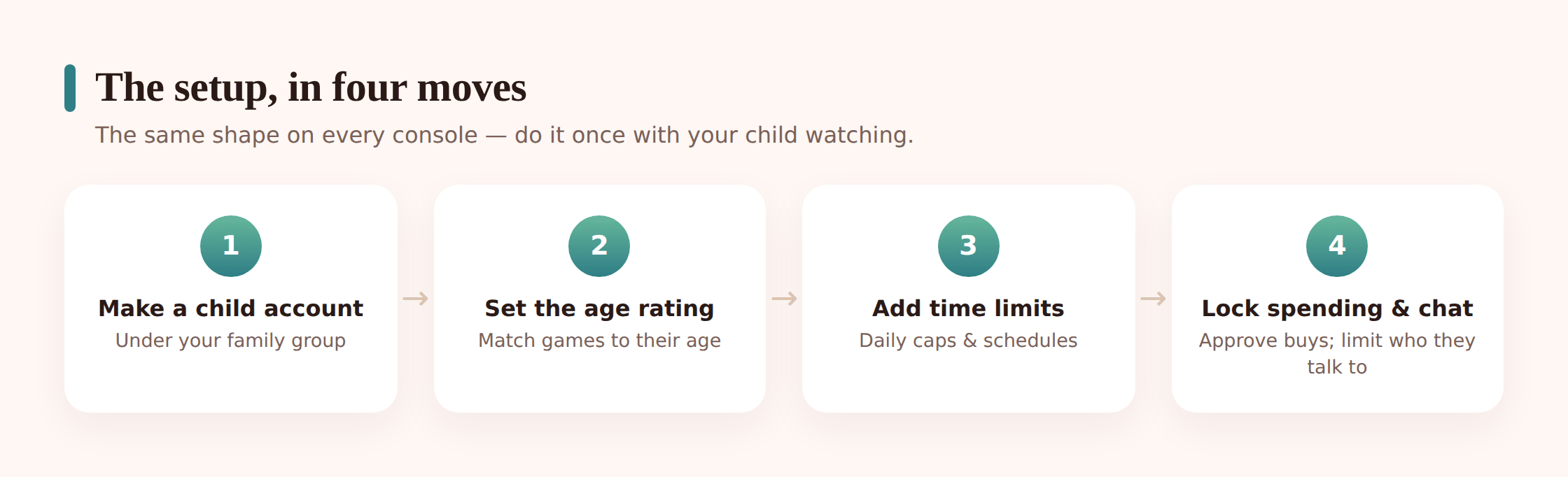
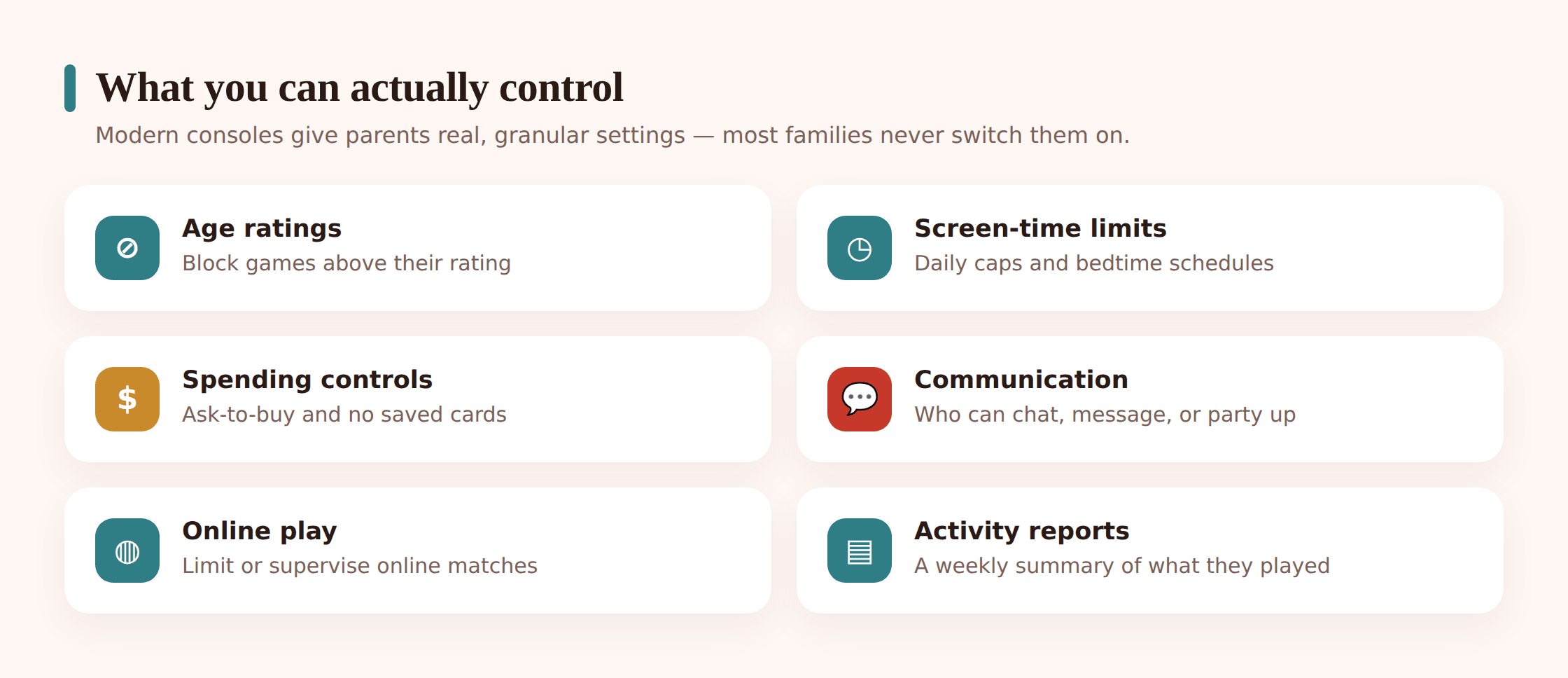
The controls on all three platforms cluster around the same five jobs: which games and apps your child can launch (by age rating), how long they can play, what they can spend, who they can talk to, and what web content the built-in browser will load. The mechanics differ, but if you get those five right on each console, you’ve covered most of what matters.
What they don’t do is parent for you. A time limit that ends at 8pm is a conversation starter, not a wall. And console controls only cover the console. The same child probably games on a phone, a tablet, and maybe a school laptop, so treat this as one piece of a wider plan. For the bigger picture on friend requests, voice chat, and multiplayer strangers, see our online gaming safety guide; this article stays focused on the hardware in the living room.
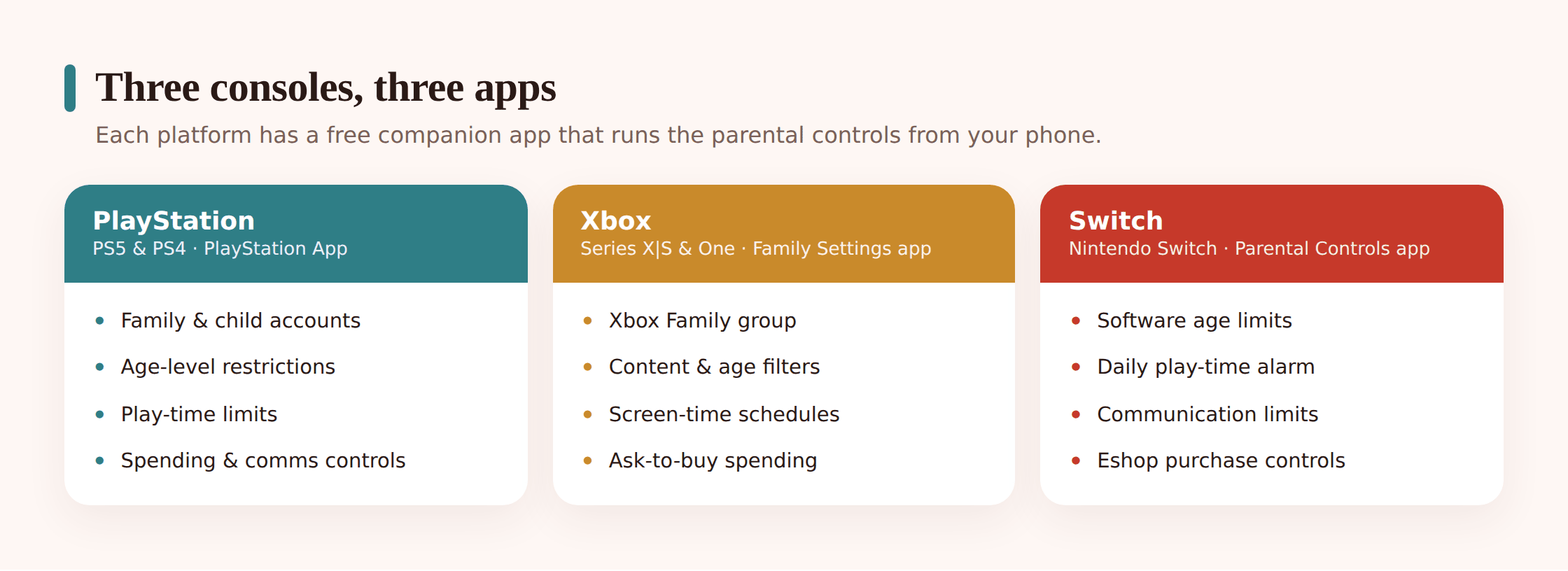
PlayStation 5 & PS4
PlayStation calls its system a Family, run by a Family Manager (that’s you). The Family Manager is an adult account that creates and supervises child accounts. Kids under the age limit for your country (usually 18) get a child account with its own restrictions. The good news: PS5 and PS4 share almost identical settings, and most of it can be adjusted from a browser or the PlayStation App as well as the console.
Create the child account first
Step 1 — Sign in as the adult
On the PS5, go to Settings > Family and Parental Controls > Family Management. Sign in with your own adult PlayStation Network account. If you don’t have one, create it first; you can’t supervise from a child account.
Step 2 — Add a family member
Choose Add Family Member > Create User, then enter your child’s name and date of birth. Their real birth date matters here, because PlayStation uses it to apply age defaults automatically. Accounts for children below the sign-up age are created as supervised child accounts.
Step 3 — Set the restrictions before you hand it over
PlayStation walks you through age level for games, age level for Blu-ray and DVD, web browser access, and monthly spending. Set these now, on the setup screen, rather than promising yourself you’ll do it later.
Age ratings and content
Under Settings > Family and Parental Controls > Family Management > [child] > Restrictions, you’ll find Age Level for Games. PlayStation maps this to the rating system for your region (ESRB in North America, PEGI in Europe and much of the rest of the world). Pick the highest rating you’re comfortable with and games above it won’t launch. You can also toggle the web browser off entirely and block PlayStation VR for younger kids.
Screen time
PlayStation’s Play Time settings are genuinely flexible. You can set different daily limits for each day of the week, choose a time-of-day window (say, nothing before 7am or after 8pm), and decide what happens when time runs out: either a notification, or the console logs the child out automatically. You can also add more time on the fly from your phone if you decide tonight’s an exception.
Spending and communication
Set a Monthly Spending Limit under the child’s restrictions, so PlayStation Store purchases and in-game buys stop at a number you choose. You can also require that the child ask permission to spend, or lock the wallet entirely and top it up yourself with gift cards, which many parents find easier to reason about than a linked card. For online safety, the Communication and User-Generated Content setting controls whether your child can message other players and view content other users create. Restricting it limits chat and blocks user-made content that PlayStation can’t age-check.
Xbox Series X|S & Xbox One
Xbox ties everything to a Microsoft account and a family group, which is the same family group that governs Windows PCs and the web. That’s a real advantage if your household is Microsoft-heavy: one setting can cover the Xbox and the kid’s laptop. The star of the show is the Xbox Family Settings app, a free phone app dedicated entirely to managing your child’s gaming.
Create the child’s Microsoft account
Step 1 — Make a child account
The cleanest route is the Xbox Family Settings app on your phone. Open it, sign in with your adult Microsoft account, and tap Add child. If a child account already exists, add it to your family group instead. Enter their real date of birth so age defaults apply correctly.
Step 2 — Add them to the family group
Confirm the child is a member of your family group. On the console you can also do this at Settings > Account > Family settings > Manage family members.
Step 3 — Set defaults in the app
The Family Settings app groups controls into content filters, screen time, and spending. Walk through each section once at setup so nothing is left on the permissive default.
Age ratings and content filters
In the Xbox Family Settings app, open your child’s profile and go to Content restrictions. Set Access to content to an age level (for example, “10+” or “13+”) and Xbox filters games, apps, and the Store to match. You can also control access to Microsoft Edge browsing and, separately, whether they can add non-family friends. On the console, the same lives under Settings > Account > Family settings > Manage family members > [child] > Access to content.
Screen time
Xbox has one of the more powerful screen-time systems. In the app under Screen time, you can set a schedule per day, with allowed time windows and a total cap. Because it’s the same Microsoft family group, you can choose whether the limit applies to Xbox only or across the child’s Windows devices too. When time’s nearly up, the child gets a warning, and they can send you a request for more, which lands in your app as a notification you approve or decline with a tap.
Spending and communication
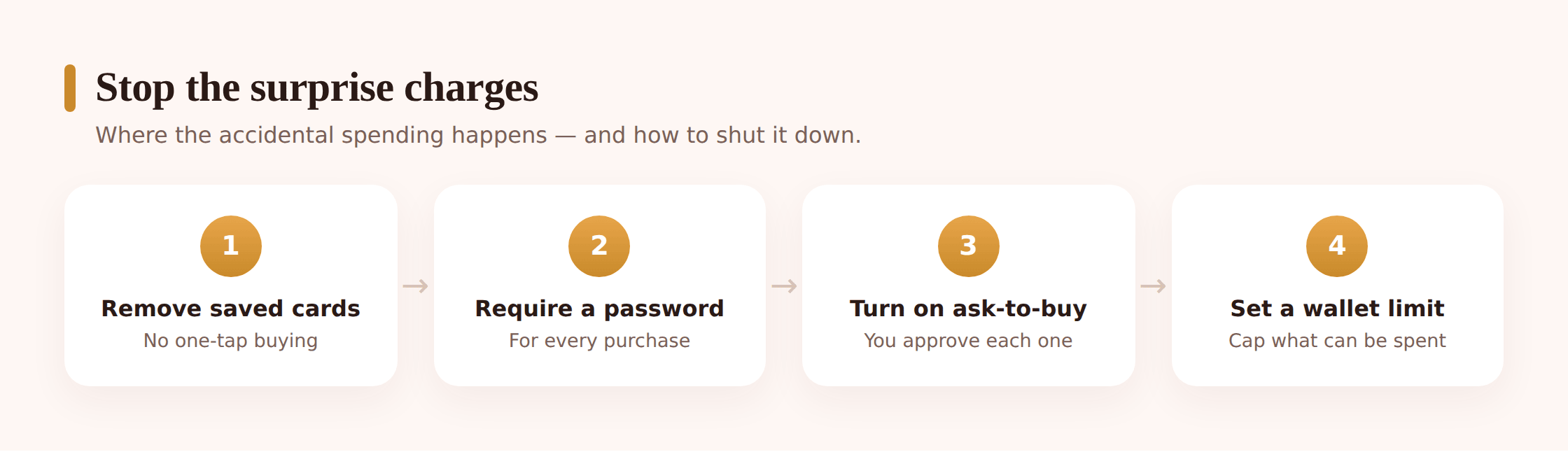
For spending, the app lets you turn on Ask to buy, so every Store purchase and in-game charge needs your approval first, or you can add money to the child’s account as a fixed balance. This is the single most effective guard against surprise charges; for the wider problem of accidental and pressured spending, see our guide to in-app purchases & surprise charges. On the communication side, Privacy & online safety settings control who can send messages, who can see the child online, and whether they can use voice and text chat in multiplayer. You can start locked-down and loosen individual toggles as trust grows.
Nintendo Switch
Nintendo took the opposite approach from Sony and Microsoft. Instead of burying controls in the system menu, almost everything lives in a dedicated free phone app: Nintendo Switch Parental Controls. The console itself has a basic on-device version, but the app is where the real settings are, and it links to the console with a six-digit registration code.
Link the app to the console
Step 1 — Install and sign in
Download the Nintendo Switch Parental Controls app and sign in with your own Nintendo Account (make one if you don’t have it). This adult account becomes the supervisor.
Step 2 — Get the registration code
The app shows a six-digit code. On the Switch, go to System Settings > Parental Controls > Parental Controls Settings, and enter that code when prompted. The console and app are now paired.
Step 3 — Choose a starting level
The app offers presets by age (Teen, Pre-Teen, Child) or a custom setup. Pick the age preset closest to your child, then fine-tune. The preset is a starting point, not a final answer.
Age ratings and content
In the app under Restricted Software, you set the maximum age rating for games that can be played. The console reads the rating baked into each game and blocks anything above your limit. You can also restrict posting screenshots and videos to social media, and control access to the Nintendo eShop and the browser features some games use.
Screen time
This is the app’s headline feature. Set a Play-Time Limit per day, and optionally a Bedtime Alarm that nudges the child to stop at a set hour. Turn on Suspend Software and the Switch will actually pause the game when the daily limit is reached, rather than just showing a message. You can set different limits for different days, and you get a monthly summary of which games were played and for how long, delivered right in the app.
Spending and communication
Here’s the Switch’s biggest gap: it has no monthly spending cap in the parental app the way PlayStation and Xbox do. Spending is controlled at the account and eShop level instead. The most reliable approach for younger kids is to keep no payment card saved on the child’s account and fund the eShop with prepaid Nintendo cards, so there’s a hard ceiling by design. For communication, the app can restrict whether the child can freely exchange messages and content with others through games. Many Nintendo online games route voice chat through a separate phone app rather than the console, which is worth knowing when you’re weighing chat risks.
Side-by-side comparison
The three platforms overlap heavily but differ in the details, especially on spending. This table is the short version.
| Control | PlayStation 5 / PS4 | Xbox Series X|S / One | Nintendo Switch |
|---|---|---|---|
| Age ratings | Age Level for Games (ESRB/PEGI); blocks above your limit | Content restrictions by age; filters games, apps & Store | Restricted Software by max age rating |
| Screen-time limits | Play Time: per-day limits, time windows, auto log-out | Screen time: per-day schedule, request-more approvals | Play-Time Limit + Bedtime Alarm; can suspend the game |
| Spending controls | Monthly spending limit or ask-to-spend; wallet top-ups | Ask to buy, or fixed account balance | No in-app cap; use prepaid cards / no saved card |
| Chat & online play | Communication & user-generated content toggle | Privacy & online safety: messages, voice/text chat | Restrict messaging & content exchange; voice often via separate app |
| Companion app | PlayStation App | Xbox Family Settings app | Nintendo Switch Parental Controls app |
| Activity reports | Play-time notifications | Weekly activity reports | Monthly play summary in app |
Don’t forget the phone
Lock down all three consoles perfectly and your child still carries a games machine in their pocket. Mobile games are where much of the surprise spending and unfiltered chat actually happens, and no console setting reaches them. Set matching expectations on phones and tablets: comparable age ratings, comparable time limits, comparable spending guards. Our note on screen time by age can help you pick limits that hold up across every screen instead of just the TV.
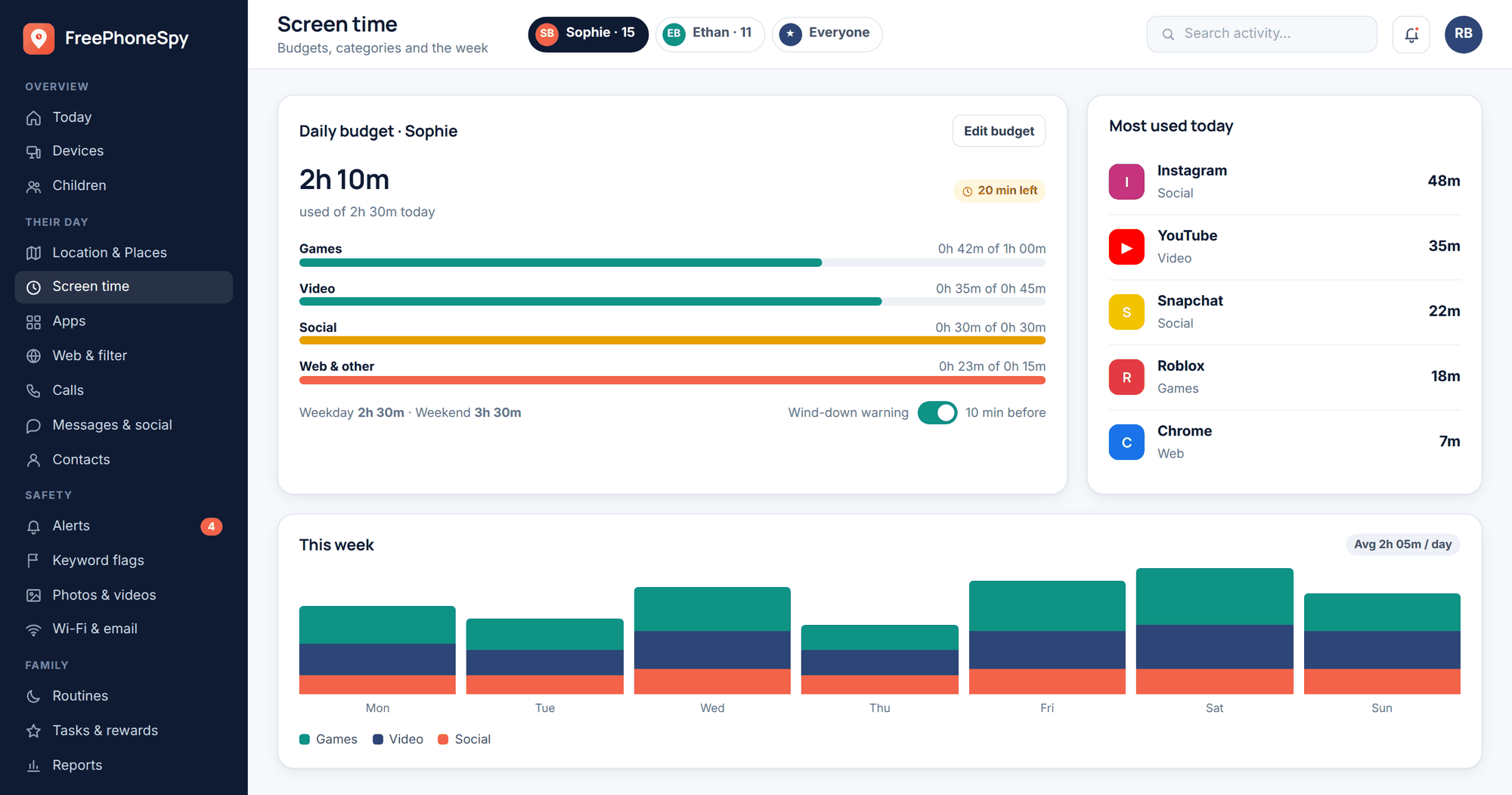
On the phone side, a transparent, consent-based family tool like FreePhoneSpy can mirror the same open approach you take on the console, giving you agreed visibility into app time and installs on an Android device you own and manage with your child’s knowledge. Used that way, it complements console controls rather than replacing the conversation. Whatever tool you use, the principle holds: your child should know it’s there and understand why.
Quick setup checklist
- Created a supervised child account using your child’s real date of birth.
- Set an age-rating ceiling so games above it won’t launch.
- Configured daily time limits and, where available, a bedtime cut-off.
- Turned on ask-to-buy or a spending cap, or removed the saved card in favour of prepaid balance.
- Reviewed chat and online-play settings, starting stricter and loosening with age.
- Installed the companion app so you can adjust settings and approve requests remotely.
- Wrote down the PIN or password somewhere you’ll actually find it.
- Set matching expectations on the phone and tablet, not just the console.
- Put a date in the calendar to revisit the limits as your child gets older.
Parent FAQ
Can my child just create a new adult account to bypass the limits?
They can create a new account, but it won’t be linked to your payment method, your online subscription, or their saved games and friends, which is usually enough friction to matter. On all three platforms you can also restrict the creation or addition of new users. If a child is determined enough to route around every control, the fix is a conversation, not a tighter setting.
Do age-rating limits block online chat with strangers?
No. Age ratings control which games launch; chat and messaging are separate settings. On PlayStation that’s the Communication and User-Generated Content toggle, on Xbox it’s Privacy & online safety, and on Switch it’s the messaging and content-exchange restrictions. Set both. A game rated for kids can still connect them to adult strangers by voice.
My kid plays on PS5, Xbox, and Switch. Is there one app to rule them all?
No single app manages all three; each platform has its own. You’ll run the PlayStation App, the Xbox Family Settings app, and the Nintendo Switch Parental Controls app separately. Annoying, but each takes only a few minutes once the account exists, and you rarely change the settings after setup.
Why can’t I set a spending limit on the Switch like I can on PlayStation and Xbox?
Nintendo simply didn’t build a monthly cap into its parental app. The workaround is to control spending at the account level: don’t save a payment card on the child’s Nintendo Account, and fund the eShop with prepaid Nintendo cards so there’s a hard ceiling. It’s the most reliable spending guard on that console.
What happens to the game when the time limit runs out?
It depends on your choice. PlayStation can either notify or log the child out. Xbox warns them and lets them request more time. Switch can show a message or, if you enable Suspend Software, actually pause the game. Enabling the hard stop avoids the “but I was mid-match” argument, though a warning-only setting can be gentler for older kids.
Should I hide these controls from my child?
No. Covert restrictions tend to breed resentment and workaround-hunting, and they miss the whole point, which is to teach balance rather than just enforce it. Set the controls together, explain the reasoning, and treat them as a family agreement you’ll revisit as your child grows. Openness is what makes them stick.