Passwords & 2FA: A Family Security Guide
Most people don’t get “hacked” by a genius in a hoodie. They get hacked because a password they used on some forum in 2015 leaked, and they used the same one on their email. A family makes that worse: you share a Wi-Fi router, a Netflix login, an Apple ID that unlocks the kids’ phones. One weak link and the whole house is exposed. The good news is that fixing this is boring, cheap, and mostly a one-evening job. Here’s how to do it properly.
- Why one weak password sinks the whole family
- What actually makes a password strong
- Password managers: the single biggest upgrade
- Two-factor authentication, explained simply
- Turning on 2FA, step by step
- Passkeys: logins that can’t be phished
- Don’t lock yourself out: the recovery plan
- Checking if your details have leaked
- Teaching kids about passwords
- A family plan that sticks
- Lock down your accounts this week
- FAQ
Why one weak password sinks the whole family
Here’s how the common attack actually works, because it’s not what people picture. A website you signed up for years ago gets breached. The list of emails and passwords ends up dumped online. Attackers don’t read it by hand — they feed it into software that tries those same email-and-password combos on hundreds of other sites automatically. Banks, email providers, Instagram, PayPal. This is called credential stuffing, and it works for one reason: people reuse passwords.
So the risk isn’t really “is my password hard to guess.” It’s “have I used this password anywhere else, and has any of those places leaked.” If you use Summer2019! on ten sites and one of them gets breached, you’ve handed over the other nine.
Families concentrate that risk. You probably share a streaming account. Your Apple ID or Google account might be what sets up and controls the children’s devices. If a parent’s email gets taken over, an attacker can reset the password on almost everything else, because password resets go to email. Your email is the master key to your whole digital life. Treat it that way.
None of this needs you to become a security expert. It needs three habits: unique passwords, a manager to hold them, and a second factor on the accounts that matter. That’s the whole game.
What actually makes a password strong
The old advice — one uppercase, one number, one symbol, change it every 90 days — was wrong, and the people who wrote it have said so. It pushed everyone toward passwords that are hard for humans to remember and easy for computers to crack, like P@ssw0rd1. The modern advice is simpler.
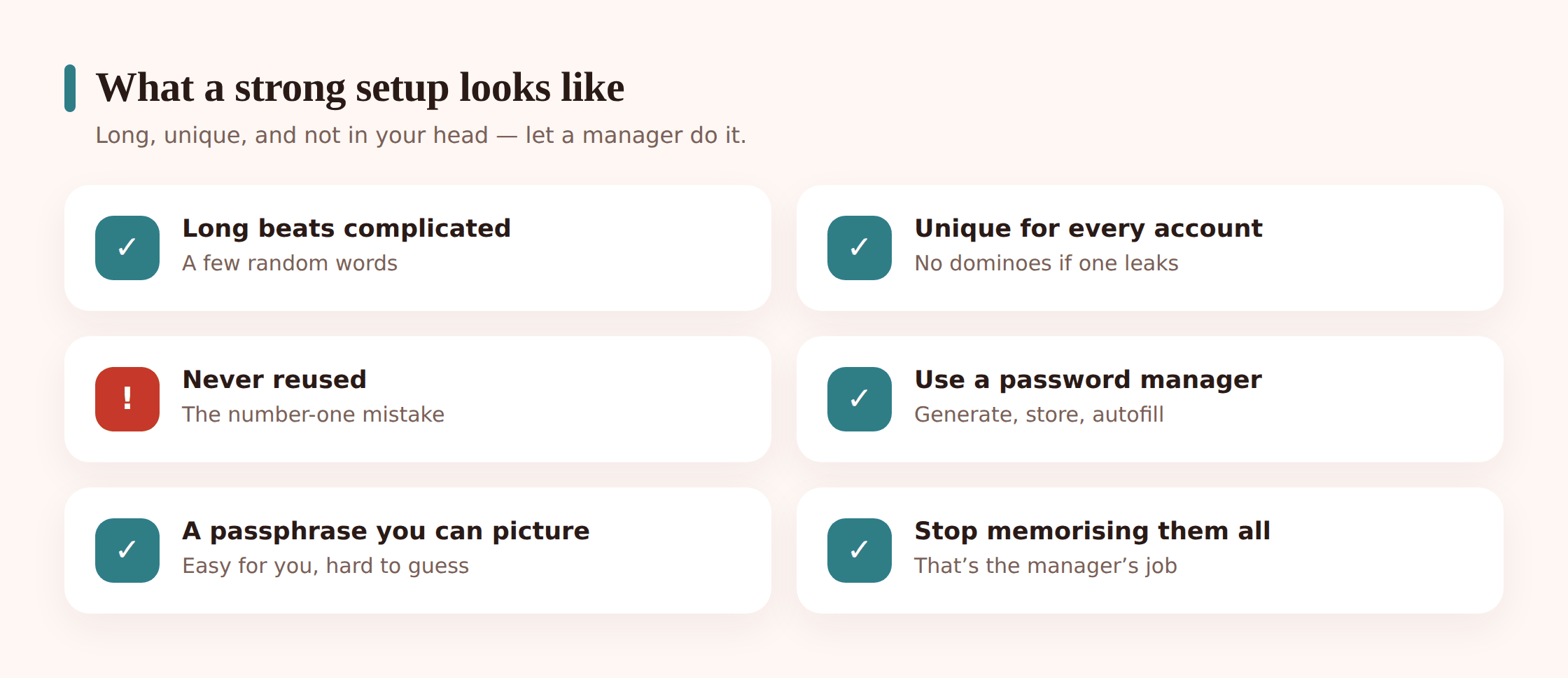
Long beats complicated. A passphrase of four or five random words — think copper-otter-lantern-drift — is far harder to crack than X7!q and far easier to type. The strength comes from length, not from swapping an “a” for an “@”. Every extra word multiplies the guesses an attacker needs.
Random matters. “Random words” doesn’t mean a phrase from a song or your kids’ names in a row. It means words with no connection to each other or to you. A song lyric is in the guessing lists.
Unique for every account that matters. This is the rule that actually protects you. If every important login has its own password, a breach at one site is contained to that one site. No spillover.
Stop trying to memorise them. Nobody can remember forty unique passphrases, and you shouldn’t try. Memorise one — the one that unlocks your password manager — and let software handle the rest. Which brings us to the single most useful thing in this guide.
Password managers: the single biggest upgrade
A password manager is an app that generates a strong, unique password for every account, stores them all in an encrypted vault, and fills them in for you when you log in. You remember one strong master password; it remembers the other hundred.
If you do one thing after reading this, make it this. A manager fixes the reuse problem at a stroke, because generating a fresh 20-character password for each site costs you nothing — you never see it or type it. It also quietly kills phishing: the manager only offers to fill a password on the exact site it was saved for. If you land on paypa1.com, it stays silent, and that silence is a warning.
Built-in vs dedicated
You likely already have one. Apple’s iCloud Keychain is built into iPhones, iPads and Macs. Google Password Manager is built into Chrome and Android. Both are free, both generate and autofill unique passwords, and both are a huge step up from reusing Summer2019!. If your family lives entirely inside one ecosystem, the built-in option is genuinely fine.
Dedicated apps like Bitwarden (which has a solid free tier), 1Password or others add things the built-in ones don’t do as well: they work across every browser and both phone platforms, they make family sharing easy, and they store more than passwords — recovery codes, passport numbers, secure notes. If your household is a mix of iPhone and Android, a cross-platform manager saves a lot of friction.
Protect the manager itself
The vault holds everything, so its own security is non-negotiable. Give it a strong master passphrase you’ve memorised and used nowhere else, and turn on two-factor authentication on the manager account too. Write the master password on paper and keep it somewhere safe at home — a genuinely good use for pen and paper, because if you forget it, nobody can recover it for you. That’s the point of the encryption.
Share the right way
Most managers have a family plan with shared folders. This is how you share the Wi-Fi password or the streaming login without texting it around or writing it on the fridge. Everyone gets access, you can revoke it if a device is lost, and personal accounts stay personal. Set the family up on one manager and you’ve solved sharing and security in the same move.
Two-factor authentication, explained simply
Two-factor authentication (2FA, sometimes MFA) means logging in takes two things: something you know (your password) and something you have (your phone, or a hardware key). Even if an attacker has your password from a breach, they can’t get in without the second step. It’s the seatbelt of account security. It won’t stop every crash, but it turns most break-in attempts into dead ends.
Not all second factors are equal. Ranked from strongest:
- Passkey or authenticator app — the best. A passkey (more on those below) or a code from an app like Google Authenticator, Microsoft Authenticator or Authy. The codes are generated on your phone and never sent over the network, so there’s nothing to intercept.
- Push prompts — good. The “Was this you? Approve / Deny” pop-up your bank or Google sends. Strong and convenient, with one catch: don’t tap Approve on autopilot. If a prompt arrives when you weren’t logging in, that’s an attacker with your password. Deny it and change the password.
- SMS text codes — better than nothing, but the weakest. Texts can be intercepted, and a scammer can trick you into reading the code aloud (“we’re calling from your bank, confirm the code we just sent”). A real company will never ask you to read a 2FA code to them. Use SMS only where it’s the only option.
You don’t have to add 2FA to every account you own. Start with the “keys to the kingdom” — the accounts that can reset or reach everything else:
- Your email — first, always. Whoever controls your email controls your password resets.
- Your Apple ID / Google account — these hold your photos, contacts, backups, and often control the children’s devices.
- Banking and payments — bank apps, PayPal, anything with your card.
- Social media — a hijacked account gets used to scam your friends and family.
Turning on 2FA, step by step
The exact menu names differ by service, but the flow is almost always the same. Here it is in general terms.
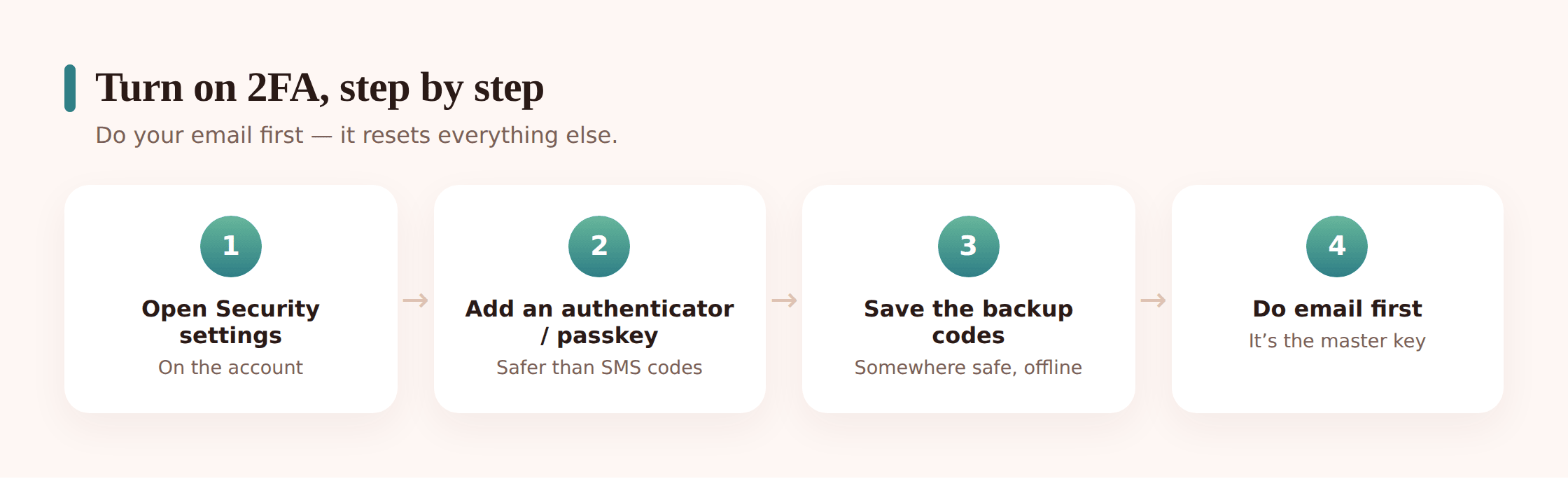
1. Do your email first
Log in to your email provider and open Settings, then look for Security or Password & Security. Because email resets everything else, locking it down first means the rest can’t be undone through it.
2. Find the two-factor option
It’ll be called “Two-factor authentication,” “2-step verification,” or “Multi-factor authentication.” Choose to add an authenticator app or a passkey rather than SMS if both are offered.
3. Scan the code into your app
For an authenticator app, the site shows a QR code. Open your authenticator, tap add, and scan it. The app starts showing a 6-digit code that changes every 30 seconds. Type the current one back into the site to confirm the link.
4. Save the backup codes
The site gives you a list of one-time recovery codes. These get you back in if you lose your phone. Save them in your password manager’s secure notes, or print them and keep them with the master password. Don’t skip this — it’s the step that stops 2FA from locking you out.
Repeat for your Apple or Google account, then banking, then socials. Twenty minutes of clicking now saves you a nightmare later. If a family member is nervous about the setup, sit with them and do their email together — it’s the one that matters most.
Passkeys: logins that can’t be phished
Passkeys are the newer way to log in, and where they’re offered they’re worth using. A passkey replaces the password entirely. Instead of a secret you type, your device holds a cryptographic key and proves who you are with your fingerprint, face, or device PIN. You’ll see it as “sign in with a passkey” or a face/fingerprint prompt instead of a password box.
Two things make them special. There’s no password to steal, so a breach of the website leaks nothing useful about you. And they’re bound to the real site, so a fake login page can’t capture anything — a passkey simply won’t work on paypa1.com. That makes them resistant to phishing in a way passwords never can be.
Passkeys sync through your Apple, Google, or password-manager account, so setting one up on your phone means it works on your other devices too. Google, Apple, Microsoft, and a growing list of banks and social platforms support them now. When a service offers a passkey, take it. You can usually keep your password as a backup while you get used to it.
Don’t lock yourself out: the recovery plan
The one real risk with tightening security is locking yourself out. A few habits prevent it.
- Save every set of backup codes. Every account that offers them gives you a batch when you turn on 2FA. Store them in your manager or on paper. They’re your way back in when your phone is dead, lost, or replaced.
- Set a recovery email and phone. On your main accounts, add a trusted recovery email (a partner’s, maybe) and a phone number. It gives the provider a way to confirm it’s really you.
- Don’t put all your eggs in one phone. If your authenticator app lives only on a phone that gets lost, you’re stuck. Pick an authenticator that backs up to the cloud, or add a second device, or — at minimum — keep those printed backup codes.
- Moving to a new phone? Migrate first. Before you wipe the old handset, transfer your authenticator app to the new one. Most have an export/transfer feature. Do it while you still have both phones in hand.
Checking if your details have leaked
You can find out whether your email has turned up in a known breach. The trusted, free tool for this is Have I Been Pwned (haveibeenpwned.com). Type in your email address and it tells you which breaches it has appeared in and roughly what was exposed. It’s run by a well-known security researcher and it doesn’t ask for your password — never trust a “breach checker” that wants your actual password.
If your email shows up in a breach, don’t panic, but do act:
Change the password on the breached site
Set a new, unique passphrase there. Let your manager generate it.
Change it anywhere you reused it
This is the important part. If that leaked password was also on your email or bank, those are the accounts actually at risk from credential stuffing. Change every reuse now.
Turn on 2FA there
So that even if the password leaks again, it isn’t enough on its own.
Have the whole family run their main email addresses through it. It’s a five-minute check, and it turns a vague worry into a specific to-do list. Good password managers also flag reused and breached passwords for you inside the app — check that dashboard and work through whatever it highlights.
Teaching kids about passwords
Kids don’t need a lecture on cryptography. They need a handful of clear rules they can actually follow, and the reasoning behind each one.
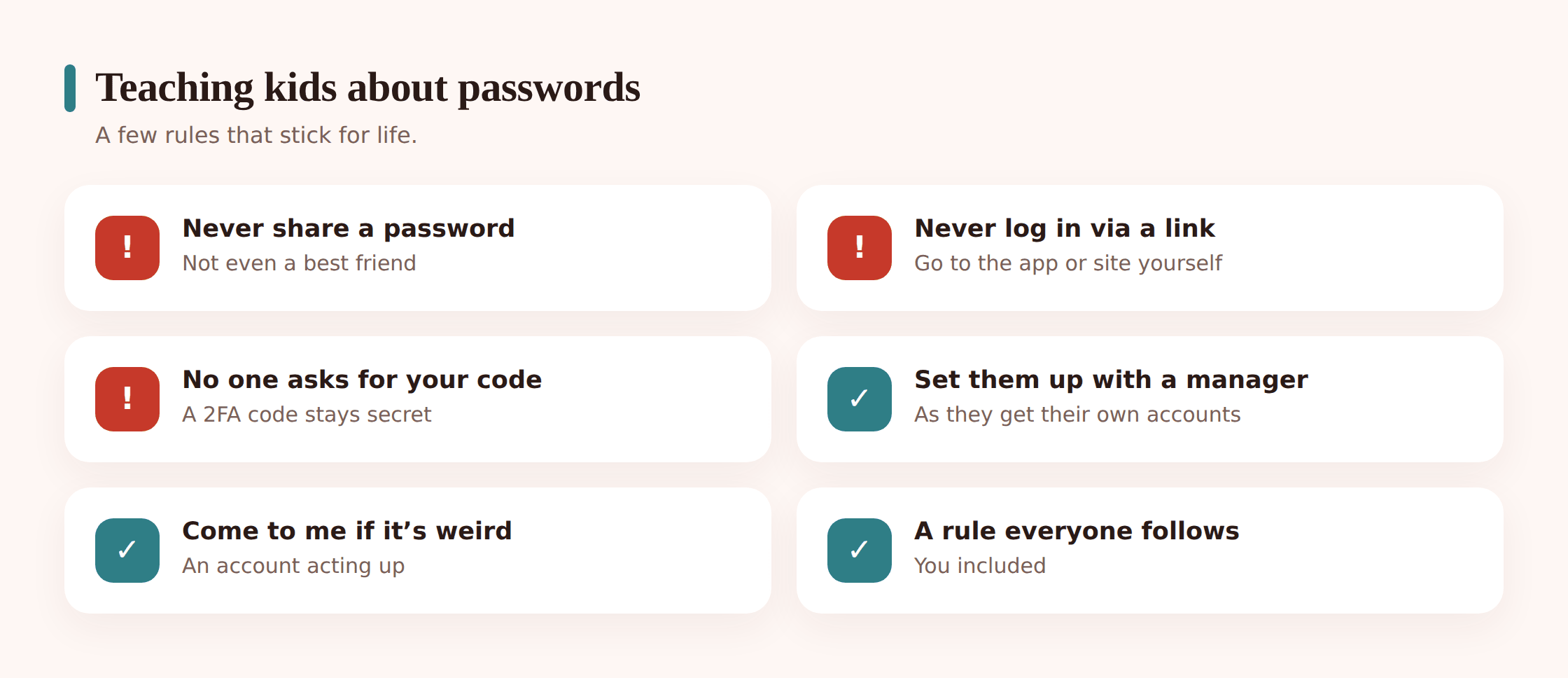
- Never share a password, not even with a best friend. Friendships change; a shared password doesn’t un-share itself. This is the number-one way kids lose access to their own accounts and get impersonated.
- Never type a login after clicking a link in a message. This one rule blocks most phishing. If a text or DM says “log in to claim your prize” or “your account will be closed,” don’t. Open the app yourself, the normal way. Our guide on spotting a phishing scam text is worth going through together.
- A real company never asks for your password or a 2FA code. Make it a family rule stated out loud. Anyone who asks — by text, call, or DM — is a scammer, full stop. No exceptions, no “but they sounded official.”
- Give them a manager as they get their own accounts. A twelve-year-old setting up their first game and social logins should start with a password manager, so unique passwords are just how it’s always been done for them. Add them to the family plan.
- “If an account acts weird, come to me.” Logged out for no reason, a password that suddenly doesn’t work, a message they didn’t send. No blame, just tell you fast. Speed is what limits the damage, and a kid who fears being told off will hide the problem until it’s worse.
Scammers target children on purpose, because kids are trusting and often have a parent’s card linked to an account. Our piece on online scams targeting kids covers the specific tricks worth naming for them.
A family plan that sticks
Security that depends on everyone being careful forever will fail. Build a setup that holds even on a bad day.
- One password manager for the household. Everyone on it, with a shared folder for the passwords you genuinely share and private vaults for everything else.
- 2FA on the big accounts for every family member. Email, Apple/Google, banking, socials. Prioritise the accounts that reset others.
- Recovery sorted for each person. Backup codes saved, a recovery contact set, authenticator backed up. Do this the same day you turn 2FA on, not “later.”
- A periodic check. Twice a year, run everyone’s email through a breach check, glance at the manager’s reused-password warnings, and confirm nobody’s drifted back to old habits. Roll it into your broader family digital safety check-up so it actually happens.
Pay special attention to the accounts that control your children’s devices. Your Apple ID or Google account is often what sets up, locates, and manages a child’s phone, and its screen-time and Find My controls. If that account is weak, the parental controls sitting on top of it are only as strong as the login protecting them. Give it a unique passphrase and the strongest 2FA it offers — an authenticator or passkey, not SMS.
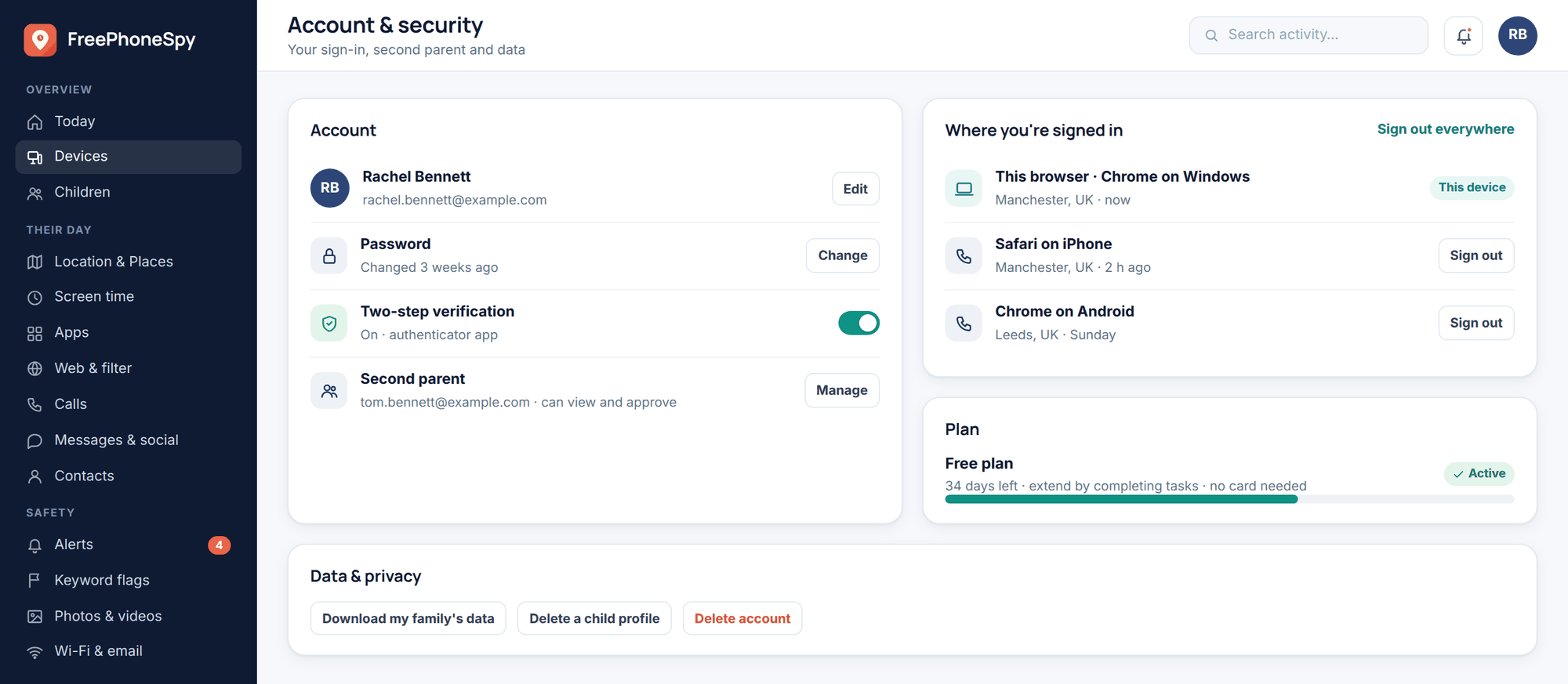
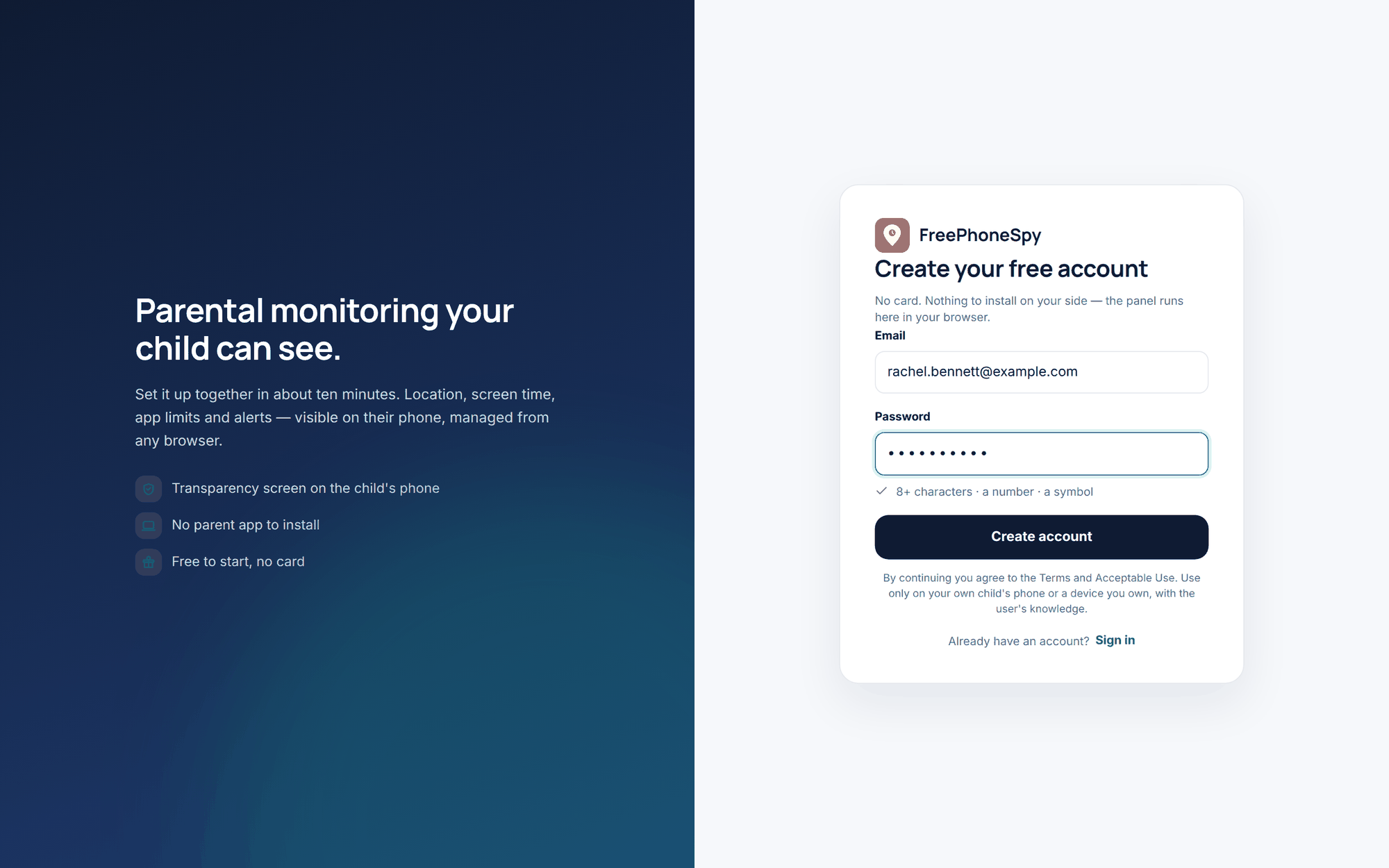
A note on how we do monitoring. FreePhoneSpy is transparent, consent-first parental monitoring for a child’s Android phone, viewed through a web panel. The point here is the reverse of secrecy: the account security in this guide is what keeps your family’s data — including anything you monitor — safe from outsiders. Strong passwords and 2FA on your own account are what stop a stranger from ever reaching it. If your child is on iPhone, Apple’s own Screen Time and Family Sharing tools are the route to take.
Lock down your accounts this week
You don’t need to do everything today. Spread it over a week and it’s painless.
- Install a password manager and set a strong master passphrase for it.
- Turn on 2FA for your email — do this one first.
- Change your email password to a unique passphrase the manager generates.
- Turn on 2FA for your Apple ID / Google account, banking, and main socials.
- Save every set of backup codes into the manager or onto paper.
- Run your email through Have I Been Pwned; change any reused passwords it turns up.
- Add the family to the manager and set up shared folders for what you actually share.
- Sit down with the kids and agree the “never share, never click-to-login, come to me if it’s weird” rules.
- Switch on passkeys anywhere they’re offered.
Tick those off and you’ve closed the door on the most common way families get hacked. From here, it’s worth a look at whether anything’s already amiss — our guides on whether your phone is being monitored and on protecting your child’s privacy and digital footprint pick up where account security leaves off.
FAQ
Is it safe to keep all my passwords in one place?
Yes, and it’s safer than the alternative. A reputable password manager encrypts your vault so that only your master password can open it — the company can’t read it, and neither can anyone who steals the file. The real danger isn’t a well-built manager; it’s reusing the same password everywhere, which is what most people do without one. A single strong vault beats twenty weak, reused passwords every time.
What happens if I lose the phone with my authenticator app?
This is exactly what the backup codes are for. Use one to log in from another device, then re-add 2FA on your new phone. To avoid the scramble, pick an authenticator that backs up to the cloud, and always save your backup codes when you first turn 2FA on. Migrate your authenticator to a new phone before you wipe the old one.
Is SMS two-factor worth turning on, or is it too weak?
Turn it on if it’s the only second factor a service offers — a phishable code is still far better than no second step at all. But where you can choose, pick an authenticator app or a passkey instead. Save SMS for the accounts that don’t give you a stronger option.
How often should I change my passwords?
Not on a schedule. The old “change every 90 days” advice just pushed people toward weak, predictable passwords. Change a password when there’s a reason: a site was breached, you spot it in a breach check, or you reused it somewhere. A strong, unique passphrase you’ve never reused doesn’t need routine changing.
My kid wants to share a password with a friend for a game. Is that ever okay?
Treat it as a firm no. Shared passwords are how kids lose accounts and get impersonated, and a friendship can sour long after the password’s forgotten. If they genuinely need to play together, most games have proper features for that — a friends list or a party invite — that don’t involve handing over the keys.
What’s the single most important thing to do first?
Lock down your email. Turn on 2FA and give it a unique password. Your email is where every other account sends its password resets, so it’s the master key to your whole digital life. Secure that one account and you’ve made the biggest single improvement available to you.