Smart Speakers, Alexa & Kids’ Privacy: A Parent’s Guide
There’s a speaker on the kitchen counter that answers questions, plays music, sets timers, and — if your six-year-old asks nicely — tells the same knock-knock joke eleven times. Smart speakers are genuinely handy in a house with kids. They’re also always-on microphones that keep recordings, build profiles, and can order things by voice. Both of those things are true at once. This guide explains how the devices actually work, what’s worth caring about, and the specific settings to change so the useful part stays and the creepy part doesn’t.
How they actually work
Let’s clear up the biggest myth first, because a lot of the worry rides on it. A smart speaker is not streaming everything you say to a server all day. Here’s the real, documented behaviour.
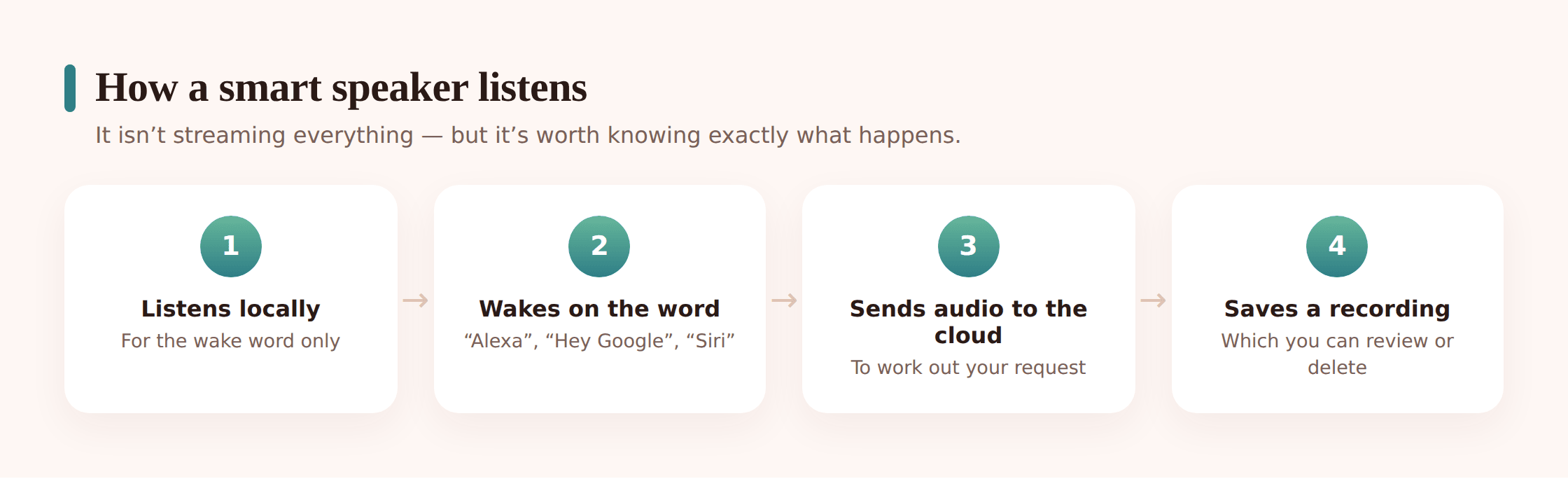
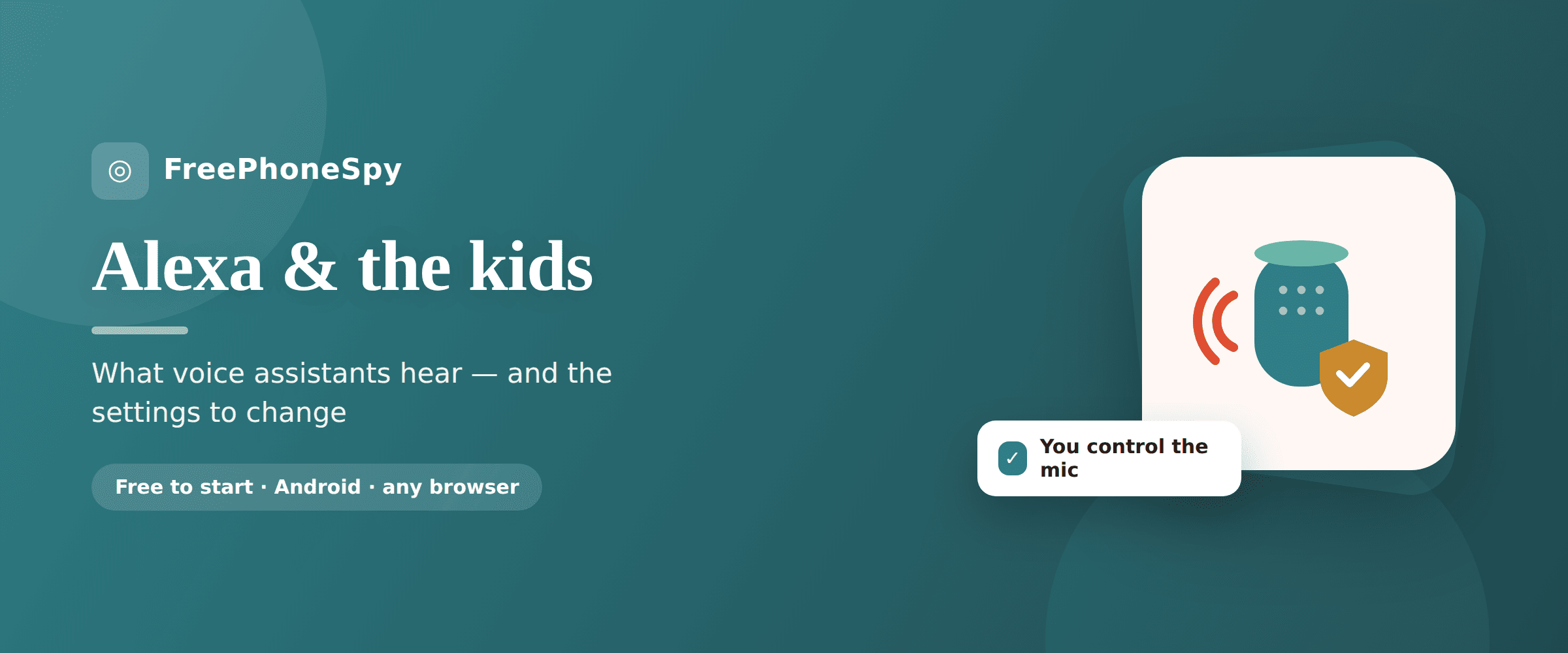
The microphone is always listening, but only for one thing: the wake word. “Alexa,” “Hey Google,” “Hey Siri.” That detection happens locally, on the device itself, using a small on-board model. Until the wake word is heard, audio is being processed in a short rolling buffer and continuously discarded — a few seconds at a time, overwritten, never sent anywhere.
When the device thinks it hears the wake word, three things happen. It captures the buffer plus what you say next, it sends that clip to the company’s cloud to be turned into text and answered, and it usually stores a copy of that clip tied to your account. That’s the recording that ends up in your history. So the honest summary is: always listening for a trigger, only recording and sending after the trigger.
The real edge case — and it’s a genuine one, not paranoia — is the accidental wake-up. Wake-word detection isn’t perfect. A word on the TV, a name that sounds like “Alexa,” or just background chatter can trip it. When that happens the device starts recording something you never meant to say to it, and that clip gets stored too. Companies have acknowledged this; it’s why review-and-delete controls exist, and why where you place the speaker matters.
The real privacy considerations for kids
Now the part worth actually thinking about. A speaker in a family home touches children’s privacy in a few specific ways.
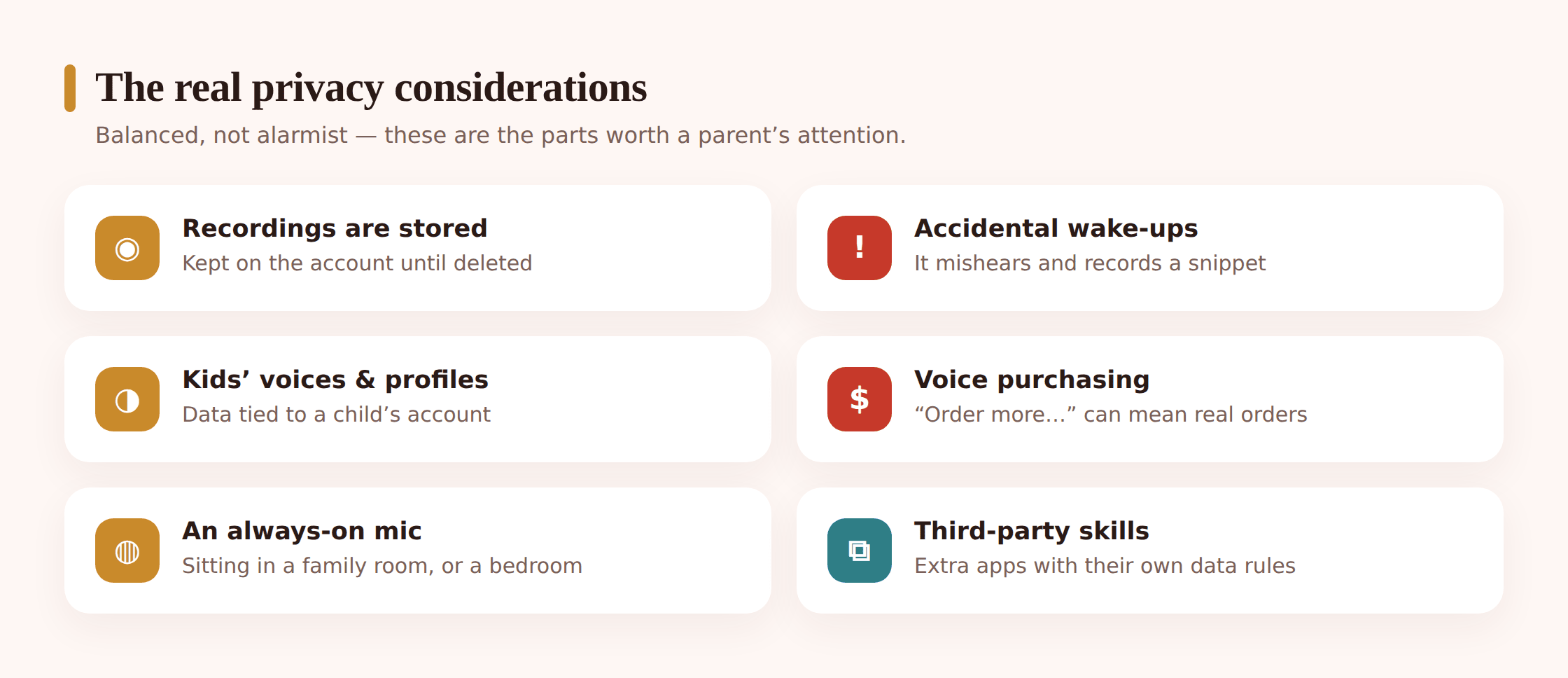
- Voice recordings of a child. Kids talk to these things constantly, and a lot of it gets stored — questions, songs, random declarations about dinosaurs. On a default adult account those recordings sit in a history log, sometimes used to improve the service. That’s the thing to review and prune.
- A profile that follows them. The assistant learns what gets asked, what music plays, what shows get requested. On a shared adult account, a child’s activity can feed the same profile that shapes recommendations and, in some setups, ads elsewhere in that ecosystem.
- Always-on mic in private spaces. A microphone that reacts to speech is fine in a kitchen. In a bedroom, especially at night, it’s a different call. More on placement below.
- Voice purchasing. On some setups a kid can genuinely order things by saying “buy me…” — or trigger a purchase by accident. This is a settings problem with a clean fix.
- Talking to an assistant like a person. Younger kids especially treat the speaker as a someone. That’s not harmful in itself, but it’s worth them understanding it’s a company’s product that keeps records, not a friend.
None of this makes the device unsafe. It makes it something to configure rather than unbox and forget. For the wider picture of what a child’s data trail looks like across the apps and services they use, see your child’s digital footprint.
Kids modes and what they change
All three big platforms have a child-focused mode, and they genuinely help. They’re not identical, but the shape is the same: filtered content, no open-ended purchasing, and — importantly — different handling of recordings.
Amazon Kids (formerly FreeTime) on Alexa. Turns on age-filtered content, blocks explicit music and answers, disables voice purchasing by default, and adds parent controls for time limits. It also changes recording handling: you can review and delete a child profile’s voice recordings from the parent dashboard, and Amazon offers an auto-delete and a “delete everything my child said” control. Kid profiles also swap in more child-appropriate responses.
Google’s family features on Assistant/Nest. Through Family Link and a child’s own account, you get voice content filters, blocked purchasing, and Family Bell / routines built for kids. Voice Match lets the assistant recognise a child’s voice and apply their settings rather than an adult’s.
Apple’s Siri with Screen Time. Apple’s approach is less about a dedicated “kids mode” and more about Screen Time restrictions plus Apple’s baseline of not building an advertising profile from Siri requests. You can restrict explicit language, disable Siri content, and turn off purchasing.
Settings to change on each platform
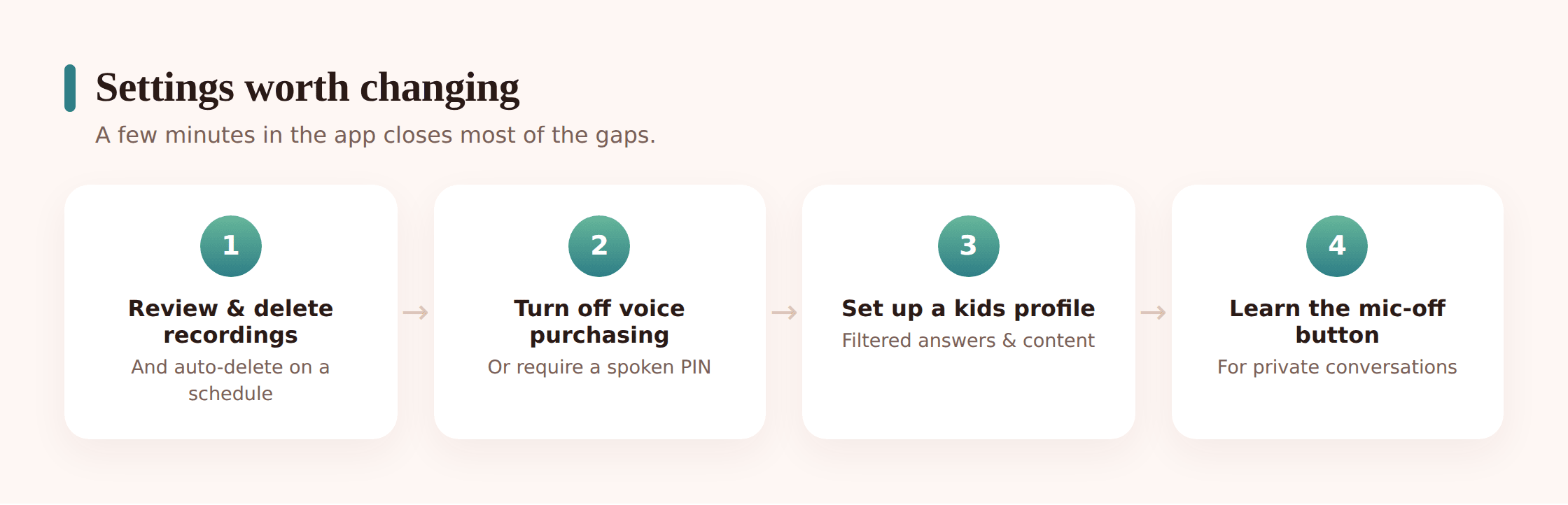
Here’s the concrete list. Open the app for each device you own and walk through these. It’s fifteen minutes, once.
Amazon Alexa (Echo)
In the Alexa app, open More > Settings > Account Settings > Voice Purchasing and turn off purchase by voice, or set a spoken confirmation code the kid won’t know. Under Settings > Alexa Privacy, open Manage Your Alexa Data and set auto-delete recordings to 3 months (or “don’t save recordings” if you prefer). In the same area, turn off “Use of voice recordings to improve Amazon services” if you don’t want clips used for training. To add a child, go to Settings > Amazon Kids and set up a kid profile.
Google Assistant (Nest / Home)
In the Google Home or Assistant settings, open Payments and turn off purchases, or require a confirmation. Under Your data in the Assistant, turn Web & App Activity auto-delete to 3 months and switch off “Include voice and audio activity” if you don’t want recordings kept. Set up Voice Match so the assistant recognises each family member. For a child, create their account through Family Link and add it to the home.
Apple Siri (HomePod)
On the paired iPhone, open Settings > Siri & Search and, under Siri & Dictation History, choose Delete Siri & Dictation History. To limit what Siri will say or buy, use Settings > Screen Time > Content & Privacy Restrictions — restrict explicit language and turn off purchasing. On the HomePod itself, in the Home app you can disable “Listen for Hey Siri” for a room where you’d rather it not respond.
Every platform: use the mute button
All three have a physical mute (a button or switch that electronically disconnects the mic — usually shown by a red ring or light). Teach the family to use it during private conversations, and consider muting a bedroom speaker overnight. It’s the one control that doesn’t depend on trusting a menu setting.
Reviewing and deleting recordings
You can see and delete what’s been recorded on any of these platforms. Doing it once is a good gut-check — you’ll spot accidental wake-ups and get a feel for how much your kid actually talks to the thing.
Listen back
Alexa: Alexa app > More > Alexa Privacy > Review Voice History. Google: myactivity.google.com and filter by Assistant, or “Your data in the Assistant.” Apple stores far less and ties history to the device rather than a named profile.
Delete a range
In each history view you can delete by date range, or delete everything. On Alexa you can also just say “Alexa, delete what I just said” and “Alexa, delete everything I said today.”
Set auto-delete so it stays clean
Deleting once doesn’t help if new clips pile up. Set the rolling auto-delete (3 months is a sensible default) so old recordings clear themselves. This is the setting that actually keeps a household tidy without you thinking about it.
Check the training toggle
Separately from storage, each platform has an option about whether clips can be reviewed by humans or used to improve the service. If that’s not something you want for your kid’s voice, switch it off — it’s a distinct control from deletion.
Alexa vs. Google vs. Siri at a glance
| Feature | Amazon Alexa | Google Assistant | Apple Siri |
|---|---|---|---|
| Dedicated kids mode | Amazon Kids (kid profiles, filters, time limits) | Family Link account + voice content filters | No dedicated mode; Screen Time restrictions instead |
| Voice purchase control | Turn off, or require a spoken confirmation code | Turn off or require confirmation | Restrict via Screen Time; off by default on HomePod |
| Review recordings | In-app voice history + voice commands | myactivity.google.com, filter by Assistant | Minimal history; less is stored by default |
| Delete recordings | By range, all, or auto-delete (3/18 months) | By range, all, or auto-delete (3/18/36 months) | Delete Siri & Dictation History in one tap |
| Used for training by default | Some clips may be, unless you opt out | Audio kept only if you opt in | Not tied to a personal ad profile; minimal retention |
No platform is the clear winner for every family. Apple keeps the least and builds no ad profile; Amazon and Google are more capable and more configurable, which cuts both ways. Pick based on what you already own and then actually change the settings — the defaults are the real variable, not the brand.
Healthy habits at home
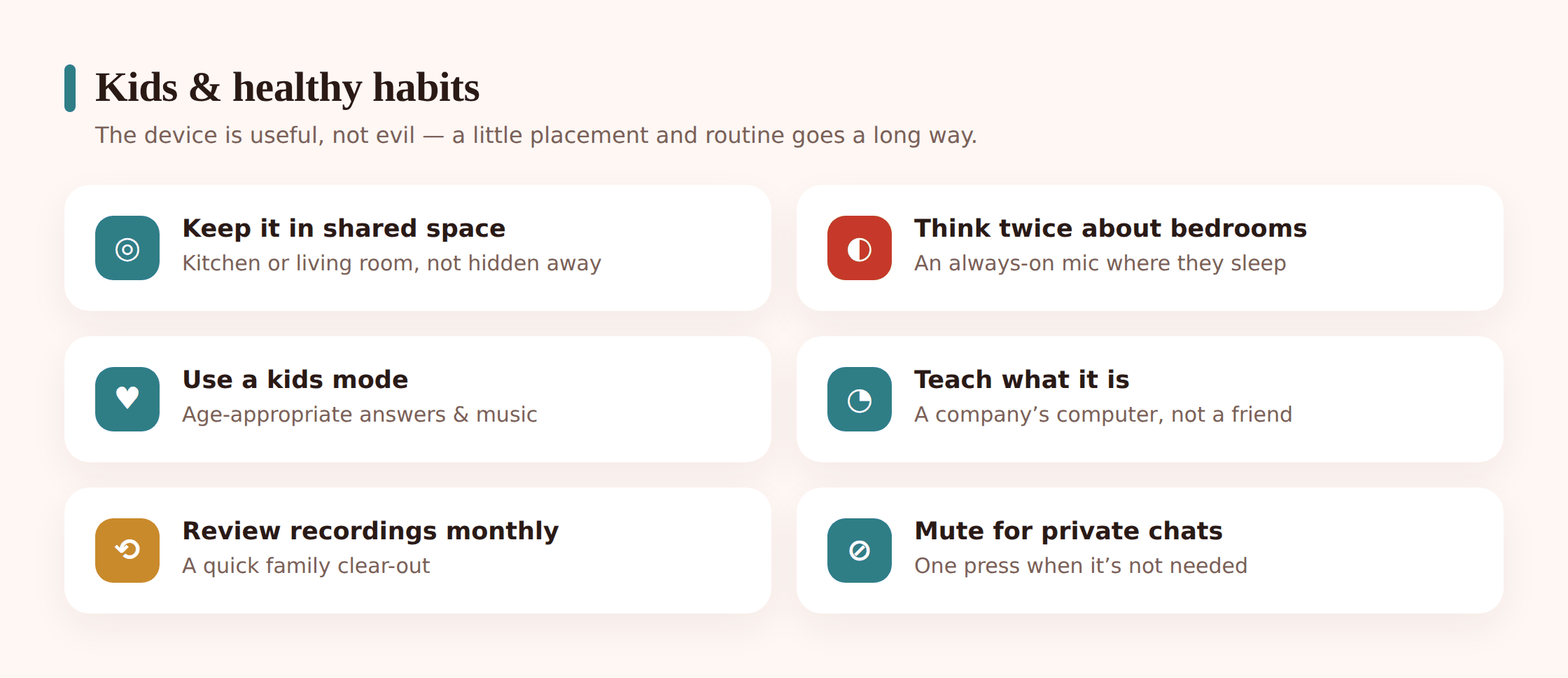
Where to put it. Common areas — kitchen, living room, hallway. These are places where a mic reacting to speech is low-stakes and where the assistant is genuinely useful. Shared placement also means voice interactions happen out in the open, which is exactly what you want with kids.
Bedroom or not? This is the one most parents ask about. An always-on mic in a child’s bedroom is a bigger commitment than one in the kitchen — it’s the room where private conversations, sleep, and the most personal moments happen. If you want a speaker there for music or an alarm, that’s reasonable, but consider a model without a camera, mute the mic when it’s not in use, and know that overnight is when accidental wake-ups are least likely to be noticed. Plenty of families keep bedrooms mic-free and lose nothing.
Model the behaviour. Kids copy how you treat it. If you’re barking commands and never say why the thing lights up, that’s what they learn. If you mute it during a serious conversation and explain that it records, they absorb that a mic is something you manage, not something you forget about.
Teaching kids what a voice assistant is
The most durable protection isn’t a toggle. It’s a kid who understands the thing they’re talking to. You don’t need a lecture — a few plain facts, repeated naturally, do the job.
- It’s a computer, not a friend. It’s helpful and it’s fine to be polite to it, but it belongs to a company and it isn’t a person who cares about them. Younger kids especially need this said out loud more than once.
- It remembers. Explain simply that what they say to it can be saved. Same rule as anywhere online: don’t tell it secrets, addresses, or anything they wouldn’t say to a stranger.
- It can’t buy things without a grown-up. Frame the purchase lock as the rule, so “buy me a toy” is a non-starter they already understand.
- The mute button is theirs to use. Show them the button and that it’s okay to press it. A kid who knows how to turn the mic off is a kid who feels some control over their own space.
- It’s not always right. These assistants give confident answers that are sometimes wrong. That’s a great early lesson in not believing a machine just because it sounds sure. The same skill applies to AI chatbots and kids.
FAQ
Is Alexa (or any smart speaker) always recording everything?
No. The mic is always listening for the wake word, and that detection happens on the device. Audio is only recorded and sent to the cloud after the wake word fires — or after a false trigger, which does happen. It’s not secretly streaming your household all day. But it does keep clips after it activates, which is why the review-and-delete settings matter.
Can my kid buy things by voice?
On a default setup, potentially yes — and sometimes by accident. Every platform lets you turn voice purchasing off completely or require a spoken confirmation code the child won’t know. Do this on day one; it’s a two-minute fix that removes the whole worry.
Should I put a smart speaker in my child’s bedroom?
It’s a personal call, not a rule. A common area is the simplest, lowest-stakes place. If you do want one in a bedroom for music or an alarm, pick a camera-free model, mute the mic when it’s not needed, and be deliberate about it. Many families keep bedrooms mic-free and don’t miss it.
What are these accidental wake-ups I keep hearing about?
Wake-word detection isn’t perfect, so a word on TV or a similar-sounding name can occasionally trigger the device and record a few seconds you never meant to share. It’s a real, acknowledged quirk. Reviewing your voice history now and then shows you how often it happens for you, and auto-delete keeps those stray clips from accumulating.
How do I delete what my kid has said to it?
Each platform lets you review and delete recordings — in the Alexa app’s voice history, at myactivity.google.com for Google, or via Delete Siri & Dictation History on Apple. Better still, set a rolling auto-delete (3 months is sensible) so old clips clear themselves without you remembering to.
Are these devices safe for kids at all?
Yes, with a bit of setup. Give the child their own filtered profile or kids mode, turn off voice purchasing, set auto-delete, keep the speaker in a shared space, and explain what the thing is. Done that way, a smart speaker is a genuinely useful household tool — not something to be scared of.