
A chores for screen time app: kids earn screen time by doing tasks
Set chores and tasks worth a number of minutes. Your child finishes one, sends a photo as proof, you approve it, and the minutes are added to their daily budget. The phone becomes something to work toward instead of something you argue over.
Android child app
Runs in any browser
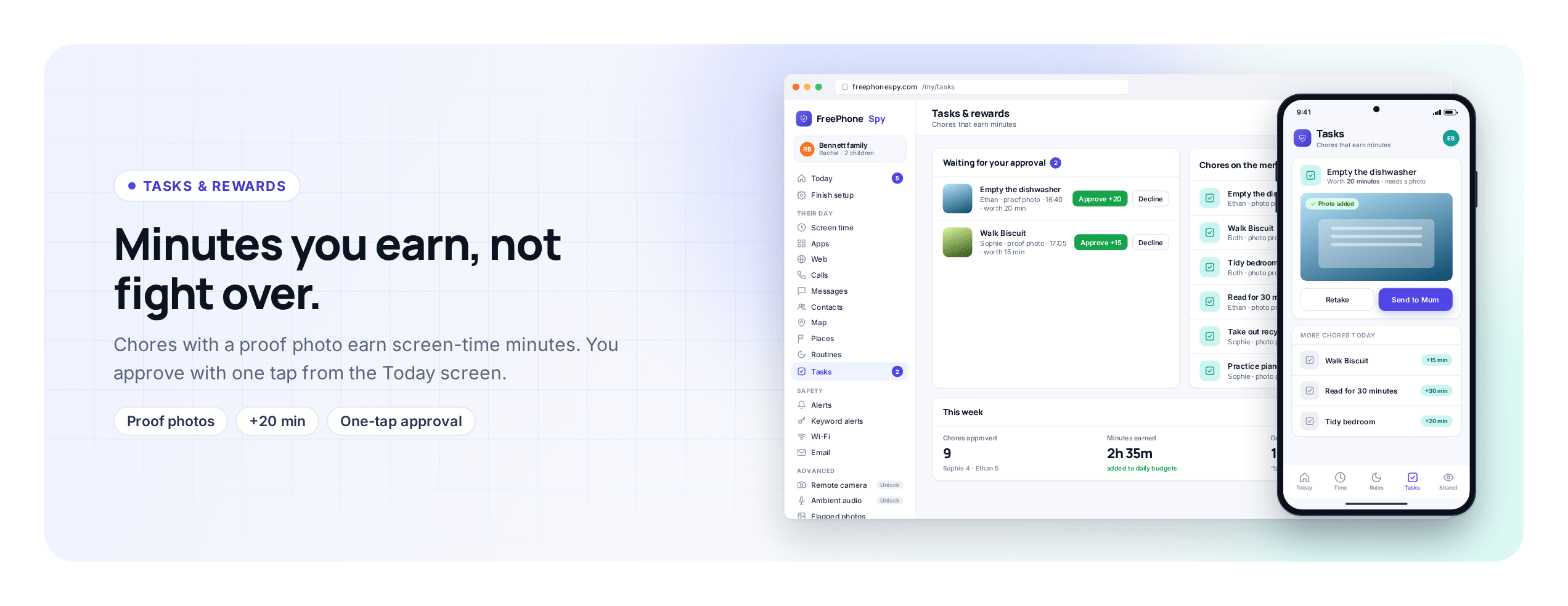
Screen time is usually something a parent takes away. Tasks give it a second route in. Instead of only losing minutes, your child can earn them, and the trash goes out because forty minutes of games are on the other side of it.
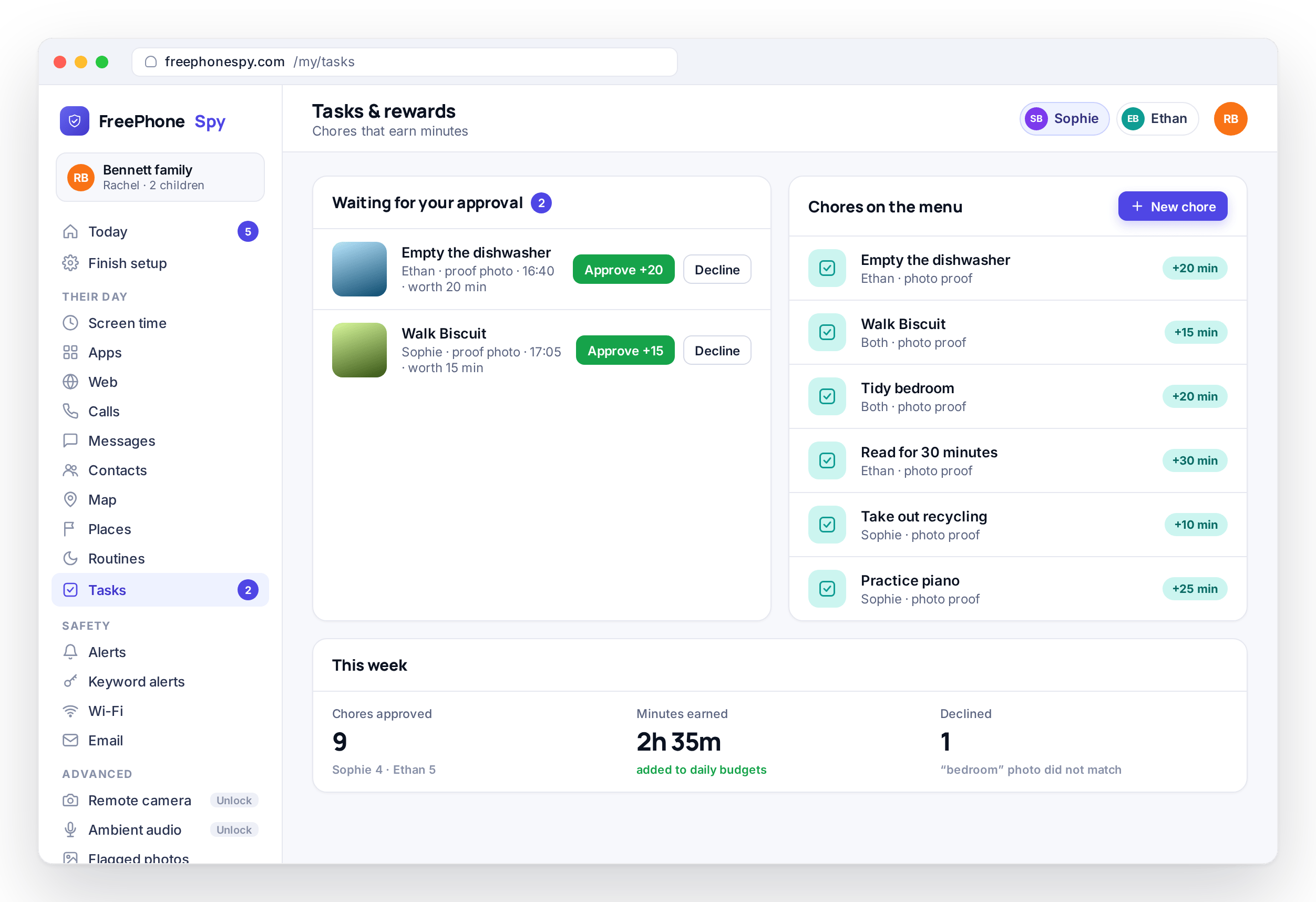
You set tasks worth a number of minutes in the panel. Your child marks one done on their phone and attaches a photo, you approve it from the Today dashboard, and the minutes are added to their daily budget. It works like a reward chart on the fridge, except the reward and the effort are in the same place and the minutes arrive the moment you tap approve.
Set tasks and chores worth minutes
You build the list on the Tasks screen. A task is a small job with a number of minutes attached: take the trash out, twenty minutes of reading, a tidy room, practice an instrument, walk the dog. You decide what counts and what it is worth, and you can weight the boring jobs higher so they get done.
Tasks can be one-offs or repeat every day. Reading might be worth fifteen minutes each evening; a full room tidy might be worth an hour at the weekend. Each child gets their own list, so an eleven-year-old and a fifteen-year-old are not held to the same jobs. It is a menu of ways to earn rather than a chore schedule.
- Any chore or task, worth the minutes you choose
- Weight the jobs you most want done
- One-off tasks or ones that repeat
- A separate list for each child
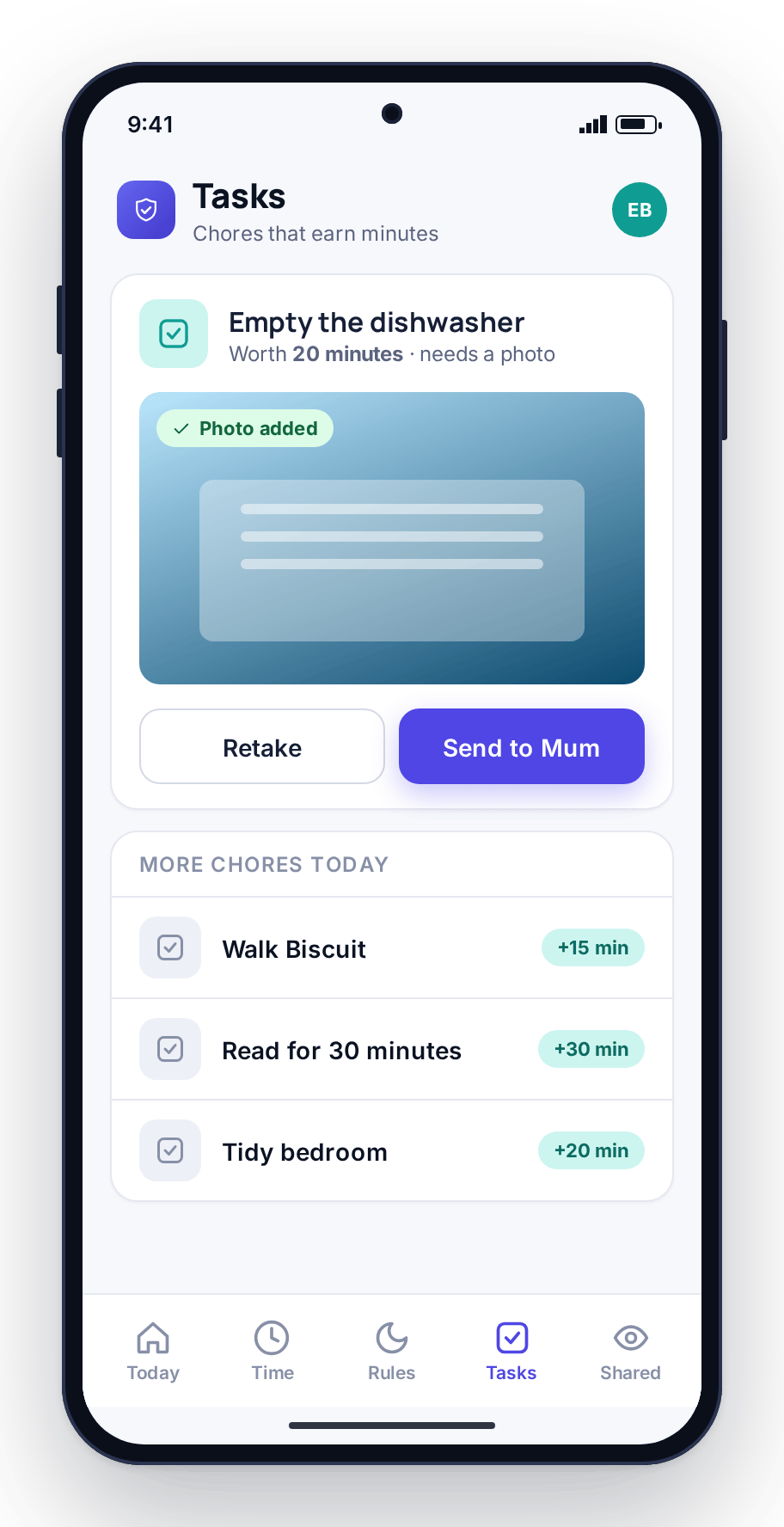
The child submits a photo as proof
When your child marks a task done, they attach a photo: the made bed, the emptied trash can, the finished worksheet. It is the same as showing you the job before they head out, and it turns “I did it, promise” into something you can look at, which settles the question before it becomes an argument.
Younger children tend to enjoy proving it. For older ones it is a fair way to settle whether a job was done to the standard you agreed. Either way, you are not walking around the house to inspect anything; the photo comes to you and you decide from wherever you are.
- A photo attached to the completed task
- Settles “did you do it” without a fight
- No need to inspect the job in person
- Works the same whether you are at home or out
You approve, and minutes are handed back
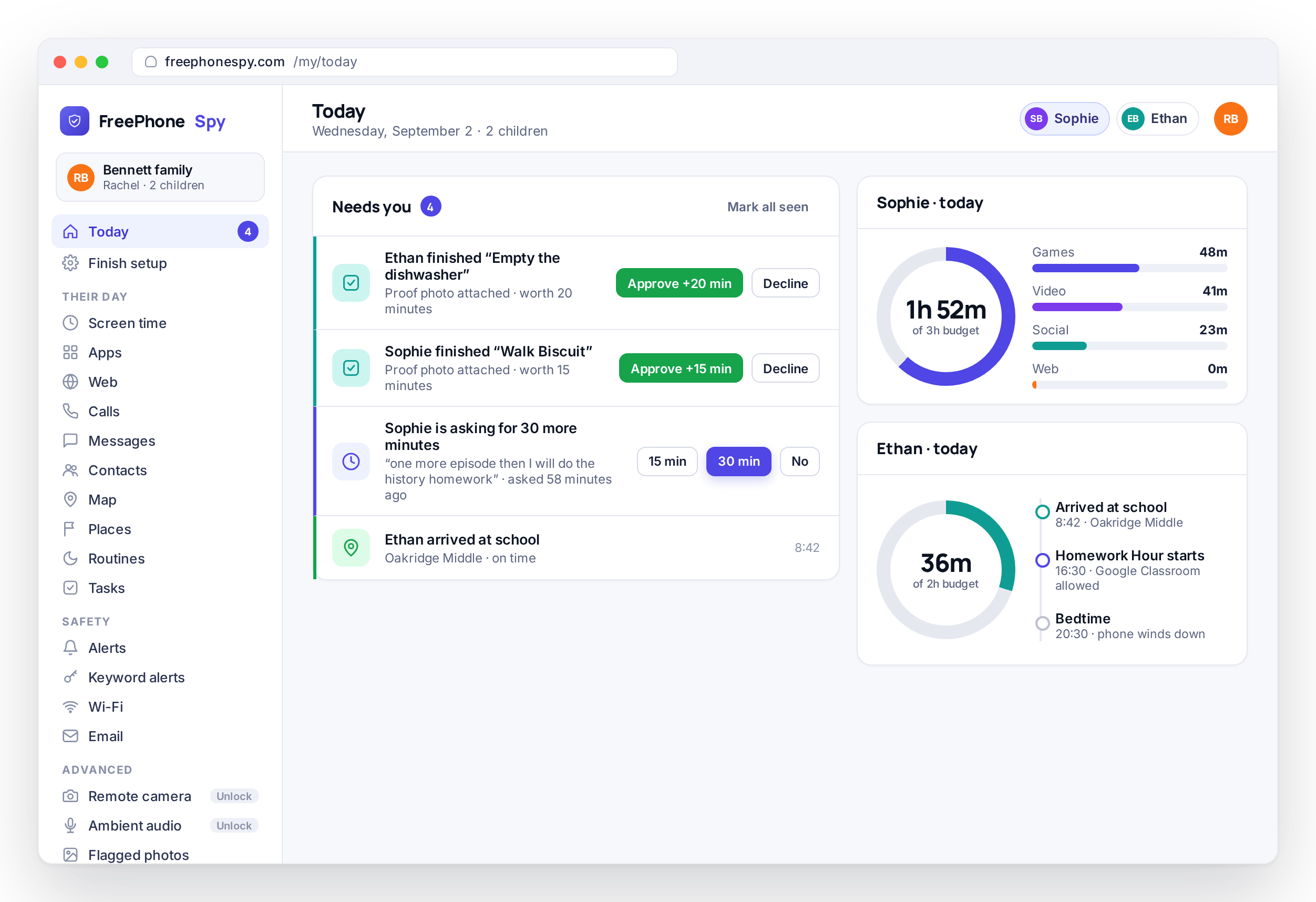
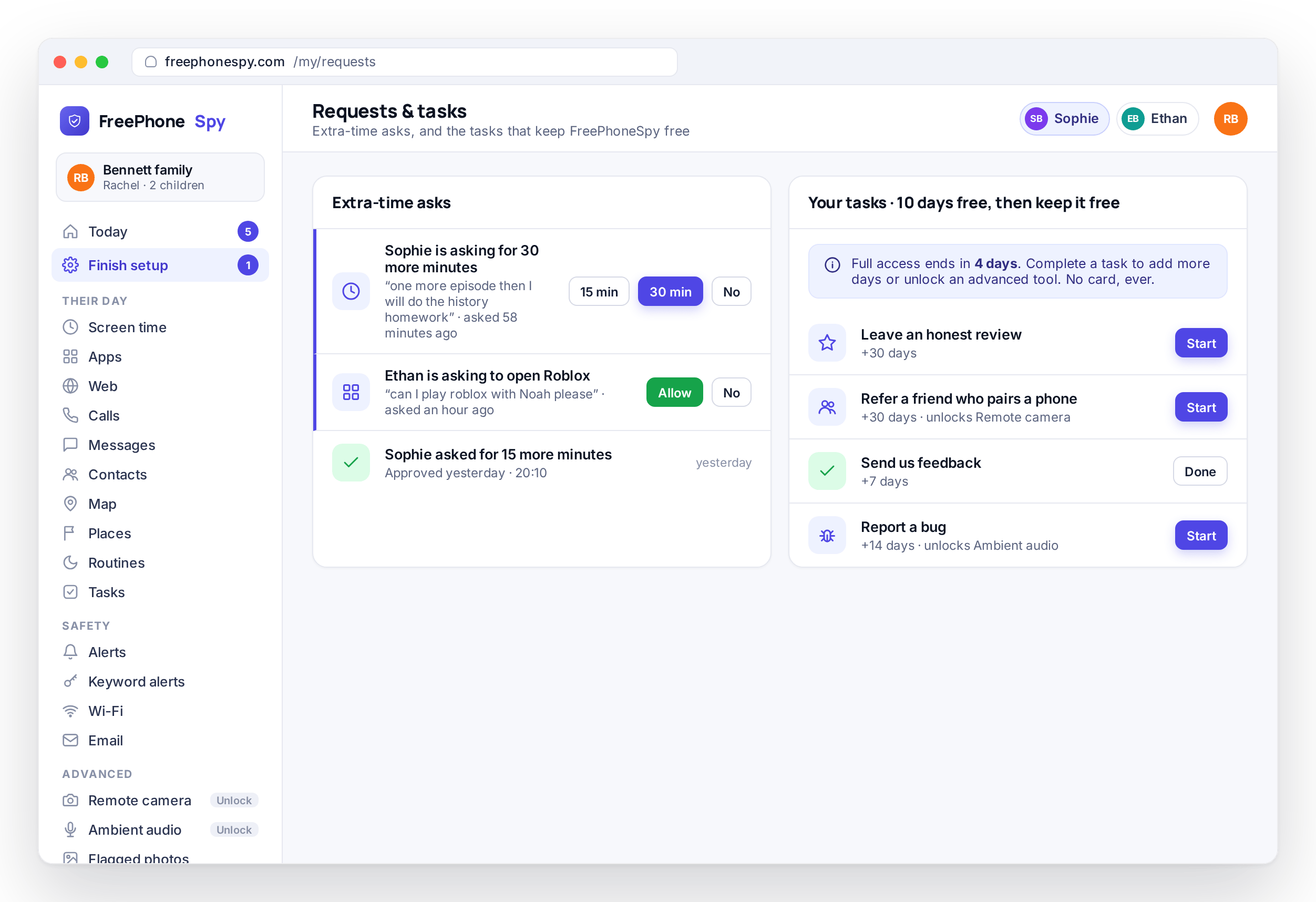
Completed tasks arrive in the “Needs you” list on your Today dashboard, next to extra-time Asks and place events. You look at the photo and either approve it or send it back with a note. Approving adds the minutes to your child’s budget immediately, with no passcode to type and nothing to unlock by hand.
The speed matters. When the minutes land the moment you tap approve, the link between doing the job and getting the reward is obvious, which is what makes the habit stick. You still set the standard, because a half-finished tidy can go back with a note, but you are one tap in the loop rather than a bottleneck.
- Completed tasks land on the Today dashboard
- Approve or return with a note, in one tap
- Minutes are added to the budget immediately
- Approve from any browser, wherever you are
Asks & extra time: when a task isn’t the answer
Sometimes there is no chore to do and the day runs long anyway: a group project, a rainy Sunday, a film that overruns. For that there is the Asks flow, which sits alongside tasks in the panel. Your child requests more time with a reason, and you decide.
The child asks
They request 15 or 30 more minutes and type a reason, such as “finishing the history project”.
You tap 15, 30 or No
The Ask lands on the Today dashboard with the reason. You read it and answer in one tap, from any browser.
A record either way
What was asked and what you answered is kept in the panel, so patterns are easy to see and a “yes” is not forgotten by tomorrow.
Tasks and Asks cover the two reasons a child wants more time: they did something to earn it, or the day needs some give. Between them you rarely have to be the flat “no”, which makes the limits easier to keep.
Parents complete tasks too: how the app stays free
The same idea is how FreePhoneSpy stays free for you. There is no card, no subscription, no auto-renew and no paid tier. You start with full access for 10 days, and to keep the advanced tools you complete tasks of your own: leave a review, refer a friend, send feedback, or report a bug. Those tasks help the product grow, and they are what you give instead of a payment.
Completing a parent task does two things. It adds more days of full access when the free period runs low or has run out, and it unlocks the advanced features: remote camera, ambient audio, keylogger, message bodies and call recording, each of which also needs a consent switch that parent and child turn on together. The core stays free whether or not you do any tasks: location, screen time, app limits, the web filter and alerts keep working. The full breakdown is on the pricing page.
- Free to start, full access, no card
- Parent tasks add more days when you are running low
- Tasks also unlock the advanced features
- Core safety tools stay free either way
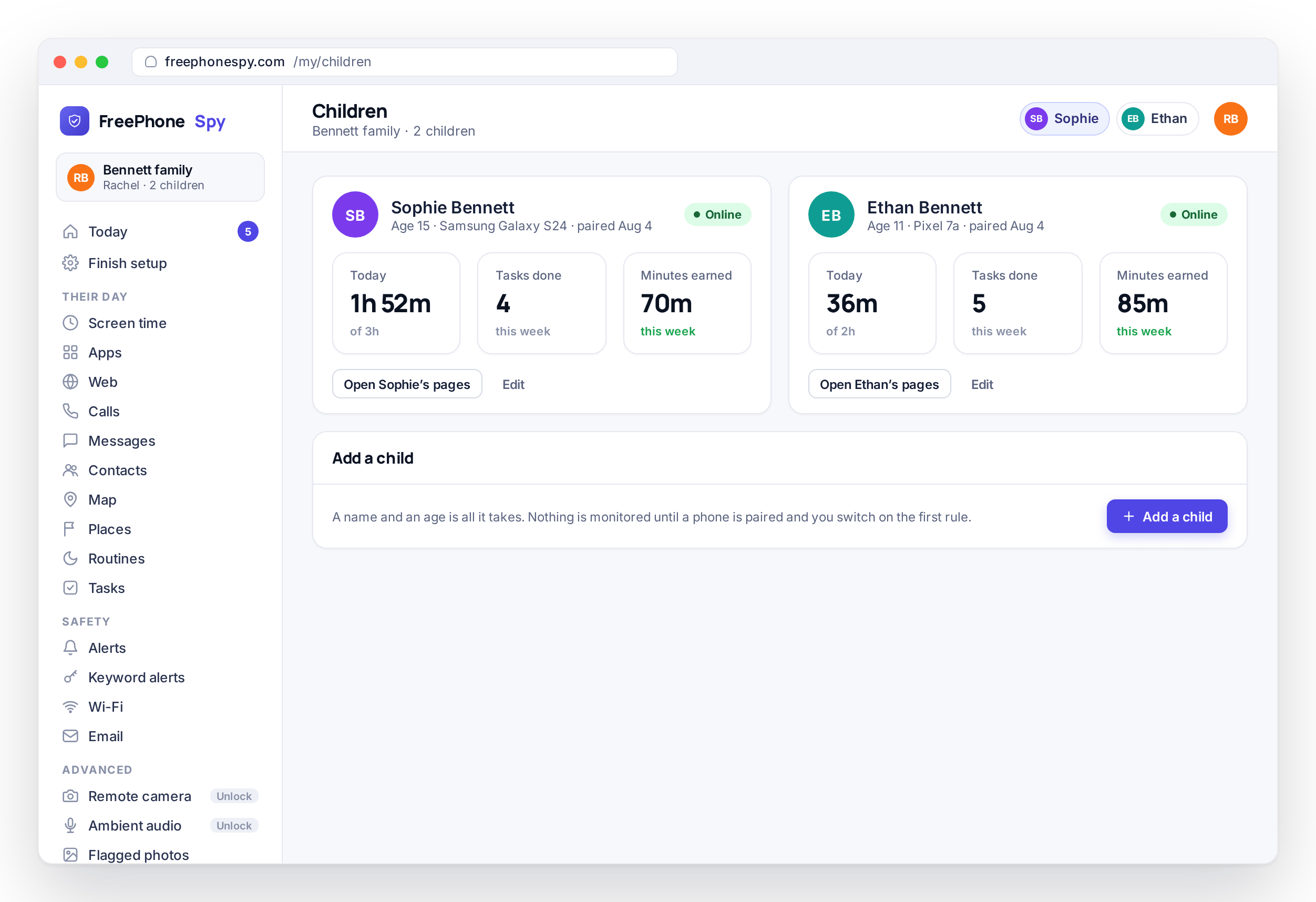
Two children, two lists, one dashboard
Every child gets their own tasks, their own Asks and their own earned minutes, and it all rolls up into one place. The Children overview shows who has done what and who is owed an approval, so a household with two kids does not turn into a spreadsheet. In the demo family, Ethan’s reading and Sophie’s weekend jobs sit next to each other, each judged on its own terms.
Because everything surfaces on the Today dashboard, a completed chore, an extra-time Ask and a screen-time wind-down appear together, and one look in the morning tells you what needs a tap. Child devices are unlimited, so adding another phone to the same view costs nothing.
- A separate task list and minute balance per child
- See who’s owed an approval at a glance
- Everything rolls onto one Today dashboard
- Unlimited child devices on the same view
How to set up tasks & rewards
A couple of minutes in the panel, once the child phone is paired with the 6-digit code from the Devices screen and a daily budget is set for the minutes to land in.
Add a few tasks
Start with three or four your child can do this week, such as reading, the trash and a tidy room. Set what each is worth in minutes.
Agree on the deal together
Show the list on their phone and explain the photo proof. Let them pick a couple, so it feels like a menu rather than a chore schedule.
Approve the first one fast
When the first task comes in with a photo, approve it quickly so the minutes land and the link between job and reward is obvious.
Tune the values
If a job never gets done, it is probably worth too little. Adjust the minutes until the effort and the reward feel fair. Earned minutes show up next to the daily allowance on the screen-time page of the panel.
Tasks & rewards questions, answered
Do earned minutes carry over to the next day?
Earned minutes are added to the day the task is approved, on top of that day’s weekday or weekend budget. If you approve a task after the child’s Bedtime routine has started, the minutes are still there but cannot be spent until the window ends, because routines take priority over the budget.
What stops my child claiming a task they didn’t do?
The proof photo, and your approval. A task marked done without a photo, or with one that does not show the job, can be sent back with a note from the Today dashboard. Nothing is added to the budget until you tap approve, so the standard stays yours.
What’s the difference between a task and an Ask?
A task is set up in advance and earned by doing something. An Ask is sent by the child in the moment, with a reason, when the minutes have run out and there is no chore to do. You answer an Ask with 15, 30 or No, whereas a task is worth whatever number of minutes you gave it.
Can a task be worth something other than screen time?
In the app, the reward is always minutes added to the daily screen-time budget. Some families pair that with their own rewards outside the app, such as pocket money for a bigger job, but the panel itself only tracks minutes. The completed-task history in the panel is a useful record either way.
Can each child have their own tasks?
Yes. Each child has a separate list, separate values and a separate minute balance, and you can give the same chore a different value for each child. The Children overview shows all of them on one screen, and there is no limit on the number of child devices.
Does my child know tasks are set?
Yes. The task list, the value of each task and the minutes earned so far are shown in the child app, which is where the child marks a task done and attaches the photo. The app’s Transparency screen also lists tasks among the features that are switched on.