
Track a phone location without the guesswork
See where your child’s phone is right now, where it has been today, and get a nudge when it arrives at school or leaves it early. A phone location tracker built for parents, set up in the open with your child.
Android child app
Runs in any browser
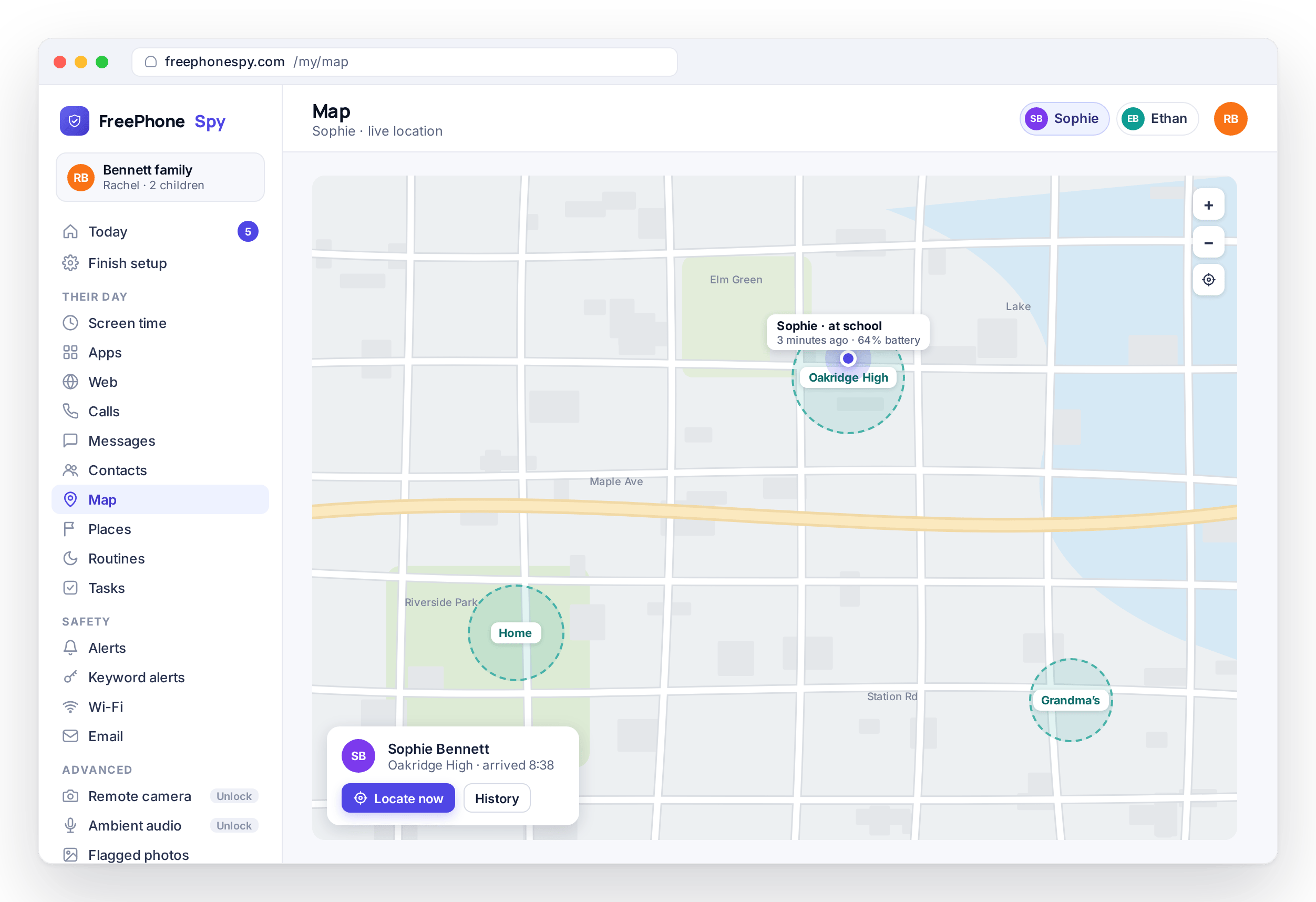
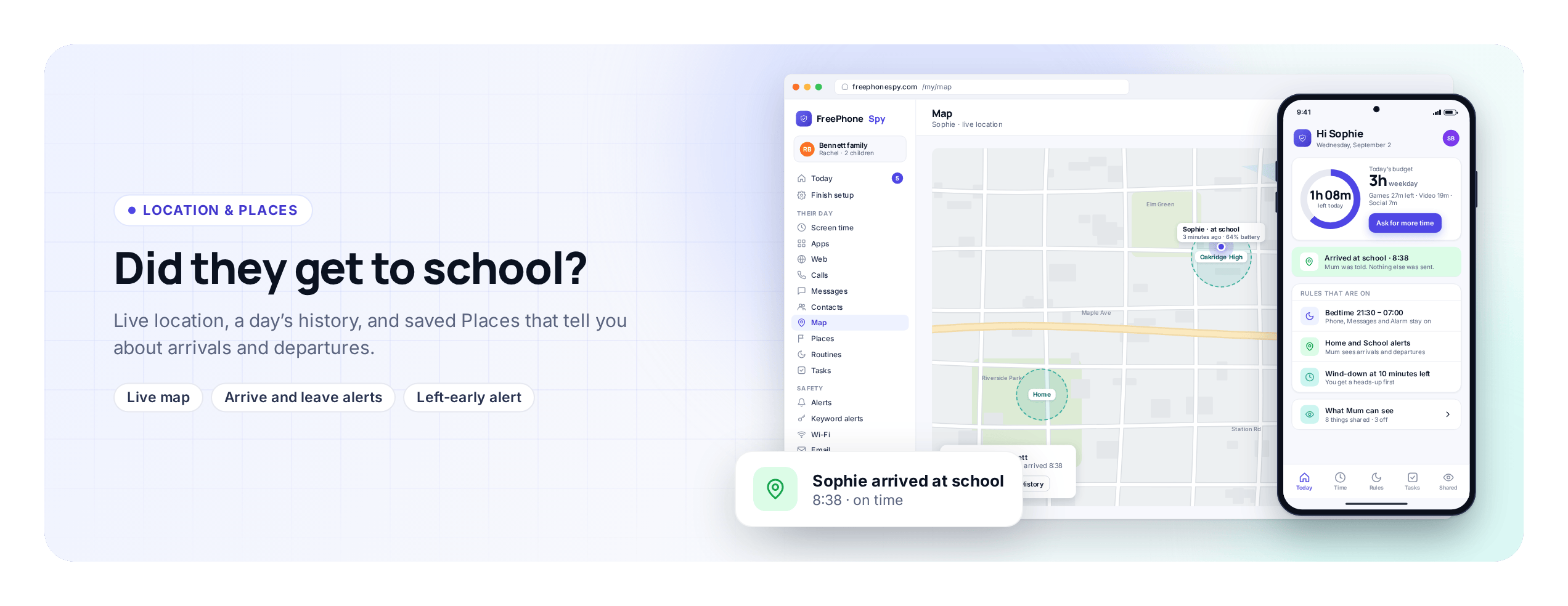
Most days you don’t need a map, you need one answer: did they get to school? Open any browser, check the location view, and get on with your morning. If the phone leaves school an hour early, or stops somewhere unexpected, an alert tells you, because you set one up for that Place.
FreePhoneSpy runs one app on your child’s Android phone. You manage everything from the web panel in a browser, on a laptop or your own phone, with no parent app to install. Your child knows the app is there: a Transparency screen on their phone lists what is shared, and location appears on that list from the moment you switch it on. Nothing is tracked until you turn the feature on in the panel.
Live location with a time stamp
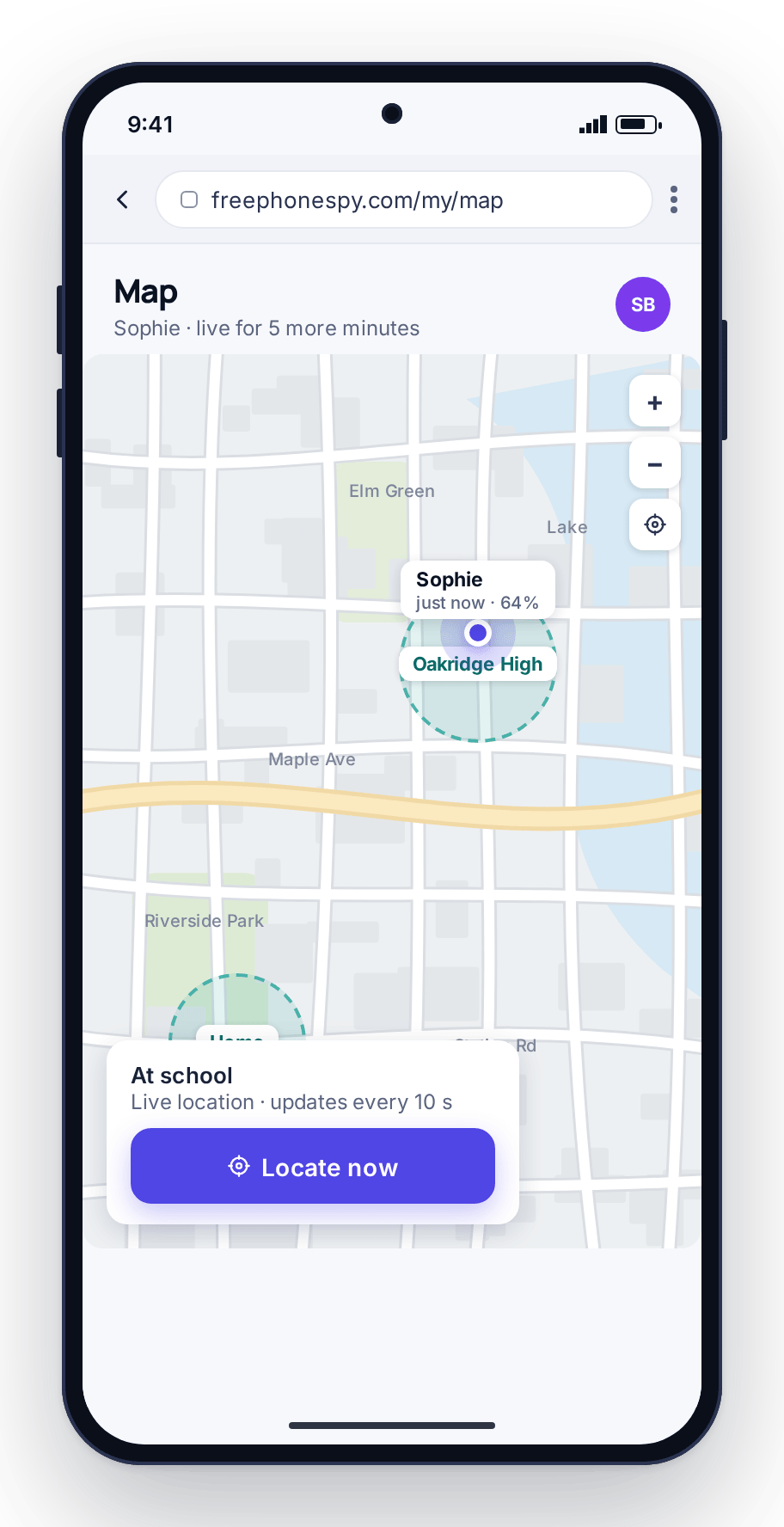
Open the map and you see where the phone is now, with a marker and the time of the reading. If the reading is a few minutes old, the time stamp says so rather than presenting a stale point as current. When you need a fresh fix, tap Locate now and the phone reports back within a few seconds.
For longer stretches, such as a school trip running late or a first walk home alone, open a live-location window. For the period you choose, the map updates more often, so you can watch the marker move from the bus stop to the front door. When the window ends, the map goes back to normal updates. You are checking in for a set time, not following the phone all day.
- Current position with a last-seen time
- Locate now for an on-demand fresh fix
- A time-boxed live window for the walk home
- GPS is accurate outdoors and weaker deep inside buildings; the panel shows the accuracy it has
Location history you can scroll back through
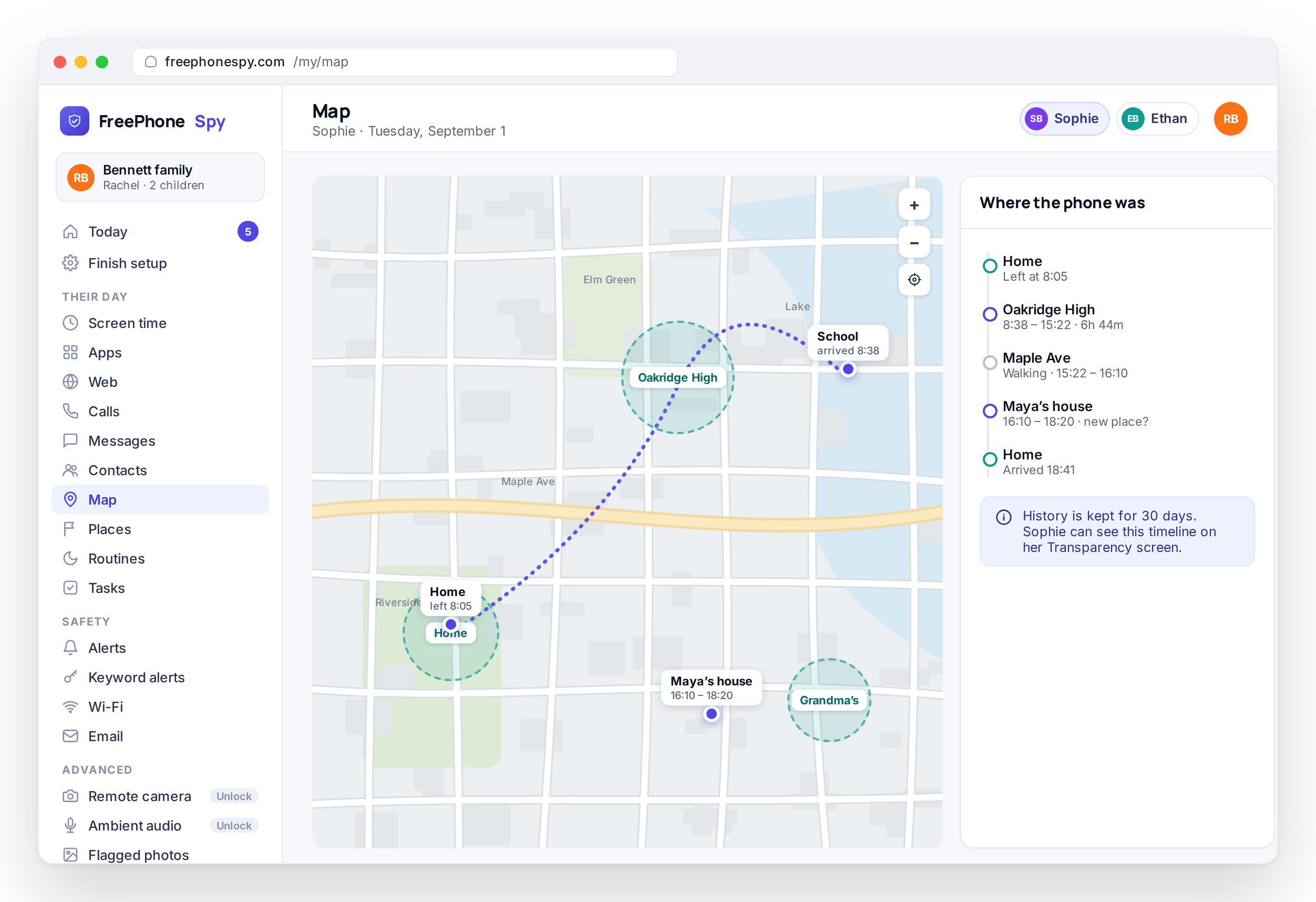
Sometimes the question comes later. “Where were you after five?” is an easier conversation when you are not guessing. Location history keeps a timeline of where the phone has been through the day, so you can scroll back and see the route rather than questioning a fifteen-year-old about it.
On the rare day something feels wrong, history gives you a factual answer, for example that the phone was at the library until 5:40pm and then at home, and the conversation can move on from there. Most weeks you will not open it at all.
- A day-by-day timeline of visited spots
- Scroll back to answer “where was the phone at 4pm?”
- Ties into place events so arrivals and departures line up
Saved Places: home, school, grandparent’s
A Place is a spot you name and draw a circle around, which is what a geofence is. Set up home, school and a grandparent’s house in a couple of minutes each: type a name your family would use, drop the pin, and choose the radius of the circle.
Once a Place exists, the map is easier to read. Instead of a pair of coordinates you see “at School” or “at Grandma’s”, and the history timeline uses the same names. Places also power the alerts below, because the phone can tell when it crosses into or out of a circle you drew.
- Name Places the way your family talks about them
- Adjustable radius for a large school site or a small apartment
- Add as many as you like: clubs, the other parent’s house, your workplace
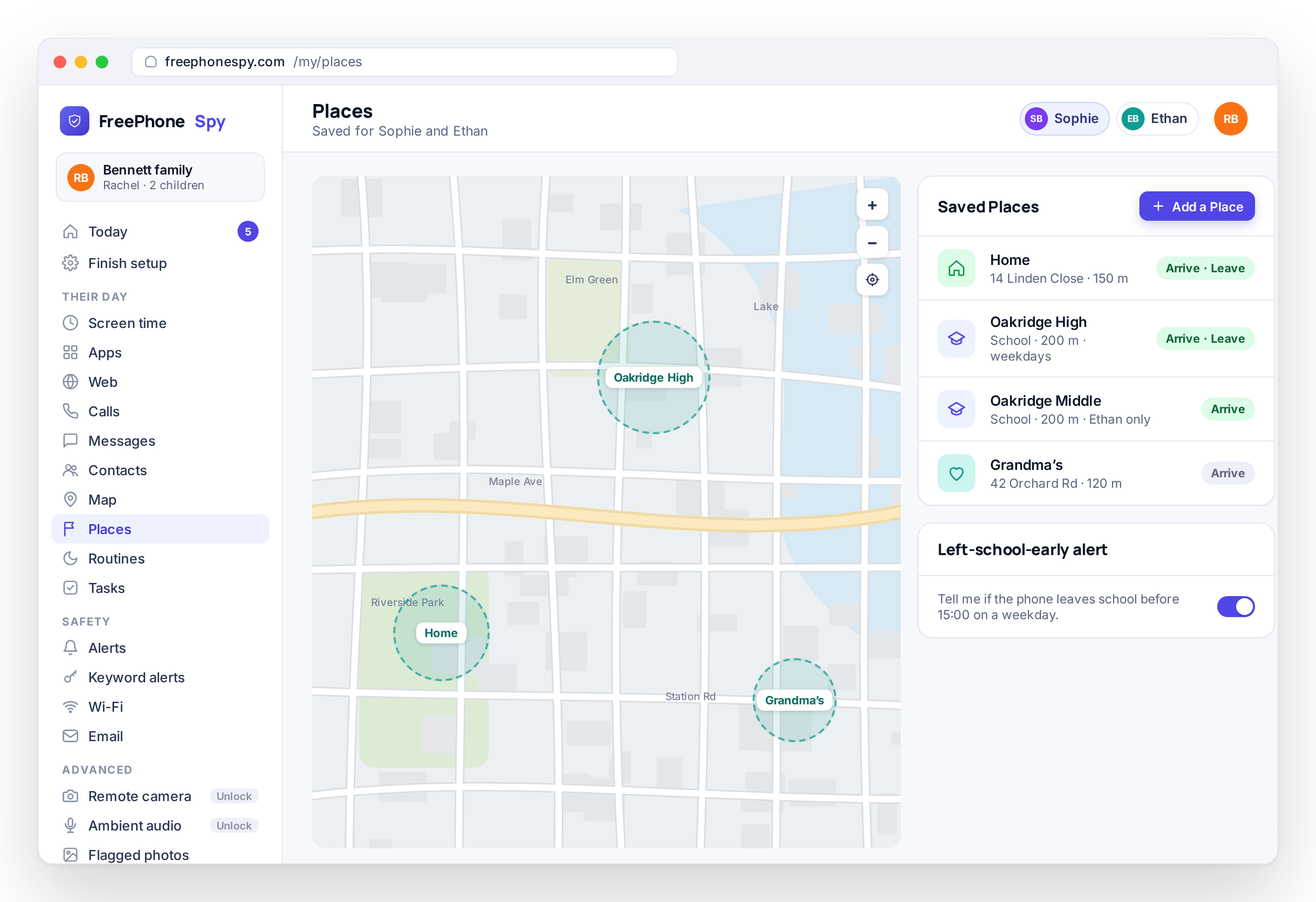
Arrive and leave alerts for each Place
Alerts are the part of location tracking most parents use daily. Rather than watching a map, you get a short message when the phone enters or leaves a Place you chose, and only for the Places you switched alerts on for.
Arrived at school
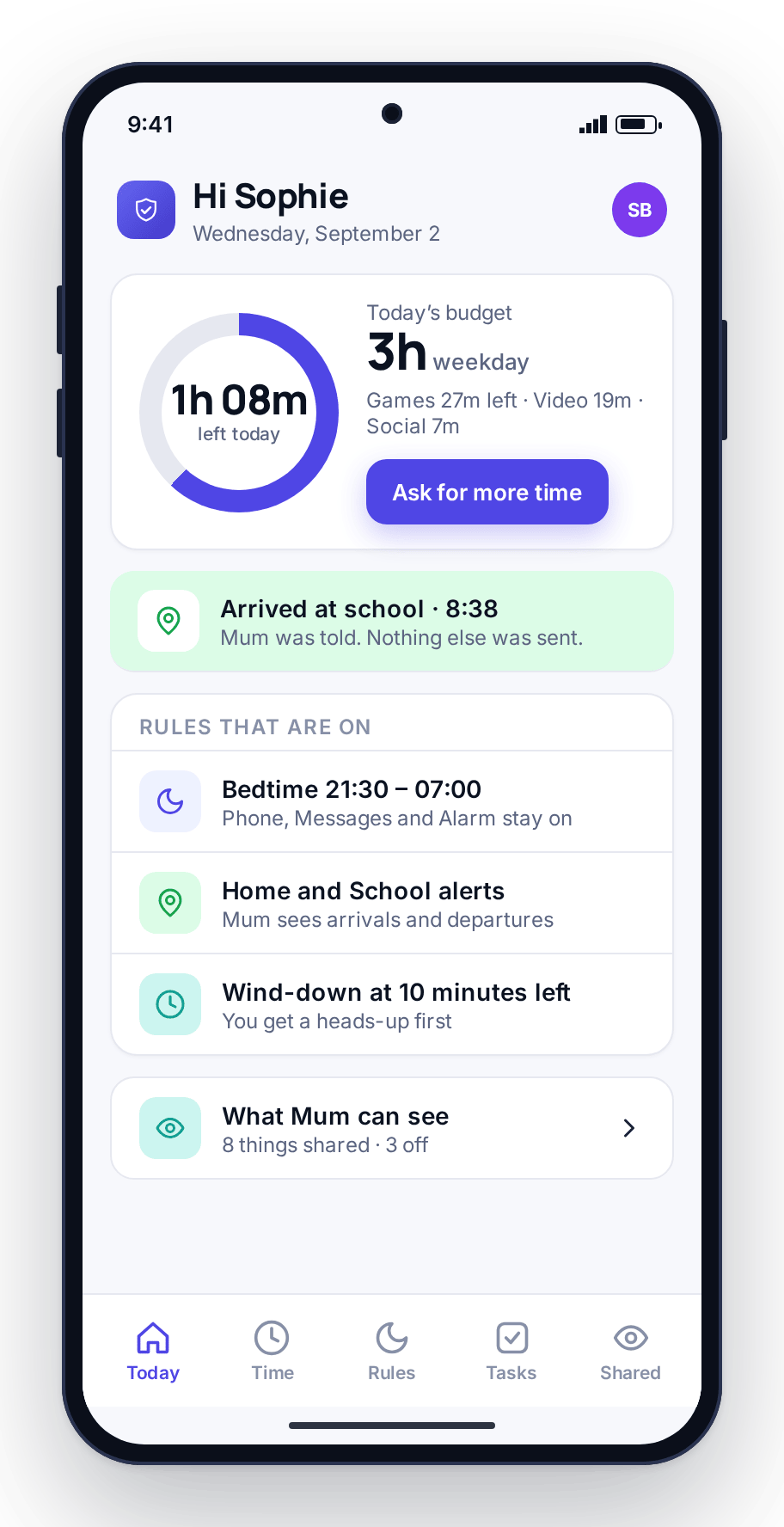
An “arrived at School” note lands when the phone crosses into the school circle, so you don’t need to text “you there yet?” from your desk.
Left school early
If the phone leaves the school Place during school hours, you get a left school early alert. Usually it’s a dentist appointment you’d forgotten. Occasionally it’s the message you needed.
Home safe
An arrive alert at home means the walk home is done and you can stop watching the clock.
Every alert points at a Place you set and a rule you chose. You decide which Places send alerts and which stay silent. A grandparent’s house might only matter at the weekend, while school matters on a weekday morning. Turn on what helps and leave the rest off, because a wall of notifications gets ignored. Place events also appear in the alerts feed and at the top of the Today dashboard in the web panel in the “Needs you” list, next to extra-time asks, flagged words and blocked sites, so one look in the morning covers all of it.
Battery level and last-seen time
A phone’s location is only as good as the phone. If it is switched off, out of battery, or without signal in an elevator or a basement, there is nothing new to report, and the panel shows “last seen at 3:42pm near School” instead of a live marker.
The phone’s battery level and last-seen time sit next to the map for this reason. A flat battery is the most common reason a location stops updating, and it is usually nothing to worry about. Knowing the phone died at four tells you more than a frozen pin would.
- Battery level shown next to the location
- Last-seen time whenever the fix isn’t current
- Stale readings are labeled stale, never shown as live
- Indoors and underground, GPS accuracy drops and the panel says so
How to set up location tracking
About five minutes, most of it spent naming Places.
Open the panel and pair the phone
Create a free account at freephonespy.com/my/register, add your child, and install the app from the Play Store on their Android phone. The Devices screen in the panel shows a 6-digit pairing code; type it into the child app and grant location permission together.
Add your Places
Drop pins for home and school first. Name each one, set the circle size, and add a grandparent’s house or a club later if you want them.
Choose your alerts
Pick which Places send arrive and leave alerts, and turn on “left school early” with the school hours you want it to apply to.
Walk through it with your child
Show them the map in the panel and the Transparency screen on their phone, so they know what location sharing does and when a live window is open. If you also want screen limits, screen time and app blocking work alongside location, and a Bedtime Routine can dim the phone at night while location stays on. The full list is on the features page.
Location tracking questions, answered
Can I track a phone location in real time?
Yes, for a set period. A live-location window updates the map more often for the time you choose, which suits a walk home or a late bus. Outside a window, Locate now requests a fresh fix and the map shows the last-seen time. Readings indoors and underground are less precise, and the panel shows the accuracy it has.
What is a geofence, and how do Places use it?
A geofence is a circle drawn around a point on the map. In FreePhoneSpy you save one as a named Place, such as home or school, and set its radius. When the phone crosses the edge of that circle, the panel records a place event and, if you enabled alerts for that Place, sends you an arrive or leave notification.
Will I be told if the phone leaves school early?
Yes, if you turn that alert on for the school Place and set the school hours. If the phone leaves the school circle inside those hours, you get a “left school early” note in the alerts feed and on the Today dashboard. Outside those hours, leaving school is treated as a normal departure.
What happens if the phone dies or loses signal?
The last known position stays on the map with its time stamp, and the battery reading next to it tells you whether the phone ran flat. Once the phone is back on and connected, it reports its position again and the timeline fills in from there.
Does my child know their location is shared?
Yes. The child app is visible on the phone and its Transparency screen lists location among the things being shared, along with whether a live window is currently open. We recommend switching location on with your child in the room. Do not use it on an adult’s phone without their agreement.
Does location cost extra?
No. Everything is free for the first 10 days with no card required, and location, Places and alerts stay free after that as part of the core features. Advanced tools are unlocked by completing tasks such as leaving a review or referring a friend. There is no subscription and nothing auto-renews.