
Answers to the questions parents ask most about FreePhoneSpy: whether it is really free, how it works on Android, what your child can see, what the law allows, how the daily budget is enforced, and what happens to the data. Where a feature has a limit, the answer says so.
Pricing, platforms and getting started
Is FreePhoneSpy really free?
Yes. You get full access for the first 10 days with no credit card. After that, you keep it going by completing tasks such as leaving a review, referring a friend, sending feedback, or reporting a bug; each adds days after a quick check. There is no subscription, no auto-renew, and no premium tier. Location, screen time, app limits, the web filter, and alerts stay free without any task.
What happens after the first 10 days?
The advanced tools (remote camera, ambient audio, keylogger, message bodies, call recording) lock again, and the panel shows that your access has run low. The core features keep working as before, and rules already on the phone are still enforced. When you want more days or one of the advanced tools, you complete a task from the Tasks screen. The pricing page has the full breakdown.
Does it work on iPhone?
Not yet for the child’s phone. The child app runs on Android, and everything on this site works there today. An iPhone child app is in development, and we will announce it when it is ready rather than putting a date on it now. The parent side, the web panel, already works from any browser on any device, including an iPhone.
Which Android versions are supported?
Current Android phones are supported. The app installs on recent versions and walks you through the permissions it needs during setup. A few features depend on what the platform allows on a given version; call recording in particular is best-effort on modern Android because the system restricts it. If you are unsure whether a specific phone will work, email support and we will tell you.
Do I need to install anything as the parent?
No. The parent side is a web dashboard. You sign in at freephonespy.com/my from any browser, on a computer or your own phone, and the panel is there. There is nothing to install or update on your device. The only app is the one on the child’s Android phone.
How long does setup take?
About 15 minutes, done once. Creating a free account in the browser and adding your child takes roughly two minutes. Installing the app on the child’s Android phone, entering the six-digit pairing code, and granting the permissions together takes around eight minutes. The last step is agreeing the first rule together. After that you rarely touch setup again.
Where does the six-digit pairing code come from?
From the Devices screen in your panel. Open Devices, and it shows a fresh six-digit code for the phone you are about to connect. On the child’s phone you open the app and either scan the code or type the digits. The phone appears in your Devices list within a few seconds. Codes expire after a few minutes, so if one says invalid, generate a new one and enter it straight away.
Can I monitor more than one child?
Yes, and there is no limit on child devices. Two kids, four kids, or an old handset a younger sibling inherited all pair to the same free account. Each child has their own pages and their own rules, and you switch between them with the child switcher at the top of the panel. Budgets, filters, and consent switches are all set per child rather than as one household rule.
Can I try it before creating an account?
Yes. There is a read-only demo of the panel loaded with the Bennett family: parent Rachel, Sophie (15), and Ethan (11). You can open Today, switch between the children, and look at how location, screen time, and alerts are laid out. You cannot change the demo family’s settings, but you see exactly what your own panel would look like. Open it from the demo link.
Transparency, consent and the law
Does my child see that the app is installed?
Yes. The app appears in the phone’s app list, and there is a Transparency screen on the device that shows what is being shared and what is not. Your child can open it at any time. There is no hidden icon and no secret mode. We built it this way because rules a teenager helped set are rules they are far more likely to keep.
What does the Transparency screen show?
It lists each feature the parent has switched on for that phone, such as location, screen time, or the web filter, and states what data each one shares with the panel. Features that are off are shown as off. If a consent-gated tool such as message bodies has been enabled, that is listed too. The screen is on the child’s phone, inside the app, and your child can open it whenever they like.
Is it legal? Who am I allowed to monitor?
Used as intended, yes: your own minor children, or devices you own where the person using them knows and consents. FreePhoneSpy is a parental-control and family-safety tool, not a way to covertly monitor a partner, an ex, an employee without notice, or any adult who has not agreed to it. Monitoring an adult without their consent can be illegal. Laws vary by country and region, so check what applies where you live.
Can I use it on my partner’s or someone else’s phone?
No. FreePhoneSpy is for your own children and for devices you own with the user’s consent. It is not built for covert surveillance of another adult, we do not ship a hidden mode, and we will not help set that up. If that is what you are looking for, this is not the right tool.
Can I read my child’s text messages?
By default you see SMS and social-app message headers: who wrote and when. The message bodies stay off unless you turn on a consent switch, which exists so that reading a child’s full conversations is a decision you make together rather than something that is on from the start. For older teenagers, many parents leave bodies off and rely on headers and keyword alerts.
What is the consent switch, and why does it exist?
The most sensitive tools, including full message bodies, the keylogger, the remote camera, and ambient audio, each sit behind a switch that starts off. Nothing from them is collected until parent and child turn the switch on together. It is there so the intrusive tools are always an active choice matched to your child’s age and your family’s arrangement, in keeping with the rule that nothing is monitored until you turn it on.
Does the keylogger record everything my child types?
When it is on, the keylogger captures typed text per app. It is off until you switch it on, it needs the consent switch, and it is an advanced tool unlocked through a task. It is most useful as training wheels for a younger child new to a phone, and plenty of families never enable it.
Can I record calls?
Sometimes, and the limit is real. Call recording is best-effort on modern Android because the platform restricts what apps can do; on most phones the other side of the call cannot be captured. The call log (numbers, names, times, duration, and direction) is reliable. Recording calls can also carry legal requirements where you live, so check local rules before turning it on.
How do the remote camera and ambient audio work?
Both are advanced tools that unlock through a task and need the consent switch. From the panel you request a photo from the phone’s camera, or a short audio clip from its microphone, and the result appears in the panel. Every request is logged, and the app on the child’s phone is visible throughout. On modern Android the capture is best-effort and the platform can refuse it. Laws on recording audio vary by place, so check what applies to you.
Screen time, rules and daily use
How is the screen-time budget enforced?
The phone does the enforcing. You set a daily minute budget per child, split across games, video, social, and the web, with separate weekday and weekend amounts. As the budget runs down the phone shows a wind-down warning, and when it is spent the phone closes entertainment apps for the rest of the day. Phone, messages, maps, and the keyboard keep working throughout. You set the number in the browser; the phone keeps to it.
What happens when the budget runs out?
The phone closes entertainment apps for the rest of the day, but it never becomes a brick. Calls, messages, maps, and the keyboard keep working, so your child can always reach you and get home. If they need more time, they can send an ask with a reason, and you tap 15 minutes, 30 minutes, or no from the panel. They can also earn minutes by completing chores with a proof photo.
How do routines like Bedtime differ from the budget?
The budget is about how much; routines are about when. A Bedtime routine closes entertainment apps at a set time every night, with a warning first, regardless of how many minutes are left. Homework Hour parks games and social apps for a window while leaving study apps working. Routines are stored on the phone, so they start on time even if the phone is offline or your laptop is shut.
Does it keep working when the phone is offline?
Yes. Rules sync down to the phone when you set them and are enforced there, so screen time, routines, app limits, and the website filter keep holding with no connection. New events such as a school arrival or a keyword flag queue on the phone and appear in your panel once it reconnects.
What is the “Needs you” list?
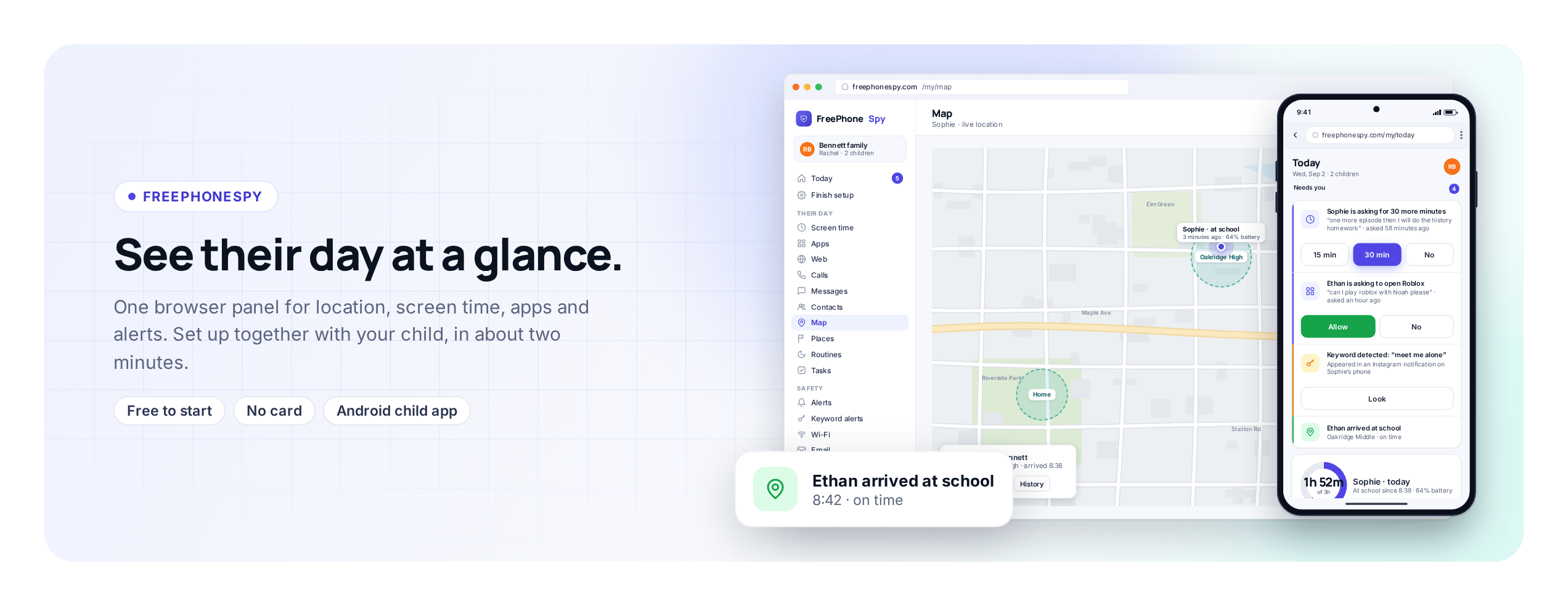
It is the short list at the top of the Today dashboard showing what wants a parent’s attention: extra-time requests, keyword flags, blocked sites, and place events such as arriving at school. If it is empty, nothing needs you today. Each item takes one tap to handle and clears from the list once dealt with.
How do keyword alerts work?
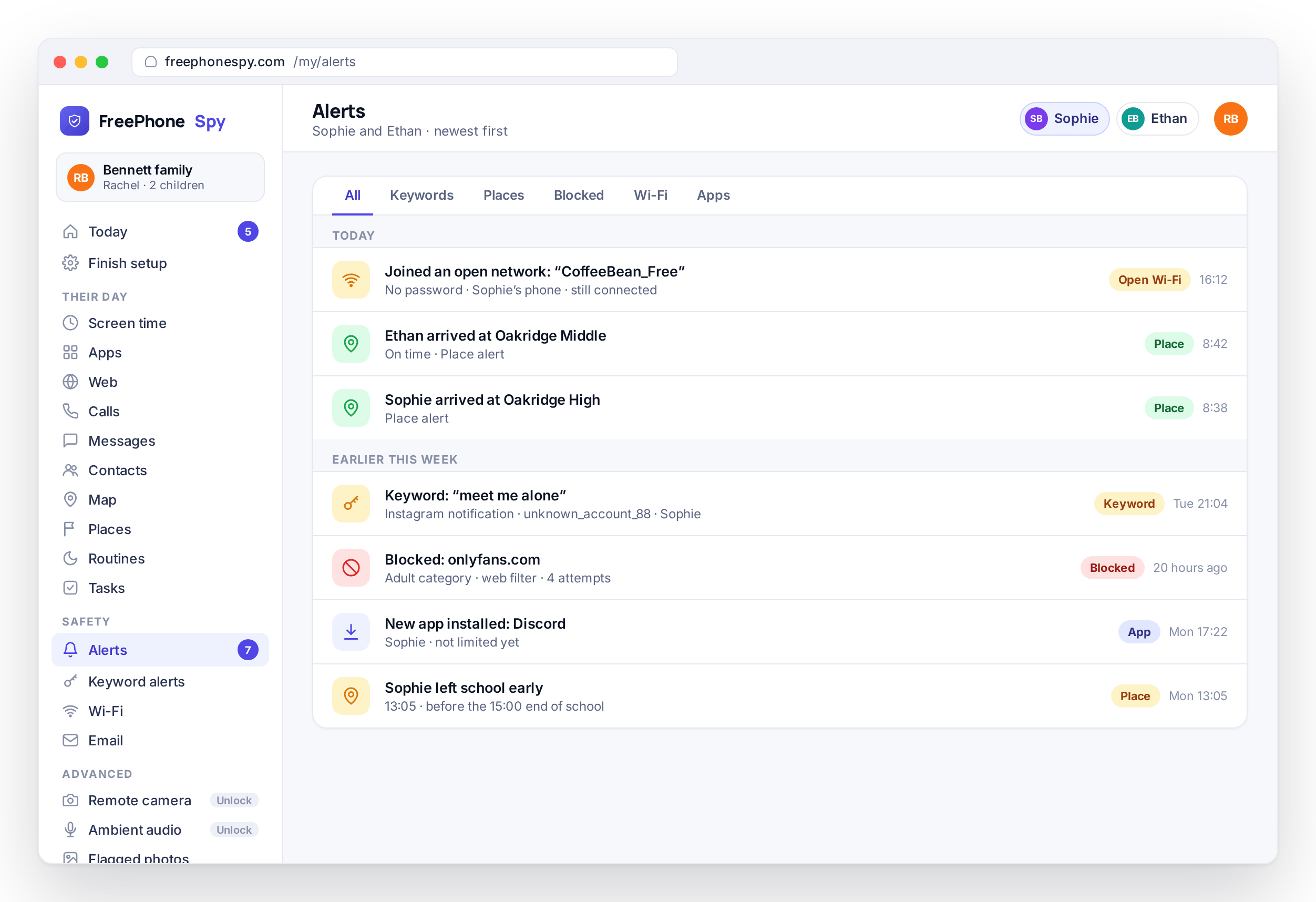
You add words or phrases to a flag list in the panel, something like “meet me alone” or a name you are worried about. When one of them appears in a notification on the child’s phone, you get an alert in the “Needs you” list. Keyword alerts work on notification text, so they do not require message bodies to be switched on.
Will it drain the battery or use a lot of data?
The app is built to sit in the background, so day-to-day battery and data use are modest. Location and syncing use some power and data, as any app of this kind does. Advanced tools such as ambient audio use more while they run, which is another reason they are on-demand rather than continuous. If you see unusual use, tell support.
Can my child uninstall it?
There is uninstall protection, so it is not a one-tap removal, and tampering can raise an alert in your panel. That said, FreePhoneSpy works best as an agreement rather than a cage. Because the app is visible and set up together, the aim is that your child keeps it because they understand why it is there. Removing it should be a decision the family makes together.
Your data and your account
What data is stored, and is it sold?
Only what is needed to show you the features you have turned on. Nothing is collected until you switch a feature on, and the most sensitive tools stay behind consent switches that start off. Your family’s data is not sold to anyone. The privacy policy lists what is collected for each feature, how long it is kept, and how to have it deleted.
Can I delete my account and my child’s data?
Yes. Email [email protected] from the address on the account and ask for it to be deleted. We remove the account, the paired devices, and the data collected from them, and confirm by reply. If you only want to stop monitoring one child, you can unpair that device from the Devices page instead.
How do I stop using it?
There is no subscription to cancel and no auto-renew to switch off. To stop, unpair the device from the Devices page in the panel and remove the app from the child’s phone. If you would like your account and its data removed as well, email support. Because the app was set up together, taking it off is best done together too.
Can two parents use the same panel?
Yes. The panel is a website, so both parents can sign in with the account’s email and password from their own browsers at the same time. Both see the same children, rules, and “Needs you” list, and a change made by one shows for the other on the next page refresh.
What if I forget my password?
Use the reset link on the sign-in page at freephonespy.com/my and follow the email you receive. Nothing on the child’s phone changes while you reset; rules already synced to the phone keep being enforced. If you no longer have access to the email address on the account, contact support and we will verify you another way.
Still have a question?
If your question is not here, email [email protected] and you will usually hear back within one business day. Tell us which child or device it is about and, if it is a phone issue, the Android version, and we will get you a clear answer.
If you are still deciding, the read-only demo lets you click through the real panel with the Bennett family before you sign up, and setup is free for 10 days with no card.
More: How it works · Features · Pricing · About us · Contact