Setting Up Your Child’s First Email Account Safely
Sooner or later a form asks for it. A school portal, a reading app, a game your child swears everyone else already plays — they all want an email address before they’ll let anyone in. That’s usually the moment a first email account stops being optional. The good news is that a child’s first inbox is one of the easier things to get right, as long as you set it up together and keep a hand on the wheel while they learn to steer.
Why kids end up needing email
You might not have gone looking for this. Most parents don’t decide their eight-year-old needs email — a school or an app decides it for them. Here’s where the pressure usually comes from:
- School. Homework platforms, reading apps, the school’s own login system — a lot of them are built on Google Workspace for Education or Microsoft, and each child gets an address whether you like it or not.
- App and game logins. Roblox, Minecraft, educational apps, a kids’ streaming profile. Many won’t let a child sign in, or recover a forgotten password, without an email on file.
- Device setup. A first phone or tablet usually wants an account to sit under. If you’re setting up an Android device, that account ties into Google Family Link and the whole approval system.
- Growing independence. A pen pal, a coding club newsletter, signing up for a library event on their own. Small, real reasons that a kid genuinely wants to handle themselves.
The point is that email is rarely the goal. It’s the key that unlocks the things your child actually wants to do. That’s worth remembering, because it tells you how much account they really need — usually far less than a full, wide-open inbox.
What age is about right
There’s no magic number, but the platforms give you some hard edges. Under 13, most mainstream email accounts have to be created and managed by a parent — that’s a consequence of children’s privacy law in the US (COPPA) and similar rules elsewhere, not a company being fussy. Google and Apple both build a “child account under a family group” path precisely for this.
So the practical shape looks like this. Somewhere around 7 to 9, a supervised account often shows up because school needs one — and at that age it should be tightly parent-controlled, more of a shared mailbox than a private one. From 10 to 12, kids can start reading and writing their own mail with you nearby and the recovery details in your hands. Around 13, platforms start treating the account as theirs, and your job shifts from managing to coaching.
Your three main options
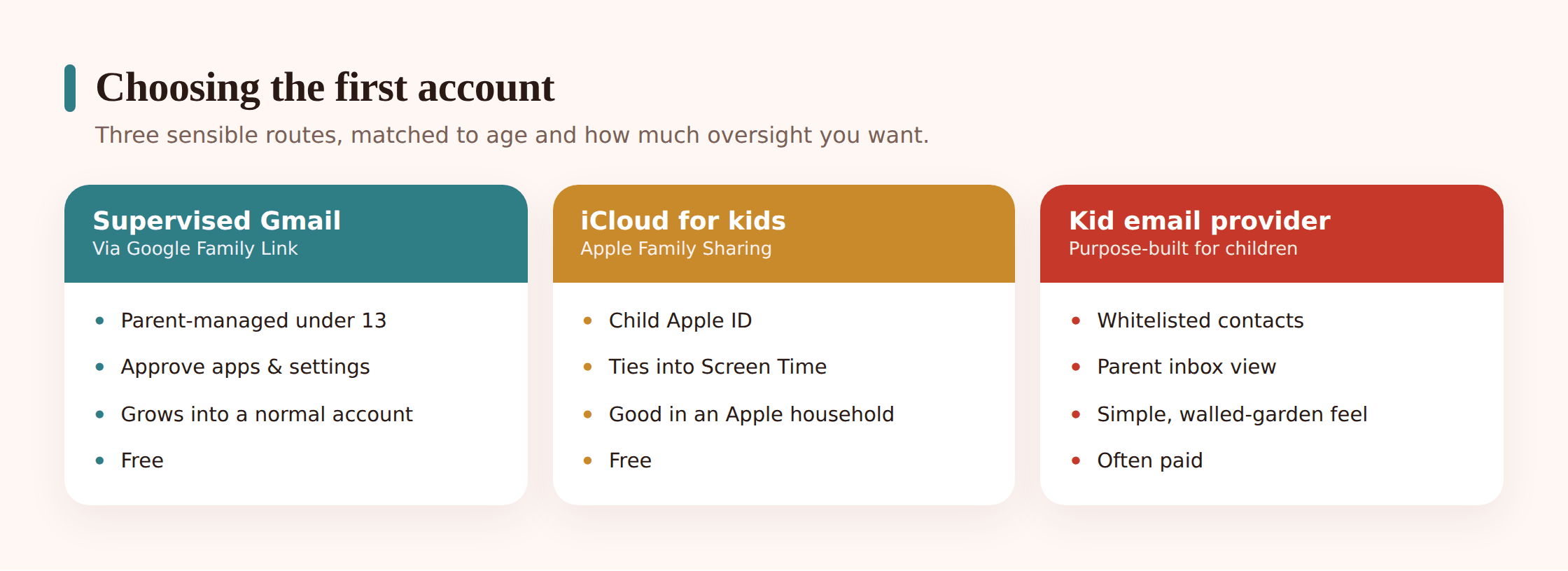
You don’t need to research a dozen providers. For a child’s first account it really comes down to three, and which one fits depends mostly on the phones and tablets already in your house.
1. A supervised Gmail via Google Family Link
If your family lives on Android, this is the natural fit. You create a Google Account for your child and add it to a family group, which puts it under Family Link. That gives you a real dashboard: you can see the account, help manage its settings, and the account carries age-appropriate defaults. The Gmail inbox itself is a fairly normal Gmail — powerful, which is a plus and a caution. For younger kids you’ll want to lean hard on filters and safe senders, which we’ll get to.
2. iCloud email with Family Sharing
If you’re an Apple household, set up a Child Apple Account through Family Sharing. The child gets an @icloud.com address, and Apple’s Screen Time and Communication Safety features hang off the same account. Ask to Buy means app downloads need your approval, and the mail app is clean and simple. It’s a tidy option if everyone’s already on iPhones and iPads. Our guide to your child’s first phone covers the device side of both platforms.
3. A kid-focused email provider
Services built specifically for children — the best known is Tocomail, and there have been others over the years — take a walled-garden approach. A parent approves a contact list, mail from anyone not on it goes to a holding area for you to review, and there’s often no way to receive attachments or images from strangers. For a young child who mostly emails Grandma and two friends, this can be the calmest choice. The trade-offs: many charge a subscription, some come and go, and your child eventually outgrows the walls.
| Option | Best age to start | Parent controls | Cost & notes |
|---|---|---|---|
| Supervised Gmail (Family Link) | Under 13 with supervision; strongest on Android | Family Link dashboard, app approvals, filters you configure | Free. Full-featured Gmail, so set up filters and safe senders carefully. |
| iCloud + Family Sharing | Under 13 with a Child Apple Account | Screen Time, Ask to Buy, Communication Safety | Free. Simplest if you’re already an Apple family. |
| Kid-focused provider | Roughly 6–11, then outgrown | Approved-contacts whitelist, held mail for review, no unknown attachments | Often a monthly fee. Tightest control; smaller companies can shut down. |
One honest note: whichever you pick, don’t create a “spare” account of your own and hand it over. Make the account genuinely your child’s, under a family group, with their real birth year. That’s what unlocks the parental tools in the first place, and it keeps things straight for later.
Choosing a safe username
This is a five-minute decision that follows your child for years, so it’s worth a moment’s thought. An email address is semi-public — it goes on sign-up forms, gets typed by classmates, sometimes shows up in a “from” line to strangers. The golden rule: it should give away nothing about who or where they are.
Leave these out of the address entirely:
- Full name, especially first-name-plus-surname.
- Birth year or date.
emma2015quietly announces the child is around ten. - School name, town, or sports club.
- Anything a stranger could use to guess or flatter — a favourite team plus a shirt number, say.
Instead, build something friendly and neutral. A nickname the family uses, a favourite animal, a made-up word, a couple of interests mashed together — pixel.otter.mail, captainlego88, redkite.reads. Let your child pick, so they like it, but you hold the veto on anything that leaks personal detail. If the good ones are taken, add a random-ish word rather than a birth year. And skip anything that could read as embarrassing when a teacher reads it aloud — this address might sit on a school system for years.
Setting it up, step by step
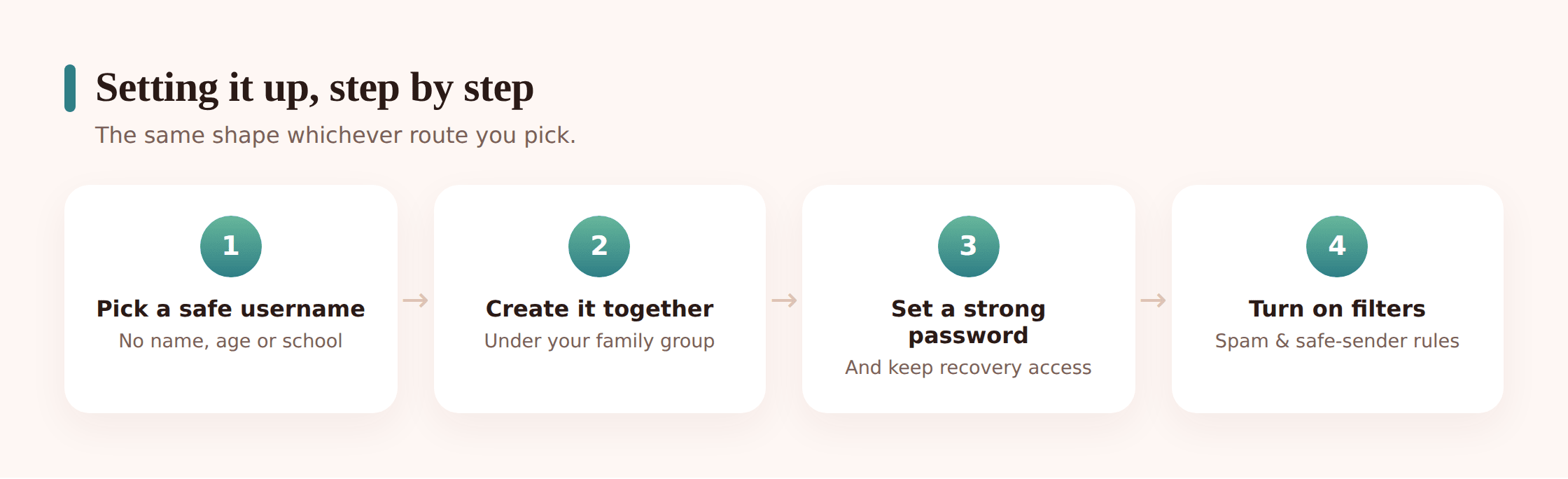
These steps are written for a supervised Gmail, since that’s the most common first account, but iCloud follows the same shape through the Settings app under Family Sharing. Do it on a laptop or the parent’s phone where you can type comfortably.
1. Start from your family group
On Android, open Family Link (or go to families.google.com) and choose to create an account for a child. On Apple, open Settings, tap your name, then Family Sharing, and add a child. Starting here is what ties the account to your supervision from the very first second.
2. Enter their real details and birth year
Use your child’s actual name and date of birth. This isn’t the place to fudge an age to dodge the rules — the age-appropriate protections are the whole point, and getting them switched on is a feature, not a hurdle.
3. Choose the safe username together
Type in the neutral address you agreed. If it’s taken, tweak it rather than reaching for a birth year. Let your child feel some ownership of the choice.
4. Set a strong password you both know
Make it a passphrase — three or four unrelated words — not a pet’s name. For a young child, you keep the master copy; they learn to type it. Our passwords and 2FA guide covers how to build one that’s strong and still memorable.
5. Add your own recovery email and phone
Set the recovery email and recovery phone number to yours, not a second account of the child’s. If anything goes wrong — a forgotten password, a locked account — the reset code comes to you. This one step saves a lot of grief later.
6. Turn on two-step verification
Point the second factor at your device to begin with. Even a child’s account is worth protecting, and having the codes arrive on your phone keeps you in the loop without reading a single message.
7. Do a test run together
Send an email from your address to the new one, open it together, and reply. Show them the send button, the reply button, and where “junk” or “spam” lives. Five minutes of this is worth more than a lecture.
Spam, phishing and how to cut it down
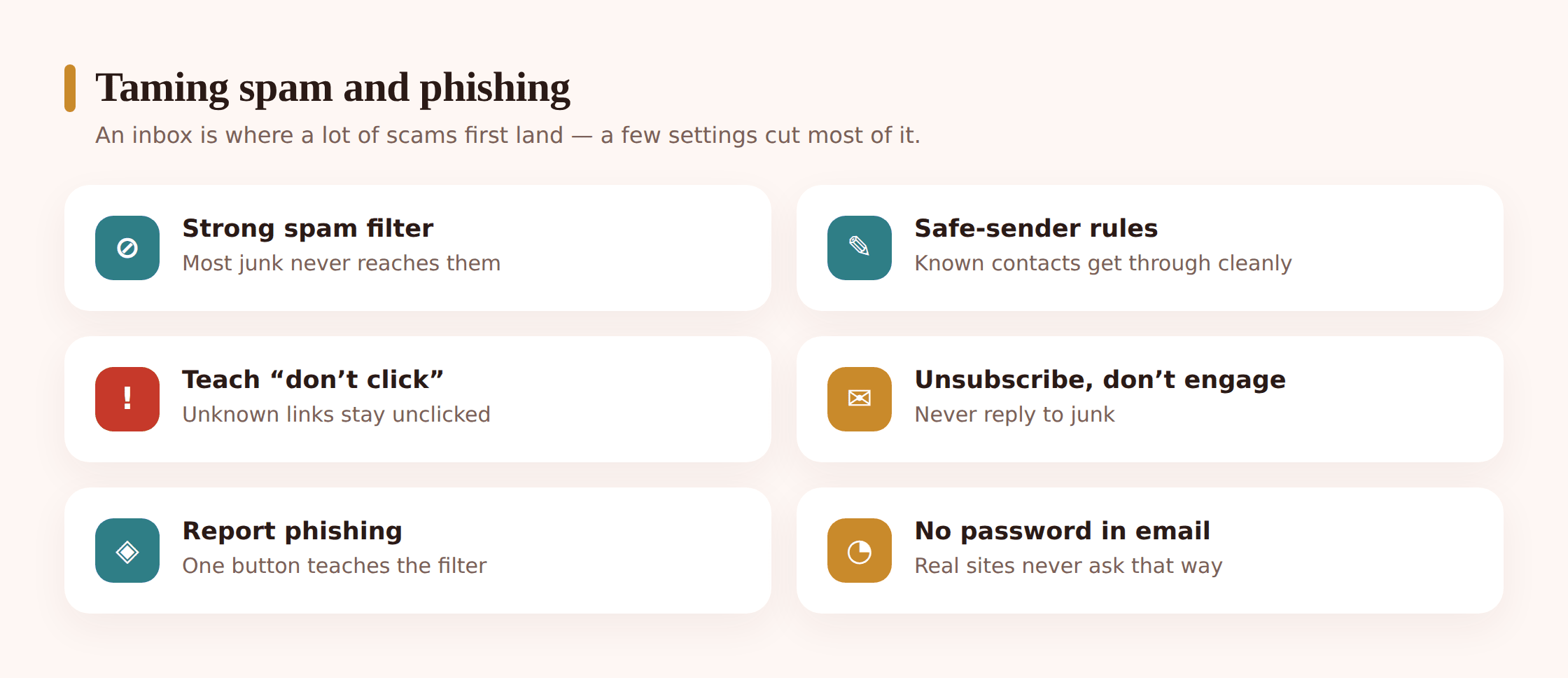
Every inbox attracts junk, and children’s inboxes attract a particularly nasty slice of it: fake “you’ve won a free Robux” messages, prize scams, and phishing dressed up as a game or a friend. The aim isn’t to promise your child will never see a bad email. It’s to make bad emails rare, and to make your child steady when one slips through.
Two things reduce the flow before it starts. First, don’t spread the address around. A brand-new email with a clean history gets very little spam; an address typed into fifty competition forms gets buried. Teach your child that their email is a bit like their home address — you don’t hand it to every website that asks. For throwaway sign-ups later on, an alias or a plus-address ([email protected]) keeps the real inbox clean.
Second, lean on filters and safe senders. This is where a bit of setup pays off for months:
- Whitelist the people who matter. Add family, real friends and the school to contacts. In Gmail you can build a filter that stars or labels mail from known senders, so the good stuff is obvious at a glance.
- Send unknown senders somewhere calm. On a kid provider this is automatic — strangers land in a holding pen for you to review. In Gmail you can approximate it with a filter that labels or skips the inbox for anything outside the contact list, at least while your child is young.
- Trust the spam folder, and check it together now and then. Mark junk as spam so the filter learns. Occasionally look in there together so your child sees what spam actually looks like — it’s the best free lesson going.
- Turn off image auto-loading if the option’s there. Blocked images stop some tracking pixels that tell spammers the address is live.
Phishing is the part that deserves real attention, because it’s designed to trick, not just annoy. A message that says “your account will be closed, click here to save it” is aiming straight at a child’s worry. We’ve written a whole guide on how to spot a phishing or scam text, and the same tells apply in email: urgency, a link that doesn’t match the sender, a request for a password, an offer too good to be real.
Teaching the basics that stick
Rules read off a poster don’t stick. Habits built at the screen do. A handful of basics cover almost everything that matters at this age:
- Don’t click links from people you don’t know. And when it’s someone you do know but the message feels odd, that’s exactly when to check — accounts get hacked, and the scam often arrives from a familiar name.
- Never share the password. Not with a best friend, not with someone in a game who “needs it to give you free stuff”, not with a website that pops up asking for it. The password is like a house key.
- A real prize never needs your password or your parent’s card. If winning requires paying or logging in somewhere strange, it’s a scam.
- Strangers don’t get your details. No full name, address, school or photos to someone they only know through email.
- When in doubt, don’t — ask. Make “I wasn’t sure so I left it” a thing you praise, loudly. A child who defaults to caution is worth more than one who never makes a mistake.
Teach the “reply-all” lesson early too, gently — it saves embarrassment and it’s a good stand-in for a bigger idea: email can go further than you meant, so pause before you send. And model it yourself. If your child sees you squint at a suspicious email and say “that’s a scam, deleting it,” they learn the reflex from watching more than from any rule.
Keeping the account recoverable by you
This is the quiet piece that separates “set up safely” from “set up and forgotten”. For a young child’s account, you should always be able to get back in. Not to read their mail every day — to rescue the account when it locks up, gets targeted, or the password vanishes from a young memory the week before a school deadline.
A few things keep recovery in your hands:
- Recovery email and phone point to you. Set during setup, worth double-checking now. Reset codes should reach the parent.
- You hold the master password copy. In a family password manager or the same secure place you keep the other logins — not only in a child’s head.
- The account sits in your family group. Family Link or Family Sharing gives you a supervisory route back in and, for younger children, the ability to manage settings.
- Two-step codes arrive on your device. While they’re young, at least. It means no one resets the account without you knowing.
Loosening the reins as they grow
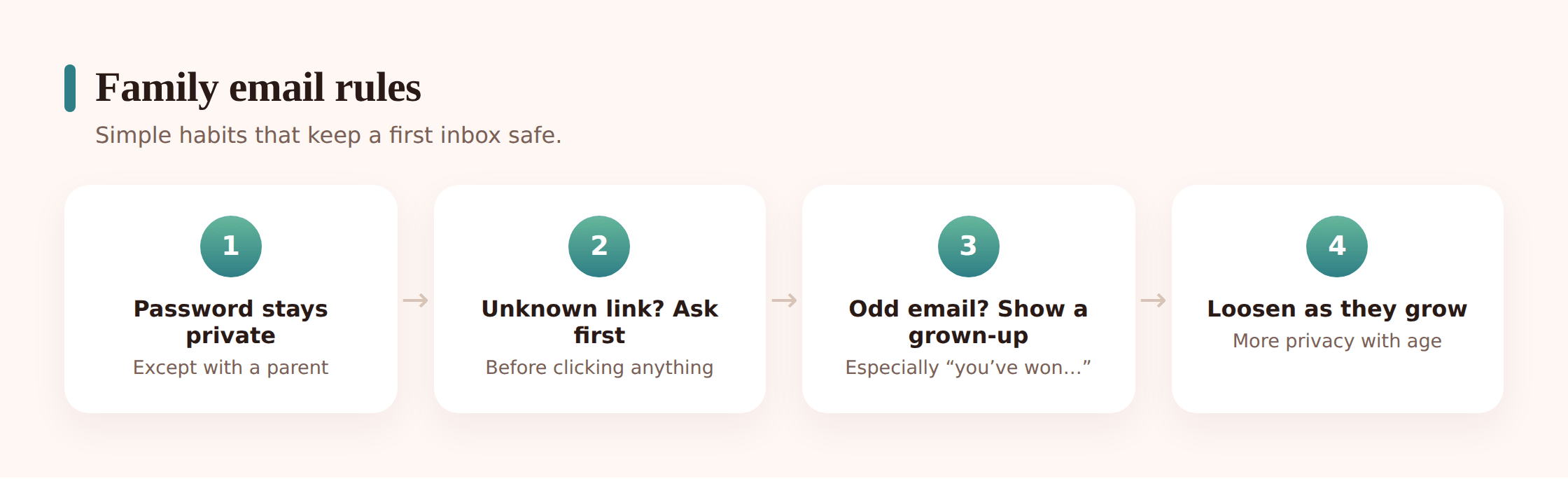
The version of the account you set up for a seven-year-old is not the version a fourteen-year-old should have. The plan from day one is to hand over control in stages, as trust builds. A rough map:
Young (roughly 7–9): tight and shared. Approved contacts, unknown senders reviewed by you, you check the inbox together, all recovery in your hands. This is closer to a family mailbox than a private one, and that’s appropriate.
Middle (roughly 10–12): more independence, same safety net. Your child reads and writes their own mail and manages their own contacts, but you keep recovery access, two-step codes still come to you, and you talk openly about anything odd that turns up. You’re moving from driver to instructor.
Teen (13+): the account becomes genuinely theirs. Platforms start treating it that way regardless, so the honest move is to shift to conversation and trust rather than control. Hand over the recovery details when they’re ready to manage them, keep talking about scams and privacy, and step back. If you still have a device-level safety arrangement in place, that should be openly agreed too — the same transparent footing everything else was built on.
The through-line is simple: you’re not building a permanent watchtower, you’re teaching a skill and gradually stepping out of the way. Every stage you relax is a small vote of confidence, and kids tend to rise to those.
Questions parents ask
What age should a child get their first email account?
There’s no fixed age, but under 13 the account should be parent-created and supervised — that’s the line drawn by children’s privacy rules, and both Google and Apple provide a “child account under a family group” path for it. Many kids get one around 7 to 9 because school needs it, and it should be tightly controlled at that age. Readiness — how they handle a password, whether they come to you with questions — matters more than the number.
Should I know my child’s password?
For a young child, yes — you hold the master copy and manage recovery, because you may need to rescue the account. That’s different from logging in to read their mail. As they move into their teens, the plan is to hand the password over and shift to trust and conversation. Knowing it early is about recoverability, not surveillance.
How do I stop spam reaching my child’s inbox?
Start by not spreading the address around — a fresh email that isn’t typed into every website stays clean. Then whitelist real contacts, route unknown senders somewhere you can review, mark junk as spam so the filter learns, and turn off automatic image loading. A kid-focused provider does most of this by default; in Gmail you build it with a couple of filters.
Is Gmail or iCloud better for a child?
Whichever matches your devices. If you’re an Android family, a supervised Gmail through Family Link is the natural fit and gives you a proper dashboard. If you’re all on Apple, a Child Apple Account with Family Sharing keeps everything in one tidy place. Both are free. The device you already own usually decides it for you.
What if my child clicks a bad link?
Stay calm — panic teaches them to hide the next one. Change the password, run a device scan if anything was downloaded, and check the account’s recent activity and 2FA settings. Then talk it through so they know what the trick looked like. A child who feels safe telling you is your best protection; treat the mistake as a lesson, not a crime.
Do they really need email, or can I hold off?
Sometimes you can wait — plenty of apps allow a parent’s email or a shared family address for younger kids, and that’s a fine stopgap. But once school assigns an account, or a login they genuinely need requires one, it’s usually better to set it up properly and teach the skills than to keep improvising with your own inbox.
Getting a first email account right isn’t about locking everything down. It’s about starting narrow, staying recoverable, and widening the gates as your child shows they can handle them. Do the setup together, keep the recovery details, teach the one rule about clicking and passwords, and check the inbox side by side now and then. The rest they’ll learn by doing — which, in the end, is the point.