The Complete Guide to Child Phone Monitoring (Android & iPhone)
Your child has a phone, and somewhere behind the games and the group chats is the whole internet. Child phone monitoring is how you stay close to what that means for them day to day, without reading over their shoulder. Done well, it is an agreement set up together, one that lets you see enough to keep them safe and step back as they earn it. This guide covers the whole subject in one place: why it is worth doing, what you can and cannot see, how Android and iPhone differ, how to set it up in about fifteen minutes, and which few things to watch once you have.
Why monitor at all
Start with the specific reason, because a vague one leads to bad rules. Most parents are not worried that their child is secretly up to something terrible. They are worried about three ordinary things: sleep, strangers, and the pull of a device engineered to be hard to put down. A phone in a twelve-year-old’s hand is the first thing they have owned that connects them to every adult on earth, and nobody handed them instructions.
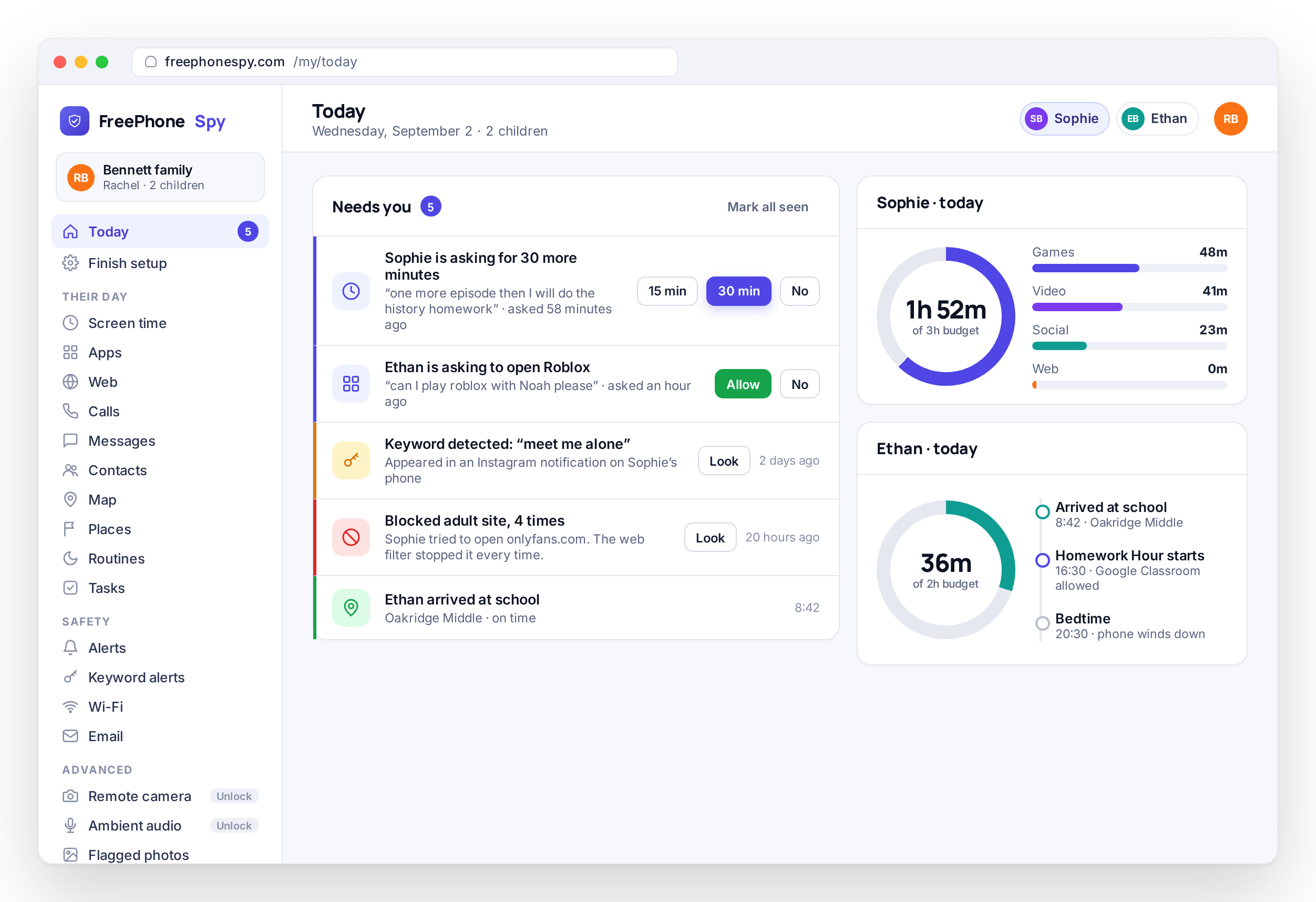
Monitoring gives you a few concrete things in return for a small amount of effort. You know they got to school without texting to ask. You know how the evening went instead of guessing from how tired they look. You get a heads-up when an unknown number calls repeatedly, when a search goes somewhere dark, or when the phone is active at two in the morning on a school night. And you get a shared set of facts to talk from, so the conversation is “I saw you were up late, everything okay?” rather than an argument built on suspicion.
There is a second effect that is easy to miss. A phone your child knows is part of a family agreement gets used a little more carefully. Not because they are watched every second, but because the phone is no longer a separate, private world. That change on its own is worth a good deal.
The open, consent-first approach
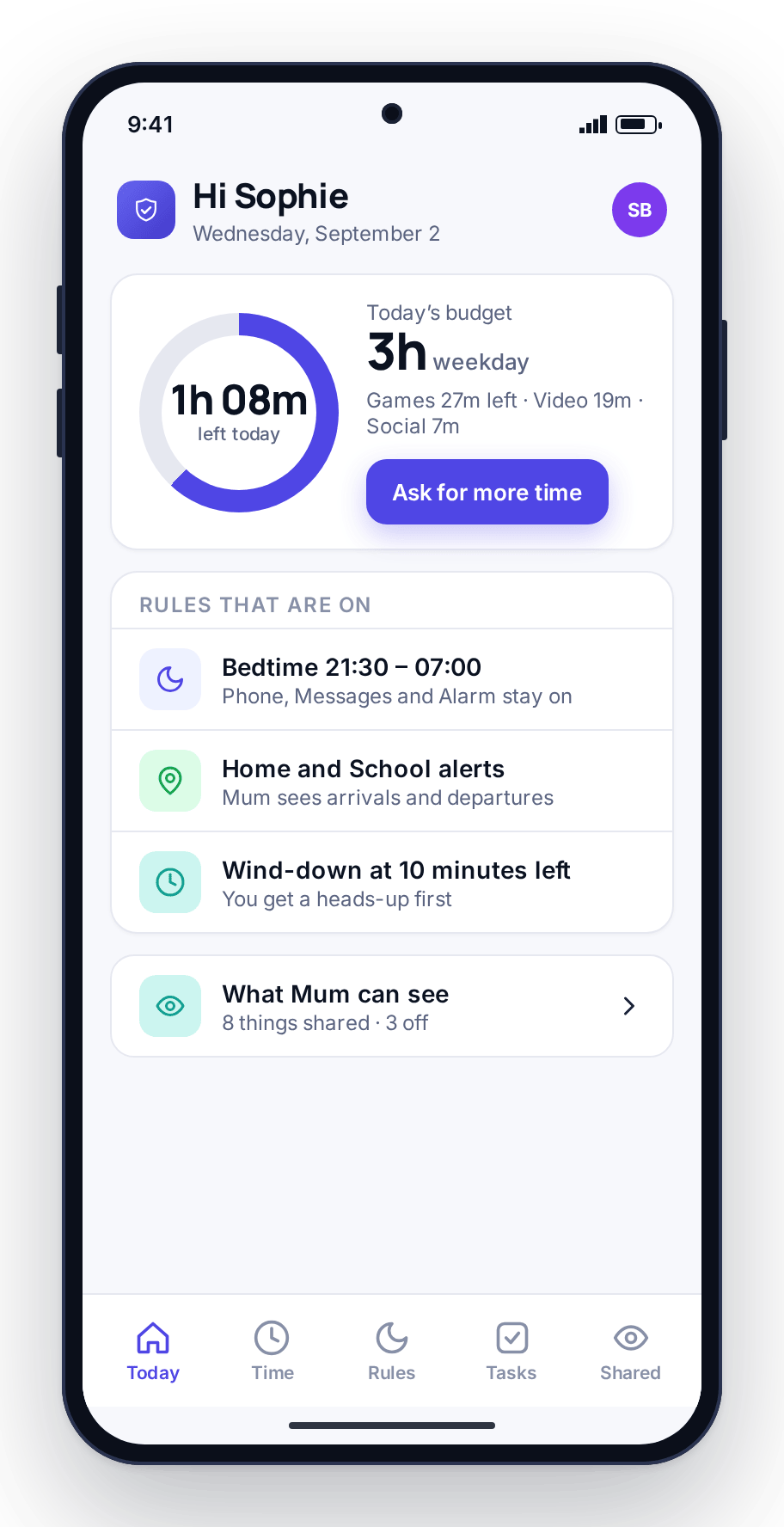
Everything in this guide rests on one line: your child should know the app is there. Covert surveillance of your own child trades a small amount of visibility for a large amount of trust, and trust is what keeps them safe. A child who tells you when something goes wrong is better protected than any app can make them, and a child who has found a hidden app on their phone stops telling you things.
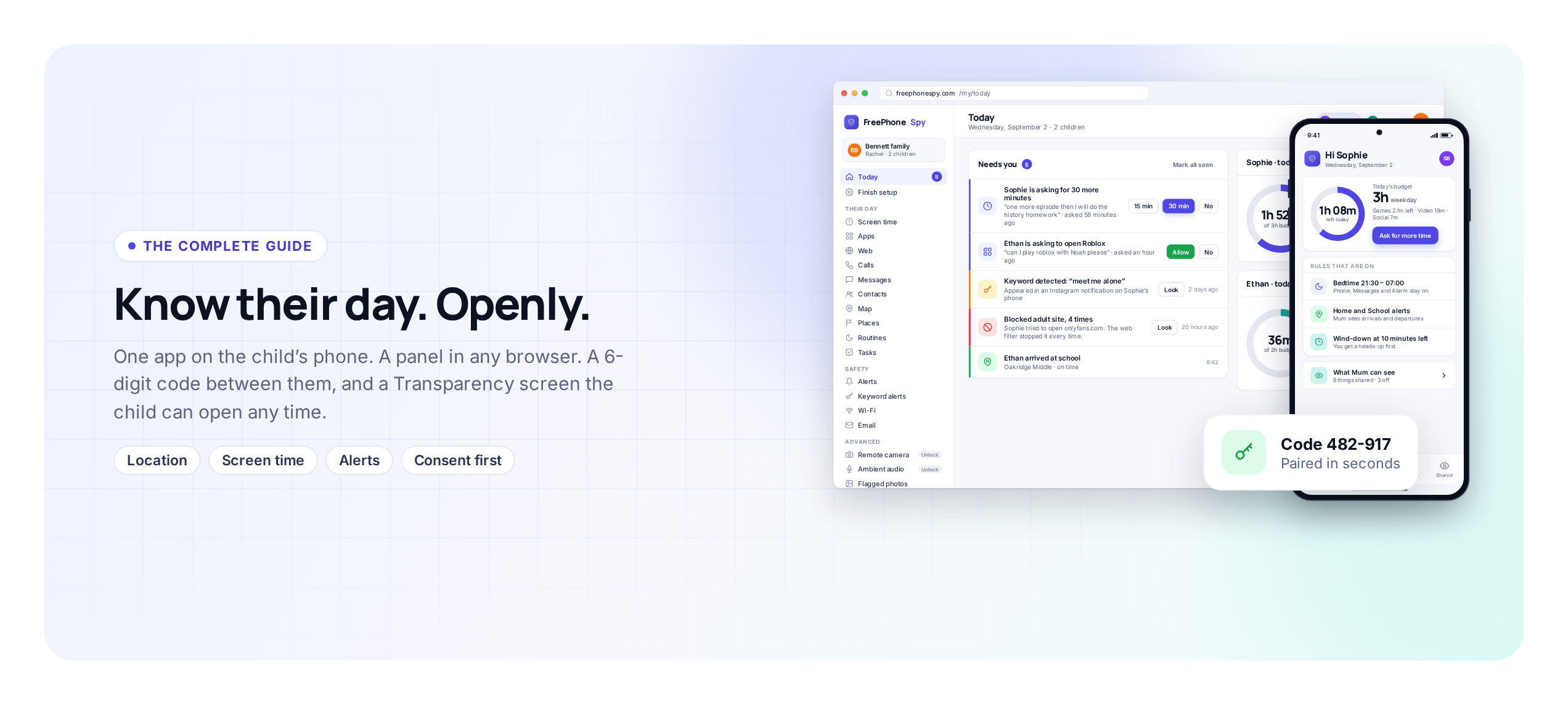
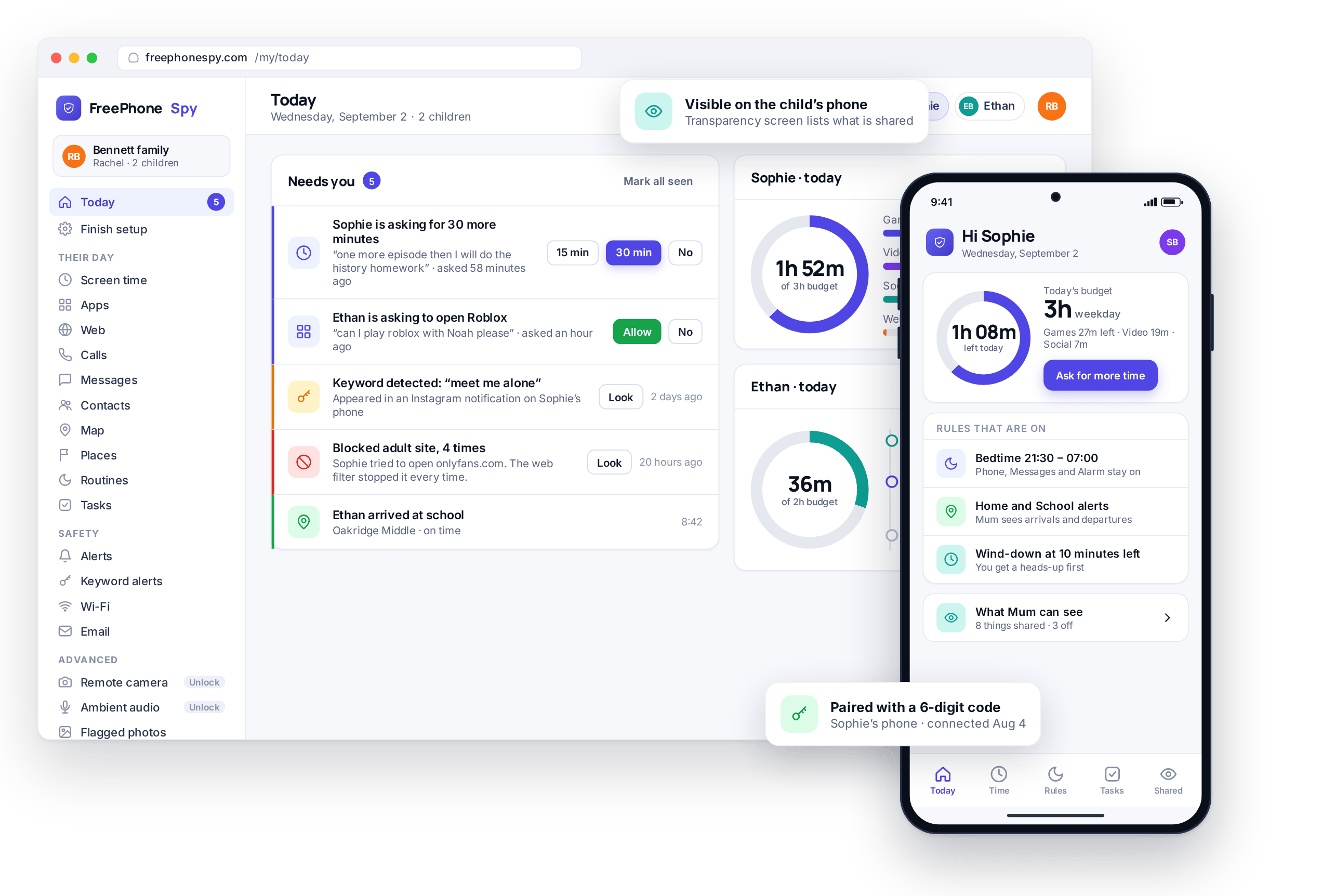
So the workable version is visible by design. FreePhoneSpy has a Transparency screen on the child’s phone that shows the app is installed and lists what it shares, and nothing is monitored until a parent switches a feature on. The sensible move is to set the first rule together, out loud, rather than switching things on in secret. If you want the full argument for why the open version is also the more effective one, and where the legal line sits, read monitoring vs spying before you decide how far to go.
What you can and can’t see
Marketing in this corner of the internet loves to imply you can see everything. You cannot, and you should not want to. What a consented monitoring setup gives you falls into four groups.
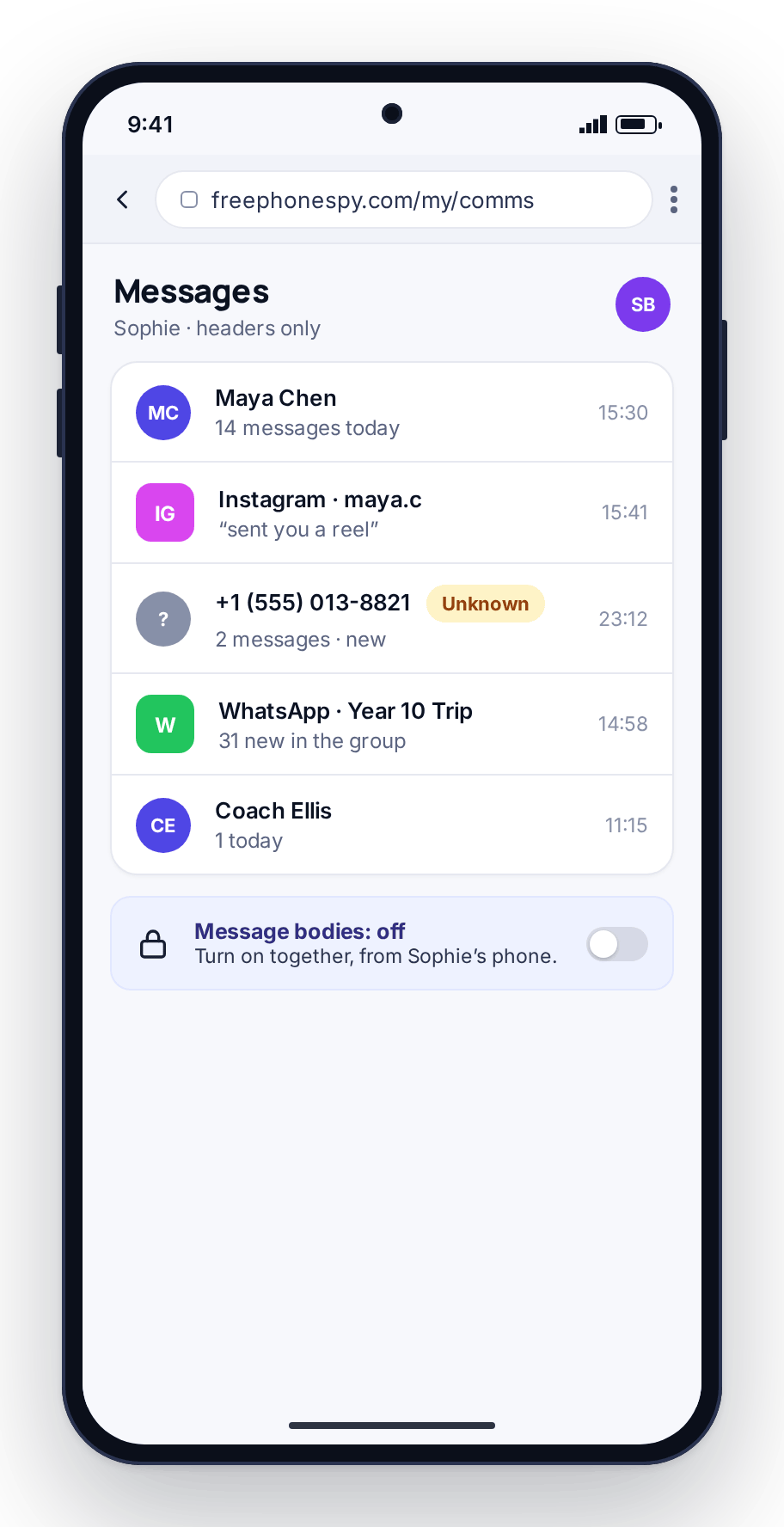
You can see, straightforwardly: where the phone is and where it has been, how much screen time went to which category, which apps are installed and how long each was used, the call log with numbers and durations, SMS and social-app message headers (who and when), which websites and categories were blocked, and a feed of alerts when something you flagged happens.
You can see, only with an explicit extra switch: the text of messages. Message content sits behind a consent switch that the parent and child turn on together, because reading a teenager’s every text is a much bigger step than seeing that a text happened. The switch exists so that decision is a conscious one rather than a default.
You can request, on demand: a photo from the camera, a short ambient audio clip, or a locate-now. These are the advanced tools. Each request is logged and visible on the child’s phone, they are unlocked separately, and they need the clearest consent of anything here.
You cannot: read end-to-end encrypted content that the phone itself cannot hand over, get into a locked device you do not own, or monitor another adult without their knowledge. That last one is a rule of the product, not a technical shortfall.
Android vs iPhone: what works today
You deserve a straight answer here, because many sites will not give one. The FreePhoneSpy child app runs on Android. If your child has an Android phone, you install one app, pair it with a six-digit code, and you get the full set of features described in this guide. An iPhone version is in development and is not available yet.
If your child has an iPhone, the best path today is Apple’s own built-in tools. Screen Time and Family Sharing are good and free: you can set app limits, downtime, content restrictions, and see location through Find My. You get less than a dedicated app offers (no message headers, no keyword alerts, no single feed of events), but it is real, it is consented, and it is already on the device. Set it up from your own iPhone, or on the child’s phone under a Child account.
One practical note if you are buying a first phone: this is a reason some families choose an Android for a younger child. You get finer control while they are learning, and you can loosen it as they grow. There is no wrong answer, but it is worth knowing before you are in the shop.
Setting it up, step by step
The whole thing takes under fifteen minutes, most of it done once. You install nothing on your own phone. The parent side is a web panel you open in any browser, so it works from a laptop, a work computer, or a tablet. Here is the flow; the download and setup page has screenshots for each step.
Open the panel, make a free account
Register in any browser. No card. Add your child with a name and rough age, which sets sensible defaults for limits. You can add more than one child, and there is no limit on child devices.
Install the app on the Android phone, together
On the child’s phone, install the app from the Play Store and type the six-digit pairing code shown on the panel’s Devices screen. Then grant the permissions together, saying what each one does as you go. About eight minutes, done once.
Agree the first rule
Do not switch on everything at once. Pick one thing that matters, a bedtime routine or a screen-time budget, and set it together. Roughly two minutes of panel work. Add more later as you both get used to it.
That third step is the one people skip, and it sets the tone for everything after. A rule your child watched you set, and had a say in, reads as a family agreement. A rule that appeared on the phone overnight reads as surveillance, whatever your intentions. If your child’s phone is Android and you want the setup in more detail, including what each permission is for, see the Android parental controls guide.
What to monitor first
Once you are set up, the temptation is to watch everything. The parents who keep this going for years watch a small number of things well. Here is a sensible starter set, roughly in order of how much it matters.
Location and getting there
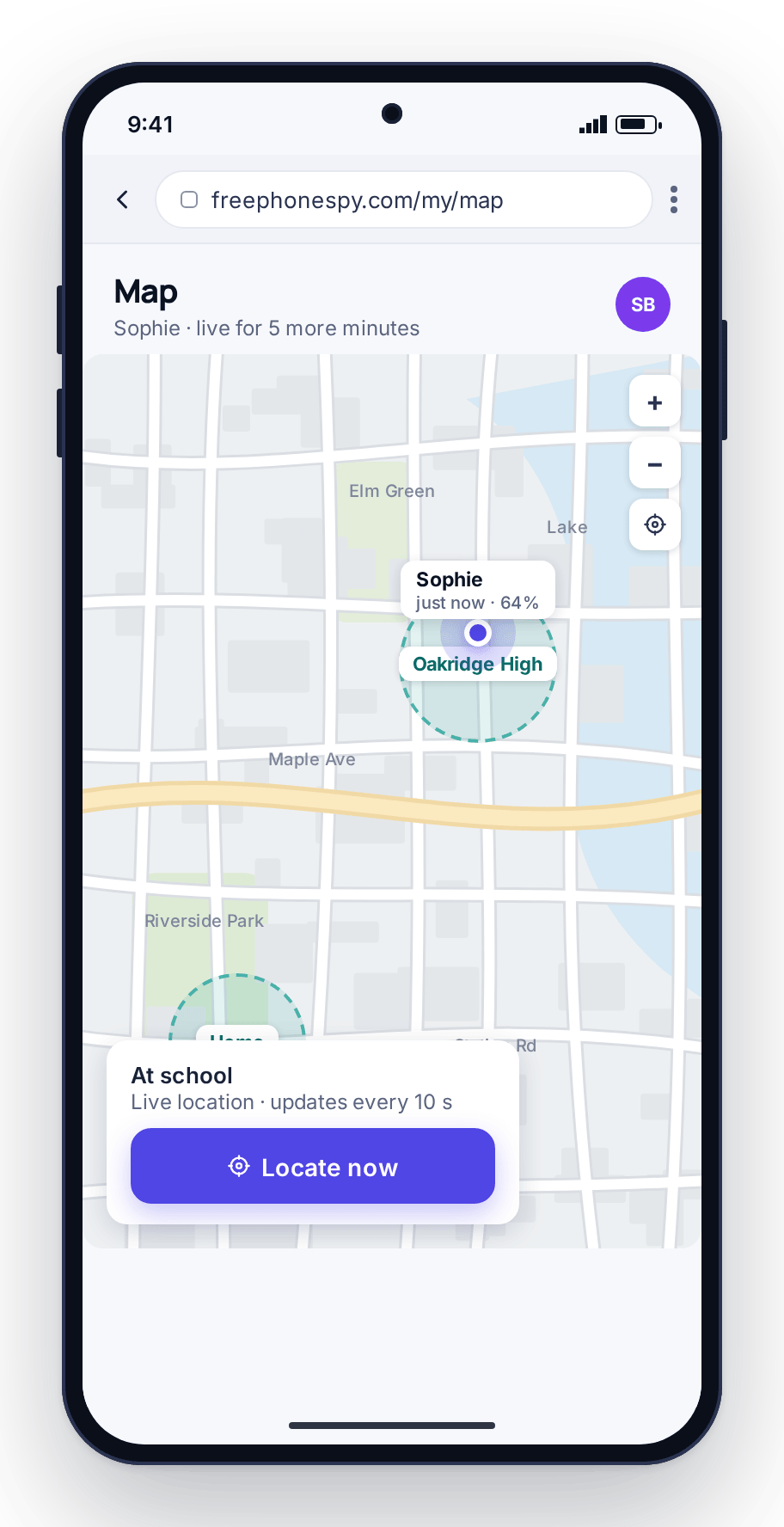
The everyday one. Live location plus saved Places such as home, school and a grandparent’s house gives you arrive and leave alerts, and a “left school early” heads-up. You stop texting “are you there yet?” and get a one-line notification instead. It is the feature most families use most, and the least intrusive one.
Screen time and sleep
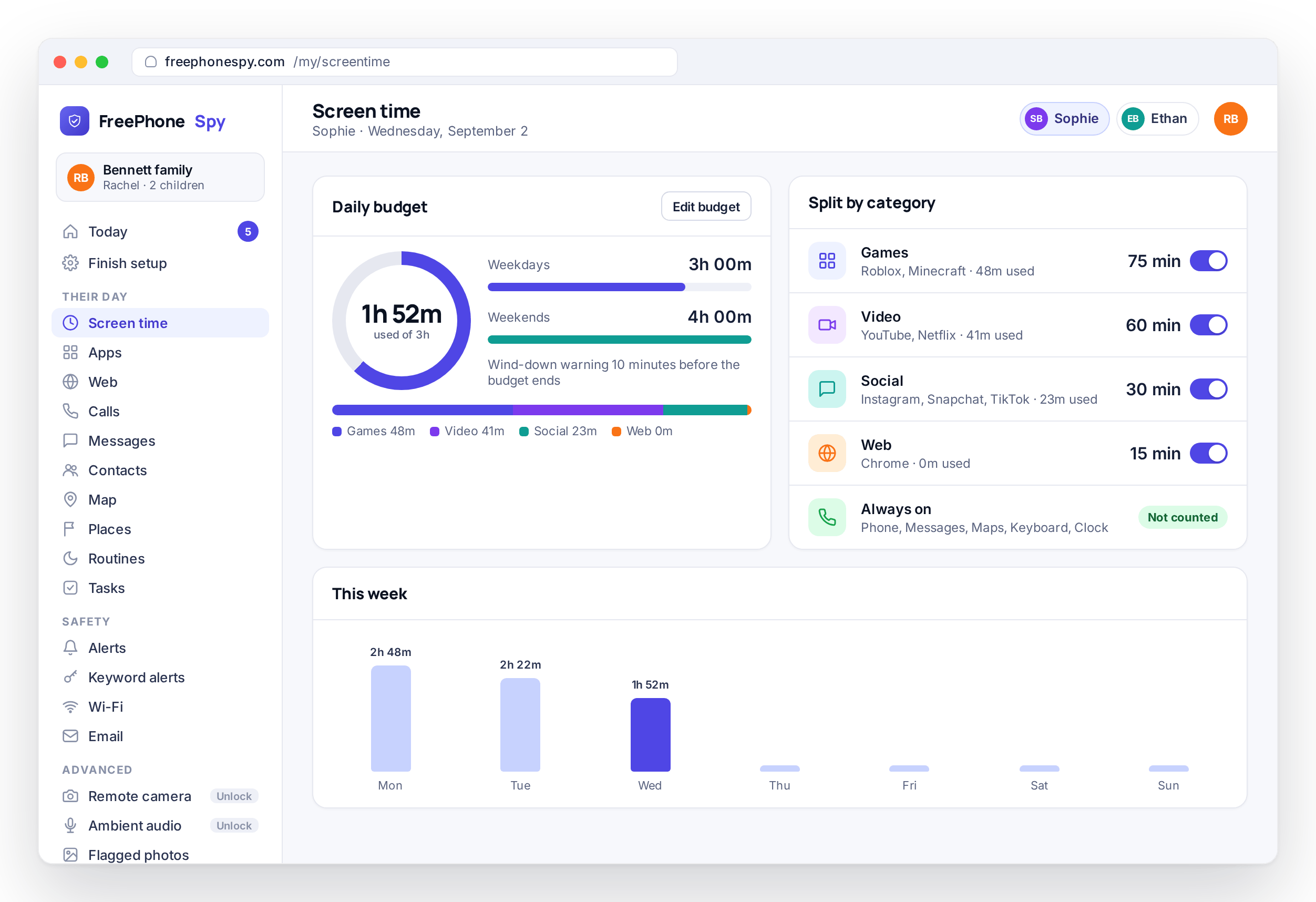
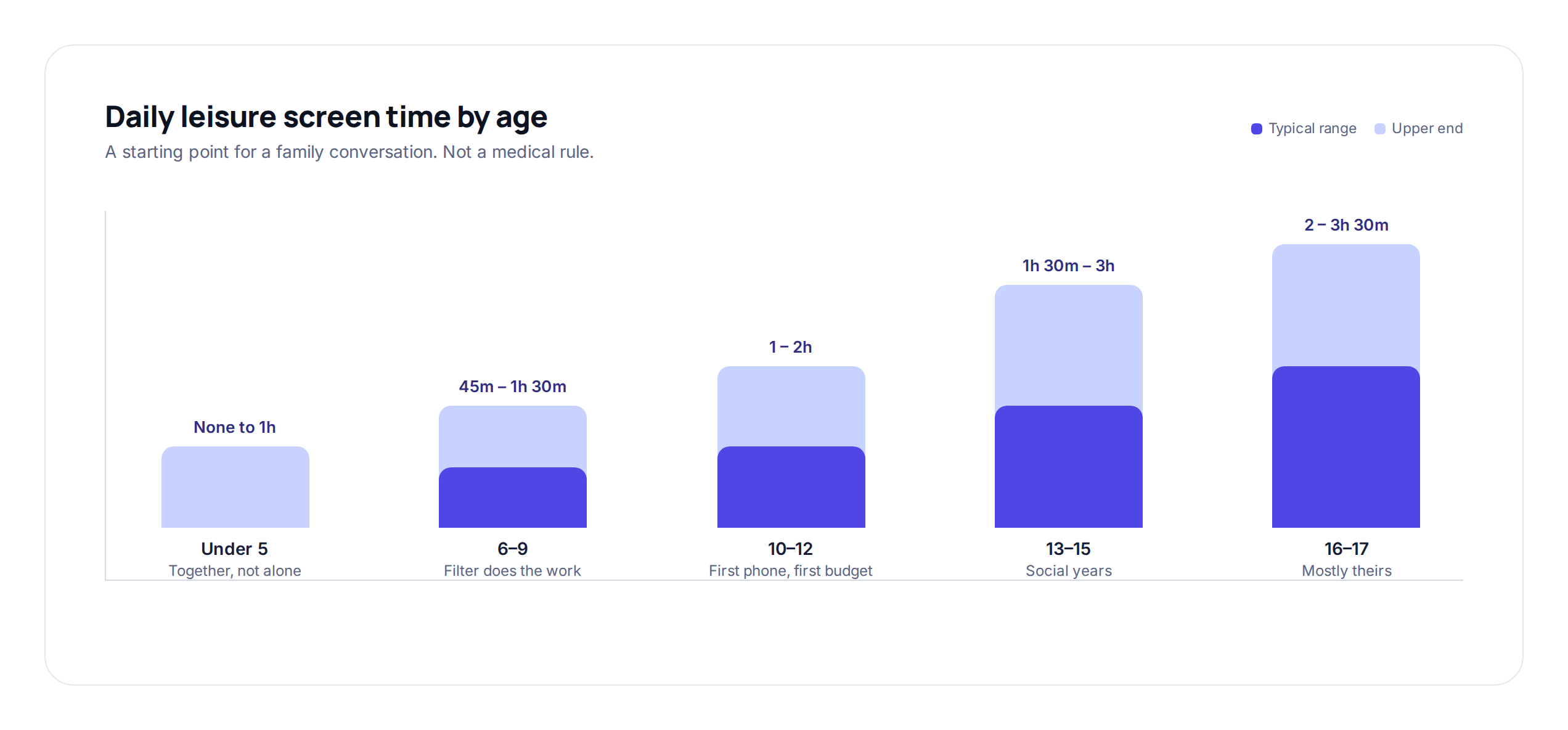
A daily minute budget beats a ban, and a bedtime routine prevents more arguments than anything else you will set up. With screen time you give a child a budget split across games, video, social and web, with different amounts for weekdays and weekends, and the phone enforces it with a wind-down warning as the minutes run low. Pair it with a bedtime routine that quiets games and social at a set time regardless of minutes left. For starting numbers by age, see screen time by age.
Apps and the web
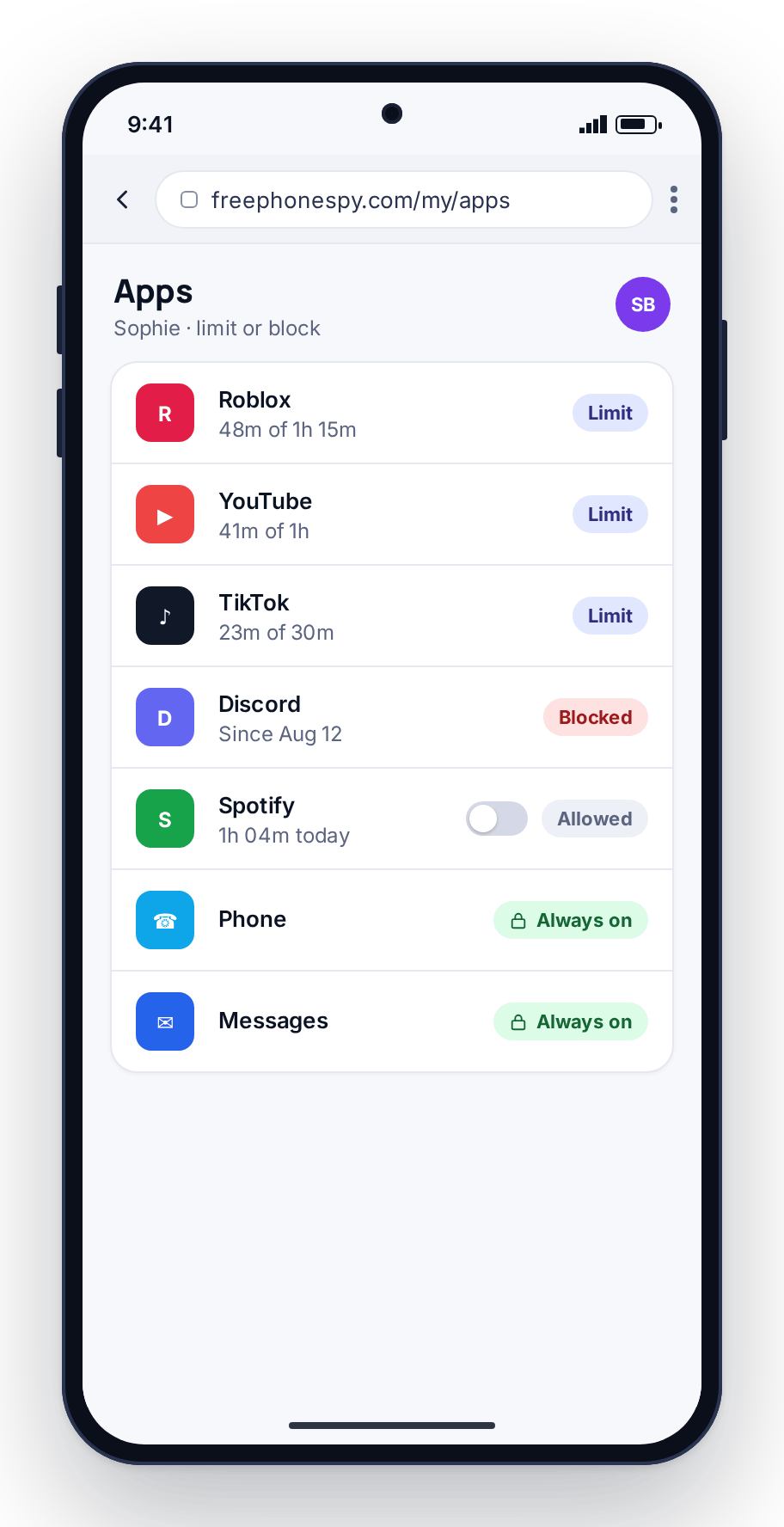
Per-app time limits and blocking, plus a content filter that runs on the phone and can block whole categories such as adult or gambling. Essentials (phone, messages, maps, keyboard) stay untouchable, so a child can always reach you even when every limit has been hit. This is the layer that closes off the worst corners of the internet without you policing each tap. See app and website blocking for how the filter works.
Calls, messages and alerts
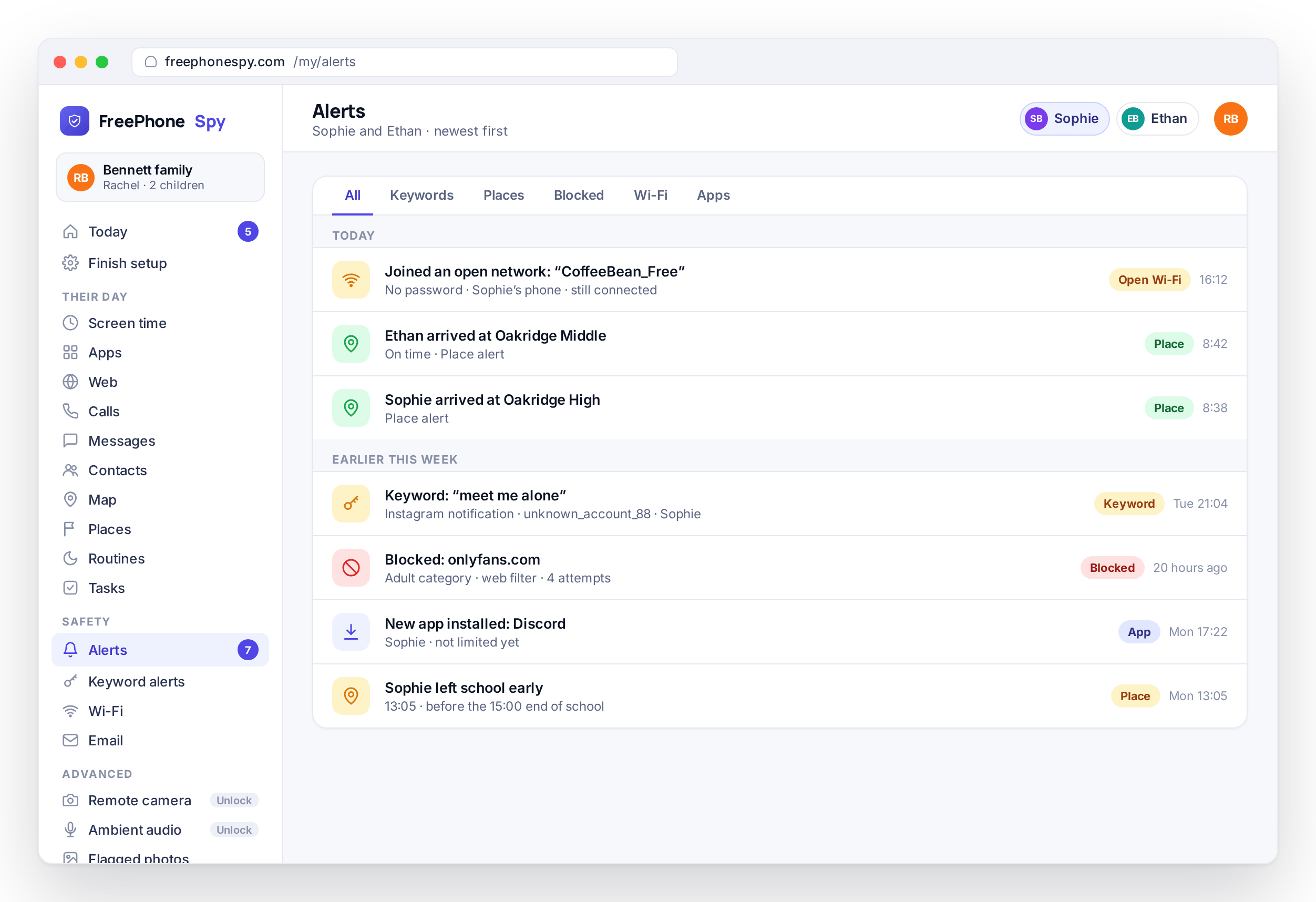
The call log shows numbers, names, times and duration, which is enough to spot an unknown number that calls a lot. The messages view shows headers by default and message bodies only if the consent switch is on. Keyword alerts let you flag phrases such as “meet me alone” so you hear about the thing that matters without reading everything. All of it lands in one alerts feed, ordered by time.
Notice what is not on this starter list: reading every message, camera snapshots, ambient audio. Those exist for a specific, serious worry, and every use is logged. They are not where you begin. Start with location, sleep and the alert feed, and add heavier tools only if something gives you a reason to. If you are not sure whether something is a reason, signs a phone needs a closer look walks through what to watch for and what to do about it.
Keeping trust as they grow
None of this is meant to stay switched on forever. The goal is to hand the controls back a piece at a time until your child is setting their own limits, because that is what they will have to do at eighteen anyway. Monitoring that never loosens is surveillance with a nicer name, and teenagers can tell the difference.
So build in a review. Every few weeks, ask whether each rule still earns its place, and when you loosen one, say so: “you’ve been good about homework hour, so weekend minutes are going up.” That tells them responsibility buys freedom. For what that looks like at each age, from a first phone at ten to the last controls coming off at seventeen, see what age to monitor a child’s phone.
And keep talking. The app is a prompt for conversations, not a replacement for them. “I saw a lot of late-night messages, everything okay with that group?” is worth more than any silent log. If your child ever asks about a feature, tell them what you set up, why, and that they can see it too on their own phone. For wording that works at different ages, and what to do when trust has already been damaged, see talking to your kids about monitoring.
On cost, so there are no surprises: FreePhoneSpy is free to start, with full access for the first ten days and no card. After that you keep it going by completing simple tasks, such as leaving a review, referring a friend or sending feedback, and the same tasks unlock the advanced tools. Location, screen time, app limits, the web filter and alerts stay free. There is no subscription and nothing to cancel; the details are on the pricing page.
FAQ
How do I monitor my child’s phone without them resenting it?
Do it in the open and start small. Tell them the app is there, set the first rule together, and pick something reasonable like a bedtime routine rather than switching on everything at once. Children object far less to an agreement they understand than to something they discover. Tell them the controls will loosen as they show they can handle the phone, and follow through.
Does FreePhoneSpy work on an iPhone?
The child app is Android today; an iPhone version is in development. If your child has an iPhone, use Apple’s Screen Time and Family Sharing for now. They are free, already on the device, and cover app limits, downtime, content restrictions and location through Find My. The parent panel itself works in any browser, including Safari on an iPhone.
Can I read my child’s text messages?
Message headers, meaning who and when, are shown by default. The message bodies sit behind a consent switch that parent and child turn on together. For most worries the headers are enough: an unfamiliar number messaging at midnight tells you plenty. Turning on bodies is a step best agreed with an older child for a specific reason, not a default.
Will my child know the app is installed?
Yes. The app is visible on the phone, and its Transparency screen lists what is shared. Android also shows the permission prompts on the child’s phone during setup, so there is no realistic way to install it unnoticed. That is deliberate: the product is built for families who set it up together.
What should I monitor first?
Location with a couple of saved Places, a screen-time budget, and a bedtime routine. Those cover the everyday worries about safety, sleep and the pull of the device with the least intrusion. Add heavier tools such as message bodies, camera or audio only if a specific worry gives you a reason, and keep those in the open too.
Is it free?
Yes. Full access for the first ten days with no card, then you keep it going and unlock the advanced tools by completing simple tasks, such as leaving a review or referring a friend. Location, screen time, app limits, the web filter and alerts stay free with no subscription.