Android Parental Controls Setup
Setting up parental controls on an Android phone is mostly a decision problem, not a technical one. The phone side takes about ten minutes. The part worth slowing down for is working out which two or three controls your child needs at their age, and doing the setup in a way they understand and can live with. This guide covers both halves: the thinking, then the taps, then a first week of adjustments so you end up with something that fits your family rather than a factory default.
What to decide before you start
Before you touch a setting, answer three questions. They save an hour of fiddling and, more importantly, a week of arguments.
What specifically are you worried about? “Everything” is not a useful answer, because it leads to switching on everything and ignoring most of it. For a nine-year-old with a hand-me-down phone, the worry is usually strangers messaging them and adult sites. For a fifteen-year-old it is usually sleep, and whether they got where they said they were going. Name the real worry. It tells you which controls matter and which you can leave alone.
How much independence fits this child right now? A phone is practice for managing one as an adult. Guard rails that come off gradually teach more than a lockdown that stays on until they leave home. An eleven-year-old and a sixteen-year-old should not have the same setup, and the setup for either should look different in six months.
Are you going to tell them? Yes. Covert monitoring of your own child nearly always surfaces, through a permissions prompt, a battery warning, or a friend who knows what to look for, and when it does it costs more trust than it bought in safety. Tools built for families are visible for that reason. FreePhoneSpy, for example, has a Transparency screen on the child’s phone listing what is shared. Decide up front that this is something you do openly, and the rest of the setup follows from that.
Google Family Link vs a dedicated app
Most parents start with Google Family Link, and for many families it is the right first stop. It is free, built into Android, and does the basics well: a daily screen time limit, approval of app installs, and some content filtering in Chrome and the Play Store. If your worry is “my ten-year-old is downloading things I have never seen,” Family Link handles that on its own.
Where it runs thin is depth. Family Link’s location is a single dot on a map, not named places with arrive-and-leave alerts. Its screen time is one number for the whole day, not a budget split across games, video and social. It has no keyword alerts, no call log, and no way for a child to request extra time with a reason. And once your child turns thirteen, Google lets them loosen or remove supervision themselves.
A dedicated app is for when you want more control and more visibility in one place. With FreePhoneSpy you manage everything from a web panel in any browser, with no app on your own phone. You get a real screen-time budget, named Places with alerts, per-app limits and website blocking, and a calls and messages view that shows who and when, with message bodies off unless you turn on a separate consent switch. Two limits worth knowing before you choose: the child app is Android-only for now, and call recording is best-effort on recent Android versions.
You do not have to choose forever. Plenty of families run Family Link for app-install approvals and a dedicated app for the rest. Start with the one that matches the worry you named above.
Family Link is enough if
- Your main worry is app installs and rough content filtering
- Your child is young and the phone is basic
- You want zero cost and zero extra apps
Reach for a dedicated app if
- You want a real screen-time budget, not one number
- Location “did they get to school” matters to you
- You want one browser panel for the whole picture
The actual setup steps
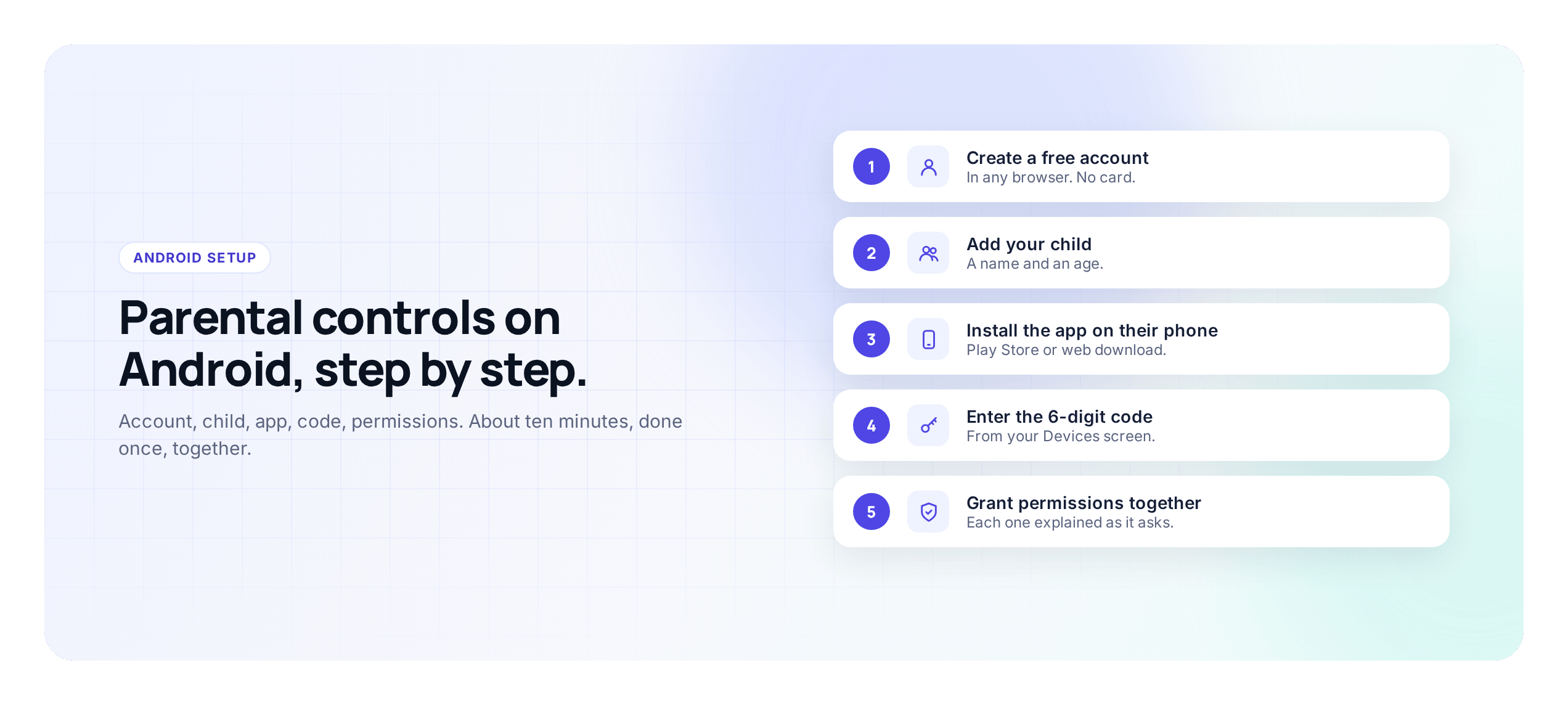
Here is the FreePhoneSpy flow end to end. Family Link is similar in shape: create an account, add the child, install on their phone, grant permissions.
Open the panel and add your child
Open the panel in any browser, create a free account (no card), and add your child with a name and rough age. The age sets sensible defaults you can change later. This takes about two minutes.
Install the app on their phone
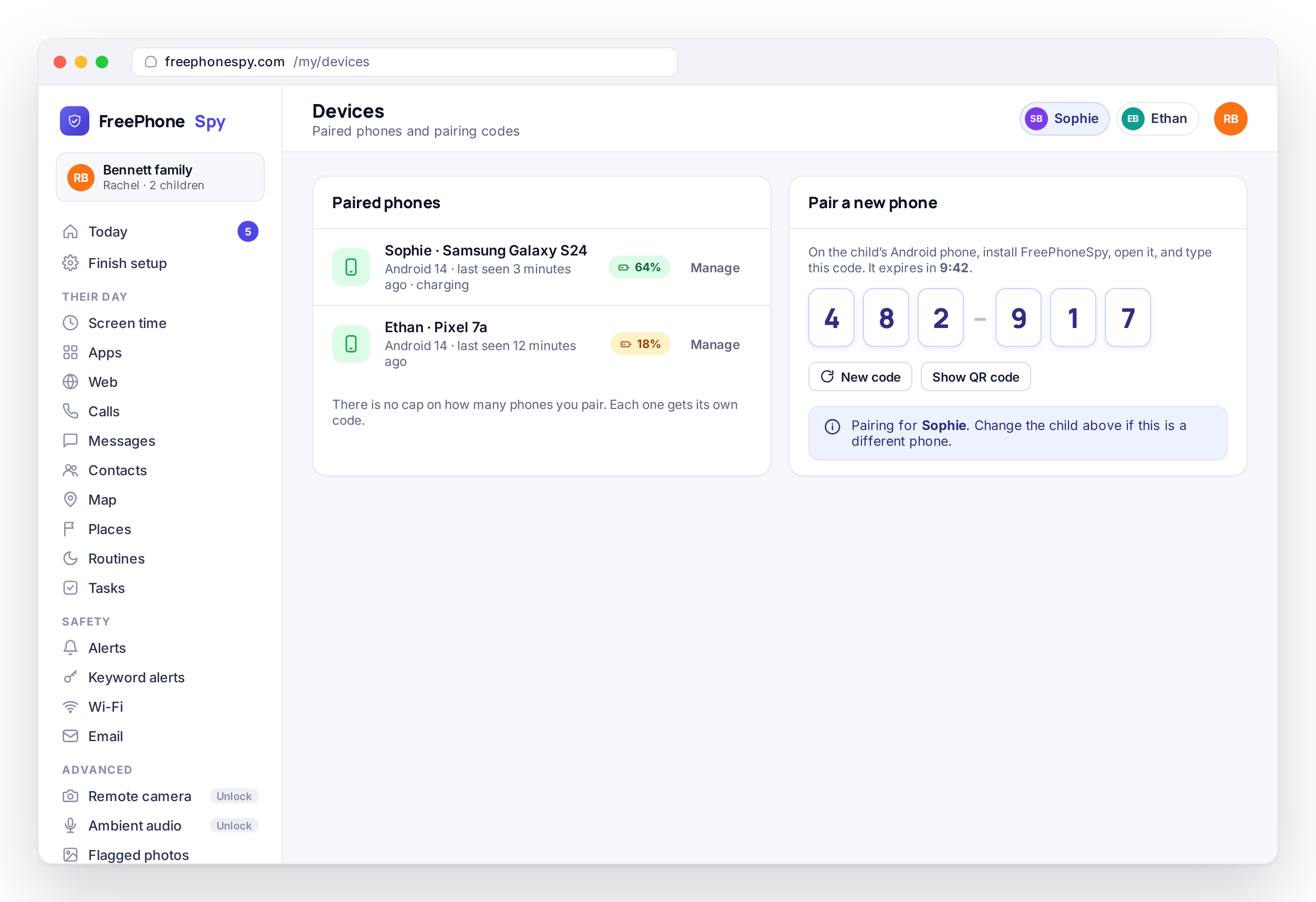
On the child’s Android phone, install the app from the Play Store and type the 6-digit pairing code shown on the panel’s Devices screen. That links the two, and the child’s phone appears in your Devices list with its battery and last-seen time.
Grant permissions together
Android asks for a handful of permissions, one screen at a time. Go through them with your child and say what each one is for. This is the part worth slowing down for, and the next section explains each one.
Agree the first rule
Set one thing, not ten. Usually a bedtime wind-down or a daily screen-time budget. Decide it together and switch it on while they watch.
The whole thing runs under fifteen minutes, and you only do it once. Nothing is monitored until you switch a feature on, so there is no need to configure everything in the first sitting. A phone that is paired but has only a bedtime rule is a perfectly good place to stop for day one.
The permissions, and why each one matters
Permission screens are where most parents either worry or tap through without reading. Here is what Android is asking for at each step and what it enables, so you can explain it to your child rather than just pressing Allow.
- Location. Powers live location, the “did they get to school” question, and the arrive and leave alerts on Places you name. Without it, the map stays empty and nothing else is affected. This is the one most parents want most.
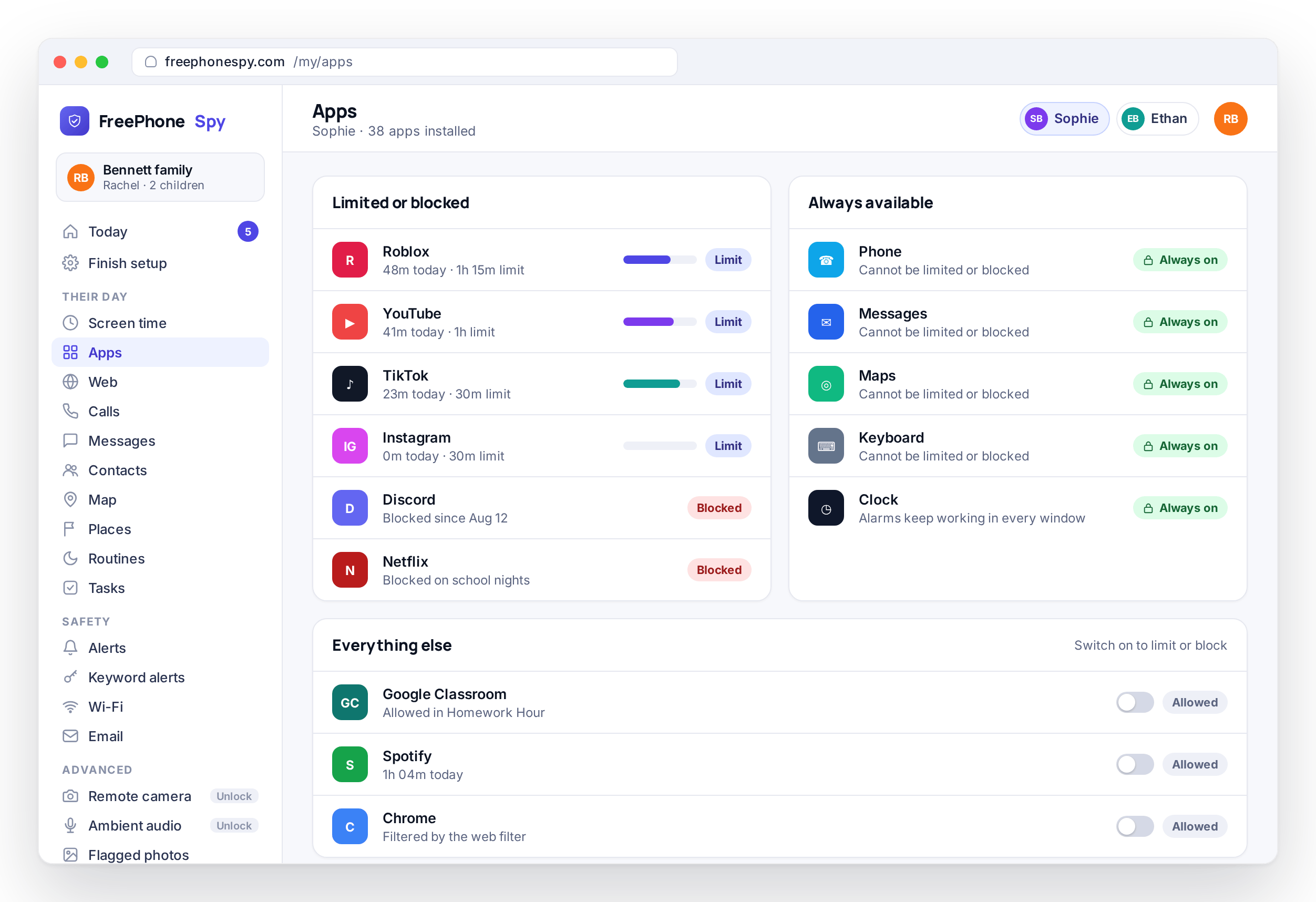
- Usage access. Lets the app see which apps are used and for how long. That is what makes the screen-time budget and per-app limits work, because the phone counts the minutes and enforces the limit rather than you watching a clock.
- Accessibility and notification access. Reads notification text so keyword alerts can fire and message headers (who and when) can appear. This is the most powerful permission, so it is the one to be most open about. Message bodies stay off regardless, unless you and your child turn on the separate consent switch in the panel.
- Display over other apps. Lets the wind-down warning and the block screen appear on top of whatever app is running when a limit is reached. Without it, a limit can be counted but never shown.
- Battery optimization off. Otherwise Android puts the app to sleep after a while and the controls stop working without any warning to you. Turning optimization off for this one app keeps it running in the background.
If a permission makes you uncomfortable, do not grant it. The app works with fewer permissions, just with fewer features. Choosing to leave one off, and explaining that choice to your child, is a reasonable thing to do and a good example to set.
Doing it with your child, not to them
The temptation is to set all this up while they are at school and present it as done. Twenty minutes of doing it together buys more cooperation than any single feature will.
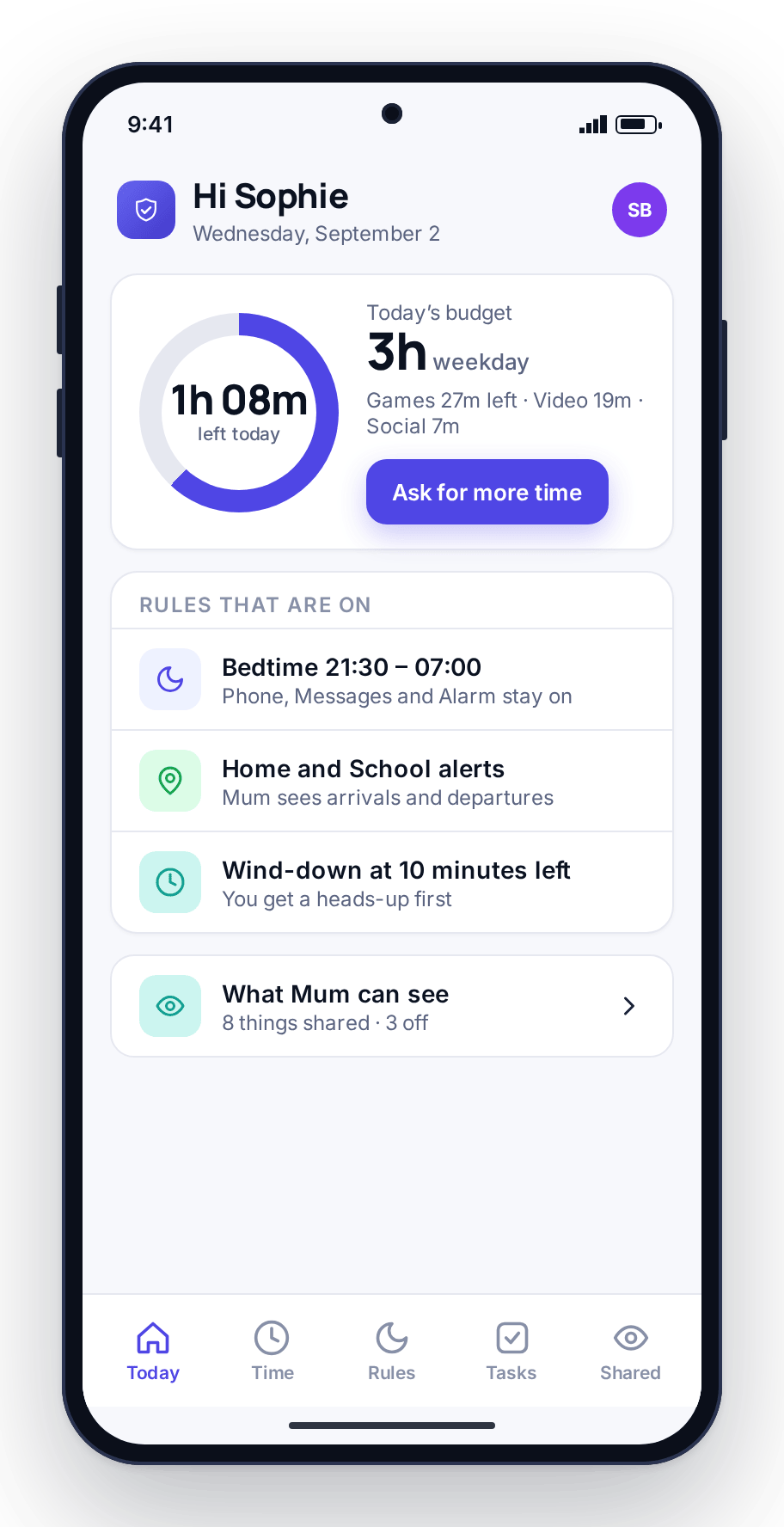
Sit down with them and the phone. Say what you are worried about in ordinary words: “I want to know you got to school, and I want the phone off at bedtime so you sleep.” Open the Transparency screen on their phone and show them the list of what is shared, so they can see it is not a black box. Let them ask what you can and cannot see, and answer, including the things you have chosen to leave off.
Then agree the rules rather than announcing them. A bedtime your teenager helped pick is one they are more likely to keep, and a screen-time number they negotiated feels like a deal rather than a punishment. Tell them the setup will loosen as they show they can handle it, and put a date on when you will review it together.
A first-week plan
Do not judge your setup on day one. The first week is for adjusting, and going in expecting that keeps small frictions from turning into rows.
- Days 1–2: One rule only, usually the bedtime wind-down. Leave everything else running open so you can see what a normal day looks like for this child before you start shaping it. The Today screen and weekly totals will show you where the time goes.
- Days 3–4: Add a screen-time budget if you are going to. Set it generously to start, a little above what you saw in the first two days. You can tighten later; loosening after a harsh start feels like a defeat to you and a victory to them.
- Day 5: Check the location Places if you set them up. Confirm the home and school circles are in the right spots and that the arrive alert fired when you expected it to. A Place drawn too small will miss arrivals; too large and it fires from two streets away.
- Days 6–7: Sit down again for five minutes. What is annoying? What has not been useful? Turn off anything that is not earning its place.
After a week you have something built around your child instead of a default. That is the goal: a setup you both understand, with the fewest controls that address the worry you started with. When you are ready, you can get started free and use the first ten days to find that fit at no cost.
FAQ
Should I set up parental controls without telling my child?
No. Android shows permission prompts on the child’s phone during setup, and the app has a Transparency screen, so a secret install is not realistic in any case. More importantly, discovering hidden monitoring teaches a child that hiding is the smart move. Do the setup in the same room, explain each permission, and agree the first rule together.
Do I need Family Link and a dedicated app, or just one?
Start with whichever matches your main worry. Family Link is enough for app-install approvals and basic filtering on a young child’s phone. A dedicated app adds a split screen-time budget, named location Places with alerts, keyword flags, and a single browser panel. Some families run both, using Family Link only for install approvals.
Which permissions can I skip?
Any of them. Each permission enables a specific feature and nothing else, so skipping location removes the map and the Places alerts but leaves screen time and app limits working. The two that matter most for enforcement are usage access and display over other apps; without those, limits can be set but not shown or applied.
Does this work on an iPhone?
The child app is Android-only for now, with an iPhone version in development. The parent side is a web panel, so you can manage an Android child phone from an iPhone, a laptop, or any other browser. For a child who has an iPhone today, Apple’s built-in Screen Time and Family Sharing are the best free option.