A Parent’s Guide to Online Gaming Safety
Your kid loves gaming, and that’s fine. Games are where a lot of friendships live now, where children build things, solve problems, and blow off steam after school. The trouble isn’t the game. It’s the stranger in voice chat, the £80 of V-Bucks charged on a Tuesday, and the “one more game” that turns into midnight. You don’t need to ban it. You need a few settings switched on and a couple of honest conversations.
Games aren’t the enemy
It helps to start here, because a lot of gaming advice reads like a panic attack. Most of what your child does when they game is good for them. They’re coordinating with friends, reading maps, managing resources, failing and trying again. Ethan, 11, builds elaborate worlds in Minecraft and talks about them for hours. Sophie, 15, plays online with the same three friends she sees at school; the game is just where they hang out on a wet Sunday.
That’s the thing to keep in mind while you read the rest of this. The goal is a kid who games happily and sleeps, does their homework, sees daylight, and doesn’t hand a stranger their real name. None of the steps below require you to become the fun police. They require a bit of setup and a bit of trust.
The risks that actually matter
Ignore the scary headlines and the risks sort into a short, manageable list. Each one has a fix.
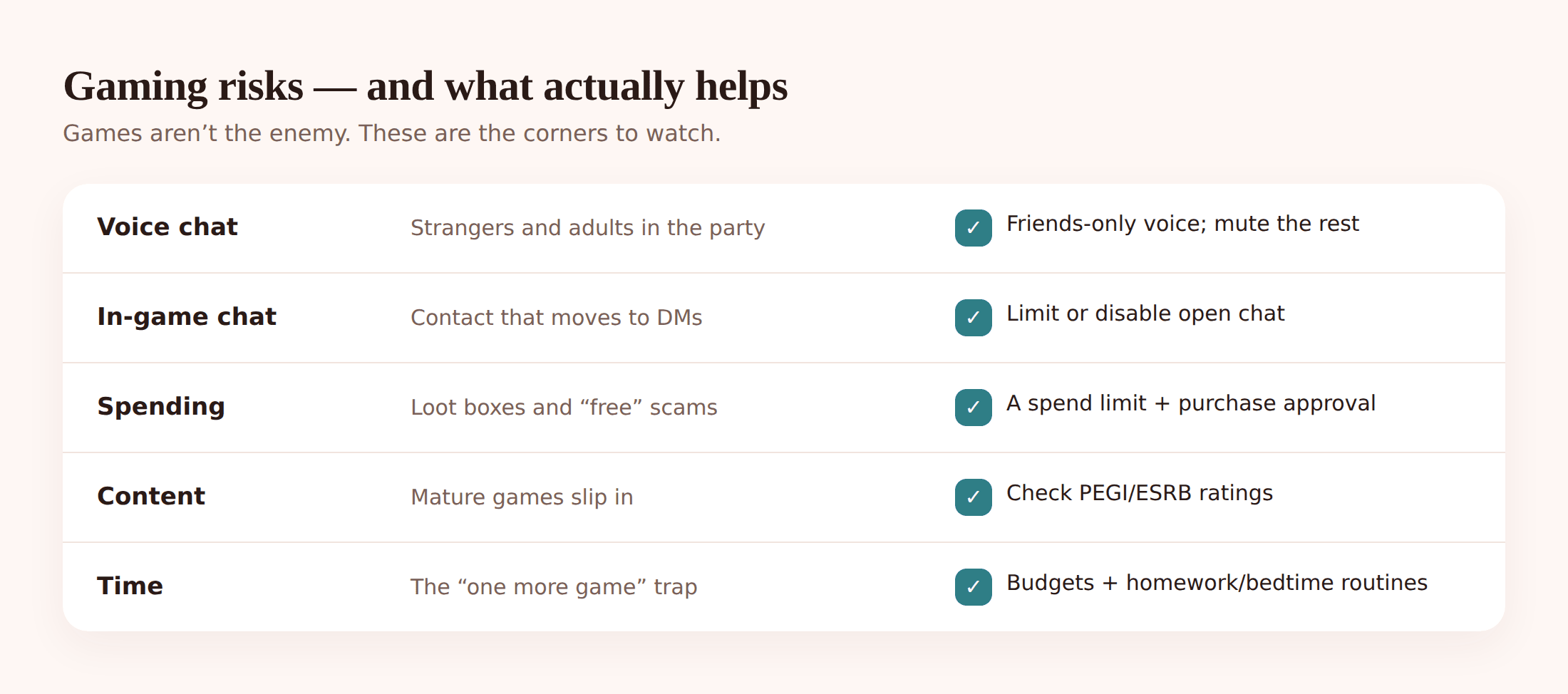
- Strangers. Open lobbies put your child in voice and text chat with adults they’ve never met.
- Money. Loot boxes, battle passes and one-tap top-ups are designed to be easy to spend on and hard to stop.
- Content. Some games — and a lot of gaming streamers — are made for adults, not for an 11-year-old.
- Time. Games are built to keep you playing. “One more” is a design feature, not a coincidence.
Work through those four and you’ve handled the vast majority of what can go wrong. Let’s take them one at a time.
Strangers and voice chat
This is the one that keeps parents up at night, and it should get the most attention. In an open online game, your child can end up in a squad with grown adults, talking live over a headset. Most of those people are just there to play. A few aren’t.
The pattern to understand is the move off-platform. Someone friendly attaches themselves to your child in a game, is nice to them, singles them out — then suggests carrying on the chat somewhere the game can’t see. “Add me on Discord.” “What’s your Snap?” The game becomes the front door; the real conversation moves to DMs where there are no moderators and no report button. That’s how grooming that starts in Fortnite or Roblox ends up somewhere far worse. Our guide to protecting kids from online predators goes deeper on the warning signs.
The rule that matters most: people you only know from a game are strangers, even if you’ve played with them fifty times and they seem lovely. Never give them your real name, school, or town. Never move the chat to another app. If someone asks you to, tell me — you won’t be in trouble.
On the settings side, most games let you lock chat down. Do this together with your child so they know what changed and why:
- Limit chat to friends. In the game’s privacy or social settings, set voice and text chat to “friends only” rather than everyone. This alone removes most of the exposure.
- Mute or disable voice with strangers. Where a game forces open lobbies, turn voice chat off or mute unknown players by default. Your child can still play; they just aren’t in a live mic with adults.
- Learn the report and block buttons. Show your child how to report a player and block them. Make reporting normal, not a big deal.
- Check the friends list occasionally. Ask who the names are. If your child can’t say how they know someone, that’s worth a chat.
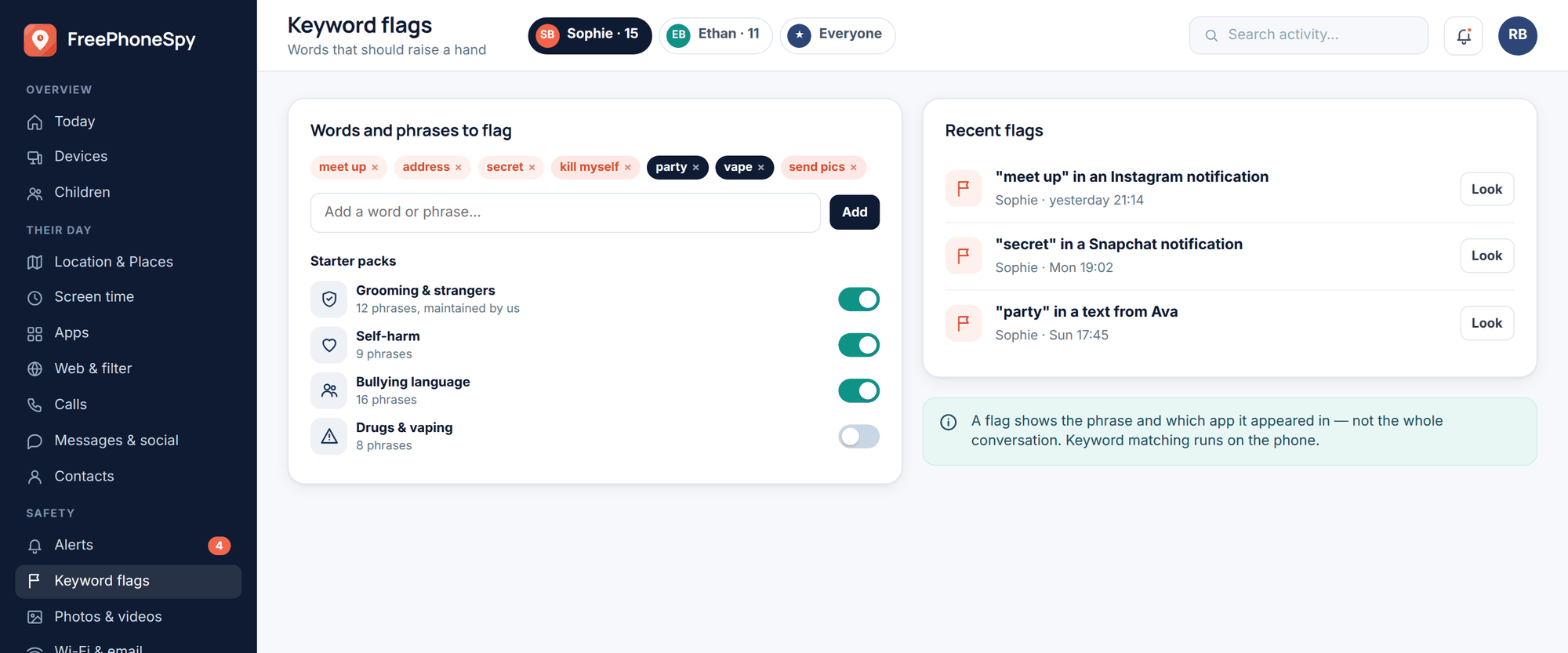
You can add a phone-side safety net too. FreePhoneSpy’s keyword alerts can flag messages on the child’s Android phone that contain things like “don’t tell your parents”, an address, or a request to move to another app — so a conversation that’s drifting somewhere it shouldn’t gets your attention early, without you reading everything over their shoulder.
In-game spending, loot boxes and scams
Free-to-play games are free to download and expensive to enjoy. The money comes from V-Bucks, Robux, battle passes, skins and loot boxes — and the systems are tuned to make spending feel small and constant. Loot boxes are the sharpest edge: you pay for a random reward, which is close enough to gambling that several countries have started regulating it. A child chasing “the good skin” can burn through real money fast.
Then there are the outright scams. “Free Robux” sites, “V-Bucks generators”, a friendly stranger offering a trade that needs your login first. If it’s free and it wants a password or a code, it’s a con.
The fix is boring and effective: put a wall between your child and your card.
- Require approval for every purchase. On the console or store account, switch on “ask to buy” so nothing is bought without your say-so.
- Remove the stored card. Don’t keep a card saved on the child’s account. Use gift cards or top-ups with a fixed amount instead.
- Set a spend limit. Xbox, PlayStation, Nintendo and Steam family settings all let you cap spending or require a parent’s approval.
- Talk about the tricks. Explain loot boxes plainly: “You’re paying for a chance, not a thing.” Kids respect being let in on how the machine works.
Worth saying clearly: on the phone or tablet, FreePhoneSpy manages time and access to games. It doesn’t process the money. Purchase approval and spend limits live in the game’s own settings and the platform account — Xbox, PlayStation, Nintendo, Steam. Set both layers. The phone controls when and how long; the store account controls what gets bought.
Age ratings and mature content
Games carry age ratings for the same reason films do. In the UK and Europe that’s PEGI; in North America it’s ESRB. A PEGI 18 shooter or a game rated for its violence, language or gambling-style mechanics isn’t automatically off-limits forever, but it’s a decision to make on purpose, not one that happens because a mate had it.
Two habits help more than any rating number:
- Check the rating before you buy or download. Thirty seconds on the PEGI or ESRB entry tells you why a game got its rating — violence, chat with strangers, in-game purchases.
- Play together sometimes. Sit in on a session now and then. You’ll learn more about what a game actually involves in ten minutes of watching than in any review. It also tells your child you’re interested, not just policing.
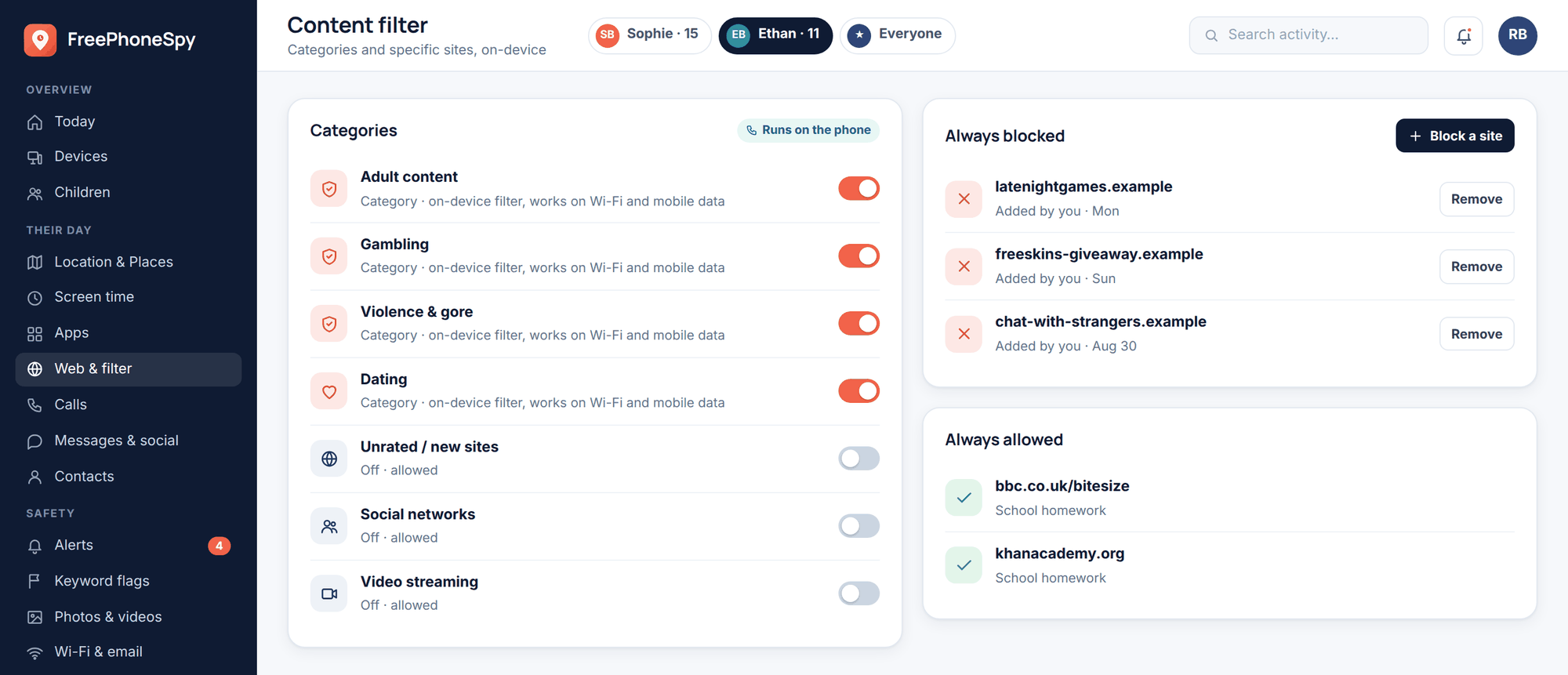
Don’t forget the streamers and YouTubers. A lot of gaming content aimed at kids is fine; some of it is loud, mature, and full of language you’d rather your 11-year-old didn’t repeat. FreePhoneSpy’s web and content filter can keep the browser and app side age-appropriate on the child’s Android phone, so the gaming rabbit-hole doesn’t lead somewhere it shouldn’t.
Screen-time balance and “one more game”
Here’s the honest bit about time: games are engineered not to end. The match rolls straight into the next one, the daily reward resets at midnight, the battle pass ticks down. “One more game” isn’t your child being difficult. It’s the design working exactly as intended. Which is why “just come off it when you’re done” almost never works — there’s no natural “done.”
So you set the boundary in advance, together, and let the system hold it rather than you nagging. This is where FreePhoneSpy earns its place on the phone or tablet.
- Agree a daily budget. Set a screen time budget for games you both think is fair — say 90 minutes on a school day, more at weekends.
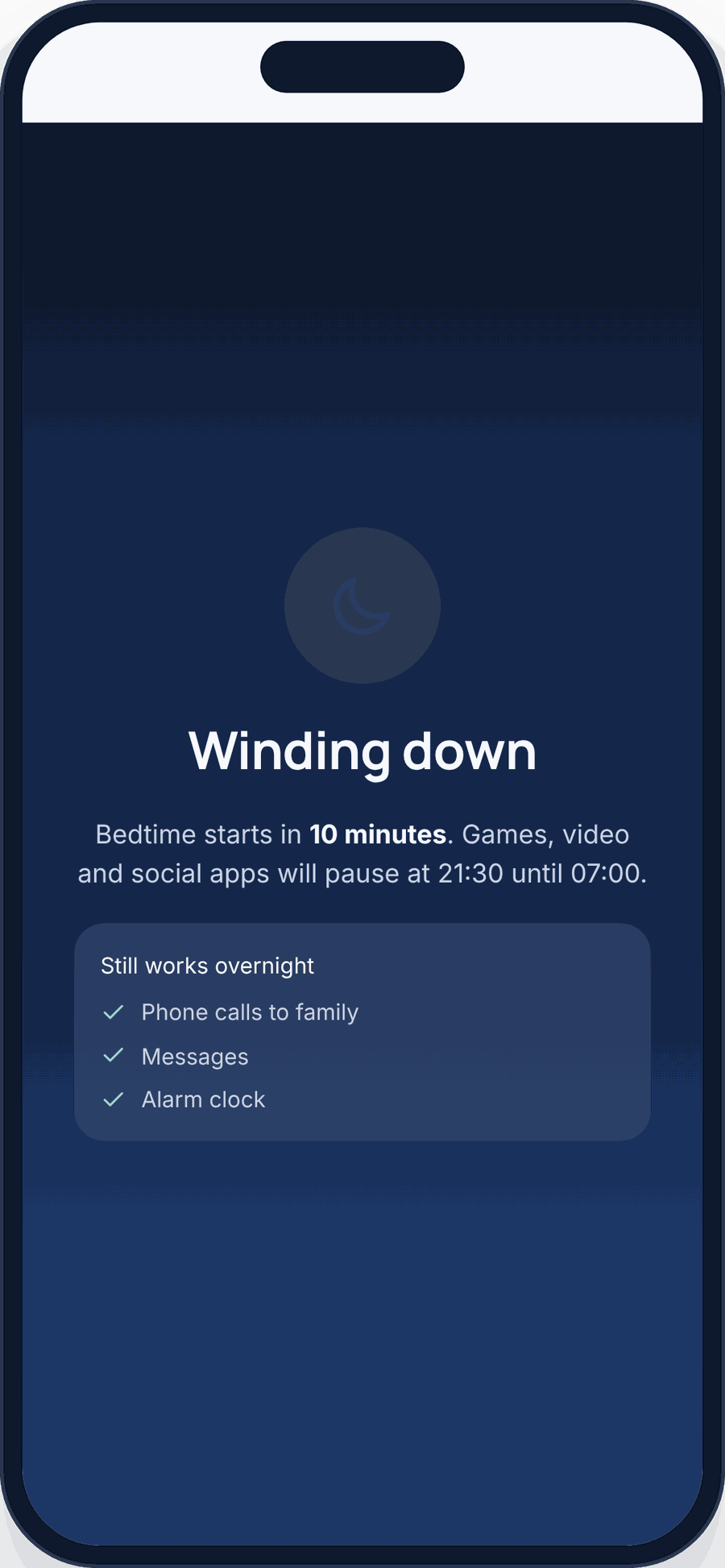
- Turn on a wind-down. Games and screens off a set time before bed. Sleep is the first thing gaming eats, and the one you most need to protect.
- Block during Homework Hour and bedtime. Use Routines so games are simply unavailable during homework and after lights-out — no debate, because it’s not a live decision every night.
- Handle “one more” with a warning. A wind-down countdown gives fair notice so a hard cut-off doesn’t land mid-match. It’s kinder and it works better.
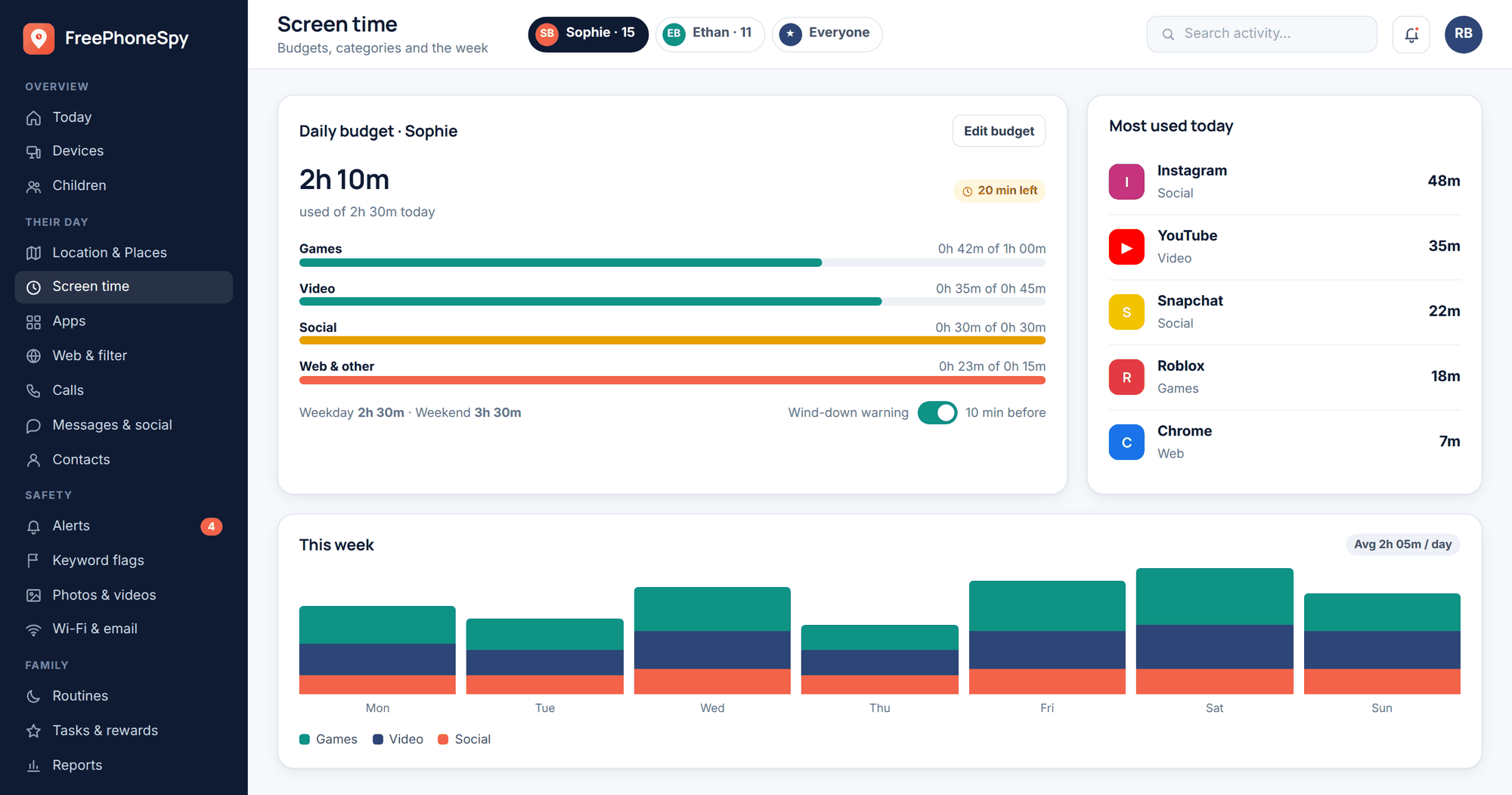
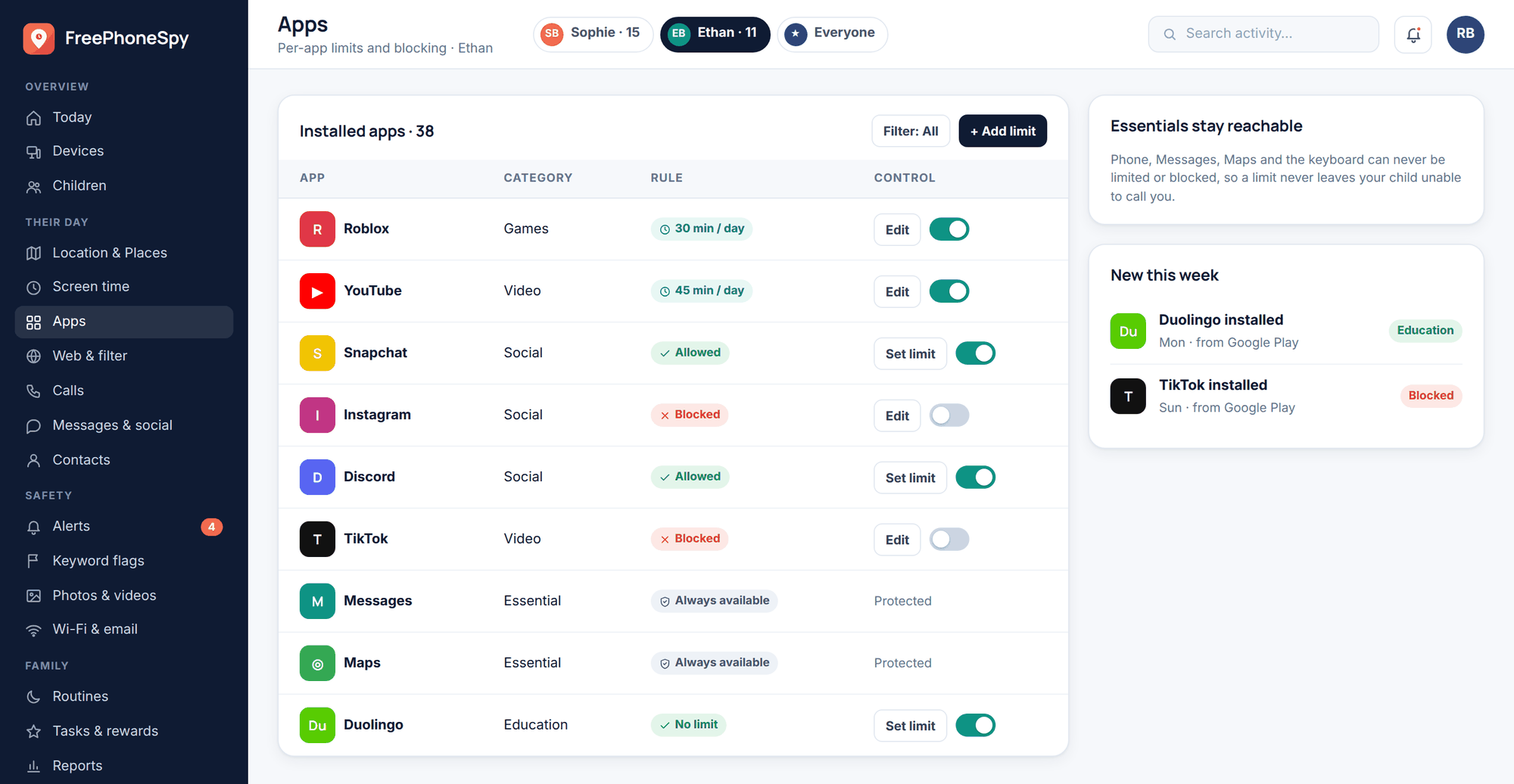
You can limit or block specific games rather than the whole phone. Cap the one game that runs long, block games during Homework Hour but leave messaging on so friends can still reach your child.
When gaming is actually a problem
Let’s be careful and honest here, because this topic gets exaggerated. The World Health Organisation recognises “gaming disorder” as a real condition. But — and this matters — the great majority of kids who play a lot of games are completely fine. Playing for hours at the weekend is not an addiction. Loving a game and being grumpy when you’re pulled off it is not a disorder. It’s being a kid who likes something.
Heavy play only becomes a concern when gaming starts crowding out the rest of a life. The things to watch for, over weeks rather than one bad evening:
- Sleep is going — up late gaming, tired and flat during the day.
- School’s slipping, homework not happening, and gaming’s clearly the reason.
- Friendships and activities they used to enjoy have dropped away.
- Mood is tied to the game — real distress or anger when they can’t play, not just normal grumbling.
- They’ve tried to cut down and can’t, and it’s genuinely upsetting them.
A pattern of several of those, lasting a good while, is worth taking seriously. Start with a calm conversation, not a confrontation. Tighten the routines. If it doesn’t shift and it’s really affecting their life, talk to your GP, who can point you to proper support. There’s often something underneath heavy gaming — anxiety, loneliness, trouble at school — and the game is where the child goes to escape it. Our piece on phones and teen mental health covers that ground. Don’t panic, don’t ignore it, and don’t diagnose from a headline.
Console, platform and phone settings
Safe gaming isn’t one switch. It’s two layers, and you want both.
The platform layer is where chat, spending and content controls actually live for console and PC games. Set these up in the family settings for each platform your child uses:
- Xbox — Microsoft family settings: chat limits, spending approval, content by age.
- PlayStation — family management: communication controls, monthly spend limits, age ratings.
- Nintendo Switch — Parental Controls app: play-time limits, software ratings, purchase restrictions.
- Steam — Family view and Family settings: restrict store purchases and limit access.
The phone and tablet layer is where FreePhoneSpy comes in. On the child’s Android phone, it handles time and access — game limits, screen-time budgets, wind-down, and Homework Hour and Bedtime routines — plus the content filter and keyword alerts for the messaging and browsing that wraps around gaming. One app on the child’s phone, managed from any web browser through the web panel. (If your child’s on an iPhone, use Apple’s built-in Screen Time and Family Sharing tools for the same job.)
Put simply: the platform account controls chat and money inside the game; FreePhoneSpy controls when and how much on the phone. Neither replaces the other. Wondering about a specific title? Our look at whether Roblox is safe for kids works through one game end to end as a worked example.
A short gaming agreement
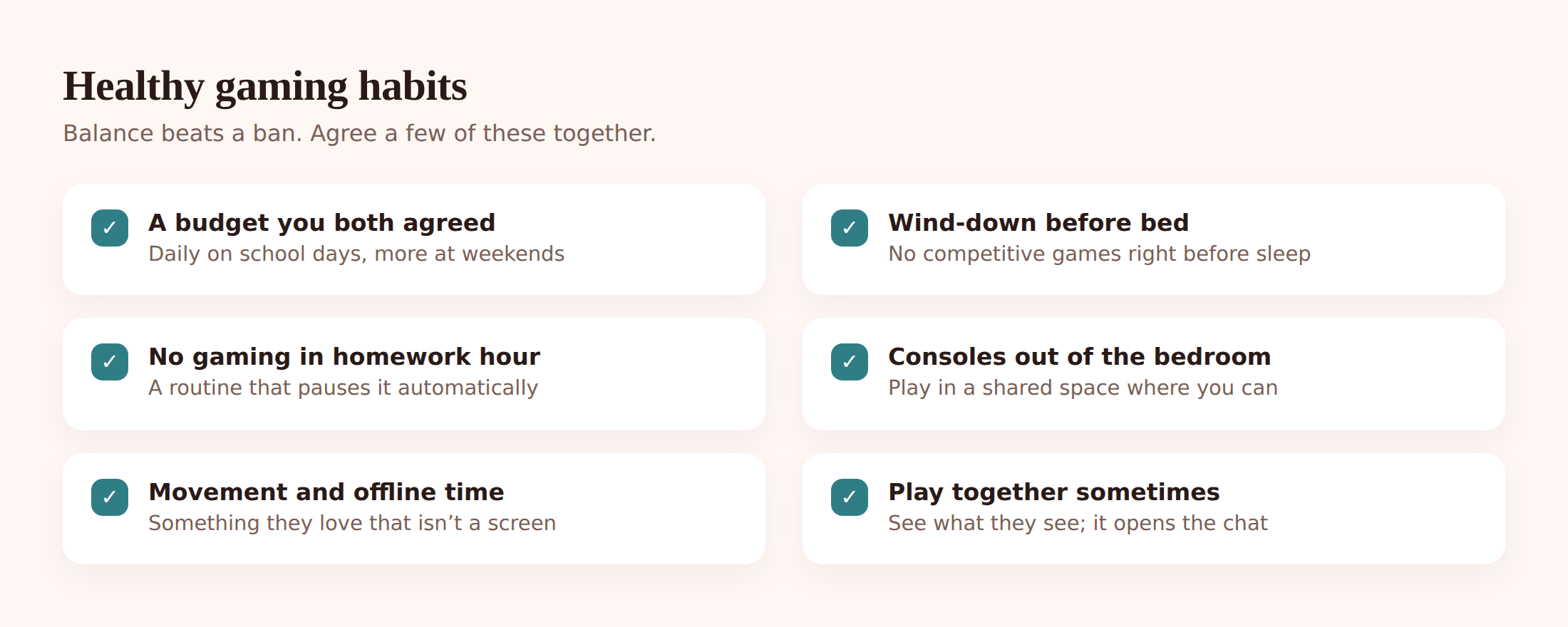
Rules stick better when they’re agreed, not imposed. Keep it short enough to remember. You can fold this into a broader family phone agreement:
- Games off a set time before bed, every school night.
- Homework first — games are blocked during Homework Hour.
- People I only know from a game are strangers. I don’t share my real name, school or town, and I don’t move the chat to another app.
- No purchases without asking. Ever.
- If someone online makes me uncomfortable, I tell a parent — and I won’t be in trouble for it.
- The limits are set together, and they’re visible. If something’s not working, we talk about changing it.
FAQ
How much gaming is too much for a child?
There’s no magic number. Look at the whole picture instead: if sleep, school, friends and mood are all healthy, the hours are probably fine. If gaming is clearly costing your child those things over weeks, that’s the signal to rein it in — not the clock reading alone.
Can FreePhoneSpy block spending in games?
Not directly. On the phone it controls time and access — limiting or blocking games, budgets, and routines. Purchase approval and spend limits live in the game’s own settings and the platform account (Xbox, PlayStation, Nintendo, Steam). Set both, and remove the stored card while you’re at it.
My child plays on a console, not a phone. Does any of this apply?
The strangers, spending and content advice applies everywhere — use the console’s family settings for chat, spend and ratings. FreePhoneSpy manages the Android phone or tablet layer. Many kids use both, and the two together cover more ground than either alone.
Should I turn off voice chat completely?
For younger children, limiting voice and text to friends only is a sensible default. For older teens it’s more about muting strangers and knowing the report and block buttons. Decide it together rather than switching it off silently — a control your teen understands is one they’ll work with.
Is FreePhoneSpy hidden from my child?
No, and that’s the point. Your child can see it’s there. Nothing is monitored until you set it up together, and it’s built for parents supporting their own kids openly — not for spying. Set it up as a team and it works far better.
My child says all their friends game way more than they’re allowed. Now what?
It might even be true, and it’s still not the measure. Point back to the agreement you set together and why — sleep, school, balance. Being willing to revisit a budget that genuinely isn’t working keeps the trust; caving to “everyone else does” every time doesn’t.