How to Set Up Parental Controls on Android & iPhone
Your kid gets their first phone and suddenly you’re the network administrator for a person who can’t yet spell “administrator”. Parental controls are how you hand over that phone without handing over the whole internet at once. Done well, they’re guardrails while a child learns to drive, not a locked garage. Here’s how to set them up properly on both Android and iPhone, using the free tools built into each — and where a dedicated app earns its keep.
- What “parental controls” actually means
- Android: Google Family Link, step by step
- Android: Digital Wellbeing & Play Store ratings
- iPhone: Screen Time & Family Sharing, step by step
- The whole-home layer: router & SafeSearch
- Where a dedicated app adds more (on Android)
- Built-in vs a dedicated app: side by side
- A sane set-up order (and common mistakes)
- FAQ
What “parental controls” actually means
Strip away the marketing and parental controls do four plain things. They cap how long a phone can be used. They decide which apps and websites are allowed. They carve out protected time — bedtime, homework, school. And they tell you where the phone is. That’s it. Everything else is a variation on those four.
The aim matters more than the settings. You’re not trying to build a cage. A ten-year-old with a locked-down phone learns nothing except how to resent the lock. What you want is a phone that’s a little safer than the open internet, with limits that loosen as they show they can handle it. Set the guardrails, talk about why they’re there, and plan to move them.
Meet the Bennetts. Two kids — one on an Android tablet, one who’s just been handed an old iPhone — and two tired parents who’d like the shouting about screen time to stop. We’ll use their setup throughout. Their situation is probably close enough to yours.
Android: Google Family Link, step by step
Family Link is Google’s free parental-controls system, and for a child’s Android phone it’s the foundation. It runs from a Family Link app on your phone and a linked child account on theirs. If your kid is under 13 (this varies by country), they legally need a supervised Google account anyway, so you may as well start here.
1. Create the child’s Google account
Install Family Link on your own phone. Tap the plus to add a child, then follow the prompts to create a Google account for them — or bring an existing one under supervision. You’ll set their birthday honestly; the age drives a lot of the default protections.
2. Link it to their phone
On the child’s Android phone, sign in with that new account during setup (or add it in Settings). Family Link connects the two devices. You approve the link once from your side. From now on their phone reports to your app.
3. Turn on app approval
In Family Link, switch on approval for new downloads. When your child tries to install anything from the Play Store, you get a notification and either allow or decline. This is the single most useful Family Link setting — it stops the drip of random apps before it starts.
4. Set screen-time limits
Set a daily cap and a bedtime “downtime” window when the phone locks. You can set different caps per day — shorter on school nights, a bit more at the weekend. During downtime the phone still makes calls and shows anything you’ve marked “always allowed”.
5. Turn on location & content filters
Flip on location so you can see the phone on a map. Then set content filters: SafeSearch on for Google, a maturity rating for Play Store apps and games, and restricted mode for YouTube (or better, YouTube Kids for younger children). Chrome gets its own site controls — allow all, block explicit, or allow only sites you approve.
Honest limits: Family Link’s screen-time cap is one blunt number for the whole phone. It can’t easily say “an hour of games but unlimited reading”. Its web filter leans on Google’s own apps — a determined kid on a different browser or a game’s built-in web view finds gaps. And once a child turns 13 they can, in many regions, remove supervision themselves. Family Link is a strong floor, not a ceiling. If you want more, see the dedicated-app section below.
Android: Digital Wellbeing & Play Store ratings
Sitting alongside Family Link is Digital Wellbeing, built into most modern Android phones under Settings. It’s aimed at self-control rather than parental control, but the features overlap usefully, and on an older phone the child owns outright it’s worth knowing.
- Bedtime mode greys the screen and silences notifications on a schedule — gentler than a hard lock, good for older teens.
- Focus mode pauses distracting apps for a set stretch. Homework Hour, basically, that they trigger themselves.
- App timers set a daily limit on individual apps. When the timer runs out, the app icon greys and won’t open until tomorrow.
Also learn the Play Store’s content ratings. Every app and game carries an age rating (PEGI in Europe, ESRB elsewhere), and Family Link uses these to filter what your child can even see in the store. It’s not perfect — ratings judge content, not the manipulative design or the chat features inside — but combined with app approval it catches most of the obvious mismatches before they land.
iPhone: Screen Time & Family Sharing, step by step
Here’s where we’ll be straight with you. Our own child app is Android-only. For iPhone, we genuinely wouldn’t try to sell you a workaround — Apple’s built-in Screen Time, paired with Family Sharing, is properly good and completely free. If the phone in question is an iPhone, this is the tool to use, and you don’t need us.
1. Set up Family Sharing with a child account
On your own iPhone, open Settings, tap your name, then Family. Add a child — either create a new Apple ID for them or bring an existing one into the family. As the organiser you become the parent who approves things.
2. Turn on Downtime
On the child’s iPhone (or remotely from yours), go to Screen Time and set Downtime — the hours when only calls and apps you’ve allowed will work. Bedtime, mostly. You can schedule different hours for different days.
3. Set App Limits
App Limits caps time by category — Social, Games, Entertainment — or by individual app. Set an hour of games a day and the app locks when it’s spent. You can allow a one-off extension with your passcode when it’s genuinely warranted.
4. Lock down Content & Privacy Restrictions
This is Apple’s filter. Block explicit web content or restrict to approved sites, set age ratings for apps, films and music, and stop your child changing account or privacy settings behind your back. Set a Screen Time passcode that’s different from the phone’s unlock code.
5. Communication Limits & Ask to Buy
Communication Limits decide who your child can message or call during the day and during downtime — you can restrict it to contacts you’ve approved. Ask to Buy sends every purchase and free download to your phone for a yes or no. And Find My puts the phone on a map with the rest of the family.
Honest limits: Screen Time’s passcode is famously the whole ballgame — if a child learns it (or you use the same four digits as everything else), the controls come off in seconds. The web filter, like Google’s, works best inside Safari and Apple’s own apps. And Screen Time has had reliability wobbles over the years where limits quietly stopped enforcing. Check it now and then rather than assuming it’s holding.
The whole-home layer: router & SafeSearch
Device controls stop at the device. Your router covers every screen on the home Wi-Fi at once, which is a tidy way to catch the smart TV, the games console and the tablet the toddler commandeers. Most routers now have a basic parental-controls or “profiles” section where you can pause the internet for a device at bedtime or block adult categories network-wide.
Two quick wins. Turn on enforced SafeSearch at the network level if your router or a free filtering DNS supports it, so search stays clean on every device without per-device setup. And set device profiles so the kids’ gear goes dark at bedtime even if a phone slips past its own limit. Keep this layer light — it doesn’t travel with the phone once it’s off your Wi-Fi, so treat it as a backstop, not the main event.
Where a dedicated app adds more (on Android)
The built-in tools are a genuinely good floor. But on an Android child phone there’s a ceiling to them, and that’s the gap FreePhoneSpy fills — openly, on a phone the child knows it’s on. One app on their Android, a 6-digit pairing code, and you run everything from any web browser. Nothing is monitored until you’ve set it up, and the app is visible on the phone. No sneaking.
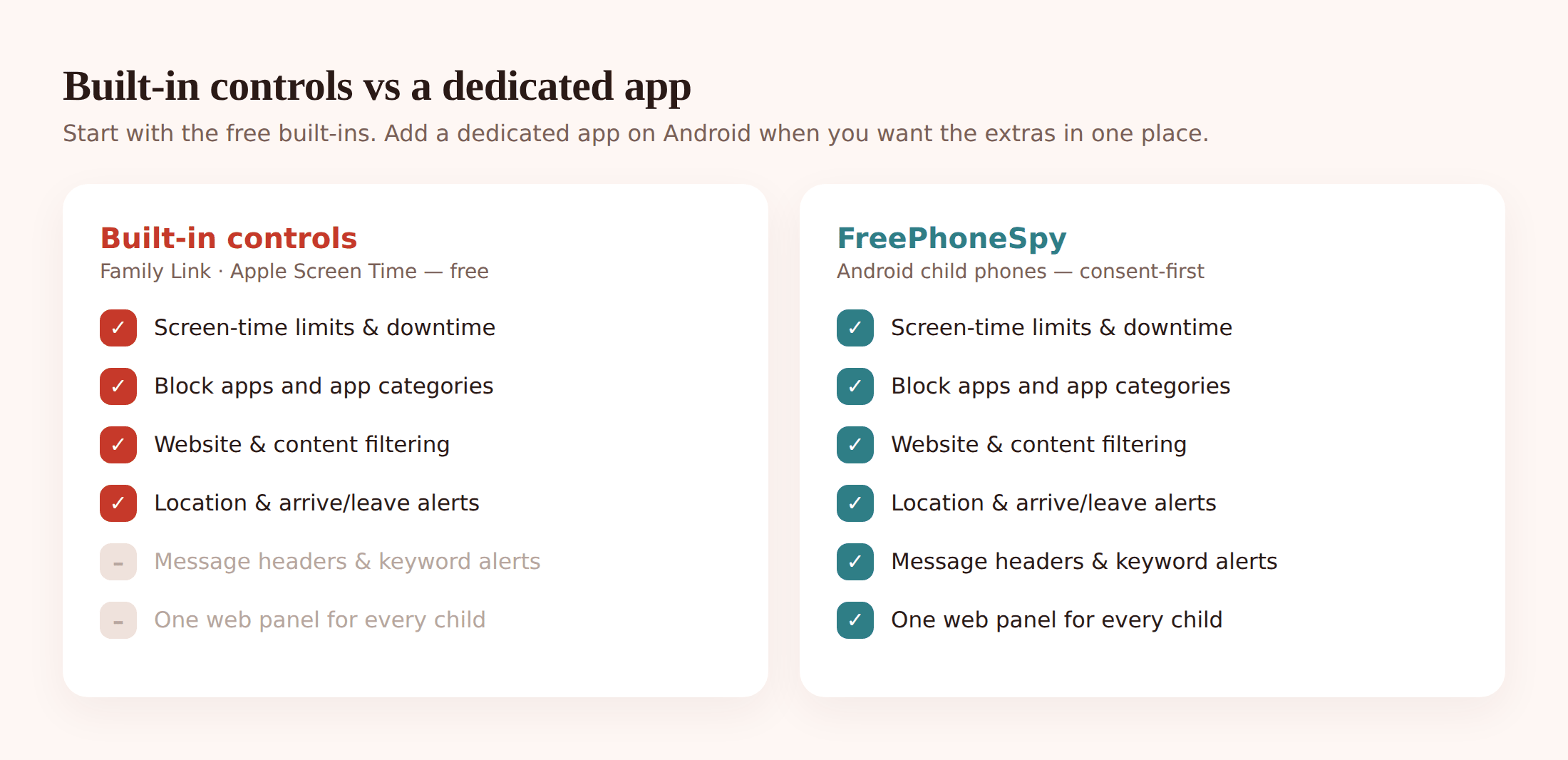
Here’s what it adds over Family Link, concretely.
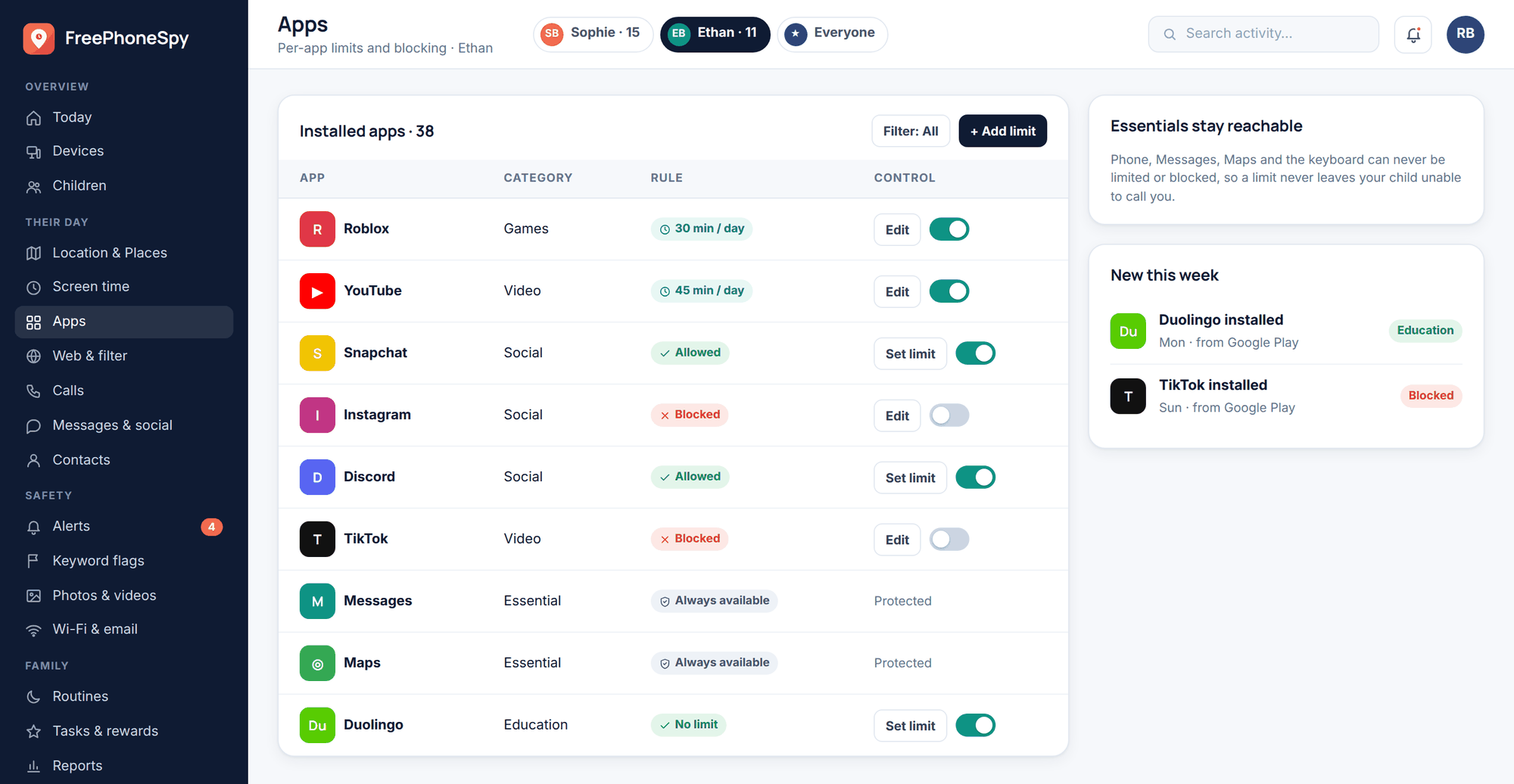
One web panel for everything. You manage every child from a single browser tab — no jumping between apps. See it all in one place at the web panel.
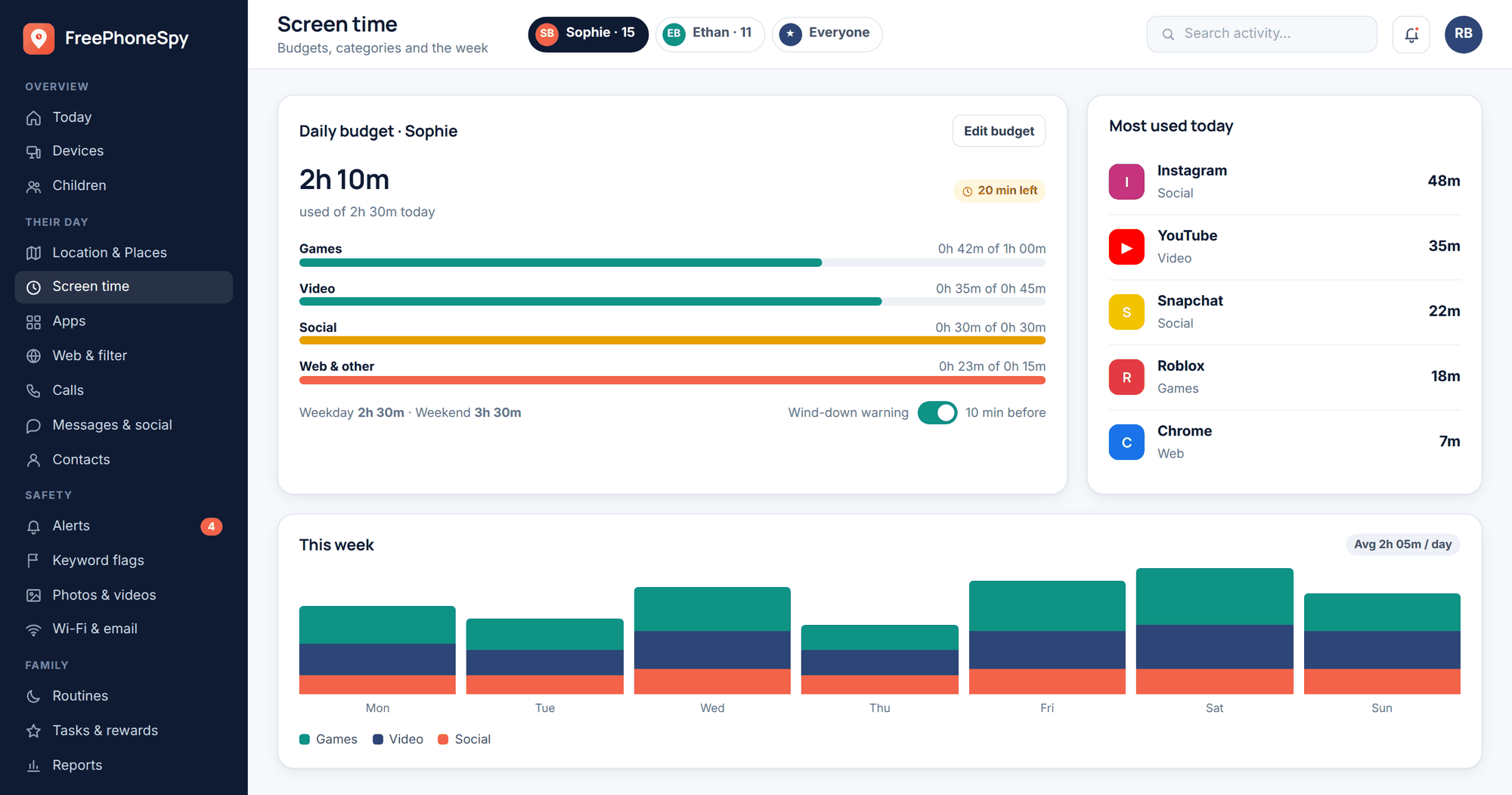
Real per-app limits. Not one blunt phone-wide number. An hour of games, forty minutes of social, and the reading and school apps left untouchable. Split the day’s screen-time budget across games, video, social and web, with a wind-down warning before it runs out. The phone itself enforces it, so it holds even without signal.
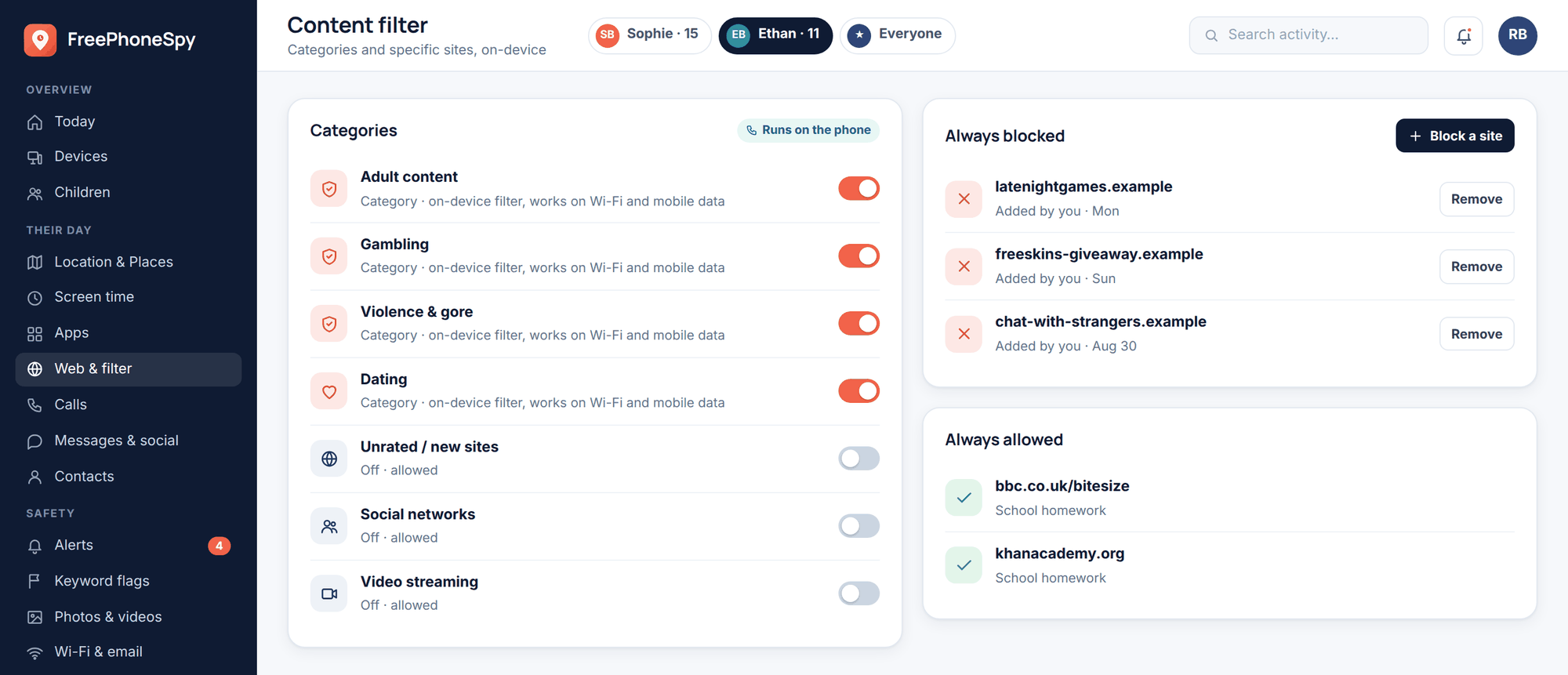
A stronger content filter that blocks whole categories and specific sites and runs on the phone across browsers, not only inside one. More on that at app & website blocking.
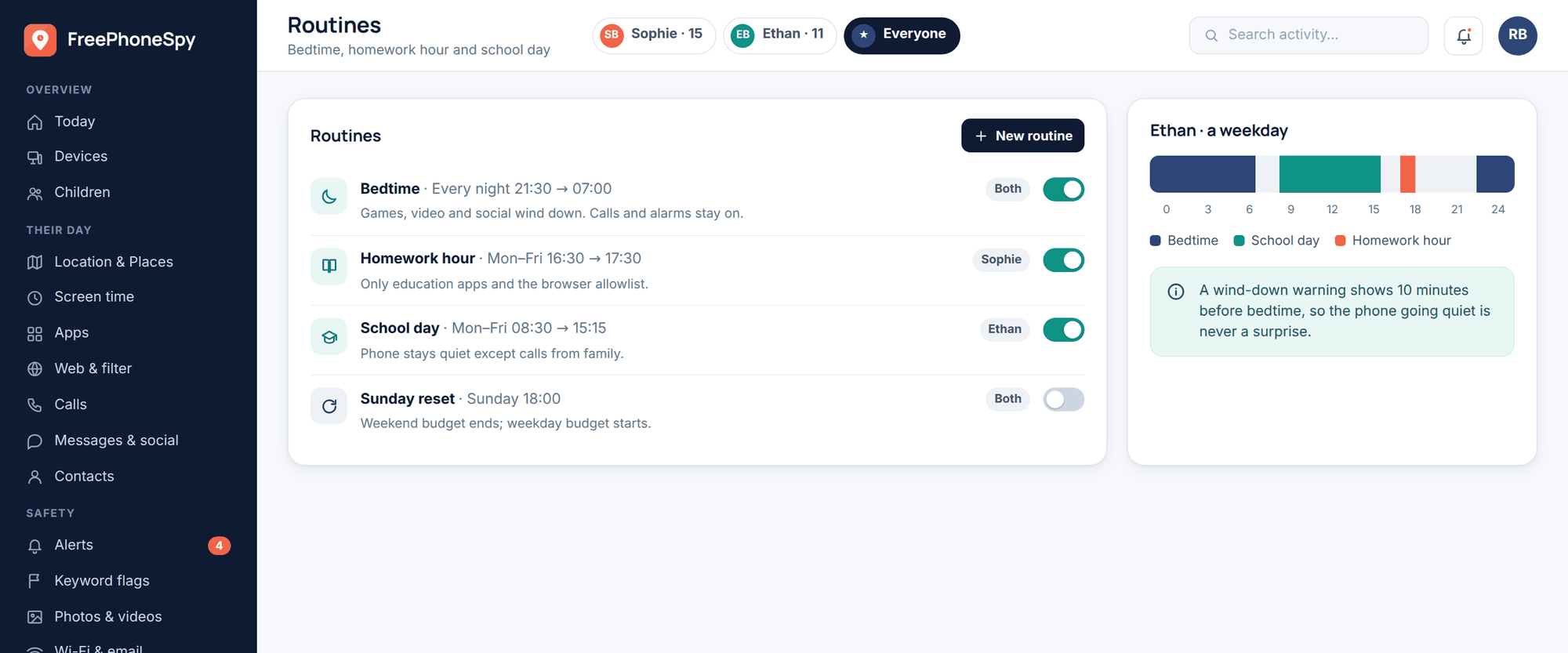
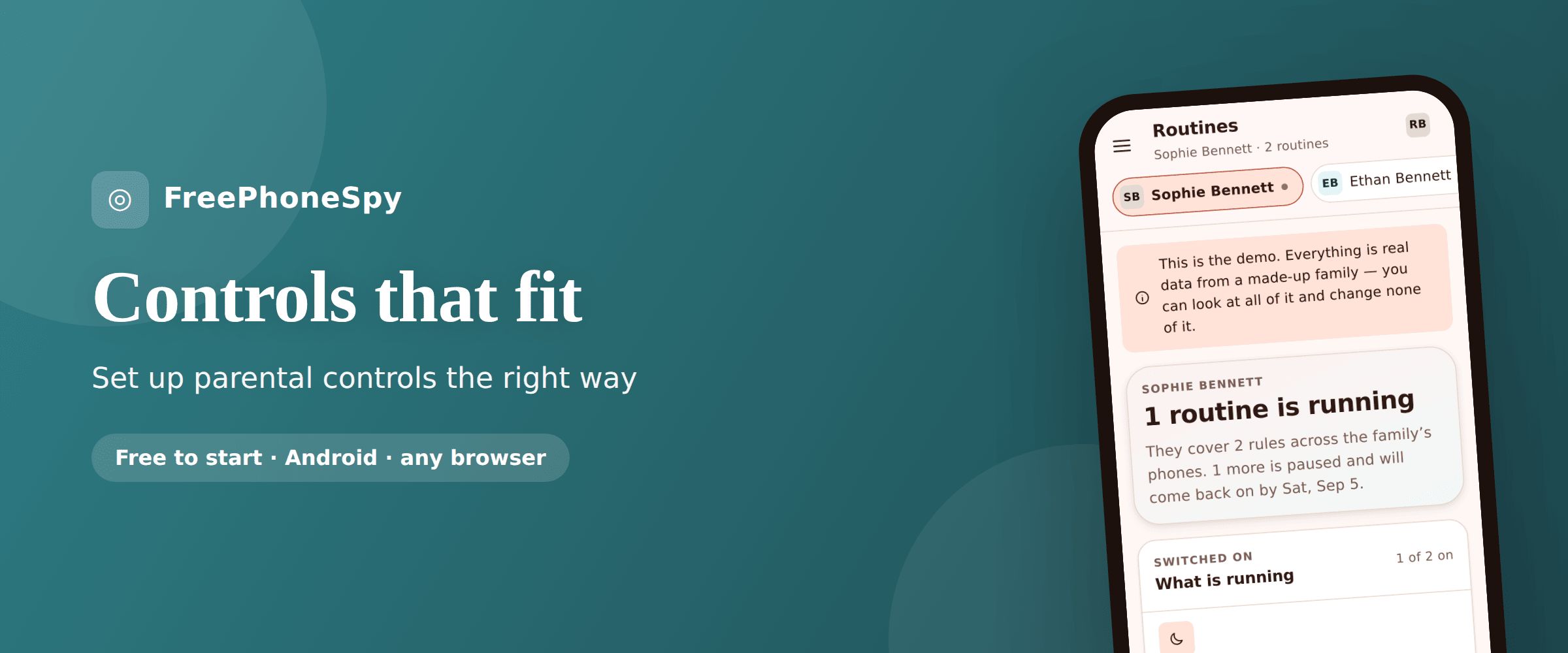
Routines — Bedtime, Homework Hour, the school day — that switch a whole bundle of rules on and off automatically. Set them once at routines & bedtime.
Places and message alerts. Save Places like home and school and get a ping when the phone arrives or leaves. Get alerts on message headers and keywords you’ve chosen, so you’re nudged about something worth a conversation rather than reading every text. Alerts, not a live feed.
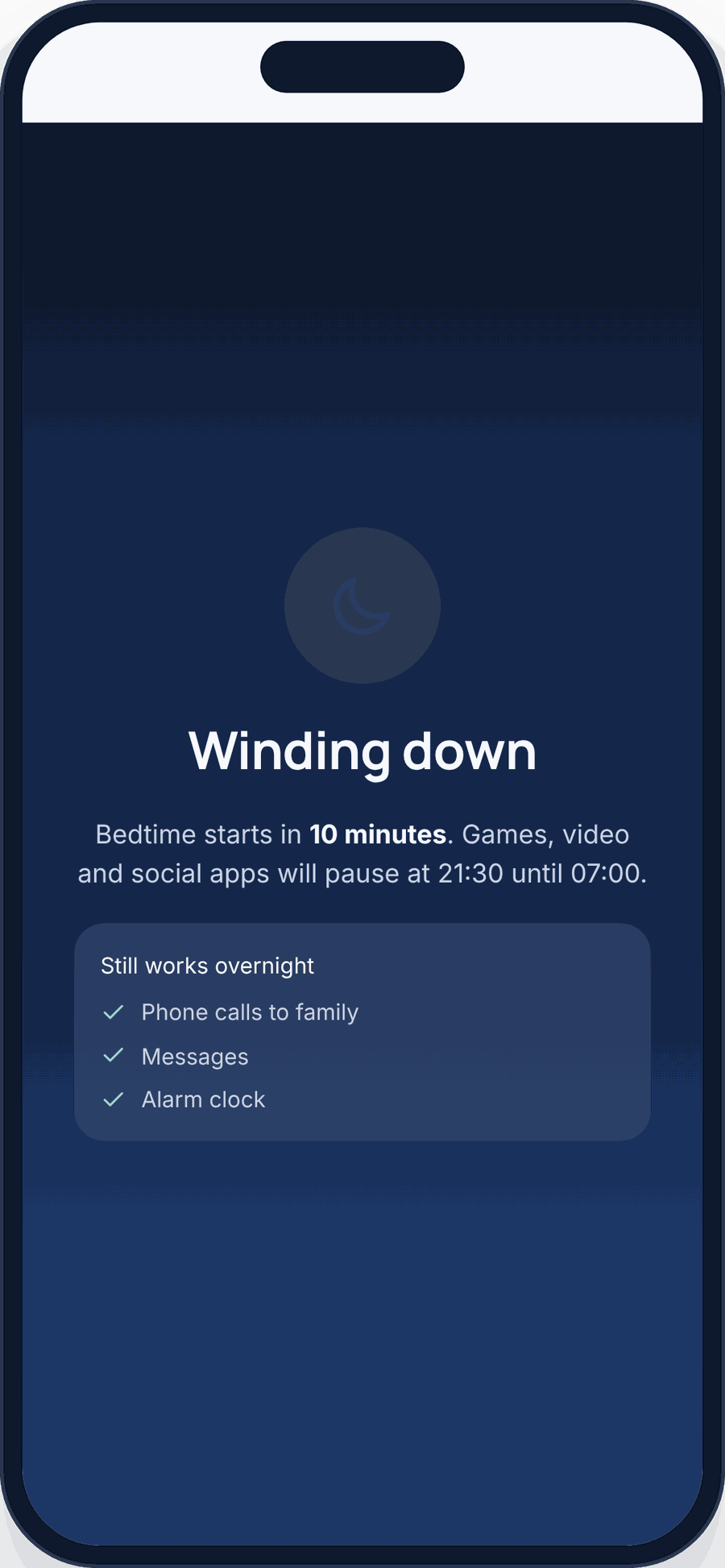
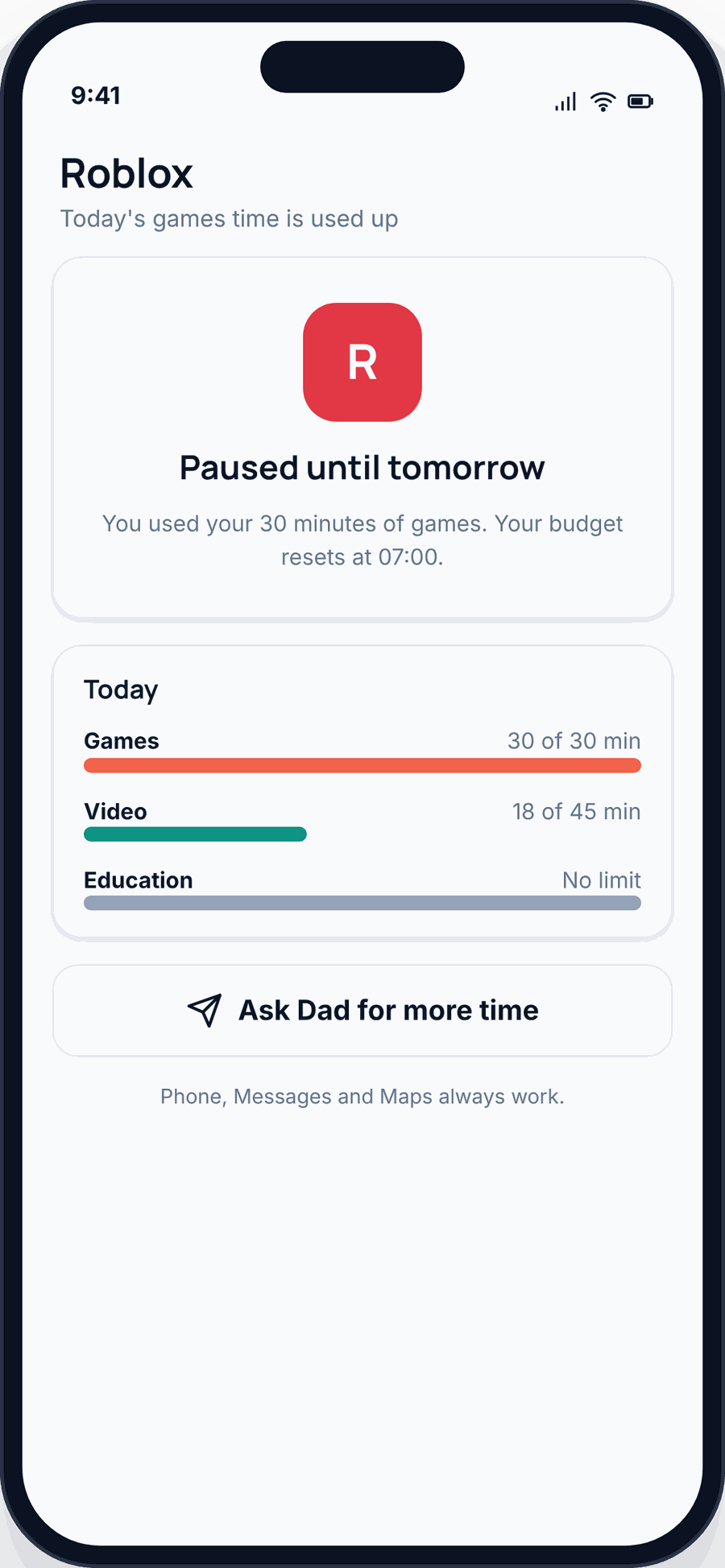
To be clear about what it is and isn’t: this is an Android child app, it’s transparent to the child, and it’s for your own children’s phones. It won’t run on an iPhone — use Apple’s Screen Time there, which we said and mean. It’s free to start (10 days, no card), then kept free by simple tasks, the core stays free, and your family’s data is never sold. If you want the fuller picture before deciding, read the complete guide to child phone monitoring.
Built-in vs a dedicated app: side by side
| Capability | Built-in (Family Link / Screen Time) | FreePhoneSpy (Android) |
|---|---|---|
| Cost | Free | Free to start, kept free by simple tasks; core stays free |
| Platforms | Android and iPhone | Android child phone only |
| Managed from | Parent’s phone app | Any web browser (one panel, all children) |
| Screen-time cap | One daily number (weekday/weekend) | Budget split by games / video / social / web, wind-down warning |
| Per-app limits | Basic (timers / category limits) | Per-app limits + blocking; essential apps stay untouchable |
| Content filter | Strong inside the platform’s own browser/apps | Sites + whole categories, enforced on the phone across browsers |
| Routines | Downtime schedule | Named routines: Bedtime, Homework Hour, school |
| Location | Map location | Map + saved Places with arrive/leave alerts |
| Alerts | Purchase / download approvals | Message headers + keyword alerts you choose |
The honest read: on iPhone, use the built-in tools. On Android, start with Family Link, and add FreePhoneSpy when you hit its ceiling — usually the day you want per-app limits and a filter that follows the child off Google’s own apps.
A sane set-up order (and common mistakes)
Order matters, because doing it back to front means redoing it. Here’s the sequence that saves you a Saturday.
1. Talk first, set up second
Agree the basics out loud before you touch a setting. What’s the bedtime cut-off? Which apps are fine? What happens when the limit’s hit? Five minutes of conversation buys you months of not arguing.
2. Get the account right
Set up the supervised Google account (Android) or child Apple ID in Family Sharing (iPhone) properly, with an honest birthday. Everything downstream depends on it.
3. Turn on approvals and a bedtime window
App-download approval and a downtime schedule are the two highest-value settings. Do these before anything fancy.
4. Add filters and limits
SafeSearch, age ratings, web filtering, then per-app or per-category time. On Android, this is where a dedicated app slots in if you want more.
5. Set a reminder to revisit
Put a date in your calendar three months out. Kids grow; controls should too.
Now the mistakes, because everyone makes at least one.
- Too strict, too fast. Lock it down to nothing and the phone becomes the enemy. Start a little loose and tighten only where there’s a real problem. It’s easier to add a rule than to claw one back.
- Setting it and never talking about it. Controls without conversation feel like distrust. The talking is the point; the settings just back it up.
- Never revisiting. A bedtime that made sense at nine is patronising at thirteen. If you never loosen anything, a teenager will simply route around you — a second browser, a friend’s phone, a factory reset. Loosening on purpose keeps you in the loop.
- Same passcode everywhere. Your Screen Time or Family Link passcode can’t be the phone’s unlock code or your card PIN. Kids watch you type.
- Forgetting it’s a two-way street. If the rule is no phones at dinner, that includes yours. They notice.
If this is a brand-new phone, our child’s first phone guide walks through the day-one basics, and if you’re still weighing how much oversight fits their age, what age to monitor a child’s phone is the honest version of that conversation.
FAQ
Are the built-in controls enough on their own?
For younger children and for any iPhone, often yes. Family Link and Apple’s Screen Time cover the essentials well and cost nothing. The gaps show up on Android as kids get older and want per-app fairness and a filter that follows them across browsers — that’s when a dedicated app helps.
Should my child know the controls are there?
Yes. Set them up together. Hidden controls feel like traps and teach kids to hide things back. Visible controls are just house rules, and children handle rules far better than surprises. FreePhoneSpy is deliberately visible on the phone for exactly this reason.
Does FreePhoneSpy work on iPhone?
No — the child app is Android only. On iPhone, Apple’s built-in Screen Time with Family Sharing is genuinely good and free, and it’s what we’d point you to. We’re not going to pretend otherwise.
Can my teenager just switch the controls off?
Sometimes, which is the honest answer. On Android, supervision can lapse when a child turns 13 in many regions; on iPhone, anyone with the Screen Time passcode can undo it. That’s why the conversation matters more than the lock — and why loosening rules as they earn it keeps them onside rather than motivated to break out.
Is it really free, and what happens to our data?
Free to start for 10 days with no card. After that it’s kept free by a few simple tasks, and the core features stay free. Your family’s data is never sold. That’s the whole deal.
How much of my kid’s activity should I actually look at?
Less than you can. The point of alerts on keywords and Places is that you don’t read everything — you get nudged about the few things worth a chat and leave the rest alone. Reading every message is both exhausting and corrosive. Set the guardrails, watch for the flags, and trust the space in between.