Phone camera monitoring, done in the open
Review photos on your child’s phone, ask the camera for a fresh shot, and check images the on-device safety check flagged. FreePhoneSpy also handles videos, short audio captures and call recordings where Android allows it — all set up together, with your child in the loop.
Android child app
Runs in any browser

Read this part first
Photos and audio are the most personal things on a phone, so we’re going to be clear about who this is for before we describe a single feature. These tools are for a parent checking in on a child’s phone that the parent manages, with the child aware the app is there. They are not for secretly recording other adults, and they aren’t a way to bug a room or a car.
The child’s phone runs one FreePhoneSpy app, and it carries a Transparency screen that lists what’s being shared. The media tools on this page sit behind consent switches you turn on together. When the camera or microphone is used, that isn’t meant to be a secret from the person holding the phone. If that framing doesn’t match what you’re trying to do, this isn’t the right tool, and that’s fine.
Review photos on your child’s phone
The photos view gathers images from the device so you can look through them from your browser, without borrowing the phone and scrolling in front of your child at the dinner table. For a younger child, this is often about nothing dramatic. You’re checking that a stranger hasn’t asked for pictures, or that a group chat hasn’t turned into something they’re not ready for.
You see the images as a gallery, newest first, with the date each was taken. It’s a calmer way to keep an eye on things than surprise phone checks, and because it’s part of the shared setup, it doesn’t feel like snooping to the child either. They know the gallery is visible. You both know the rules.
- Device photos in a browsable gallery, newest first
- Dates so you can tie an image to a day or an event
- Look from your own screen, not by grabbing the phone
- Part of the shared setup your child can see
Flagged photos and the on-device safety check
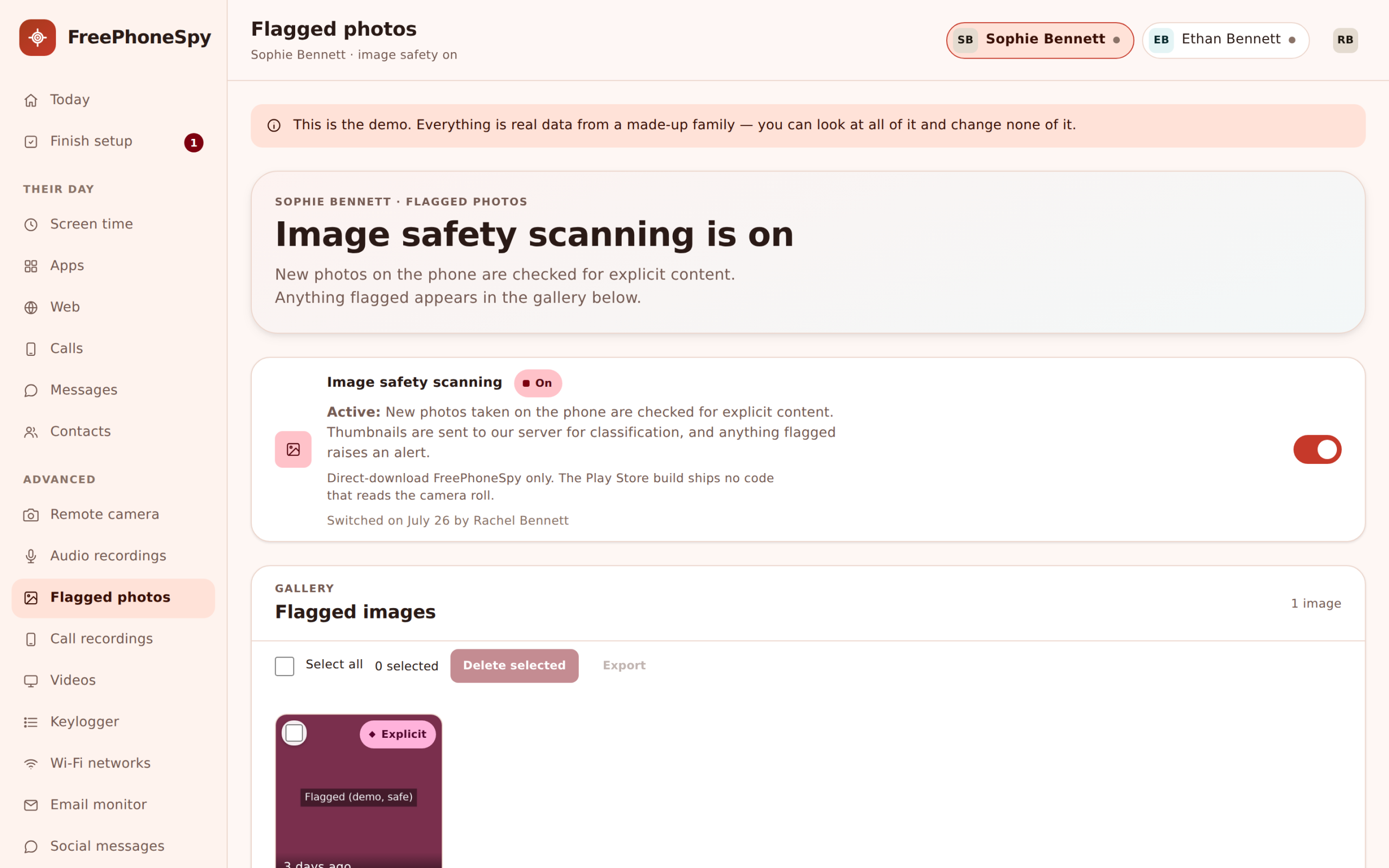
Nobody has time to scroll through a teenager’s entire camera roll, and you shouldn’t have to. FreePhoneSpy runs an image-safety check on the phone itself. When an image looks like it might contain nudity or other adult content, it gets flagged and floated to the top of your view so you can look sooner rather than later.
Two things matter about how this works. First, the check runs on the device, so it’s picking out the images that might need a parent’s eye rather than shipping the whole gallery off somewhere. Second, it’s a check, not a verdict. It will flag things that turn out fine, and it can miss things too. Treat a flag as a nudge to look, and the follow-up as a conversation, not an accusation.
- On-device image-safety check flags possible adult content
- Flagged images rise to the top of the gallery
- A prompt to look, not an automatic judgement
- Best used as the start of a talk, not the end of one
The remote camera request
Sometimes you want a sense of where things are right now, and location alone doesn’t settle it. The remote camera lets you request a single photo from the phone’s camera. It’s a request, taken in the moment, not a live stream you leave running.
Because this is a real-time use of the camera, it’s exactly the kind of feature we keep on the honest side of the line. It belongs to the shared setup you and your child agreed to, and the phone’s Transparency screen shows camera access is part of the deal. Used that way, it’s a reassurance tool: a “everything alright?” you can answer for a younger child. Used to photograph another adult without them knowing, it would be neither what we built nor, in many places, legal. So don’t.
- Request a single still from the phone’s camera
- A one-off shot, not a continuous feed
- Camera use is listed on the child’s Transparency screen
- For a child you’re responsible for, with their awareness
Videos on the device
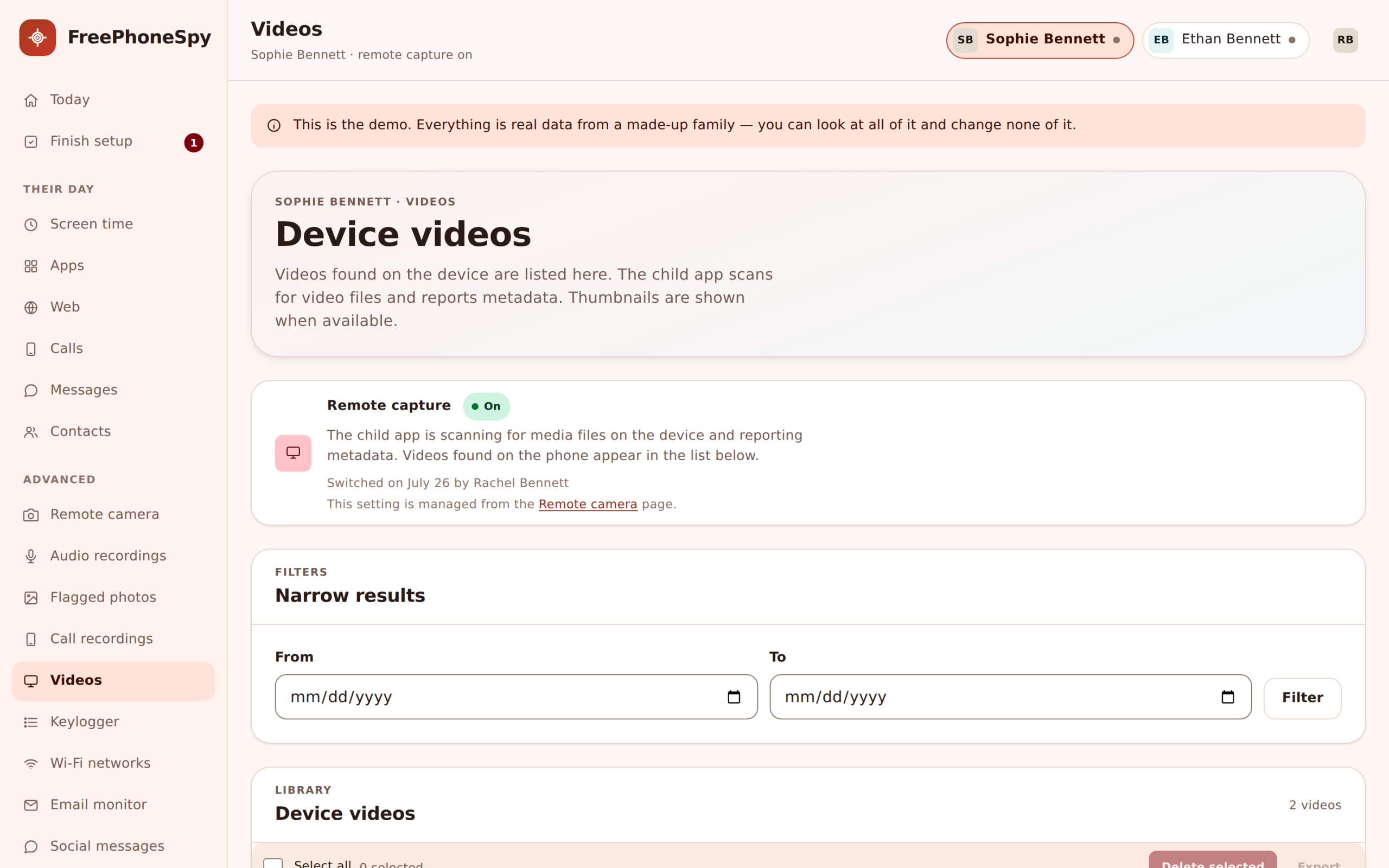
Video works much like photos. FreePhoneSpy lists the clips it finds on the phone so you can see what’s been recorded or saved, with the date and length. It’s the same idea: a quiet way to keep an eye on what’s on the device without making a production of it.
Large videos take longer to appear than a photo does, and how much comes across depends on the phone’s storage and connection. If your child films a lot, expect the newest clips to show up first and older ones to fill in over time. It’s a review tool, not a second copy of every video they’ve ever taken. On a slow connection you’ll see thumbnails and details sooner than a full clip you can play, which is usually enough to know whether a video needs a closer look at all.
- Clips found on the device, newest first
- Date and length for each video
- Larger files take longer to come across
- Sits in the same view as photos and flagged images
Short ambient audio captures
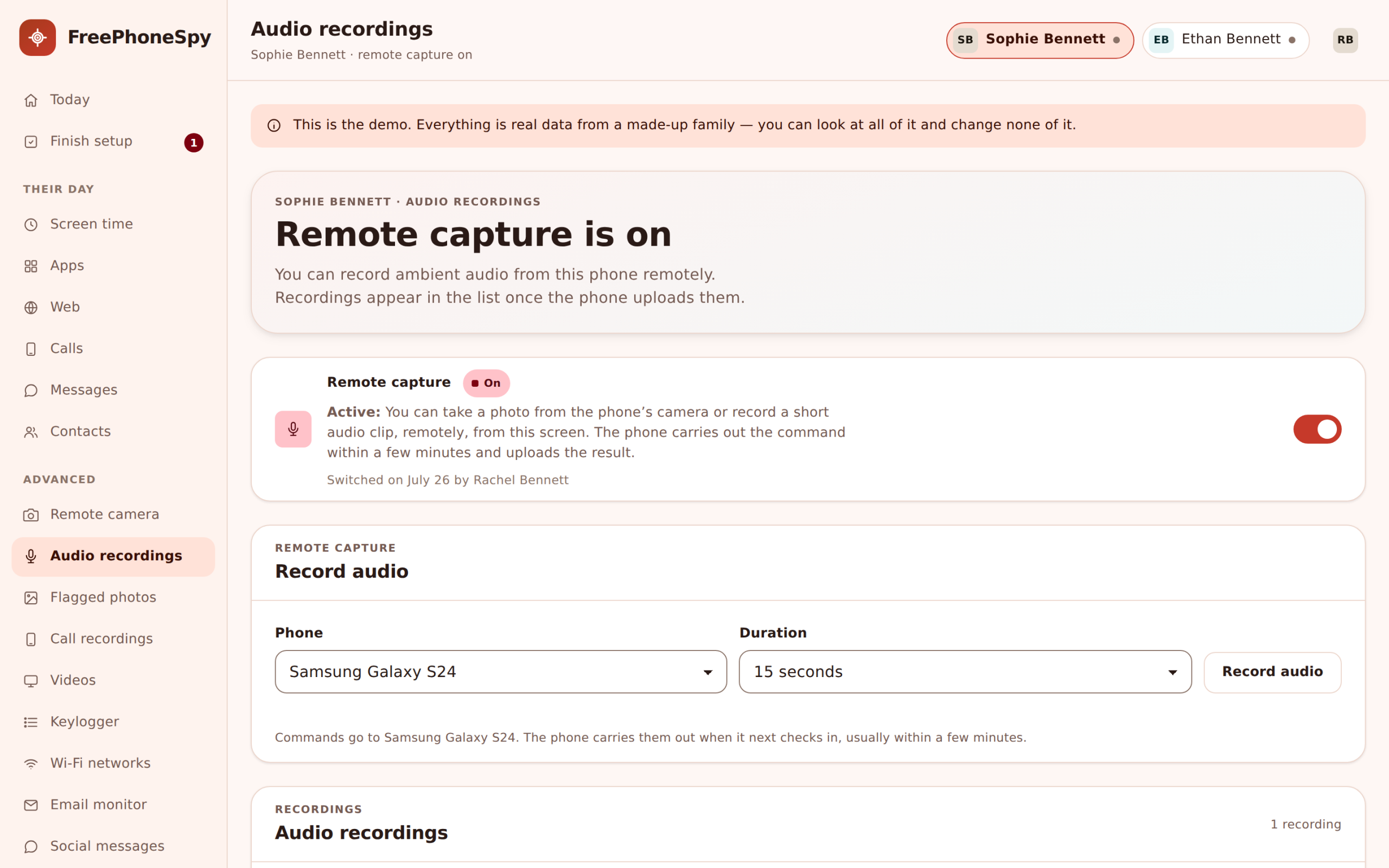
Audio is the feature we ask you to think hardest about. FreePhoneSpy can take a short ambient capture from the phone’s microphone on request. Short, and on request. For a parent, the honest use is narrow: a younger child who isn’t answering, and you want to hear whether they’re somewhere safe rather than in trouble.
We won’t dress this up. Recording sound near other people raises real consent and legal questions, and the fact that a feature exists doesn’t make every use of it okay. Microphone access is listed on the child’s Transparency screen. Keep it to your own child, on a device you manage, with them aware it’s there. If you’re tempted to use it to listen in on another adult, this is the wrong product, and in many places it’s against the law.
- Short ambient captures from the microphone, on request
- Not a continuous or hidden recorder
- Microphone use is shown on the Transparency screen
- Consented, own-child, own-device use only
Call recordings, and the honest truth about Android
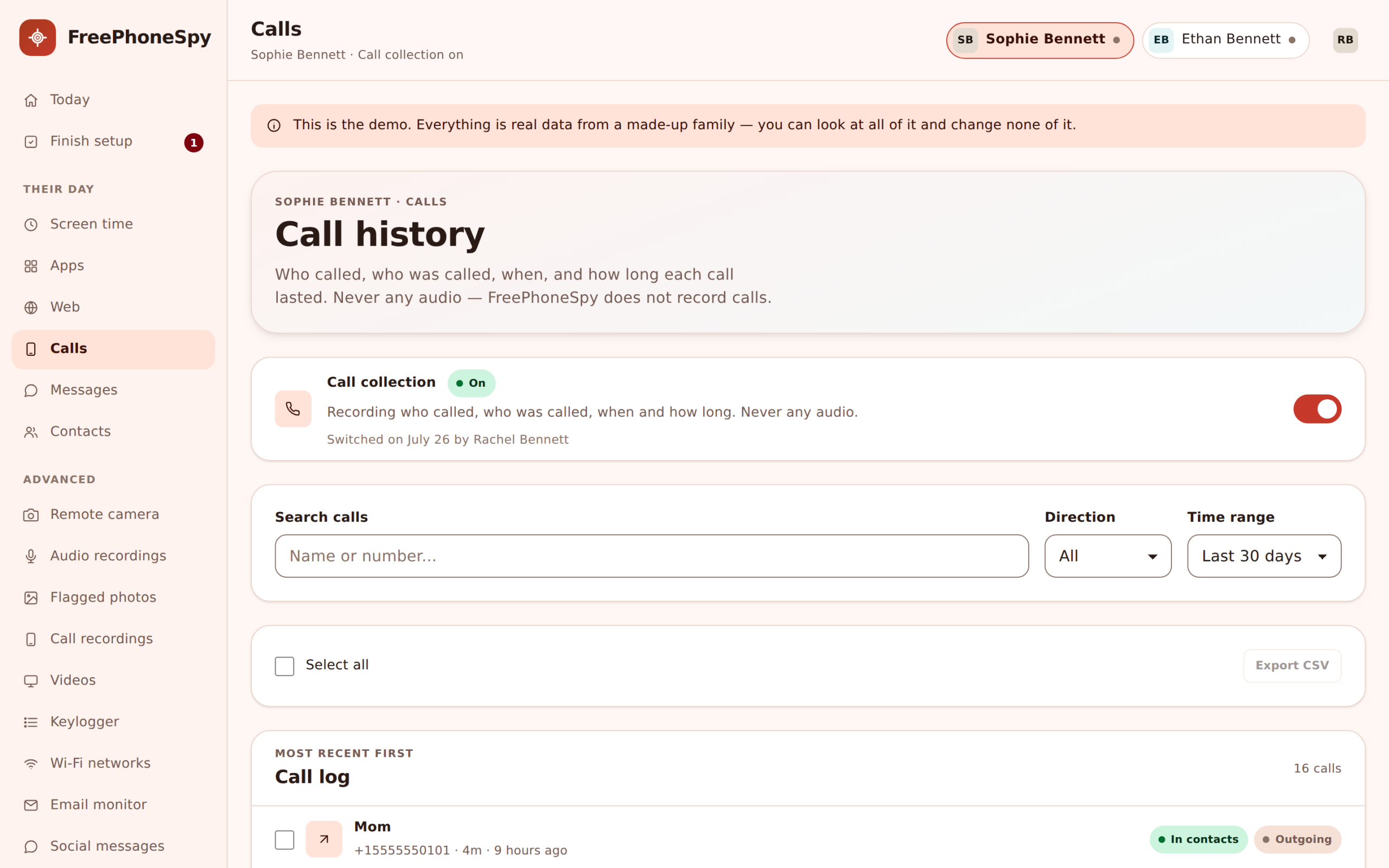
Call recording is the feature people ask about most and the one we can promise least. It’s best-effort on modern Android, and here’s why. From Android 10 and 11 onward, Google closed off the ways apps used to capture call audio. On many current phones, third-party call recording simply doesn’t work the way it did a few years ago, no matter which app makes the claim.
So we’ll be straight with you. Where a phone and its Android version still allow it, FreePhoneSpy attaches recordings to the call log. On a lot of newer devices, they won’t be available at all, and any app telling you otherwise is overselling. If call audio is the one thing you need, test it on your actual phone during the free period before you count on it. For most families, the call log, message headers and keyword flags do the real work anyway.
- Best-effort only, tied to what the Android version permits
- Android 10 and 11 closed most call-audio access for apps
- Many newer phones can’t record calls at all
- Test on your own device in the free period before relying on it
Review tools versus request tools
It helps to split these five features into two kinds, because you’ll use them very differently. Getting that split right is most of using the media tools well.
| Feature | Kind | How often you’d use it |
|---|---|---|
| Photo gallery | Review | A calm scroll now and then; fine to leave on |
| Flagged photos | Review | Only when the on-device check surfaces one |
| Videos | Review | Occasionally, as clips come across |
| Remote camera | Request | Rarely, when a moment genuinely calls for it |
| Ambient audio | Request | Rarely, and only with real reason |
The review tools run quietly and reward the occasional look. The request tools reach into the phone in real time, so they belong to the narrow, honest cases: a younger child who isn’t answering and you want reassurance, not a habit you fall into. If you find yourself reaching for a request tool often, that’s usually a sign to have a conversation instead.
Good for
- A parent reviewing a child’s phone the parent manages
- Checking a younger child hasn’t been asked for photos
- One-off reassurance when a child isn’t picking up
- Families where the app is known and agreed
Not for
- Secretly photographing or recording another adult
- Bugging a room, a car or a workplace
- Any use where the person is meant not to know
- Anything your local law on recording forbids
Where the media tools fit
Photos, video and the safety check are the review side. The camera and audio requests are the in-the-moment side, and they’re advanced tools you unlock by completing a few simple tasks — the same honest trade we explain on pricing. Keep the review tools on for peace of mind, and reach for the request tools rarely, only when a situation actually calls for it.
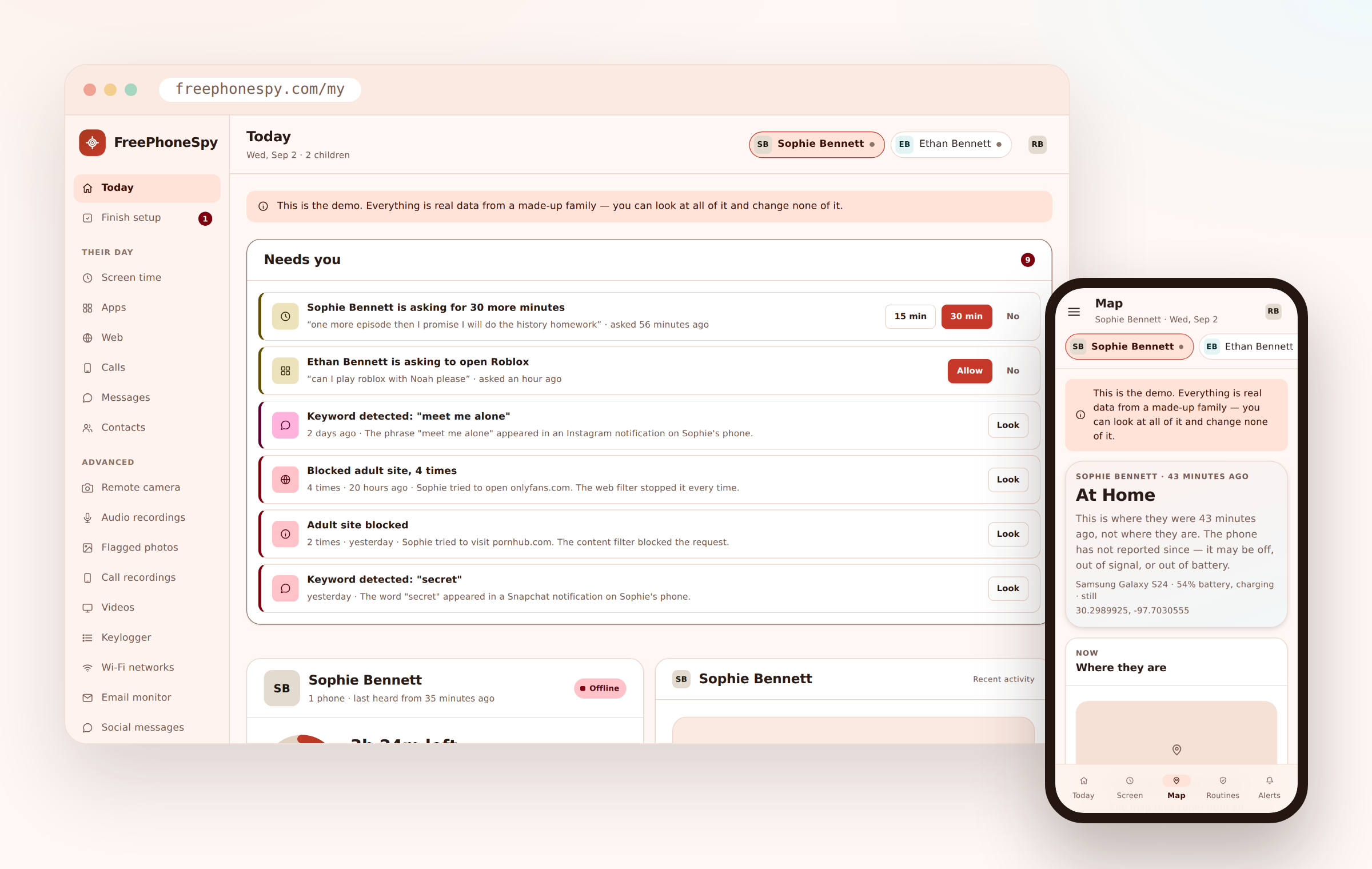
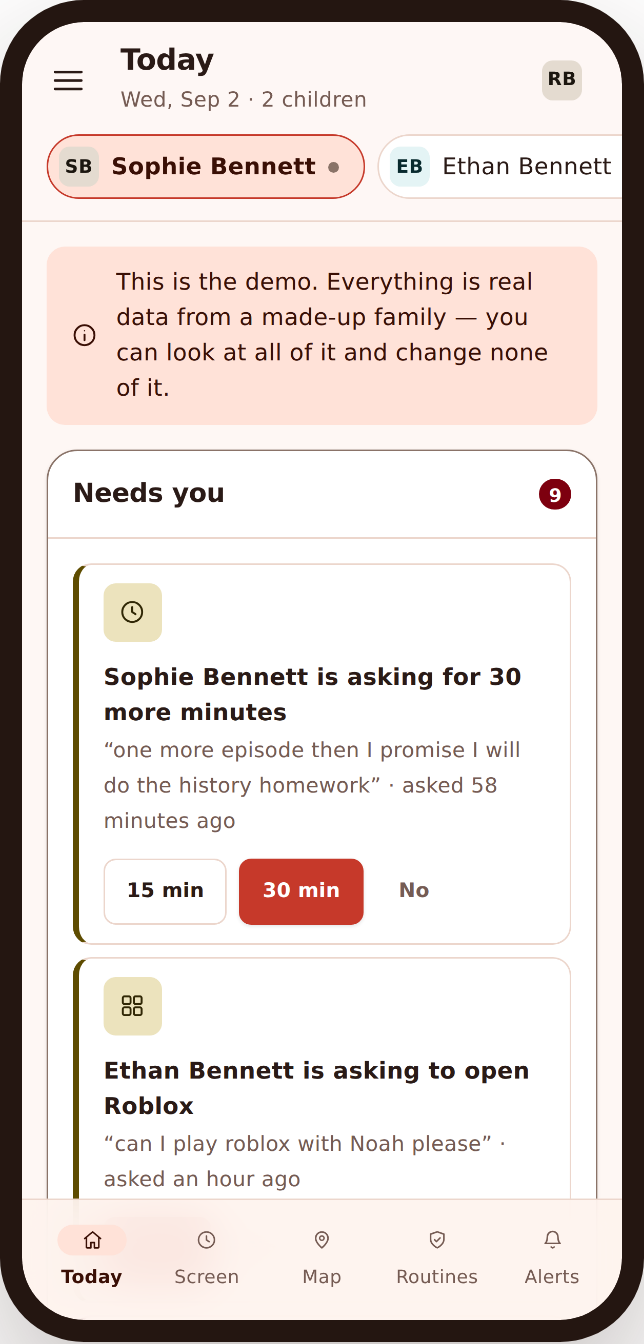
Flagged images and other notable events also show up in your Alerts feed, so you don’t have to open the gallery to know something needs a look. Pair this with Calls, messages & social when you’re trying to understand a whole situation, and manage it all from the web panel.
Common questions about photos, video and audio
Can I see photos on my child’s phone from my computer?
Yes. Device photos appear in a gallery in the web panel, newest first, with dates. Images the on-device safety check flags are floated to the top so you notice them first. You review from your own screen instead of borrowing the phone.
How does the remote camera work?
You request a single still from the phone’s camera and it appears alongside the gallery. It’s a one-off photo, not a live stream. Camera access is listed on the child’s Transparency screen, so it’s part of a setup they can see, for a child you’re responsible for.
Does FreePhoneSpy record phone calls?
Only where the phone’s Android version still allows it, so treat it as best-effort. Android 10 and 11 closed off most call-audio access for apps, and many newer phones can’t record calls at all. Test it on your own device during the free period rather than assuming it’ll work.
Is it legal to record audio with this?
It depends on where you are and who’s involved. FreePhoneSpy is for your own child on a device you manage, with them aware the app is there, and microphone use is shown on the Transparency screen. Recording other adults without consent is illegal in many places, so check your local law and keep it honest.
Will my child know when the camera or mic is used?
The child’s app has a Transparency screen that lists what’s being shared, including camera and microphone access. These features are designed for open, consented use, not covert recording.
More: Calls, messages & social · Alerts & keyword flags · The web panel · Pricing · All FAQs