Keyword alerts and an activity monitor that come to you
You can’t watch a phone all day, and you shouldn’t try. FreePhoneSpy is a keyword alerts parental control that flags risky phrases, open Wi-Fi and odd email, then drops them into one readable feed. The heavier tools, like the keylogger for parents, stay off until you switch them on together.
Android child app
Runs in any browser

The idea: less scrolling, better catching
A monitoring app that makes you check ten screens every evening isn’t much use. You’ll stop looking within a week. FreePhoneSpy turns that around. It watches for the specific things you’ve said matter, and it brings them to you. The default state is quiet. When the feed has something in it, it’s usually worth reading.
This page covers that automatic side: the Alerts feed itself, keyword flags, the keylogger, Wi-Fi and email warnings, and the weekly report that ties it together. Some of these are light and always safe to leave on. Others are heavier and stay behind a consent switch. We’ll say which is which.
The Alerts feed: everything worth knowing, in one place
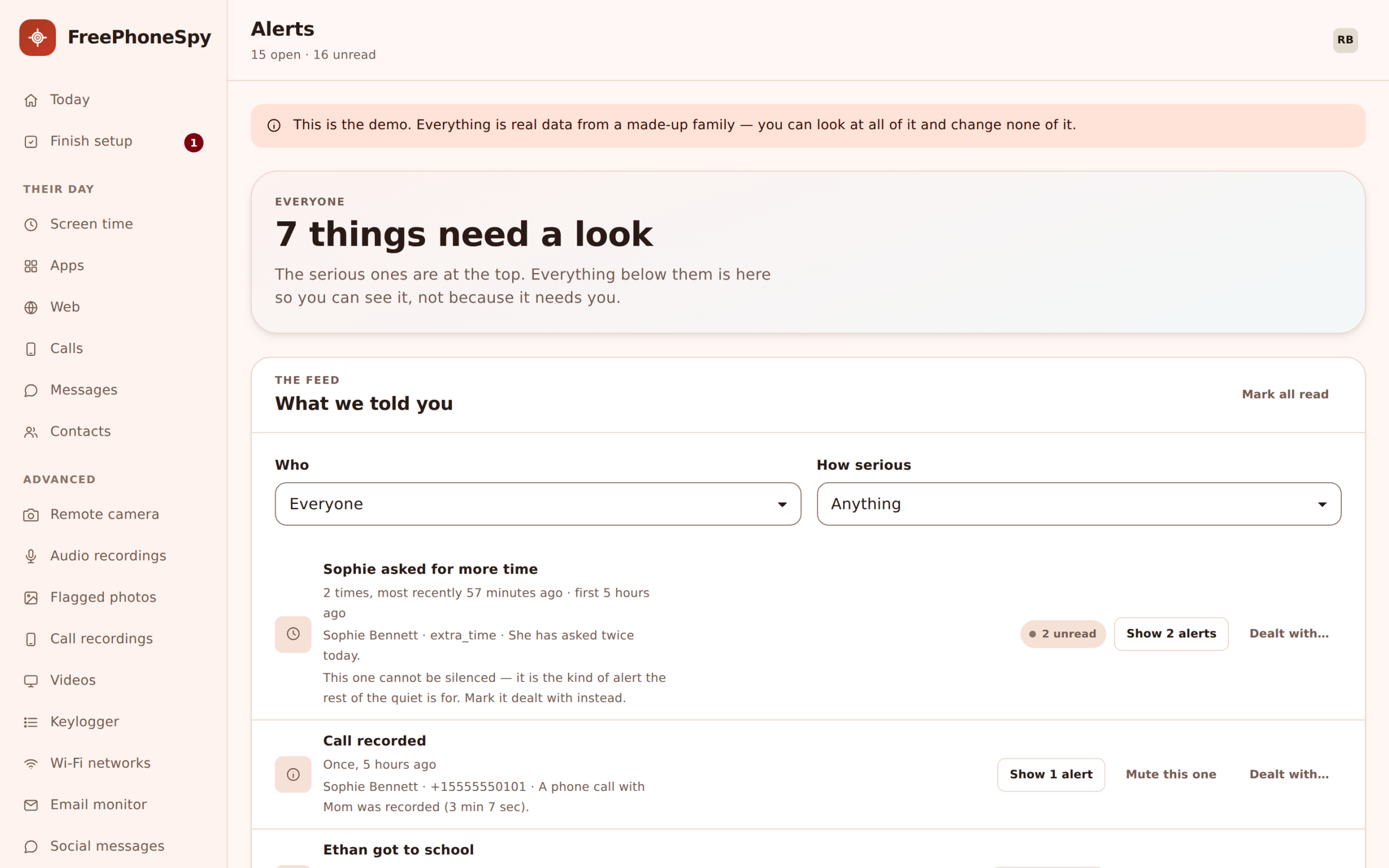
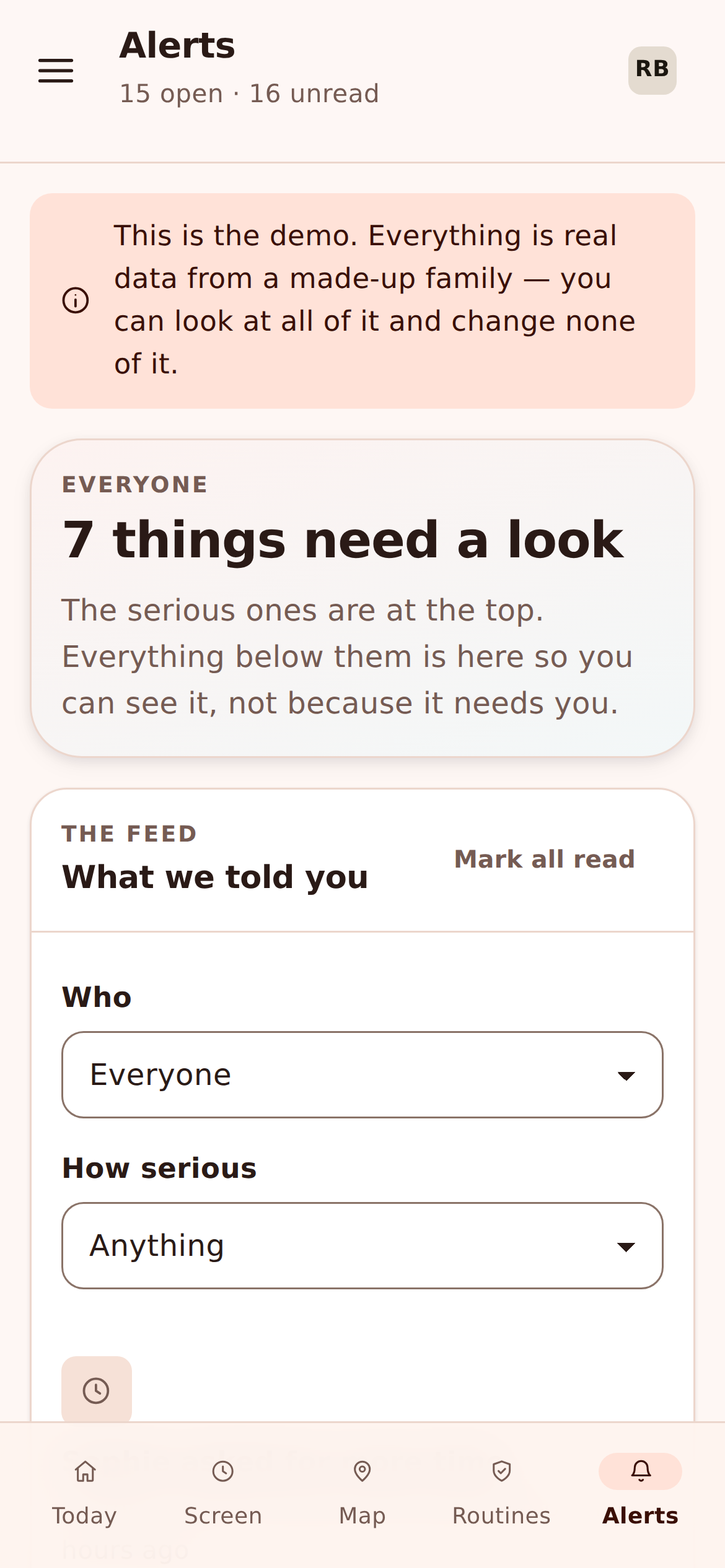
Alerts is the running list of things FreePhoneSpy thought you’d want to see. A flagged keyword. An open Wi-Fi network the phone joined. A place event, like leaving school early. An unknown number that keeps calling. Each item shows what happened, which app or part of the phone it came from, and when.
It reads like a timeline, newest first. The point is that you don’t go hunting through calls, then messages, then web history to piece a day together. The notable bits are already gathered. The morning glance lives on your Today dashboard under “Needs you”, and the full history lives here in Alerts, so you can scroll back a few days when something jogs your memory.
- One timeline of flags and events, newest first
- Each item shows the source and the time
- Keyword hits, open Wi-Fi, place events and unknown callers together
- Feeds the “Needs you” list on the Today dashboard
Keyword and phrase flags
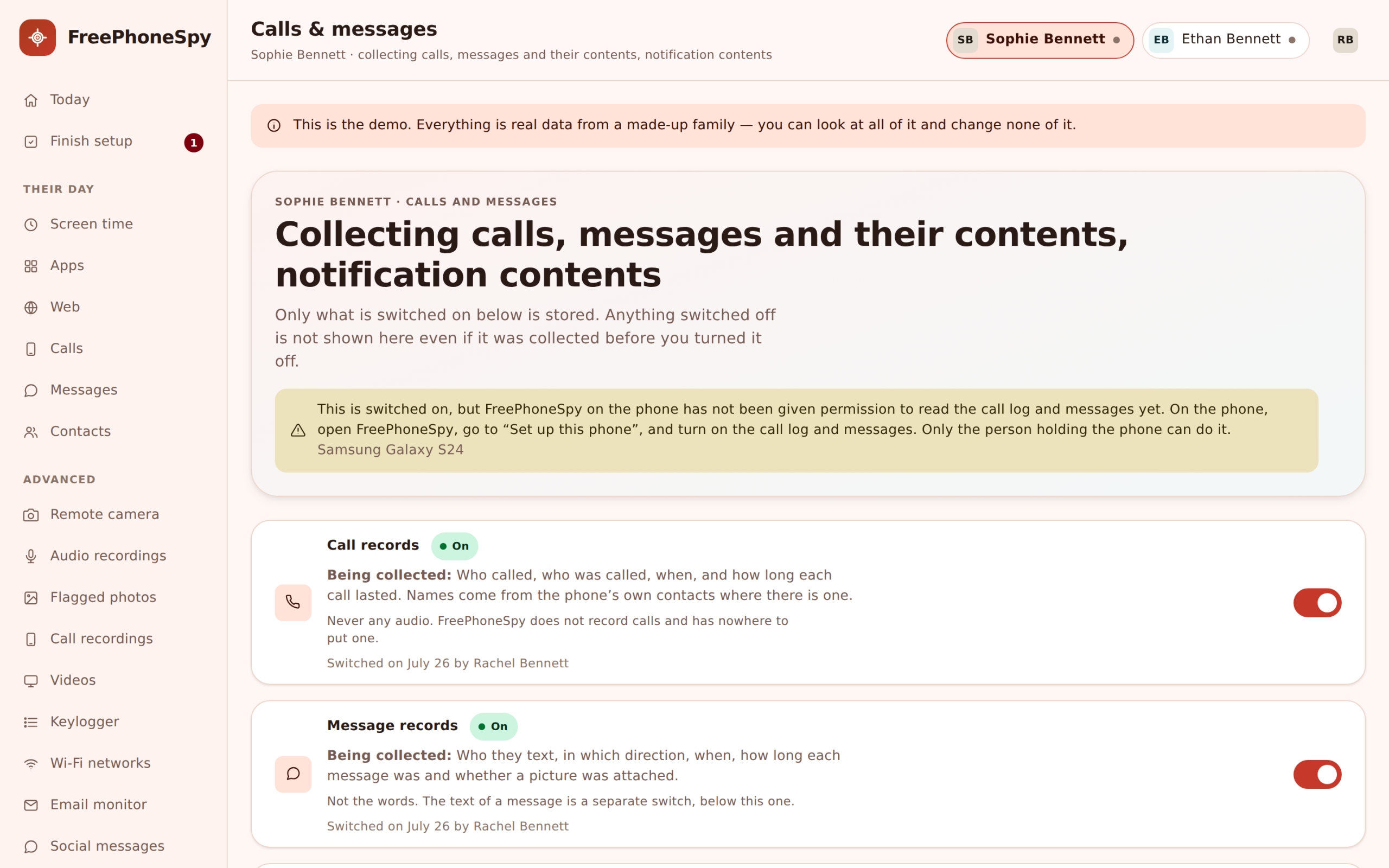
This is the heart of it. You build a list of words and phrases that matter to your family, and FreePhoneSpy watches the notification lines coming off the phone for them. A match becomes an alert with the app it appeared in and the time it happened.
Take a phrase like “meet me alone”. You’d want to know if that turned up in a chat with someone you’ve never heard of, wherever it appeared, without reading every message your child sends. That’s the trade this makes. You keep message bodies switched off if you like, and still catch the phrases you’re actually worried about. Add words about strangers, about self-harm, about bullying, about a party you said no to. It’s your list, and you can change it whenever.
- Your own words and phrases, edited any time
- Matched against notification lines from every app
- Each hit shows the app and the time
- Works even with message bodies switched off
The keylogger, and why it’s gated
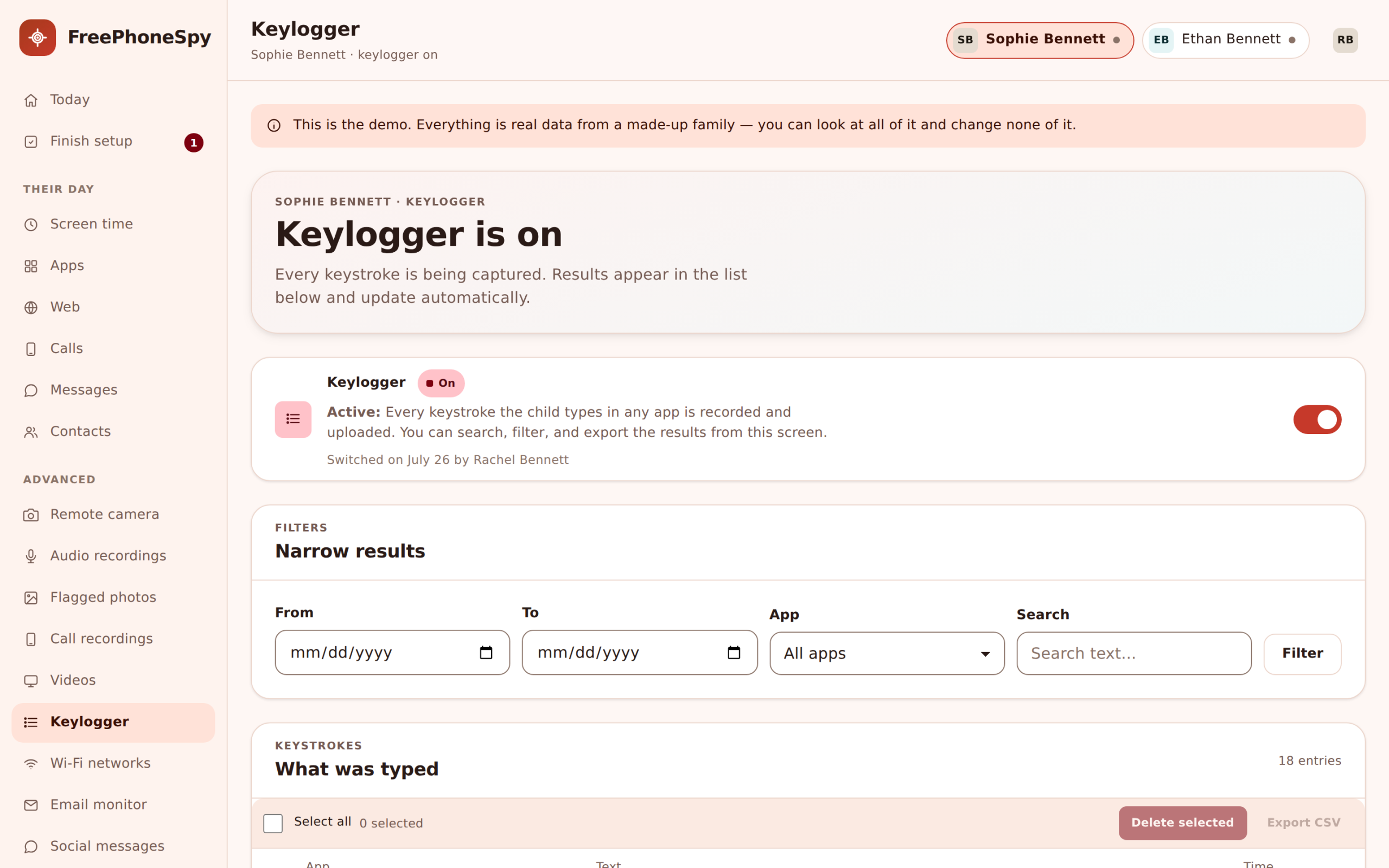
The keylogger records text typed on the phone and shows it to you grouped by app, so you can see what was written in one place versus another. It’s the most powerful tool on this page, and the one we’re most careful with.
It stays off until you turn on its consent switch, and when it’s on, it’s listed on the child’s Transparency screen. That’s not us being timid. Typed text can include passwords, and a search for a keylogger for parents that promises to hide all this is promising something we won’t build. For a younger child who’s just getting a phone, a parent might switch it on for a while as training wheels, openly, and switch it off as trust grows. That’s the intended shape: consented, visible, and temporary rather than a permanent secret.
- Typed text grouped per app
- Off until you turn on the consent switch
- Shown on the child’s Transparency screen when active
- Best used openly, and eased off as trust builds
Wi-Fi network alerts and open networks
Phones join whatever Wi-Fi they can, and kids are the fastest at hopping onto free networks. FreePhoneSpy logs the networks the phone connects to and warns you when one is open, meaning unsecured. An open network at a café is usually nothing. An open network your child keeps joining somewhere you didn’t expect them to be is worth a second look.
It’s a small feature that quietly does two jobs. It’s a nudge about safety on unsecured networks, and it’s another thread of where the phone has actually been. Both land in the same Alerts feed as everything else, and there’s more on each in Wi-Fi & email monitoring.
- Logs the Wi-Fi networks the phone joins
- Warns on open, unsecured networks
- Doubles as a hint about where the phone has been
- Surfaces in the Alerts feed with the rest
Email subject and sender monitor
Email is quieter than chat for most kids, which is exactly why the odd one stands out. FreePhoneSpy shows the subject and “from” lines of emails, not the full bodies. That’s usually enough to spot the things that matter: a “your account” message from a service they shouldn’t have signed up for, a sender who has no business emailing a child, a subject line that reads like a scam.
Keeping it to subject and sender is a deliberate limit, the same instinct as message headers over full text. You get the signal without opening every letter. If a subject line worries you, that’s the moment for a conversation, not a deeper dig.
- Email subject and sender lines, not full bodies
- Spot unexpected sign-ups and dodgy senders
- Subject-line scams stand out fast
- A signal to talk, not a reason to read everything
Weekly activity reports
Day to day, you watch the feed. Once a week, the activity report gives you the wide view. It rolls up the week: how many alerts came in and of what kind, how screen time trended, notable place events. It’s the “how are things, really” summary you can read with a coffee on Sunday.
As an Android activity monitor, the weekly report is where patterns show themselves. A single late night is noise. Four late nights in a row is a pattern, and the report is where you’ll notice it before it becomes a problem. It’s also a good, calm thing to go through with an older child, so monitoring feels like a shared review rather than a search. Reading it together once a week does more for trust than any amount of quiet watching, because it turns the whole thing into a conversation you both take part in.
- A weekly rollup of alerts, screen time and places
- Trends over a week, not just today’s noise
- Surfaces patterns a single day would hide
- Easy to review together with an older child
Which tools are light, which are gated
Not every tool on this page carries the same weight, and it’s worth being clear about which is which before you switch anything on. The light ones are safe to leave running. The gated ones ask you to make a deliberate, visible choice.
| Tool | Weight | Consent switch? |
|---|---|---|
| Keyword flags | Light | No, works on notification lines |
| Wi-Fi network alerts | Light | No |
| Email subject and sender | Light | No, headers only |
| Weekly activity report | Light | No |
| Keylogger | Heavy | Yes, and shown on the phone |
A real Tuesday looks like this. You open the panel over breakfast. The “Needs you” list has two items: an open Wi-Fi warning from a café yesterday, which you glance at and clear, and a keyword flag on the word you added about a party. You leave the keylogger off because there’s no reason to have it on this week. That’s the whole rhythm. Light tools running in the background, the keylogger reserved for when you and your child have actually talked about it.
Tune it so the feed stays meaningful
The trick with alerts is keeping the signal high. Start with a short keyword list of things you genuinely care about, leave the light tools on, and reach for the keylogger only when there’s a reason and you’ve talked about it. A feed you trust is one you’ll keep reading.
Keyword flags pull from the same notification lines as Calls, messages & social, and place events come from Location & Places. It all gathers in the web panel, on the Today dashboard first thing and in the full Alerts history when you want more.
Questions about alerts, keywords and the keylogger
How do keyword alerts work?
You add words and phrases you care about, and FreePhoneSpy watches the phone’s notification lines for them. A match becomes an alert with the app it appeared in and the time. It works even if you keep message bodies switched off, so you catch specific phrases without reading every conversation.
Is the keylogger safe and legal to use?
It’s for your own child on a device you manage, used openly. The keylogger stays off until you turn on its consent switch, and it’s listed on the child’s Transparency screen when active. Logging another adult’s typing without their knowledge isn’t what it’s for and may be illegal where you live.
What counts as an activity alert?
Keyword hits, open Wi-Fi networks, place events like leaving school early, unusual email senders and unknown callers all land in the Alerts feed, each with its source and time. The most pressing ones also appear on the Today dashboard under “Needs you”.
Why only email subject and sender, not the full message?
Because subject and sender usually give you the signal you need, and keeping to them respects your child’s privacy the same way message headers do. If a subject line worries you, that’s the point to have a conversation.
Will the alerts overwhelm me?
Not if you tune it. Start with a short keyword list and leave the light tools on. The feed is designed to stay quiet until something actually matters, so when an alert appears it’s usually worth reading. The weekly report handles the bigger-picture trends.
More: Calls, messages & social · Photos, videos & audio · The web panel · Pricing · All FAQs