My Phone Won’t Turn On — What to Do
You press the button and nothing happens. No logo, no buzz, just a black screen staring back. It feels like the phone is gone. Most of the time it isn’t. A phone that won’t turn on is usually flat or frozen, not dead, and there’s a short list of things that fix it. Work through them calmly and you’ll often have it back in a few minutes.

Take a breath first. Panic leads to the two things that make it worse: mashing buttons randomly, and plugging a possibly-wet phone into power. Neither helps. The steps below go from most likely and harmless to more serious, so start at the top and stop as soon as the screen lights up.
First steps, in order
Don’t skip ahead. The fixes that solve this most often are also the gentlest ones, and doing them in order tells you a lot about what’s actually wrong.
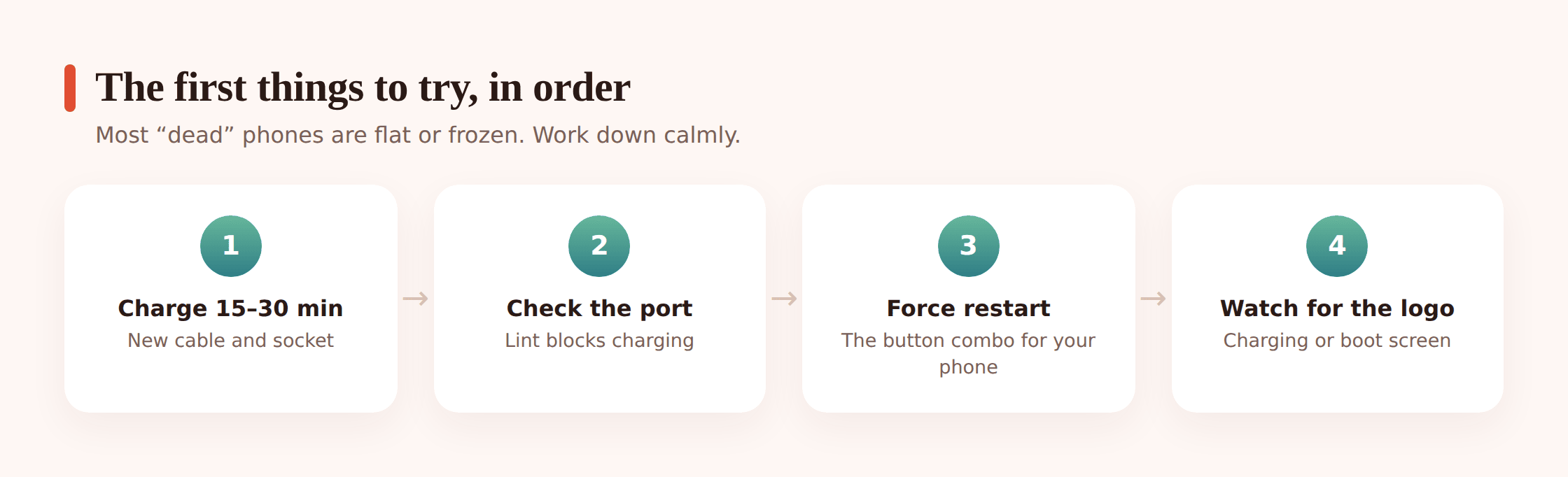
1. Charge it for 15 to 30 minutes
A battery drained all the way to zero can go so flat that the phone won’t even show a charging screen right away. Plug it in and leave it. Give it a real half hour before you decide nothing’s happening. Don’t judge it after 30 seconds.
2. Rule out the cable, charger and socket
Chargers fail silently, and cables fray inside the sleeve where you can’t see it. Try a different cable, a different charging brick, and a different wall socket. If you can, use a charger you know works on another device. A wireless charger is a good second test since it skips the port entirely.
3. Check the charging port
Pockets and bags pack lint into the port until the cable can’t seat properly. Shine a light in there. If you see fuzz, gently clean it out with a wooden or plastic toothpick, phone powered down. No metal, and no jabbing. A clogged port is a surprisingly common “dead” phone.
4. Do a force restart
If it’s charged and still black, the system may be frozen rather than off. A force restart cuts the power hard and reboots it. This won’t erase anything. The button combo depends on your phone (see below), and you may need to hold for a full 10 to 20 seconds before the logo appears. Keep holding.
5. Watch for any sign of life
A charging icon, a battery-with-a-lightning-bolt, a manufacturer logo, a single buzz. Any of these means the phone has power and is trying. That’s good news and it narrows the problem down to software.
Force restart button combos
- iPhone 8 and newer: press and release volume up, press and release volume down, then press and hold the side button until the Apple logo appears. Don’t let go early.
- Most Android phones: hold power and volume down together for about 10 to 20 seconds until it restarts.
- Samsung Galaxy: hold volume down and the side/power key together for 7 to 10 seconds. On models with a Bixby key layout, it’s the same volume-down-plus-side combo.
- Pixel: hold power for about 30 seconds, or power plus volume down.
- Older iPhones (7): volume down and the side button together. iPhone 6s and earlier: home and the top/side button together.
If the exact combo for your model isn’t here, the pattern is almost always power plus a volume key, held longer than feels natural. When in doubt, hold power and volume down.
Why a phone won’t turn on
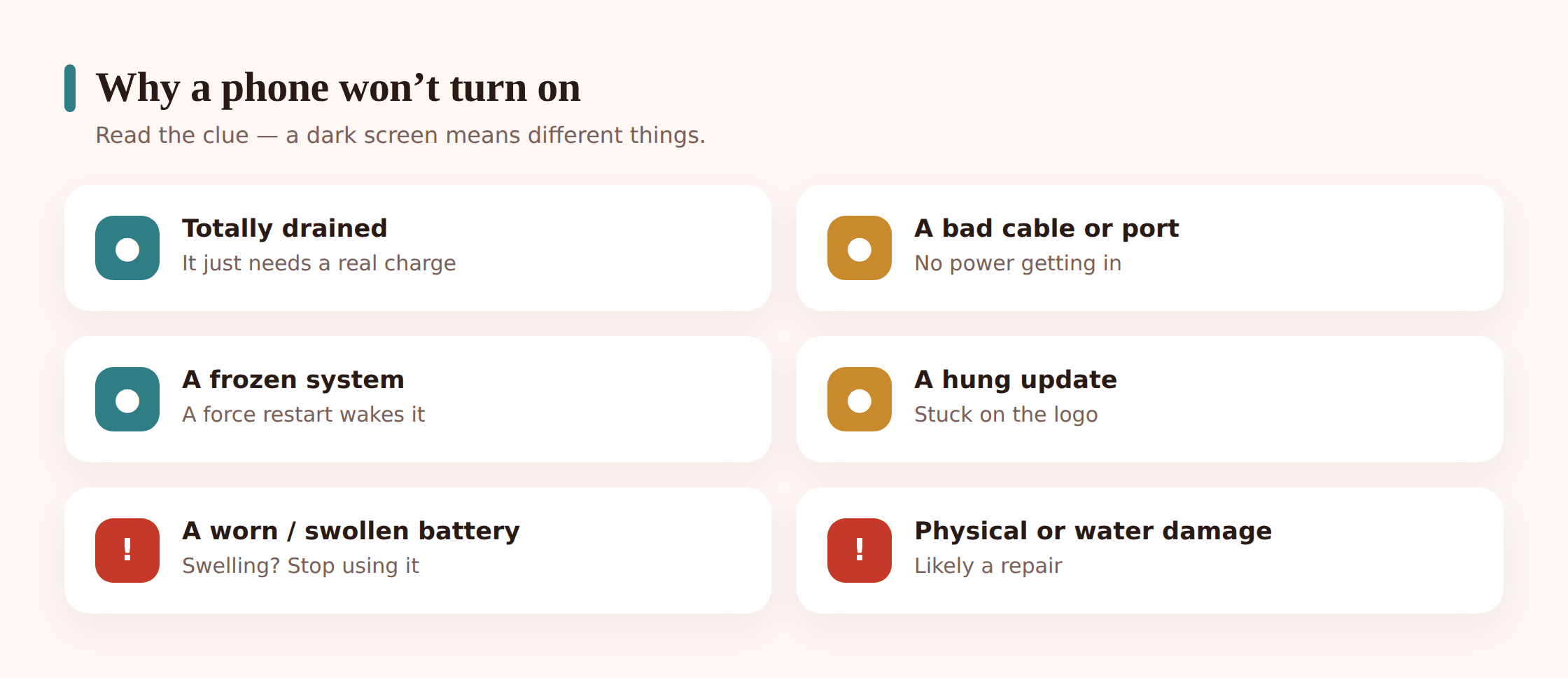
Knowing the usual suspects helps you match the symptom to the fix instead of guessing.
- A fully drained battery. The most common one by far. It needs a proper charge before it’ll respond.
- A bad cable, charger or port. If it won’t charge, it can’t turn on. This is a fix you can do at home.
- A frozen system. The phone is on but locked up. A force restart clears it.
- A software update that hung. An interrupted update can leave the phone stuck on boot.
- An old or swollen battery. Batteries wear out. A swollen one is a safety issue, not just an inconvenience.
- Physical or water damage. A hard drop or a spill can knock out power on its own.
- A dead display. The phone runs fine but the screen never lights, so it looks off when it isn’t.
Stuck on the logo or bootlooping
Different problem, and honestly a more hopeful one. If you see the logo, the phone has power and is trying to start. When it hangs on that logo, or restarts over and over without reaching the home screen, that’s a bootloop. It usually points to software: a failed update, a bad app, or corrupted system files.
Force restart first
Same combo as above. Sometimes a single clean reboot is all a hung update needs.
Try safe mode (Android)
Safe mode starts the phone with only its built-in apps. If it boots fine there, a downloaded app is the culprit and you can uninstall the recent one. On many Androids, once you see the logo, hold volume down through startup; or from the power menu, press and hold “Power off” until “Safe mode” appears.
Recovery mode
Recovery mode lets you clear the cache partition without touching your data, which often fixes a bootloop from a bad update. The entry combo varies by model (commonly power plus volume up), so look up the exact one for yours. Choose “wipe cache partition” if it’s offered, not factory reset.
Factory reset, as a last resort
If nothing else works, a reset from recovery mode wipes the phone back to new and usually clears the software fault. The catch: it erases everything not backed up. That’s exactly why keeping a recent backup matters so much, and why it’s worth doing before trouble, not after.
Black screen but the phone seems on
Here’s a telling one. The screen is black, but you can hear notification sounds, feel it vibrate, or a call goes through when someone rings it. If the phone clearly has power and is running, but the display stays dark, the problem is almost certainly the screen itself, not the phone.
Try a force restart anyway
A display driver can hang just like anything else. A hard reboot sometimes brings the picture back. Worth one try.
If it’s still dark, it’s a repair
A screen that stays black while the phone works usually means a failed LCD/OLED panel or a loose display connector, often after a drop. That’s not a home fix. A repair shop can replace the screen, frequently the same day.
Water damage: do this, not that
Spills and drops in water are their own category, and the wrong first move can turn a survivable soaking into a dead phone. The single most important rule: do not charge a wet phone. Pushing current through wet circuits is how you short them out for good.

Do: get it out of the water fast. Power it off if it’s still on. Dry the outside with a soft cloth. Remove the case, and the SIM tray to help it vent. Then leave it somewhere dry and airy, upright, for a couple of days.
Don’t: charge it while there’s any chance it’s wet. Don’t use a hairdryer or radiator — heat warps components and pushes moisture deeper. Don’t shake or blow hard into it, which just moves water around inside. And skip the bag of rice. It’s a myth; rice doesn’t pull moisture out any faster than open air, and its dust and starch can get into the ports. Plain air-drying beats it.
Patience is the whole game with liquid. Give it 48 hours or more before you try to power it on. If it was more than clean water — salt water, a sugary drink, the sea — corrosion sets in quickly, and the best move is a repair shop that can open it up and clean the board properly before damage spreads. Sooner is better there.
When it’s hardware and time for a repair
You’ve charged it, swapped cables, cleaned the port and force-restarted, and it’s still dark. At some point the honest answer is that this is hardware, and it needs a technician. Signs it’s past a home fix:
- It won’t charge at all on any known-good cable and charger, and shows no charging screen.
- The battery is swollen. A back cover that’s bulging or a screen lifting at the edges means a swollen battery. Stop using the phone, don’t charge it, and don’t press on it. This is a safety risk. Get it to a shop.
- Liquid got in and it didn’t recover after drying.
- It was dropped and went dark, or shows a black screen while still making sounds.
If you can get it to power on even for a minute, use that window to back up right away — photos and messages first. On Android, that might mean confirming your cloud sync ran; on iPhone, an iCloud or computer backup. If it won’t turn on at all and there’s data you can’t lose, a professional data-recovery service can sometimes pull files off a dead phone, though it’s neither cheap nor guaranteed. A recent backup is always the cheaper insurance.
Weigh the repair against a replacement too. On an older phone, a new battery or screen can be worth it and buy you another year or two. If the logic board is gone, replacement may make more sense. A good technician will tell you honestly which side of that line you’re on.
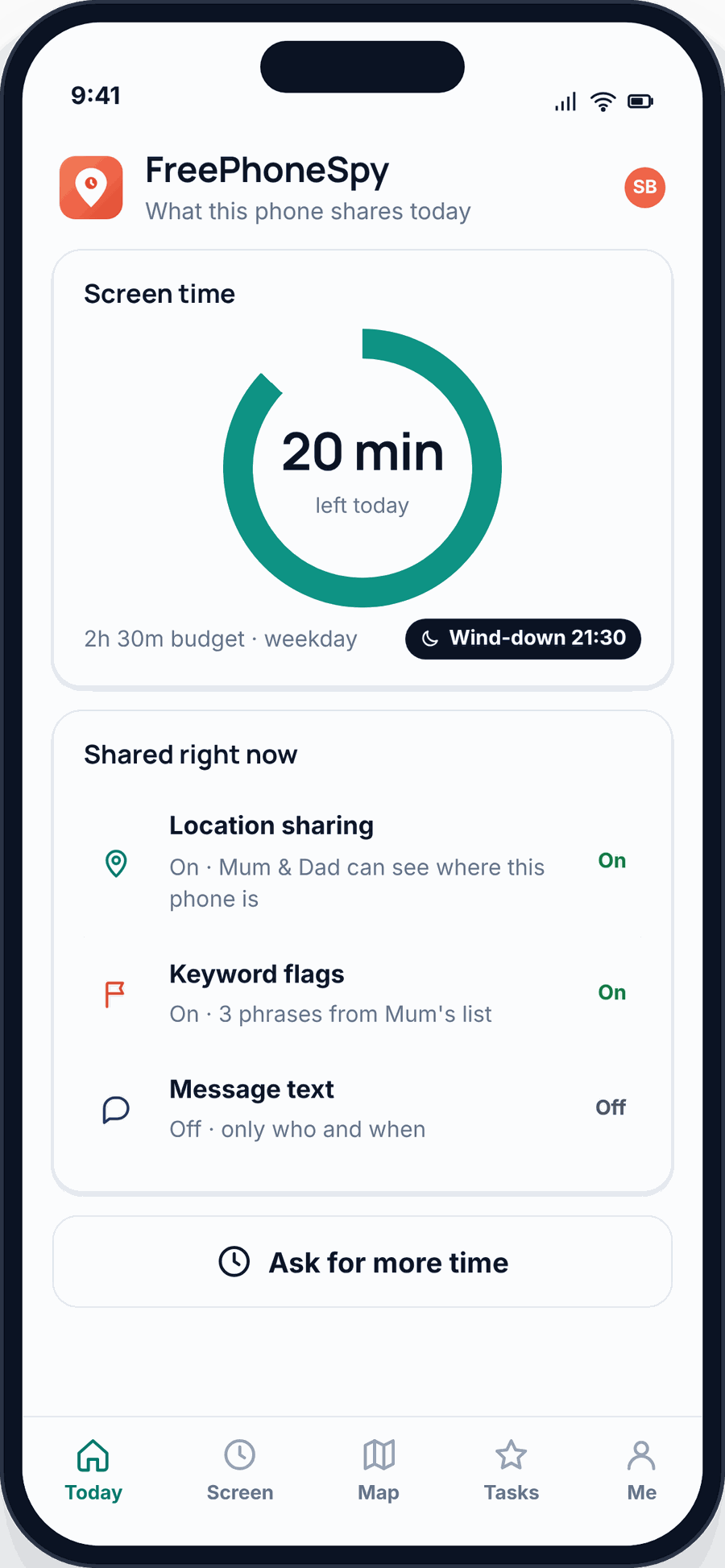
One small, honest note if the phone in question is a child’s Android you look after and it died before you could get it home. If you had a consent-based parental tool like FreePhoneSpy set up on it, the last known location and activity from before the battery went flat may still be in the web panel. It won’t turn the phone back on, but it can tell you where it was, which helps if it’s the being-lost kind of “won’t turn on” rather than the broken kind.
Stopping it from happening again
A few habits make the dark-screen scare far less likely, and much less costly when it does happen.
- Keep it backed up. Automatic cloud backup means a dead phone is an inconvenience, not a disaster. Set it and forget it. Here’s how to back up your phone properly.
- Protect the charging port. A little port cover, or just emptying pockets of lint, prevents the slow clog that fakes a dead battery.
- Use a case. Most “went dark after a drop” repairs start with a phone that had no case. A basic one absorbs the hit.
- Don’t run it to zero constantly. Draining fully to 0% again and again wears the battery faster. Topping up before it’s empty is kinder to it. If yours drops fast, here’s why a battery drains quickly and how to slow it.
- Update carefully. Install system updates on a charged phone with a solid connection, and don’t power it off mid-update. That’s a common way to land in a bootloop.
- Know how you’d find it. If “won’t turn on” is really “can’t find it,” set up device location now, while it still works.
And if your phone turns on fine but feels sluggish rather than dead, that’s a different problem with easier fixes — see how to speed up a slow phone.
Quick checklist
- Charge it 15 to 30 minutes and wait before judging.
- Swap the cable, charger and socket. Try wireless if you have it.
- Check the port for lint and clear it gently.
- Force restart with the right combo, holding 10 to 20 seconds.
- Watch for a charging icon, logo or buzz.
- Stuck on the logo? Force restart, then safe mode, then recovery.
- Sounds but black screen? Likely the display. Try one reboot, then repair.
- Wet? Power off, dry, air-dry 48 hours. Never charge it wet. Skip the rice.
- Swollen battery? Stop using it and get it serviced.
- Still dark? It’s a repair. Back up the moment it powers on.
FAQ
How long should I charge a dead phone before it turns on?
Give it a solid 15 to 30 minutes on a known-good charger before you expect anything. A deeply drained battery can take several minutes just to show a charging screen, so don’t give up early.
Will a force restart erase my data?
No. A force restart just cuts power and reboots the phone. Your photos, messages and apps are untouched. It’s a factory reset that erases things, which is a different, more drastic step.
Does putting a wet phone in rice work?
Not really. Rice doesn’t pull moisture out faster than plain open air, and it can shed dust and starch into the ports. Air-dry it upright in a warm, dry spot for a couple of days instead, and never charge it while there’s any chance it’s damp.
My phone vibrates and rings but the screen is black. What’s wrong?
The phone has power and is running, so the fault is almost certainly the display. Try one force restart in case the screen driver hung. If it stays dark, it needs a screen repair.
Is a swollen battery dangerous?
Yes, treat it seriously. A bulging back or a screen lifting at the edges means the battery is swelling, which is a fire risk. Stop using and charging the phone, don’t press or puncture it, and get it to a technician for safe replacement.
Can I recover data from a phone that won’t turn on?
Sometimes. If you can get it to power on even briefly, back it up immediately. If it’s fully dead, a professional data-recovery service can occasionally retrieve files, but it’s costly and not guaranteed. A recent automatic backup is far more reliable.