Setting Up Windows & Microsoft Family Safety for Kids
A shared family laptop or a kid’s own Windows PC needs the same guardrails you’d put on a phone. Microsoft builds them right in. You create a child Microsoft account, add it to a family group, and manage the whole thing from the Microsoft Family Safety app on your phone or the family website. From there you set how long the PC can be used, which apps and games are allowed, what the browser will open, and what can be spent in the Microsoft Store. It’s free, it’s official, and it stretches to Xbox too. Here’s how to set it up properly, and an honest look at where the filtering holds and where a determined kid can walk around it.
What Family Safety is
Microsoft Family Safety is the parental-controls system built into Windows. The idea is simple. Your child signs in to the PC with their own Microsoft account, that account belongs to a family group you organize, and you’re the organizer. Once that link exists, Windows starts reporting to you and enforcing the limits you pick.
You manage it from two places, and they show the same settings. There’s the Microsoft Family Safety app for Android and iPhone, which is where most parents live day to day. And there’s the family website at family.microsoft.com, handy when you’re already at a computer. Change a limit in one and it shows up in the other.
What’s worth understanding early: the controls follow the account, not the machine. Your child could sign in to a second Windows PC with the same account and the same rules apply. And because Xbox uses Microsoft accounts too, the same family group covers the console. One child account, one set of limits, whichever screen they’re on. If you’re also sorting out their phone or tablet, our guides to Google Family Link and Apple Screen Time cover those platforms, and the console controls guide goes deeper on Xbox specifics.
What to have ready
Line up a handful of things first and you won’t have to stop halfway through. Budget about fifteen minutes.
- Your own Microsoft account, plus the Family Safety app on your phone — or just a browser pointed at family.microsoft.com, which shows the identical settings.
- The child’s Windows PC, powered on and connected to the internet.
- An email address for your child, or a plan to create one during setup — Microsoft can make a new child account for you.
- A few quiet minutes with your child. This works far better done together than done behind their back.
One thing to know up front. A young child can’t hold an ordinary Microsoft account on their own, so Windows creates a child account inside your family group and asks for your consent as the parent. For a teen who already has a Microsoft account, you don’t make a second one — you add their existing account to the family as a member. The wizard picks the right path based on the age you enter.
Walking through the setup
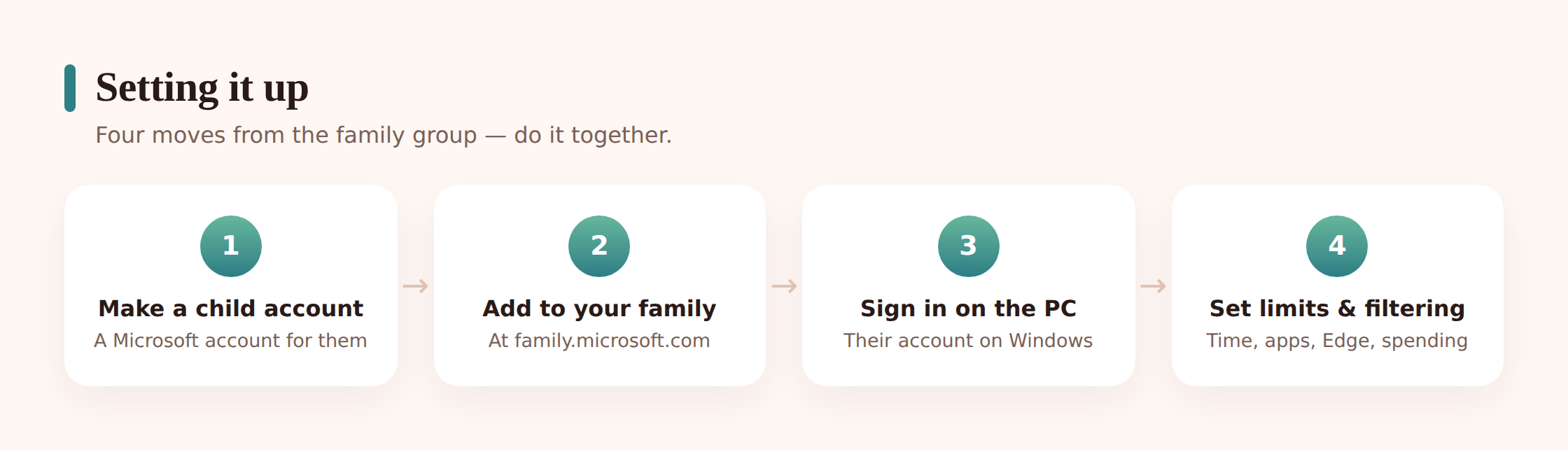
1. Create your family group
Open the Family Safety app and sign in with your own Microsoft account. If you haven’t made a family group yet, the app offers to start one. You’re the organizer, which is the role that can change everyone’s settings. You can add a second parent as an organizer later so you’re not the only one holding the keys.
2. Add your child to the family
Tap Add a family member and choose member. Enter their email if they have a Microsoft account, or choose to create a new account for them. Creating one means picking an email and a birthday. Get the birthday right — age drives the default content limits and what Microsoft asks your consent for.
3. Give parental consent
For a child account, Microsoft asks the organizer to confirm consent, sometimes with a small verification charge to prove you’re an adult. This is a one-time step. Once it’s done, the child account is a full member of your family group.
4. Sign in on the Windows PC
On your child’s computer, go to Settings > Accounts > Family (or Other users on some versions) and add the child account, or sign in with it directly. Windows recognizes it as a family member and starts applying your settings. Have your child sign in and use the PC for a minute so it registers as their account.
5. Turn on the limits that matter
Back in the app, open your child’s card and set screen time, app and game limits, content filters, and spending. Nothing is locked down until you switch it on, so this is where the actual protecting happens. Do a first pass now and refine over the first week once you see how they use it.
The controls, one by one
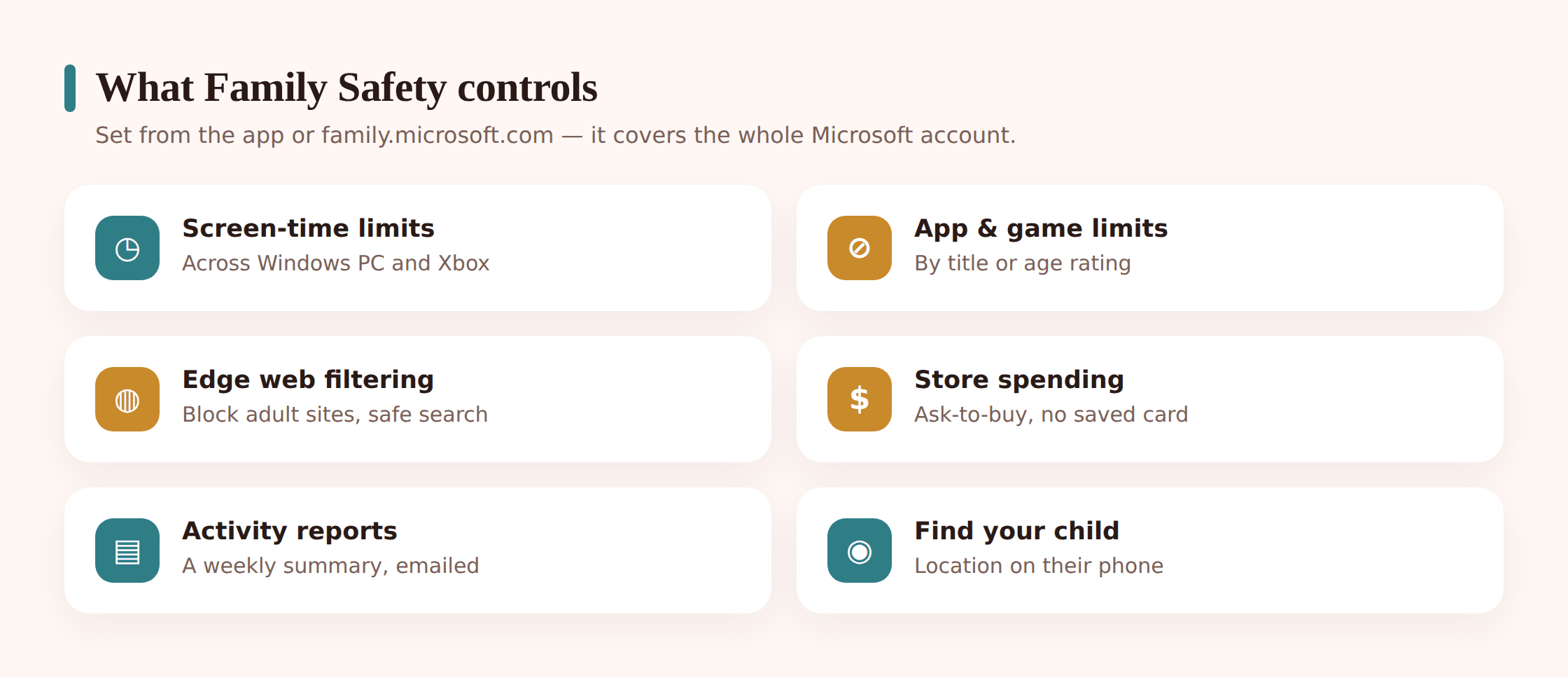
Family Safety bundles four kinds of control. Below is each one and the settings inside it that pull the most weight for a child’s PC.
Screen-time limits and a schedule
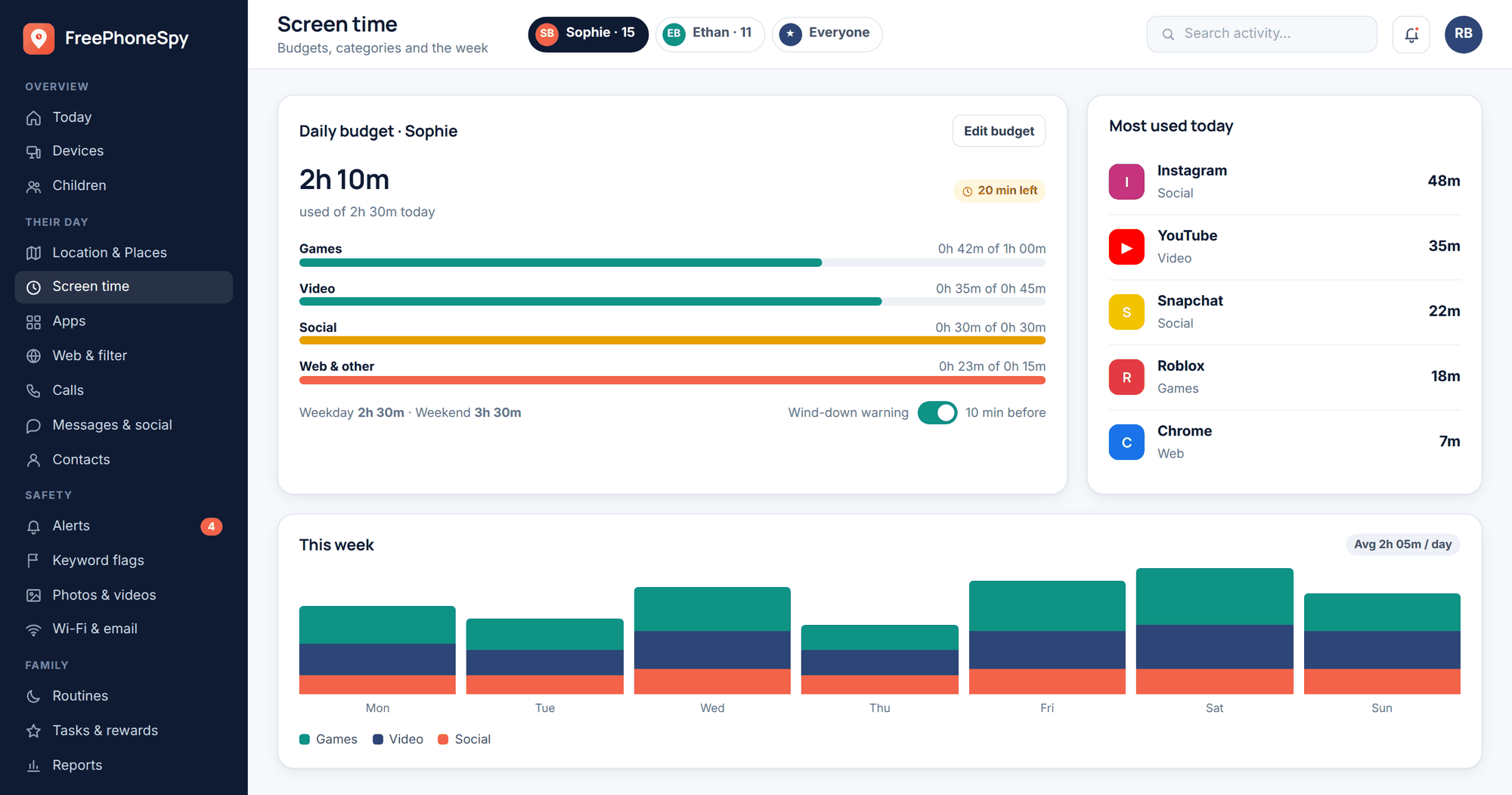
You can set a daily cap on how long the PC can be used, and you can set a schedule — the hours the computer is allowed to sign in at all. A schedule is the one that protects sleep and school. Set the PC to lock at 9pm on school nights and it doesn’t matter how much daily time is left; the account can’t use it outside the window. You can set different hours for different days, so weekends stretch a little later. When the limit runs out, your child can send you a request for more time straight from the lock screen, and you approve or decline it from your phone.
App and game limits
You can set a time limit on individual apps and games — say an hour of a game per day — and the app locks when it’s spent, separate from the overall screen-time budget. You can also block a specific app outright. And Family Safety enforces age ratings: pick your child’s maturity level and Windows blocks apps and games rated above it, with a request-to-approve prompt if they want something higher. For the titles that eat the most time, a per-app limit is more precise than one big daily total.
Web and content filtering in Edge
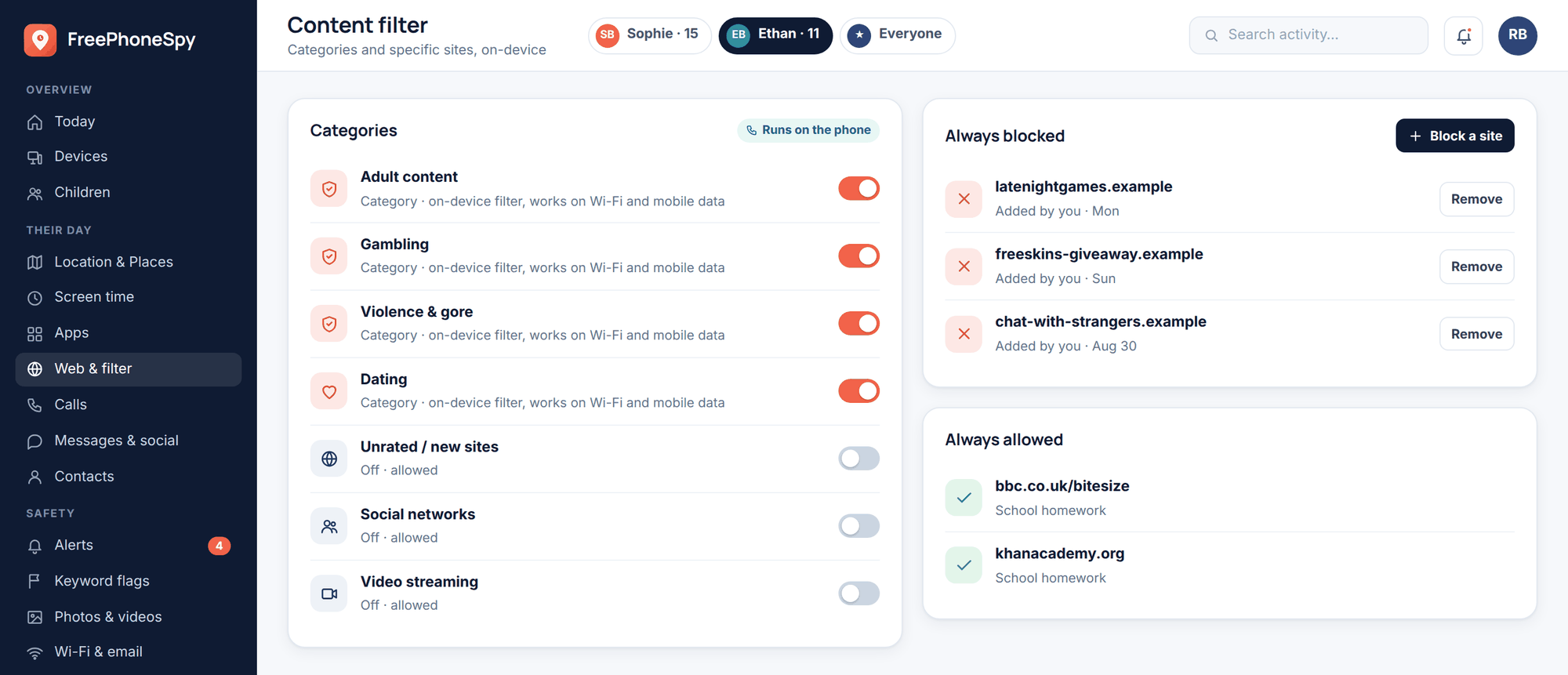
Turn on content filters and Windows will filter mature websites and switch on strict search. There’s an important detail here: this filtering runs through Microsoft Edge. With filters on, Family Safety can also block other browsers — Chrome, Firefox and the rest — so your child is steered to Edge where the filtering actually applies. You can add your own allowed and blocked site lists, or lock a young child to only the sites you approve. For a first PC, allow-list mode is the safest starting point.
Spending in the Microsoft Store
You can add money to your child’s account as a balance they can spend, so there’s no card attached to their purchases. And you can turn on ask to buy, which sends every store purchase or download to you for approval first. That covers the surprise-charge problem — a game, an add-on, an in-app pack all route through you. If in-app spending is a worry generally, our guide to in-app purchases and kids goes further.
Activity reports
Family Safety can send you a weekly activity summary and show recent activity in the app: how long the PC was used, which apps and games got the most time, and the sites and searches that came up in Edge. It’s a conversation starter more than a surveillance feed — a way to notice a new app taking over the week, or to see that the time limits actually match how they’re using it. You can turn reports off if you’d rather not have them.
Location and the phone companion
The Family Safety app isn’t only for the PC. If your child also carries an Android or iPhone with the app installed, the same family group can show their phone’s location on a map and, on some plans, driving-safety summaries for new drivers. Bear in mind it maps the phone, not the child — a dead battery or a handset left at home tells you nothing. Used within that limit, it’s a fair way to confirm they’ve reached where they were headed. Our kid-safe tablet guide covers the tablet side if that’s part of the mix.
Screen time across PC and Xbox
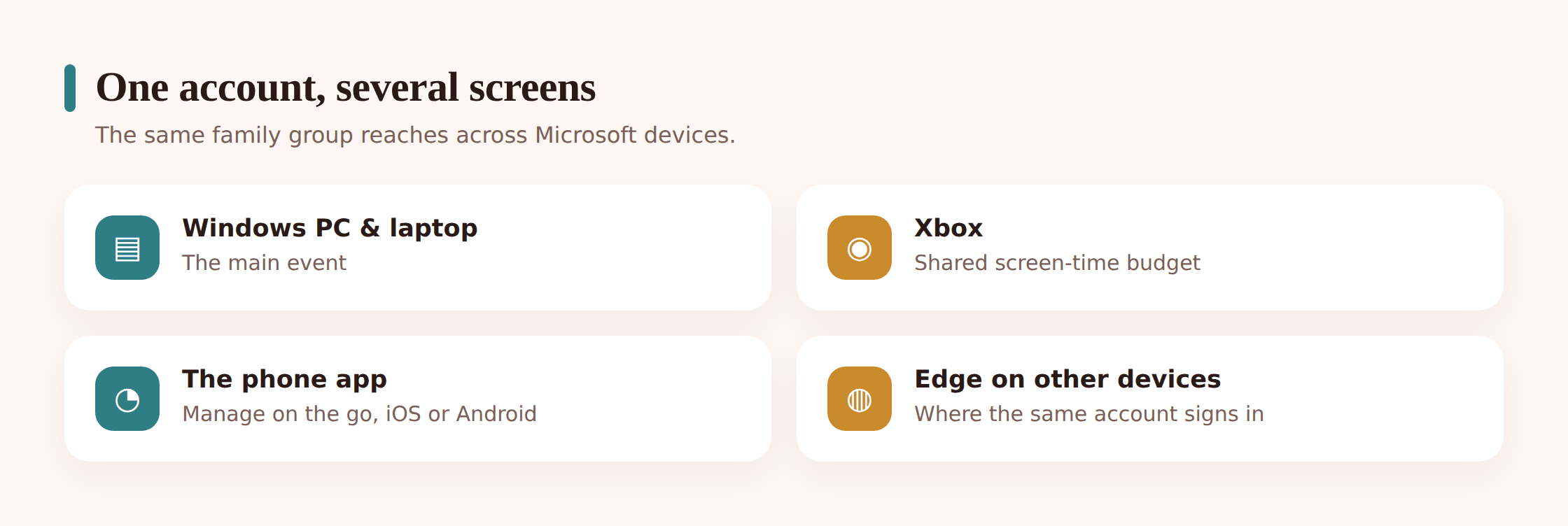
Because Xbox signs in with a Microsoft account, the console sits in the same family group as the PC. That gives you a choice worth understanding.
You can keep separate screen-time budgets for each device — so many hours on the PC, so many on the Xbox — or you can switch to one combined limit that both share. Combined is the honest one for most families, because a kid who’s out of PC time will simply move to the console otherwise. With a shared budget, time is time, wherever they spend it. Set this on your child’s screen-time page in the app, where each device is listed and can be toggled between its own schedule and the shared one.
The same age ratings and store approvals flow to Xbox too. A game blocked by maturity rating on the PC is blocked on the console, and an ask-to-buy request from the Xbox lands on your phone the same way. For the console-specific settings — communication limits, who your child can play and chat with online — the dedicated console controls guide picks up where this leaves off.
What it can and can’t do
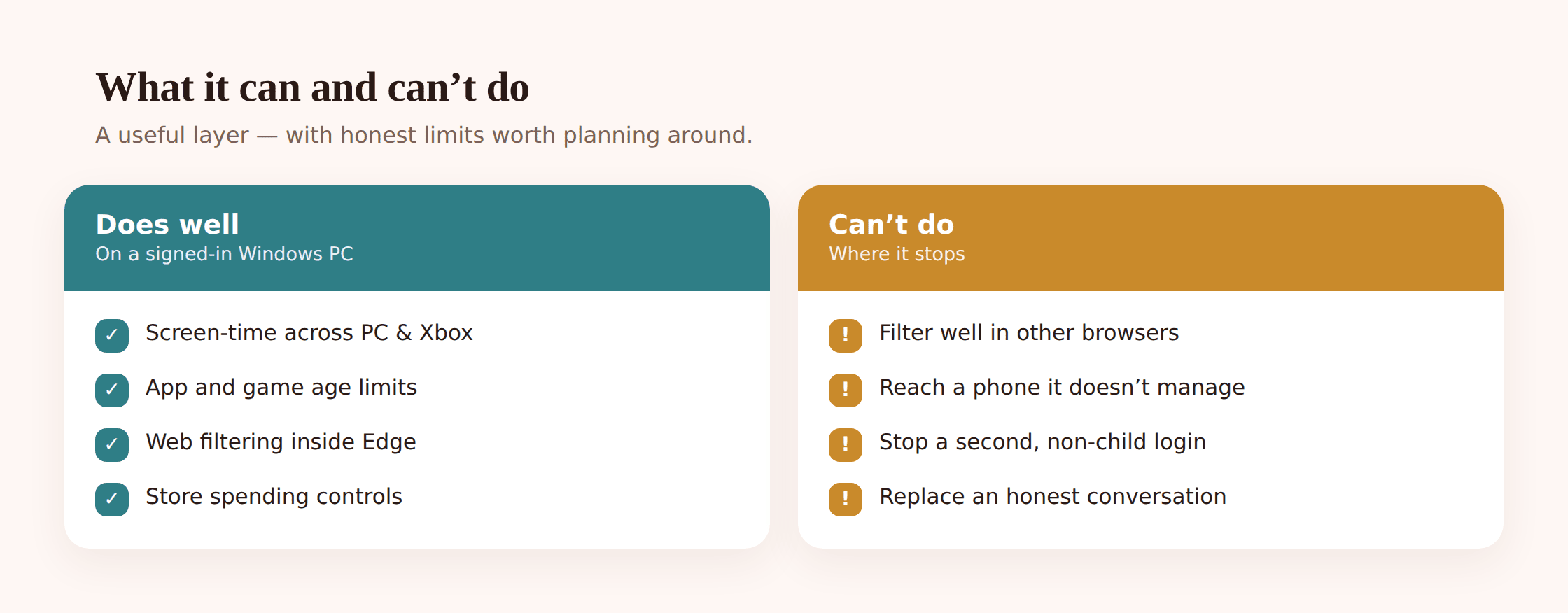
For something Microsoft folds into Windows for free, Family Safety earns its keep. It also has a definite shape, and three edges are worth naming before you lean on it: the web filtering only really bites inside Edge, a second sign-in on the same machine can shrug off the limits, and nothing here reaches the phone your child carries out the door. Name those edges and you can shore them up rather than trip over them.
| What it does well | Where it falls short |
|---|---|
| Daily time limits and a sign-in schedule for the PC | A determined kid can lean on a second, unmanaged device or a friend’s PC |
| Per-app and per-game limits, plus age-rating blocks | A local Windows account (not the child account) skips the limits entirely |
| Web filtering and strict search in Microsoft Edge | Filtering is strongest in Edge — a portable browser or a workaround can slip past it |
| Store spending controls and ask-to-buy | No view into messages, chats, or what’s said inside apps and games |
| One family group covering PC and Xbox | Reports show time and sites, not the content of conversations |
A few of these deserve a plainer word.
- Filtering leans on Edge. The web filter does its best work in Microsoft Edge, and Family Safety can block other installed browsers to keep your child there. But a browser run from a USB stick, or a clever workaround, can dodge it. Filtering raises the floor; it isn’t a sealed wall.
- The child must sign in with the child account. All of this only applies while your child is using their supervised Microsoft account. If they create or use a separate local account on the same PC, the limits don’t follow. On a family PC, make sure the child account is the one they use, and keep any admin account password to yourself.
- It doesn’t read messages. Family Safety has no window into who your child is chatting with in a game, on Discord, or in a messaging app, and no keyword alerts. For younger kids that’s often the thing a parent most wants a heads-up on.
- Reports are a summary, not the whole picture. Activity reports show time and sites and searches. They’re a good prompt for a conversation, not a transcript of everything that happened.
Family Safety’s reach ends at the computer and the console. For the Android phone Microsoft simply can’t manage, FreePhoneSpy takes over that side from its own per-child panel — so run the two side by side and both screens are covered.
Matching settings to your child’s age
The dials above are the same at every age; what changes is how tight you set them. A first-timer wants an Edge allow-list and ask-to-buy on everything, while a fifteen-year-old needs little more than a schedule and a nudge. For actual starting numbers to drop into the daily cap and the sign-in window, our screen time by age guide breaks it down age band by age band so you don’t have to guess.
Common issues and fixes
Limits aren’t being applied
Almost always because your child isn’t signed in with the child account. Confirm they’re using their supervised Microsoft account on the PC, not a local or admin account. Check the account shows up under Settings > Accounts > Family on their computer.
The content filter isn’t blocking sites
Make sure content filters are switched on in the app, and remember the filtering works through Edge. If your child is using another browser, turn on the option to block other browsers so they’re steered back to Edge where the filter applies.
Settings changed on your phone but not on the PC
There can be a short delay while the change syncs. Make sure the PC is online, and have your child sign out and back in to force it to pick up the latest settings. A restart usually clears a stuck sync.
Your child made a second, local account
A local account sidesteps the whole system. Remove any extra local accounts you didn’t create, keep the admin password private, and make sure the child account is the only everyday sign-in on that PC.
Consent charge or verification stuck
The one-time adult verification sometimes uses a small charge that’s refunded. If it stalls, try a different card or complete it from family.microsoft.com in a browser rather than the app.
Quick setup checklist
- Family Safety app ready on your phone under your own Microsoft account, or family.microsoft.com open in a browser.
- Family group created, with you as organizer.
- Child account created or added, and parental consent given.
- Child account signed in on the Windows PC and recognized as a family member.
- Screen-time daily cap and a sign-in schedule set.
- App and game limits on, with age ratings matched to your child.
- Content filter on in Edge, with other browsers blocked and a first pass at allow or block lists.
- Store spending set: a balance, and ask-to-buy switched on.
- PC and Xbox screen time set to combined if you have both.
- A short talk with your child about what’s on and why.
FAQ
Is Microsoft Family Safety free?
Yes. The core parental controls — screen time, app and game limits, web filtering in Edge, spending approvals and activity reports — are free and built into Windows and Xbox. Some extras, like driving reports on the phone app, may sit behind a premium tier, but everything in this guide is available at no cost.
Does the web filter work in Chrome or Firefox?
The filtering is designed for Microsoft Edge. With content filters on, Family Safety can block other browsers so your child is kept in Edge where the filter applies. If you leave other browsers open, they can slip past the filter — so switch on the option to block them.
Can I set one screen-time limit across the PC and Xbox?
Yes. Because both sign in with the same Microsoft account, you can give each device its own budget or switch to a single combined limit they share. Combined is usually the sensible choice, so a kid out of PC time can’t just move to the console.
Will my child know Family Safety is on?
Yes, and that’s how it should be. The limits show on their PC — the lock screen, the request-more-time prompts, the blocked-app messages are all visible. Set it up together and keep it open. Hidden monitoring isn’t what these tools are for.
Can I read my child’s messages or chats with Family Safety?
No. Family Safety shows time, apps, sites and searches, but not the content of messages or in-game chat, and it has no keyword alerts. If that visibility matters on the phone your child carries, that’s one of the gaps FreePhoneSpy fills on Android, used alongside the Windows controls.
What happens when my child gets older?
You loosen the settings yourself as they grow — that’s the point of oversight replacing control. At the age of majority in your region, a child account can convert to a standard adult account and supervision ends. Plan for that shift rather than being surprised by it.