Smart TVs & Streaming Devices: Parental Controls (Roku, Fire TV, Apple TV & More)
The phone gets all the attention. Parents lock down the tablet, set screen-time rules, agree who a teen can message, and then the biggest screen in the house sits there in the living room with no controls at all. A smart TV or a streaming stick is a full internet device with a store, a browser hiding inside apps, autoplay that never stops, and every family member’s accounts logged in at once. The good news is that Roku, Fire TV, Apple TV, Chromecast and the smart TVs themselves all carry real parental controls: a device PIN, rating limits, ways to lock or hide apps, and purchase protection. The catch is they’re off by default and buried in different menus. This guide walks the TV and the boxes that plug into it, plainly, and the habits that make the settings stick.
Why the TV is an easy blind spot
A few things make the living-room TV slip through the net. It’s shared, so it doesn’t feel like “a device your child uses” the way a personal phone does, even though a younger child often spends more hours in front of it than anything else. It’s big and communal, which reads as safe, and mostly it is, until a thumbnail nobody chose autoplays a trailer for something rated for adults while the six-year-old is waiting for cartoons.
Then there’s the pile-up of accounts. The TV usually has the whole household signed in at once: your streaming logins, the app store tied to a card, sometimes a browser tucked inside an app, and a search box that reaches the open internet. Nothing separates the child’s use from the adults’. On a phone you’d never hand a kid your unlocked account and card; on the TV that’s the default state, and it stays that way for years because setting it up once felt like enough.
Autoplay makes all of this heavier. The screen is engineered to keep playing, previews fire on the home screen before anyone presses a button, and “one more episode” starts its own countdown. On the biggest, most comfortable screen in the house, that pull is strongest. None of it means the TV is dangerous. It means it deserves the same ten minutes of setup you’d give a new tablet, and almost nobody gives it.
What you can actually control
Whatever badge is on the box, the controls cluster around the same handful of jobs. Knowing the categories helps, because menu names move between software versions, but the underlying feature is usually there somewhere.
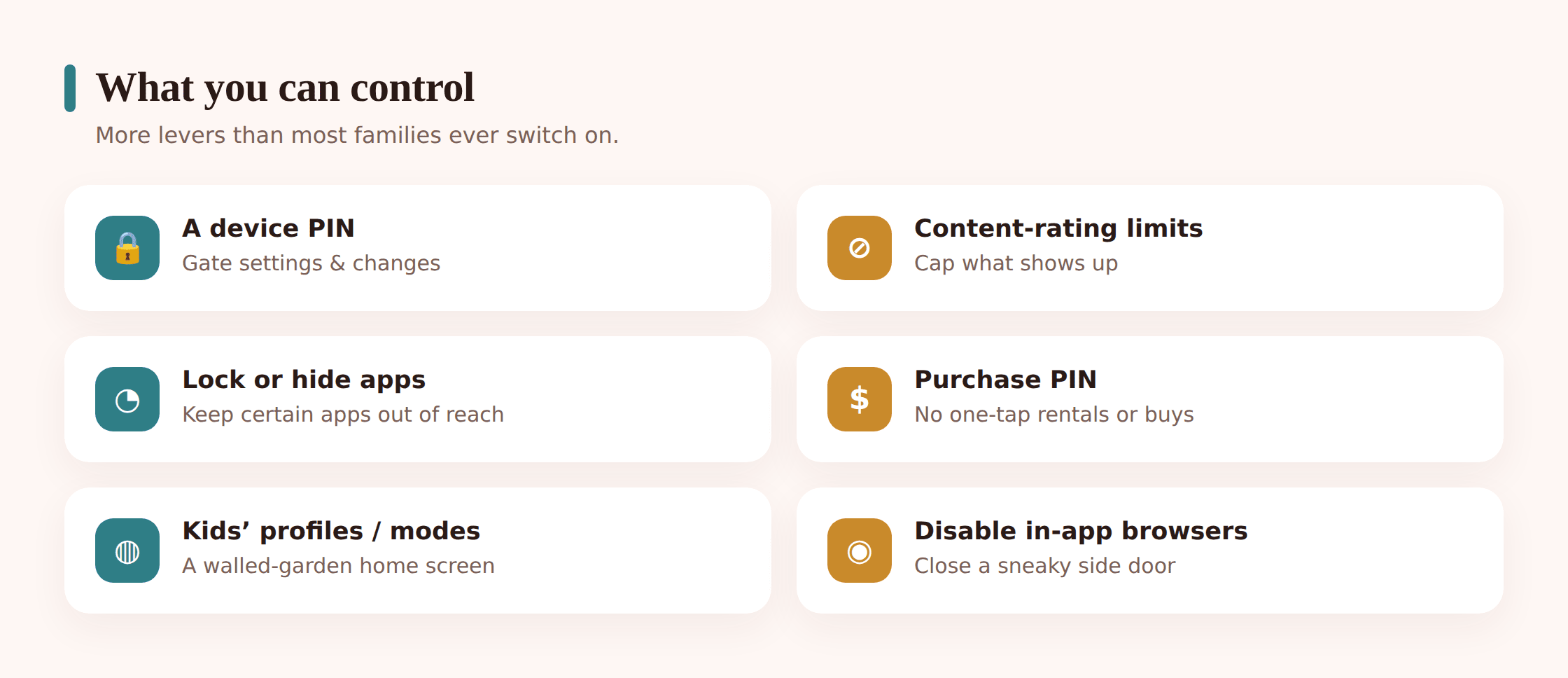
A device PIN or passcode is the master key. It’s the number the TV asks for before it will do something you’ve flagged as protected, whether that’s opening a restricted app, changing a setting, or playing something above a rating. Set this first, because most other controls lean on it.
Content and rating limits gate what the platform will show or play by age band or rating label. Set a ceiling and titles above it either hide or demand the PIN before they start. This works at the device level on some platforms and inside each app on others, which is the source of a lot of confusion later.
Locking or hiding apps lets you put a PIN in front of specific apps, or remove them from the home screen entirely. Handy for a browser app, a store, or a service you’d rather a young child couldn’t open alone. Purchase PINs are their own category worth singling out: the TV sits next to a store selling apps, films to rent, and in-app upgrades, all tied to a saved card. A purchase PIN stops a curious child buying or renting with a few clicks.
Kids’ profiles or modes are the friendliest option where they exist. A dedicated child profile or a “kids” mode swaps in a simpler interface, filters the content down, and keeps the child penned into a curated space rather than the full home screen. Finally, disabling in-app browsers matters more than it sounds. Several TV apps quietly contain a web view, and a search box that reaches the wider internet is a browser by another name. Where you can turn these off or lock them, do.
The main platforms, one by one
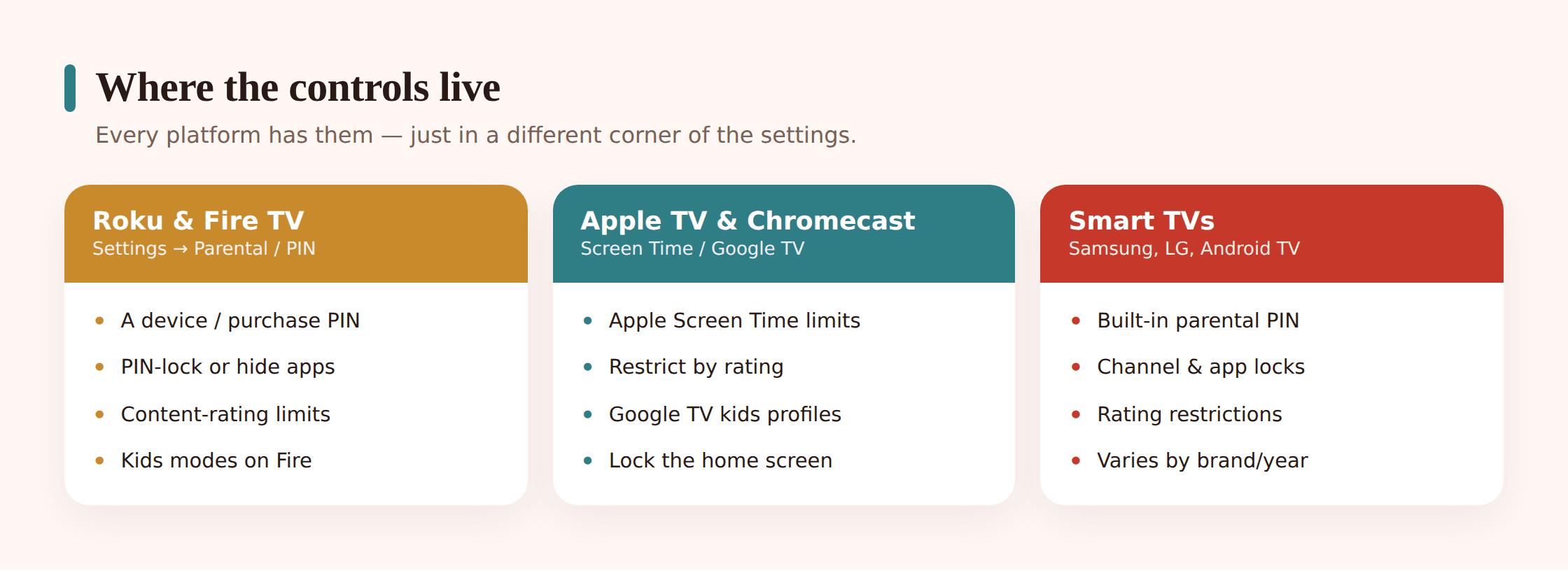
Here’s the shape of the controls on each platform in general terms. Treat these as the features to look for rather than exact tap-by-tap paths, because manufacturers rename and relocate menus with almost every software update. If a name below doesn’t match your screen, the setting is usually nearby under a heading like Settings, Parental Controls, Restrictions, or Privacy.
Smart TVs (Samsung, LG, Android TV / Google TV)
The TV’s own operating system carries a first layer of control before any app opens. Samsung sets carry a Parental Controls or restriction area, often reached through the general settings, where you can set a PIN and lock content by rating. LG (webOS) has a Safety or Parental section with a system PIN, rating locks, and app locks. Sets running Android TV or Google TV are the most capable here, because they support proper restricted or child profiles: you can create a kids’ space tied to a family account, set a device PIN, and manage what’s allowed from a parent’s phone through the family settings. On any smart TV, the two moves that matter most are setting the system PIN and turning on the rating limit, then adding a purchase PIN if the set has its own app store.
Roku
Roku keeps parental controls in the account and device settings rather than one tidy panel. You can set a Roku PIN that’s required to add channels, make purchases, or both, which closes the store door. Newer Roku software includes a Kids & Family area and the option of a profile aimed at children that filters what’s shown. Individual channels each have their own controls too, so the Roku PIN handles the store and the device, while content limits inside a given streaming app are set within that app. Pinning down the purchase PIN is the single most valuable Roku step, because adding paid channels and renting is otherwise a couple of clicks.
Amazon Fire TV
Fire TV has some of the more thorough built-in controls. Under its Parental Controls you can set a PIN that gates purchases, app launches, and playback of rated content, and toggle viewing restrictions by rating. Fire TV also supports Amazon Kids profiles, which give a child a curated, walled experience with age-filtered content and time limits, managed from a parent dashboard. Because Fire TV is wired tightly to Amazon’s store, the purchase side is well worth locking: require the PIN for purchases so a rented film or an in-app buy can’t go through unnoticed.
Apple TV
Apple TV leans on the same Screen Time and Content & Privacy Restrictions framework as the iPhone and iPad. Under the device’s Screen Time settings you set a passcode, cap ratings for films, TV shows and apps, restrict or hide the built-in store, and require a password for purchases. Within a Family Sharing group, a child’s Apple TV use and its limits can be managed from a parent’s device, and Ask to Buy routes purchase requests to a parent for approval. There isn’t a single “kids mode” button; the rating caps and the Screen Time passcode are the control, and they apply across the TV app and the App Store on the box.
Chromecast and Google TV
A plain older Chromecast that only receives a cast from a phone has almost no controls of its own, which is a point worth sitting with: whatever plays is decided by the phone or tablet doing the casting, so the controls have to live on that device. The newer Chromecast with Google TV and Google TV sets are a different story, running the full Google TV system with device PINs, restricted profiles, and a kids’ profile managed through the family account and a parent’s phone. If your Chromecast has its own remote and home screen, treat it like an Android TV device above. If it’s the little puck that just mirrors a phone, secure the phone.
Games consoles
Consoles stream too, and they’re a common way video reaches the TV, but they carry their own detailed family settings that deserve their own walkthrough. A PlayStation, Xbox or Switch each has a full parental-controls suite covering play time, spending, communication and age ratings. Rather than cram them in here, see the dedicated guide to console parental controls for the setup on each.
Side by side
| Platform | Where controls live | Key features |
|---|---|---|
| Smart TV (Samsung / LG) | System Settings → Parental / Safety area | System PIN, rating locks, app locks, store PIN where the set has its own store |
| Android TV / Google TV | Settings → Accounts & family, plus the family app on a parent’s phone | Child profiles, device PIN, app approval, rating limits, remote management |
| Roku | Account settings and device Settings → Parental / PIN | Roku PIN for purchases and channels, Kids & Family area, per-channel limits |
| Amazon Fire TV | Settings → Preferences → Parental Controls | PIN for purchases, app launch and playback; rating restrictions; Amazon Kids profiles with time limits |
| Apple TV | Settings → Screen Time → Content & Privacy Restrictions | Screen Time passcode, rating caps, store restrictions, Ask to Buy via Family Sharing |
| Chromecast (with Google TV) | Google TV settings and the family app on a parent’s phone | Kids’ profile, device PIN, restricted content; a cast-only Chromecast is controlled at the phone instead |
Step-by-step setup
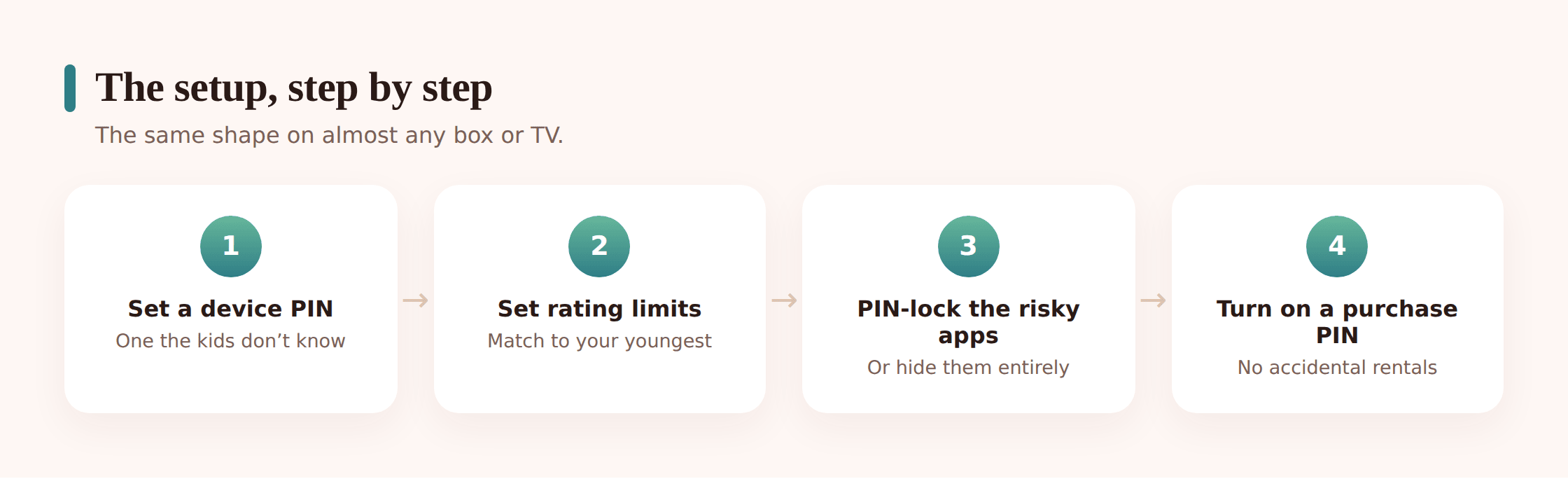
The remotes differ, but the order of the job is the same on every box. Work through it once per device that plugs into the TV, and once on the TV’s own system. Fiddly steps like PINs and rating locks are often far easier to set from the account’s website or companion phone app than by pecking at an on-screen keyboard with a remote.
Step 1 — Set the device PIN first
Find the parental-controls or restrictions area in the device’s settings and set a PIN or passcode. This is the foundation every other lock relies on, so do it before anything else. Pick a number your child won’t guess, not a birthday or 1234, and store it somewhere you’ll actually find it again.
Step 2 — Set the content and rating limit
Turn on the rating ceiling for films, TV and apps. Start a notch stricter than you think you need; it’s easier to loosen later than to explain why something slipped past. On platforms with kids’ profiles, creating the profile does much of this for you, so if one is offered, use it.
Step 3 — Lock down purchases
Require the PIN for purchases, rentals and in-app buys. The TV sits next to a store tied to a saved card, and this is the step that stops a rented film or an accidental upgrade going through unnoticed. On Apple TV, Ask to Buy routes a child’s purchase requests to a parent for approval instead.
Step 4 — Lock or hide the apps you don’t want opened alone
Put a PIN in front of, or remove from the home screen, any app a young child shouldn’t open unsupervised: a browser app, the store itself, or a service meant for adults. Where an app contains its own in-app browser or open search, disable or restrict it, since that’s a route to the wider internet by another name.
Step 5 — Set up a kids’ profile where one exists
If the platform offers a child profile or kids’ mode (Fire TV’s Amazon Kids, a Google TV child profile, Roku’s Kids area), create it and make it the profile the child uses. It gives them a curated, simpler space instead of the full adult home screen with everyone’s accounts on it.
Step 6 — Set the controls inside the streaming apps too
The device PIN doesn’t reach inside Netflix or Disney+; each app has its own kids’ profiles and rating locks that you set separately. Our guide to video streaming & kids covers the service-by-service settings that sit on top of the device you’ve just secured.
Step 7 — Repeat on every box and confirm it works
A household often has a smart TV plus a stick plus a console, each its own device with its own settings. Do the sequence on each, then test it: try to open a locked app or rent something and confirm the PIN is actually asked for. A setting you assumed took but didn’t is worse than no setting, because it breeds false confidence.
The honest limits
These controls are worth setting, but they’re a floor, not a fortress. Knowing where they end keeps you from the false comfort that the job is done.
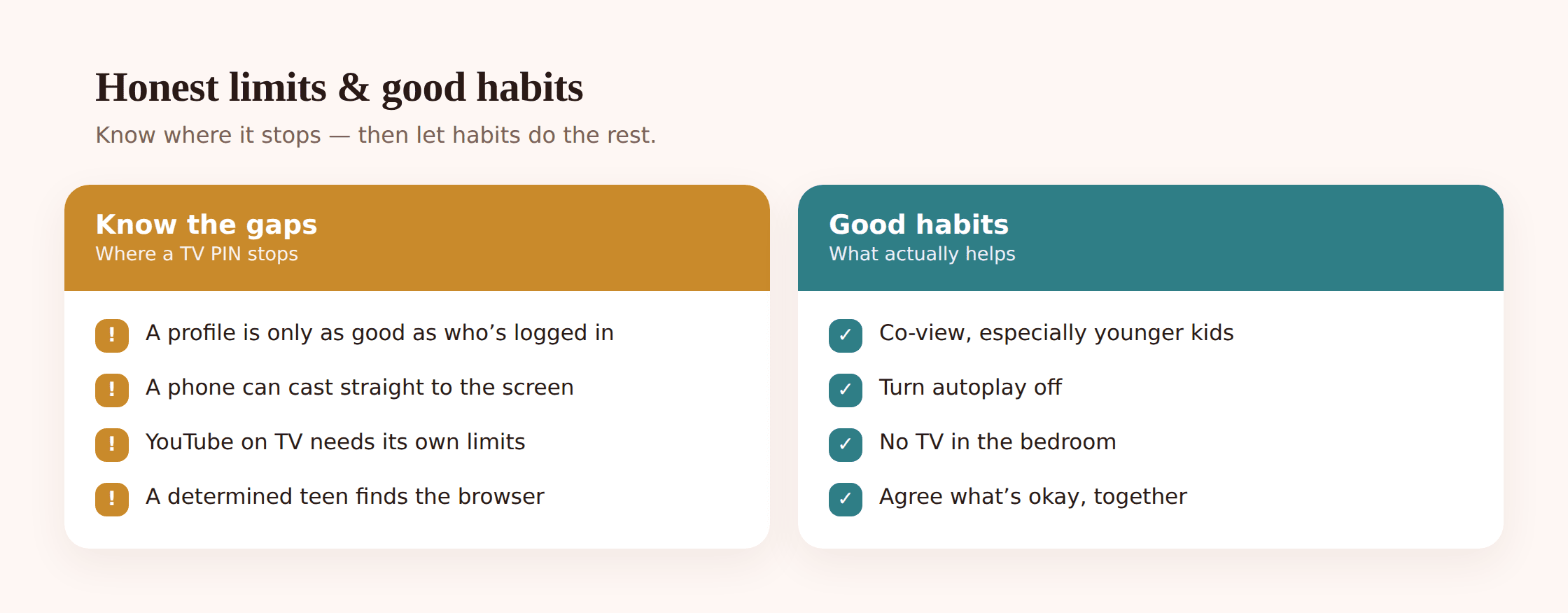
A profile is only as good as who’s logged in. A kids’ profile filters what that profile shows, but if the adult profiles and the main home screen have no PIN, a child can back out of theirs and land on the full account in a couple of clicks. The kids’ profile and a lock on the adult side are a pair; one without the other leaves the door open.
A phone can cast straight to the TV. Casting and screen mirroring send whatever’s on a phone or tablet to the TV, bypassing the TV’s own profile and rating limits entirely. The video started on the phone, so the phone’s controls are the ones that count. If casting is common in your house, the real control lives on the devices doing the casting, not on the screen receiving it. Where you don’t need casting from guest devices, some platforms let you restrict which devices are allowed to cast.
YouTube on a TV needs its own restrictions. The YouTube app is a world of its own, and the device’s general rating limit barely touches it. It has its own restricted mode and, better, a separate YouTube Kids app worth using on the TV for younger children. Because it’s user-generated video rather than a curated catalogue, it behaves differently from Netflix or Disney+, and it’s covered properly in is YouTube safe for kids?
Controls stop at the front door of the network. The TV’s settings govern the TV. They don’t touch what happens on other devices, and a determined older child has more routes than any single box accounts for. Pairing device controls with a filter at the router covers the whole house at once; our guide to home network family safety walks through that layer, which sits beneath every screen in the home.
Healthy family viewing habits
Settings draw the boundary. Habits decide what happens inside it, and on the household’s main screen they matter more than any single toggle.
Co-view, at least some of the time
Watching together does what no rating filter can. You see what your child sees, you catch the thing a rating board didn’t flag as an issue for your family, and you get the natural openings to talk about it. The living room is the easiest place in the house to make this the norm, precisely because it’s shared. You don’t have to watch every episode of everything, but sitting in for anything new, or anything they’re a little young for, is worth the time.
Turn autoplay off
Autoplay is built to keep the screen running, and it works on adults, so it works far better on children. An episode ends, a countdown starts, the next one begins whether anyone chose it or not, and previews fire on the home screen before a single button is pressed. Switching off autoplay of the next episode, and of previews where the option exists, restores a natural stopping point where a child can actually decide to stop. It’s set inside each streaming app rather than on the box, so do it on the kids’ profile in every app on the TV.
Keep the TV out of the bedroom
A TV or streaming stick in a child’s bedroom undoes a lot of the good the settings do. It moves viewing out of shared space and into private, unsupervised time, and it collides directly with sleep, since the pull of one more episode is strongest last thing at night. Keeping the screen in a common room, and agreeing that it goes off a set time before bed, does more for both supervision and sleep than any content lock. Where a bedroom screen already exists, the rating limits and a firm cut-off time matter even more.
Treat the history as a conversation, not a trap
Most platforms keep a record of what’s been watched. Glance at it, and if something surprises you, ask about it rather than confronting them with it. Maybe a friend recommended it, maybe autoplay carried them there, maybe they were simply curious. The aim of every setting on this page is to grow judgment your child eventually carries on their own, not to build a wall they spend their energy climbing.
Quick setup checklist
- Set a device PIN on the smart TV and on every stick or box plugged into it.
- Turned on the rating limit for films, TV and apps, starting a notch strict.
- Required the PIN for purchases, rentals and in-app buys on every store.
- Locked or hid the apps a young child shouldn’t open alone, browsers included.
- Created a kids’ profile or mode wherever the platform offers one.
- Disabled or restricted any in-app browser or open search you found.
- Set the separate controls inside the streaming apps, not just on the box.
- Gave YouTube its own restrictions, or used the Kids app on the TV.
- Decided how casting is handled, and secured the phones that cast.
- Tested each device by trying to open a locked app or rent something.
- Agreed co-viewing, autoplay off, and no TV in the bedroom.
- Wrote the PINs somewhere you’ll find them again.
Parent FAQ
I set a kids’ profile. Why did an adult show still appear?
Almost always because the TV had drifted back to an adult profile or the main home screen, where the filter doesn’t apply. A kids’ profile only governs itself. If the adult profiles and the home screen have no PIN, a child (or the last person to use the remote) can be sitting on the unfiltered account without realising. Check which profile is loaded, and put a PIN on the adult side so leaving the kids’ space asks for it.
Do I really need controls on the TV if the streaming apps already have kids’ profiles?
Yes, because they cover different things. The app’s kids’ profile filters that app; the device controls handle the store, the app launcher, casting, any browser on the box, and apps the streaming services don’t touch. They’re two layers, and the store and purchase side in particular lives at the device level, not inside Netflix or Disney+. Set both.
My child casts everything from their phone. Do the TV settings even matter?
For cast content, the phone is where the real control is, since the TV is only displaying what the phone sent. The TV’s own rating limits won’t touch a cast stream. So secure the casting device, and consider restricting which devices are allowed to cast where the platform lets you. The TV settings still matter for everything opened on the TV directly, but casting routes around them.
What about the app store on the TV? Can my child buy things?
On most platforms, yes, unless you’ve required a PIN for purchases. The TV’s store is tied to a saved card and can add apps, rent films, and take in-app payments with a few clicks. A purchase PIN, or Ask to Buy on Apple TV, is the specific control for this, and it’s separate from the content rating limit. It’s one of the first things worth setting.
The controls look nothing like the menus in this guide. Did they move?
Very likely. Manufacturers rename and relocate these settings with software updates, so treat the descriptions here as the features to look for, not exact directions. The setting is usually under a heading like Parental Controls, Restrictions, Safety, Screen Time or Privacy. If you can’t find it on the TV, the account’s website or companion phone app often exposes the same options more clearly.
Should I hide these settings from my child?
No. Covert restrictions tend to breed resentment and a hunt for workarounds, and they miss the point, which is to build judgment rather than just enforce a rule. Set the controls together on the family’s main screen, explain why each one is there, and revisit them as your child grows. On the household TV especially, openness is what makes the arrangement last.