How to Monitor Your Child’s iPhone (Built-In Tools & Options)
There is a fantasy sold to worried parents: an app you slip onto your kid’s iPhone that quietly forwards every message, call and location to your phone, and they never know. It doesn’t exist for a modern iPhone — not legally, not without breaking the phone open. What does exist is better, and it’s already on the device: Apple’s own family tools, run in the open, with your child in on it. This guide covers exactly what you can see on an iPhone, how to switch each tool on, and where the honest limits sit.
The honest truth about iPhone monitoring
Start here, because it saves you money and disappointment. An iPhone is one of the most locked-down consumer devices made. iMessage is end-to-end encrypted. Apps run in sealed sandboxes and can’t read each other’s data. There is no supported way for a background app to sit on an up-to-date iPhone and secretly copy out its messages, photos and call history to you. That isn’t a gap Apple forgot to close — it’s the design, and it’s the same design that stops criminals and stalkers reading your phone.
So responsible iPhone monitoring looks different from the covert fantasy. It means two things working together: Apple’s built-in family-safety features, which are genuinely capable and completely free, and an open relationship where your child knows what’s on and why. That combination gives you real visibility — how much time goes where, what gets bought, where they are, and a filter on the roughest content — without pretending you have powers you don’t.
One more piece of honesty up front, because it shapes what this guide can offer. FreePhone, the app behind this site, is an Android app. It does not run on iPhones, and no legitimate app of its kind does the covert things people imagine on iOS. For an iPhone, Apple’s own tools are the route — that’s what most of this guide is about. If your household mixes iPhones and Android phones, we cover that near the end.
What you actually can see
Set clear expectations and the tools stop feeling like a letdown. On a properly set-up child iPhone, here’s what’s genuinely within reach.
- Where their time goes — Screen Time reports show hours per app and per category, pickups, and notification counts, day by day.
- Their location — with Find My and Family Sharing, your child’s live location on a map, shared with the family.
- What they try to buy or download — Ask to Buy sends every purchase and app install to you for approval before it happens.
- A filter on the roughest content — web filtering, age ratings and adult-site limits keep the obvious material off the phone.
- A safety net on sensitive images — Communication Safety blurs likely-nude photos in Messages and offers the child a way out.
And here is what you cannot see, by design:
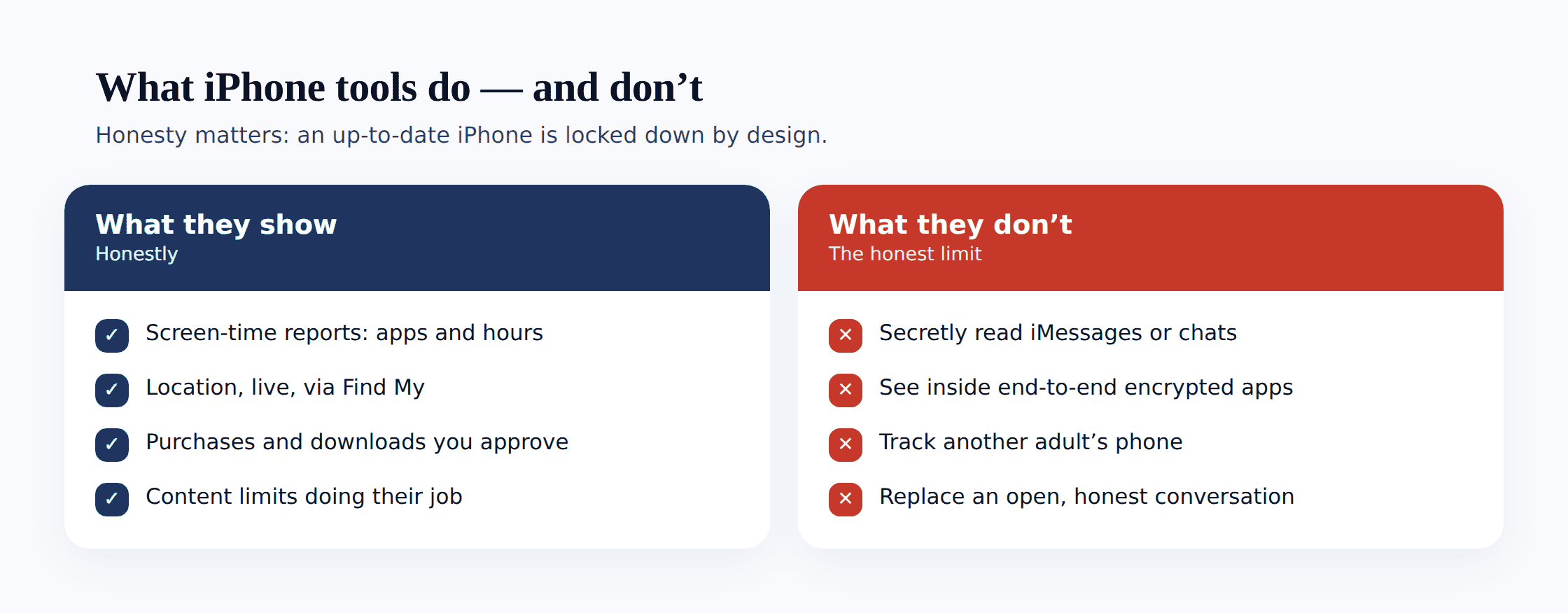
- The contents of their iMessages, texts or chats. Screen Time sets who they can talk to and for how long. It does not show you what was said.
- What’s inside apps like Snapchat, Instagram or WhatsApp. Those run sealed. You get time spent, not messages read.
- A hidden, silent feed of everything. There isn’t one. Anything claiming to offer it is the thing to be suspicious of.
The reframe worth making: not being able to secretly read your teenager’s messages is a feature of the iPhone, not a fault. The same wall that stops you also stops predators, scammers and thieves. Aim for visibility and conversation, not surveillance — it’s the version that actually keeps a kid safe, and it’s the version that survives them growing up.
Apple’s built-in tools, one by one
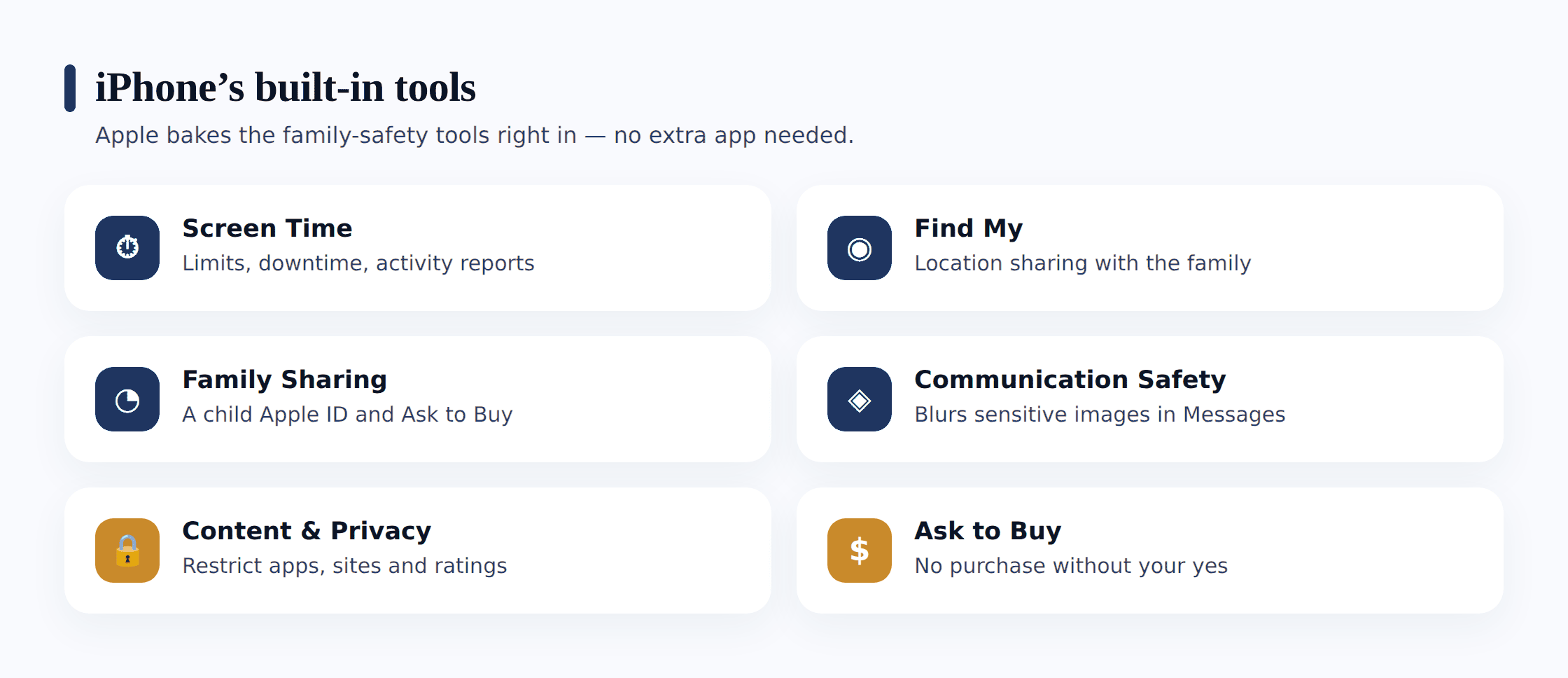
Five features do the work. They overlap a little, and people mix up their names, so here’s what each one is actually for.
| Tool | What it does for a parent |
|---|---|
| Family Sharing | Links your Apple ID to your child’s so you can manage their phone from yours — approve purchases, change limits, see reports remotely. |
| Screen Time | The control panel: downtime schedules, per-app and per-category time limits, content and privacy restrictions, communication limits, and usage reports. |
| Find My | Shares your child’s live location with the family group on a map, and helps locate a lost device. |
| Communication Safety | Detects likely-nude images in Messages and some apps, blurs them, and gives the child support options — on-device, private. |
| Content & age restrictions | Limits adult websites in Safari, sets App Store age ratings, and filters music, film and TV by rating. |
Family Sharing is the plumbing everything else runs on. It puts your child’s Apple ID into your family group and makes you the organiser, which is what lets you manage their device from your own phone. For a younger child you create their Apple ID through Family Sharing, and you become the guardian on the account — that’s what gives you approval rights.
Screen Time is the heart of it, and for a parent its value is mostly what it surfaces. A Downtime schedule quietly parks the phone outside agreed hours. App Limits put a daily ceiling on a single title or a whole category, and the counter that runs against them is itself a signal of where the hours go. Communication Limits shape who is reachable and when. Content & Privacy Restrictions is the wide section governing web access, media ratings and the privacy switches. Over all of it sit the usage reports — the part that actually shows you the phone in use. The exact taps for every one of these controls are covered in how to set up Apple Screen Time; here the focus stays on what each one lets you observe rather than on the setup mechanics.
Find My handles location. Once your child is in the family group and location sharing is on, their phone shows up on a map in your Find My app. It’s the same tool that finds a lost iPhone, and for families it’s the honest, mutual kind of location sharing — ideally you share yours back.
Communication Safety is newer and worth switching on for any child. It scans images in Messages (and some third-party apps) on the device itself, blurs anything that looks like nudity, and gives the child a gentle off-ramp and support resources. It’s private — Apple doesn’t see the photo and neither do you. It protects rather than reports, which is exactly the right shape for this.
Set it up, step by step
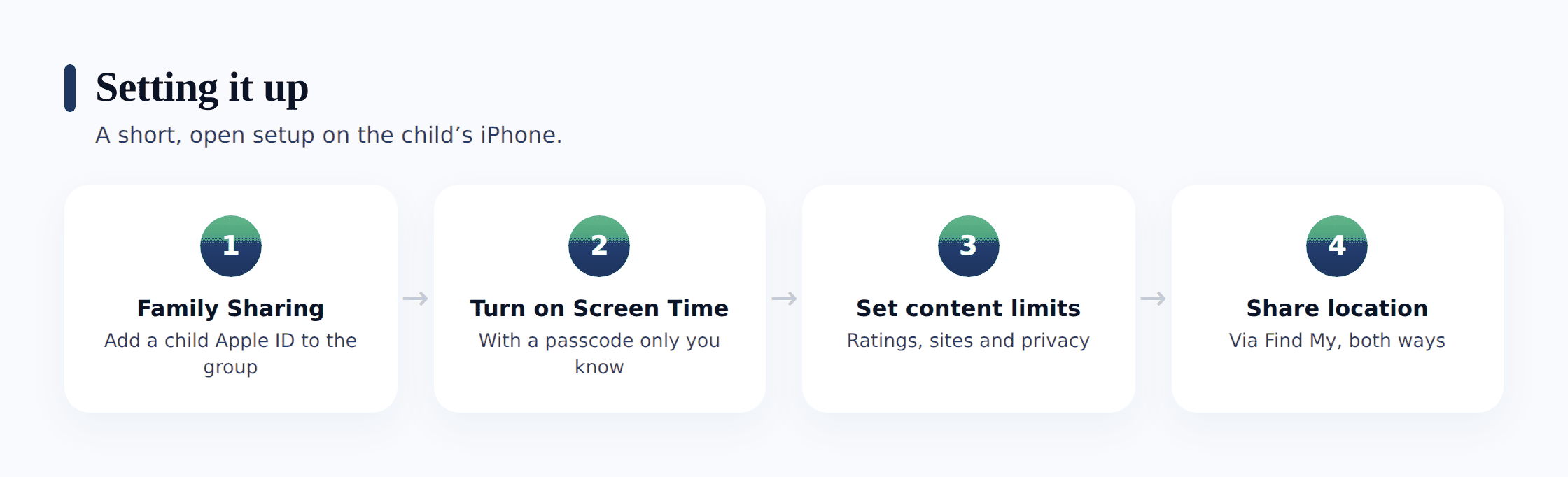
Keep both phones nearby for the first pass — yours logged into your Apple ID, your child’s charged and within reach. The sequence below is deliberately brief: the dedicated Screen Time guide linked above carries the exhaustive tap-by-tap version, so what follows is the shape of it, framed around the visibility each stage unlocks.
Build the family group
From your device, open Settings, tap your name at the top, and choose Family Sharing. Start a family if you don’t yet have one, then either generate a child account for a younger kid or send a teen with an existing Apple ID an invite. Enter the birthday carefully, because the age-based defaults all key off that date.
Give the child their own Apple ID
On the child’s handset, log out of anything shared and log in under an ID that belongs to them. A shared account fuses your photos and purchases together and leaves you unable to write rules that touch only their device. A separate ID is the foundation everything else stands on.
Enable Screen Time behind a passcode of your own
Open the child’s Screen Time from your Family Sharing list and switch it on, then lock it with a Screen Time passcode — distinct from the unlock PIN, and nothing they could guess. List your own Apple ID as the recovery contact, so a code you later forget stays recoverable. Skip this and any control here unravels in moments.
Schedule Downtime and cap the categories
Switch Downtime on and choose a window — an overnight school-night block is the usual first choice. For limits, reach for a category-wide cap on Social or Games instead of chasing individual apps; that way a title installed next week is already inside the count, and the running total becomes a tidy read on where the day went.
Open Content & Privacy Restrictions
Enable the master toggle, then point Web Content at the adult-site filter (or a named allow-list for a young child), dial in media and app ratings, and pin the privacy switches. Block app deletion as well, since removing and reinstalling a capped app is the classic way a timer gets reset.
Switch on Ask to Buy
From the child’s entry in Family Sharing, enable Ask to Buy. Every install and in-app charge then routes to you as an approval request, so nothing lands without your say-so — the single setting that spares you the surprise invoice.
Turn on Find My location sharing
On the child’s phone, Settings → [their name] → Find My → Share My Location, and share it with your family group. Their location now appears in your Find My app. Share yours back — mutual is the honest version.
Enable Communication Safety
Under Screen Time → Communication Safety, switch it on. Sensitive images in Messages get blurred, with support offered to the child, all handled privately on the device.
Seeing activity: reports and location
Two places show you what’s going on, and both are calm, at-a-glance views rather than a live surveillance feed.
Screen Time reports live under Settings → Screen Time → See All Activity, and because of Family Sharing your child’s report also shows up inside your Settings. You get daily and weekly totals, a breakdown by app and category, the number of times the phone was picked up, which apps sent the most notifications, and first-use-after-pickup. It’s a genuinely useful pattern: three hours a night in a video app, or a spike in pickups at 1am, tells you something worth a conversation — without reading a single message.
Find My shows your child’s location on a map in real time, plus a history of significant locations if they’ve allowed it. You can set up location notifications too — an alert when they arrive at school or get home. Treat this as safety and logistics, not a tracking leash; the moment it becomes a way to check up on a teenager constantly, it stops building trust and starts eroding it.
What you won’t find in either place is message content, and that’s the recurring theme. For a fuller picture of what monitoring tools across platforms do and don’t capture, see what a parental monitoring app can track — it’s a useful reality check before you expect more than any tool delivers.
Sensible defaults by age
The younger the child, the tighter the settings; each year you hand back a little more of the reins. Read the tiers below as a place to begin and then bend them to fit your own kid.
Ages 5–8
Restrict browsing to a named allow-list. Every install waits on your approval. Messaging is confined to a contact roster you curate, with the camera and app removal both frozen. Offline for most of the waking day. Find My and Communication Safety both running — and at this age the reports mostly tell you which few apps hold their attention.
Ages 9–12
Move to the adult-site filter with approvals still on. Cap Social and Games as categories, and set the overnight block from early evening. Media ratings around the 12+ mark, app removal still frozen, location visible to the family. This is the age to open the weekly report together and talk about what it shows, not to scan it behind their back.
Ages 13–15
Adult-site filter and purchase approval stay. Loosen most caps but keep a firm one or two on whatever quietly swallows the evening — the report will tell you which app that is. Push the overnight block later, to nine or ten. More say over ratings, revisited jointly. Location stays two-way, and it’s named as safety, never a leash.
Ages 16–17
Largely running their own show, though an overnight block and a spending check earn their keep. Spend this stretch shifting from a phone that enforces the rules to a household that discusses them, because the account graduates to a full adult one at eighteen and every control here lapses with it.
For the broader picture of setting up controls across both platforms, our guide to parental controls on Android and iPhone walks through the setup side in more detail.
The warning: iPhone “spy apps” and jailbreaking
Search for iPhone monitoring and you’ll hit a wall of ads for products swearing they’ll let you read every iMessage, WhatsApp chat and Snapchat secretly, remotely, undetectable. Be skeptical to the point of walking away. Here’s what’s really going on behind those claims.
- Many are simply scams. They take your money for powers that don’t exist on a current iPhone, then deliver a fraction of what was promised — or nothing.
- The ones that “work” usually need jailbreaking. To read a sealed iPhone, the phone has to be jailbroken — deliberately broken out of Apple’s security. That voids the warranty, blocks updates, and tears down the exact protections that keep the phone safe from malware and thieves. You’d be making your child’s phone less secure to monitor it.
- Some demand your child’s Apple ID and password to pull iCloud backups. Handing full account credentials to a third-party company is a serious risk, and it breaks the moment two-factor authentication or a password change kicks in.
- Covert monitoring can be illegal. Secretly intercepting someone’s communications runs into wiretapping and computer-misuse laws in many places — and it’s a different thing entirely from openly managing your own minor child’s phone.
The bottom line: if a product promises to secretly read an up-to-date iPhone’s messages from afar, it is either lying, illegal, or asking you to break the phone’s security. None of those protect your child. Apple’s built-in tools, run in the open, do the real job — for free, and without wrecking the device.
Mixed households: iPhone and Android
Plenty of families run a mix — an iPhone for one kid, an Android for another, a hand-me-down of each. The tools differ by platform, but the principle carries across both: open, consent-based, age-appropriate, loosened as trust grows.
On the iPhone side, everything above applies — Apple’s Screen Time, Family Sharing, Find My and Communication Safety are your route, and there’s nothing extra to install. On the Android side, Google’s free Family Link is the closest counterpart to Apple’s tools, and Android’s more open design also allows dedicated apps like FreePhone to add visibility Apple simply doesn’t permit on iOS. The key is to set up each phone honestly, with that child, rather than treating one sibling’s phone as a surveillance target and the other’s as off-limits. Same values, different buttons.
Where FreePhone fits
To be straight about it: FreePhone is an Android app, so it does not run on an iPhone. If the phone you’re trying to monitor is an iPhone, the built-in Apple tools in this guide are your route — that’s the honest answer, and installing anything from us won’t change it.
Where FreePhone does help is the Android phone in a mixed household. There it adds transparent, browser-viewable visibility — location and Places alerts, screen time and app limits, SOS — installed openly on your child’s phone with their knowledge, and free, with every feature. It’s a complement to Apple’s tools on the iPhones, not a replacement for them, and it works on the same consent-first terms this whole guide is built on. If every device in your home is an iPhone, you’re already set with Apple’s own features and don’t need us at all.
Common questions
Can I secretly read my child’s iPhone messages?
No — not on a modern, up-to-date iPhone, and that’s by design. iMessage is end-to-end encrypted and apps run sealed off from each other, so there’s no legitimate way for a background app to copy out messages silently. Anything claiming otherwise is usually a scam, needs the phone jailbroken (which breaks its security), or is outright illegal. The honest route is Apple’s built-in tools plus an open conversation.
Do I need to buy a monitoring app for my child’s iPhone?
For an iPhone, no. Apple’s Screen Time, Family Sharing, Find My and Communication Safety are built in and free, and they cover time limits, purchase approval, location and content filtering. There’s nothing to buy. Paid “iPhone spy apps” that promise more than this are the ones to avoid.
What can I actually see on my child’s iPhone?
How their time is spent (Screen Time reports by app and category), where they are (Find My location), what they try to buy or install (Ask to Buy approvals), and a filter on adult content. What you can’t see is message content — texts, iMessages and in-app chats stay private, which is the iPhone working as intended.
Is FreePhone an iPhone app?
No. FreePhone is an Android app and doesn’t run on iPhones. For an iPhone, use Apple’s built-in family tools. FreePhone is useful only for the Android phones in a mixed household, where it adds open, browser-viewable visibility installed with the child’s knowledge.
Should I jailbreak my child’s iPhone to monitor it?
No. Jailbreaking strips out the security that protects the phone from malware and theft, voids the warranty, blocks updates, and is exactly what shady spy apps require. You’d be making your child’s phone less safe to gain visibility you can get, safely and legally, from Apple’s own tools.
Monitoring an iPhone well isn’t about finding a hidden app that reads everything — that app doesn’t exist, and the ones that claim to are the last thing you want near your child’s phone. It’s about switching on the capable, free tools Apple already built, setting them up where your kid can see them, and keeping the kind of conversation where they tell you what’s going on instead of hiding it. Do that, revisit it every few months, and loosen the reins as they grow. The controls are meant to come off one day. The trust you build setting them up together is the part that lasts.