How to Set Up Apple Screen Time: A Complete Guide
Your kid just got an iPhone. Good news: you don’t need to buy anything to set limits on it. Apple already built the tools in, they’re free, and once you know the exact taps they take about twenty minutes to switch on. Here’s how to do it properly — and where these tools fall short, so you’re not surprised later.
Screen Time and Family Sharing, explained
Two features do the work here, and people mix them up.
Family Sharing is the plumbing. It links your Apple ID (you’re the “organiser”) to your child’s Apple ID, so their device is officially in your family group. That link is what lets you manage their phone from your own — approve purchases, see reports, change limits remotely. Without it you’d be setting everything up standing over their shoulder.
Screen Time is the control panel itself: downtime schedules, per-app time limits, content filters, purchase approvals. It lives in Settings on the device, and once Family Sharing is on, a copy of your child’s Screen Time shows up inside your Settings too.
Both are free, both come with iOS and iPadOS, and neither needs an extra app. If you’ve read our parental controls overview, this is the deep version of the iPhone half. Android works completely differently — that’s Google’s Family Link, and we cover it in setting up Family Link.
Before you start: what you need
Gather three things and this goes fast:
- Your iPhone, signed into your own Apple ID. You’ll be the organiser.
- Your child’s iPhone or iPad, in hand and charged. Some steps you can do remotely later, but the first pass is easier with both devices in front of you.
- Both Apple IDs. Yours already exists. If your child doesn’t have their own, you’ll make one during setup — don’t just hand them a device signed into your account, or their limits become your limits.
One decision to make first: your child needs their own Apple ID, not yours. Sharing an account means shared photos, shared purchases, shared everything, and no way to set rules that apply only to them.
Set up a child Apple ID
If your child is under 13 (the exact age depends on your country), you can’t sign them up for a standard Apple ID directly. You create one for them through Family Sharing, and you become the legal guardian on the account. That’s a feature, not a hoop — it’s what gives you approval rights.
Open Family Sharing
On your iPhone, go to Settings → [your name] → Family Sharing. If you’ve never used it, tap Set Up Your Family and follow the prompts.
Add a child
Tap Add Member → Create Child Account (older iOS versions say “Create an Account for a Child”). Enter their name and birthday. Get the birthday right — it drives age-based defaults and it’s a pain to fix later.
Finish the account
Set a password and security questions you’ll remember, agree to the parent-consent step, and choose whether to turn on Ask to Buy now (you can also do it later). Their new Apple ID is created and added to your family.
Sign the child’s device into that ID
On the child’s iPhone or iPad, sign out of any existing account and sign in with the new child Apple ID under Settings → Sign in to your iPhone. Now the device belongs to them, inside your family.
Already got a teen with their own Apple ID? You can invite them into the family group instead of creating an account — send the invite from the same Family Sharing screen and have them accept on their device.
Set it up, step by step
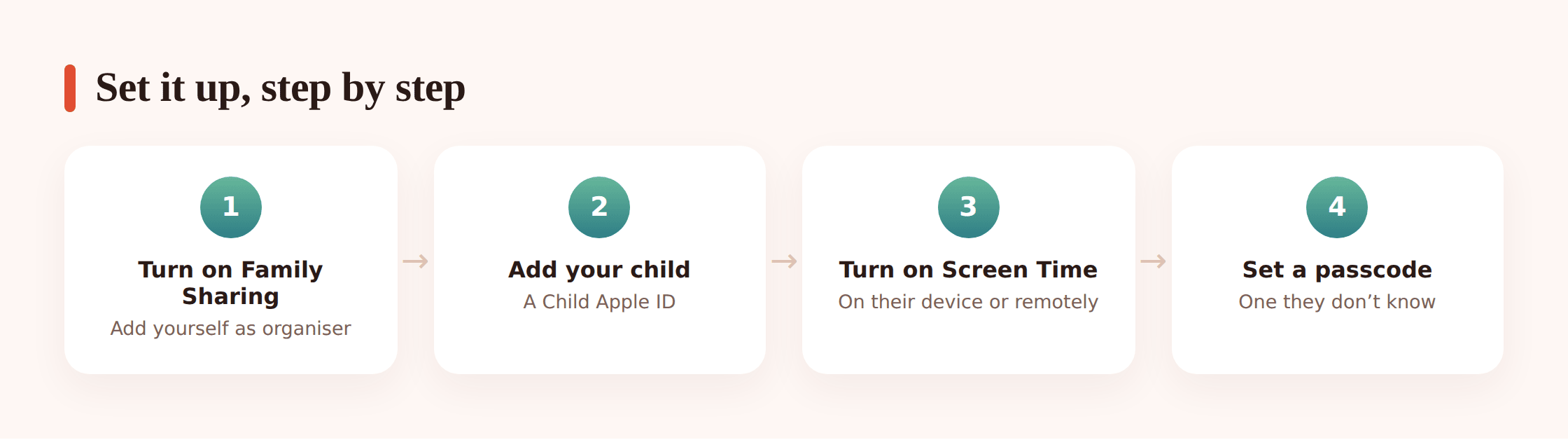
With the child account in place, here’s the full run-through. Do these in order — the passcode especially, because it’s what stops a teen from undoing everything else.
Turn on Screen Time for the child
On your own iPhone, go to Settings → Family Sharing → [child’s name] → Screen Time and tap Turn On Screen Time. You can also do it directly on their device under Settings → Screen Time. Either way, you’re managing the same settings.
Set a Screen Time passcode the child doesn’t know
Tap Lock Screen Time Settings (older iOS: “Use Screen Time Passcode”) and pick a 4-digit code. This is not the device unlock code. It’s a separate passcode that guards the limits themselves. Choose something your child can’t guess — not their birthday, not the same code they use to unlock the phone. When iOS asks for an Apple ID to enable recovery, enter yours, so if you forget the passcode you can reset it.
Set a Downtime schedule
Go to Screen Time → Downtime, turn it on, and set the hours. During downtime only calls and apps you’ve marked “Always Allowed” work. A school-night 9pm–7am window is a common start. You can set the same schedule every day or customise per day.
Add App Limits
Tap App Limits → Add Limit. Pick a whole category (Social, Games, Entertainment) or drill into a specific app. Set the daily minutes. When time runs out, the app dims and a “time’s up” screen appears. You can allow one-tap extra time only if you know the passcode.
Choose Always Allowed apps
Under Always Allowed, decide what stays reachable even during downtime and after limits. Phone and Messages usually belong here so your kid can always reach you. Add anything genuinely essential; leave the rest out.
Set Communication Limits
Communication Limits controls who your child can call, FaceTime, and message during allowed time and during downtime. You can restrict contact to people in their Contacts, and you manage that contact list yourself for younger kids.
Lock down Content & Privacy Restrictions
This is the big one. Screen Time → Content & Privacy Restrictions — turn the master switch on, then work through:
Turn on Ask to Buy
Back in Family Sharing → [child’s name] → Ask to Buy, switch it on. Now every download and in-app purchase sends an approval request to your phone. Nothing gets bought without your tap.
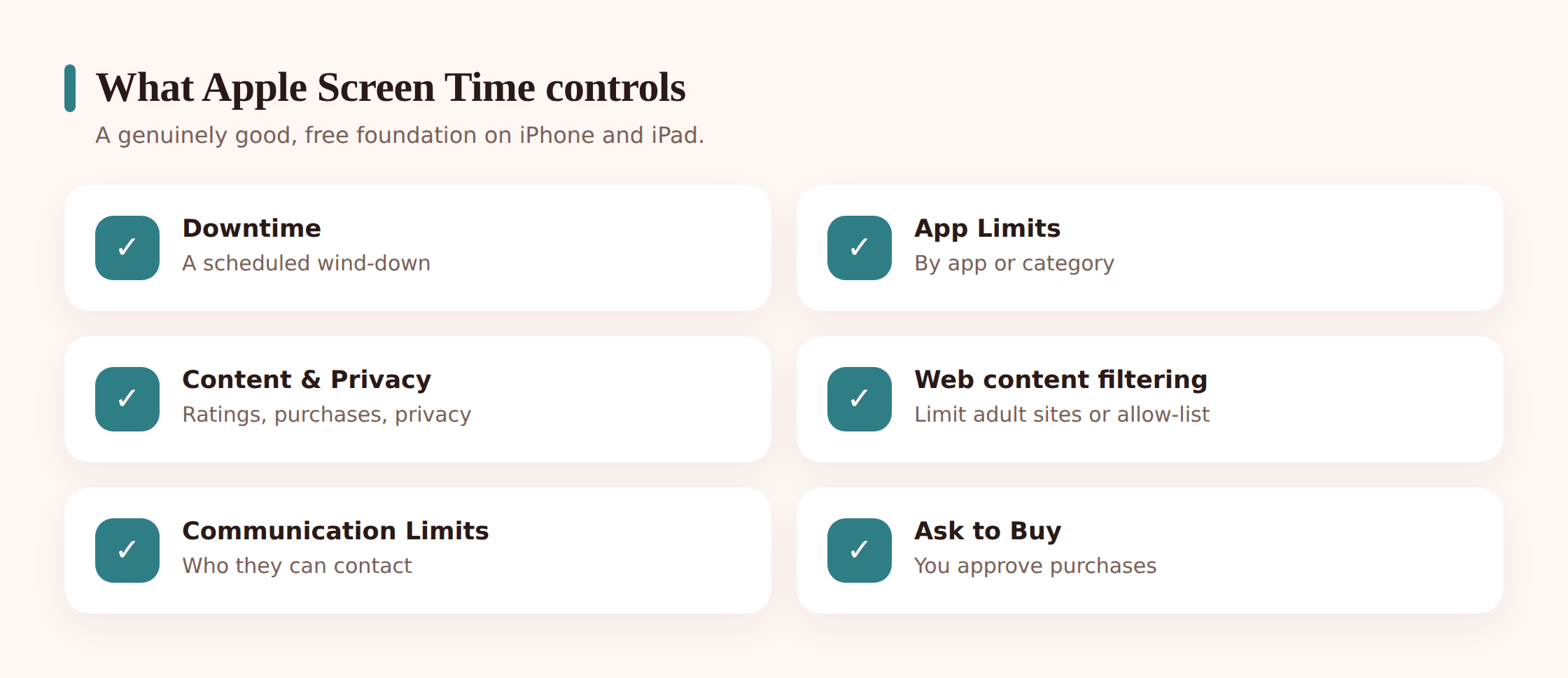
Inside Content & Privacy Restrictions, the settings worth changing:
- iTunes & App Store Purchases — set Installing Apps, Deleting Apps, and In-app Purchases to Allow or Don’t Allow. Setting Deleting Apps to “Don’t Allow” is the trick that stops a teen uninstalling a limited app to dodge the timer (more on that below).
- Allowed Apps — switch off built-in apps you don’t want available at all, like Safari, AirDrop, or the camera for a very young child.
- Content Restrictions → Web Content — choose Limit Adult Websites for automatic filtering, or Allowed Websites Only to build a strict allow-list for younger kids. You can add specific sites to always allow or never allow.
- Content Restrictions also sets age ratings for music, movies, TV, books, and apps, and toggles for explicit content, Siri web search, and Game Center (multiplayer, adding friends, private messaging).
- Privacy — lock Location Services, Contacts, Photos, and microphone access so apps can’t change these without the passcode.
A note on honesty: everything here is on your child’s own device, and the good way to run it is out in the open. Tell your kid the phone has limits, show them what’s on, and explain why. Controls you hide tend to get found and resented. Controls you agree on tend to stick.
The big controls, explained
Four settings do most of the real work. Here’s what each one actually does.
Downtime is a scheduled blackout. When it’s active, the screen goes to a locked home page and only Always Allowed apps and phone calls work. It’s the cleanest way to enforce “no phone at the dinner table” or “nothing after 9”. If your child taps “Ask For More Time” during downtime, it comes to you for approval — they can’t grant it themselves without the passcode.
App Limits cap daily minutes on an app or a whole category. The nuance: a category limit covers apps Apple has sorted into that bucket, so a new game your kid installs tomorrow is already counted under “Games” without you touching anything. That’s usually what you want. Set a couple of category limits rather than fighting app by app.
Content restrictions and web filtering keep the roughest stuff off the device. “Limit Adult Websites” uses Apple’s own filter and catches the obvious material automatically. It’s decent. It is not perfect, and no automatic filter is — for a young child an allow-list (only the sites you name) is far tighter, at the cost of you maintaining the list. Our guide to blocking websites and apps goes deeper on the trade-offs.
Ask to Buy routes every purchase and download to you. This is the setting that saves people from surprise bills, and it pairs with our note on in-app purchases and kids, which are where most of the damage happens. Turn it on and the App Store stops being a spending free-for-all.
And the setting that holds it all together: the Screen Time passcode. Every limit above can be switched off in seconds by anyone who reaches the settings — unless a passcode guards them. Set it, keep it to yourself, and register your Apple ID for recovery so a forgotten code isn’t a disaster.
Sensible defaults by age
Younger means tighter, then you loosen as they earn it. A starting point, not gospel — adjust for your kid.
Ages 5–8
Allowed Websites Only. No App Store installs without approval (Ask to Buy on). Communication limited to contacts you manage. Camera and app deletion locked. Downtime generous — most of the day is offline. A short daily limit on games.
Ages 9–12
Limit Adult Websites. Ask to Buy on. Category limits on Social and Games (say, 1 hour each). Downtime 8pm–7am on school nights. Age-rated content set to 12+. Deleting apps still off.
Ages 13–15
Limit Adult Websites. Ask to Buy on. Looser app limits with a couple of firm caps on the apps that eat their evening. Downtime 9pm or 10pm. More freedom on content ratings, but revisit together rather than just handing it over.
Ages 16–17
Mostly self-managed, with downtime and a purchase check still in place. This is the year to be moving toward “we talk about it” rather than “the phone enforces it,” because at 18 the account becomes an adult one and these controls fall away.
Common problems and fixes
You forgot the Screen Time passcode. If you set it up with your Apple ID for recovery, go to Screen Time → Change Screen Time Passcode → Forgot Passcode? and sign in with that Apple ID to reset it. No recovery ID set? You may have to erase and restore the device — which is exactly why you register the Apple ID when you first set the code.
Limits aren’t applying. Check that the child’s device is actually signed into the child Apple ID, that Screen Time is on for that account, and that the date and time on the device are set to automatic. A wrong clock quietly breaks downtime schedules. If you manage remotely, give it a minute — remote changes sync, they’re not instant.
A teen deleted an app to dodge its limit. Classic move: uninstall the limited app, reinstall it, and the timer resets. Shut it down under Content & Privacy Restrictions → iTunes & App Store Purchases → Deleting Apps → Don’t Allow. Now the app can’t be removed without your passcode.
A teen changed the clock to get more time. Set Date & Time to automatic and lock it under Privacy restrictions. With that on, moving the clock forward won’t fool downtime.
Safety features you’ll see. Newer iOS versions add Communication Safety, which blurs likely-nude images in Messages for kids, and Screen Distance, which nudges them to hold the phone farther from their face. Both live near Screen Time settings and are worth leaving on.
Their age is wrong or they had a birthday. Update it under Settings → Family Sharing → [child’s name]. Age drives the default content ratings, so a wrong birthday means the wrong filters.
The honest limits
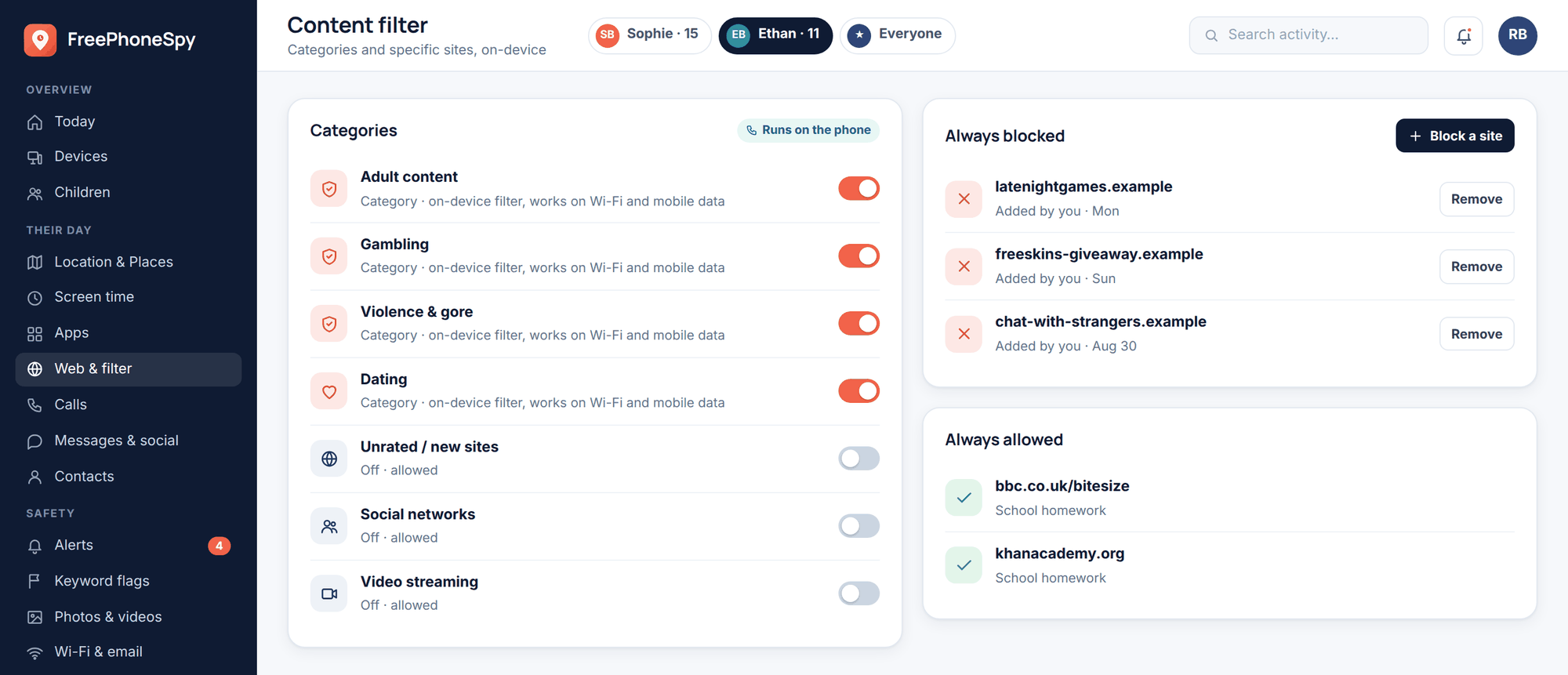
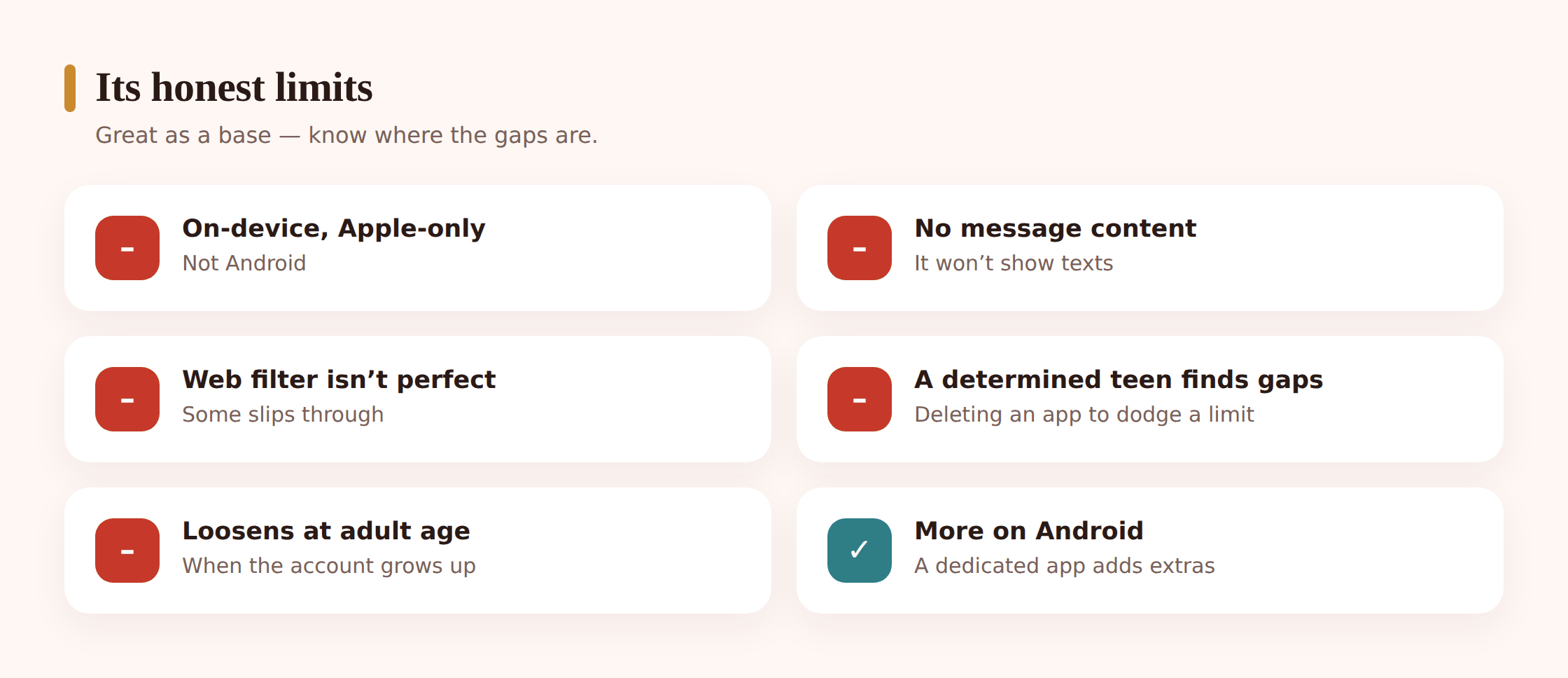
Screen Time is genuinely good and genuinely free, and you should use it. But sell it to yourself straight:
- It’s Apple-only and on-device. It manages iPhones and iPads. If your kid also has an Android phone, a Windows laptop, a Switch, none of this touches those.
- A determined teen can find gaps. You close the obvious workarounds (deleting apps, moving the clock), but this is a system a motivated 15-year-old will probe. Assume it’s a fence, not a vault.
- There’s no message-content view or keyword alerts. Screen Time won’t show you what your child texts or search for troubling words. It sets limits; it doesn’t read conversations. If that’s what you’re picturing, this isn’t that tool.
- Web filtering is decent, not perfect. The adult-content filter misses things and occasionally blocks harmless sites. An allow-list is tighter but more work.
- Controls loosen at adulthood. When the account turns into an adult Apple ID (at 18, or when you move them out of the child group), your management rights end. Plan for the handoff.
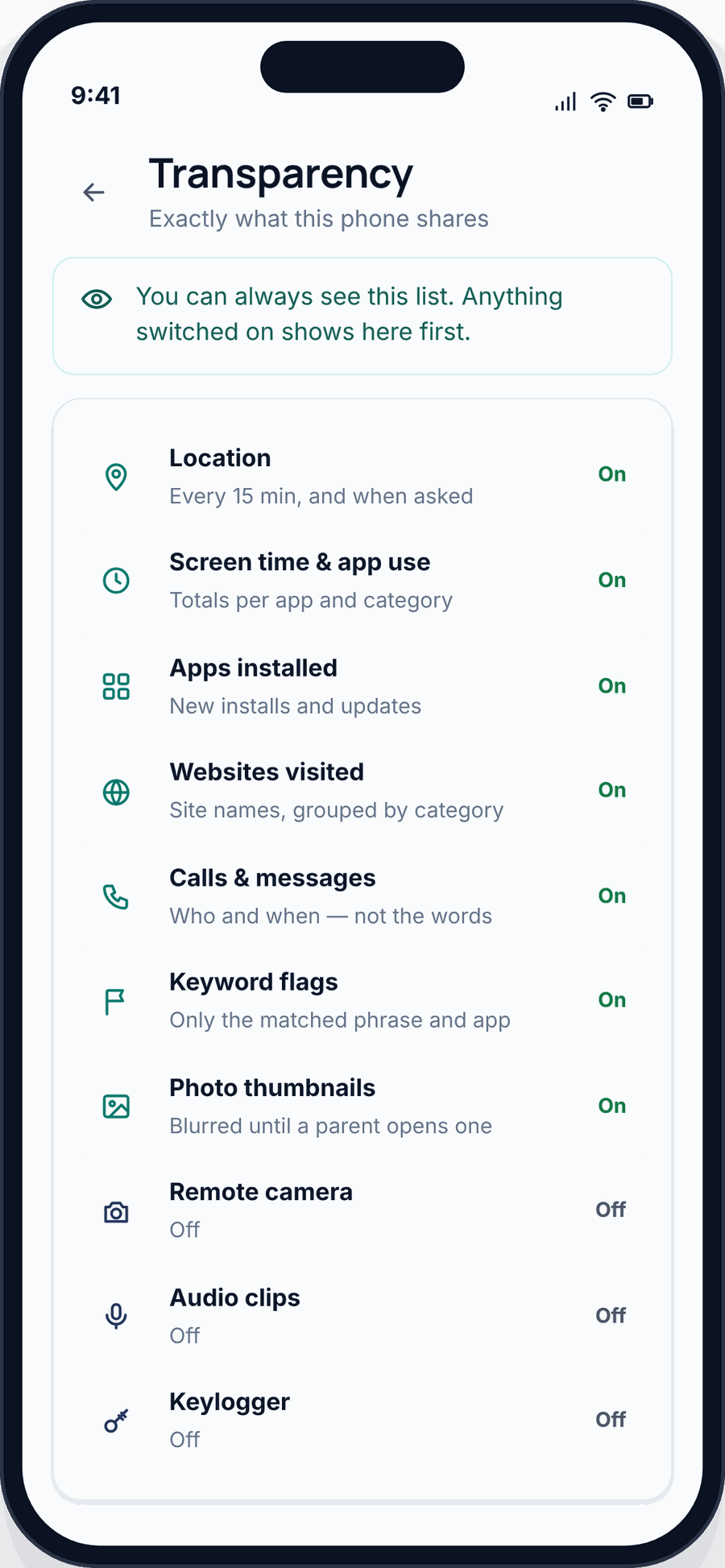
Got an Android device in the house too? Screen Time can’t see it. On Android, Google’s own tools are the counterpart — start with setting up Google Family Link. For families juggling both platforms, a dedicated app like FreePhoneSpy adds a single web panel for the Android side, with extras Apple doesn’t offer there. FreePhoneSpy’s child app is Android-only and consent-first — you install it openly on your kid’s phone — so it’s a complement to Screen Time on the Apple devices, not a replacement for it. It’s free to start, and stays free through simple tasks.
Keep it healthy
The best version of this isn’t something you do to your kid — it’s something you set up with them. Sit down together, turn Screen Time on in front of them, and explain each rule as you go. “Downtime’s at nine because sleep matters.” “Ask to Buy is on so we don’t get a surprise bill.” Kids push back far less against a limit they understand than one that just appears.
Then revisit it. A limit that fit a 9-year-old is patronising at 13. Put a reminder in your calendar every few months to loosen what they’ve earned. The goal isn’t a locked-down phone forever — it’s a kid who’s learned to manage their own time by the time the controls come off. Our broader guide to healthy screen time has more on the balance, and if you’re kitting out a tablet for a younger child, setting up a kid-safe tablet covers that specific case.
Quick setup checklist
- Create a child Apple ID through Family Sharing (you’re the guardian)
- Sign the child’s device into that Apple ID
- Turn on Screen Time for the child account
- Set a Screen Time passcode the child doesn’t know, with your Apple ID for recovery
- Set a Downtime schedule
- Add App Limits by category, and pick Always Allowed apps
- Set Communication Limits
- Turn on Content & Privacy Restrictions: web filtering, age ratings, privacy toggles
- Set Deleting Apps to Don’t Allow, and lock Date & Time
- Switch on Ask to Buy
- Walk your child through what you set, and why
- Put a reminder to revisit it in a few months
FAQ
Is Apple Screen Time free?
Yes. It’s built into iOS and iPadOS at no cost, and so is Family Sharing. There’s nothing to buy and no subscription.
Can I manage my child’s iPhone from my own phone?
Yes, once Family Sharing links your Apple ID to theirs. Their Screen Time appears in your Settings under Family Sharing, and you can change limits and approve requests remotely.
Can my teen turn Screen Time off?
Not if you’ve set a Screen Time passcode they don’t know. Without the passcode they can’t disable limits, delete protected apps, or change the settings. That passcode is the whole game — set it.
Does Screen Time let me read my child’s messages?
No. It sets time and content limits and controls purchases. It doesn’t show message contents or flag keywords. If you need that on an Android device, that’s a separate kind of tool.
What happens when my child turns 18?
The account becomes an adult Apple ID and your management controls end. It’s worth loosening the rules gradually in the years before, so the handoff is a step, not a cliff.
Does any of this work on Android?
No — Screen Time is Apple-only. For Android, use Google Family Link, and see our Family Link setup guide for the equivalent steps.