Free Ways to Monitor Your Child’s Phone (Built-In Tools & Apps)
You don’t have to spend a penny to keep a sensible eye on your child’s phone. Between the tools already built into Android and iPhone, the free features your carrier and router offer, and the free tiers of reputable family-safety apps, most families can cover the basics without a subscription. The trick is knowing which free tools do what, setting them up in the open, and steering well clear of the “free secret spy apps” that promise the moon and deliver malware. This guide maps the honest options.
A quick word on scope before the list. This is about a parent keeping a light, agreed eye on a child’s device, a child who knows the tools are there and roughly what they do. It isn’t about watching an adult, a partner, or anyone who hasn’t been told. Free doesn’t change that line. A tool being free and a tool being covert are two completely separate things, and the honest free options below are all designed to be visible, not hidden.
Free, but still open
There’s a myth that the serious monitoring costs money and the free stuff is toothless. It isn’t true. Google and Apple both give away genuinely capable tools because keeping families on their platforms is good business for them. Location, screen-time limits, app approval, content filtering, the ability to find a lost phone, all of it is available at no cost, built by the companies that make the operating systems. For a lot of families, especially those with younger children, the free built-in layer is most of what they’ll ever need.
What the free layer asks of you instead of money is a little setup time and a willingness to do it in the open. That’s a fair trade. If you’re brand new to any of this, it helps to read how to set up phone monitoring for the first time first, because the order matters more than the tools: conversation, agreement, then setup. The free options slot straight into that same order.
Free built-in tools on Android
Most children in the UK and beyond carry Android phones, and Android’s free toolkit is the natural place to start. These come from Google, cost nothing, and work together rather than fighting each other.
Google Family Link
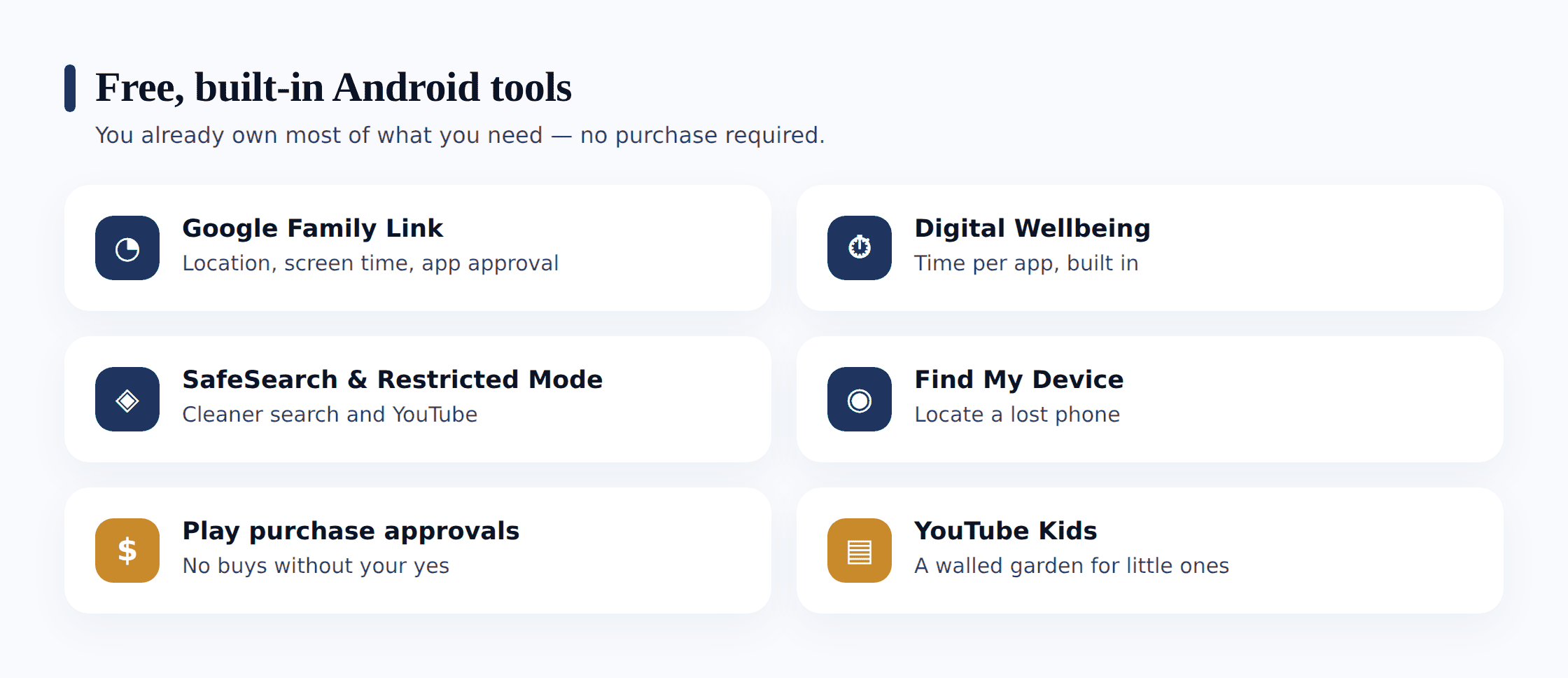
This is the cornerstone, and it’s free. Family Link lets you approve or block app downloads, set daily screen-time limits and a bedtime, see which apps your child uses and for how long, and view their device location. You install it on both phones and link them. For younger children it’s close to a complete solution on its own. It’s involved enough to deserve its own walkthrough, so when you’re ready, follow how to set up Google Family Link step by step.
Digital Wellbeing
Built into Android itself, Digital Wellbeing shows a clear breakdown of screen time by app: how long the phone was used today, which apps ate the hours, how many times it was unlocked. On the child’s own device it’s a self-awareness tool as much as anything, and it costs nothing. Sitting down together to look at the weekly figures is often more useful than any limit, because it makes the invisible visible.
SafeSearch, YouTube Kids and Restricted Mode
Google’s free content filters do quiet, useful work. SafeSearch strips explicit results out of Google searches and can be locked on. YouTube Kids is a separate, walled app for younger children with a curated catalogue. On regular YouTube, Restricted Mode filters out a lot of mature content. None of these cost anything, and all of them can be switched on in a few taps, either directly or through Family Link.
Find My Device
Google’s free location and recovery tool. It shows where an Android phone is on a map, can make it ring, and can lock or wipe it if it’s lost or stolen. It isn’t a full monitoring app, but for “did they get to school” and “where’s the phone”, it does the job for free and comes built in.
Free tools on iPhone
Plenty of households are mixed: an Android phone for one child, an old iPhone handed down to another. Apple’s free tools mirror Google’s closely, so the same open approach carries across.
- Screen Time. Free and built into every iPhone. It covers app limits, downtime and a bedtime cut-off, content and privacy restrictions, and communication limits. Set up through Family Sharing, you manage it from your own device with a passcode you both know.
- Find My. Apple’s free location tool. Through Family Sharing you can see a child’s device on a map and get “arrived” and “left” notifications for places you choose, plus locate a lost phone.
- Family Sharing. The free umbrella that ties it together, including “Ask to Buy” so app and purchase requests come to you for approval before anything downloads.
The mechanics differ from Android, but the principle is identical: free, built in, and designed to be set up openly. For a device-by-device walkthrough across both systems, see how to set up parental controls on Android and iPhone.
Carrier, router and DNS filtering
Two more free layers sit outside the phone itself, and families often forget them.
Carrier family features
Most mobile networks include some parental controls at no extra cost. Adult-content bars are often on by default for accounts flagged as a child’s, and many carriers offer free spend caps, content filtering on mobile data, and sometimes a basic location or safety feature. It’s worth logging into your carrier account or asking them what’s already included, because you may be paying for none of it and using none of it.
Router and family DNS filtering
Your home router can filter content for every device on the network at once, and there are free DNS services built for exactly this. Pointing your router (or a single phone) at a free family DNS resolver blocks a broad swathe of adult and malicious sites at the network level, before the phone even loads them. Many routers also have built-in scheduling to cut the Wi-Fi to certain devices at bedtime. It’s a blunt instrument compared with per-app tools, but it’s free, it covers the tablet and the console too, and it needs no app on the child’s phone. For the wider picture on securing the home network, our home network safety guide goes deeper.
The free tools at a glance
| Tool | What it covers | Platform | Cost |
|---|---|---|---|
| Google Family Link | App approval, screen-time limits, bedtime, app activity, location | Android (parent app on iOS too) | Free |
| Digital Wellbeing | Screen time per app, unlock counts, usage trends | Android | Free |
| SafeSearch / YouTube Kids / Restricted Mode | Content filtering for search and video | Any | Free |
| Find My Device | Location, ring, lock, wipe a lost phone | Android | Free |
| Apple Screen Time | App limits, downtime, content restrictions, purchase approval | iPhone / iPad | Free |
| Apple Find My | Location and place alerts, lost-device recovery | iPhone / iPad | Free |
| Carrier family features | Content bars, spend caps, data filtering | Any | Usually free |
| Router / family DNS | Network-wide content and site filtering | Whole home | Free |
| Family-safety app (free tier) | Varies: often location, basic screen time, one device | Android / iOS | Free tier |
Free tiers of family-safety apps
Beyond the built-in tools, some family-safety apps offer a free tier or a free trial, and a few are free outright — FreePhone is free, with every feature. These fill gaps the platform tools leave, and trying one costs nothing before you decide whether it suits your family.
What a free tier typically includes varies by app, but the shape is fairly consistent:
- Core location viewing, sometimes with a short history window.
- A basic screen-time or app-activity overview.
- One linked child device rather than several.
- A limited number of days of stored history before older data rolls off.
- Essential alerts, with the more advanced or custom ones reserved for paid.
And what usually sits behind the paywall:
- More devices. Free tiers often cap you at one child; families with several pay to add more.
- Longer history. Paid plans keep weeks or months of data rather than days.
- Deeper features. Detailed activity views, richer alerting, geofencing zones and priority support tend to be paid.
Avoid “free secret spy apps”
Search for free ways to monitor a phone and you’ll trip over a whole category of apps promising to let you see everything on someone’s phone, secretly, undetectably, for nothing. Steer clear. This is the single most important warning in this guide.
Here’s why those apps are the wrong door to walk through:
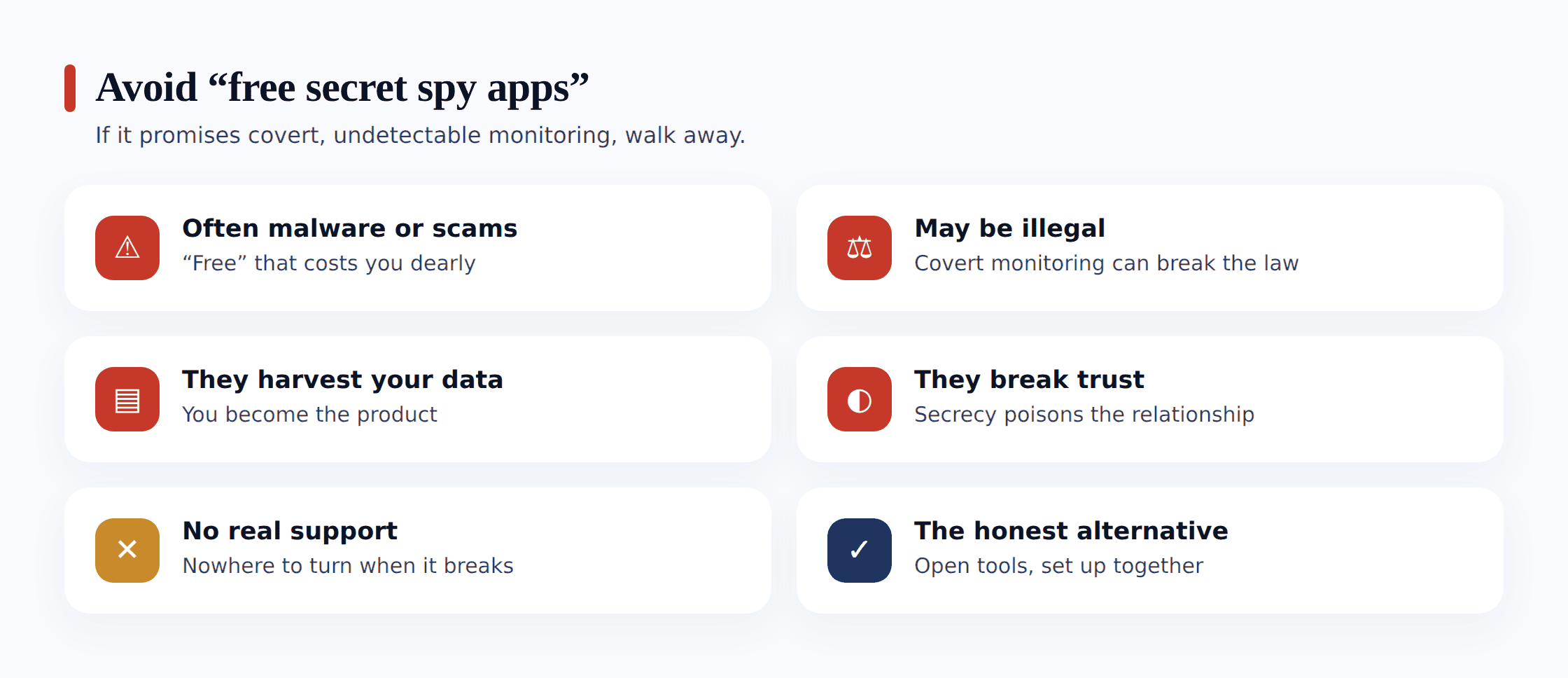
- They’re often malware or scams. An app whose pitch is total, hidden access to a phone is frequently the thing stealing data, not protecting it. Free covert “spy” tools are a classic vehicle for malware, and the person who gets harvested is often you. Our guide to fake apps and phone malware shows how these dress themselves up.
- They may be illegal. Installing hidden surveillance on a device, especially one you don’t own, or on anyone without their knowledge, can break the law. The “secret” framing pushes you straight toward uses that aren’t lawful.
- They betray the child. Even aimed at your own child, covert monitoring trades a small worry for a big breach of trust the day they discover it, and they usually do. The whole point of the open tools above is that they don’t blow up in your face later.
- “Free” hides the real cost. If you’re not paying with money, you’re often paying with your family’s data, your phone’s security, or a nasty surprise down the line. Legitimate free tools come from Google, Apple, your carrier, or a named company with a clear privacy policy, not an anonymous site promising the impossible.
Choosing free tools by age and need
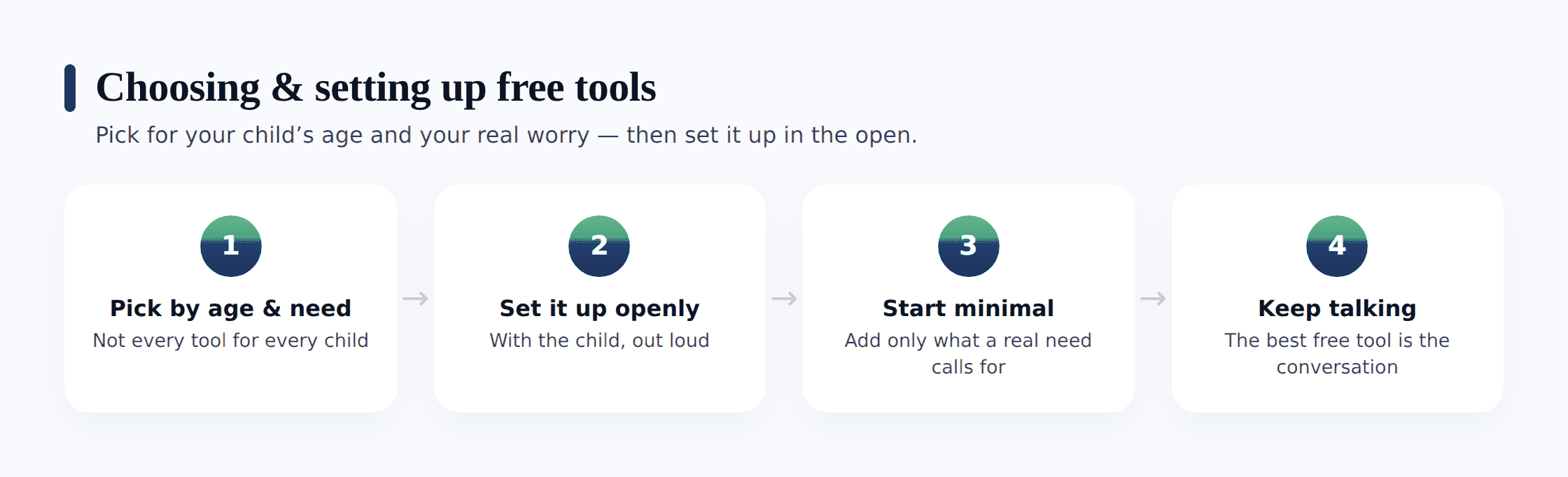
You don’t need all of these at once. Pick the free layer that matches your child’s age and the specific thing you’re actually worried about, then add only if a real need shows up.
- Younger children (roughly 8 to 11). Family Link (or Apple Screen Time) does the heavy lifting: app approval, screen-time limits, a bedtime, and location through Find My Device. Add SafeSearch and YouTube Kids for content, and family DNS on the router as a backstop. All free.
- Early teens (roughly 12 to 14). Keep Family Link or Screen Time for limits and app activity, but lighten location toward “arrived safe” rather than constant tracking. Digital Wellbeing viewed together beats hard limits. A free app tier can add gentle alerts if you want them.
- Older teens (roughly 15 to 17). Mostly a safety backstop: location they know is on, a light screen-time overview, and alerts for serious concerns only. This age is about handing over control, so the lightest free tools usually fit best.
Whatever you pick, set it up in the open, the same way for free tools as for paid ones: have the conversation first, show your child what the tool does, agree it together, and ease off as trust grows. The free tools change what you use, not how you use it. And when a child helped choose the settings, they’re far more likely to leave them alone.
Where FreePhone fits
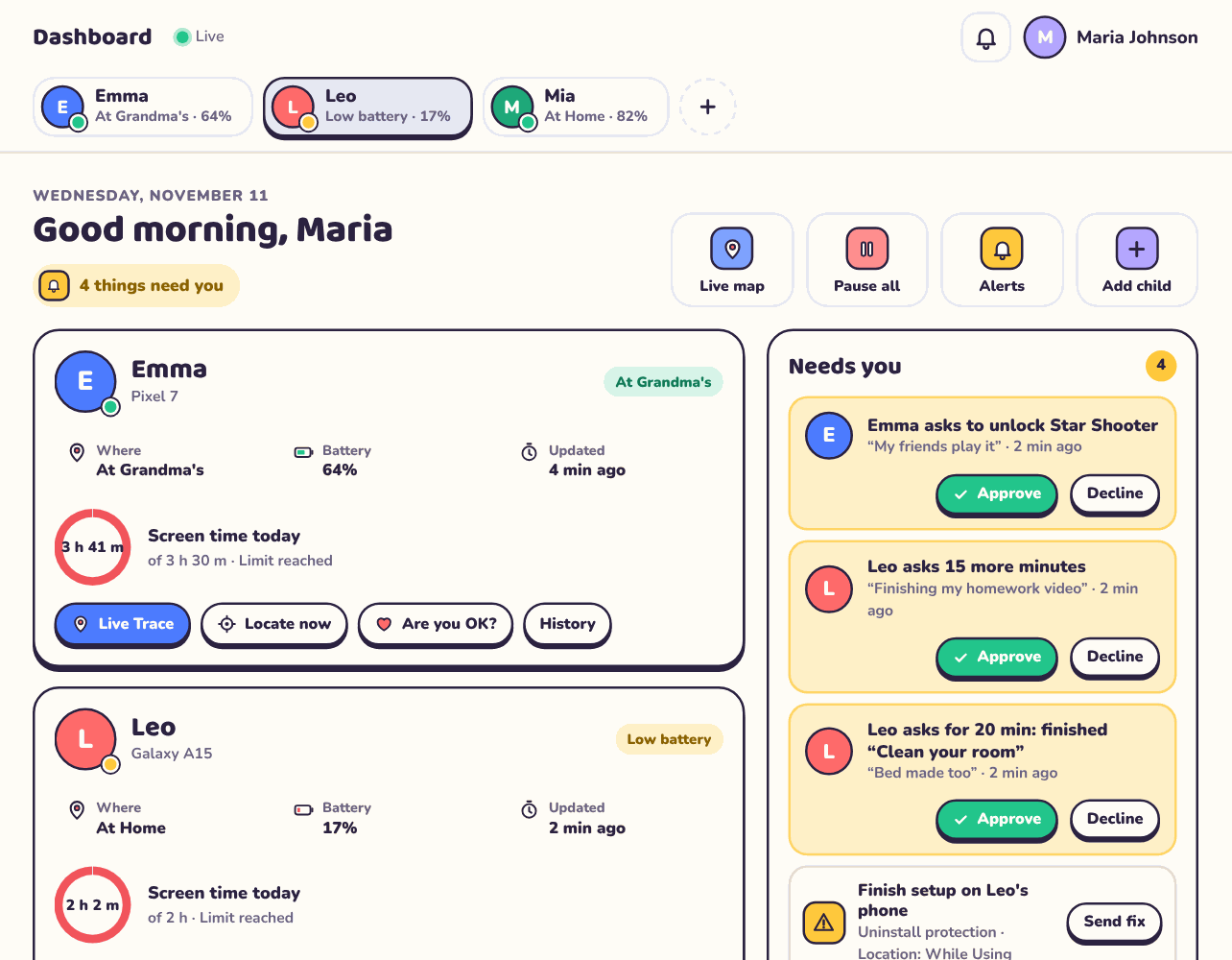
To be straight about our own tool: FreePhone is one of the legitimate free options, not a covert spy app despite the old name. It’s free, with every feature — no trial and no paid tier. It’s an Android app you install on your child’s phone with their knowledge, set up openly the way this guide describes, and you view it from any web browser or the FreePhone app. It sits alongside the built-in tools rather than replacing them, adding the pieces Family Link and Digital Wellbeing don’t cover, like Places alerts, SOS and Walk Me Home. What it is not, and shouldn’t be used as, is a hidden tool for watching someone without their knowledge. Free and open, in that order.
FAQ
Can I really monitor my child’s phone for free?
Yes, for the basics. Between Google Family Link or Apple Screen Time, Find My Device, free content filters, carrier features and router-level DNS filtering, most families can cover location, screen time, app approval and content filtering without paying anything. Free app tiers can add a little more. You’d only pay if you need several devices, longer history, or deeper features.
Are free monitoring apps safe to use?
The legitimate ones are. Tools from Google, Apple and your carrier, and the free tiers of named family-safety companies with clear privacy policies, are safe and designed to be used openly. What isn’t safe is the “free secret spy app” category: those are frequently malware or scams, may be illegal to use, and betray your child’s trust. Judge an app by whether it’s open and clearly identified, not just by the price.
What’s the difference between a free tier and a free trial?
A free tier stays free indefinitely but limits what you get, often one device, a shorter history, and the essential features only. A free trial gives you the full paid version for a set period, then asks you to pay or drop to a free tier. Both let you test the open approach at no cost. Check which one an app offers before you rely on it long-term.
Do free tools mean I have to tell my child?
You should tell them regardless of cost. The built-in tools are designed to be visible and often show a notice on the phone anyway. Setting anything up openly, free or paid, is what keeps monitoring a shared safety net rather than a secret that damages trust. If a free tool’s appeal is that your child won’t know, that’s a reason to avoid it, not to use it.
Which free tool should I start with?
For younger children on Android, Google Family Link is the best single starting point, and Apple Screen Time is its equivalent on iPhone. Both are free, cover the essentials, and are built to be set up openly. Add free content filters and router-level filtering as backstops, then only look at a paid app if a specific need appears.
Keeping an eye on a child’s phone was never really about how much you spend. The free tools built into Android and iPhone, backed by your carrier and router, cover the ground most families need, and reputable apps let you try their free tier on top without commitment. What separates the good free options from the dangerous ones isn’t the price, it’s whether they’re open. Start with the built-in tools, set them up together, keep the conversation going, and give the “free secret spy apps” the swerve they deserve. The most powerful free tool you have isn’t an app at all, it’s a child who knows they can come to you.