✅ Quick answer — removal in the right order:
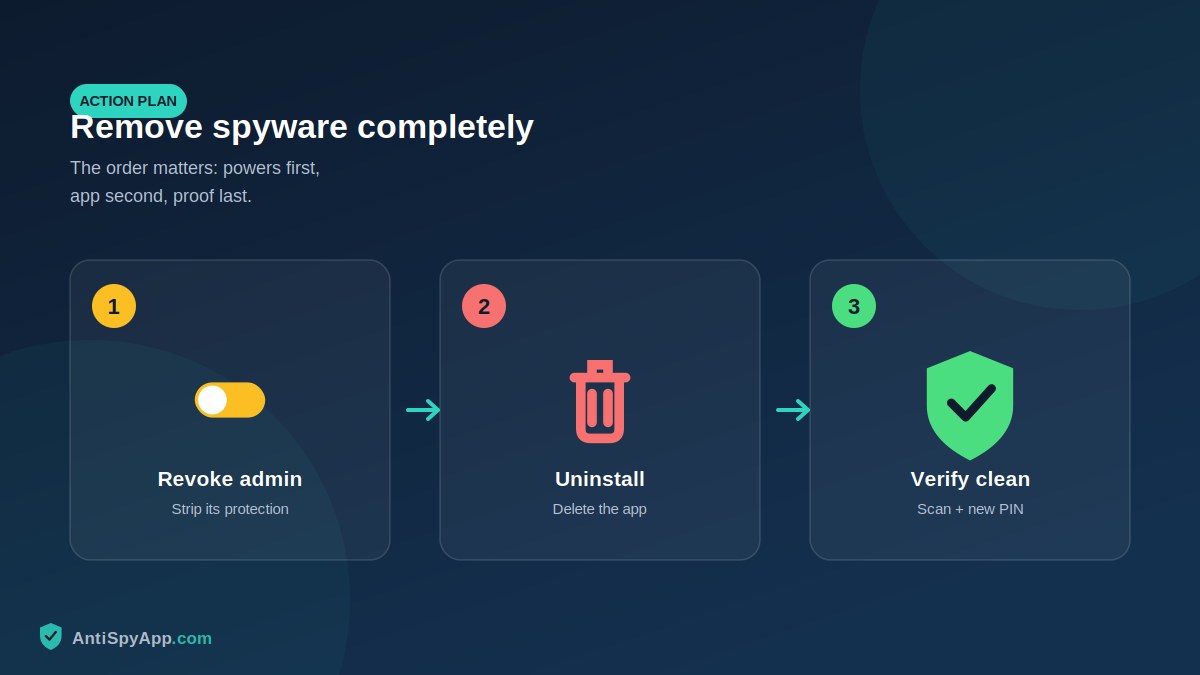
- Revoke device admin rights first (Settings › Security › Device admin apps) — otherwise Uninstall stays grayed out.
- Uninstall the app (use Safe Mode if it fights back), then run a Play Protect scan.
- Still suspicious? Factory reset and restore files — never apps — from backup. Finish with a new PIN.
⚠️ Safety note: If the person spying may be a partner, ex, or someone controlling, removing the app can alert them. Read the safety section below before changing anything.
Finding spyware on your phone is unsettling; removing it badly is worse. Remove it halfway and it reinstalls or keeps reporting. Remove it without preparation and you may destroy evidence you later need, or alert someone you weren’t ready to alert. Remove it without closing the door it came through, and it simply comes back.
This guide covers the five removal methods that actually work, ordered from the gentlest to the most absolute, and — just as important — the preparation before and the lockdown after. Most people will use two or three of these methods in combination: a scan to identify, a manual removal to execute, and a verification pass to confirm. If you have not yet confirmed that spyware is present, start with our detection guides first (the 13-step Android walkthrough and the 10 warning signs article); this article assumes you know, or strongly suspect, that something is there.
Before You Remove Anything: Two Minutes of Preparation
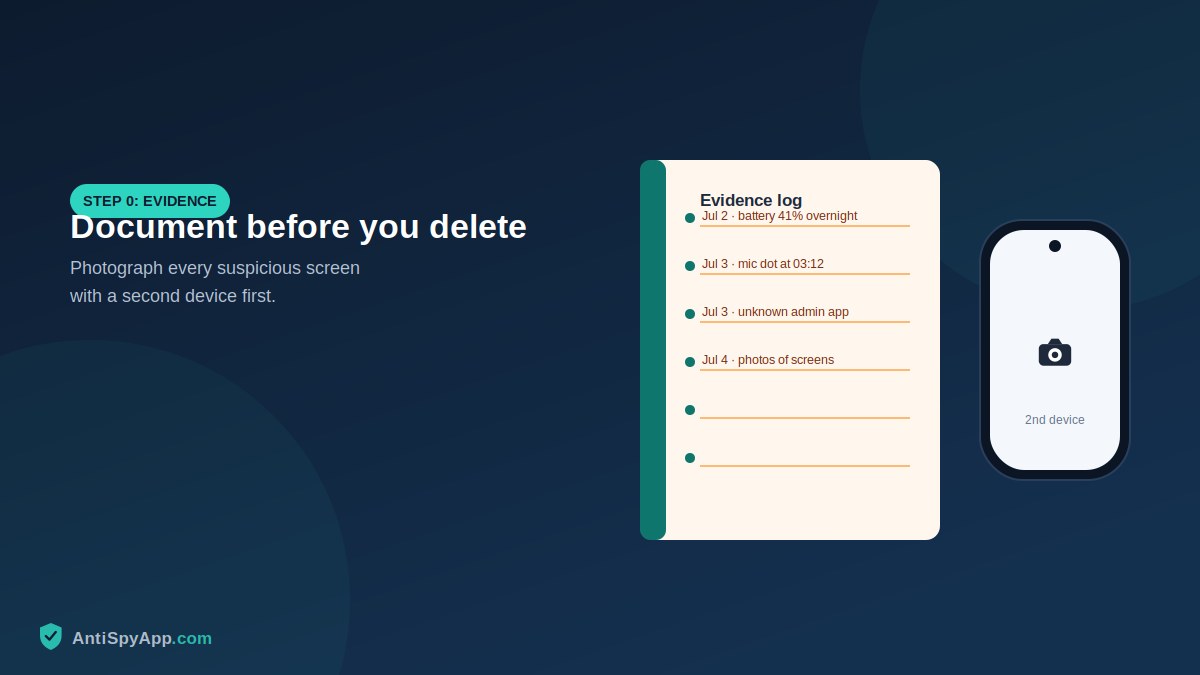
First, safety. If the person who installed the spyware is a partner, ex, or family member with a pattern of controlling behavior, understand that removal is visible: many stalkerware products notify their controller when reporting stops, and the silence itself gives it away within days. If there is any chance of a bad reaction, contact a domestic violence organization from a device the person cannot see and make a plan before you proceed — our stalkerware guide covers this in depth. Second, evidence. Photograph every screen where the app appears — the app list entry, device admin, accessibility services, the Privacy dashboard — using a different device. Uninstalling destroys this evidence permanently, and if the situation ever involves police or a lawyer, dated photographs of the spyware on your phone are exactly what they will ask for. Two minutes now; you cannot redo it later.
Way 1: Run Google Play Protect — the Built-In Sweep
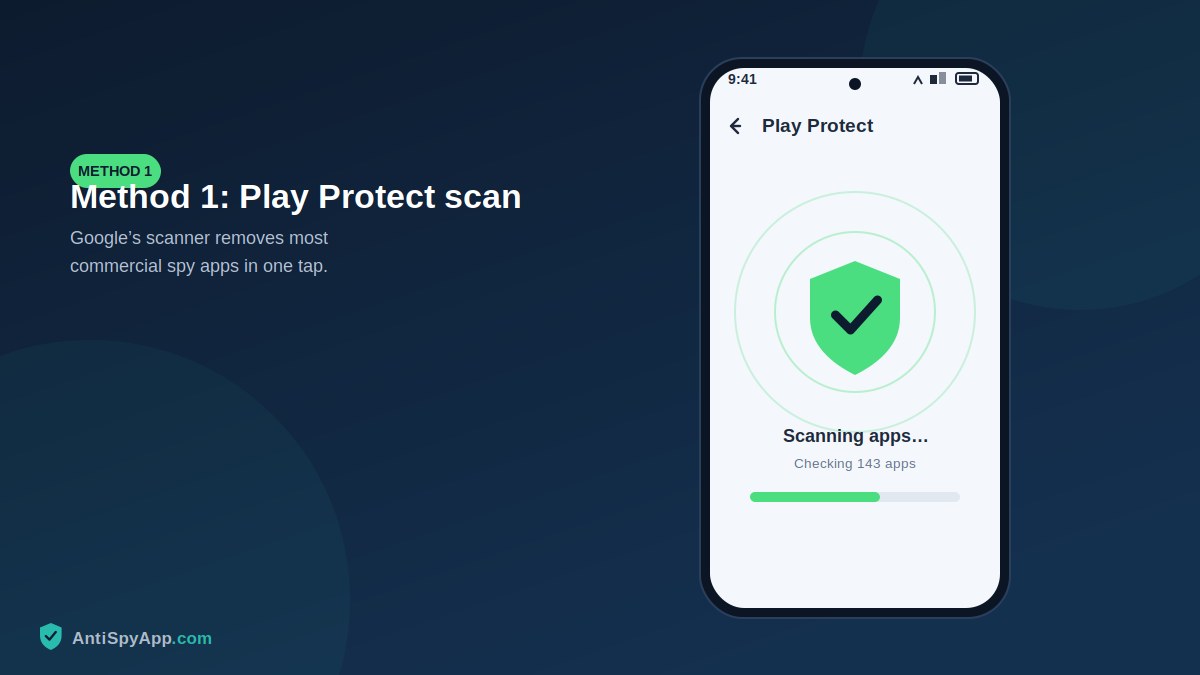
Start with the tool already on your phone. Open the Play Store, tap your profile icon, choose Play Protect, and hit Scan. Play Protect specifically flags stalkerware and, when it finds a match, offers a one-tap removal that handles the privilege-revoking steps for you. Before scanning, tap the settings gear and confirm both toggles are on — especially Improve harmful app detection, which extends scanning to sideloaded apps, exactly where spyware lives. Two interpretations of the results matter. A detection is a gift: take the removal, then still do the verification pass at the end of this article. A clean result, however, proves less than it seems — stalkerware vendors rebrand constantly to dodge signature detection, and some installers disable Play Protect entirely (finding it mysteriously off is itself evidence). Treat Way 1 as the fast first pass, never the final word.
Way 2: Manual Removal — Revoke, Then Uninstall
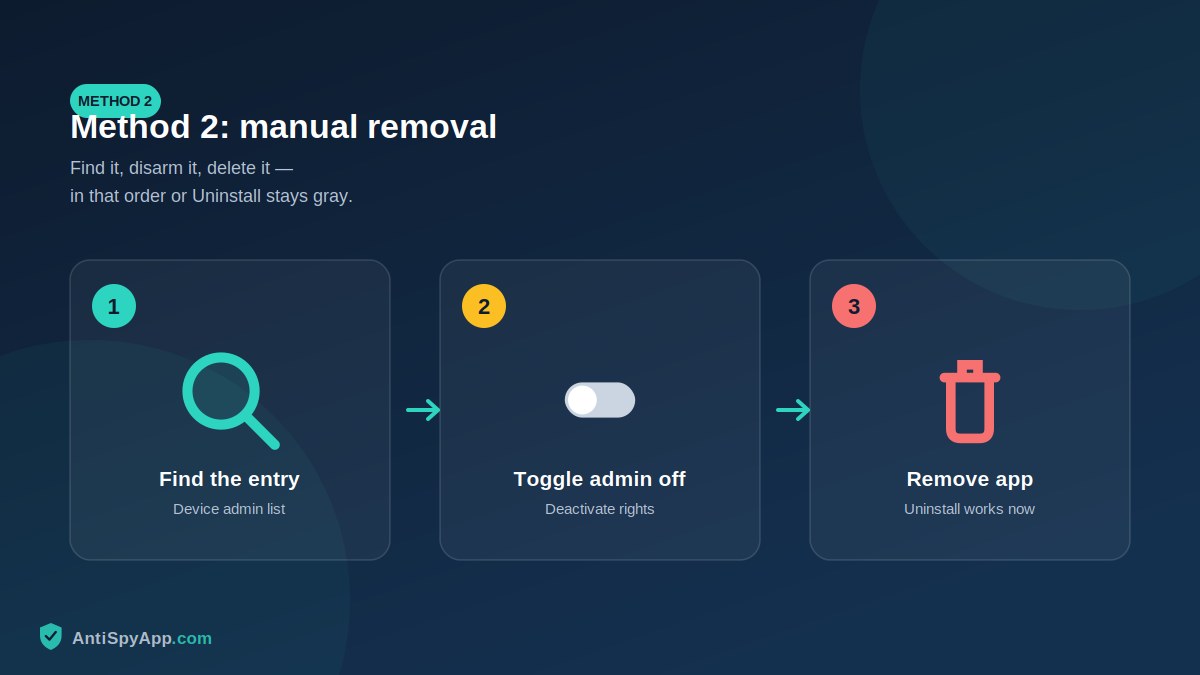
Manual removal works on anything, known or unknown, and it is a strict two-phase sequence: strip the privileges first, uninstall second — in that order, because spyware with device admin rights grays out its own Uninstall button. Phase one: open Settings > Security & privacy > More security settings > Device admin apps and toggle the suspicious app off; then Settings > Accessibility > Downloaded apps and disable its service; then check Settings > Apps > Special app access and remove it from Usage access, Notification access, and Display over other apps if present. Phase two: go to Settings > Apps > See all apps, select the app, tap Force stop, then Uninstall. If Uninstall is still grayed out, a privilege survived phase one — go back and find it. Some spyware disguises itself with a blank icon and no name; it still appears in this list and uninstalls the same way once its privileges are gone.
Way 3: Safe Mode — When the App Fights Back
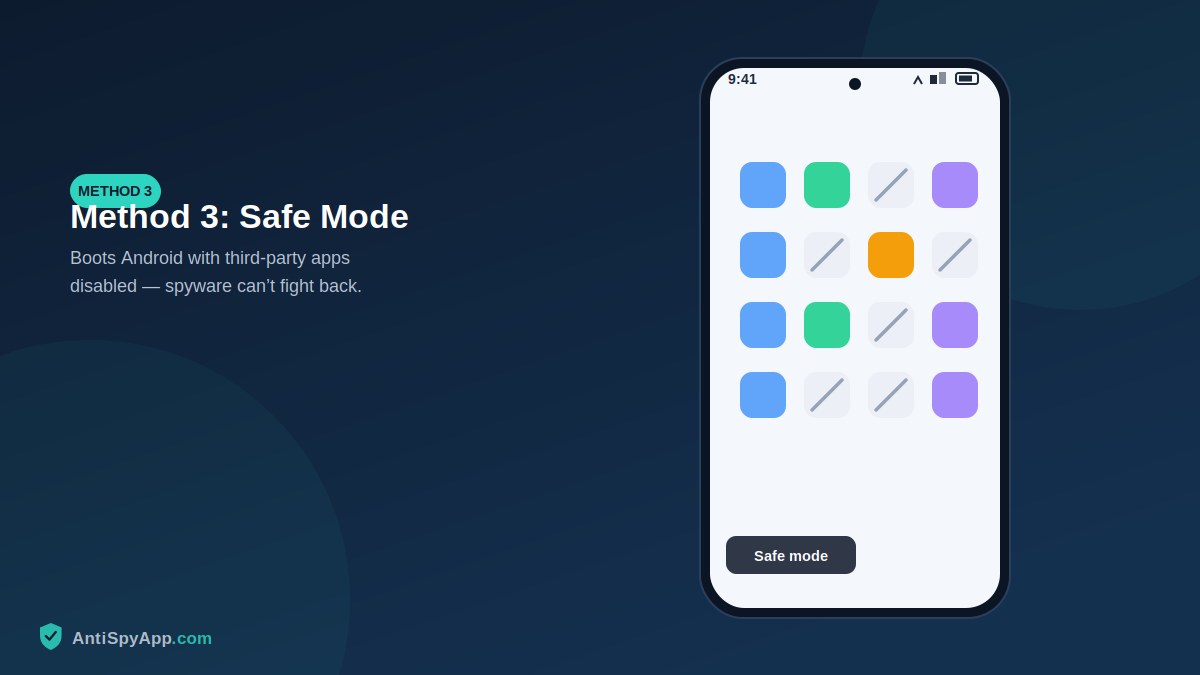
Some spyware defends itself: it closes the settings screen the moment you open its app info page, re-enables its own permissions, or displays fake system warnings to scare you off. Safe Mode disarms all of it. Press and hold the power button, then long-press “Power off” on the screen until the Safe Mode prompt appears, and confirm (on some Samsung models: power off fully, then hold Power + Volume Down during startup). In Safe Mode, Android loads only system software — every third-party app, including the spyware, is inert. Now repeat Way 2’s sequence without interference: revoke device admin, disable accessibility, uninstall. Restart normally when done. Safe Mode has a second use worth knowing: if your phone’s symptoms (heat, lag, battery drain) vanish in Safe Mode and return after a normal boot, you have just proven a third-party app is responsible — a useful diagnostic even before you identify which one.
Way 4: A Reputable Anti-Spyware Scanner — the Second Opinion
After Play Protect and manual checks, a second scanner adds a different detection engine and catches different things. Choose carefully — the “anti-spyware” category is itself full of junk. Rules that keep you safe: install only from the Google Play Store, only apps from established security companies with years of history and millions of reviews, and be instantly suspicious of anything demanding payment before it will “remove what it found” or displaying alarming countdowns — scareware imitates the look of security software. Run the deepest scan the app offers, let it quarantine or remove what it flags, and then — this matters — decide whether to keep the scanner installed. One reputable scanner with real-time protection is worth keeping; three scanners fight each other and drain your battery. If two engines (Play Protect plus one reputable scanner) both come back clean after you have done Ways 2 and 3, your confidence level is legitimately high.
Way 5: Factory Reset — the Certain End
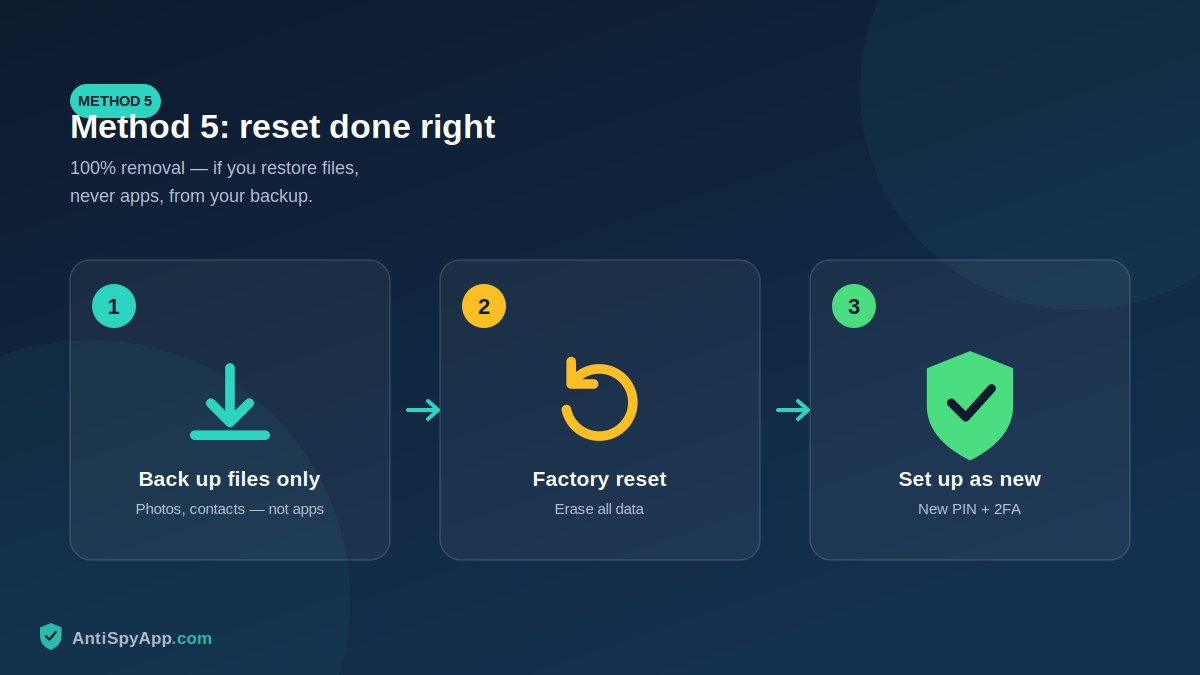
When you cannot identify the app, cannot fully remove it, or simply want certainty, a factory reset removes essentially all consumer spyware — none of it survives a full wipe. The method matters more than the button. Back up selectively: photos to Google Photos, contacts to your Google account, files individually — but do not plan to restore a full-device backup, because a backup taken while infected can restore the infection. Change your Google password first, from a clean device, so the freshly reset phone signs into an account the spy no longer holds keys to. Then Settings > System > Reset options > Erase all data (factory reset). When the phone restarts, choose Set up as new, reinstall apps one by one from the Play Store only, and skip anything you cannot account for. The whole process costs an hour and an evening of re-personalizing — a fair price for a phone you trust again.
After Removal: Close the Door It Came Through
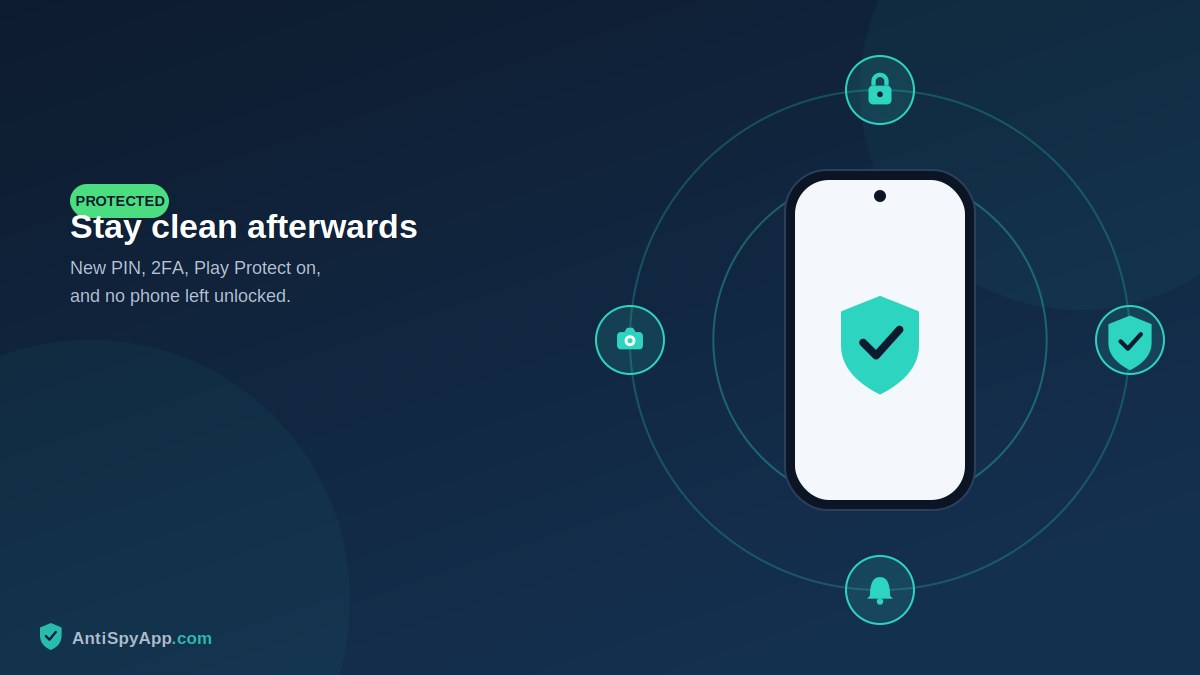
Spyware needed a way in, and removal does not close it. In one session: set a new screen-lock PIN that no other person has ever known — nearly all consumer spyware was installed by hand by someone who knew the code. Change your Google account password and enable two-factor authentication, then review myaccount.google.com > Security for unfamiliar devices and sign them out. Set every entry under Install unknown apps to not allowed. Confirm Play Protect is on. Finally, verify the removal took: for the next two weeks, glance at the Privacy dashboard for sensor access you didn’t cause, watch battery and data for the old symptoms, and re-check Device admin and Accessibility once. Anything reappearing means an access path survived — almost always a shared password or another moment of physical access — and the fix is the passwords, not another scan.
Choosing Your Path: Match the Method to Your Situation
Five ways can feel like four too many, so here is the routing logic. Play Protect named the app? Accept its removal, then jump to the lockdown and verification. You identified the app yourself (from our detection guides or the Privacy dashboard)? Way 2 is your main event, with Way 3 on standby the moment anything resists — a grayed-out button, a settings screen that closes itself. You have symptoms but no name? Run Ways 1 and 4 to hunt for an identification; if both engines and a manual privilege tour come up empty while symptoms persist, stop hunting and go to Way 5 — a reset costs an hour, while an unidentified infection costs you every private moment until you find it. The stakes are high — legal proceedings, a custody dispute, an escalating ex? Photograph everything, consider asking police or a lawyer whether they want the device preserved intact, and let their answer schedule the reset. And in every scenario without exception, the aftermath section is not optional: removal without the new PIN and password merely rents your privacy back until the next installation.
Frequently Asked Questions
Which way should I use if I only have time for one?
The honest answer is that the ways are stages, not alternatives — but if forced to choose: a factory reset done properly (Way 5, with selective backup and a fresh password) is the only single action that guarantees the result. Everything else trades certainty for convenience. The full sequence for a thorough person: photograph evidence, Way 1 to identify, Way 2 (in Safe Mode if resisted) to remove, Way 4 to double-check, and Way 5 if any doubt remains — then the lockdown, always.
Can spyware survive a factory reset?
Consumer spyware and stalkerware — the kind installed by a person in your life — cannot. The exceptions live outside normal life: firmware implants on secondhand phones of unknown origin, and nation-state tooling aimed at journalists and activists. If your phone was bought new or from a reputable refurbisher and your adversary is a person rather than a government, a proper reset ends it. If you genuinely face the other category, contact a digital-security organization for specialists rather than relying on any consumer method.
The app reappeared after I removed it. What now?
Reappearance is information: it tells you the installer still has access. Three doors to check, in order of likelihood: they know your screen-lock code and had the phone again (change the code, account for the phone’s whereabouts); they know your Google password and pushed a reinstall or restored a backup (change it, add 2FA, audit signed-in devices); or a companion app survived — some stalkerware ships in pairs, so repeat the Way 2 privilege tour looking for a second entry. Then do the factory reset with a fresh password, which closes all three doors at once.
The Recap
Photograph first — evidence does not survive removal. Play Protect identifies, manual removal executes (privileges before uninstall, always), Safe Mode wins the fights, a second scanner verifies, and a properly done factory reset guarantees. Then the part people skip: new PIN, new password, 2FA, sideloading off, and two weeks of watching the Privacy dashboard. Spyware removal is not an app you run; it is a short sequence you complete — and completed once, properly, it does not need repeating.
One last framing that helps people finish the job: think of the five ways as verbs — identify, execute, overpower, verify, guarantee. Skipping a verb is where removals fail, and completing all five is why they don’t. Print this recap, work top to bottom once, and file the article under “done” rather than “worrying about it.”
Menu paths reflect stock Android 14/15 and vary slightly by manufacturer. If you are in immediate danger, contact your local emergency number.