How to Manage Notifications & Reclaim Your Focus
Count the pings your phone makes in an hour. Now count how many actually needed you right then. The gap between those two numbers is the problem. Most notifications aren’t news you need. They’re a nudge to come back, dressed up as something urgent. You can turn most of them off, and you’ll be surprised how little you miss.
Why notifications never stop
Here’s the thing to understand up front: your phone isn’t misbehaving. It’s doing exactly what it was built to do. Apps make money when you open them, so they’re designed to pull you back. The badge, the buzz, the banner that slides down from the top — those are the tools.
The red badge is a tiny unfinished task your brain wants to clear. The buzz triggers a check before you’ve even decided to. The banner interrupts whatever you were doing and hands your attention to someone else’s app. None of it is an accident. A social app doesn’t ping you because something urgent happened. It pings you because a quiet phone is a phone you might forget to open.
Once you see the pattern, it’s hard to unsee. And once you see it, you stop feeling like the noise is your fault. It was engineered. You just get to decide how much of it you keep.
What the constant pinging costs you
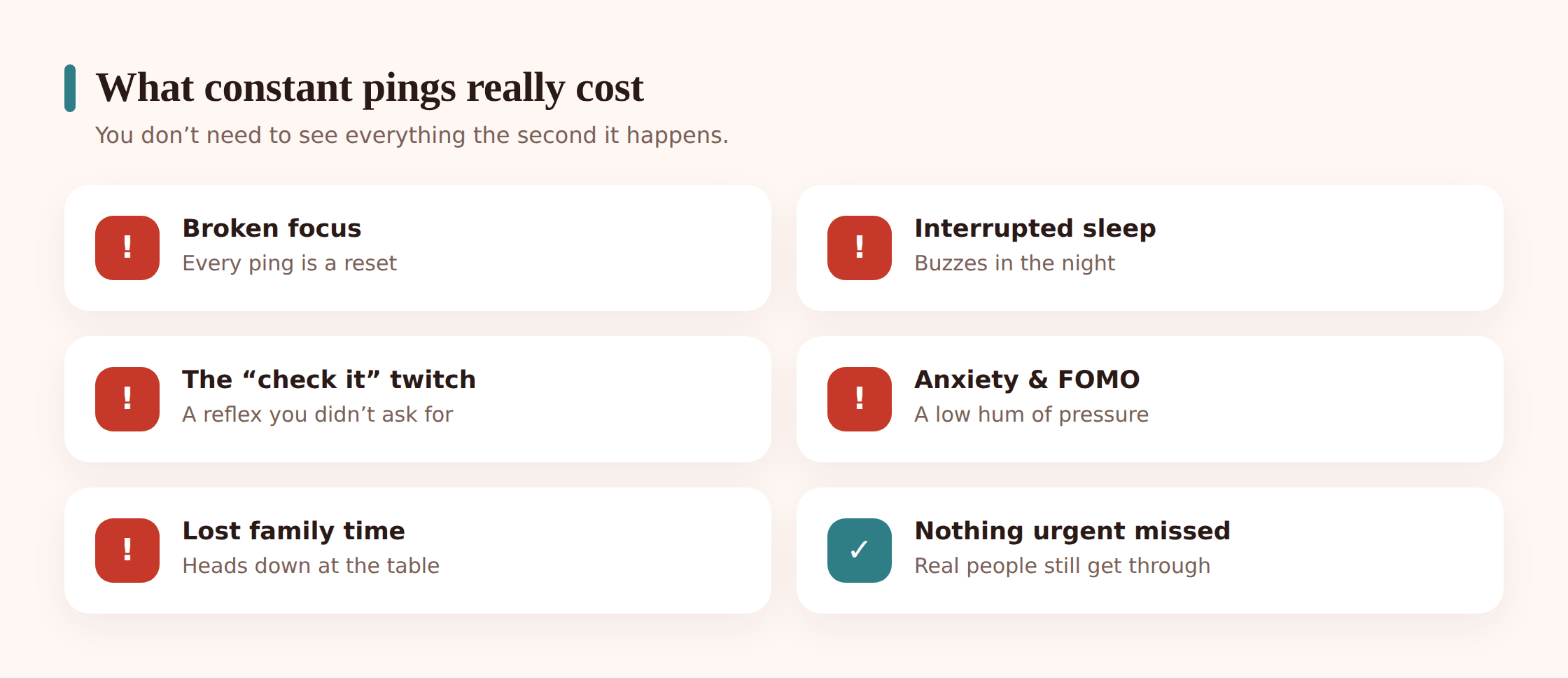
Each single notification feels harmless. That’s the trap. The cost isn’t one ping — it’s the pile.
Broken focus. When you’re reading, working, or talking to someone, a notification yanks your attention away. Even if you don’t pick up the phone, part of your brain has already left. Getting back to what you were doing takes longer than the interruption itself. Do that thirty times a day and you never really settle into anything.
Interrupted sleep. A phone that buzzes on the nightstand pulls you half-awake, or keeps you scrolling past the point you meant to stop. Blue light is part of it, but the bigger issue is simpler: the phone keeps offering you a reason to stay up, and it keeps waking you once you’re down.
The twitchy reflex. This is the sneaky one. Check the phone enough times and it stops needing a reason. You reach for it in a lull, at a red light, mid-sentence. The pings trained the reflex, and now the reflex runs on its own.
And this isn’t just a kid problem. It’s a people problem. The same design works on parents. If you’ve ever caught yourself checking your phone while your child was telling you something, you already know. That’s worth remembering before we talk about your kids’ phones, because they’re watching how you handle yours.
The mindset shift: off by default
Most people treat notifications as opt-out. Every app that wants to ping you gets to, and you turn off the worst offenders when they annoy you enough. Flip it. Treat notifications as opt-in. A notification has to earn its place. If it can’t, it’s off.
The test is short: Does this need me now, or can it wait until I open the app myself? Almost everything can wait. A game reminding you your energy has refilled can wait. A shopping app announcing a sale can wait. A news app pushing the same story it pushed an hour ago can wait forever.
What can’t wait is short too. Real people messaging or calling you. Your calendar telling you where to be. A handful of genuine essentials — maybe your bank flagging a charge, maybe a delivery that needs a door opened. That’s usually the whole list. Everything else defaults to silent.
You don’t need to see everything the second it happens. You never did. The phone just convinced you that you did.
Turn off the noise, step by step
This takes about ten minutes and it’s the highest-value ten minutes you’ll spend on your phone this month. Do it once and it holds.
Audit what’s pinging you
Open your notification settings and scroll the full list of apps. Don’t change anything yet. Just look. You’ll spot a dozen apps you forgot could even notify you. On iPhone it’s Settings, then Notifications. On Android it’s Settings, then Notifications, then App notifications. The list itself is the wake-up call.
Kill badges and sounds for the non-urgent
Go through social apps, games, news, shopping, and anything else that isn’t a real person. Turn off the badge, turn off the sound, turn off the banner. You can leave the app fully functional — you’ll still see everything when you choose to open it. You’re just taking away its permission to interrupt you.
Keep the few that matter
Leave notifications on for messages and calls from actual people, your calendar, and any true essential. If you want, allow sounds only for these. Now when your phone buzzes, it means something — which makes it easier to ignore it the rest of the time, because there is no rest of the time.
Hide previews on the lock screen
Set message previews to show only when the phone is unlocked, or not at all. This is partly privacy — you don’t want a text’s contents readable on a table — and partly focus. A lock screen without a wall of preview text is a lock screen you’re not tempted to sit and read.
Do this with your kid’s phone open next to yours. Not to inspect it — to do the same audit together, side by side. It turns a chore into a shared project, and it shows them the settings exist. Most kids have never opened the notification list either.
Set up Focus and Do Not Disturb
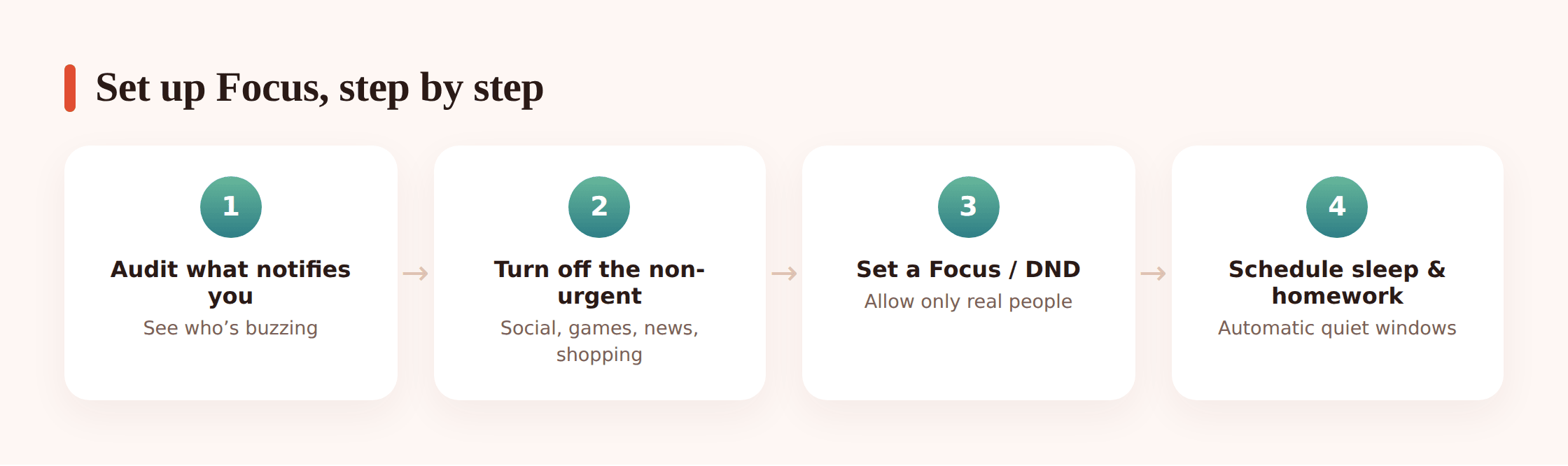
Turning off individual apps handles the everyday noise. Focus modes handle the times of day when you want the phone to go quiet regardless — sleep, study, dinner. The two systems work together.
On iPhone, these live under Focus in Settings. Do Not Disturb is the simplest: it silences everything except the people and apps you specifically allow. Sleep Focus ties into your bedtime schedule and dims the screen. You can also make your own — call one “Homework” or “Downtime” — and choose which people and apps break through it. The powerful part is the schedule: set a Focus to turn on at 9pm and off at 7am, and you never have to remember to flip it.
On Android, the equivalent is Do Not Disturb plus Modes, under Settings then Notifications. You pick exceptions — starred contacts, alarms — and everything else stays quiet. Bedtime mode (in Digital Wellbeing) can grayscale the screen and silence the phone overnight on a schedule. Newer Android versions add custom Modes that work much like iPhone’s Focus.
Build a Sleep or Bedtime mode
Schedule it for your actual bedtime through your actual wake time. Allow only alarms and, if you want, one or two people for emergencies. Everything else waits until morning. It’ll be there. It’s not going anywhere.
Build a Homework or Focus mode
This one silences the fun apps during study time. Allow calendar and maybe a study group chat; block social, games, and video. Schedule it for the usual homework window, or turn it on by hand when it’s time to work.
Add a couple of allowed people
The fear that stops people using Do Not Disturb is missing an important call. So don’t miss it. Add the two or three people who’d actually have an emergency to the allowed list. Now you can silence everything else with a clear conscience.
One note on platforms: everything above is built into the phone. FreePhoneSpy monitors Android, and on iPhone the right tools are Apple’s own Focus and Do Not Disturb. Either way, the settings are free and already in your pocket.
Protect the two big ones: sleep and homework
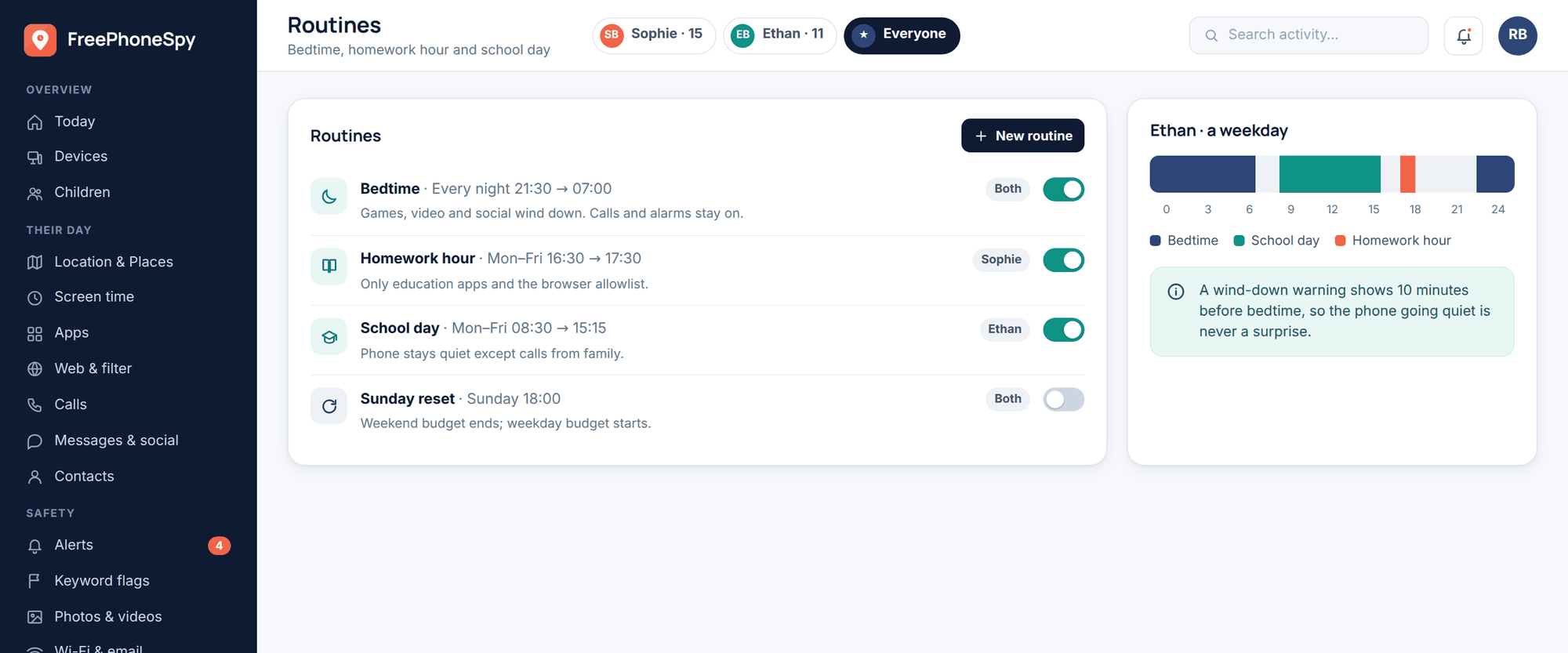
If you only fix two things, fix these. Sleep and study are where the noise does the most damage, and they’re where a little structure pays off most.
Sleep. The single best move is physical: charge the phone outside the bedroom. A charger in the kitchen or hallway solves the midnight scroll and the half-awake buzz in one step. If that’s a fight not worth having tonight, the fallback is a scheduled Do Not Disturb or Bedtime mode that silences the phone overnight, plus a wind-down: pick a time the screen goes away, and read, stretch, or just sit instead. The point isn’t to be strict. It’s to stop the phone from stealing the last hour of your day and the first minutes of your sleep.
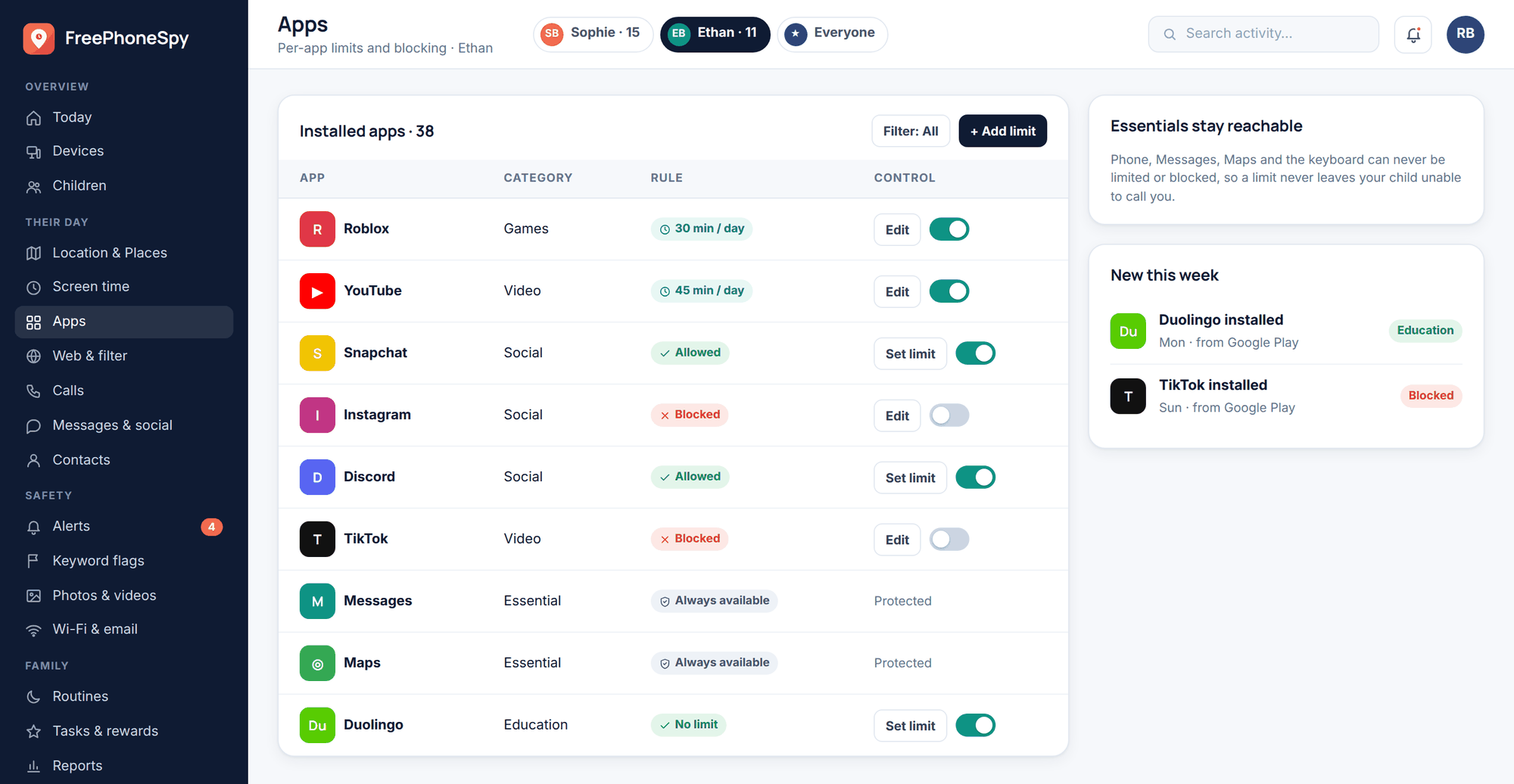
Homework and focus. During study, the fun apps need to go quiet. A Focus mode does this on the phone itself. If you want something that holds without relying on willpower each evening, that’s where a routine helps. A Homework-Hour or Bedtime routine can quieten the phone on a schedule, and app limits and a screen-time budget can keep the tempting apps from creeping back in mid-study. It’s a light touch, not a cage — the phone still works, it’s just not lighting up with distractions while there’s algebra to do.
Helping kids set this up (not just imposing it)
Here’s what backfires: grabbing your kid’s phone, flipping every switch off, and handing it back. It reads as punishment, they don’t understand it, and the first thing they’ll do is turn it all back on. You’ve taught them nothing except that you don’t trust them with their own settings.
Here’s what works: sit down together and do it as a team. Explain the why first — that apps are built to pull them back, that a buzzing phone at midnight is stealing their sleep, that it’s not about them being irresponsible. Kids get this faster than you’d think, because they feel it too. Plenty of teens are quietly relieved to have permission to be less reachable.
Then set it up with them, not at them. Let them pick which friends break through the homework focus. Let them choose the bedtime schedule within reason. When they’ve had a hand in building it, they’re far more likely to leave it alone. A routine or app limit can hold the structure on the tough nights, and that’s fine — but the buy-in comes from the conversation, not the tool.
If your kid is struggling with more than just focus — sleep that’s genuinely suffering, a mood that tracks with screen time — that’s worth reading up on. We’ve written about phones and teen mental health and about doing a proper family digital detox when things need a fuller reset. And if you’re not sure what’s reasonable to expect at a given age, screen time by age is a decent place to calibrate.
Model it, or forget it. Kids copy what you do, not what you say. A parent who lectures about phone habits while glancing at their own screen mid-conversation has already lost the argument. Put your phone face-down at dinner. Let them see you not check it. That does more than any setting.
Calmer habits that actually stick
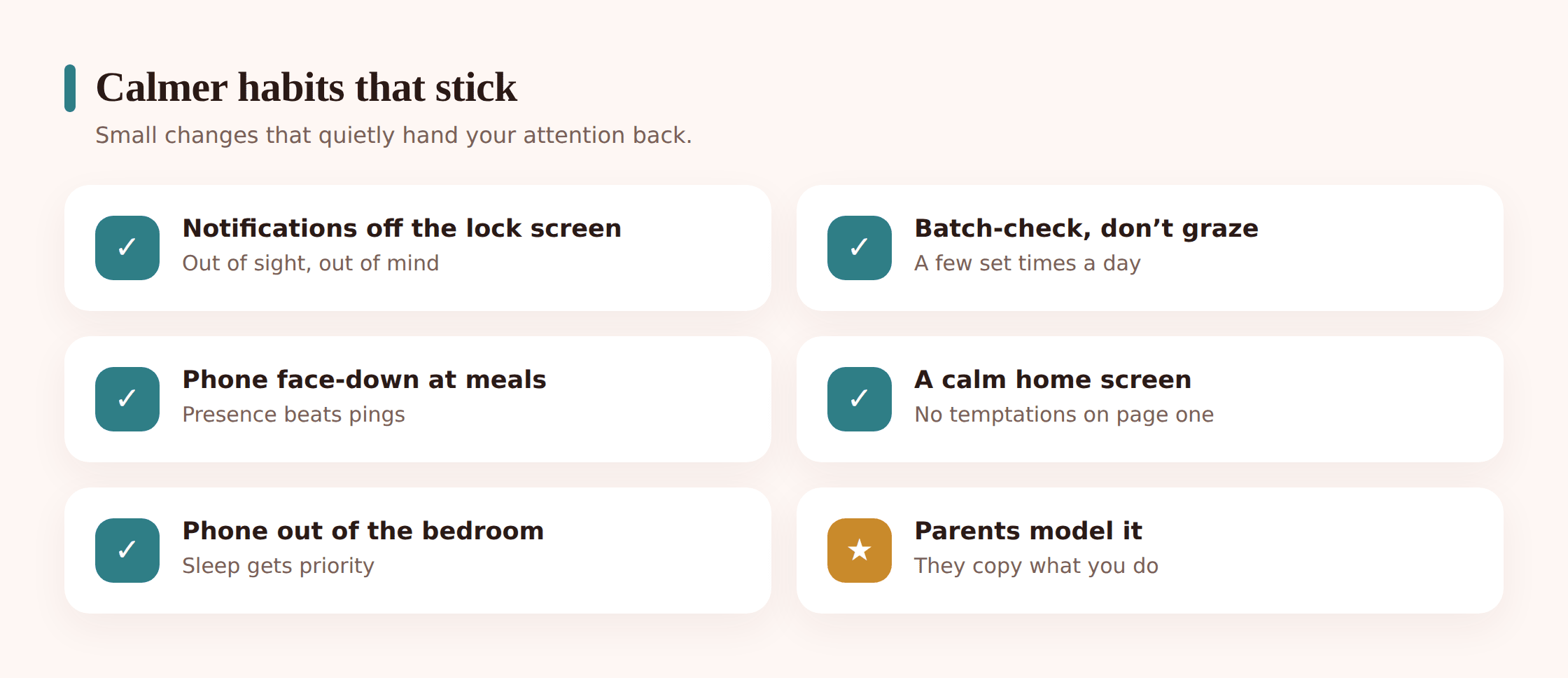
Once the noise is off, a handful of habits keep you from sliding back. None of these is hard. They just need a week or two to become normal.
- Batch-check instead of constant-check. Pick a few times a day to open the apps you care about, deal with everything, and put the phone down. You lose nothing by reading messages at 11am and 3pm instead of the second each one lands. You gain back all the checks in between.
- Keep notifications off the lock screen. A clean lock screen is one you glance at for the time and put down. A lock screen stacked with previews is a reading list that sucks you in before you’ve even unlocked.
- Try grayscale or reduced motion. Draining the color out of the screen makes the whole phone less pulling — the bright badges and thumbnails lose their grip. Reduce Motion cuts the animations that make scrolling feel slick. Both are in accessibility settings, and both make the phone a bit more boring, which is the point.
- Clear page one of your home screen. Move the tempting apps off the first screen and into a folder a swipe or two away. You’ll still use them when you mean to. You’ll stop opening them by reflex, because the icon isn’t sitting there under your thumb.
- Phone face-down at meals. Simple, and it changes the table. Face-down means you don’t see the screen light up, which means you don’t reach for it, which means you’re actually present with the people you’re eating with.
- Charge it out of reach at night. Worth repeating, because it’s the one that matters most. The phone can’t wake you or tempt you from another room.
If you want to see how the routine and screen-time pieces fit together, the screen-time overview lays it out. But you don’t need any product to do most of this. The settings are already in your phone, free.
Last thing, because it’s the fear that stops people: you won’t miss anything important. That’s the whole trick. You allow the people and the alerts that actually matter, and you silence the rest. What you lose is the noise. What you get back is your attention — at work, at dinner, at bedtime, and in the middle of a sentence someone you love is trying to finish.
FAQ
Won’t I miss something urgent if I turn notifications off?
No, because you don’t turn off the urgent ones. You keep calls and messages from real people, your calendar, and genuine essentials, and add a couple of allowed contacts to any Do Not Disturb mode. Everything you silence is the stuff that could always have waited — games, sales, news repeats.
What’s the difference between Do Not Disturb and a Focus mode?
Do Not Disturb is the simple version: silence everything except a short allow-list. A Focus mode (iPhone) or custom Mode (newer Android) lets you build different setups for different times — one for sleep, one for homework — each with its own allowed people and apps. Do Not Disturb is a good starting point; Focus modes are for when you want more control.
My teen won’t accept limits. What do I do?
Don’t lead with limits. Lead with the conversation — why apps are built to pull them back, why sleep matters — and set things up together so they have a say. A routine or app limit can hold the structure, but the cooperation comes from involving them, not overriding them. And model it on your own phone first.
Does this work the same on iPhone and Android?
The ideas are identical; the menus differ. iPhone uses Focus and Do Not Disturb under Settings. Android uses Do Not Disturb, Modes, and Bedtime under Notifications and Digital Wellbeing. FreePhoneSpy’s routines and limits are for Android; on iPhone you’d lean on Apple’s built-in Focus.
How long before this feels normal?
A day or two of reaching for a phone that isn’t buzzing, then it settles. The first quiet evening feels strange. By the end of the first week, the old constant-pinging phone feels unbearable to go back to.
Is any of this actually free?
The notification settings, Focus, and Do Not Disturb are all built into your phone at no cost. FreePhoneSpy is free to start and kept free by tasks if you want routines and limits to hold the quiet automatically — but the core of what’s on this page costs nothing but ten minutes.