How to Set Up a New Phone for Your Child (Step by Step)
A new phone is a big moment for a kid, and the hour you spend setting it up shapes the next year of how they use it. Do it with them, not for them. You’ll end up with a phone that fits their age, a couple of rules you both agreed on, and a lot less nagging down the road.
Before you hand it over
Resist the urge to just switch it on and pass it across the table. Ten minutes of prep saves you real headaches.
Charge it and update it
Plug it in and let it top up while you work. Then run the software update — a brand-new phone often ships with an older version, and the security fixes matter. Do this first so nothing interrupts you later.
Put a case and screen protector on
Kids drop phones. A case and a tempered-glass protector cost a fraction of a repair, and fitting them before the phone gets used means the first scratch never happens.
Decide the rules first
This is the step most people skip, and it’s the one that counts. Talk through the basics before the phone is live: where it sleeps at night, what’s off-limits, what happens if a rule slips. Writing it down helps. Our family phone agreement gives you a simple template you can fill in together in a few minutes.
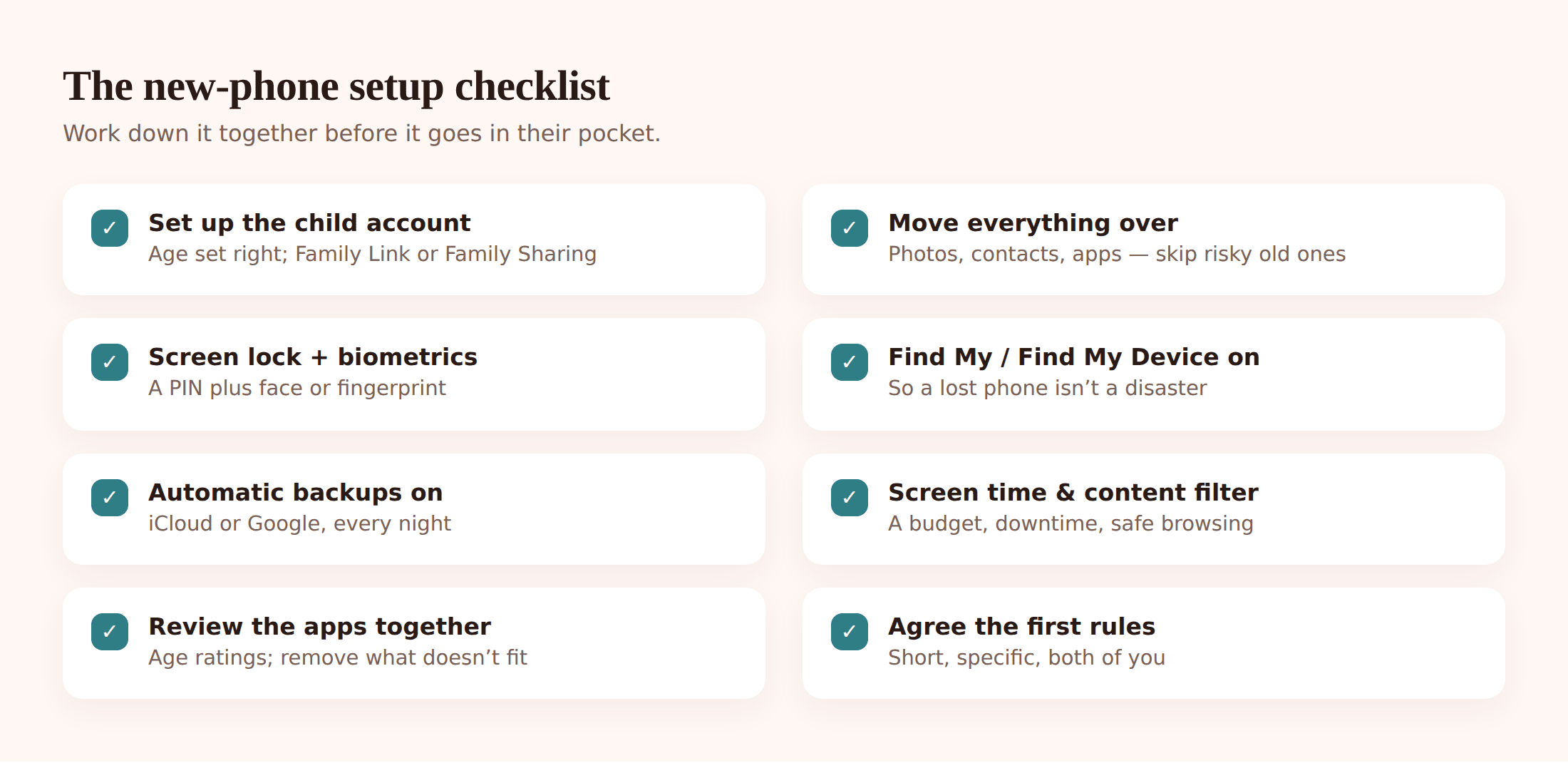
Set up the right account
This is where a lot of setups go wrong. If you sign the phone in with your own account, or an adult account with your child’s birthday typed in as an adult, you lose every control the platform gives you for free. Take the extra few minutes to do it as a child account.
On Android: a child Google account with Family Link
Create a Google account for your child through Family Link, or convert the one they already have to a supervised account. Family Link is Google’s own free tool and it does a lot: approve app installs, set screen limits, see location, lock the device at bedtime.
Enter the real age
Set the correct date of birth. Google uses it to apply the right protections automatically, and to keep age-inappropriate content and ads away. Fudging the age to skip a step removes those protections.
Turn on purchase approval
In Family Link, require your approval for downloads and purchases. Nothing installs without a tap from you.
Don’t store a card for a young child
Leave payment off the account entirely for younger kids. No stored card means no accidental spends and no in-app-purchase surprises. You can approve the occasional paid app yourself when it’s worth it.
On iPhone: a child Apple ID with Family Sharing
Our monitoring app is Android only, so on an iPhone you’ll lean on Apple’s built-in tools, and they’re good. Create a child Apple ID inside Family Sharing (you can do this from your own iPhone in Settings, under your name, then Family). The child ID unlocks Screen Time and Ask to Buy.
Set the age correctly
As with Android, the real birth date drives the age-based protections. Get it right.
Turn on Ask to Buy
With Ask to Buy on, every download or purchase pings your phone for approval before it goes through. Same idea as Family Link’s purchase approval.
Keep payment off the child ID
Family Sharing lets you share purchases from the adult account, so the child ID needs no card of its own. Keep it that way for a young child.
One rule for both platforms: the account is the foundation. If you get the child account and purchase approval right, half the work of parental controls is already done — and it’s all free. Our overview of parental controls on Android and iPhone goes deeper on each.
Move everything over
If this phone is replacing an old one, you’ll want the photos, contacts and apps to come across. Both platforms make this easy, but a new phone is also a chance to leave some junk behind.
Android to Android
During setup, Android offers to copy data from the old phone with a cable or wirelessly. Take it — it brings across apps, contacts, messages, photos and most settings. If the old phone isn’t around, sign in to the Google account and restore from Google backup instead. Photos sync back through Google Photos.
To an iPhone
Hold the new iPhone near the old one and Quick Start walks you through it. Or restore from an iCloud backup during setup. Either way, contacts, photos, messages and apps come across.
What not to blindly copy
A transfer is a fresh start, so use it.
- Old logins for social or chat apps your child has outgrown, or was never really old enough for. Don’t carry them forward by habit.
- Risky or age-inappropriate apps that snuck onto the old phone. Leave them behind and only re-add what you both agree on.
- Saved passwords to accounts they shouldn’t have. A transfer copies these silently. Take a minute to look.
Sit together and go through the app list after the transfer finishes. Delete anything that doesn’t belong. It’s much easier to not re-install something than to take it away later.
The essentials that protect the phone
Before the fun stuff, lock down the basics. These take five minutes and protect both the phone and your child if it ever goes missing.
A strong screen lock and biometrics
Set a proper PIN — not 1234, not their birthday — and add a fingerprint or face unlock for convenience. The lock keeps a lost phone useless to a stranger.
Find My Device on
Turn on Find My Device (Android) or Find My (iPhone) so you can locate, lock or wipe the phone remotely. It’s saved a lot of families a lot of panic. Our guide to finding a lost or stolen phone covers exactly what to do if it disappears.
Automatic backups on
Switch on cloud backup so photos and data are safe even if the phone is lost or broken. Set it and forget it.
App-store-only installs
Block installs from unknown sources so apps can only come from the official store, where Family Link or Ask to Buy can approve them. This closes off the sketchiest way for bad apps to land on the phone.
SafeSearch on
Turn on SafeSearch in the browser and search settings to filter explicit results. It’s not perfect, but it’s a sensible first wall.
Screen time and content
Now for the part every parent asks about. Both platforms have solid built-in limits, and setting a sensible budget up front beats arguing about it every evening.
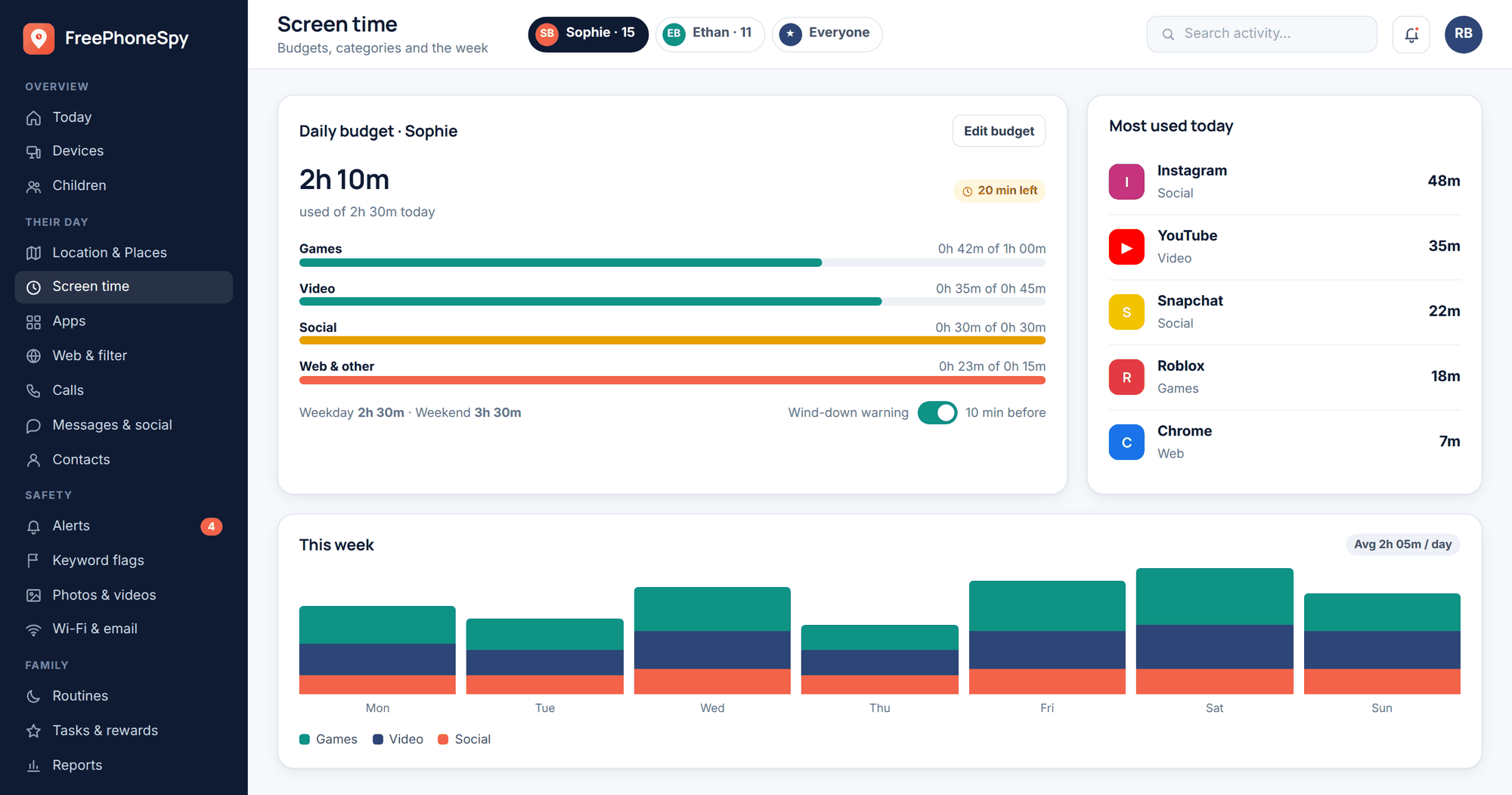
Set a sensible daily budget
Pick a total that fits their age and your family’s day, then adjust after a week or two of seeing how it actually goes. Start a little tighter — it’s easier to give more than to take away.
Turn on downtime and bedtime
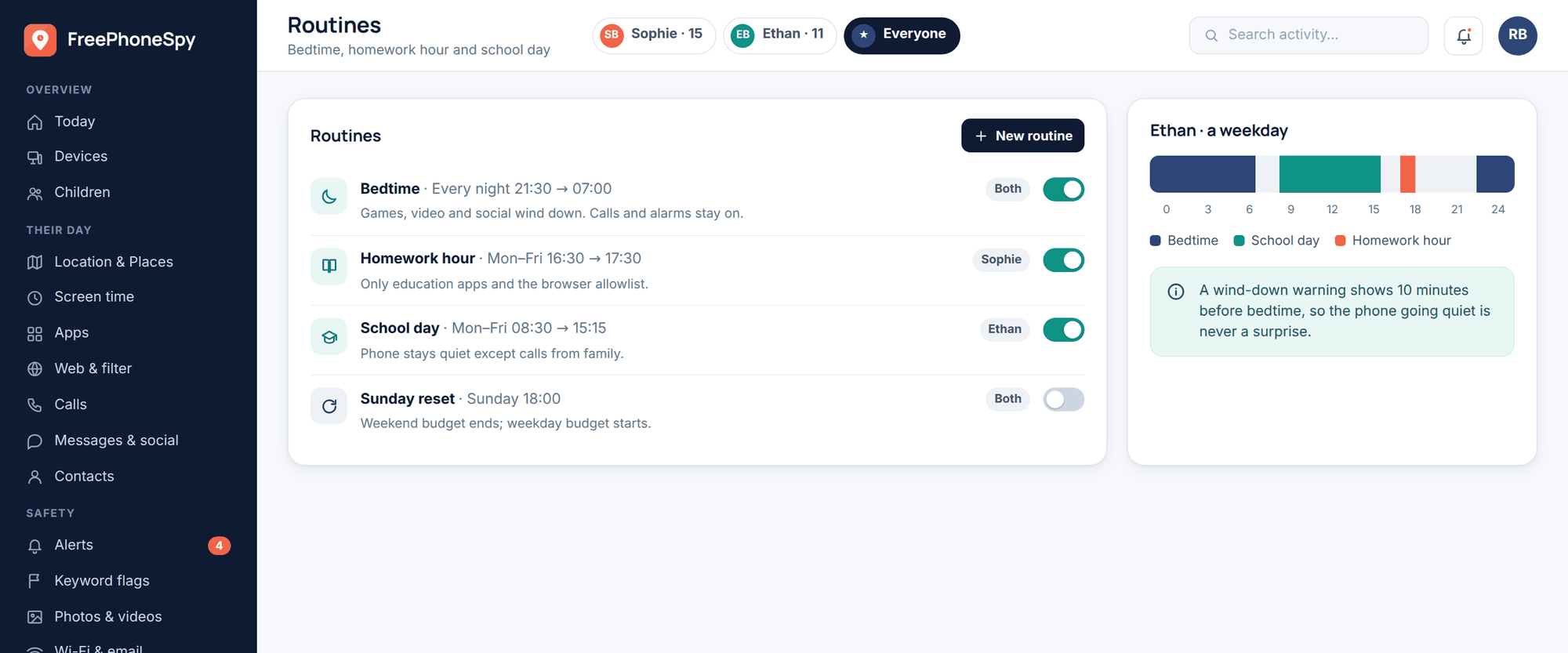
Schedule the phone to wind down at night. Screens out of the bedroom is one of the highest-impact rules you can set, and letting the phone enforce it means you’re not the bad guy every night.
Switch on the content filter
Both platforms can block adult websites and filter the store by age rating. Turn it on and set the age. Our piece on app and website blocking explains how far these filters go and where they stop.
Check app age ratings together
Go through the installed apps and look at the age rating on each. It’s a good, calm conversation to have with your child about why some things wait a few years. Our guide on managing screen time has more on making limits stick without a fight.
The safety layer, set up openly
The built-in tools do a lot. On an Android phone you can add one more layer that pulls filtering, limits, routines and location into a single place you check from any browser — and your child can see it running. That’s FreePhoneSpy.
It’s one app on your child’s Android phone, paired with a 6-digit code, and it’s transparent by design. The app shows on the phone. Nothing gets monitored until you set it up together. There’s no hidden mode, because sneaking around your own kid isn’t the point.
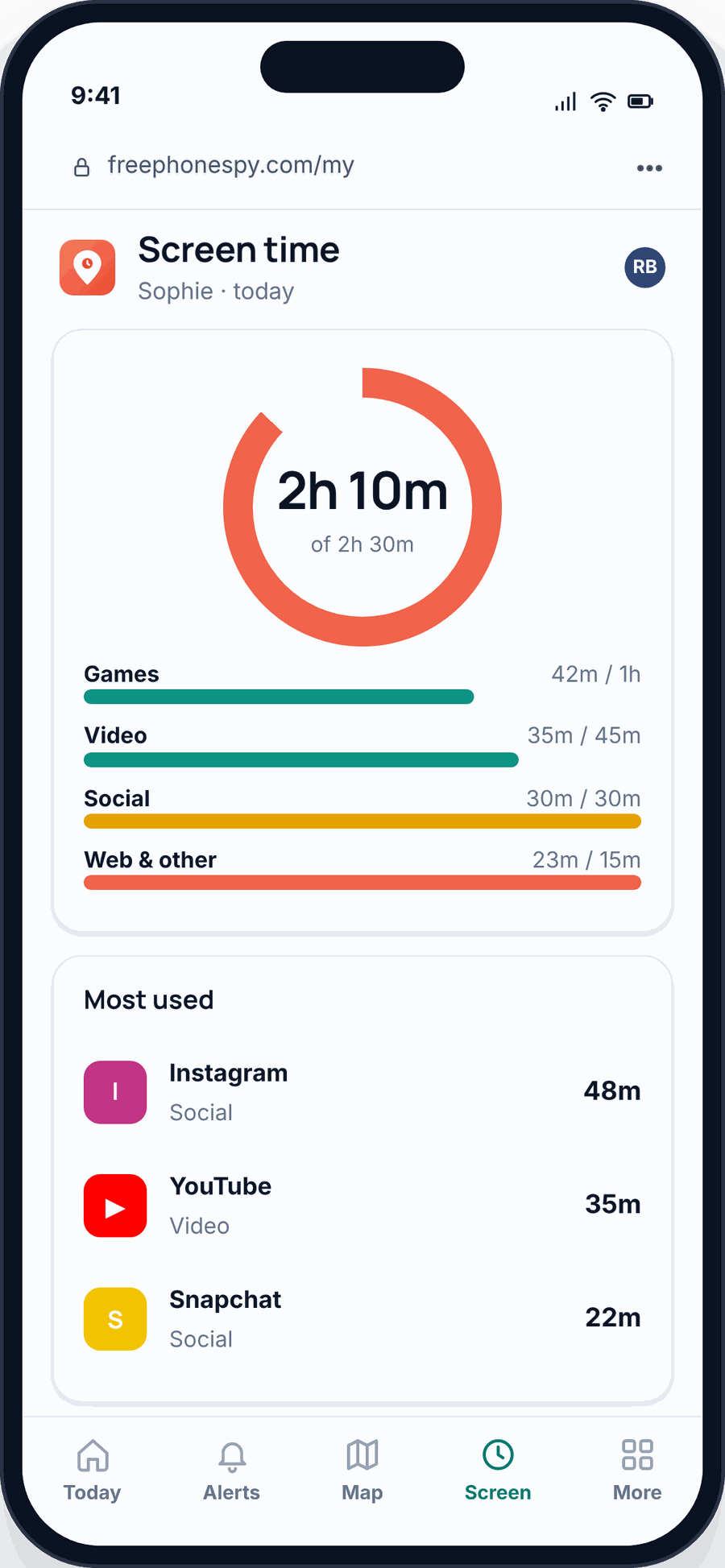
The whole setup runs about fifteen minutes, and you do it with the phone in front of both of you.
Open the panel and make a free account
From any web browser, open the panel and create a free account. No card needed to start. Add your child as a profile.
Install the app and pair it
On your child’s Android phone, install the FreePhoneSpy app, type in the 6-digit pairing code the panel shows you, and grant the permissions together. This part takes about eight minutes, mostly the permission taps. Doing it side by side means your child sees exactly what access it has.
Turn on the pieces you want
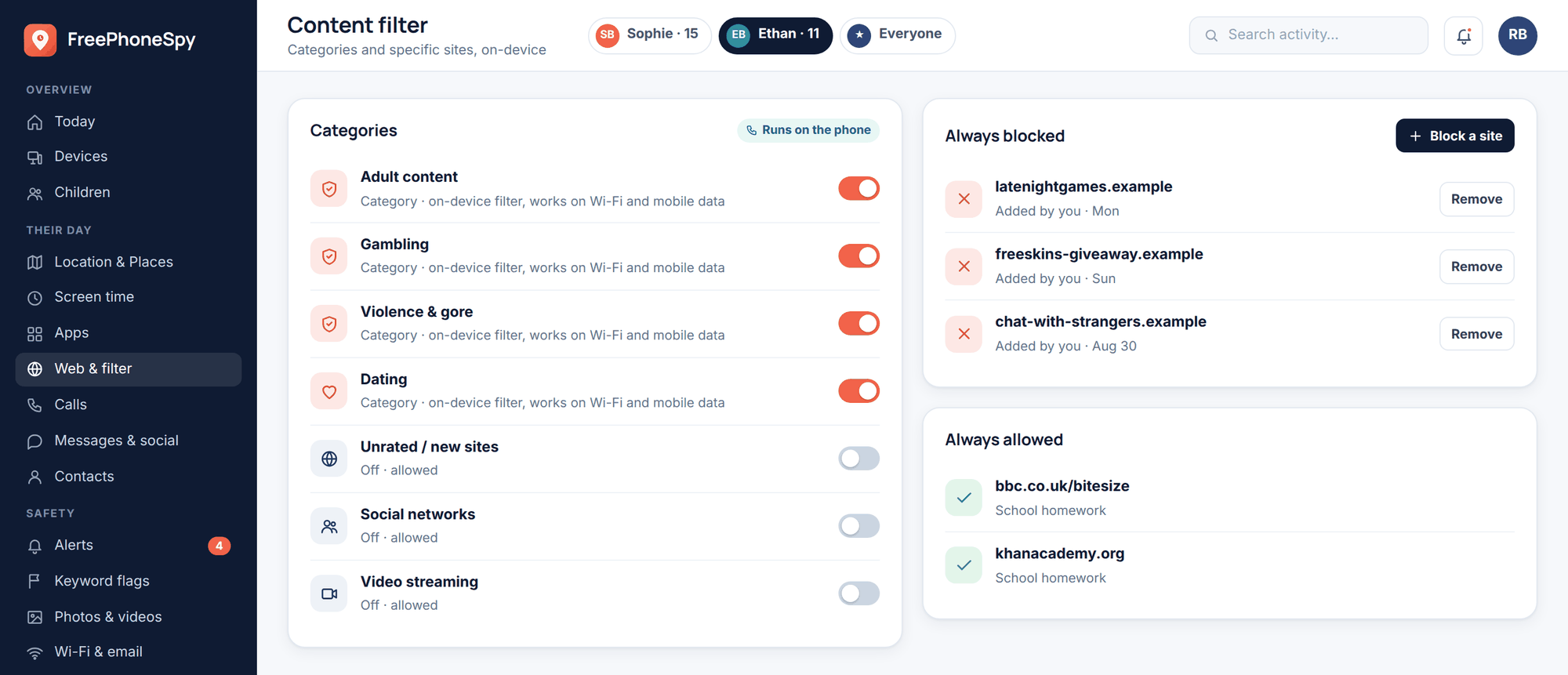
Now switch on what fits your family: the content filter, app limits and blocking, a screen-time budget, routines for bedtime and homework, location and Places, and alerts. You don’t have to use all of it. Pick what matters and leave the rest.
Agree the first rule out loud
Before you finish, set one rule together on the phone — a bedtime cutoff is a good first one — so your child watches it go on and knows it’s there. That’s the whole spirit of it: nothing hidden.
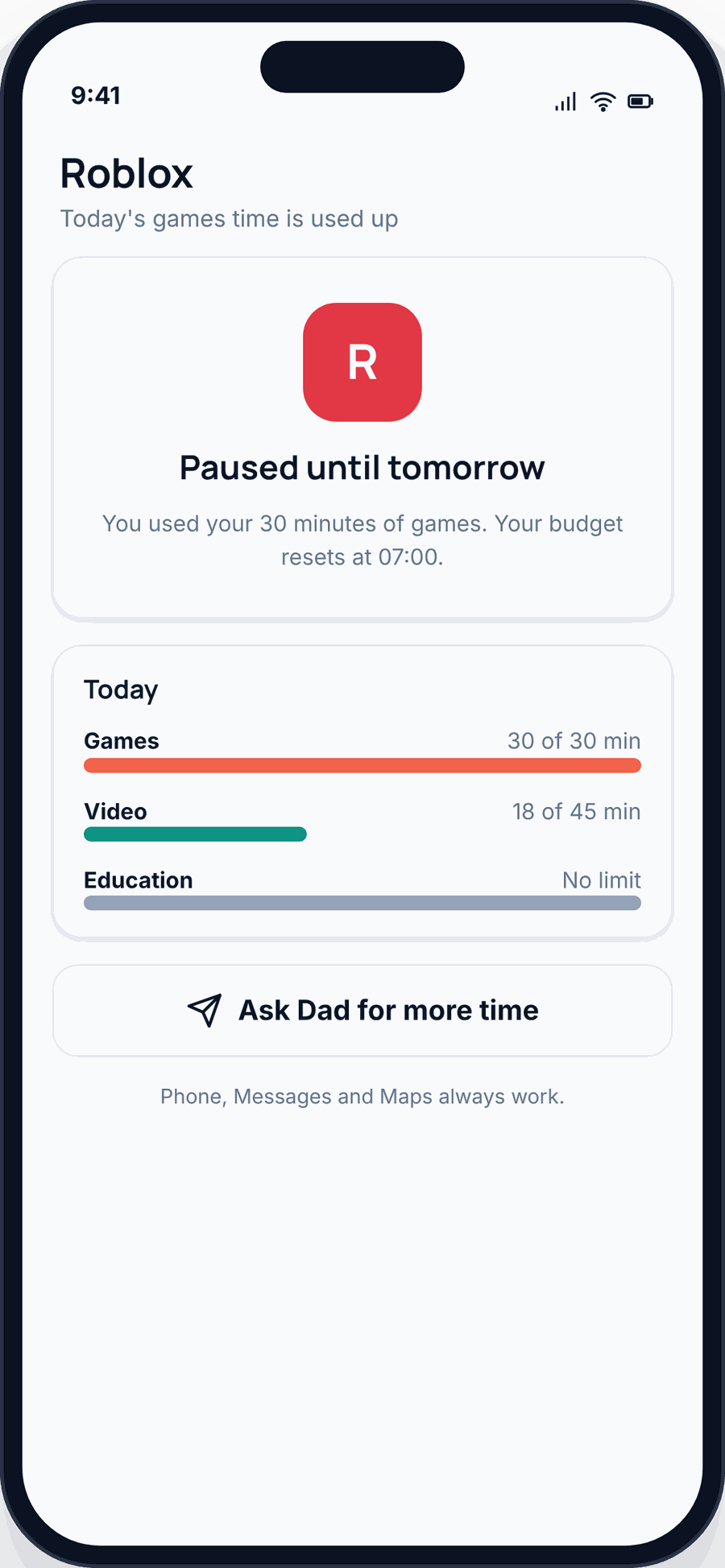
On pricing: it’s free to start with a 10-day run and no card. After that it stays free by doing a few simple tasks, and the core features stay free either way. You’re not going to hit a paywall on the basics.
On an iPhone? You don’t need this — Apple’s Screen Time already covers content filtering, app limits, downtime and location through Family Sharing. Set those up as described above and you’re in good shape. Our app is Android because that’s where we can add something the platform doesn’t already do well.
Wondering when a monitoring layer is even worth it? Our take on what age to monitor a child’s phone is an honest look at when it helps and when to ease off.
Agree the first rules together
The phone is set up. Now close the loop on the rules you talked about at the start. Keep it short — three or four things a kid can actually remember.
- Where it charges at night — ideally outside the bedroom.
- What’s off-limits for now — the apps or sites that wait until they’re older.
- Who they can talk to and what to do if a stranger messages them.
- What happens if a rule slips — agreed in advance, so it’s not a surprise.
Then say out loud that the rules will loosen as they grow. That promise matters. A kid who knows more freedom is coming as they show they can handle it has a reason to keep the deal. Tightening forever with no path to more is what breeds the workarounds. Write it all down in your family phone agreement and both of you sign it.
If this is their very first phone, our child’s first-phone guide walks through the bigger conversations — readiness, safety talks, and setting expectations — that go beyond the technical setup.
The handover checklist
Before you hand it over for real, run down this list. If every box is ticked, you’re done.
- Phone charged, updated, in a case with a screen protector.
- Signed in with a proper child account, real age set.
- Purchase approval on (Family Link or Ask to Buy), no stored card for a young child.
- Data transferred, junk and risky apps left behind.
- Strong screen lock, biometrics, Find My Device on, backups on.
- Installs limited to the app store, SafeSearch on.
- Screen-time budget and bedtime downtime set.
- Content filter on, app age ratings checked together.
- On Android: FreePhoneSpy paired and the first rule turned on where your child can see it.
- Rules agreed, written down, both of you signed.
FAQ
How long does the whole setup take?
Plan for an hour if you’re transferring data and doing it properly. The account and essentials are quick. The transfer is the slow part — it runs in the background while you do the rest. Adding FreePhoneSpy on an Android is about fifteen minutes on top.
Should I tell my child everything I’m setting up?
Yes. Do it with them watching. Kids respect rules they understand, and a monitoring layer they helped switch on doesn’t feel like spying — it feels like the deal you made. Hiding it teaches them to hide things back.
My child has an iPhone. Can I use FreePhoneSpy?
Our child app is Android only. On an iPhone, Apple’s Screen Time and Family Sharing cover content filtering, app limits, downtime and location. Set those up and you’ve got most of the same protection built right in.
What age should I stop monitoring?
There’s no single number. The goal is to loosen as they show they can handle more, not to watch forever. We wrote up an honest view on what age to monitor a child’s phone to help you judge it.
Is FreePhoneSpy really free?
You start free for 10 days with no card. After that it stays free through a few simple tasks, and the core features are free regardless. You won’t lose the basics behind a paywall.
What if the phone gets lost right after setup?
This is exactly why Find My Device and a strong lock go on first. You can locate, lock or wipe it remotely. Our lost or stolen phone guide has the step-by-step.