Wi-Fi monitoring for kids, and a child email monitor that respects privacy
See which networks your child’s phone has joined, get an open-network alert when it connects to something unsecured, and read email subject and from lines — not full bodies. It’s enough to spot a problem without reading over anyone’s shoulder.
Android child app
Runs in any browser

Two quiet corners of a phone tell you a lot: the networks it joins and the email it gets. Neither needs you reading messages word for word. Which network the phone is on says something about where it is and how safe the connection is. The subject and from lines of an email say whether something needs a look. Both are the sort of thing you’d want to catch early, not pore over.
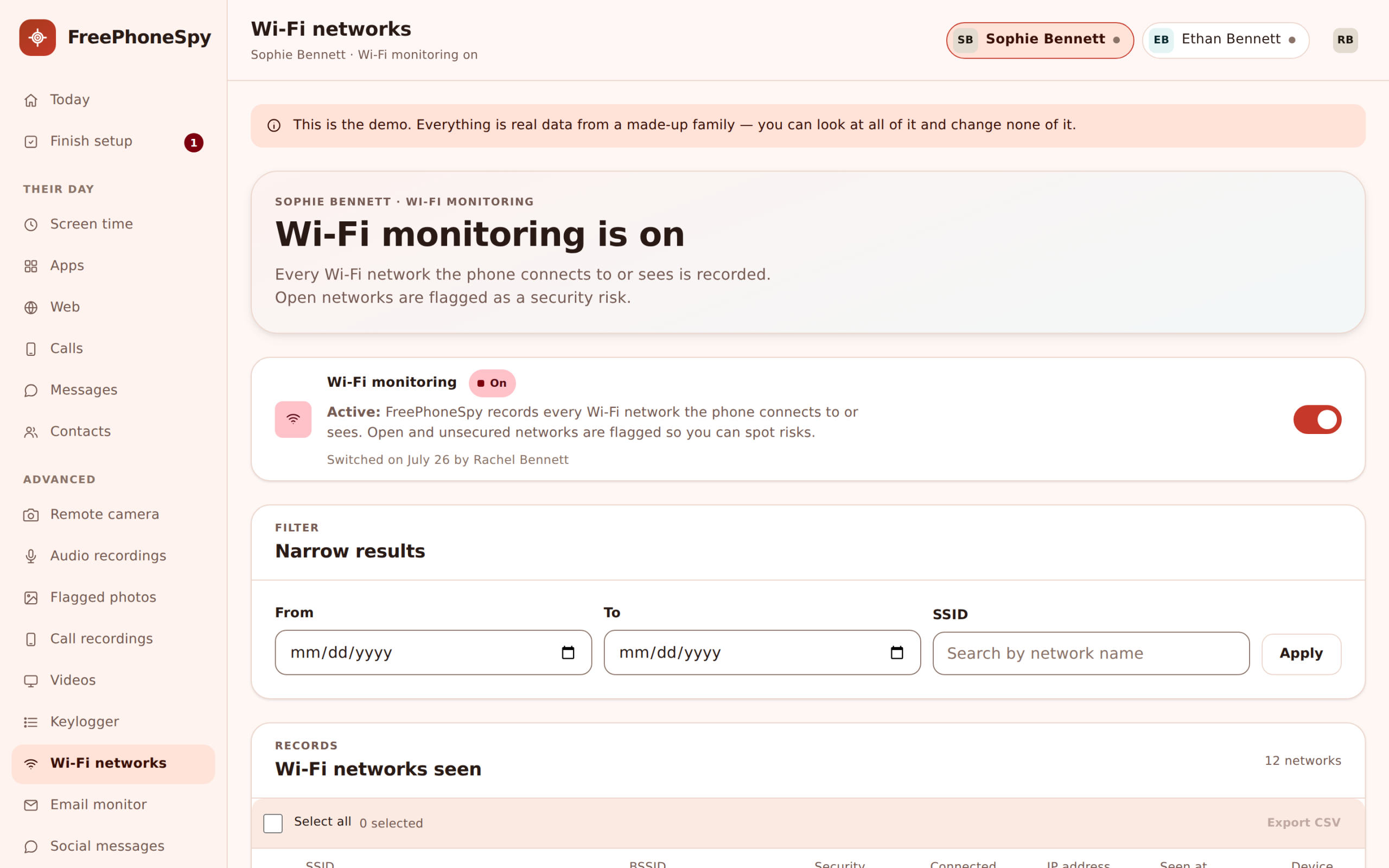
FreePhoneSpy handles both with a light touch on purpose. Wi-Fi monitoring shows the networks the phone has connected to and warns you about open, unsecured ones. The email monitor shows subject and from lines — who wrote and what it’s about — and stops there. It’s designed to flag a problem, not to hand you a transcript of your child’s inbox.
The networks the phone has joined
Every Wi-Fi network the phone connects to shows up in the panel, newest first, with a name and a time. On its own that’s a quiet, useful record. The home network in the evening, the school network on a weekday, a friend’s network at the weekend — it fills in the ordinary picture of a week, and it makes the unusual stand out.
A network name at an odd time is often the first hint worth a gentle question. A café network on a school afternoon, an unfamiliar name late at night — nothing dramatic, but the kind of thing you’d rather notice than miss. Paired with location and places, the network the phone is on and where it says it is line up into a clearer story than either gives alone.
- A list of joined networks, newest first
- Network name and the time it connected
- Builds the ordinary pattern of a week
- Odd names at odd times stand out
An open-network alert when it matters
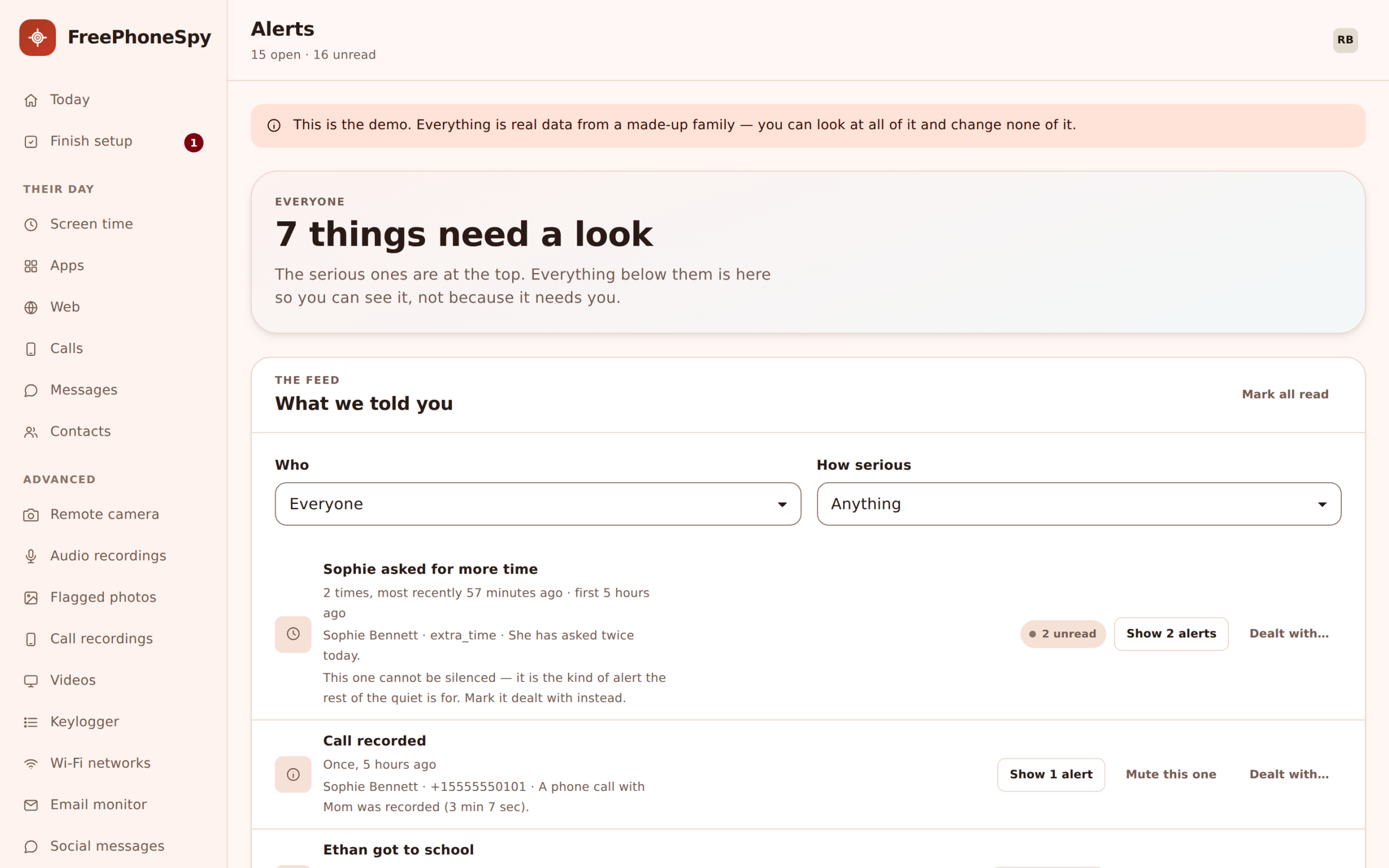
Open, unsecured Wi-Fi is the one worth flagging, and the panel does it for you. When the phone joins a network with no password — the kind you find in cafés, shops, buses and stations — you get an open-network alert. It’s not that these are always dangerous, but they’re the ones where a bit of caution pays off.
On an open network, anyone else on it can potentially see more than they should, and the “free wifi” that pops up in a busy place isn’t always what it claims to be. The alert gives you the chance to have the five-second conversation — don’t log into anything important on this one — rather than finding out after the fact. It surfaces alongside everything else in the alerts feed, so it’s not a separate thing to go and check.
- A flag when the phone joins an unsecured network
- Catches café, transport and shop hotspots
- Prompts the “don’t log in on this one” chat
- Lands in the same alerts feed as everything else
Why public Wi-Fi is worth watching
Phones join open networks automatically far more than people realise. Walk into a shopping centre and the phone has often hopped onto three hotspots before it’s out of your pocket. Most are harmless. But an open network is a shared space, and a small share of them are set up to catch exactly the person who connects without thinking — a login typed on a fake hotspot can end up somewhere it shouldn’t.
The point of watching it isn’t to ban public Wi-Fi. It’s to teach the habit: on an unknown open network, don’t sign into anything that matters, and be a little suspicious of a “free wifi” with no owner. Seeing the pattern of what the phone joins is what makes that lesson concrete rather than a nag. It’s a small, sensible layer of safety that costs nothing to leave running.
- Phones join open networks automatically, a lot
- Most are fine; a few are set up to catch the careless
- The habit to teach: don’t log in on unknown Wi-Fi
- Seeing the pattern makes the lesson stick
The child email monitor: headers, not bodies
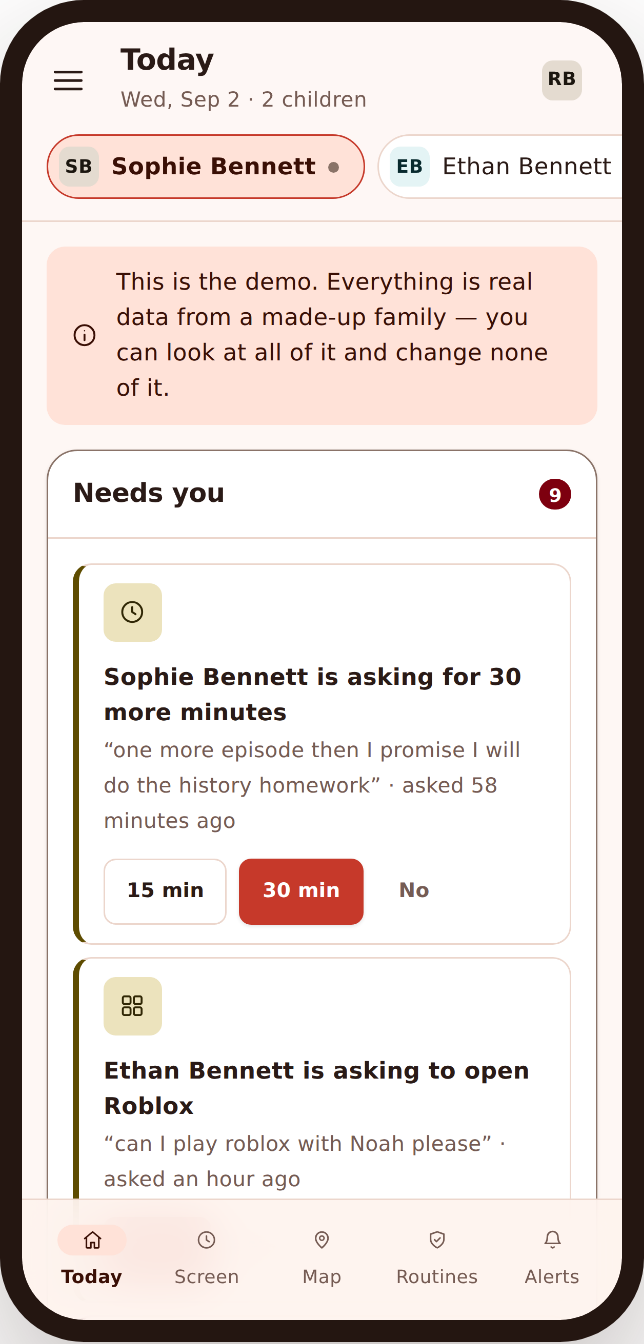
Email is the more sensitive of the two, so it’s handled with deliberate restraint. The monitor shows the subject line and the from line of the emails the child’s phone receives — who it’s from and what it’s about — and it does not show the full body. That’s a design choice, not a missing feature. It’s enough to notice a problem and nowhere near a transcript of their inbox.
Who it’s from
The sender’s name or address, so an unfamiliar or grown-up sender stands out among the usual school and app mail.
What it’s about
The subject line — enough to tell a school newsletter from something that warrants a proper look.
Not the full body
The message text itself stays private. You get the signal that something needs attention, not the whole letter.
Why draw the line there? Because most of what you’d worry about shows in the header. A sender who shouldn’t be writing, a subject that’s clearly not right, a wave of the same suspicious mail — you can see all of that from who and what without reading a single private word. If a subject line genuinely alarms you, that’s the moment for a conversation, not for reading their post.
Everything lands in one readable feed
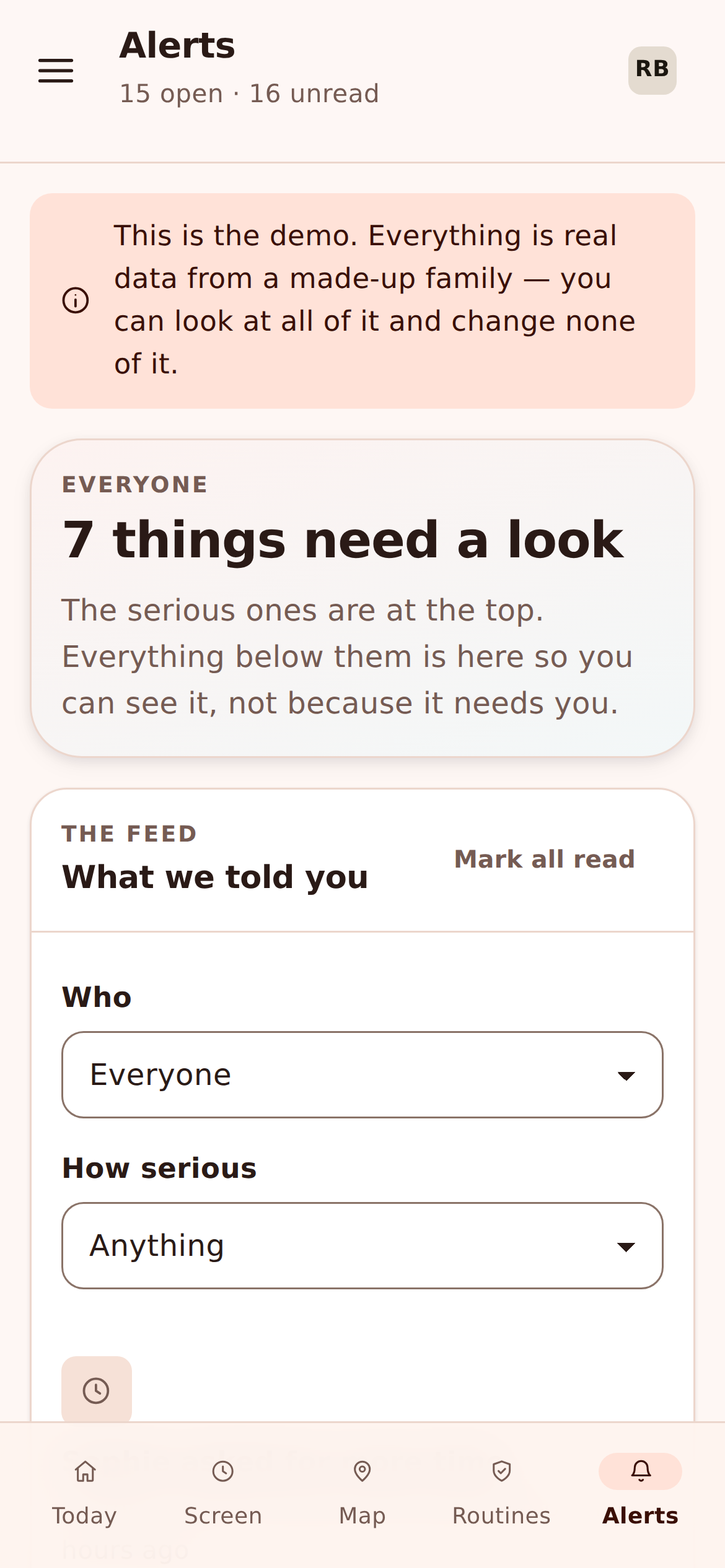
Neither of these is a place you have to remember to go and check. A joined network, an open-network warning and a notable email header all flow into the same alerts feed as your keyword flags, place events and blocked sites. It reads top to bottom like a timeline of the phone’s day, so nothing is buried in a sub-menu.
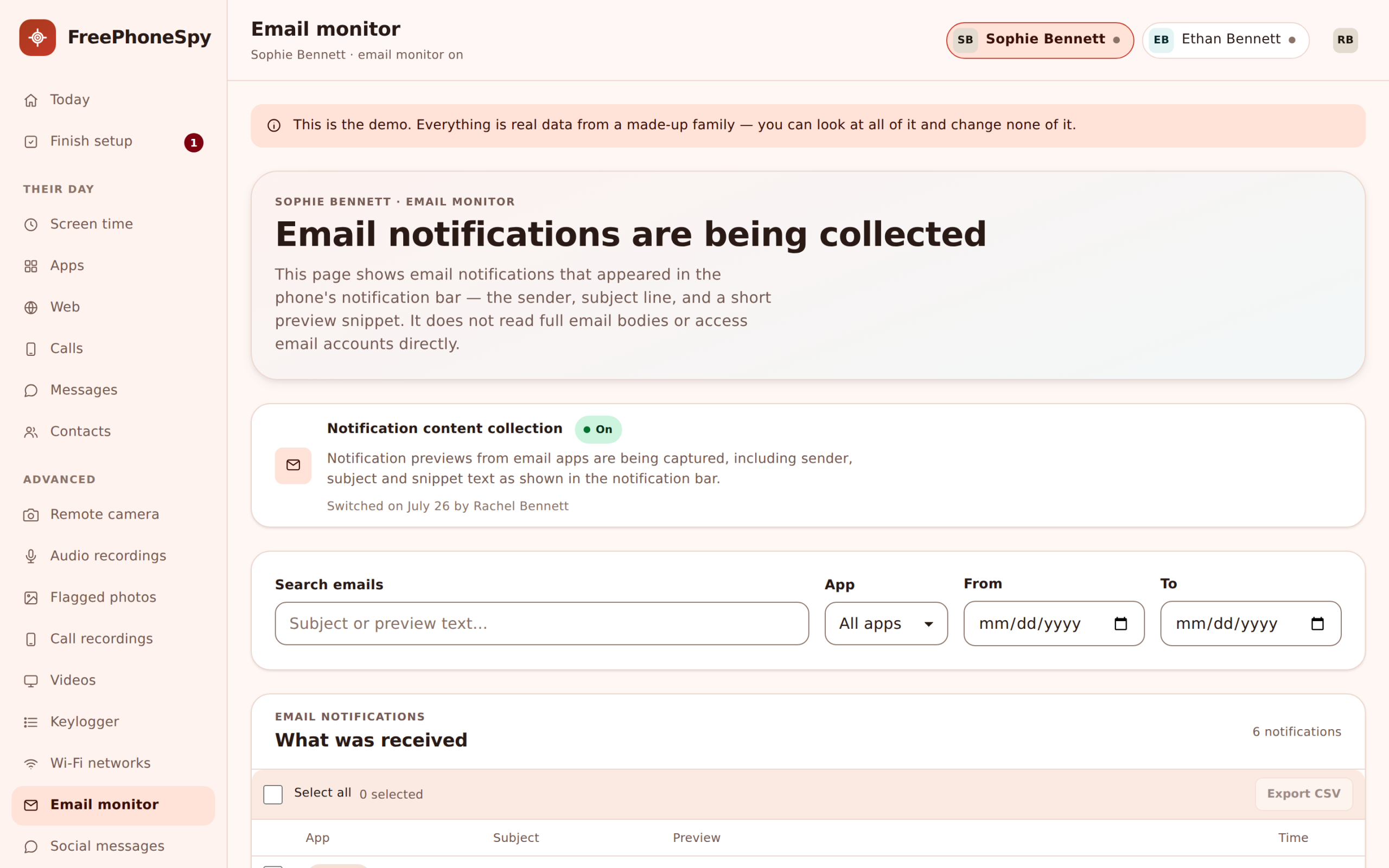
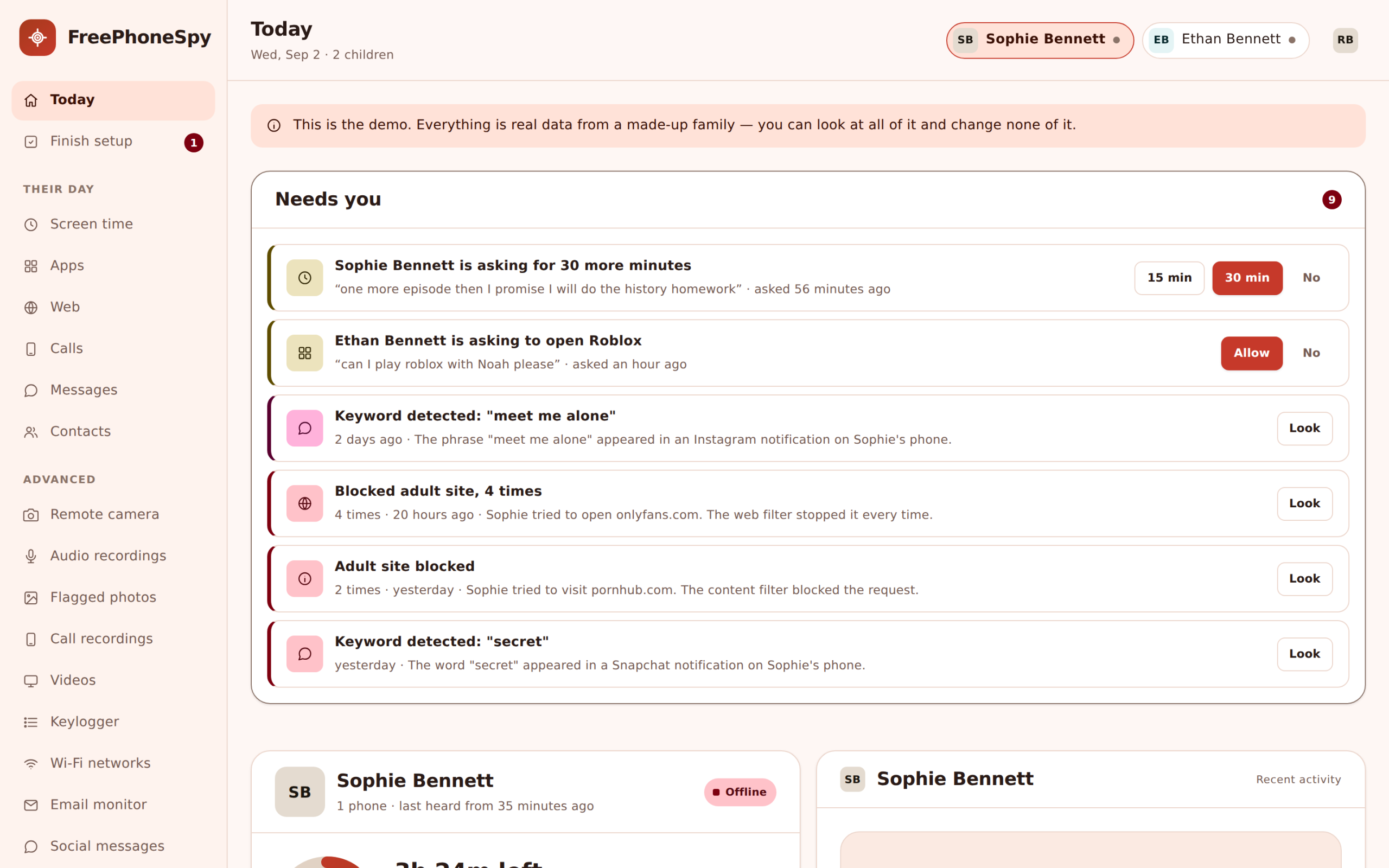
And the important things bubble up to the Today dashboard — the “Needs you” glance you do over coffee. An open-network warning from last night or an email from a name you don’t recognise sits right there with everything else that might want a word. You’re not hunting through screens; the signal comes to you. For the fuller feed and how the whole panel is laid out, the web panel walks through it.
- Networks, open-Wi-Fi warnings and email headers in one feed
- Reads like a timeline of the phone’s day
- The important items surface on Today
- Nothing to remember to go and check
A morning glance, not a stakeout
The whole design assumes you have a life. You’re not meant to sit watching a live feed of networks and mail. You’re meant to glance at Today in the morning, see whether anything’s flagged, and get on with your day. Most mornings there’s nothing — the ordinary networks, the usual school mail — and that quiet is itself information.
When something does stand out, it’s usually a prompt for a conversation rather than a crisis. An open-network warning is a chance to teach the habit. An odd sender is a chance to ask who that is. The tool’s job is to hand you the one thing worth noticing out of a hundred that aren’t, so you can be present without being a stakeout.
- Designed for a daily glance, not constant watching
- Quiet mornings are the normal case
- Flags are usually a prompt to talk, not to panic
- One thing worth noticing, surfaced clearly
How to turn on Wi-Fi & email monitoring
A minute or two in the panel, done together with your child.
1. Open the child’s settings
In the browser panel, pick your child and open the monitoring settings. Wi-Fi and email each have their own switch.
2. Turn on Wi-Fi monitoring
Switch on the network list and the open-network alert. From then on joined networks and unsecured ones show up in the feed.
3. Turn on the email monitor
Enable subject and from lines. Remember it never pulls full bodies — that’s fixed by design, not a setting to find.
4. Show your child the screen
Walk through what’s shared on the Transparency screen so it’s open. Explain that you’ll see who and what, not their actual messages.
What this looks like in practice
The goal isn’t to audit an inbox or map every hotspot in town. It’s a light, sensible safety layer that catches the two things worth catching: a connection that isn’t safe, and mail from someone who shouldn’t be writing. Left running quietly, it asks almost nothing of you and occasionally saves you a real problem.
Picture a normal week. The phone joins home, school and a friend’s network — nothing to see. On Saturday it hops onto a shopping-centre hotspot and you get an open-network warning, so you drop a line: don’t sign into anything on that one. Midweek an email arrives from a sender you don’t know with an odd subject, and it lands on Today. You ask who it is; turns out to be a new club, all fine. Two small prompts, two small conversations, no reading anyone’s private post. That’s the whole idea, and it costs nothing — Wi-Fi and email monitoring sit in the free core, so you can get set up and leave them running without ever paying.
Good for
- Spotting unsafe public Wi-Fi early
- Teaching the “don’t log in on open Wi-Fi” habit
- Noticing an unfamiliar email sender
- A light layer that runs without effort
- Prompts for conversations, not confrontations
Be realistic about
- Email shows headers only, never full bodies
- Most open networks are perfectly fine
- Your child can see this is switched on
- It flags things to look at, it doesn’t judge them
Wi-Fi & email questions, answered
What does Wi-Fi monitoring actually show?
The networks your child’s phone has joined, newest first, with the network name and the time it connected. When the phone joins an open, unsecured network, you get an open-network alert in the feed. It builds the ordinary pattern of a week so the unusual stands out.
Does the email monitor read the whole message?
No. It shows the subject line and the from line — who wrote and what it’s about — and it does not pull the full body. That’s a deliberate design choice. It’s enough to notice a problem without turning into a transcript of your child’s inbox.
Why does public Wi-Fi matter?
Open networks are shared spaces, and a small share are set up to catch someone who logs in without thinking. Most are harmless, but the open-network alert gives you the chance to teach the habit: don’t sign into anything important on an unknown hotspot.
Will I be swamped with alerts?
No. Joined networks sit quietly in a list; only open, unsecured networks raise an alert, and the notable items bubble up to the Today dashboard. It’s built for a morning glance, not a live feed you have to watch.
Does my child know this is on?
Yes. FreePhoneSpy is transparent by design. The Transparency screen on the phone lists what’s shared, including networks and email headers. Set it up openly, and make sure it fits your local law and your child’s age.