How to Free Up iCloud & Google Storage (When It’s Full)
Your phone flashes “iCloud Storage Full” or “Storage almost full,” and you tap it away. A week later your last backup is old, new photos aren’t syncing, and an email bounces because your Gmail is stuffed. Full cloud storage rarely announces itself loudly. It just quietly stops doing its job. Here’s how to find what’s hogging the space, clear it without losing anything, and decide whether to free it up or pay for a bit more.
- Why “storage full” is a bigger deal than it looks
- See what’s actually using your storage
- iCloud: free it up, step by step
- Google: free it up, step by step
- The one safety rule
- WhatsApp and app backups: the silent hog
- Free up or pay? The plans compared
- Stop it filling up again
- Quick free-up checklist
- FAQ
Why “storage full” is a bigger deal than it looks
Both Apple and Google give you a little space for free and hope you’ll outgrow it. iCloud starts at 5GB. Google gives you 15GB, but that’s shared across Gmail, Google Drive, and Google Photos combined. One phone full of 4K video eats through either in a weekend.
The catch is what happens when you hit the ceiling. Nothing dramatic. Instead:
- Backups stop. Your phone can’t finish an iCloud or Google backup, so it just doesn’t. If your phone is lost or dies, your last good backup might be months old.
- Photos stop syncing. New pictures stay stuck on the device and never reach the cloud. Lose the phone, lose the photos.
- Email bounces. A full Google account can reject incoming mail. Senders get a failure notice; you never see the message.
- Files won’t upload. Documents in Drive or iCloud Drive quietly fail to save the newest version.
That’s the real risk. A full account isn’t just “annoying.” It’s an account that has silently stopped protecting your stuff. If you’ve been ignoring the warning for a while, assume some recent photos or files never made it up there, and be careful before you delete anything from the phone itself.
See what’s actually using your storage
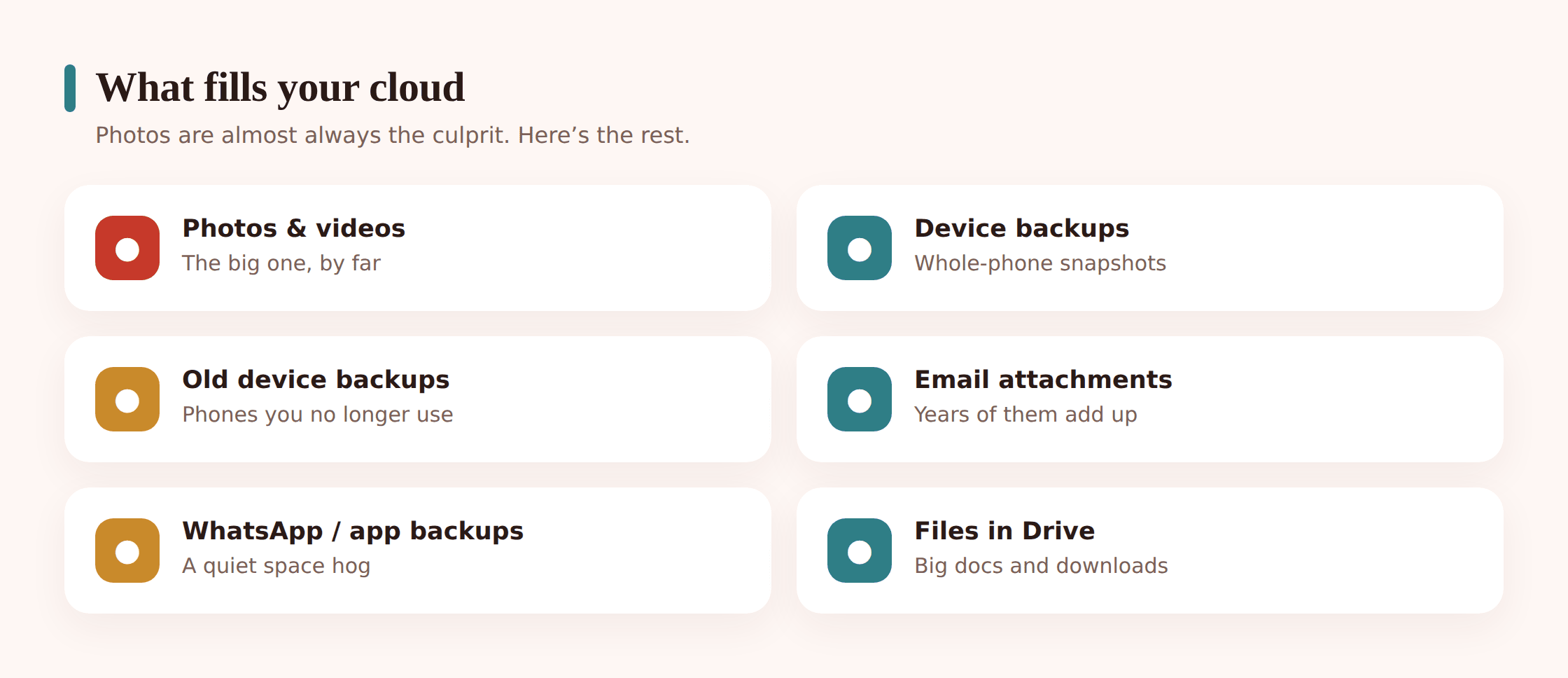
Don’t start deleting at random. Both platforms show you a breakdown by category, and it’s almost always one or two big culprits, not a thousand small ones. Look first.
On iPhone: open Settings, tap your name at the top, then iCloud, then Manage Account Storage (on older iOS it’s “Manage Storage”). You’ll see a bar chart and a list sorted by size. Photos and Backups usually sit at the top.
On Google: open the Google One app, or go to one.google.com/storage in a browser. The storage manager splits your usage across Drive, Gmail, and Photos and points you at the largest items. You don’t need a paid Google One plan to use it.
Spend two minutes here. Nine times out of ten you’ll spot the problem immediately, and you’ll avoid deleting things that weren’t the issue.
iCloud: free it up, step by step
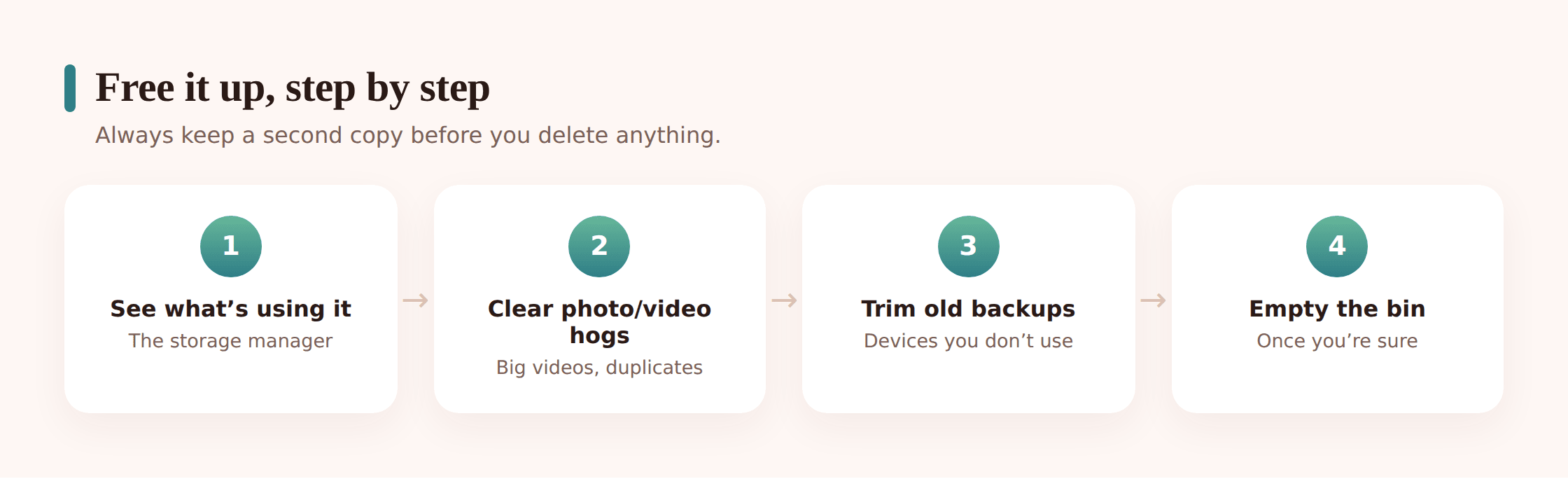
Clean up device backups
In Manage Account Storage, tap Backups. You may see backups for phones you no longer own. Those are pure waste. Delete backups for old devices. For your current phone, tap it and turn off backup for apps that don’t need it (games, streaming apps that re-download anyway). Keep Messages, Photos, and anything with data you can’t recreate.
Tackle Photos
Photos is usually the biggest slice. Turn on Optimise iPhone Storage (Settings > Photos) so full-resolution copies live in iCloud and lighter versions stay on the phone. Then go hunting for the real weight: long videos and burst duplicates. In the Photos app, use the search or Albums to find videos, and delete the ones you don’t need. A handful of long 4K clips can be several gigabytes on their own.
Trim Messages in iCloud
If you use Messages in iCloud, old threads full of photos, videos, and GIFs add up. In a conversation, tap the contact name and look at the attachments, or delete whole old threads you’ll never need. Large attachments are the thing to target, not the text.
Clear big Mail attachments
If you use an iCloud email address, large attachments sit in your account. Sort your inbox by attachments or search for big senders, and delete or download-then-delete the heavy ones.
Check app data (this is where WhatsApp hides)
Back in the storage list, look for apps storing data in iCloud. WhatsApp backups can be enormous. More on shrinking those below.
Empty “Recently Deleted”
Deleting photos doesn’t free space right away. They sit in Recently Deleted for up to 30 days. Once you’re sure you’ve got copies of everything, open that album and clear it. Only then does the space come back.
Working through your photo library is also a good moment to think about where a second copy lives. If you’re ever in the position of having deleted something you needed, our guide on recovering deleted photos covers your options before that 30-day window closes.
Google: free it up, step by step
Start with Google Photos
Photos is almost always the big one. Open the app, sort by size if you can, and delete the videos and duplicates you don’t need. Screenshots pile up too. When you delete, items go to the Bin for 60 days and still count against your storage until you empty it, so empty the Bin when you’re sure.
Switch to “Storage saver” quality
In Photos settings, choose Storage saver for future uploads instead of Original quality. It compresses new photos and videos slightly to save a lot of space. Existing items don’t change, but everything from here on takes less room. (Google’s tools can also recompress some existing originals; the storage manager will offer this if it applies to you.)
Clear Gmail
Search Gmail for has:attachment larger:10M to surface the heaviest emails, and delete the ones you don’t need. Then clear out Promotions and Spam. Crucially, empty Trash afterwards, because deleted mail keeps counting for 30 days until you do.
Prune Google Drive
In Drive, sort files by size (there’s a “Storage” view that lists your largest files first). Old videos, ISO files, and huge exports are common offenders. Check shared items too. And, again, empty the Drive Trash.
Use the Google One cleanup tools
The storage manager at one.google.com/storage has a “free up account storage” section that points you straight at large emails, big files, blurry photos, and screenshots. It’s the fastest way to find waste in one place.
Review device backups
Android backups and old device backups live in Drive under storage. Remove backups for phones you no longer use.
The one safety rule
Never delete the only copy. Don’t remove photos, files, or backups unless you’re certain a second copy exists somewhere else. Empty “Recently Deleted” or the “Bin” only when you’re sure. And remember: if your account has been full and quietly not backing up, some of your most recent stuff may never have reached the cloud. Get a fresh backup working before you clear anything off the phone.
The safe order is always the same: confirm a copy exists, get backups running again, then delete. If you want a belt-and-braces second copy that doesn’t depend on either cloud, our walkthrough on how to back up your phone covers local and cross-platform options.
WhatsApp and app backups: the silent hog
If your storage keeps filling and photos and email look reasonable, check your chat apps. WhatsApp backups are a classic culprit on both platforms because they include every photo, voice note, and video anyone has ever sent you. On a busy family group that’s gigabytes.
Two ways to shrink it:
- Exclude videos from the backup. In WhatsApp’s chat backup settings you can choose not to include videos. Media stays on your phone; the backup gets much smaller.
- Back up less often. Daily is fine for most people. Turn off “auto” if you’d rather run it manually now and then.
The same logic applies to other messaging and photo apps that quietly sync to your cloud. Look at the app-data section of your storage breakdown and deal with the big ones.
Free up or pay? The plans compared
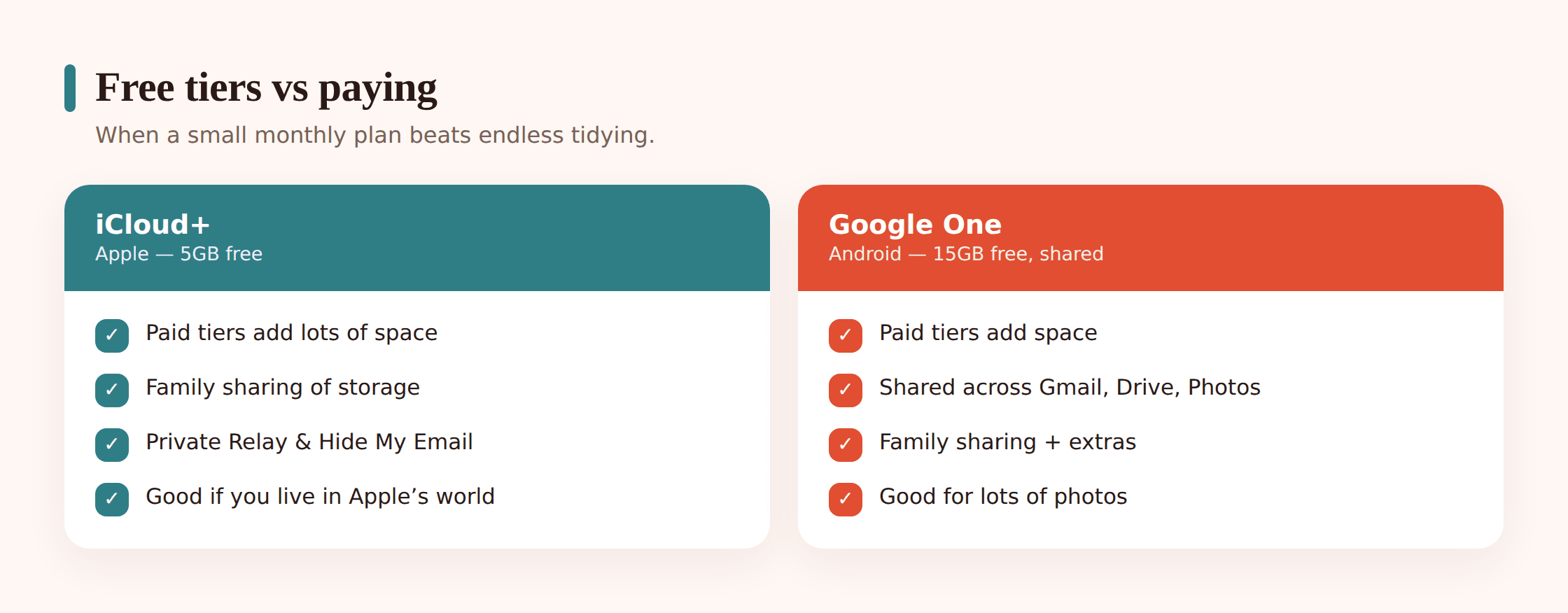
There’s no shame in paying. If you’ve cleared the junk and you’re still bumping the ceiling every month because you genuinely have a lot of photos or several family devices, a small paid plan is usually cheaper than your time. Both Apple’s iCloud+ and Google One start with an inexpensive tier and let you share the space with family.
| Tier | iCloud+ (Apple) | Google One | Good for |
|---|---|---|---|
| Free | 5GB | 15GB (shared across Gmail, Drive, Photos) | Light users, one device |
| Entry paid | ~50GB, low single-digit monthly | 100GB, low single-digit monthly | One phone with lots of photos |
| Mid | ~200GB, a few dollars/month | 200GB, a few dollars/month | Couples, families, more video |
| Large | ~2TB and up | 2TB and up | Heavy photo/video, several devices |
| Family sharing | Yes, share the plan with your family group | Yes, share with up to 5 others | One plan covering everyone |
A useful rule of thumb: the entry paid tier is worth it the moment clearing space becomes a monthly chore. The 200GB or 2TB tiers make sense when you’re covering multiple family phones on one plan, since sharing beats paying separately for each. If you’re setting up storage for a new device anyway, our guide on moving to a new phone is a good time to sort the plan out cleanly.
Stop it filling up again
Clearing space once feels great. Doing it every month doesn’t. A few habits keep you off the ceiling:
- Use compressed photo quality. “Storage saver” on Google Photos or “Optimise Storage” on iCloud dramatically slows how fast photos fill your space.
- Shrink chat backups. Exclude videos from WhatsApp and similar apps, as above.
- Delete old device backups. When you replace a phone, remove the old one’s backup once the new phone is set up and confirmed working.
- Do a quarterly sweep. Once every few months, open the storage manager, empty the trash/bin, and clear the biggest offenders. Ten minutes beats a full-blown panic.
- Keep one copy elsewhere. A local backup or a second service means you can delete from the cloud without that “what if I need this” hesitation.
- Don’t back up junk. Turn off cloud backup for apps that just re-download their data anyway.
If a full cloud was one of several things making your phone feel sluggish, clearing it often helps, and our notes on speeding up a slow phone cover the rest.
Quick free-up checklist
- Open the storage breakdown (iCloud: Settings > name > iCloud > Manage Account Storage. Google: one.google.com/storage).
- Delete backups for phones you no longer own.
- Find and remove large videos and duplicate photos, after confirming a second copy exists.
- Clear big email attachments and empty Trash/Bin.
- Shrink WhatsApp and other chat-app backups (exclude video).
- Switch future photos to compressed quality.
- Empty “Recently Deleted” / “Bin” only once you’re sure.
- Confirm a fresh backup completes successfully.
- If it’s still tight, price up the entry paid tier.
One note for parents managing kids’ devices: keeping backups current genuinely matters, and a full cloud silently stops them. If you use a parental tool such as FreePhoneSpy on a child’s Android phone that you own, an out-of-space account can quietly break the very backups you’re relying on, so it’s worth checking storage on those devices too.
FAQ
Will deleting photos from my phone delete them from the cloud too?
If sync is on (iCloud Photos or Google Photos), yes. Deleting on the phone removes them everywhere. That’s why the safety rule matters: confirm a separate copy exists first, and don’t empty “Recently Deleted” or the “Bin” until you’re sure.
Why does my Google storage fill up so fast when I barely use Drive?
Because the 15GB is shared across Gmail, Drive, and Photos. Usually it’s Photos or years of email attachments eating the space, not Drive files.
I deleted a lot but my storage didn’t go down. Why?
Deleted items sit in a trash or “recently deleted” area and keep counting for 30 to 60 days. Empty the Trash/Bin (once you’re certain) and the space frees up.
Is it safe to turn off iCloud backup for some apps?
Yes, for apps whose data you can recreate or that re-download from their own servers (streaming, most games). Keep backup on for Messages, Photos, and anything holding data you can’t get back.
Should I just pay instead of cleaning up?
If clearing space has become a recurring chore or you’re covering several family devices, the entry paid tier is usually worth it. Still do one clean-up first so you’re not paying to store genuine junk.
My phone is an iPhone but this mentions Android tools. Which do I use?
For storage, iPhone users manage iCloud and Android users manage Google, exactly as above. Some monitoring tools are Android-only; iPhone owners should use Apple’s own tools for the same jobs.